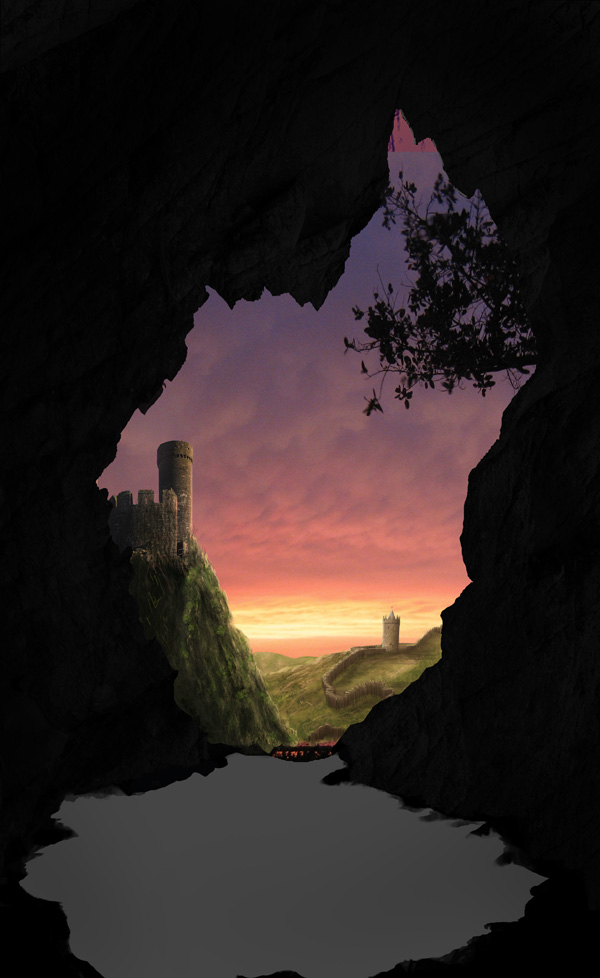
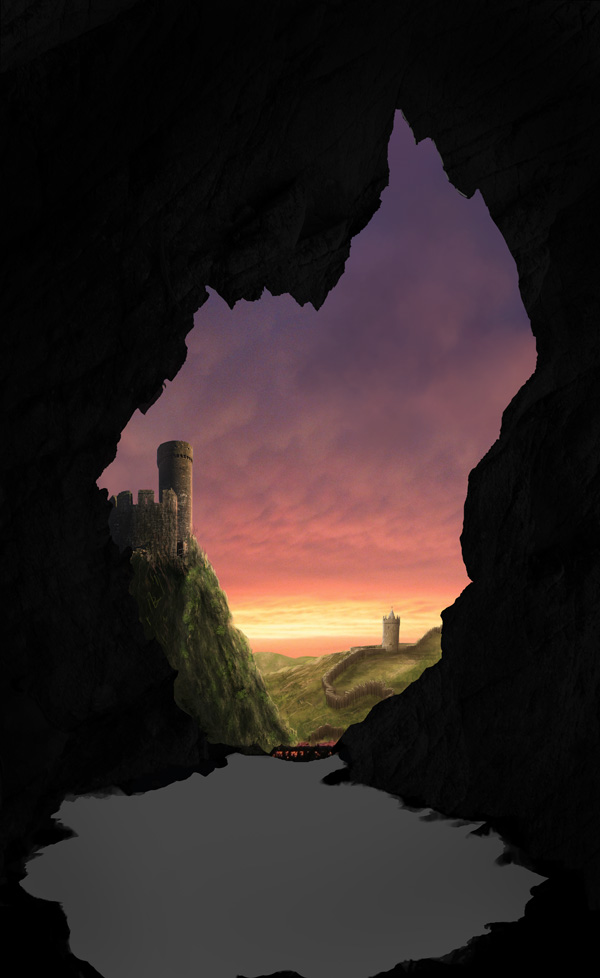
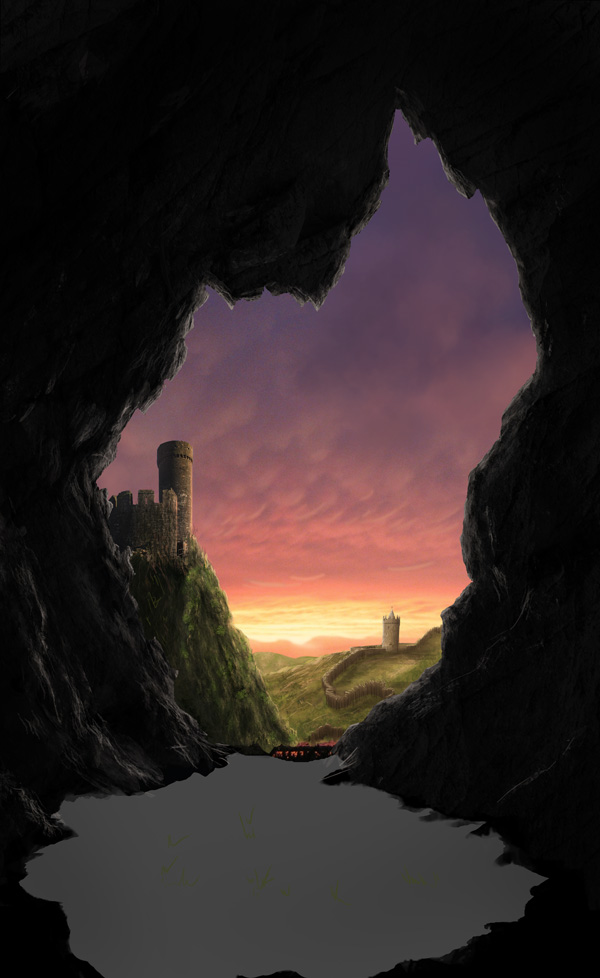
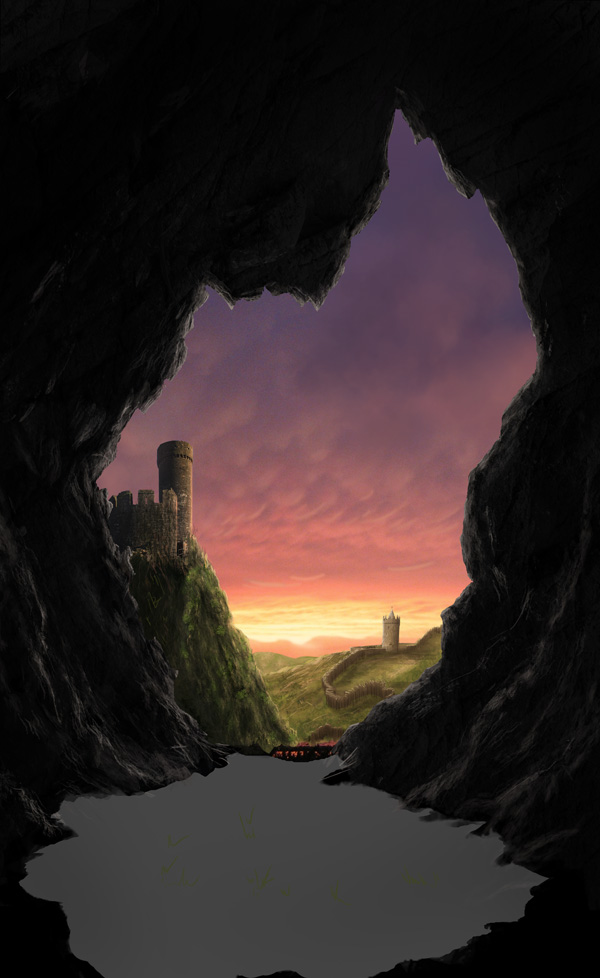
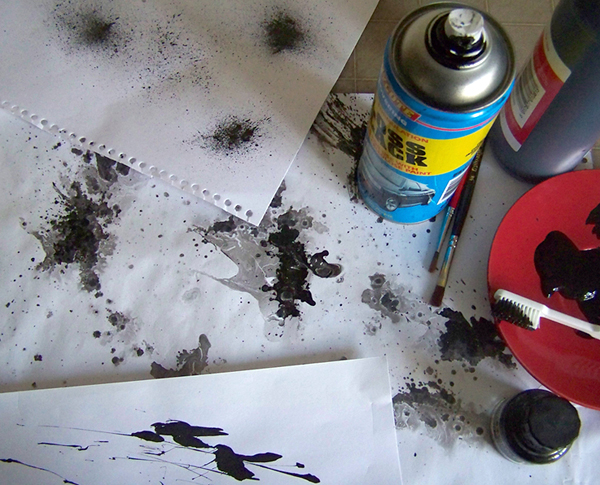
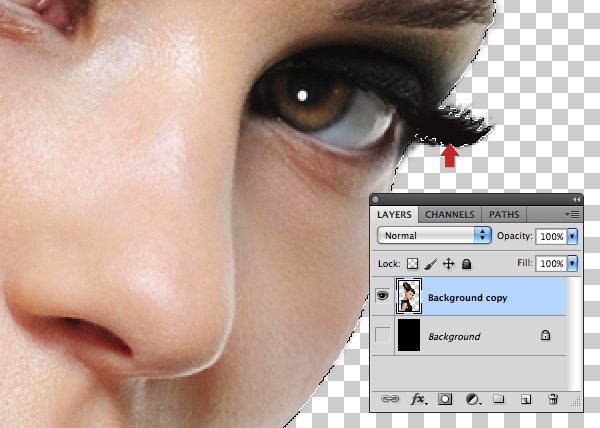
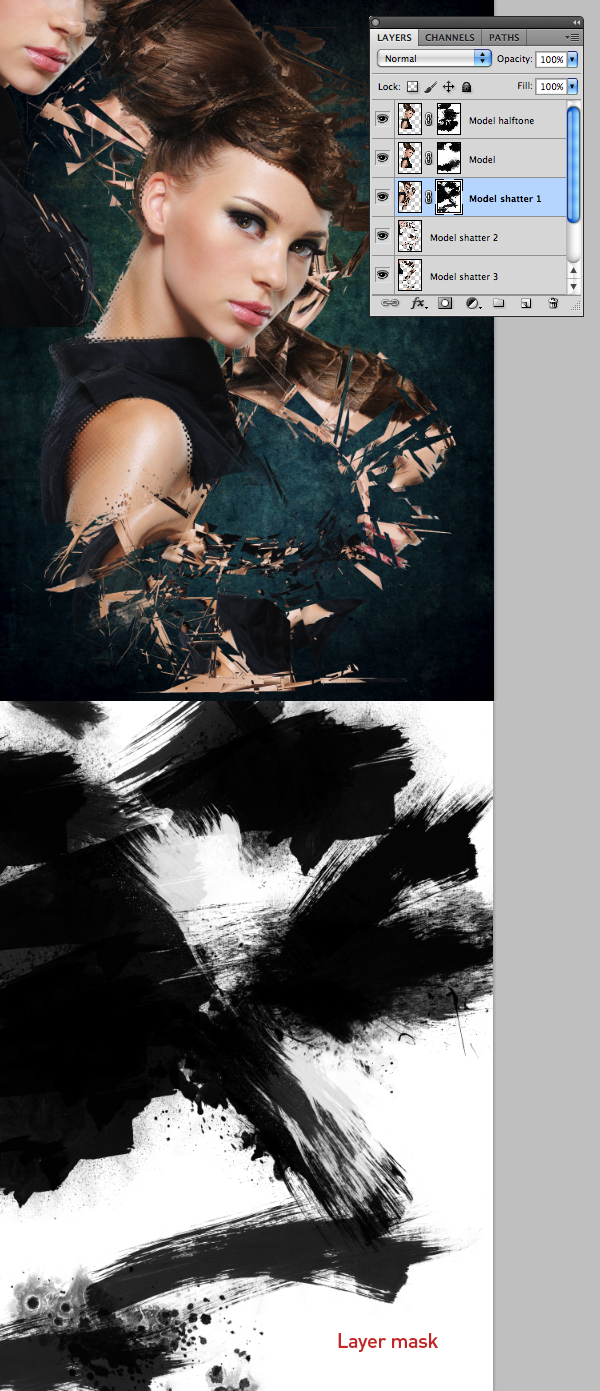
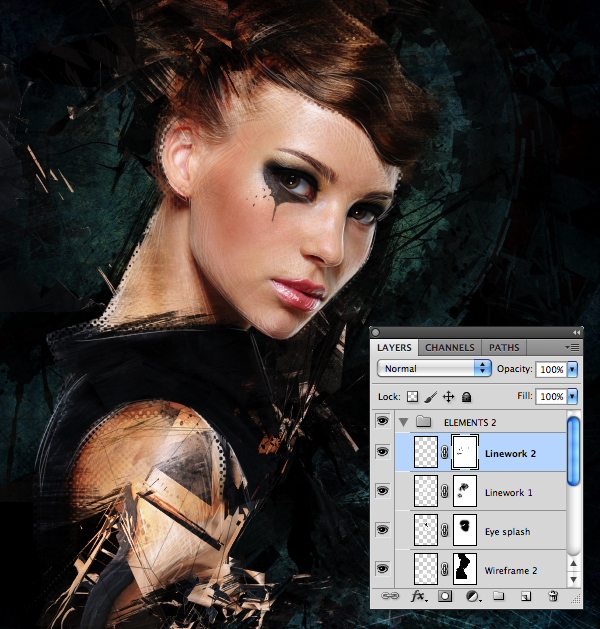
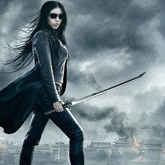
A big thank you to everyone who took part in our recent photo retouching competition. We’ve had some fantastic entries, and have collected them all for you to take a look at today! We’ll also be announcing the lucky winners, so read the full announcement over at Phototuts+ to find out more…
Announcing the Photo Retouching Competition Winners!
Interview With Digital Artist Benjamin Low
Recently, we had the opportunity to chat with digital artist Benjamin Low who had some really interesting things to say about his experience working at a design agency and how he became a digital artist. Please take a moment to review this excellent interview.
Q Welcome to Psdtuts+, please introduce yourself. Could you tell us where you’re from and how you got started in the field?
Hello, My name is Benjamin Low, and I am a digital artist & art director from Singapore. I have been in the Design field since 2003 but it is only in recent years that I became interested in making digital arts. In the beginning, I was very inspired by Joshua Davis for his courage in experimenting and later my girlfriend, who is an animator, introduced me to the world of matt paintings, cg arts, digital imaging and design forums. And that was my turning point.
Q Are you a self-taught designer or have you been to a design school?
I come from a design school where I did one year of basic fine arts. Thereafter, I majored in multimedia arts. I still remember back in school where I first learned how to use Photoshop 3. It was definitely not as powerful as cs5 now but useful tools like clone stamp, dodge and burn tool were already available and taught. Along the way, the other skills I acquired were all self taught.
Q You stated that you are currently working at a design agency, please tell us what this experience is like for those who are not familiar with what an agency does.
I have worked for a few agencies and different agencies run differently. It is the culture and the management that makes the difference. Some are commercially driven while others may be driven to produce works of merit. However, each project, regardless of the agency, provides different challenges and excitement. If you want to work in an agency you must be fast and be able to multiple task because there are usually several projects running concurrently. More often than not, your ideals or vision may have to be leveled by many factors, including clients’ expectations. But overall, it has been immensely satisfying to be able to produce a lot more of conceptual work that were aligned with my visions that are valued by my clients.
Q You have a lot of variety in the kind of art you can create, from making Slashthree exhibitions to web layouts and advertisements. How do you find time to expand on all these different avenues for design?
In my free hours I often find myself experimenting with different techniques. This resulted in part and eventually I got involved in the Slashthree exhibition. The rest of web layouts, ads and prints are a accumulation of my years of working experiences and self-experimentation. I had been inspired as I worked, from seniors and by the resources available in the world wide web. Psdtut+ has taught me a handful of techniques but most importantly, I believe it is my passion and conviction that kept me wanting to do more.
Q “The Carnival” is a video you created that has some amazing 2d visuals, could you explain the concept behind this and talk about how you created some of these images?
The video was created as a demonstration content for a client selling 3D auto stereographic technology. At that point, time was not on our side, so my team and I took a daring step in producing 2.5d content. The key was to have images stack in depth in a 3d environment. The result turned out well as it provided another avenue of advertisement for client through TV channels, which also supported 2d contents.
As for the concept I wanted to experiment with symmetry. If you look closely, the elements form a face-like collage. All in all, I wanted the video to be colorful, vibrant, fun and full of life. The visuals were done in Photoshop, animated in flash and aftereffect. Thereafter, the 3d team had rigged them up, and the resulting stereoscopic effect is spectacular. I am pleased with the overall effect.
Q To date what would you say is your favorite illustration that you have created, and why?
My favorite piece would be “Reach For The Sky” it is a piece created for the art pack “Le Cirque des Couleurs” at Slashthree. I like it because it represents my new approach in concocting a story and detailing the artwork based on my imagined story. The process of creation was itself fun and refreshing.
Q What are your goals for the future? What do you hope to achieve design wise in the next 5 years?
My future goal is to settle down with my girlfriend and start a family. I hope to be recognized as someone who had dared to be different in my experimentation with my own techniques. Eventually, I would like to hold a live exhibition.
Q Thanks again for providing Psdtuts+ with this opportunity to interview you. Any final thoughts for our readers?
Thank you for giving me the opportunity to share. My advice is to fear not, whatever you feel are the merits of your work. Keep learning and practicing. One day you will be there. Your surroundings and fellow artists are your best references and sources of inspiration. Train your eyes for detailing. There are also a lot of helpful resources out there where you can learn from and one of them is Psdtuts+. I would like to thank all artists who had given me so much inspiration along this wonderful journey.
Where to find Benjamin Low on the Web
Create a Medieval Landscape in Photoshop
In this tutorial we will demonstrate how to create a medieval landscape using digital painting and photo manipulation techniques. We will begin by sketching out a rough idea of how we want our image to look. Then, we will then add various stock images and build upon them until we produce the scene below. Let’s get started!
Tutorial Assets
The following assets were used during the production of this tutorial.
Before You Begin
This piece has been done with the help of a graphic tablet, to be precise a Wacom Bamboo Fun. If you’re painting with a mouse, the technique is always the same. Only thing that changes is the time you’ll spend on it. In order to get a good effect, remember to vary often opacity and flow jitter.
Step 1 – Sketch on paper
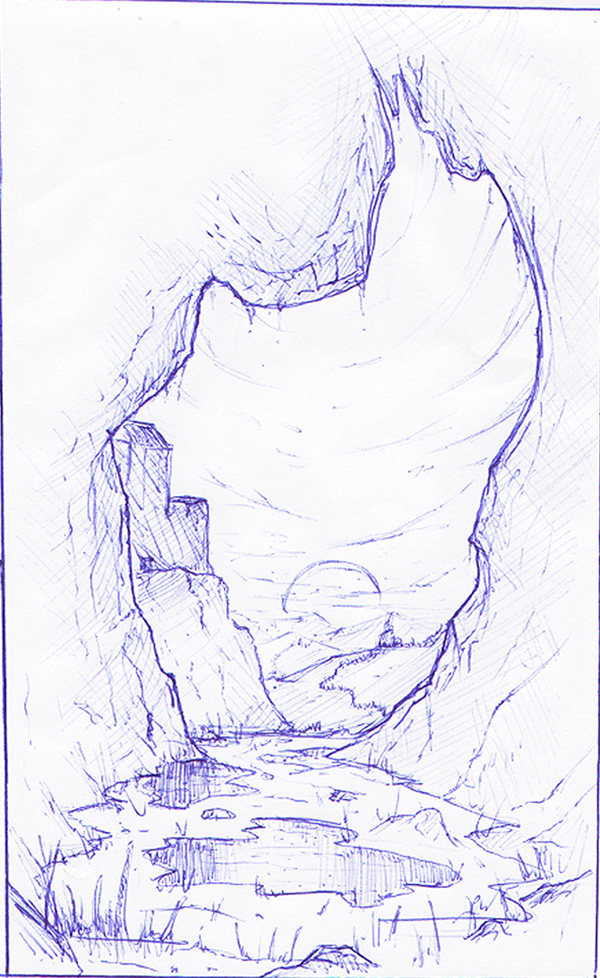
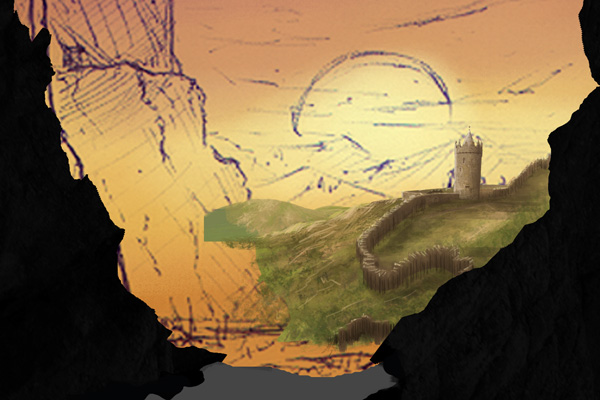
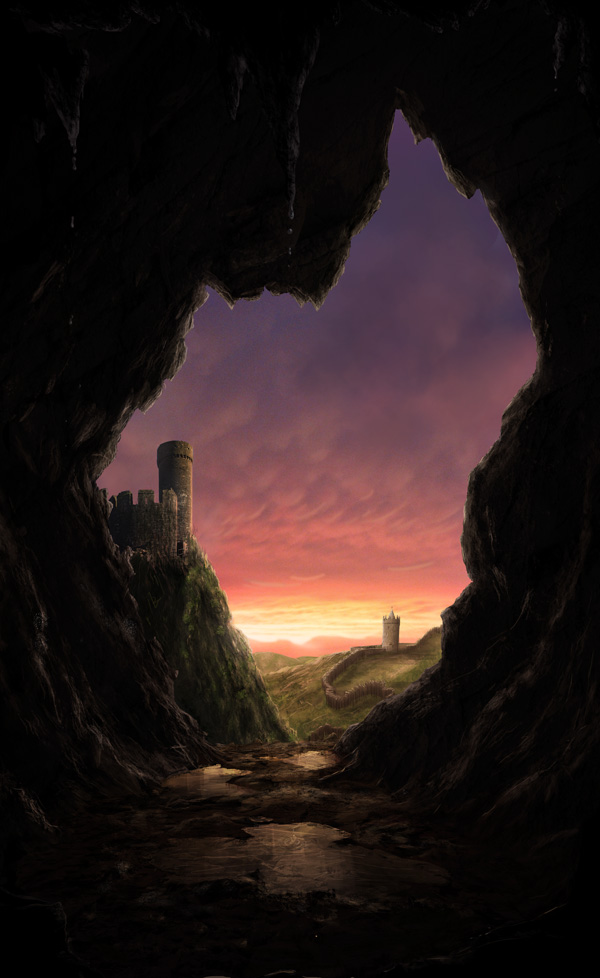
Like many of my pieces, this has been drawn away from my computer with a blue pen and a piece of paper. When I made this, before starting drawing, I already had a precise idea of what I wanted. The cave here works like a frame and everything in it it’s the actual piece. I wanted to focus the viewer into only a few elements and I wanted it to have a strong impact, which is why I choose as central element the sun.

Step 2 – In Photoshop
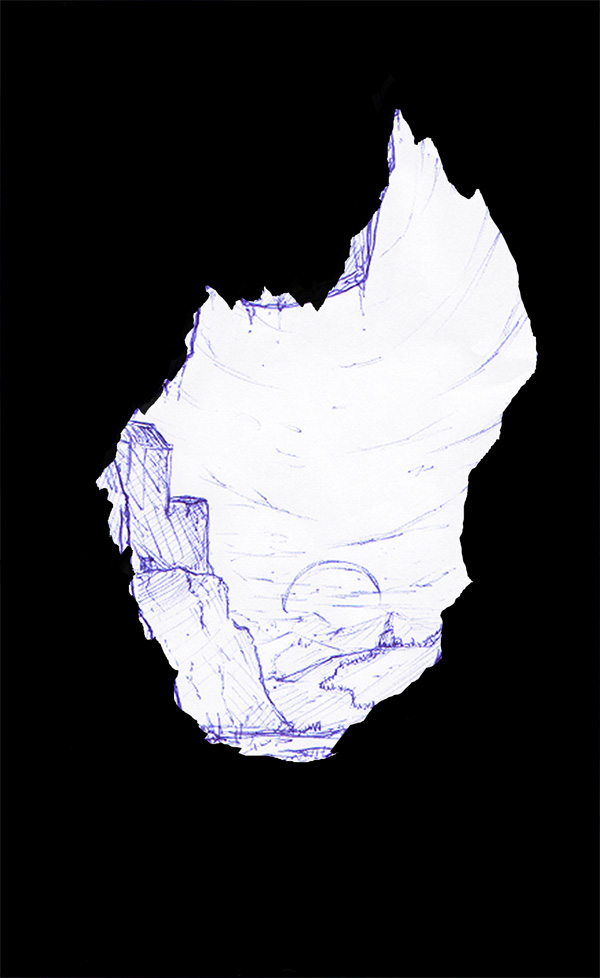
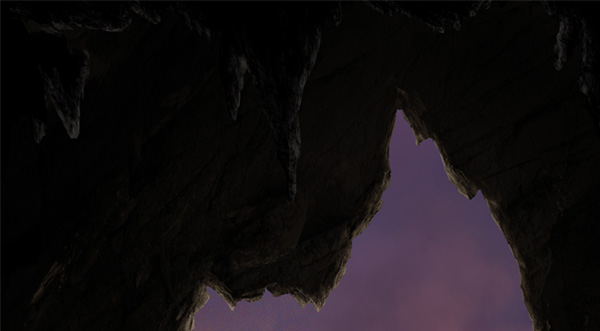
First thing I did after scanning the piece and importing it into Photoshop was to create that frame. To do it, you can use different Photoshop tools. You can use the Brush Tool (B), the Lasso Tool (L), the Pen Tool (P), and probably a couple more. It doesn’t matter which one you’re going to use, just try to create an interesting shape and try to make it precise, without having soft edges (in this case, Pen Tool is the most accurate, but it’s also an hard tool to manage, if you’re not confident with it, my advice is to spend time trying to understand how it works, it is really an amazing tool once you get how it works. Hundreds of tutorial has been written about how to master it. Learn the shortcuts, they’ll save you a lot of time. It might be a pain at first, but when you’ll know how to use it at his best, you’ll be grateful to have learned something so useful).

Step 3 – Choosing a color palette
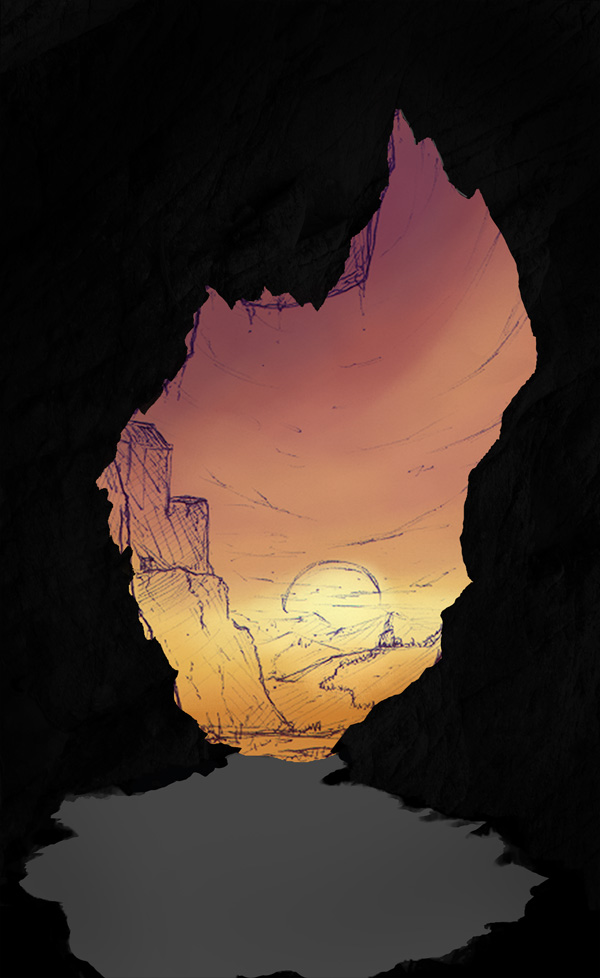
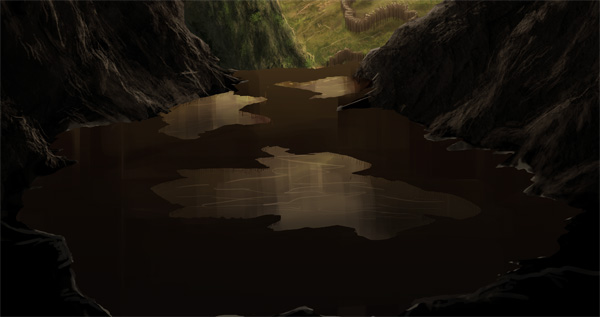
A thing that I think is very important is choosing a color palette before you start looking for stocks. This way you can get already an idea of what is that you’re going to look for. It’s a way to know which kind of photo do you need (in this case, which kind of sky) and you can directly look for that. In this case I limited myself into painting with a soft brush a very simple sunset. In this step I also created, on a different layer, the ground of the cave using the Lasso Tool, which is the best tool when painting to create the sharp shapes of the rocks.

Step 4 – Hills
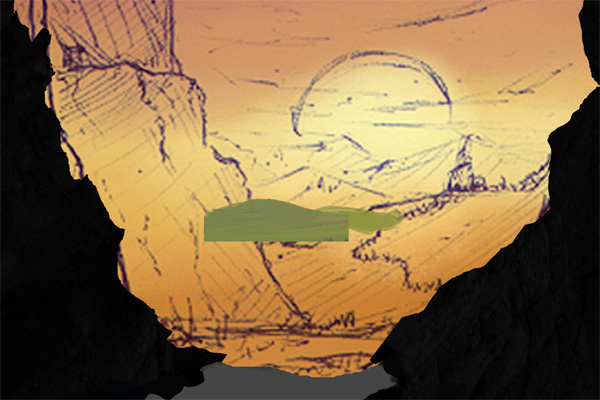
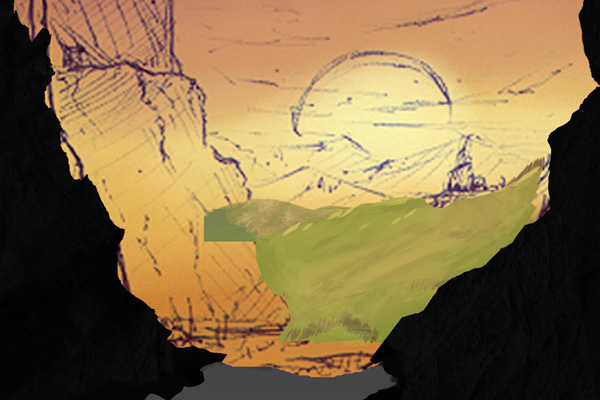
Ok, Hills! Very simple to make: I divided them into layers. First layer is for the furthest ones, made them just using the hard round brush and a desaturated green.

On the second layer, which is going to be on top of the first layer, we will paint a closer hill using again the same brush, this time with a more orangish green.

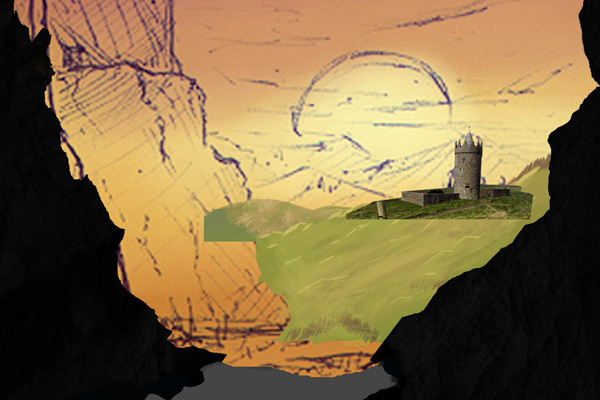
Here I’ve added the first castle. It’s a simple photo rendered using the Pen Tool.

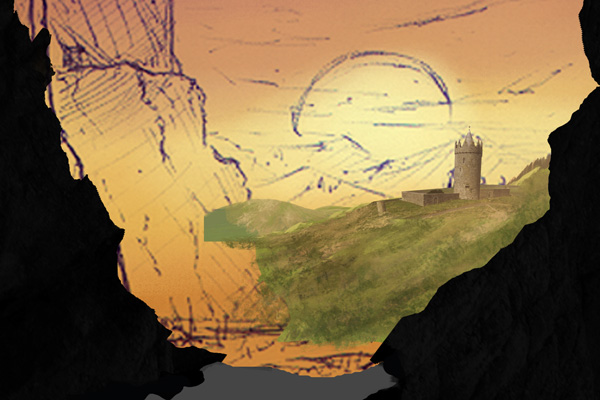
In order to blend the castle, I created a new layer and a clipping mask with a brown/orange layer set on lighten. This way the darkest colors of the castle will become like the colors in the clipped layer. In this step I also texturized the hills using brush number 5 of the brush set. Grass has many colors and based on the lights and shadows these colors become even more, so for giving it a nice effect try to use more than a couple of them. As you can see, other than the green, I used different tones of brown, orange and yellow.

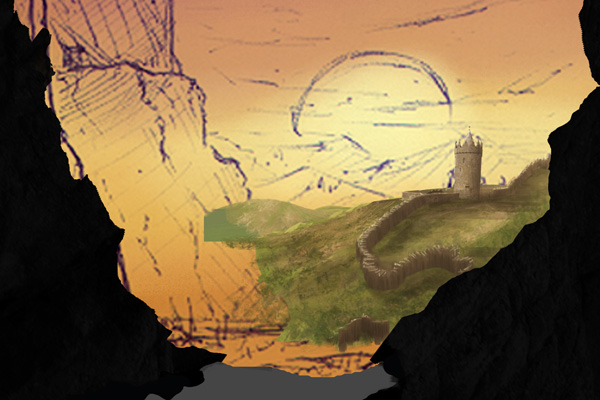
Just like in the initial sketch, I made these weird castle walls. I did them using the hard round brush (number 1) and the palette knife brush (number 2). This one took me a while before figuring out how to do it, but once you get it it’s pretty easy to make. To make those straight lines, just press the ALT key while making your brush stroke.


Step 5 – Castle
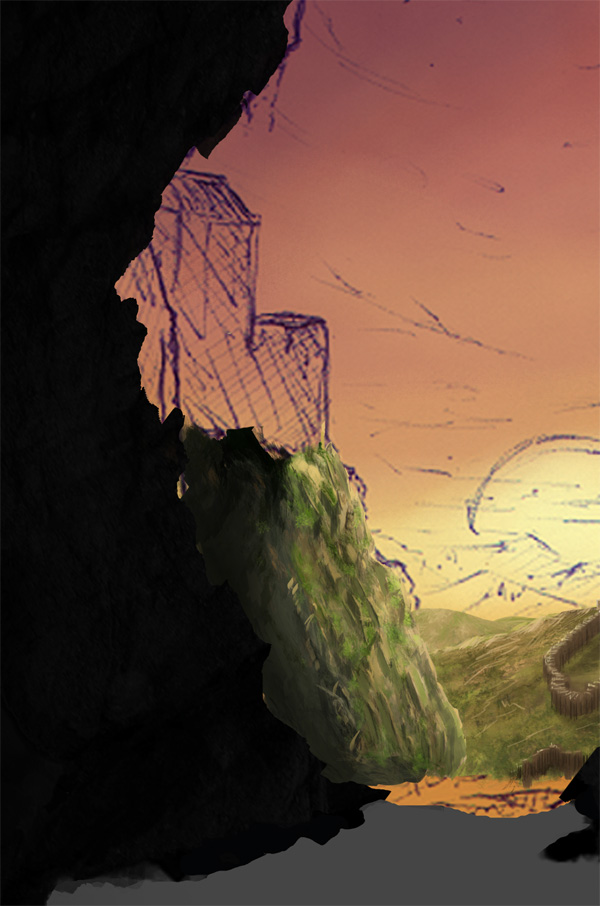
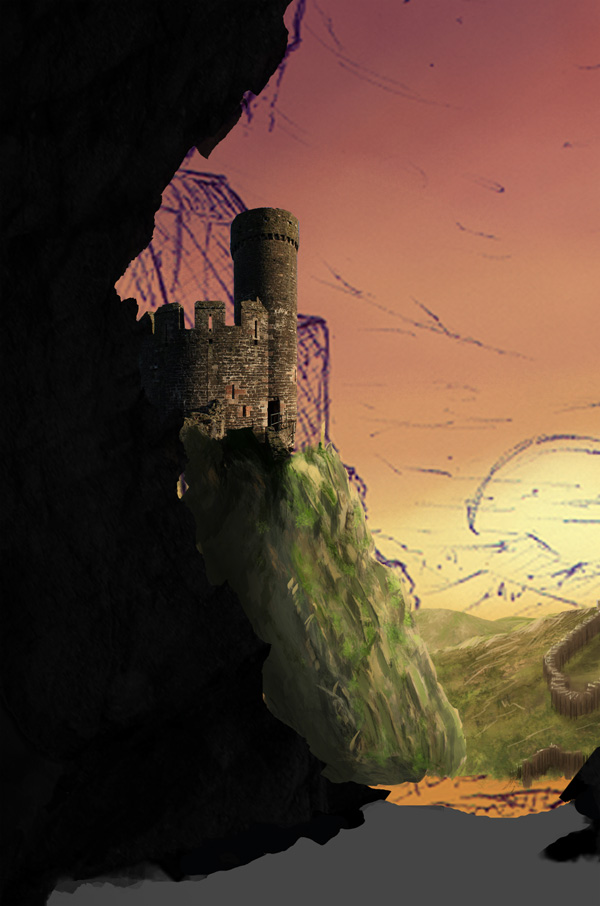
Now we get into a slightly harder step. First I painted the big cliff using brushes number 1, 3 and 5. Use 1 and 2 to create the shapes and number 5 to texturize it. At this point I wasn’t satisfied of it at all, so in the next steps you’ll see that I almost completely modified it (but using the same technique I explained in this step).

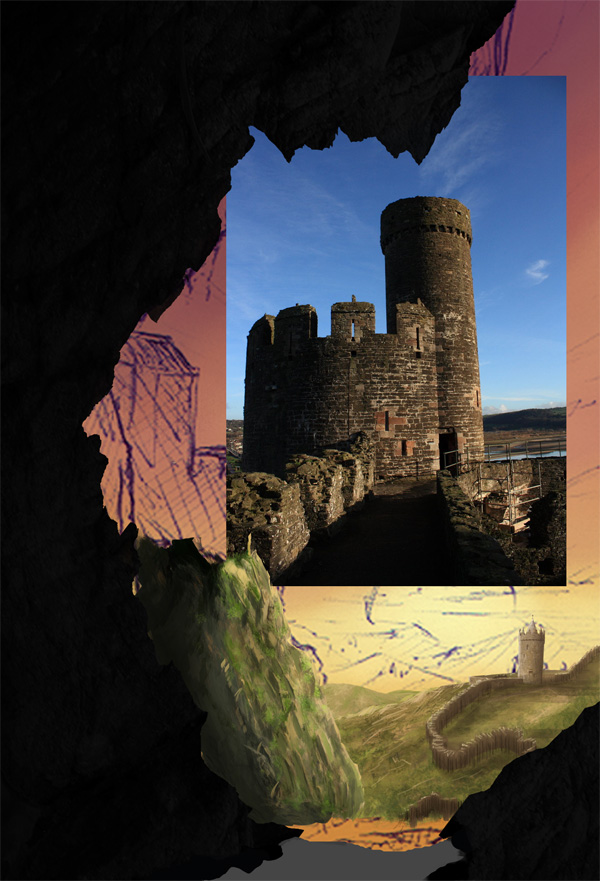
For the Castle I used a great photo downloaded from deviantART and made by =prolific-stock, you can find it in the tutorial assets.

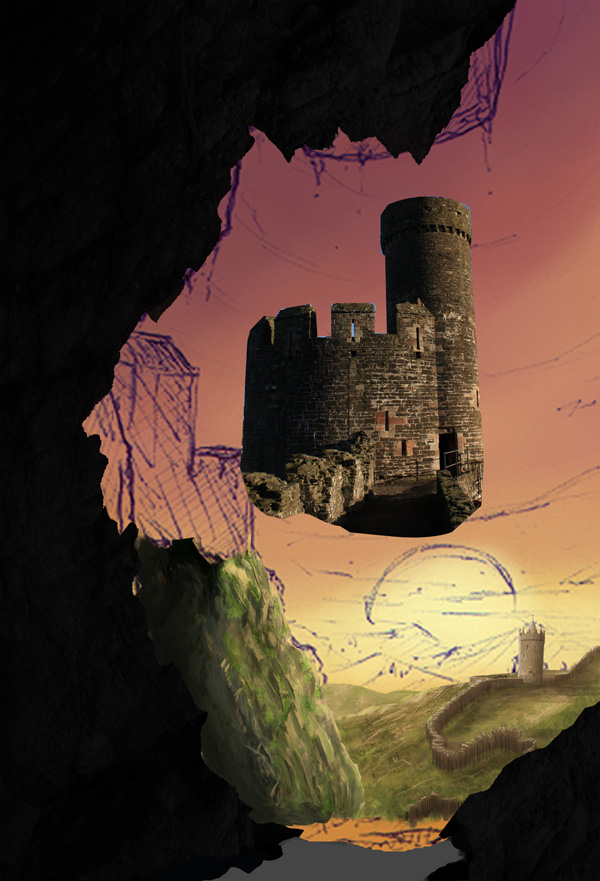
Using the Pen Tool (P) (but here as well you can use different tools, such as the Eraser Tool (E) and the Polygonal Lasso Tool (L)) I rendered the image, erasing the sky and the foreground of the photo.

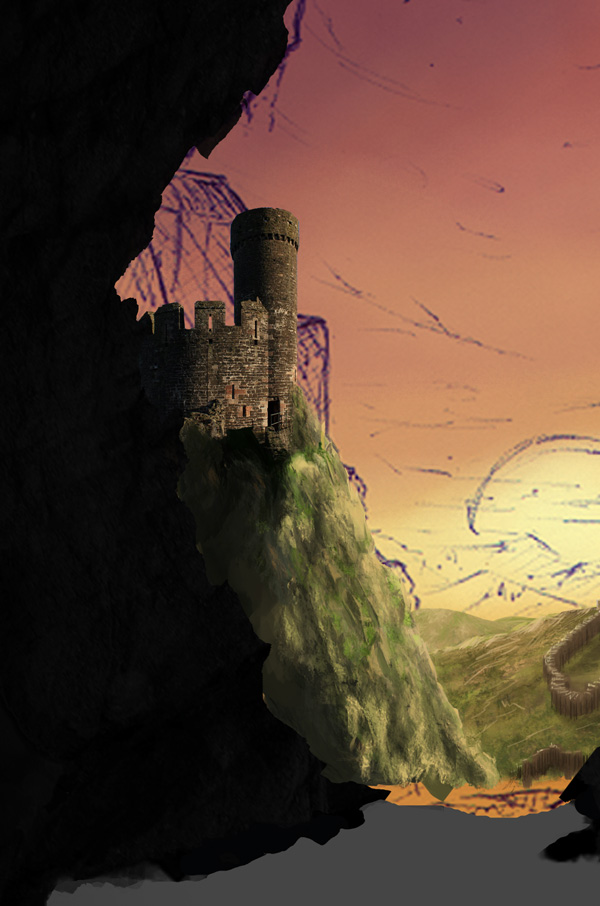
Using the Perspective Controls (Edit > Transform > Perspective) I gave to the stock a more suitable perspective that can match the rest of the elements in the piece.

Here I painted another part of the cliff in order to blend more in the castle.

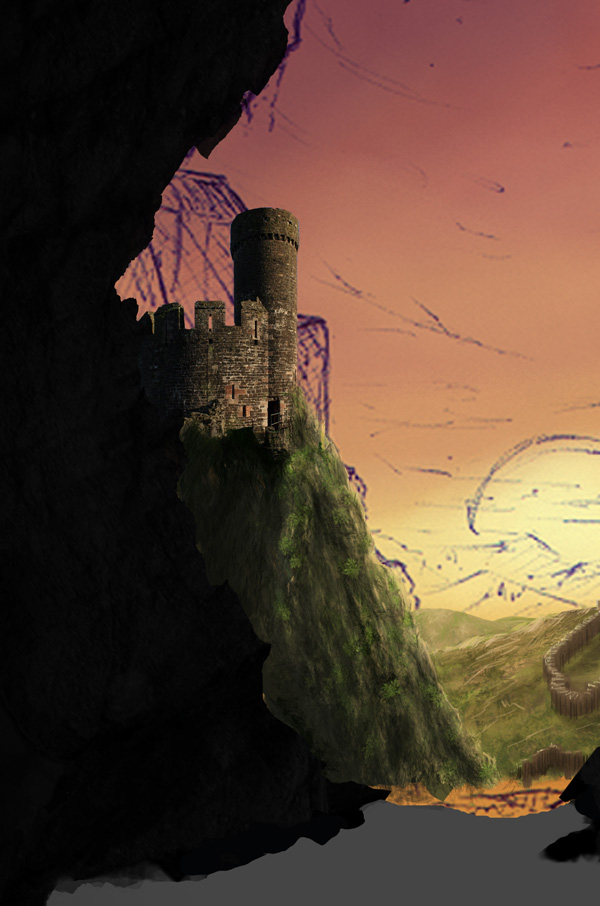
As said before, I wasn’t satisfied about this cliff, so I darkened it and using brush number 1, 3, 4 and 5 I added more details.

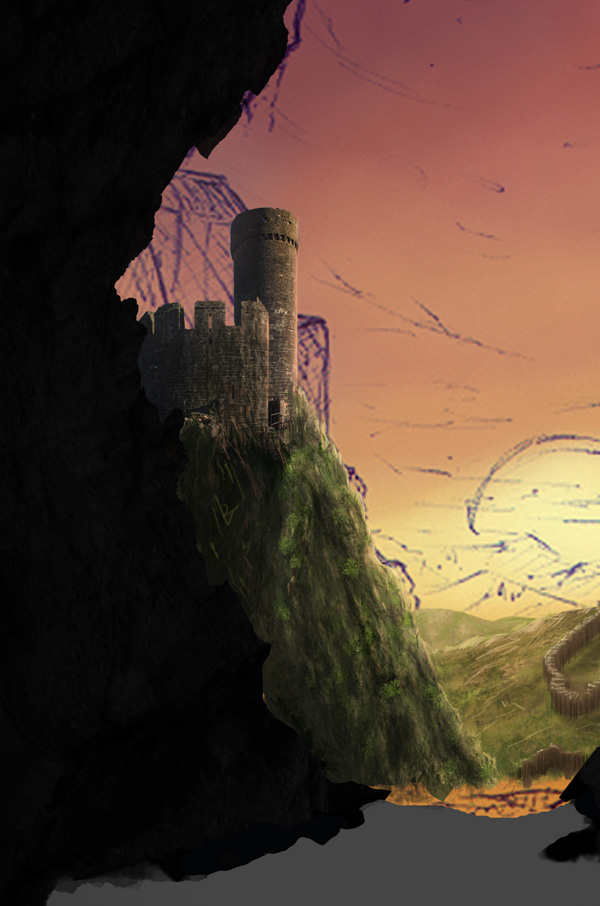
In this step I just added some orange on the border of the castle using a clipping mask and I painted on the left some dark lines with brush number 3 for blending more the castle.

Step 6 – Sky
Searching on sxc.hu I found this very nice picture of a sunset. As you can see there is some tree foliage and the photo does not completely fill the piece. A quick and easy solution is to use the brush tool and a soft round brush (it’s a great brush for this kind of skies) and using the Eye Dropper Tool (I) to select the same colors of the sky. You can download a cloud brush as well and use that one instead, it’s not important. As always, what matters is the result. Also, if you’re using a more complex sky stock, try use the Clone Tool (S), with some practice you can get great results.


Step 7 – Cave
This is the step that is going to take you most of the time because you need to understand how to create volume in the cave, but once you do understand it, and you understand the technique used, you’ll do it in a few minutes.
Before painting on it, I downloaded a rock texture from CGTextures, I imported it into Photoshop, darkened it and clipped into the cave layer. Try to be as ordered as possible with layers, create groups and rename your layers, this way you can easily move through your PSD, create clipping masks and avoid any sort of annoying problems.
Using brushes number 3, 4 and 6 (mostly 6) and a light gray I painted on the borders of the cave the highlights of the rocks.

Take your time while painting. Trying to get a good effect may take you a while. Spend time trying to alternate those brushes, also use the eraser tool with number 6, this way you can get better texturing.

Step 8 – Cave’s Ground
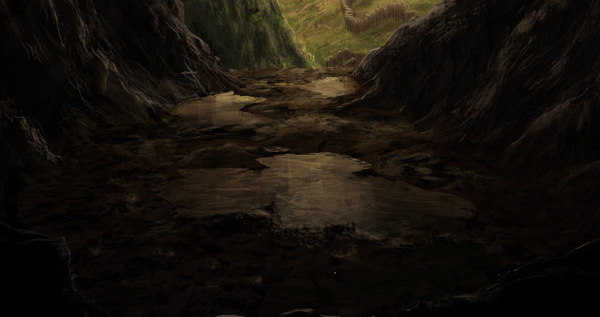
Let’s go back at step number 3, when we created that layer for the ground. I created a clipping mask and I filled the layer with some ground. Using the Lasso Tool (L) I created the shapes of the puddles and I filled them using a lighter brown. Using a big hard round brush I painted the reflections of the ground into the water.

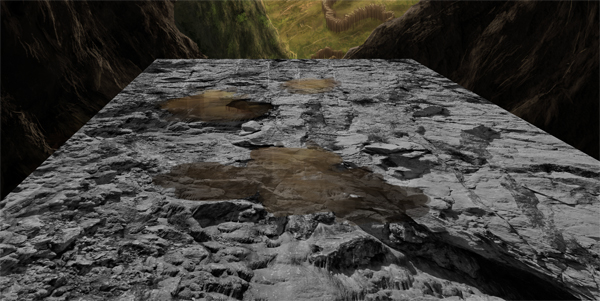
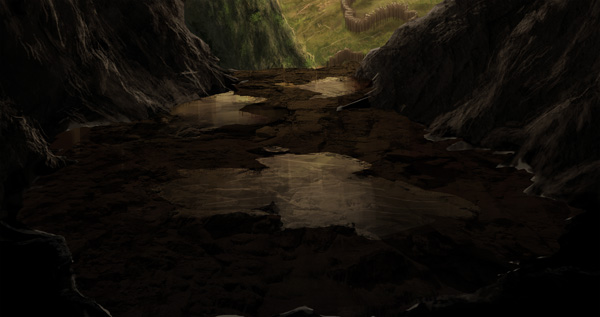
From CGTextures I downloaded another rock texture and using the perspective controls I manipulated the image in order to get the same perspective of our painted ground. I clipped this layer into the ground layer and set it to Overlay.


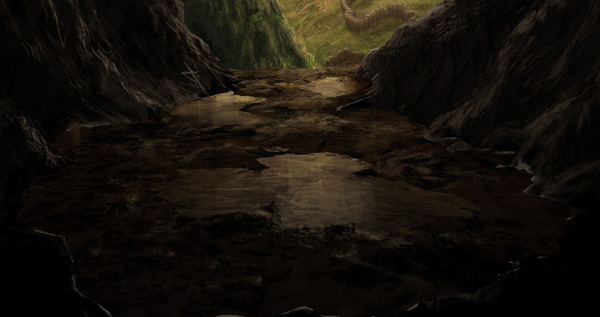
Using brush number 5 I painted some highlights and shadows on the ground in order to make it look more realistic.


Step 8 – Stalactites
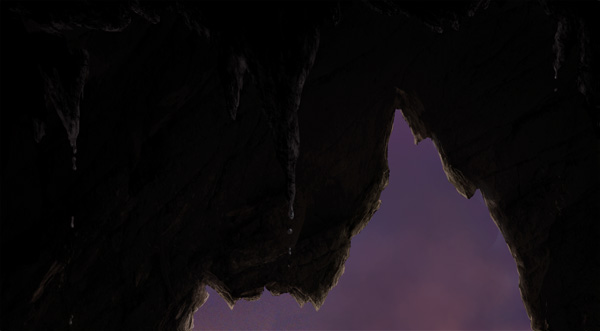
Our piece is completed, but as I always do, I like to add small particulars to the piece that can make it more interesting. This time I choose to paint some stalactites. I did it using the exact same technique of the cave, so New Layer > paint stalactites shapes > New Layer > Clipping Mask > dark gray and rock brushes (3-4-5-6).

To add some more tiny particulars, I painted a couple of water drops falling from the stalactites using the hard round brush (number 1).

Final Image

The Artwork of Emeric Trahand (Takeshi)
Today, we will be featuring the work of Emeric Trahand also known as Takeshi. Trahand is a New York based art director and artist from Saint Etienne, France. Emeric’s illustrative work is renowned for its surreal feel, the quality of its photomontages as well as light treatments and colourful compositions. Let’s take a look!
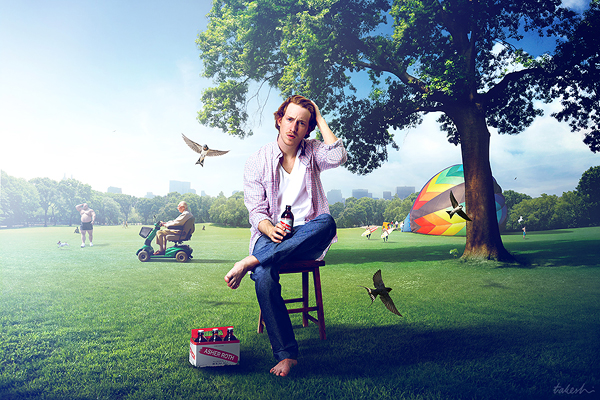
Afternoon at the Park
This piece was a pitch for an album cover for U.S. rapper Asher Roth.

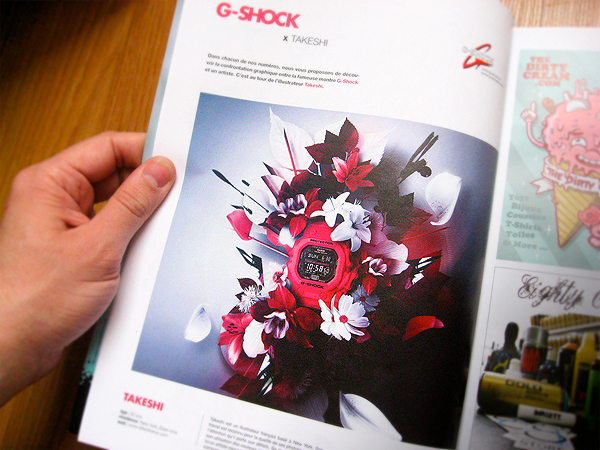
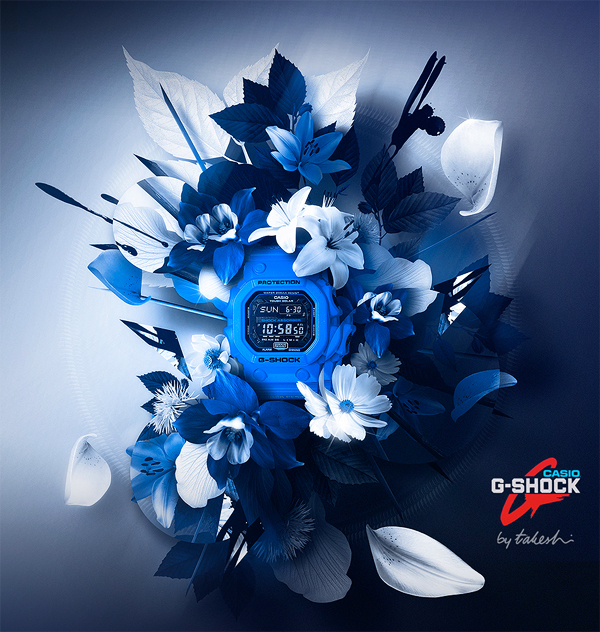
G-Shock
This was a collaboration between with G-Shock for Graffiti Art Magazine.


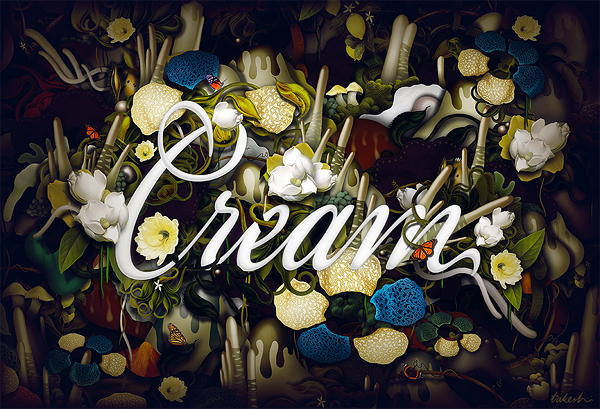
Cream
This was a personal piece for Typcut Collective.

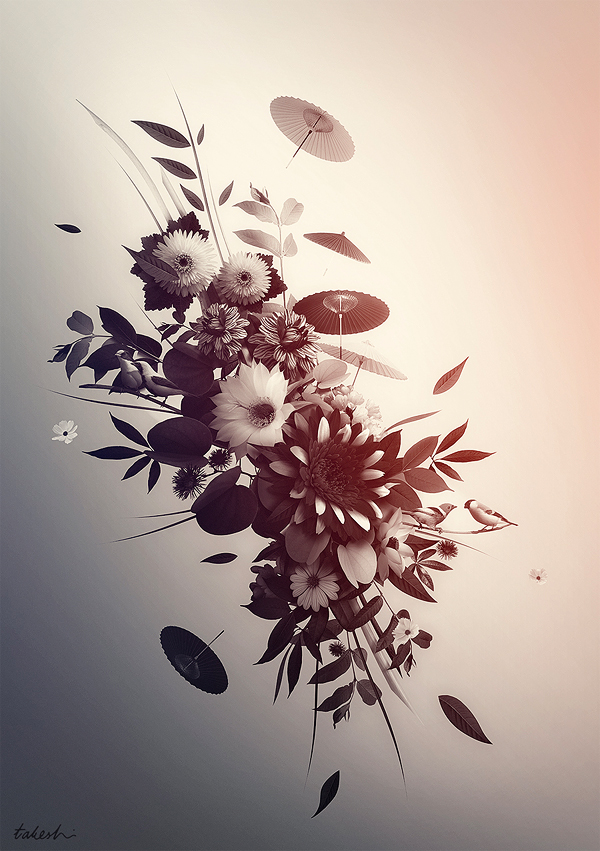
Decembre
Decembre was an experimental piece featuring umbrellas and flowers.

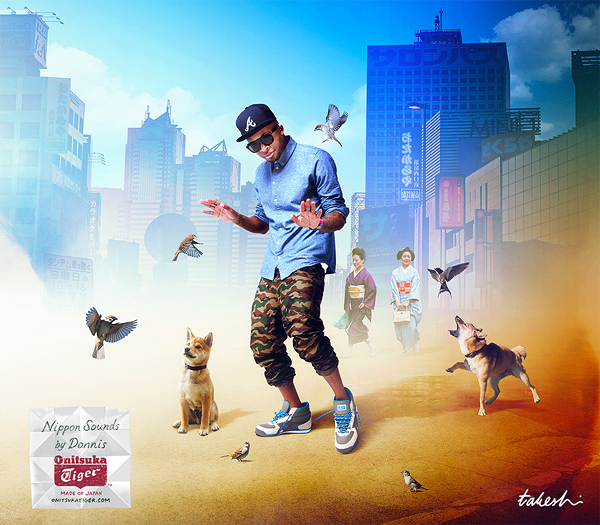
Mixtape Artwork
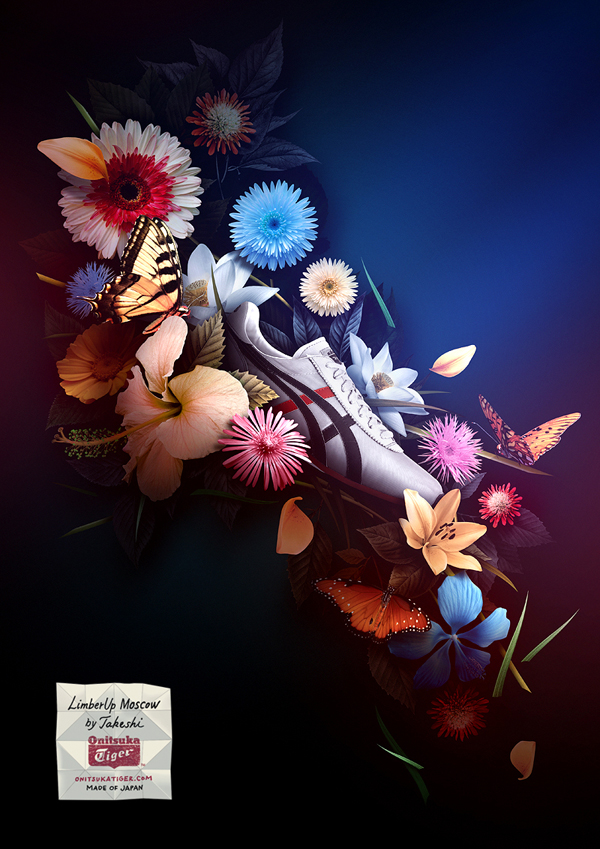
Cover for U.S. rapper Donnis in collaboration with Onitsuka Tiger.

Onitsuka Tiger
Print campaign for the release of the Limber Up Moscow Sneaker.

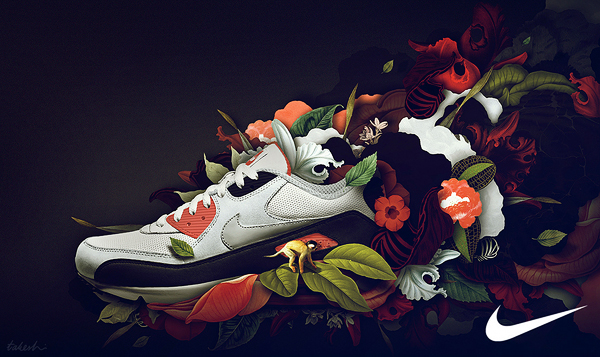
Nike
Pitch work for a Nike print campaign.

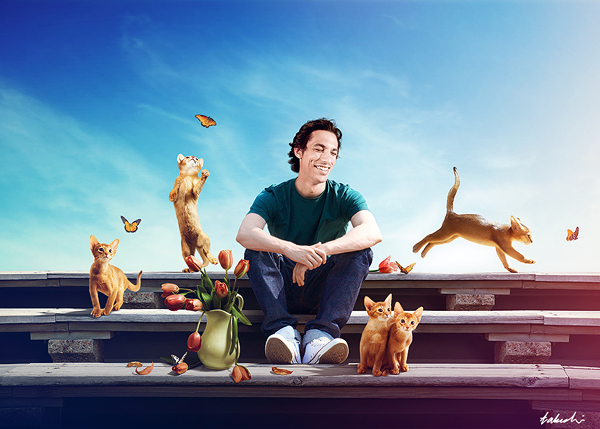
The Cats
This was a personal piece and an experiment with photomontage.

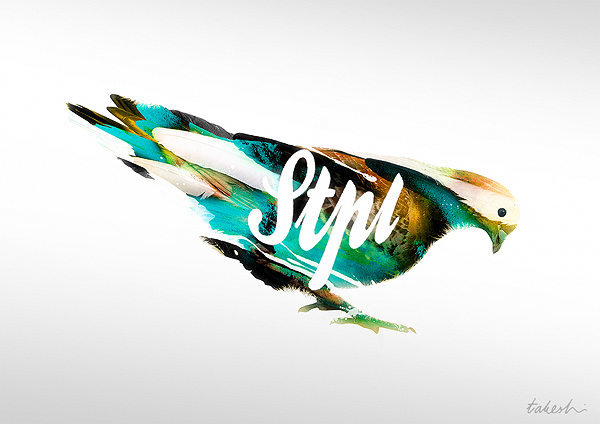
Staple
Interpretation of the "staple pigeon." Fashion Design for Jeff Staple and Staple Design.

Red Bull Music Academy
A giant backdrop for the 2011 Red Bull Music Academy Festival in Barcelona, Spain.

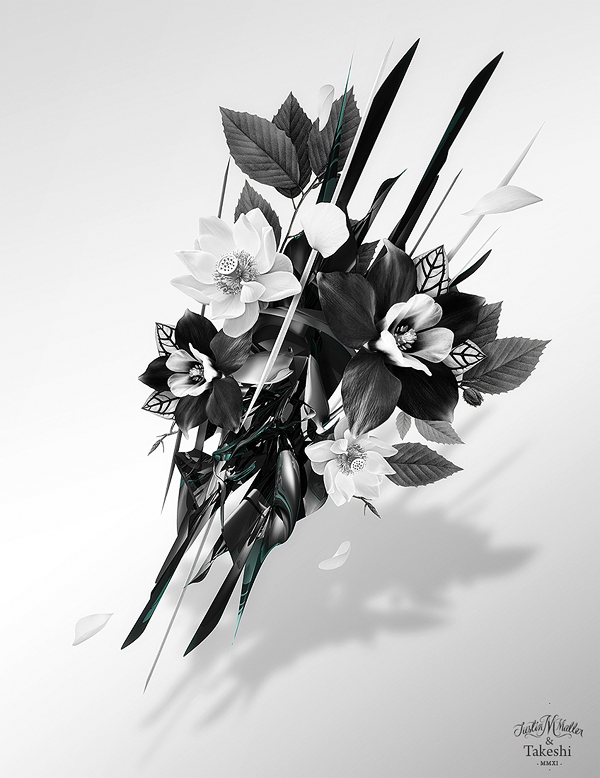
The Bouquet
This was a collaborative piece Justin Maller for Depthcore.

How to Set Up Your Photoshop Documents: Composition
Photoshop is an excellent tool for manipulating photographs but it can also be used as a means to create stunning digital art. This tutorial is part of a 25-part video tutorial series demonstrating everything you will need to know to start producing digital art in Photoshop. Digital Art for Beginners, by Adobe Certified Expert and Instructor, Martin Perhiniak will begin by teaching you how to draw in Photoshop. At the conclusion of this series you will know all you need to produce your own concept art and matte paintings in Photoshop.
Today’s tutorial Part 4: Composition and How to Set Up Your Photoshop Documents will showcase some excellent examples of well-composed digital art and will explain how you can set up your artwork to make it even more interesting. Let’s get started!
Citations
The following designs were showcased in this video.
- Atlantis
- The Seven Deadly Sins
- Pepper Robot II
- The Pumpkin King
- Three Kingdoms
- La Rochelle
- Into the Unknown
- Rain
- Tifa Lockhart
- Giant
- Frost Giant
- The Shepherd and the Giant
- The River of Tears
- Snowy Mountains
- Snowy Mountains
- Red Angell of Revenge
- Neurotic Indisposition
- Antecedent Terminus
- Lost Angel
- Mariposas
- Floating Palace
- Fallen Beauty
- Midnight Run
- Spring Palette
Create a Post Apocalyptic Panoramic Matte Painting – Psd Premium Tutorial
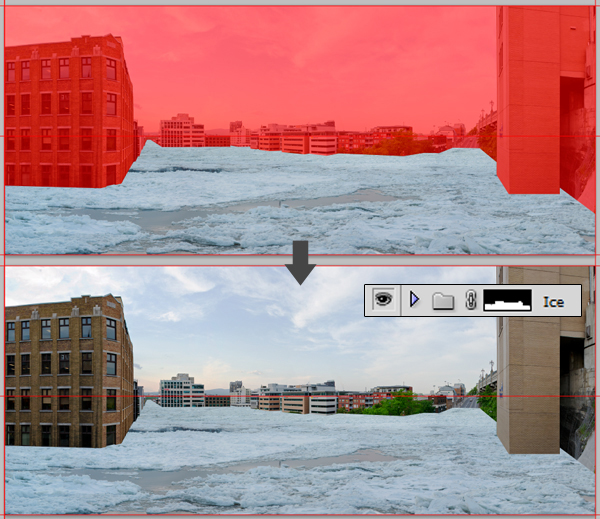
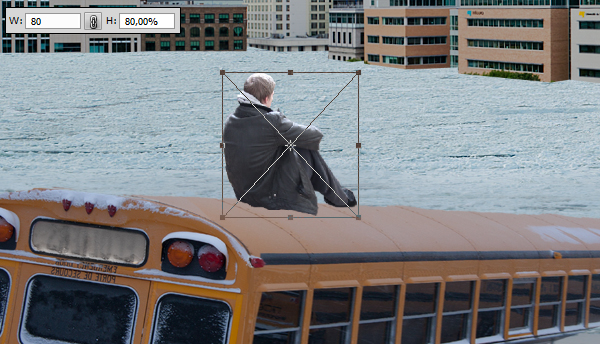
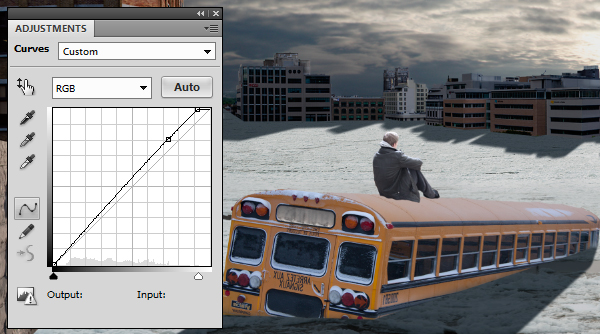
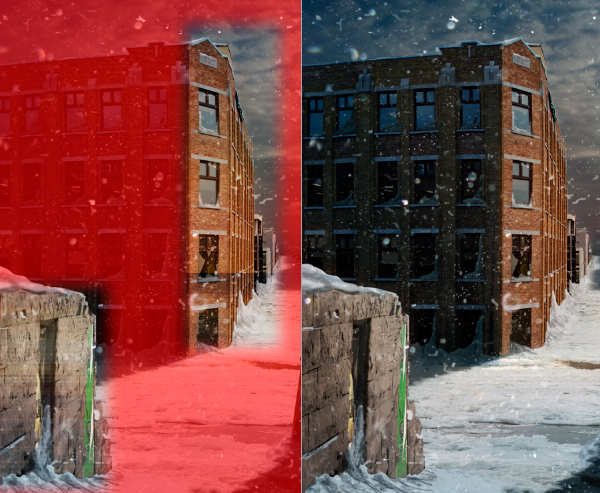
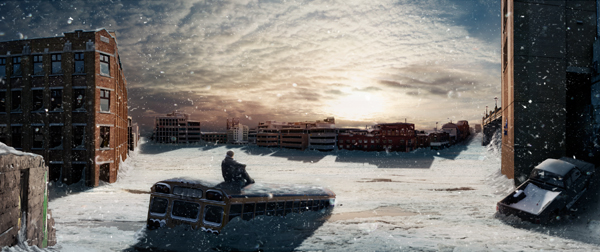
This tutorial is part of a two-part tutorial demonstrating how to create a post-apocalyptic photo manipulation. In Part 1, we showed you how to shoot and assemble the base panorama. In this Psd Premium tutorial, author Tony Aube will demonstrate how to turn the image we created in Part 1 into a snowy post-apocalyptic matte painting. This tutorial is available exclusively to Premium Members. If you are looking to take your design skills to the next level then Log in or Join Now to get started!
Professional and Detailed Instructions Inside
Premium members can Log in and Download! Otherwise, Join Now! Below are some sample images from this tutorial.


Final Image

Psd Premium Membership
You can join Psd Premium for as little as $9/month. Premium membership gives you access to the source files for all our tutorials as well as access to premium tutorials like this one. This also includes the rest of the sites in our network including Vectortuts+, Webdesigntuts+, Phototuts+, Nettuts, and more! Premium Members can Log In and download this tutorial. Otherwise you can Join Today!
The Incredible Digital Paintings of Serge Birault
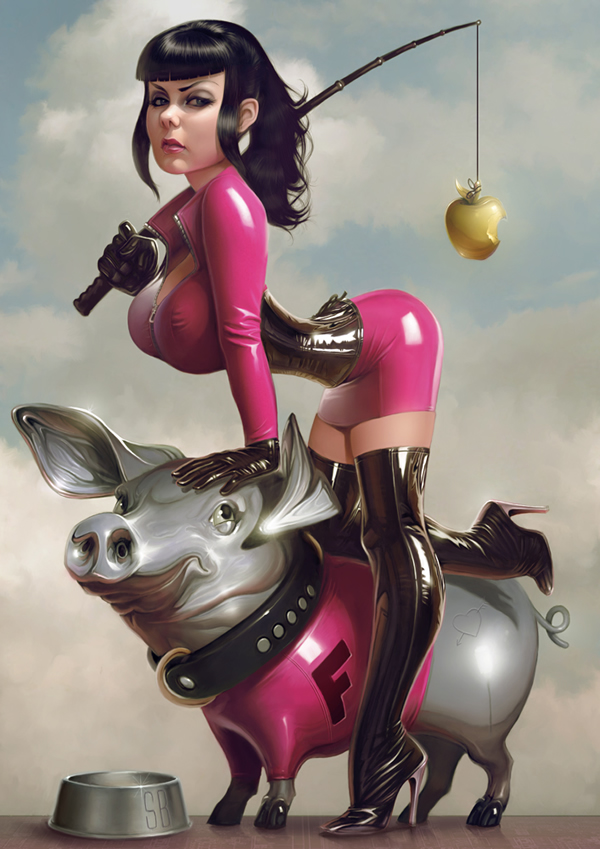
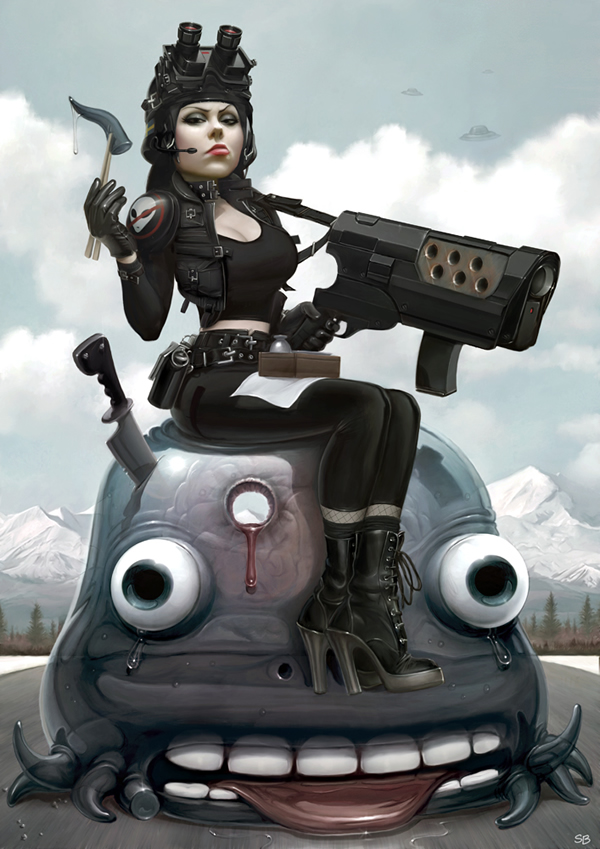
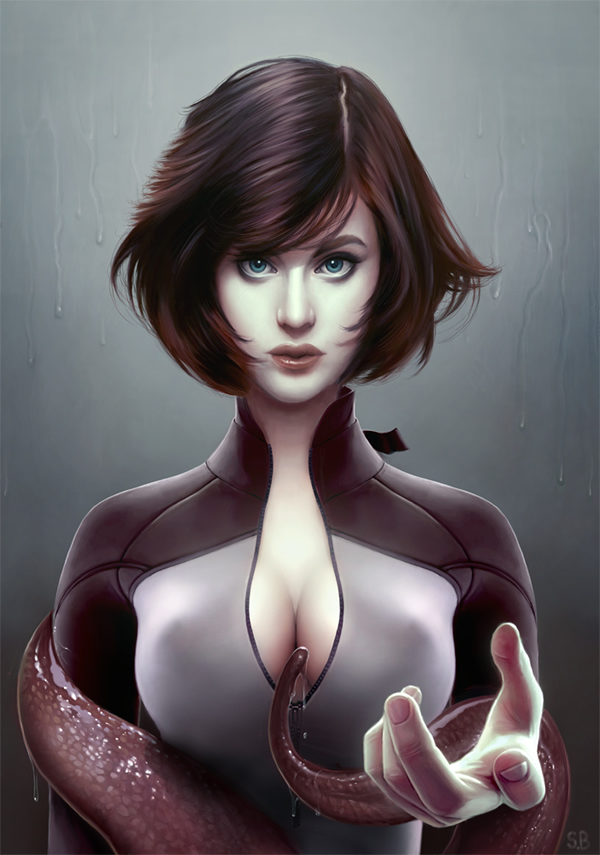
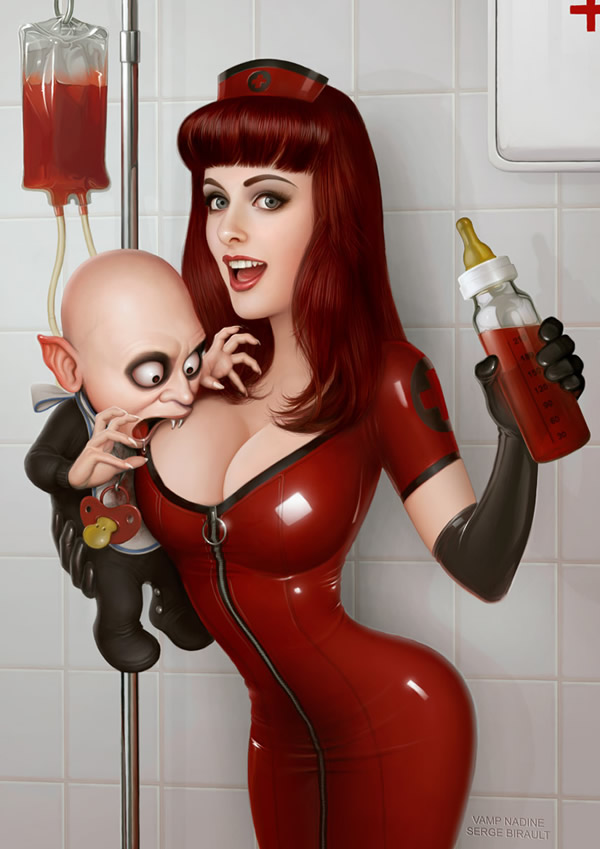
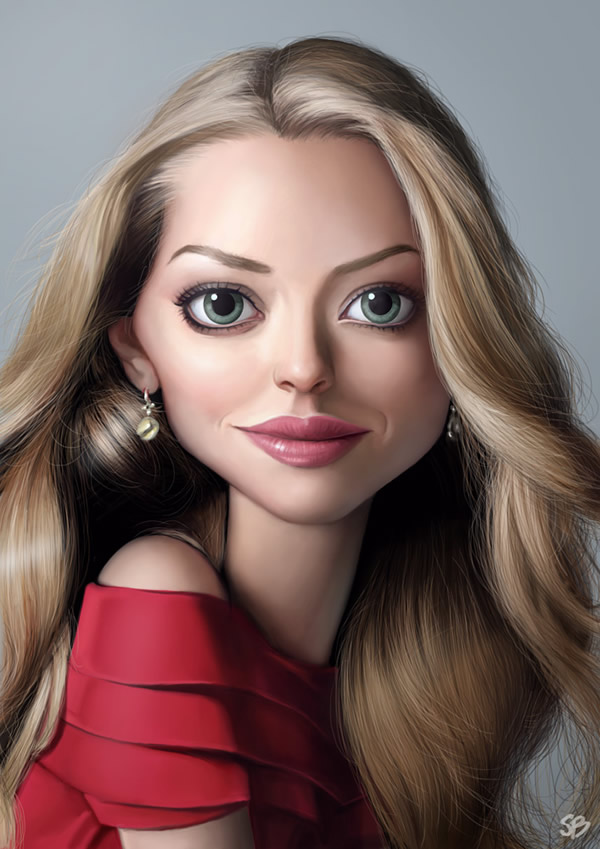
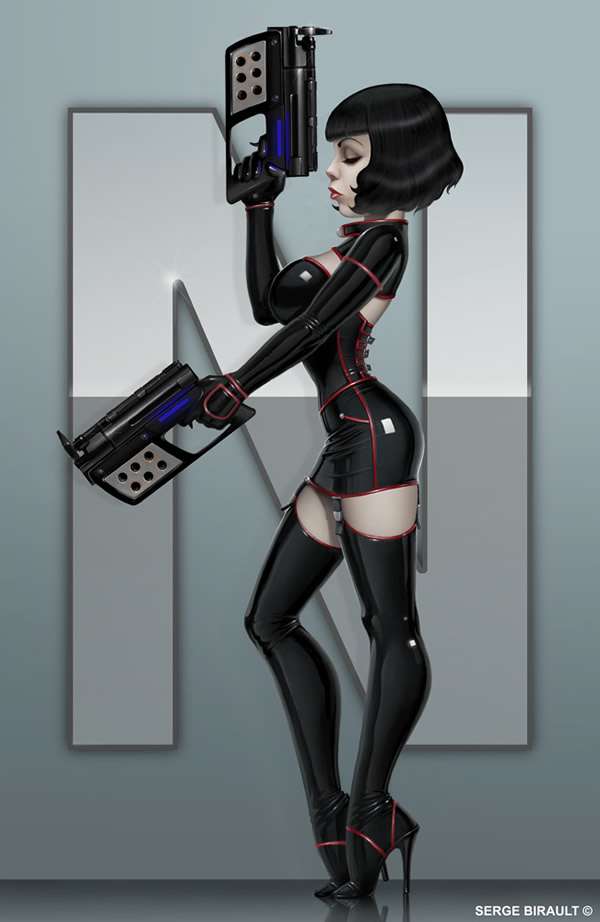
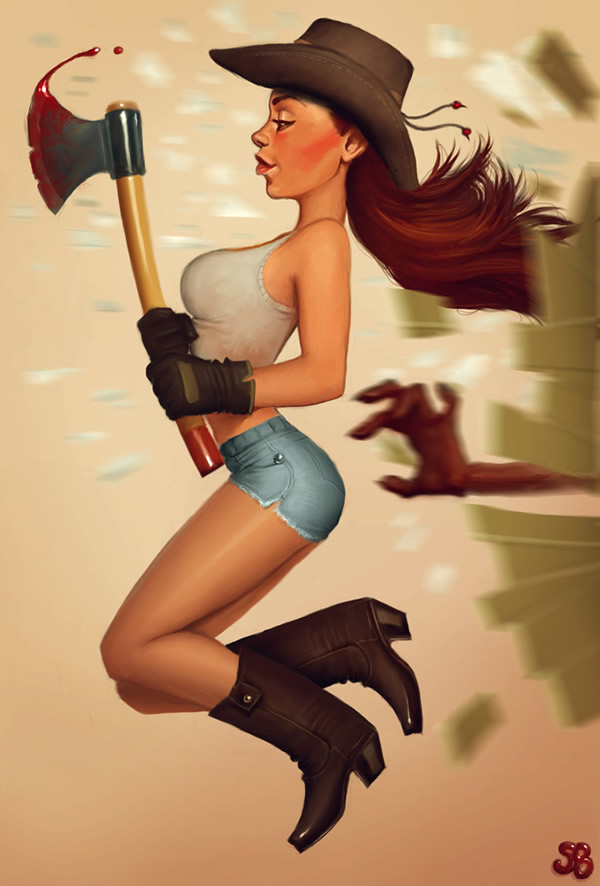
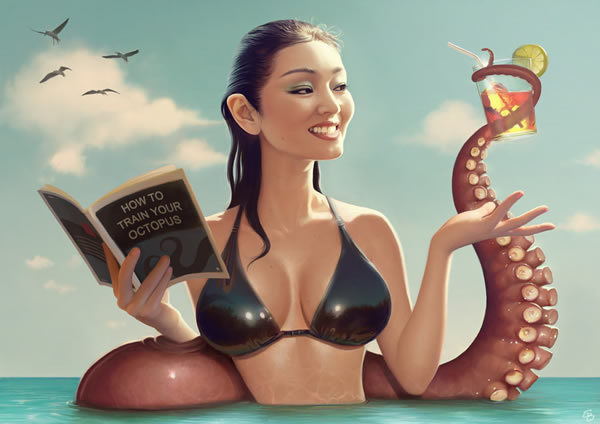
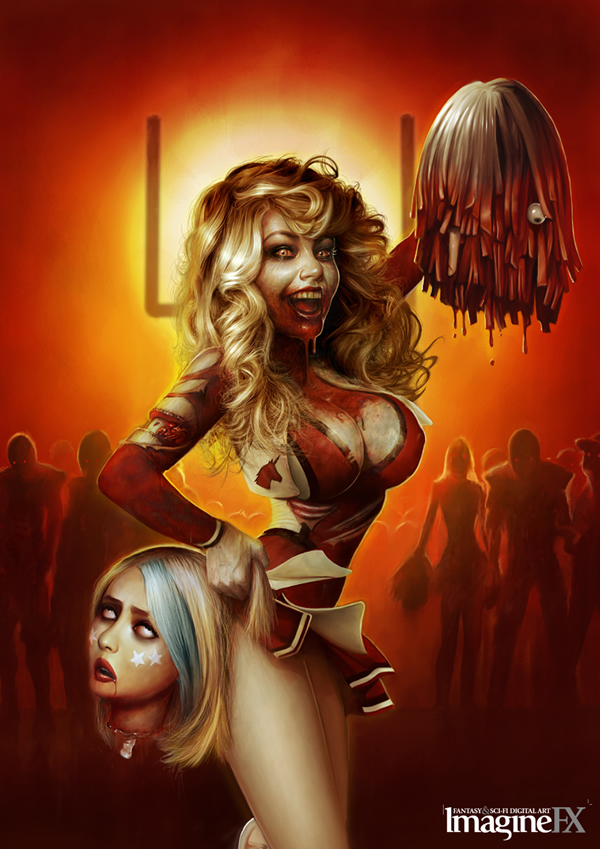
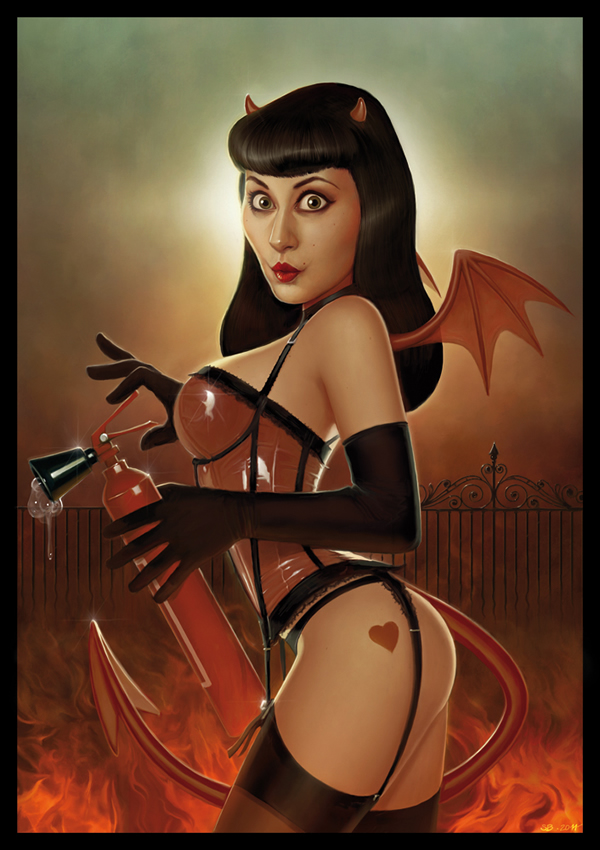
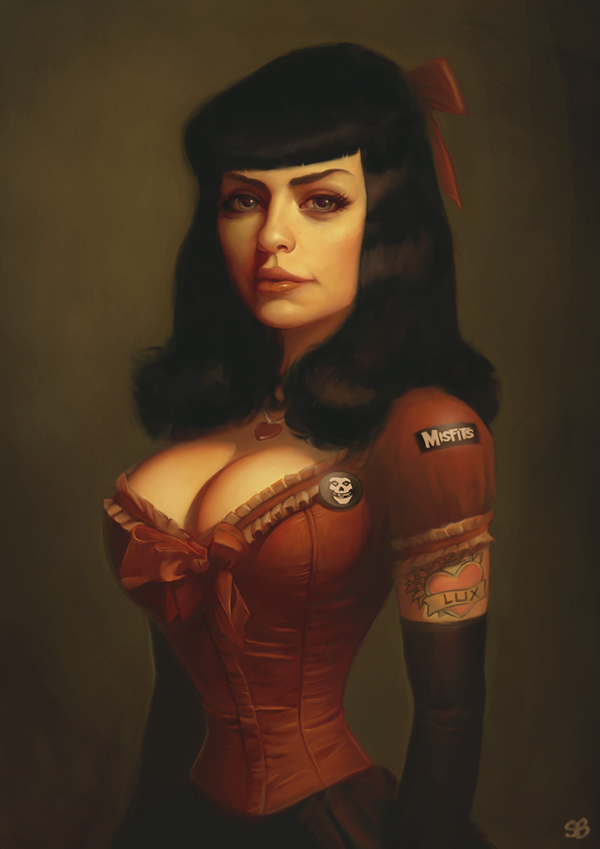
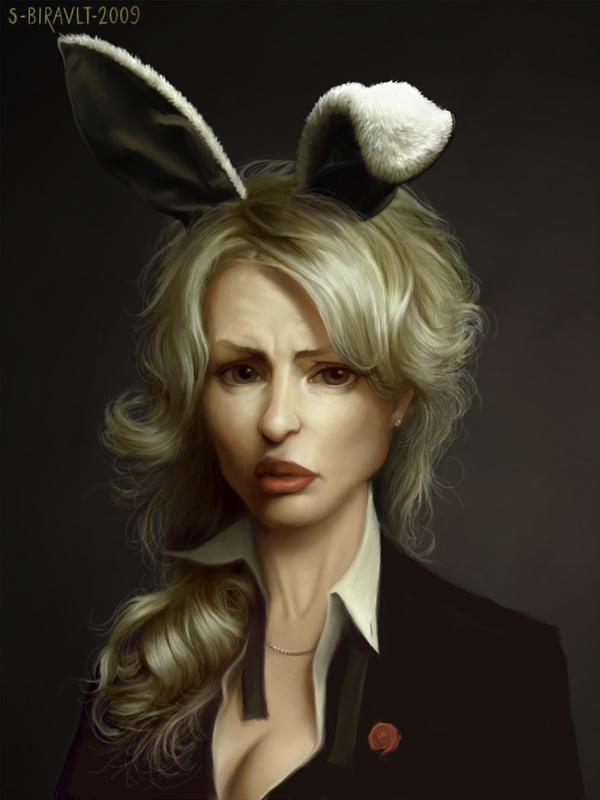
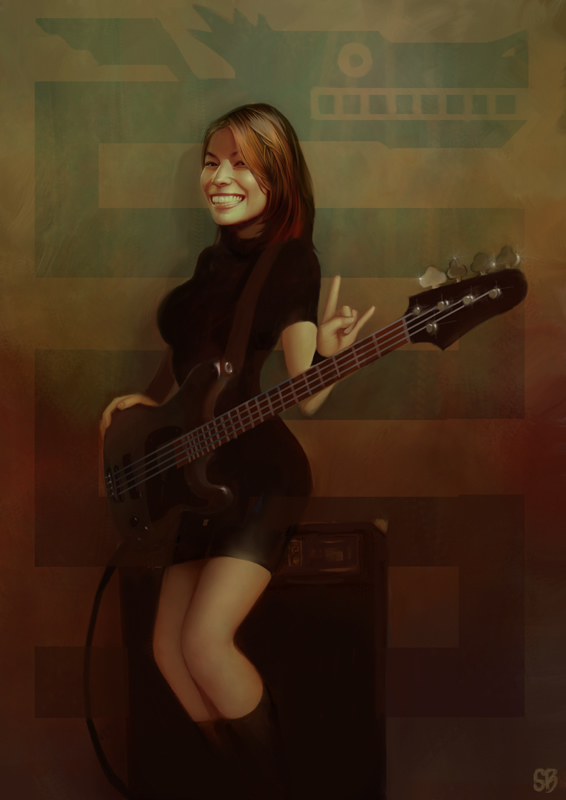
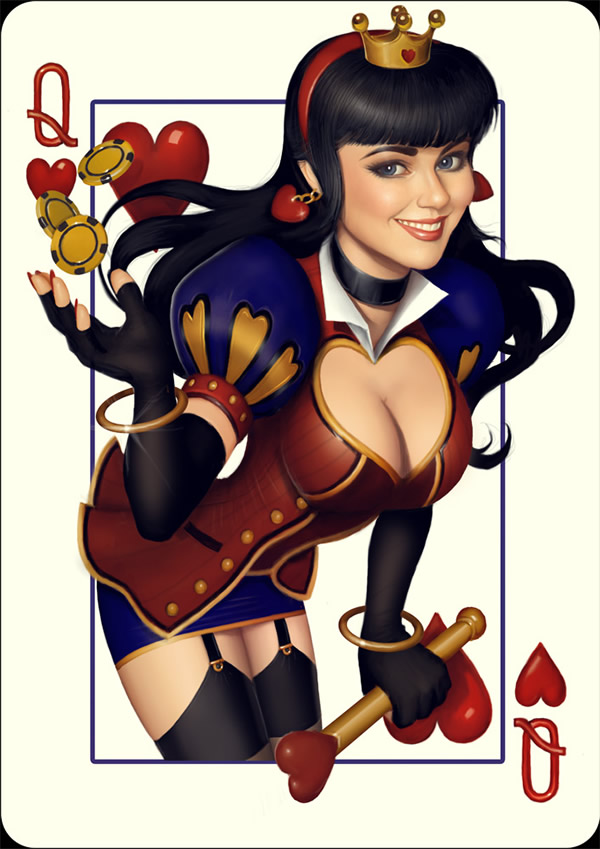
Today, we are featuring the work of Serge Birault. Birault is a French digital painter with a stunning portfolio. Most of Birault’s work features the same theme; sexy, naughty, wicked, and often armed women. Please take a moment to review some of Birault’s amazing work and enjoy!
Fuchsia
This piece was a gift for Maria Gibson and features a model riding a reflective pig while holding a whip with an apple attached to it.

Alien Tako Sashimi
Maria Gibson makes another appearance in Birault’s work but this time she’s dressed as a "Space Chick," sitting on a shiny squid.

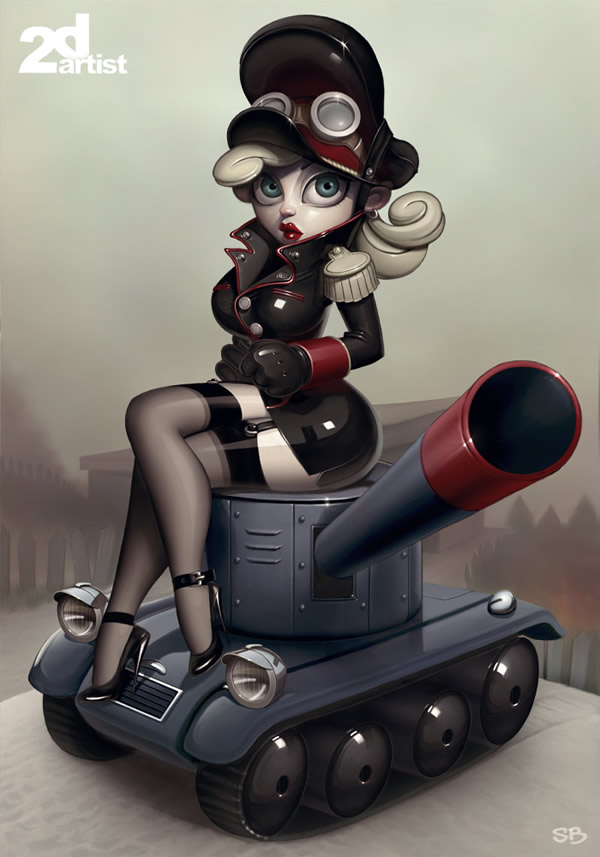
Military Bambi
This piece features Bambi, a characher that Birault did for 2D Artist Magazine. In this piece Bambi is sitting on a tank, dressed as a sexy tank commander.

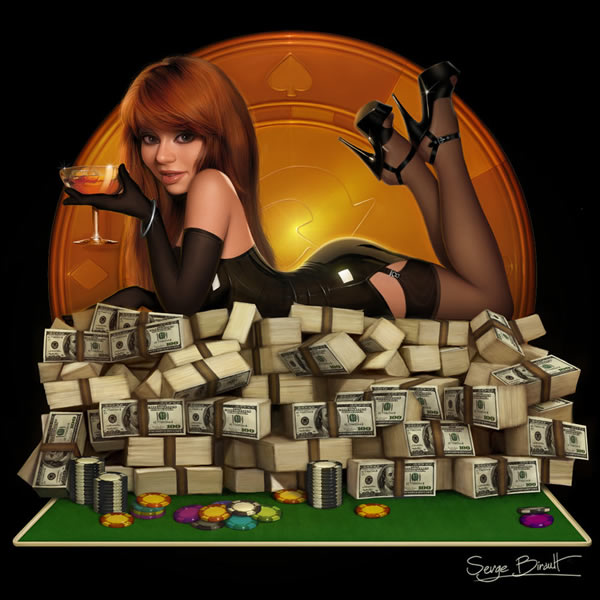
Poker Pin Up 1
This piece was done for a poker website. Lots of details were added to the money.

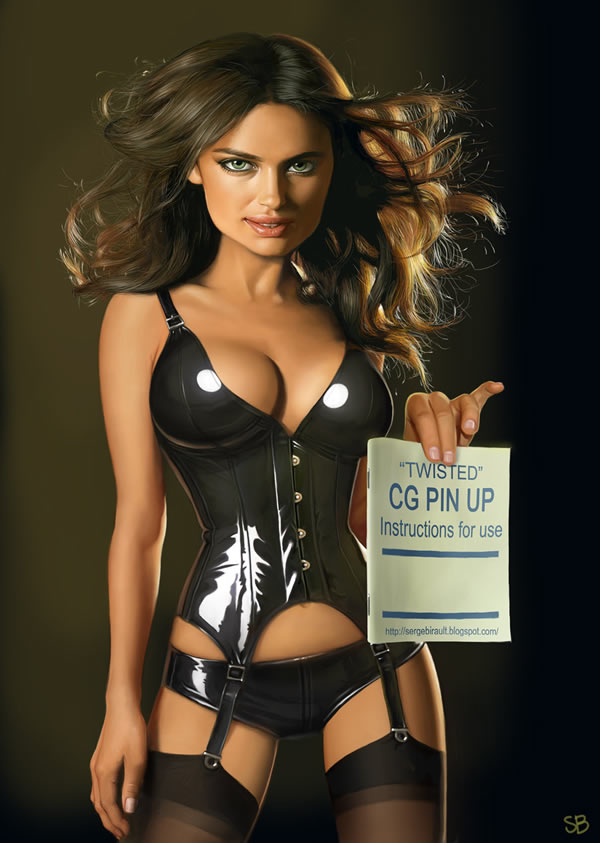
RTFM
This image was created from a refrence photo of Irina Sheik. You can see a tutorial of the steps here.

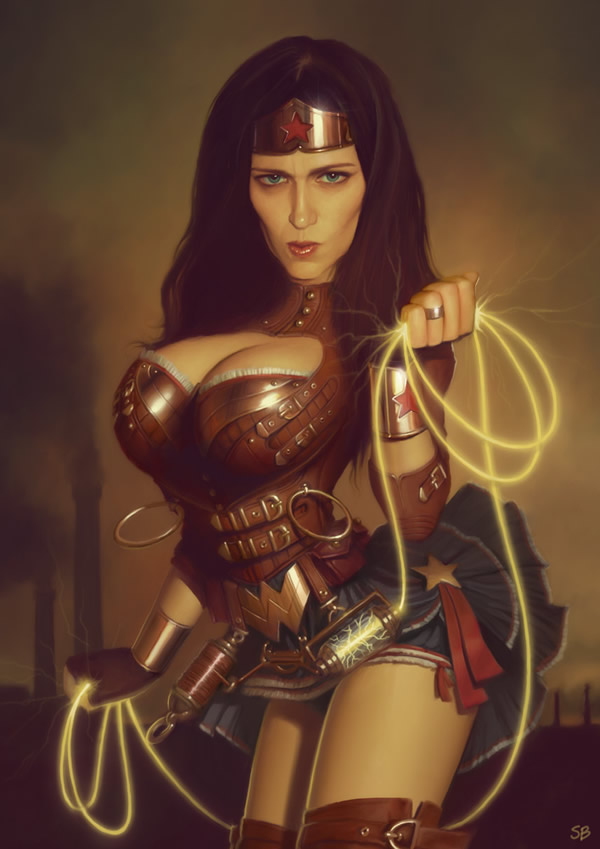
Steampunk Wonder Woman
This image is a Steampunk version of Birault’s favorite super hero.

Subabysse II
This painting was done for a cover for Subabysse II, an RPG game.

Vamp Nadine
This image is a caricature of Vamp Nadine, a model from the Netherlands.

Amanda Seyfried Caricature
This image was Birault’s contribution to the Caricaturama Showdown 3000.

Comic Book Character Design
This piece was a concept for a comic book character that Birault worked on.

Daisy
This piece was an RPG character concept inspired by Norman Rockwell’s style and tones.

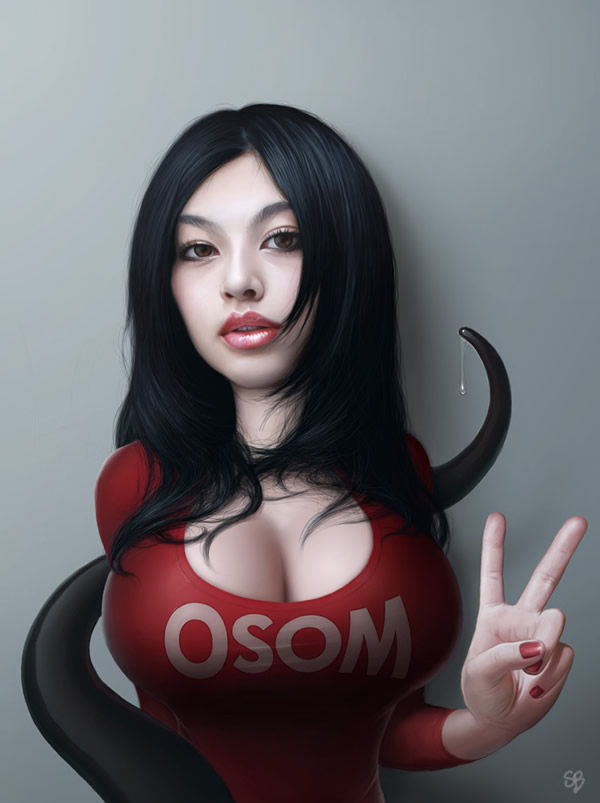
Gong Li and Tentacle
This is a caricature of the beautiful Gong Li.

ImagineFX Cover
This image was the cover of the zombie issue of Imagine FX Magazine.

Malyficarum
This piece was done for a pin up exhibition in Paris and Montreal.

Old Style
This piece was inspired by the work of Rembrandt.

Pamela Bouguereau
This piece was inspired by the work of Eric Tranchefeux on Rembrandt.

Perla

Poker Pin Up 2
This piece was done for a poker website.

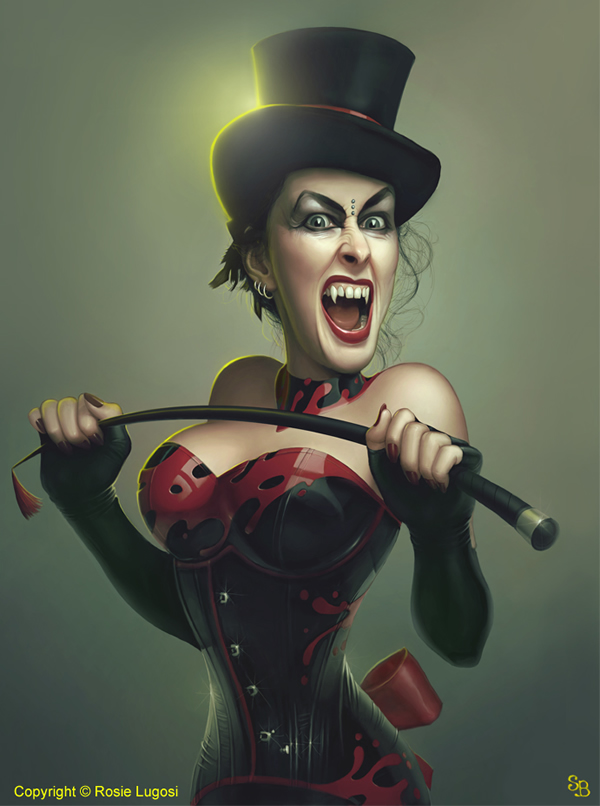
Rosie Lugosi
This caricature portrait was commissioned by Rosie Lugosi.

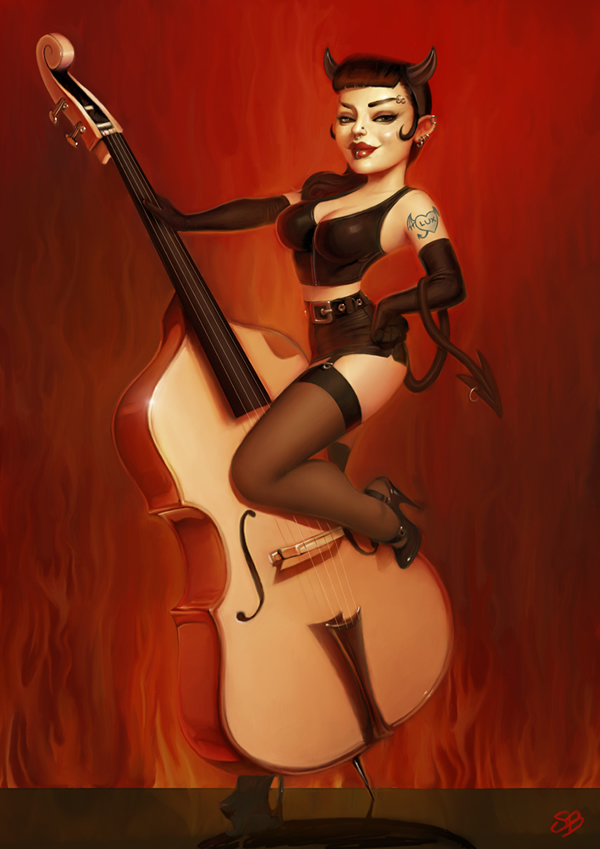
Psychobilly Girl From Hell

Saori and Tentacle
This piece was a gift to Andrew Hickinbottom. You can see how the piece came together here.

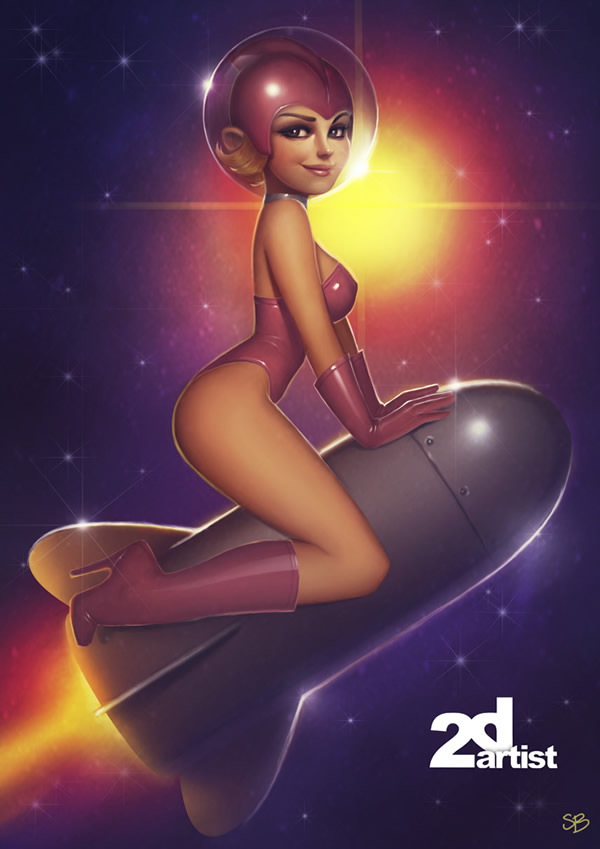
Space Bambi
Here is another rendering of Bambi riding a space rocket.

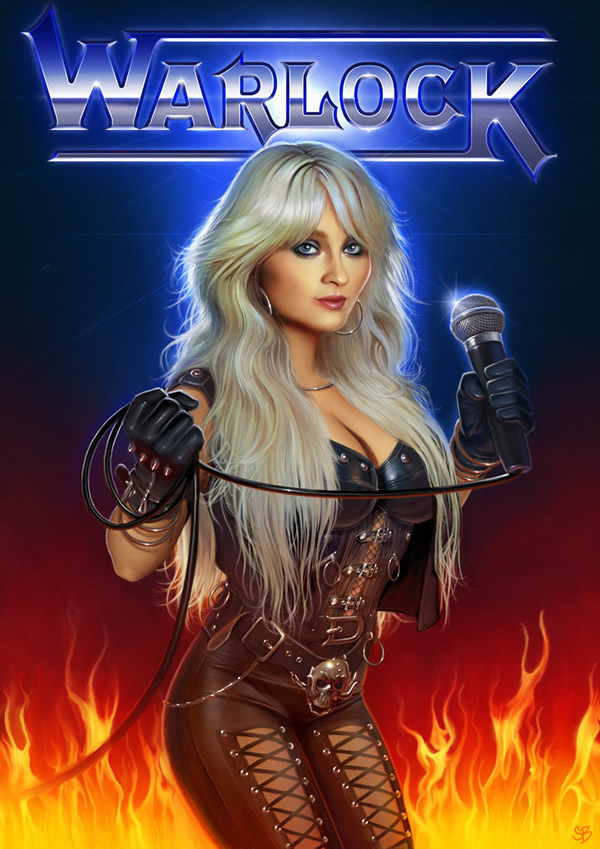
Warlock Kitsch Fan Art
This piece is fan art of the 80′s german metal band Warlock and their singer, Doro Pesch.

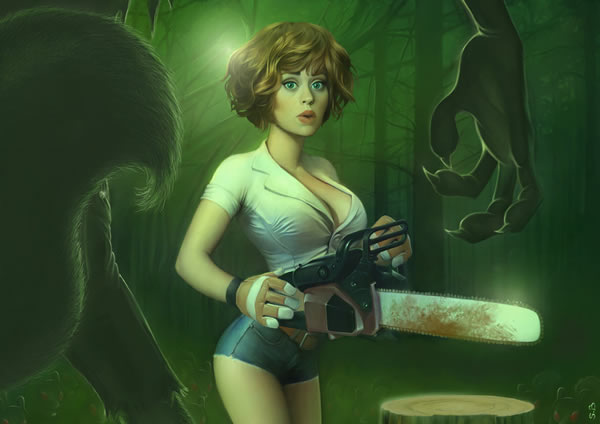
The Girl, the Chainsaw…
A girl and a chainsaw.

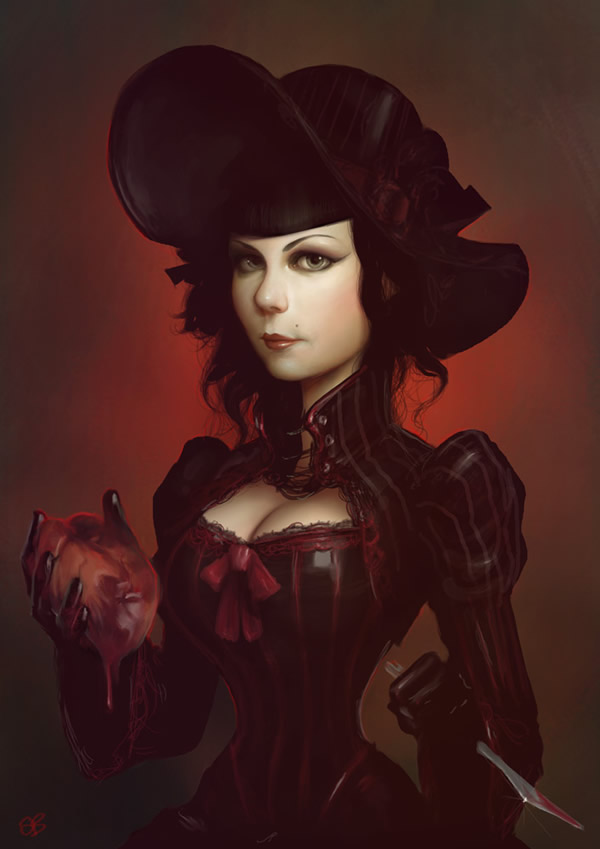
Whitechapel
This piece was inspired by the work of Thomas Lawrence’s paintings in the National Portrait gallery.

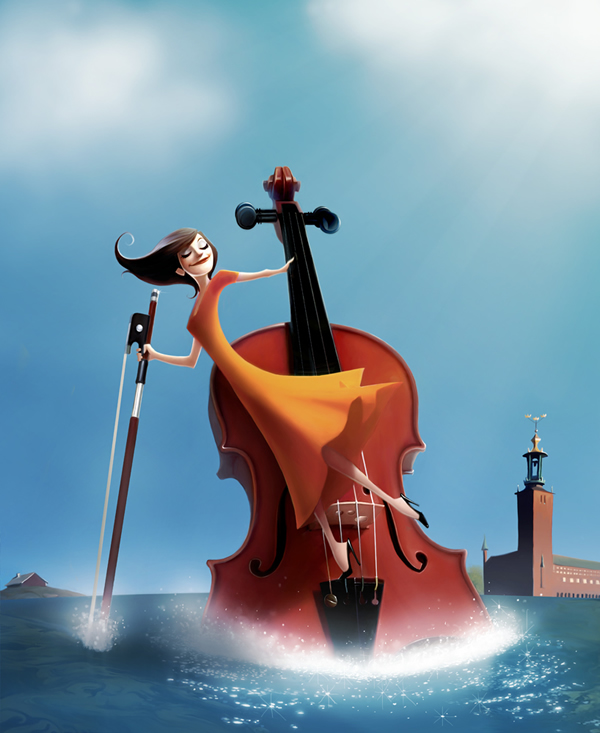
Opus Magazine Cover
This was done for a cover of the Swedish Magazine, Opus.

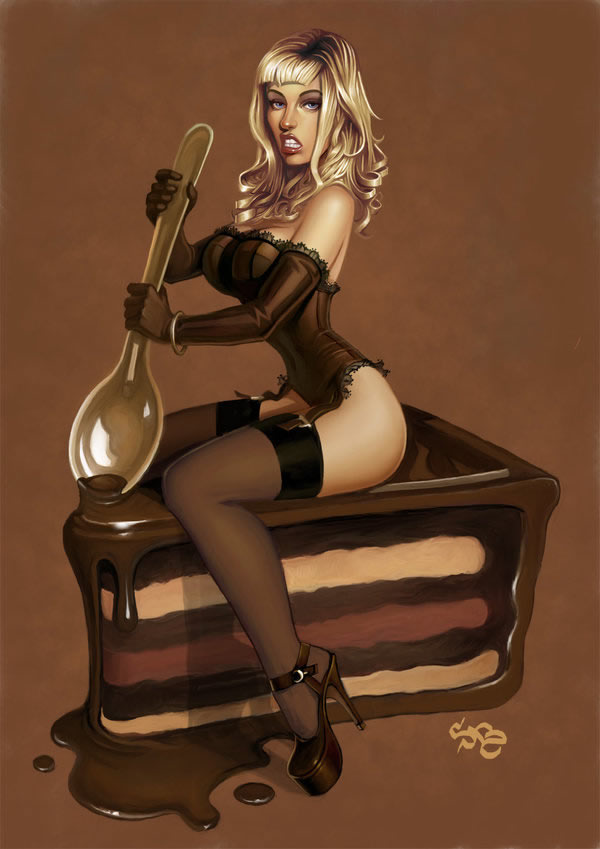
Chocolate

Five Years of Envato
It’s kinda crazy to think, but our little internet startup, Envato, has been on the air now for five years. We started back in 2006 as four very enthusiastic and totally green entrepreneurs with a shoestring budget and a love of the web. Fast forward five years and while we’re hopefully a little less green, we’re still incredibly passionate about Education, Marketplaces and the web! It’s been an amazing time and we’d like to share a look inside our Melbourne HQ offices, some stats about Envato and a big thank you to the community.
Behind the Scenes
With such a big milestone, we thought it might be good to give an inside glimpse into our Melbourne HQ offices and some of the people that work here. So we invited a Melbourne film crew called Compulsive to come in and shoot a 3 minute video about Envato. I hope you enjoy it!
As you may know, we also have a large remote team working around the globe on our sites. Next year we’re hoping to gather all of Envato and as much of the community as possible for an epic meetup, but in the meantime if you’re curious to see who’s who, you can check out this little video from our remote staff meetup last year in Chicago.
Some Stats
Looking back at five years of exciting and sometimes exhausting Envato work, I put together some stats about Envato from our time online so far. In five years we have:
- Published over 10,000 tutorials and articles helping people learn everything from Photoshop to Freelancing
- Hosted over 300,000 items for sale on our marketplaces from WordPress themes to Stock Photos
- Showcased over 12,000 items of inspirational design, photography and a host of other creative mediums on Creattica
- Listed over 8,000 jobs on our freelance job board
- Reviewed and rounded up over 3,000 apps on our AppStorm network
- Launched 9 marketplaces, 11 tutorial sites, 9 blogs, 18 books, 7 bundles, 4 Regular Podcasts, and more social media accounts than you can poke a stick at
- Accumulated close to 1 million RSS subscribers and twitter followers
- Signed up almost 1 million marketplace members, 90,000 Creattica members, 50,000 FreelanceSwitch members, and 40,000 Tuts+ Premium subscribers
- Served up well over 1.5 billion pageviews across all our sites since inception
Holy toledo batman!!
Thank You
I can’t say thank you enough to all of you for supporting Envato all these years. Whether you are long-time user of the Marketplaces, Tuts+, AppStorm, FreelanceSwitch or Creattica, or just a casual visitor, we’re really proud that you stop in and use our sites. If you’re one of the thousands of contributors, authors, writers, and subscribers, we’re honored and humbled that you have helped us build this company and filled these sites with such amazing content. And regardless of who you are, we hope that we can continue to provide value and service to you for many more years to come!
On behalf of the whole team, thank you all!
Collis
CEO, Chief Tea Drinker and Web Designer Who Doesn’t Get to Design Anymore
Envato
P.S. If you’re not all video’d out, you can check out this video of one of our early Envato staff
Best of the Web – August 2011
As you know, each month, we round up some of the best Photoshop-related content from around the web. This month, there were some excellent Photoshop tutorials and articles to choose from so please take a moment to review our favorites from August 2011.
Photoshop Tutorials
-
![]()
Captain America Shield in Photoshop
In this tutorial, Abduzeedo will demonstrate how to create Captain America’s shield in Photoshop.
-
![]()
How to Make a Car Advertisement Poster Design
In this tutorial, Creative Fan will show how to create a cool off-road auto advertisement.
-
![]()
How Many Layers?
In this video tutorial, Ctrl+Paint will explain how many layers you will need in your digital painting.
-
![]()
Photoshop Tutorial: Create a Feathery Shoe from Scratch
This tutorial from Pxleyes will show how to create a feathery shoe from scratching using Photoshop.
-
![]()
Cold Beer Glass Illustration
This tutorial from Alfoart will explain how to illustrate a cold beer mug in Photoshop.
-
![]()
Hidden Gems: Quickly Remove Power Lines With Photoshop CS5
In this tutorial, Photoshop Sr. Product Manager Bryan O’Neil Hughes will show how to remove power lines using Photoshop CS5 and the path tool.
-
![]()
Landscape Photography Editing – Gradients & Adjustments
In this tutorial from Psdbox you will learn how to use adjustments to improve your photos.
-
![]()
Create a Detailed Vintage TV from Scratch in Photoshop
In this tutorial from WeGraphics you will learn how to create a detailed vintage television in Photoshop from scratch.
Articles, Inspiration, and Freebies
-
![]()
The Grid: Special Grill Bryan Episode
In this video interview, Photoshop Sr. Product Manager Bryan O’Neil Hughes makes a second appearance in our round up and answers some tough questions from the cast of The Grid.
-
![]()
Stunningly Creative and Unforgettable Print Ads
This showcase of creative and unforgettable print ads includes some excellent examples for inspiration.
-
![]()
30 Designs and Illustrations with Great Masking Techniques
This round up from Design Instruct includes 30 inspiring examples of illustrations that use masking techniques.
-
![]()
Design Trend: Ribbons, Badges and Banners
Ribbons with a 3D look are especially popular right now. In this post Vandelay Design will showcase 30 websites using these types of elements.
-
![]()
Tips for Designing With Multiple Photos
Photography can be a powerful resource for a designer. This post from Design Shack will take a look at some clever and unique ways to create photo-centric designs using multiple images.
-
![]()
30 Examples of Amazing Character Design
In Vandelay Design’s second appearance in this round up they will present some amazing character designs for you to enjoy!
-
![]()
Protecting Yourself as a Designer
As a designer and a businessperson it is important to protect yourself. This article from Web Designer Depot explains some ways that you can protect yourself and business.
-
![]()
Lion UI Kit Preview
This post on Dribble includes some fantastic OSX Lion UI elements that you can use in your mockups.
Photoshop World 2011 in Las Vegas
As a graphic designer, it’s important to constantly learn new things. That’s one of the great things about this website. We are always sharing new tips and tricks so that you can become better designers. I’ve always found that conferences are a great way to learn new techniques. That is why next week I’ll be headed to Las Vegas for Photoshop World, the world’s largest Photoshop-related conference.
While I am there I’ll do my best to pass on what I’ve learned about the world of Photoshop. If you would like to get the most up-to-date information on my travels make sure to follow us on Twitter and Facebook.
If you’re attending Photoshop World, feel free to stop me and say hello. I’d love to meet you! I may also have some Psdtuts t-shirts to give away so make sure to flag me down.

A Call for Authors: Web UI and Photo Retouching Tutorials
Also, a bit of news… One of my most important jobs, as editor is recruiting new authors. If you would like to get paid to write tutorials for us, we would love to hear what you have in mind. Visit our Write for Us page for more information.
We recently decided to start posting Web Design/Web UI-related content. So if you would like to get paid to write a tutorial demonstrating how to create a web design, button, icon, navigation item, or something else feel free to pitch a concept.
We are also looking for some new authors to write photo retouching, photo effect, and photo manipulation tutorials. So please let us know if you have an idea that you would like to share. Thanks guys!
Create Earthy 3D Typography in Photoshop – Psd Premium Tutorial
In this Psd Premium tutorial, author Ed Lopez will demonstrate how to create an earthy 3D typographic piece using Photoshop’s 3D tools. This tutorial is available exclusively to Premium Members. If you are looking to take your typography skills to the next level then Log in or Join Now to get started!
Detailed Video Instruction
This tutorial includes 10 videos that demonstrate the process of creating this project in detail so that you can better understand the techniques that were used in each step. Below is a clip from one of those videos. To view more clips you can Log in or Join Now!
Professional and Detailed Instructions Inside
This tutorial also includes full text and screenshots of each step. Premium members can Log in and Download! Otherwise, Join Now! Below are some sample images from this tutorial.


Final Image
Psd Premium Membership
You can join Psd Premium for as little as $9/month. Premium membership gives you access to the source files for all our tutorials as well as access to premium tutorials like this one. This also includes the rest of the sites in our network including Vectortuts+, Webdesigntuts+, Phototuts+, Nettuts, and more! Premium Members can Log In and download this tutorial. Otherwise you can Join Today!
Best of Tuts+ in August
Each month, we bring together a selection of the best tutorials and articles from across the whole Tuts+ network. Whether you’d like to read the top posts from your favourite site, or would like to start learning something completely new, this is the best place to start!
-
Vehicle Rendering With Fryrender
Rendering realistic vehicles is no easy task, the complexity of the surfaces and high reflectivity make getting good renders a time consuming, and often frustrating process. So we’ve enlisted the help of author Shaun Keenan to guide you through the process of creating a high quality, realistic vehicle render using Maya 2011 and Random Control’s physically accurate Fryrender.
-
Epic Blender Tutorials
We’ve scoured the web in search of the best Blender tutorials out there and compiled a list of 45 of the most epic we could find. This collection includes a variety of tutorials covering everything from modeling and animation, to rigging and VFX. So grab a coffee and savor the Blender goodness!
-
An Introduction To Keyshot Rendering
In this tutorial, new author Ivan Momchilow will introduce you to the Keyshot rendering engine and get you started on working with the software. Ivan will go through the process of setting up a model for importing and cover the basic settings for rendering inside the software. Keyshot features a surprisingly simple interface that’s both intuitive and easy to use. Featuring only six main UI buttons, rather then the hundreds of options most render engines throw at the user. Ivan has provided our premium members with a fantastic model of the Sony PSP Go, as well as the scene file from Keyshot, so get started after the jump!
-
Create a Medieval Landscape in Photoshop
In this tutorial we will demonstrate how to create a medieval landscape using digital painting and photo manipulation techniques. We will begin by sketching out a rough idea of how we want our image to look. Then, we will then add various stock images and build upon them until we produce the scene below. Let’s get started!
-
Sketching the Human Form in Photoshop
Photoshop is an excellent tool for manipulating photographs but it can also be used as a means to create stunning digital art. This tutorial is part of a 25-part video tutorial series demonstrating everything you will need to know to start producing digital art in Photoshop. Digital Art for Beginners, by Adobe Certified Expert and Instructor, Martin Perhiniak will begin by teaching you how to draw in Photoshop. At the conclusion of this series you will know all you need to produce your own concept art and matte paintings in Photoshop.
-
Interview With Martin Perhiniak: Getting an Adobe Certification
I recently had the opportunity to chat with Psdtuts author, Martin Perhiniak. Martin is the author of our Photoshop Basix and Digital Art for Beginners Series, and is an Adobe Certified Expert and Instructor. I frequently introduce Martin as an Adobe Certified Expert so in this interview I decided to ask him exactly what that means.
-
Getting Started with the Fuel PHP Framework
This two-part tutorial will get you up and running with the Fuel PHP framework. We’ll start with the basics, and then move onto some more advanced topics in part two! Let’s get started.
-
How to Create an Advanced Twitter Widget
As of March 2011, the current average number of “Tweets” the world sends per day is 140 million. This tutorial demonstrates how to create a custom Twitter widget from scratch that uses the Twitter API, Web Intents and @Anywhere. Using the Twitter platform to create a fun, interactive tool for your website can be beneficial both in the learning and promotion departments!
-
Sublime Text 2 Tips and Tricks
I consider Sublime Text 2 to be the spiritual successor to TextMate – particularly when the likelihood of TextMate 2 coming to fruition becomes bleaker and bleaker. When Duke Nukem Forever is released before TextMate 2, you know you’re in trouble! But that’s okay, because Sublime Text 2 is one of the fastest and most incredible editors to come out in a long time! I’ll show you my favorite tips and tricks today.
-
Free Packs of Animal Vector Graphics: Cute Cartoon Characters
Jump in and download these free animal vectors. We’ve rounded up an assortment of cute animal characters drawn in a quirky styles. There are a variety of looks represented, such as: flat vintage, shiny modern anime, childish crayon, chibi characters, and more. The glue holding these together are their must have lovable construction. All are available in various vector formats for free download. Add them to your next design project to add some character warmth, playful fun, and huggable character goodness.
-
How to Create a Seamless Bookshelf Pattern in Illustrator
I admire the complex, inspiring seamless patterns of several vector artists and have always wanted to attempt to create my own. In today’s tutorial I’m going to show you how to make a seamless bookshelf pattern in Adobe Illustrator.
-
Create a Lace Text Effect in Adobe Illustrator
Follow this tutorial and you will learn how to create a beautiful lace text effect. You will use many effects and you will define many personalized Art and Pattern Brushes that will help you create a Lace Pattern Brush that works with any color. Jump into creating this delicate text effect now.
-
Perfectly Rotate and Mask Thumbnails With CSS3
Ever seen a website showcasing image thumbnails that are slightly rotated? It’s a simple effect that adds a layer of visual personality. Saying that, if you’re not achieving the rotation effect with CSS, you’re working too hard! Learn how to do it right!
-
Designing for a Responsive Web
The web as we know it is changing. In the past, designers and developers only had to concern themselves with one medium: the computer screen. In recent years, however, a plethora of fully internet-enabled devices with scores of different shapes and capabilities have cropped up, meaning that we now have to design our websites to fit comfortably in as many screen sizes, shapes, and resolutions as you can possibly think of.
-
Exclusive PSD Freebie: Vue UI Kit
Vue is a complete UI kit, prepared in Photoshop and exclusively available to Webdesigntuts+ readers. Check out preview shots after the jump, download it and use it in your projects!
-
A Neutral Density Filter Primer
Neutral Density (ND) filters are a bit like sunglasses for your lens. Except that sunglasses typically tint the light coming through in one form or another. As true color rendition is often important to photographers, neutral density filters strive to lessen the amount of light passing through them without coloring or changing the nature of the light.
-
Top Tips to Help Define Your Personal Photographic Style
So you’ve spent time developing your camera techniques and skills. You’ve aimed to understand exposure settings and endeavoring to get the perfect shot each time. But sometimes, you’re just not happy with the results and you don’t feel like your work expresses what you want it to. How do you refine your art so you can truly express yourself as a photographer and make your shots recognizable as your work? Well, here are a few tips to help you on your way.
-
Super Surreal Photographs
Today, we look at some of the most biazarre and unreal photos ever taken. Surreal means have the disorienting, hallucinatory quality of a dream. It is a very creative style of photography as you have to have a good sense of vision and creativity to create things others wouldn’t normally see.
I hope you enjoy these 50 examples of surreal photography. -
Realistic Cloud Fly Through – AE Premium
In today’s tutorial, we’re going to recreate this cool cloud scene using Trapcode Particular and a stock clip from Digital Juice’s Compositor’s Toolkit (although other stock elements are available elsewhere). I hope you learn some neat tips and tricks for working with Particular.
-
Summer Time Swimming Pool Logo Reveal
In this tutorial we are going to keep the summer going as long as we can by creating a cool looking water logo reveal animation using some interesting textures and techniques. Also we are going to create a cool looking caustics effect as well as some interesting displacement effects to simulate water surface.
-
Aetuts+ Hollywood Movie Title Series -” Harry Potter V2
We created a Harry Potter title tutorial 2 years ago, but in today’s tutorial we’re going to step it up a notch by emulating the style of the last movie. Using Cinema 4d, we’ll model the beveled text and do animation of the logo and lightning elements. Then in After Effects, well complete our project with clouds, audio, and final compositing. Enjoy!
-
Simple Tricks to Fit the Kick and Bass Together
One of the most commonly asked questions in audio is how to make the kick drum and bass sit well together in the mix. There are a few techniques that have been used throughout the years to take care of clashing bass guitar and kick drum. In the following tutorial we’ll go through two of them: carving out EQ areas and side chaining.
-
Making Your MIDI Strings Even More Realistic
Since my last tutorial, I haven’t had the chance to try Hollywood Strings or LASS, so I’ll be doing this tutorial with my good old friend East West Quantum Leap Orchestra Complete, without blending different patches, using just one!
So, before going to the tutorial, there is no point in lying to you. MIDI is always a temporary option. For us, the film composer guys, MIDI is a solution till the time we can record a live orchestra. -
Audiotuts+ Top 6 Software Synths
I remember discovering pro synths way back in 1982. I was amazed – with one instrument you could create almost any sound you could imagine. I fell in love with them. Now we can do all that with software.
-
Activetuts+ Has a New Focus: Browser-Based Apps and Games
From today onwards, our focus is changing. Instead of covering everything to do with Flash, Unity and Silverlight, we’ll be covering the design and development of browser-based apps and games in general. This means no more tutorials on full-Flash websites or AIR, and lots of new content on game design, UI, and HTML5. Read on to find out what we’ve got in store!
-
Build a 2D Portal Puzzle Game With Unity: Getting Started
In this tutorial (part free, part Premium), you’ll learn how to create a 2D puzzle game in Unity which uses a Portal-style game mechanic to teleport objects across the level. In this first part, we’ll lay out the main concepts of the game, put some graphics together, and get the basic (portal-less) physics working.
-
Beginner’s Guide to Powerflasher’s FDT 4
Flash Professional isn’t the only tool you can use for making Flash apps and games. Earlier in the year we looked at FlashDevelop; now, we’ll take a look at FDT 4, a powerful IDE designed specifically for ActionScript, MXML and haXe development. Read on to find out what it can offer you!
-
WP101 Basix Training
Welcome to the WPtuts+ WP101 tutorial series, the perfect beginning spot for those just getting started with WordPress! It’s also a valuable resource for designers & developers who are teaching your clients & colleagues!
-
Add Facebook Comments To Your WordPress Theme
Facebook launched the social plugins for developers in 2010. You all know at least one of them, the “like” button that you see on lots of blog posts across the net (like this one, pardon the pun!) Today we are focusing on the Comments Box system. Adding Facebook comments allows the user to comment on your blog using his Facebook account. There is no need for him to enter his name and email address or even register an account on your site.
-
Using Custom Post Types to Create a Killer Portfolio
Quite possibly the best addition to WordPress 3.0 was that of Custom Post Types. This took WordPress from being a CMS that can manage posts and pages to being able to manage anything the user can think of rather easily. You no longer have to add custom fields to posts- you can add high level support to your own types, creating their own theme page files and admin areas. One of the first things I did using custom post types was revamp my portfolio and today I’m going to show you how I did it!
-
Corona SDK: Create a Memory Match Game
The Corona SDK makes game development for the iPhone, iPad, and Android easy. Corona uses the Lua programming language to create cross-platform apps. In this tutorial, we will explore how to create a memory match game with the Corona SDK.
-
Building a Jabber Client for iOS: Server Setup
In this tutorial we will build a Jabber Client for iOS. The application developed in this series will enable users to sign in, add buddies, and send messages. In the process of building this app, we will describe how to install and configure a jabber server, create accounts, and interact with the server from an iOS application. To simulate a chat environment we will build a scenario with two users: one user will be chatting from an iPhone app and the other will be using iChat.
-
Building an iPad Reader for War of the Worlds
This tutorial will use the Leaves open-source project to build a simple iPad reader for The War of the Worlds by H.G. Wells. Along the way, we’ll take a quick look at the code powering the Leaves project, discuss implementation details, and explore a few alternative options for achieving a similar effect.
Cgtuts+ — Computer Graphics Tutorials
Psdtuts+ — Photoshop Tutorials
Nettuts+ — Web Development Tutorials
Vectortuts+ — Illustrator Tutorials
Webdesigntuts+ — Web Design Tutorials
Phototuts+ — Photography Tutorials
Aetuts+ — After Effects Tutorials
Audiotuts+ — Audio & Production Tutorials
Activetuts+ — Flash, Flex & ActionScript Tutorials
Wptuts+ — WordPress Tutorials
Mobiletuts+ — Mobile Development Tutorials
Thanks for Reading!
We love bringing you the latest and greatest tutorials each month, and would like to take this opportunity to say thanks for reading, subscribing, and offering your feedback. If you have any suggestions for tutorials, or Tuts+ in general, feel free to leave them below in the comments!
As ever, the best way to support the sites (and get your hands on superb, industry-leading tutorials) is to join our Premium program. It costs just $9 per month, and will be the best few dollars you ever spend! There’s also no risk, thanks to our 100% money-back guarantee.
Test Your Photoshop Knowledge #1
Interview With Andreas Rocha
Andreas Rocha is a veteran designer who has mastered the art of matte and digital paintings. His portfolio will take you to incredible fantasy landscapes that you could only dream of. Andreas gives the readers a window into how he creates his beautiful illustrations by explaining the art of matte painting and also telling us about the equipment he uses. Don’t miss this great interview with a multi-talented artist.
Q Welcome to Psdtuts+, please introduce yourself. Could you tell us where you’re from and how you got started in the field?
Hi. My name is Andreas Rocha, I was born in 1976 and live in Portugal. I’ve been freelancing in digital art for the last four years, although I’ve been doing it since 1997. I had always enjoyed drawing from an early age. I mostly sketched characters and did portraits but in 1997, when I found out about tablets, everything changed. Until then, my failed attempts at painting with acrylics and watercolor were frustrating me. But when I started seeing work from other artists done with the digital medium, I knew I had to get a tablet and I never looked back since then.
Q For our readers that are not familiar with Matte Paintings, please tell us exactly what a matte painting is. Give us your own explanation of what you do also.
My best answer to that is to check out Wikipedia for “matte paintings” as it will give you a much better explanation than what I could give you. Basically, it’s an image created for the purpose of creating a virtual backdrop for a scene. They are very popular in fantasy and sci-fi films because they mostly deal with imaginary places which are only possible to create through matte painting and make them believable. Before there was digital art, these matte paintings were painting on glass using traditional media like acrylics. Some famous matte paintings created in this way were done for the original Star Wars Trilogy and the first 3 Indiana Jones movies (watching these movies nowadays in HD you can even see the brushstrokes). Nowadays, it’s all created digitally with the use of photography, digital painting and 3D. On a side note, I remember seeing an original matte painting from The Return of the Jedi a few years ago and I was completely blown away.
My approach to a matte painting is to start with a digital painting as base without the use of much photography. Having a solid foundation on top of which you can overlay your photos and 3D elements is a must to achieve consistency and believability. I also think it’s very important to give an overall painted feeling to the image by painting in a lot of the elements. The blending of brushstrokes adds to the realism and you avoid the cut and paste look. Finally, a lot of post production is also necessary with a lot of layers to simulate atmosphere, lights, shadows and reflections.
Q It’s a must for all painters to have a tablet, so give us a visual of your workspace. What are your tools, and why do you prefer your equipment over everything else?
I have an Intuos4 L and dual 24inch LCD setup. I use a PC and Photoshop for most of my work. I’ve tried a Cintiq for 2 days and returned it to the store after that. It may seem like a flaw that you can’t paint directly onto your working surface but not having your hand in the way is something that I had never realized would be so helpful. The strain on the eyes was also something I didn’t like. Most likely Cintiq’s will get better and more responsive in the future but for now I am really satisfied with my Intuos.
I also use a dual monitor setup so I can keep all my tools and tab groups on my second monitor to free up space. This helps a lot because the more I see of the entire image at a good zoom percentage the better. Finally, regarding Photoshop, it’s just very user friendly in my opinion and really speeds up my work flow, compared to other digital painting software.
Q What would you say is the key to create a realistic and believable matte painting?
As mentioned above, you should be able to start with a digital painting without much use of photography. You will have a better control of composition, light and drama. It is also very important to use a lot of layers dealing with atmospheric effects like hazes, blooms, god rays, etc. But try and leave these for the final stages as introducing them too early may make the work flow more complicated. Finally, I would say that actually painting in a lot of the elements is also very important as you will have a greater control over them. It is also important to follow rules of traditional painting. For example, avoiding detail where you don’t want the viewer to look is something that you easily control with painting. Photography, on the other hand, registers every tiny detail. So, relying on photography alone to compose a matte painting can make it look uninteresting and bland.
Q You list classic movies like LOTR, Star Wars, Blade Runner, and more as your inspirations. How exactly do these movies inspire you to create your stunning paintings?
Some inspired me at an early age and made me love the environments portrayed. I think it made me want to be able to create such worlds myself. Over the years, as I improved my technique and after watching all of these movies countless times I realized that I could also start sharing with others all the ideas and imagery that went through my head. It’s a very fulfilling sensation, when you get it right, but it sucks, when you completely missed the mark.
Q “The Gathering” is a very mysterious painting with some great colors and composition. Please walk us through what you were trying to illustrate, and how you created it.
It all started with a thumbnail sketch I had done in the previous year. I was just practicing black and white thumbnails so there was no real intent other than to paint something in a fantasy theme. Later on, I decided to make a bigger color version out of it. Again, I did it for practicing purposes and also tried to make worthy addition to my portfolio. Instead of writing about what I did I will show you the several stages of the painting process.

Q Your digital paintings range from beautiful scenery shots, to cinematic action shots. What would you say is your favorite type of scene to paint and why?
Well, I would say my favorite type of scenes are definitely wide fantasy vistas with a lot of natural elements in it. I think it has to do with my overall love for fantasy. It’s also a funny feeling when I get to the more detailed stages in these paintings and I start imagining all the things that might have actually happened in such places. I really immerse myself and start living inside the painting which is quite rewarding.
Q Thanks again for providing Psdtuts+ with this opportunity to interview you. Any final thoughts for our readers?
Don’t be disheartened if you fail in your first attempts at digital painting. You will inevitably get better if you keep painting, you can’t avoid that. But be patient, sometimes it can take a couple of years before you start seeing any visible improvements. Also, try to have fun while you paint. It should be a rewarding experience. Start by copying other artists’ works or photographs. Even though, it’s probably not something that you will be able to show it will make wonders to your technique.
Where to find Andreas on the Web
Create a Detailed User Interface for an iPad Application
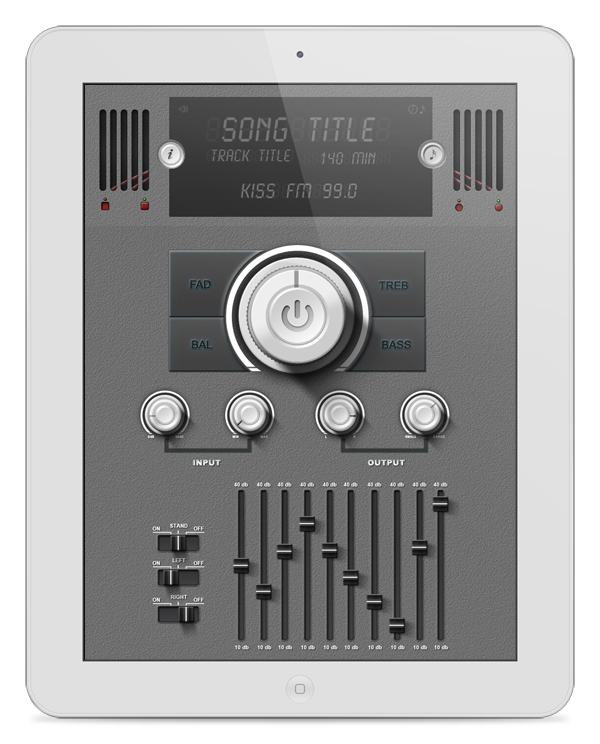
In this tutorial we will show you how to design a detailed user interface for an audio-themed iPad application. We will design this application using a retina display resolution and will make use of Photoshop’s shape layers and layer styles. Let’s get started!
Tutorial Assets
Step 1
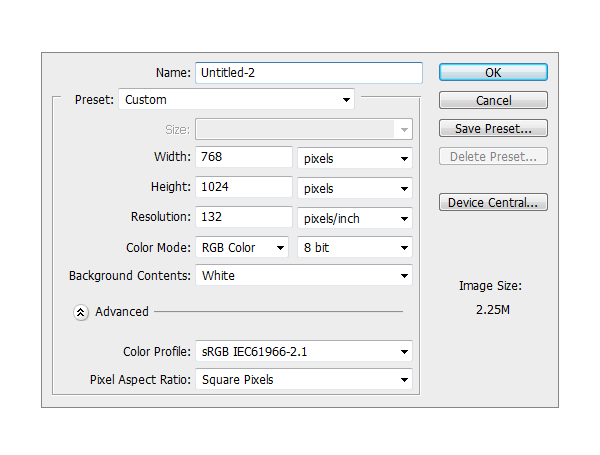
Create a new file. Set Width to 768 and Height to 1024 and the resolution to 133 PPI.

Step 2
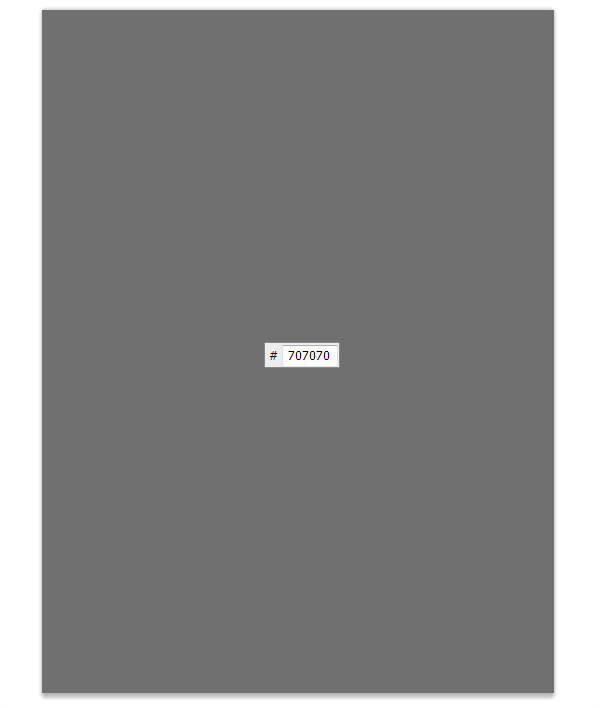
Make a new Group and name it Background. Inside that group, create a new layer and fill it with #707070.

Step 3
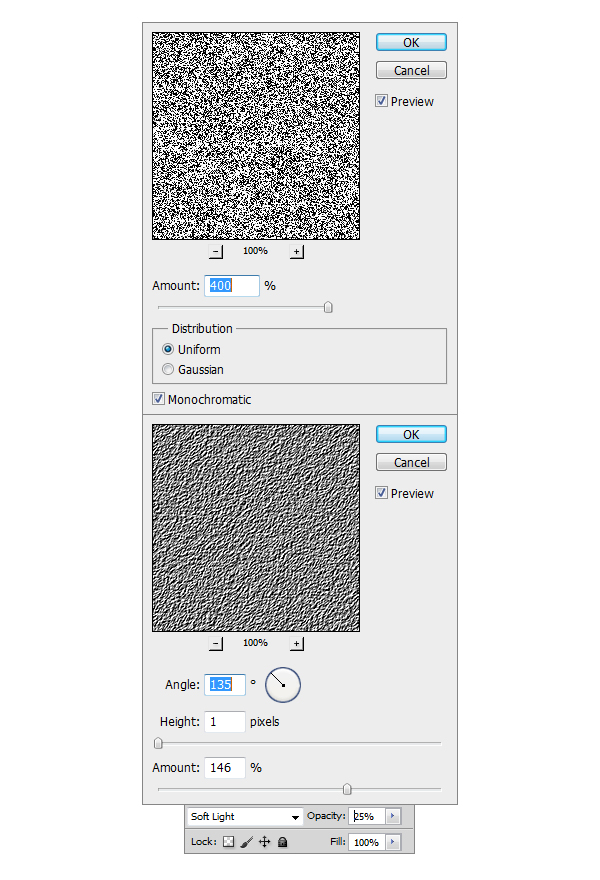
Now make another layer on top of the previous one, fill it with any color you want, I prefer to use White #ffffff. After doing this go to Filter > Noise > Add noise and se the Amount to 400%, Distribution to Uniform and check the Monochromatic box. Next step is to go to Filter > Stylize > Emboss and set the Angle to 135, Height to 1 and Amount to 146. Set the Opacity of the layer to 25%.

Step 4
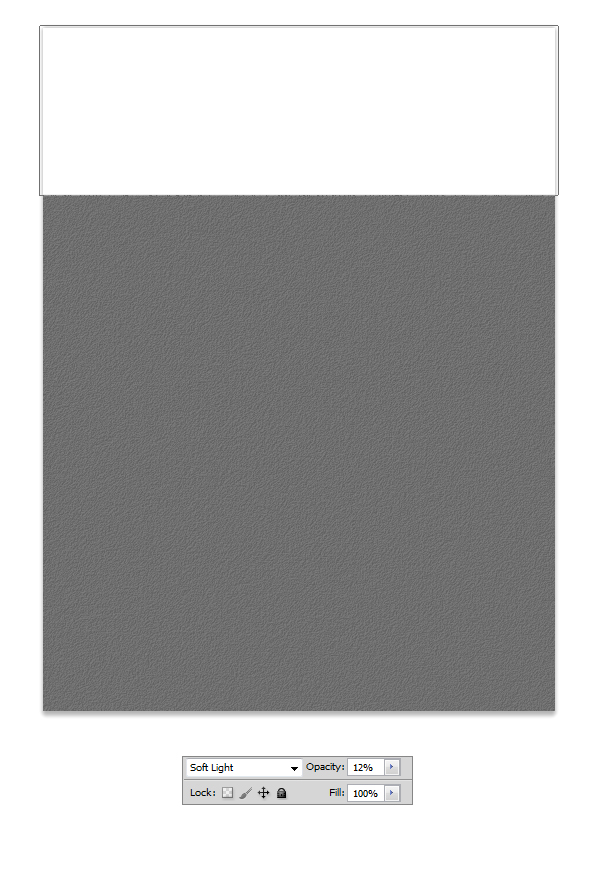
Select Rectangle tool (U) and make a white #ffffff shape like the one in the example. Set the blending mode for the layer to Soft Light and the Opacity to 12% and our
Background is done.

Step 5
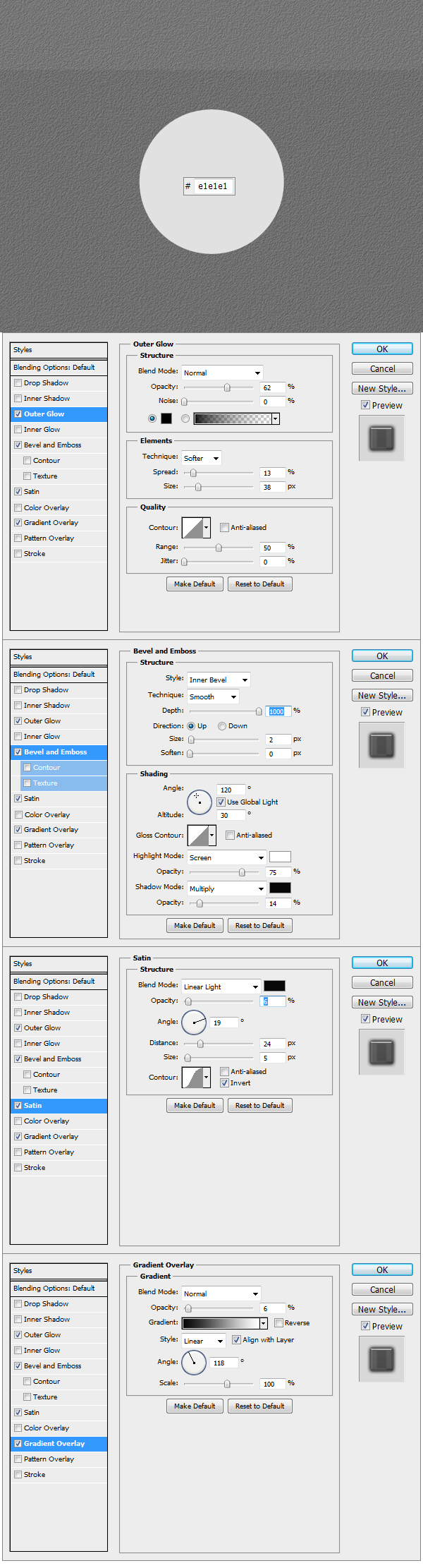
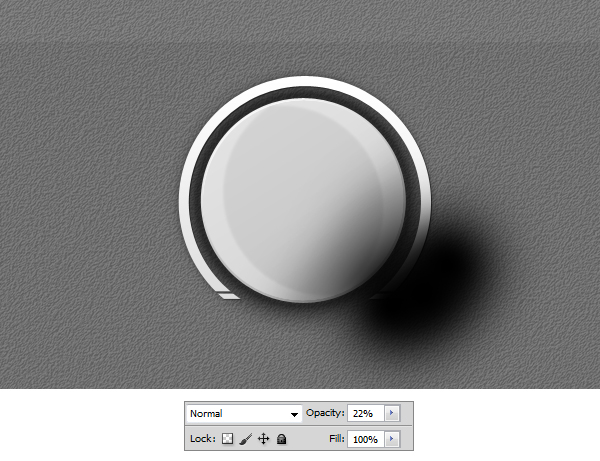
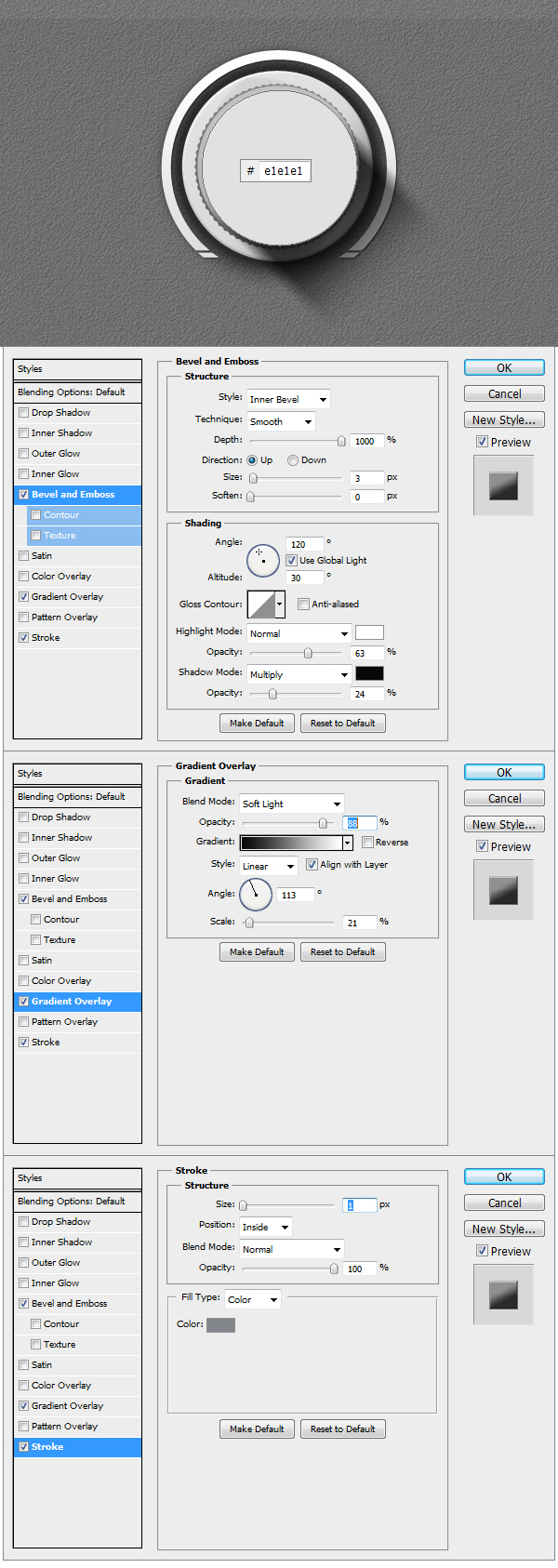
Now to get started on the elements. Create a new Group and name it Main Knob. Using Ellipse Tool (U) make a circle like the one in the example and fill it with #e1e1e1. Apply the Layer Styles to get the base of the Knob done.

Step 6
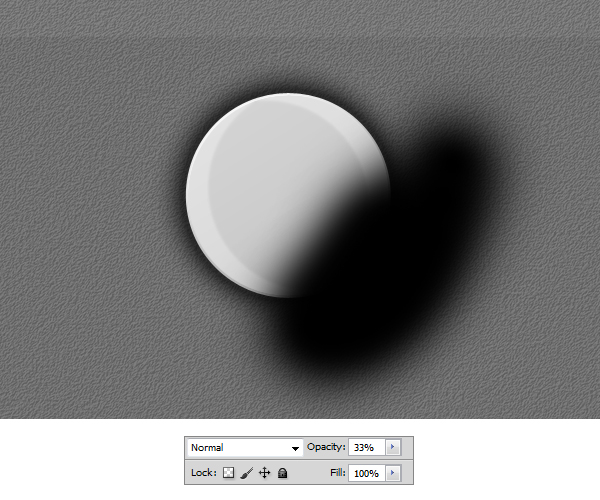
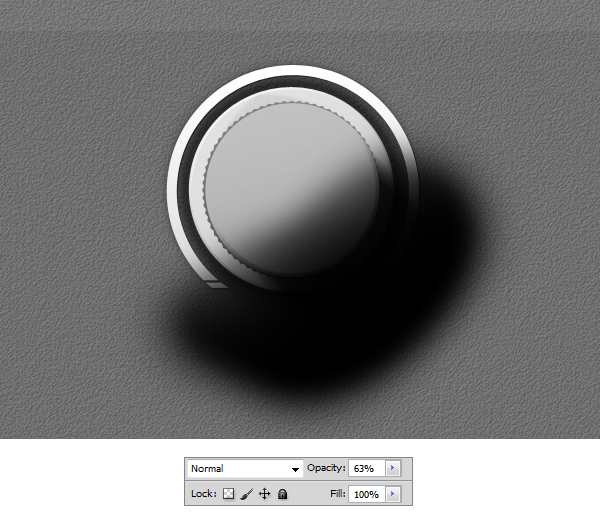
Using Brush Tool (B), pick a medium size brush and set the Hardness to 0. Make a black stroke like in the example and set the Opacity to 33%. Right click on the layer
in the Layers panel and select Create Clipping Mask.

Step 7
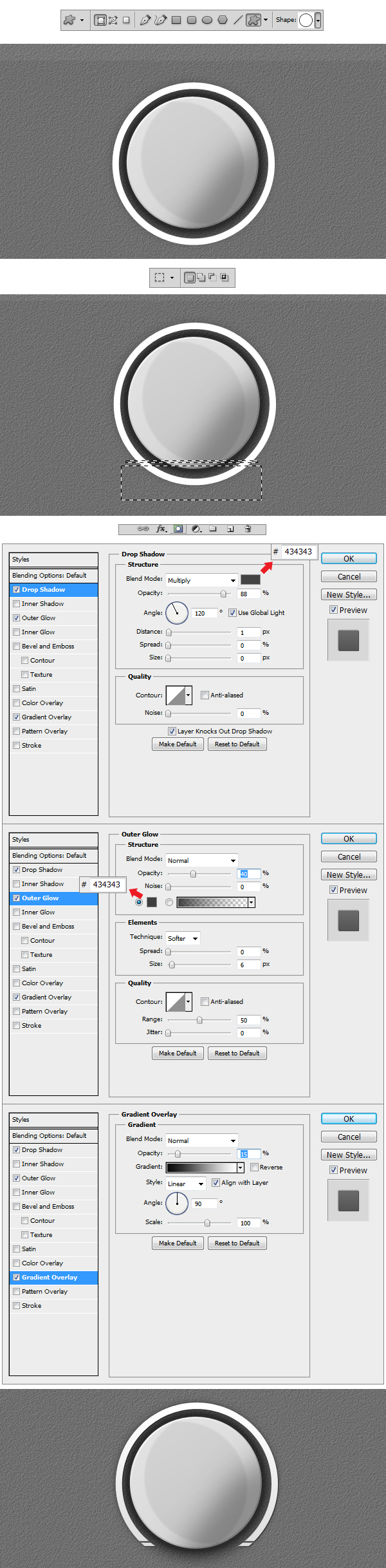
Select Custom Shape Tool (U) and from there select the Circle Thin Frame shape that is in the library. Make a shape like the one in the example. Now using
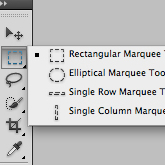
Rectangular Marquee Tool (M) make two selections like the ones in the example, than right click on the image and Select Inverse so that you can add a Layer Mask to the shape.
Once everything is done apply the Layer Styles that follow in the example.

Step 8
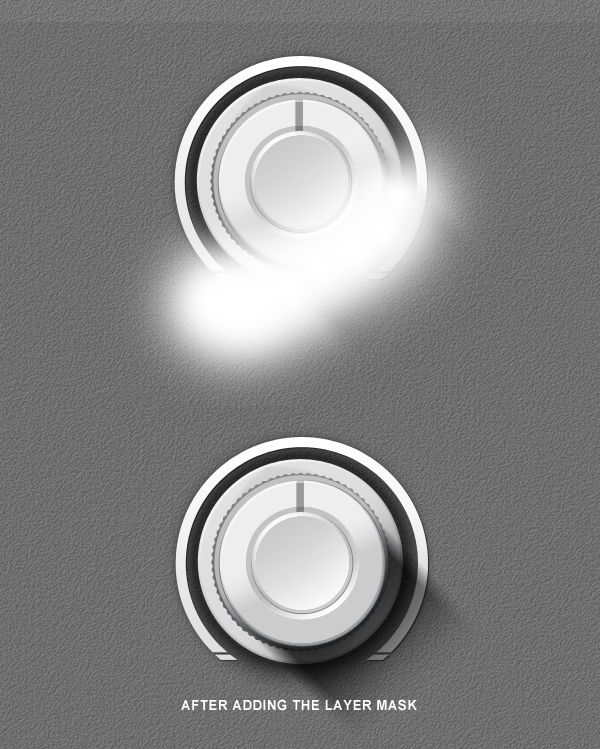
Make a new layer on top of the previous one and using a black #000000 medium brush make a stroke like the one in the example. Reduce the Opacity to 22 % and transform
the layer in a Clipping Mask.

Step 9
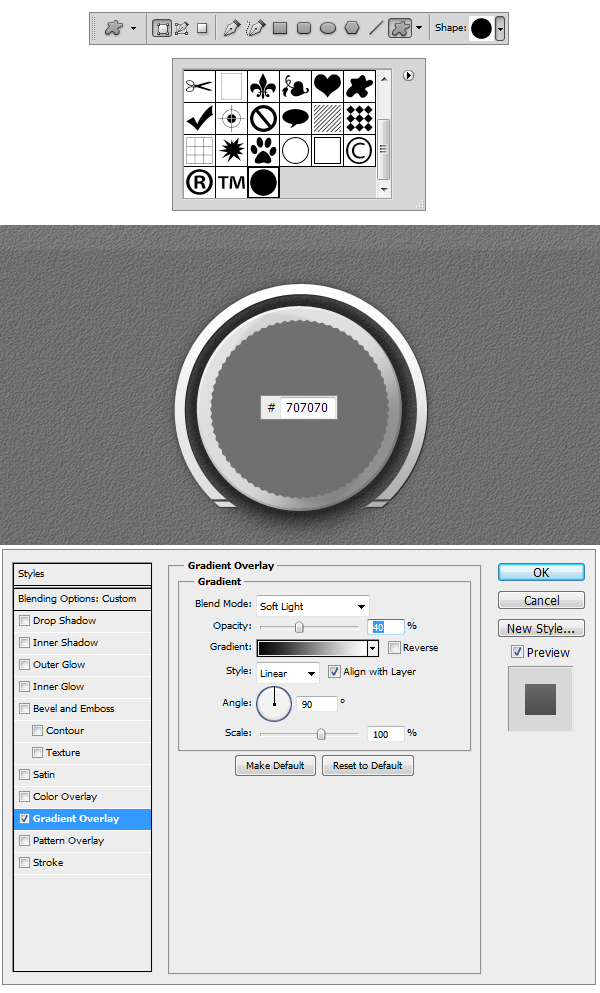
Select Custom Shape Tool (U) and load the Tutorial Custom Shape.
Make a shape like in the example using the Custom Shape added. Set the color to #707070 and apply the Layer Style.

Step 10
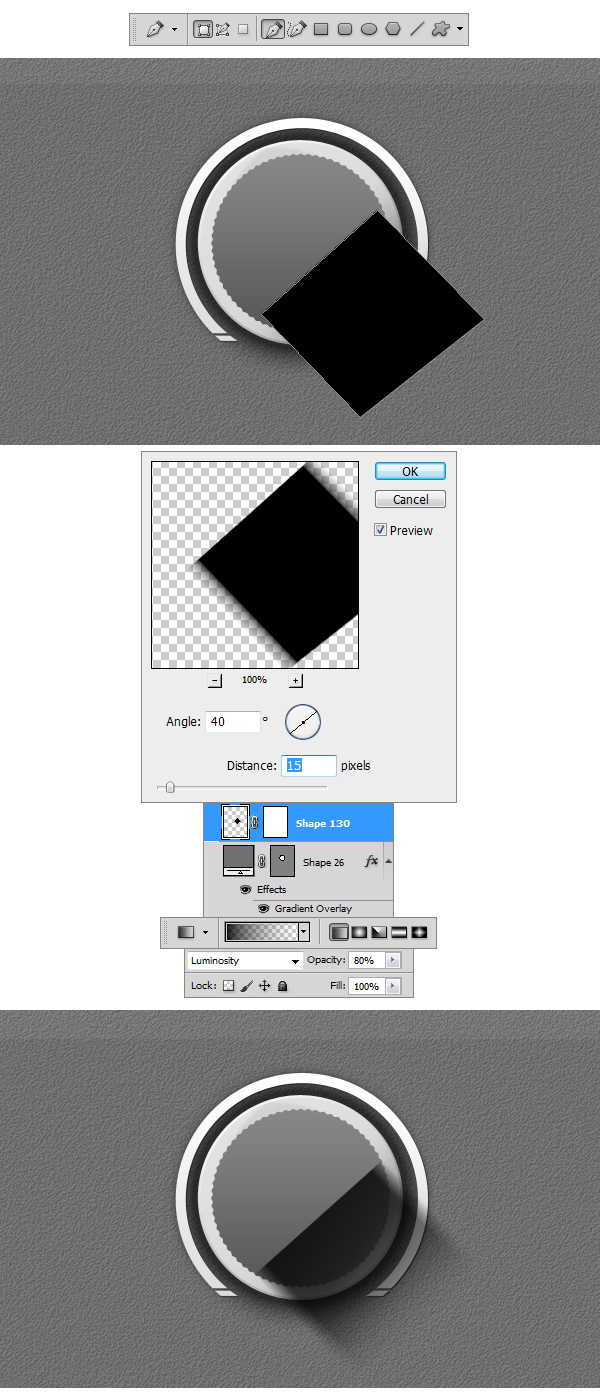
Using Pen Tool (P) draw a shape like the one in the example. Afterwards go to Filter > Blur > Motion Blur and set the Angle to 40 and Distance to 15 px. Add a layer mask and using
a black #000000 Linear Gradient set to Foreground to Transparent make a stroke from the bottom up. Set the Opacity of the layer to 80 %.

Step 11
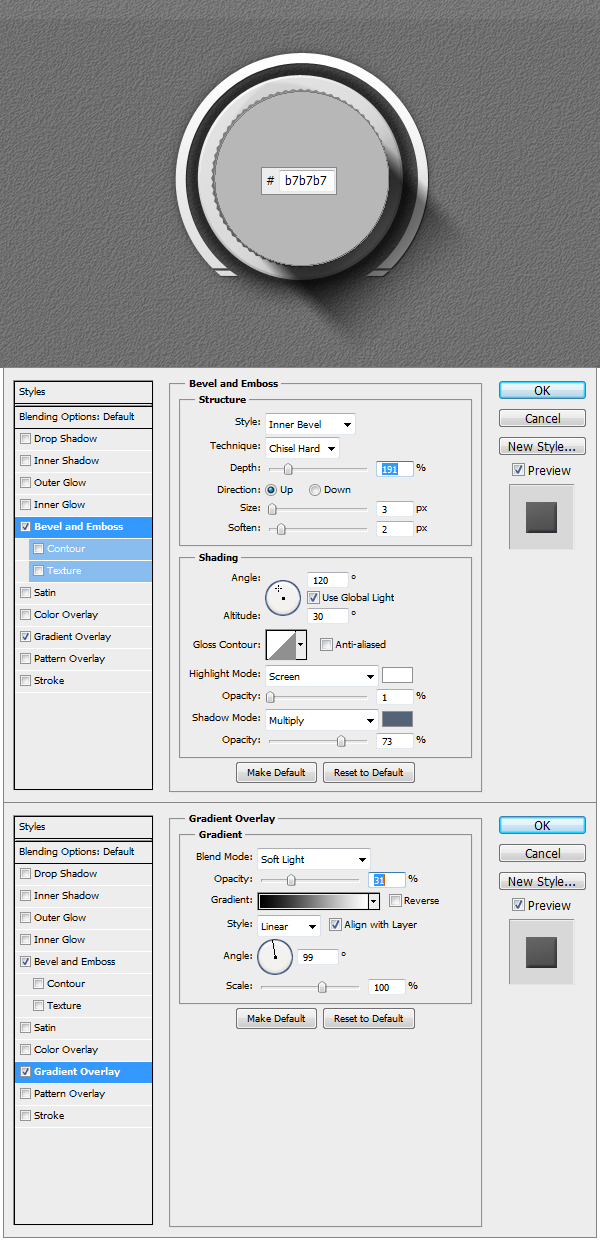
Make a circle using Ellipse Tool (U), set the color to #b7b7b7 and apply the Layer Styles.

Step 12
Using Brush Tool make a black #000000 stroke like shown in the example, set the Opacity of the layer to 63 % and make the layer a Clipping Mask.

Step 13
Make a new circle using Ellipse Tool (U), set the color to #e1e1e1 and apply the Layer Styles.

Step 14
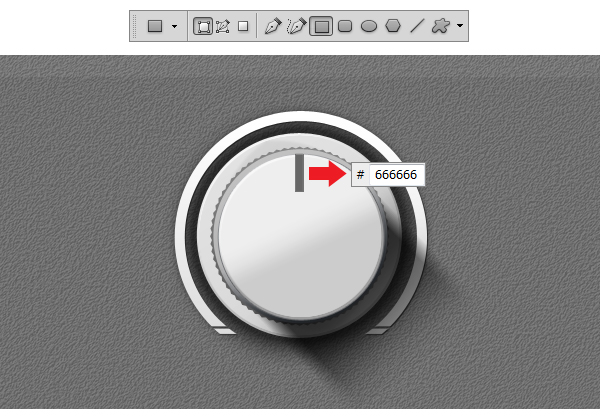
Using Rectangular Tool (U) make a rectangle like the one in the example, set the color to #666666 and transform the layer into a Clipping Mask.

Step 15
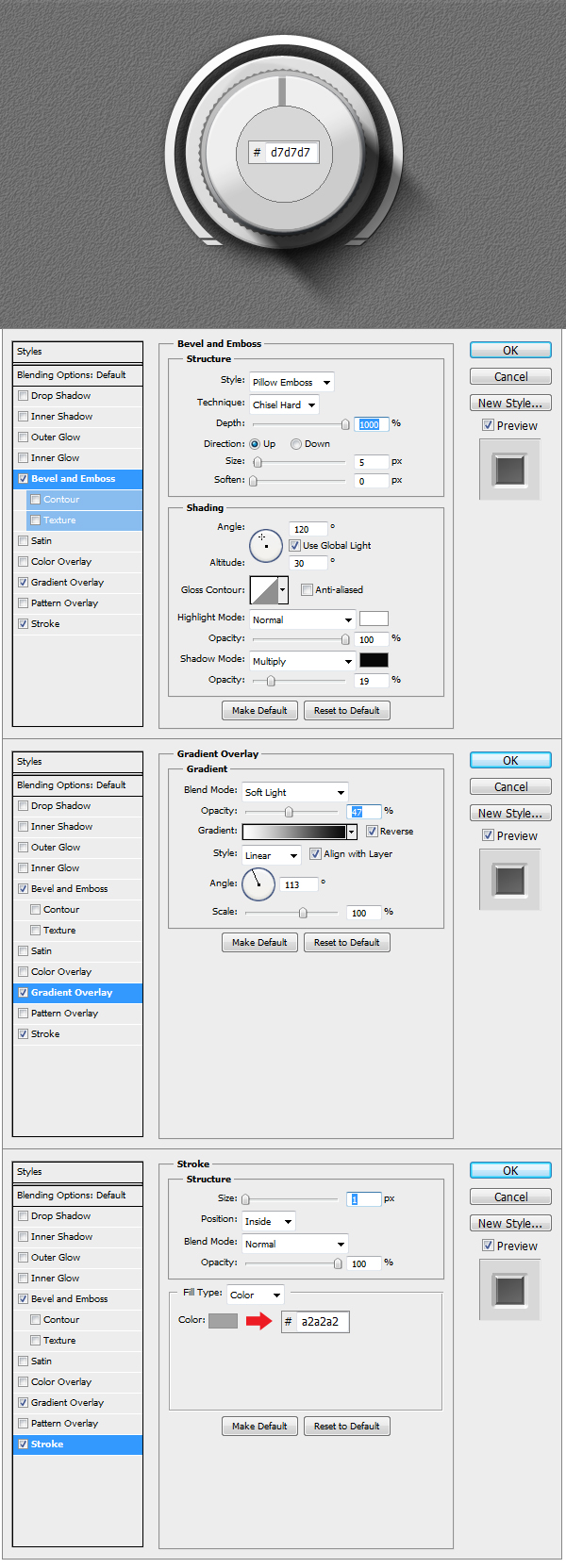
Make another circle using Ellipse Tool (U), set the color to #d7d7d7 and apply the Layer Styles.

Step 16
Using Brush Tool (B) make a white #ffffff stroke like in the example and transform the layer into a Clipping Mask.

Step 17
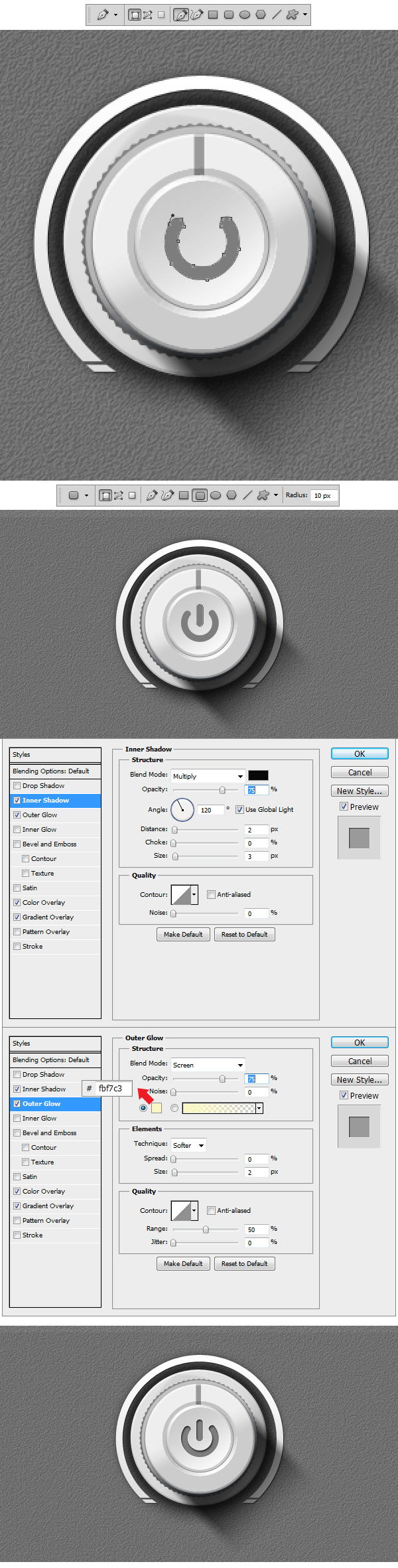
In this step we will make the power symbol. Using Pen Tool (P) draw a grey #7c7c7a shape like the one in the example. Now using Rounded Rectangle Tool (U)
set the Radius to 10 px and make a shape similar to the one in the example. Apply Layer Styles to both shapes. Our Knob is done.

Step 18
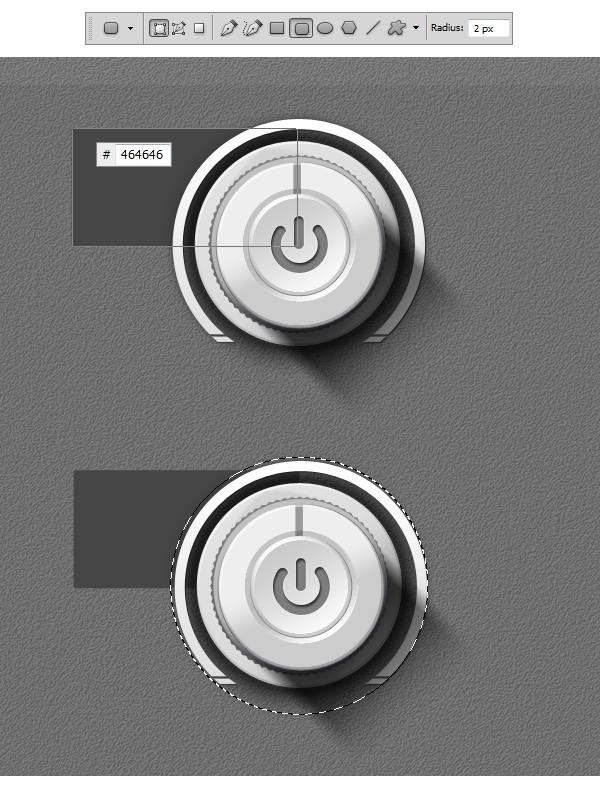
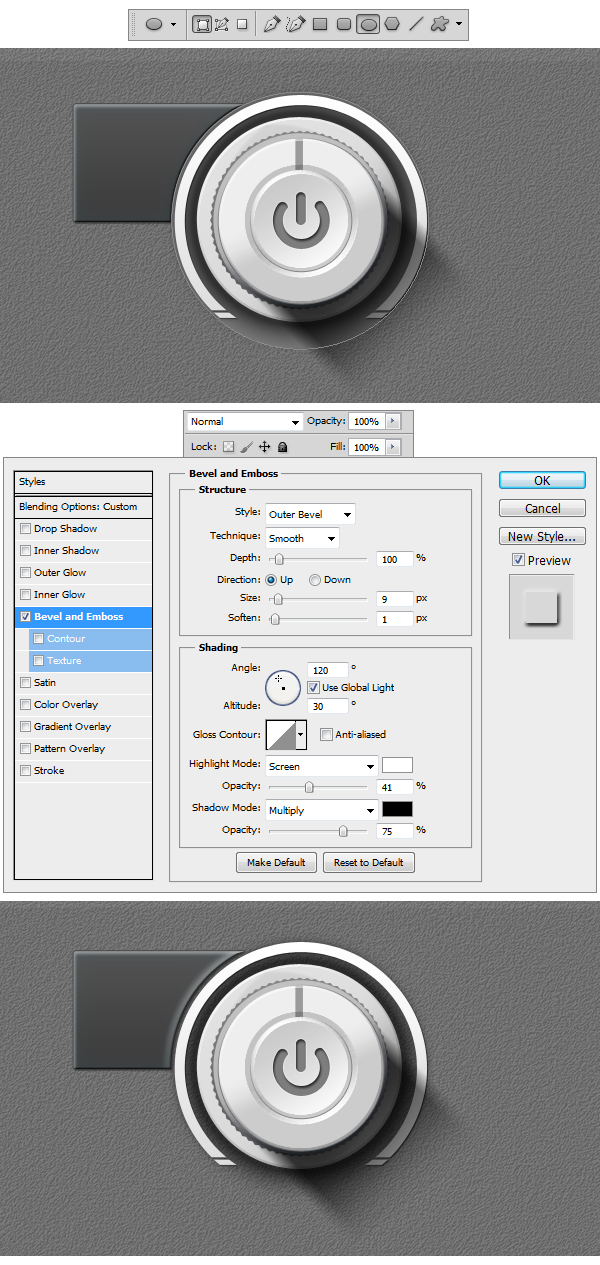
Close the Main Knob Group and create another one under it. Name it Top Left Button. Inside using Rounded Rectangle Tool (U) set the Radius to 2 px and make a shape similar to the one in the example. Using Elliptical Marquee Tool (M) make a selection, 2-3 px bigger than the Knob, Right Click to Select Inverse. Add a layer mask to the button shape and our base is done.

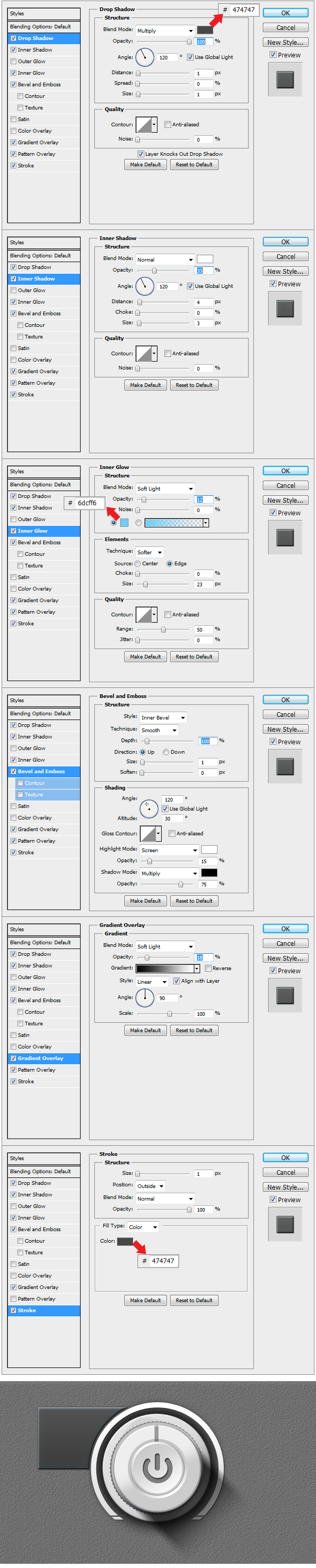
Step 19
Apply the following Layer Styles to the Button shape.

Step 20
Using Ellipse Tool (U) make a circle like the one in the example. Apply the Layer Style and transform the layer into a Clipping Mask. This way the bevel will be shown inside the Button shape.

Step 21
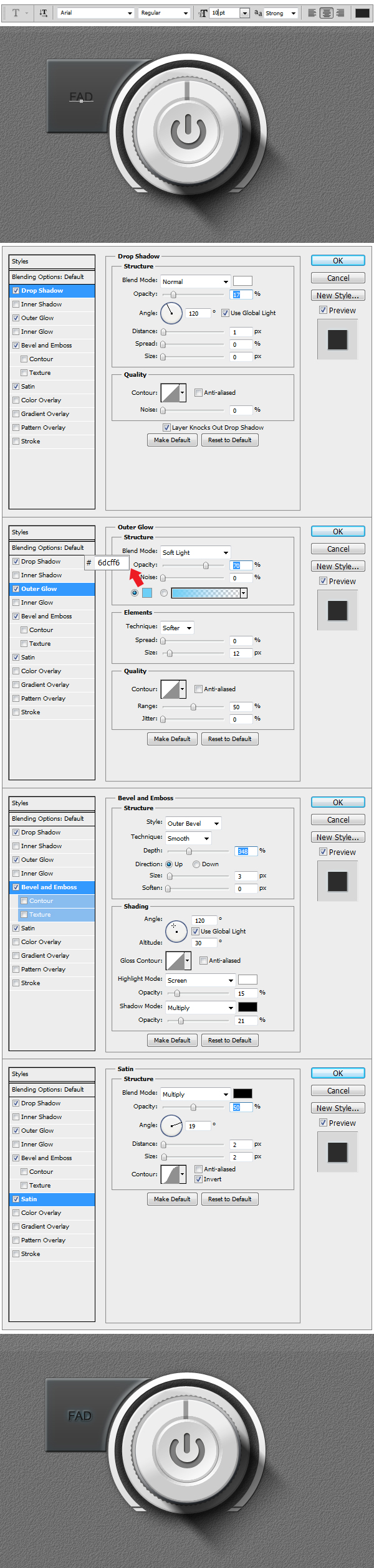
Now to add some text. Using Horizontal Type Tool (T) set the size to 10 px, font to Arial and write down a word. Apply the layer styles and we have our first button ready.

Step 22
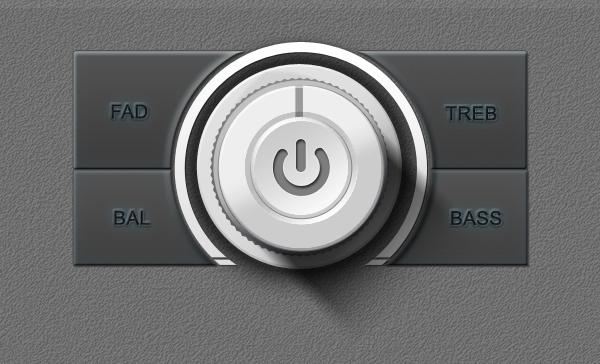
In order to make the other 3 buttons you will have to re-make the previous 4 steps.

Step 23
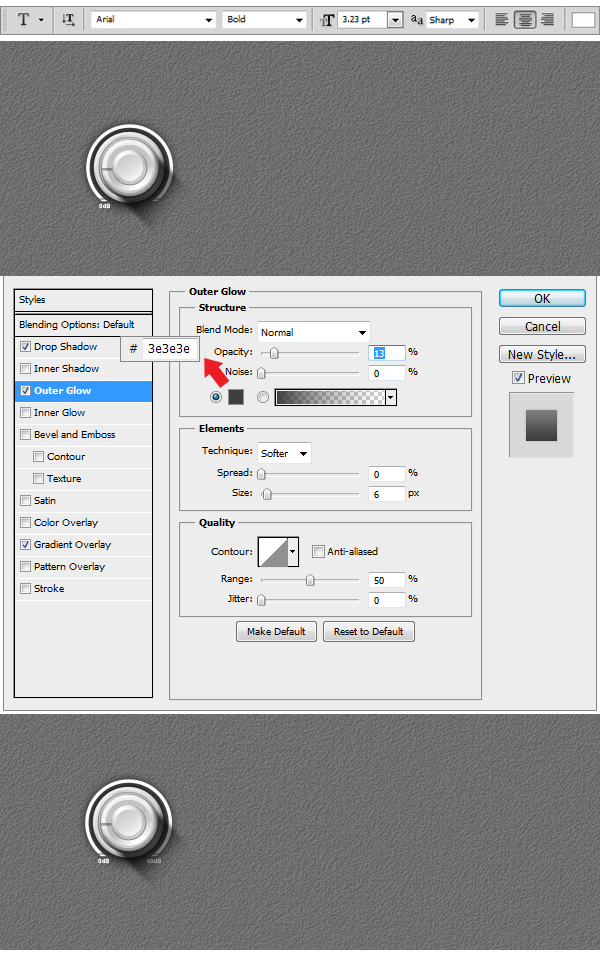
Now we will make 4 smaller Knobs. The easy way is to simply duplicate the Main Knob Group. After we’ve made a copy of the group we’ll make another group and name
this one Small Knobs. You will have to insert the Main Knob Copy into the Small Knobs group. Once you’ve done this select the Main Knob Copy and rename it Small Knob.
Now resize the whole group to 33 % like shown in the example. Delete the last two shapes inside the Small Knob, representing the power symbol, and open the Layer Styles of
first layer shape in the group. Reduce the size of the Outer Glow to 13%.

Step 24
Using Horizontal Type Tool (T) we will insert a few intensity indicators. On the left site we will write using a 3. 23 pt Arial-Black Font 0 db and on the right side 40 db.
Apply the layer Style to both text layers.

Step 25
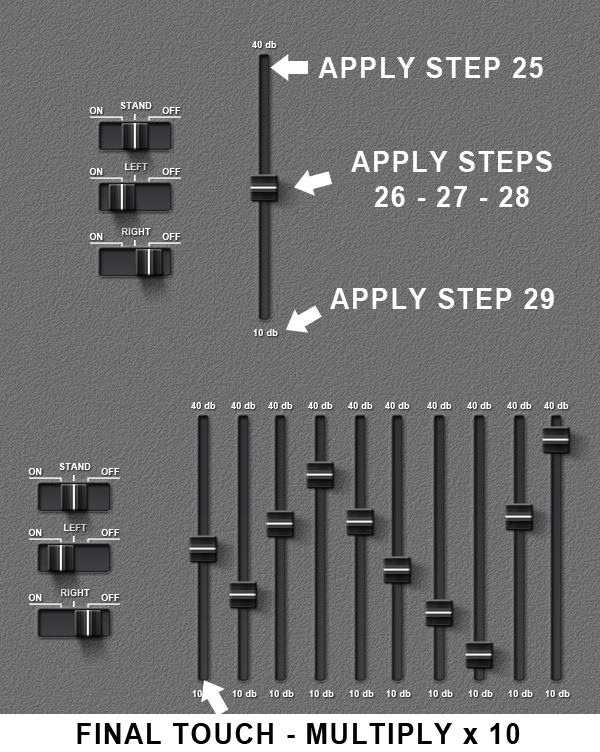
Duplicate the Small Knob group four times, and move the rectangular indicator as you wish, giving a more dynamical aspect to the knobs. Using Pen Tool (P) draw two shapes like the ones in the example. Color both of them with #464646 and apply the Layer Styles. After with the help of Horizontal Type Tool (T) write under each previous shape using a 7. 50 pt Arial – Black Font the words INPUT (on the left side) and OUTPUT (on the right side). Apply the layer styles and everything is done.

Step 26
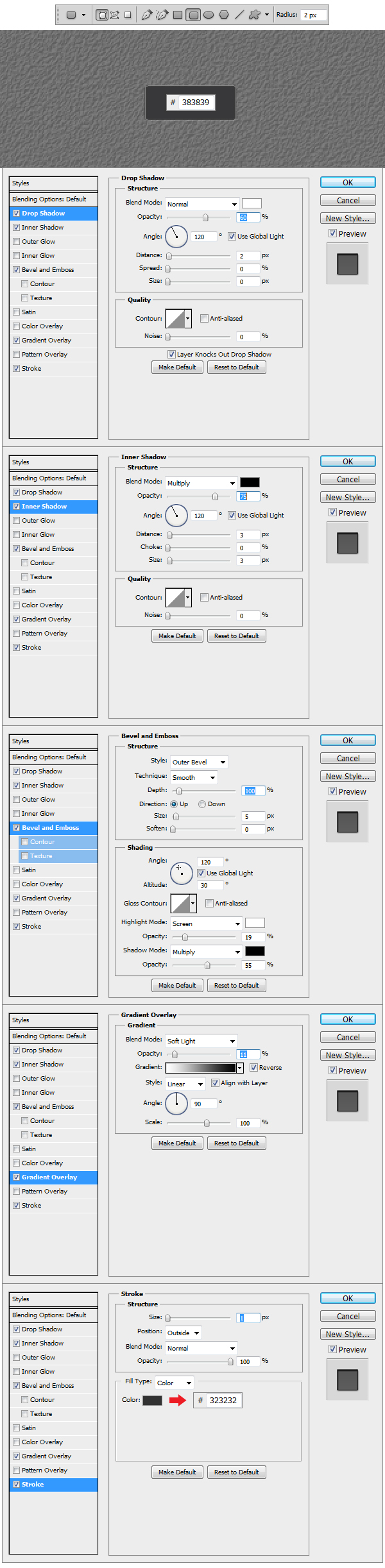
Make a new Group and name this one Switch. Now using Rounded Rectangular Tool (U) set the Radius to 2 px and make a shape like the one in the example. Set the color to
#383839 and apply the Layer Styles.

Step 27
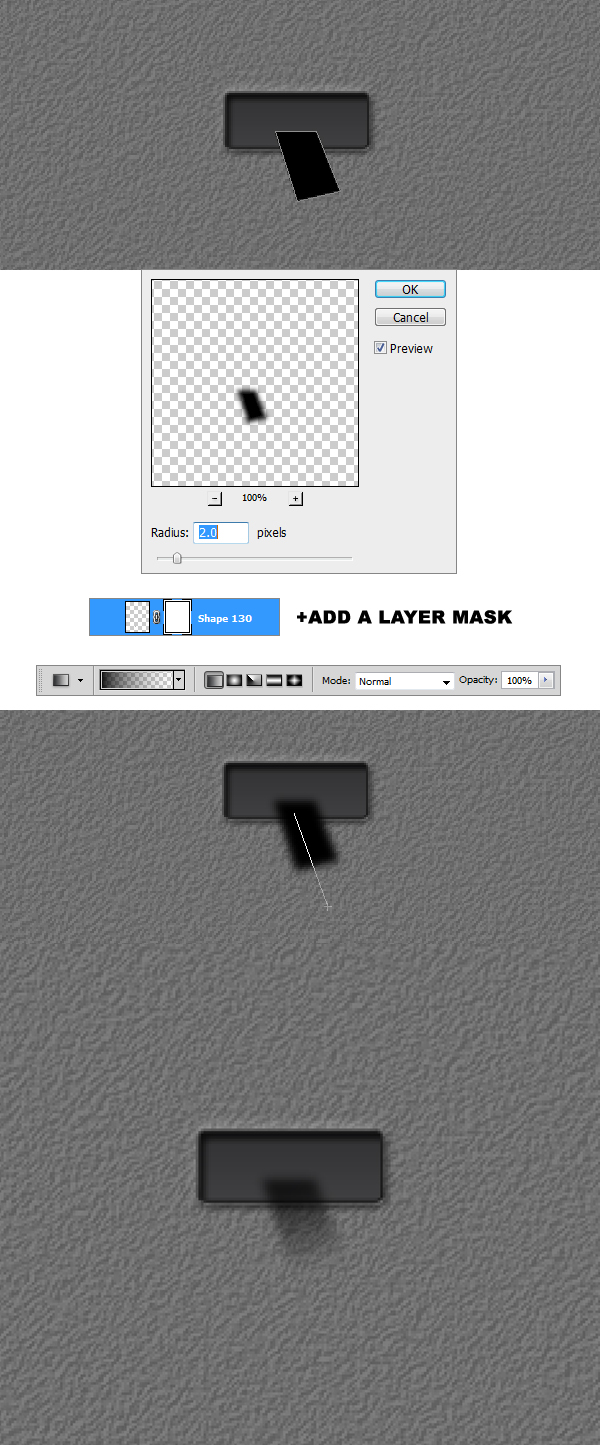
After creating the basic shape of the switch we are going to build the shadow. Using Pen Tool (P) draw a black #000000 shape like the one in the example. Afterward
go to Filter > Blur > Gaussian Blur, set the Radius to 2 px and apply the filter. Add a layer mask to the shadow layer and using a black #000000 Linear Gradient set to
Foreground to Transparent make a stroke from the bottom up like in the example.

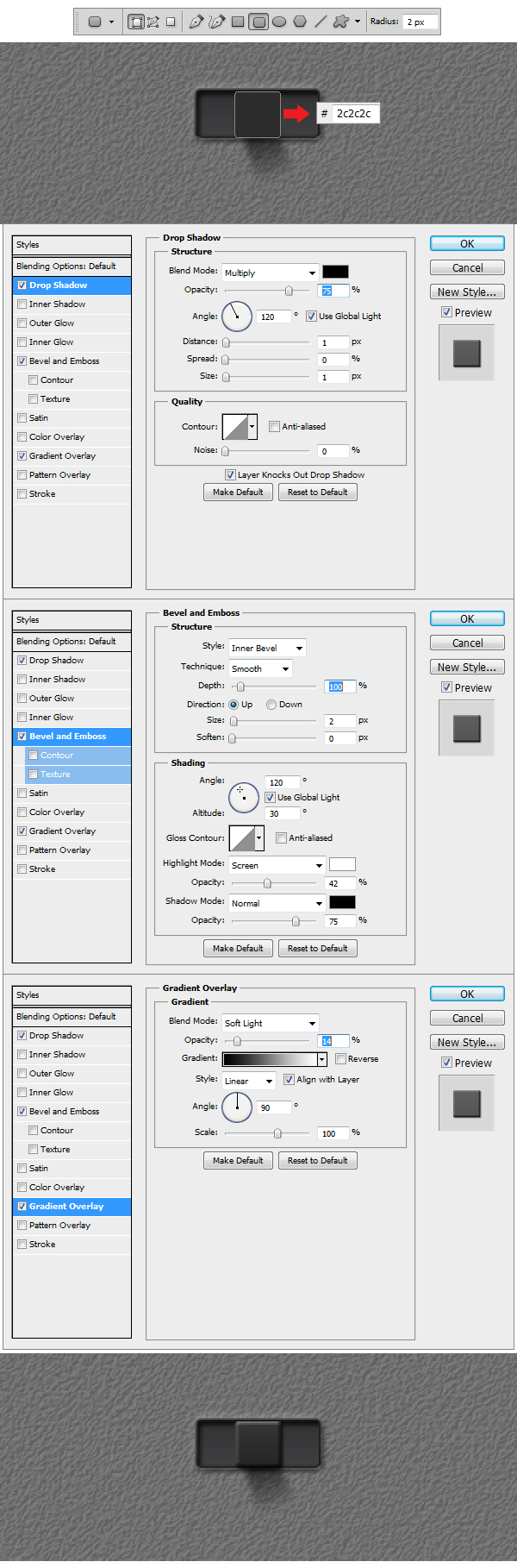
Step 28
Using Rounded Rectangular Tool (U) with the Radius set to 2 px, make a shape like the one in the example. Set the color to #2c2c2c and apply the Layer Styles.

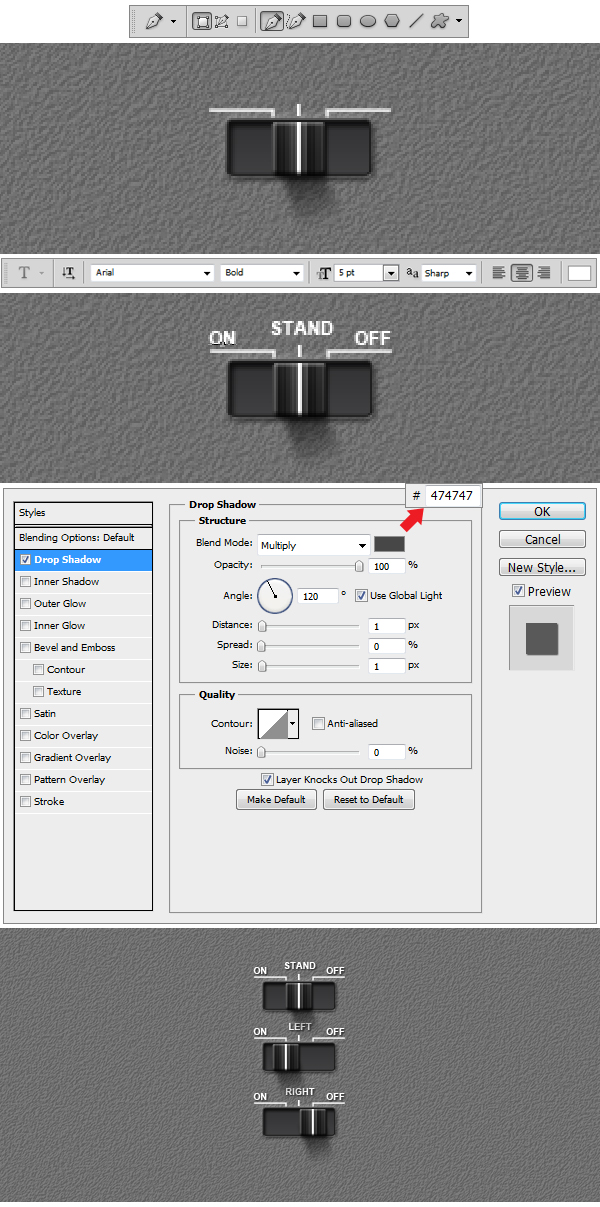
Step 29
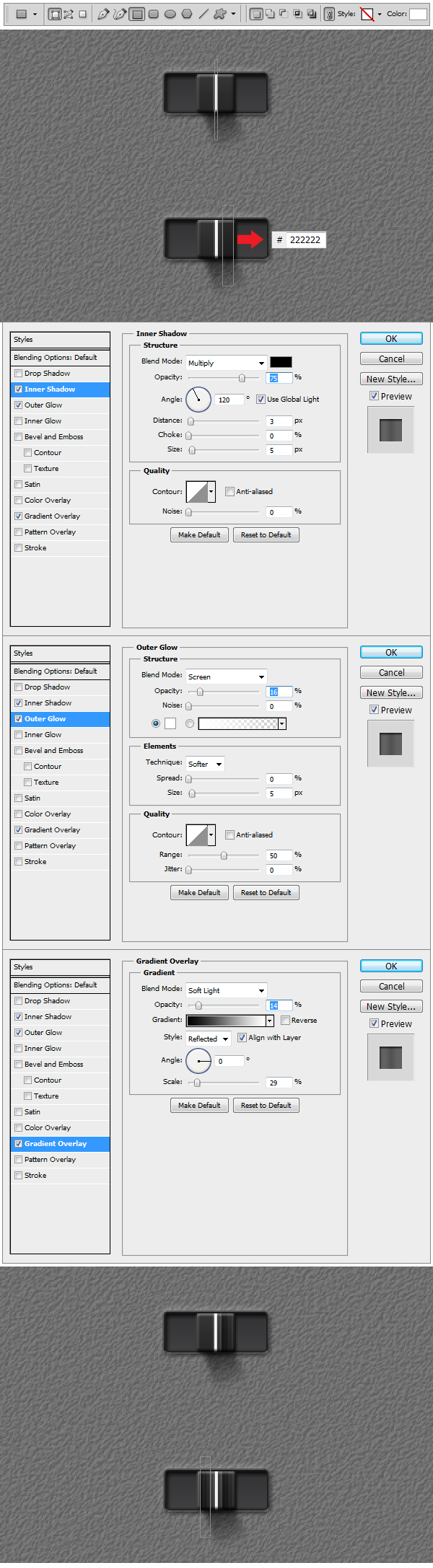
Add a new layer and make it a Clipping Mask. Using Rectangular Tool (U) make a white shape like the one in the example. Now make another shape, which also has to be a Clipping Mask and color it with #222222 and apply the Layer Styles. Duplicate this last layer on the left side of the switch.

Step 30
Using Pen Tool (P) draw 3 white #ffffff shapes like the ones in the example. After using Horizontal Type Tool (T) set the size to 5pt, font to Arial and above the 3 elements ON, STAND and OFF and apply the Layer Style. Duplicate Switch group 3 times and we’re done.

Step 31
Make a new Group and name it EQ. Now to build the Equalizer bend follow the steps indicated in the example. After you are done creating the bend, duplicate it 10 times
to get number of bends needed.

Step 32
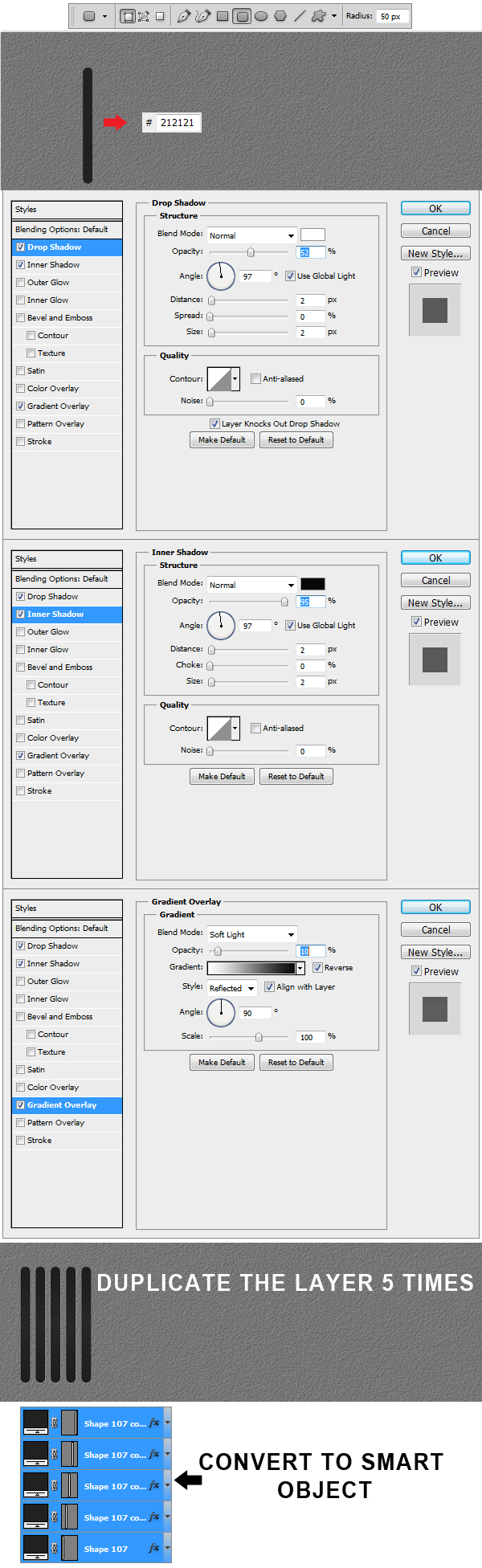
Create a new Group and name it Grill. Using Rounded Rectangular Tool (U) set the Radius to 50 and make a shape like the one in the example. Set the shape color to #212121 and apply Layer Styles. Duplicate the layer 5 times, afterwards select all 5 layers and Convert to Smart Object.

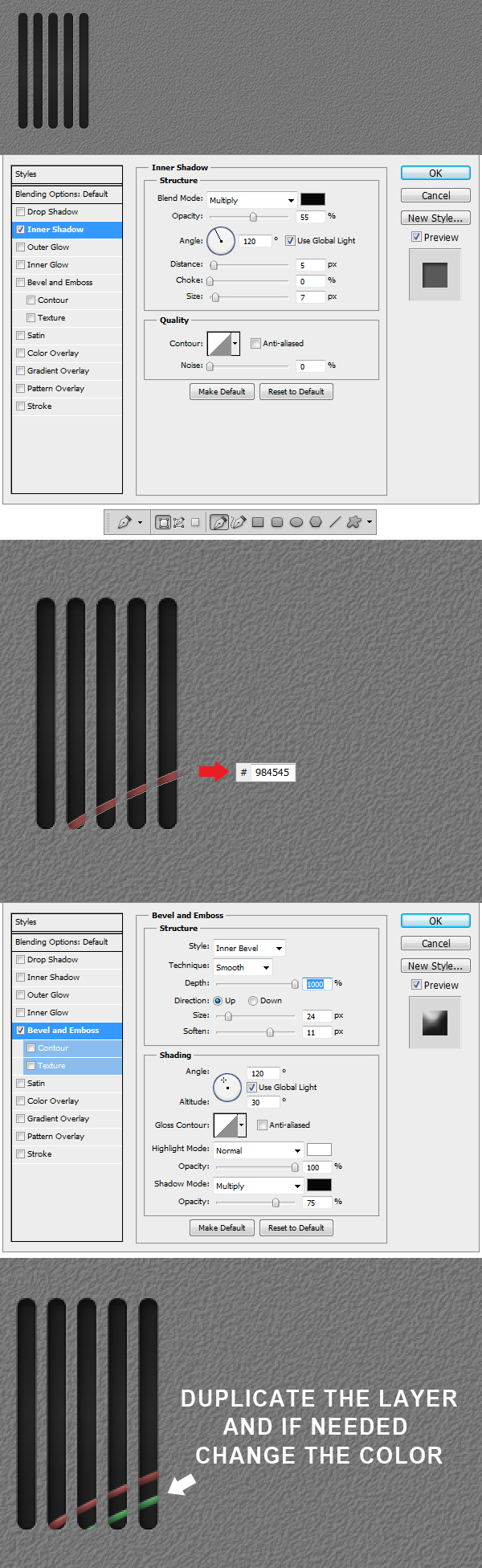
Step 33
After you’ve made the conversion, apply the Layer Style. Using Pen Tool (P) make a shape like the one in the example, set color to #984545 and apply the
Layer Style. Duplicate the layer and change color if needed.

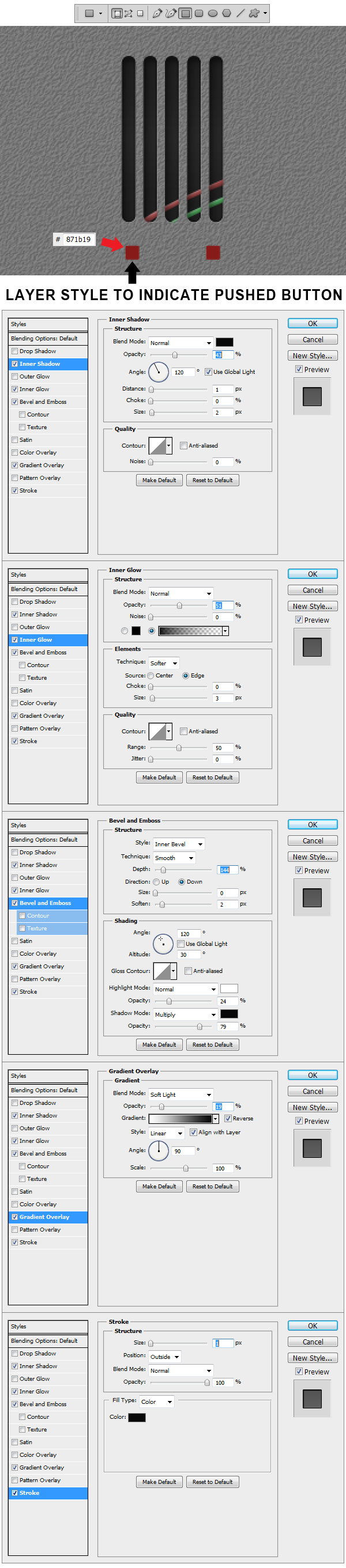
Step 34
Using Rectangular Tool (U) make to red #871b19 squares like the ones in the example. To the left one (indicating the pushed version of the button) apply the
Layer Styles shown in the example.

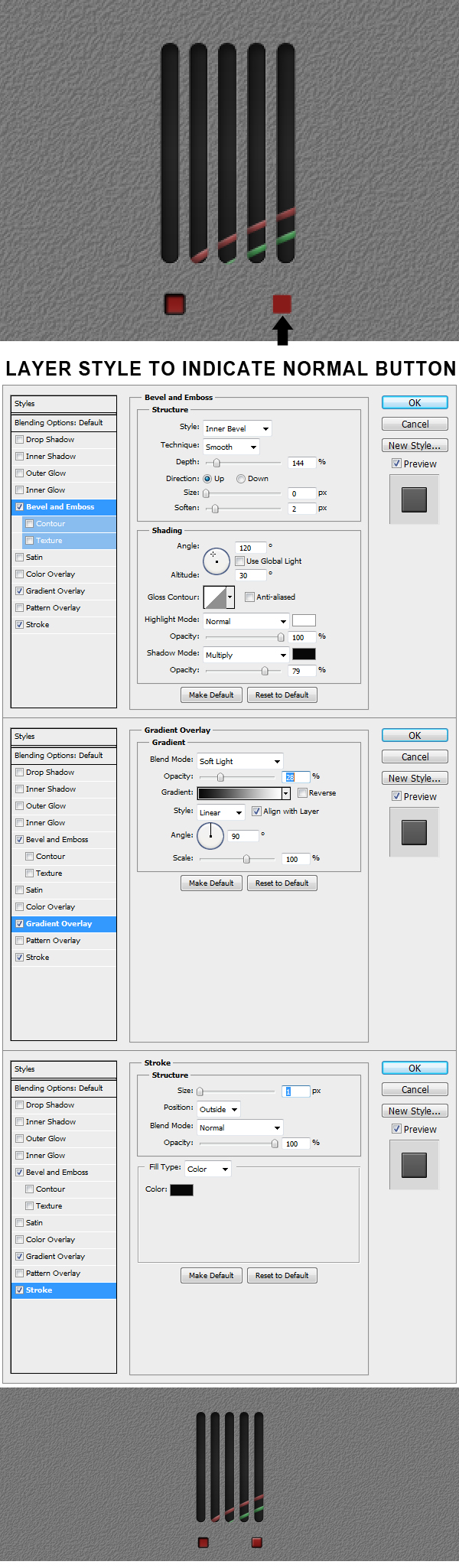
Step 35
Now we are going to make the normal mode button. Apply to the right square the Layer Styles indicated in the example.

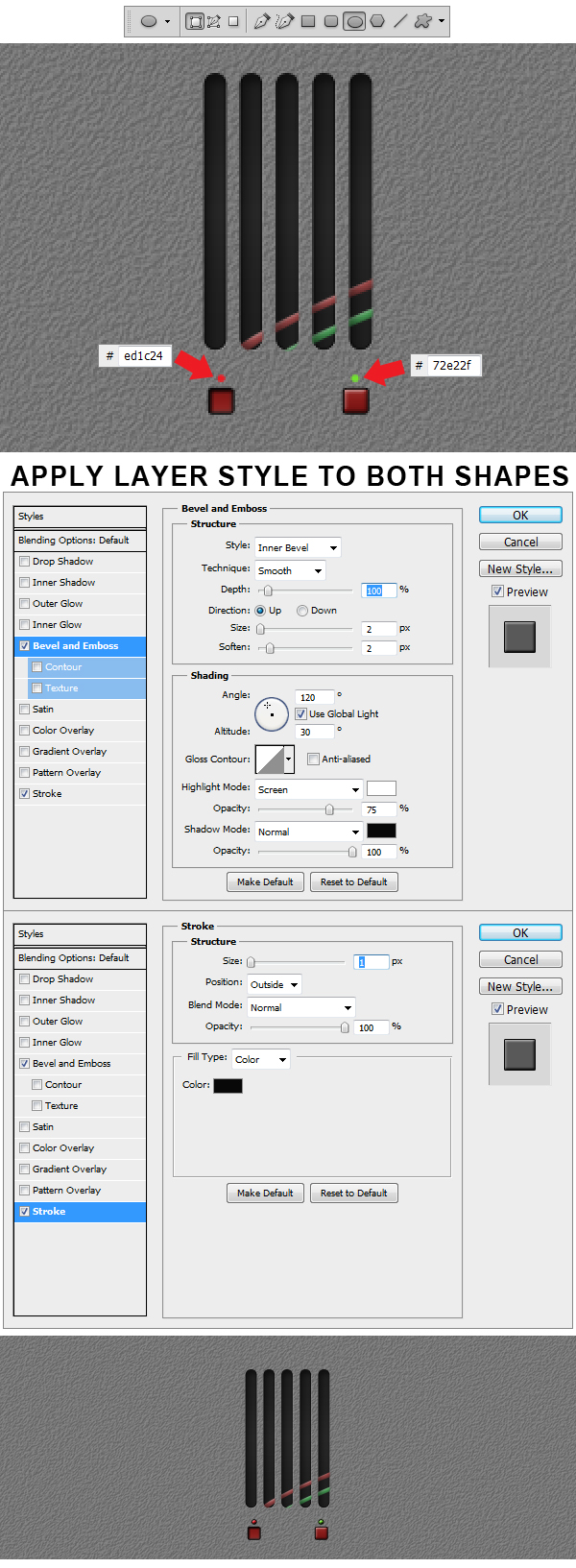
Step 36
Using Ellipse Tool (U) make 2 shapes above the previous buttons like the ones in the example. Color the left one #ed1c24 and the right one #72e22f. Afterwards apply the Layer Styles to both circles.

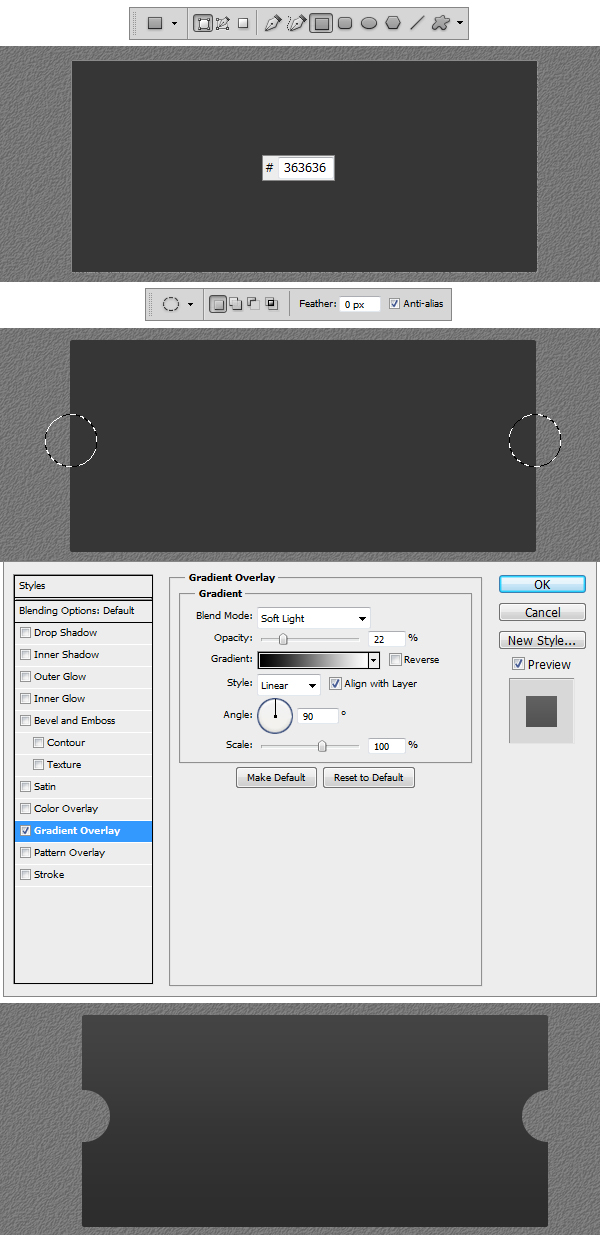
Step 37
Make a new Group and name it Display. Using Rectangular Tool make a shape like the one in the example. Set the color to #363636. Now using Elliptical Marquee Tool (M) make to perfect selection circles like the ones in the example. Right click and Select Inverse and apply the Layer Style.

Step 38
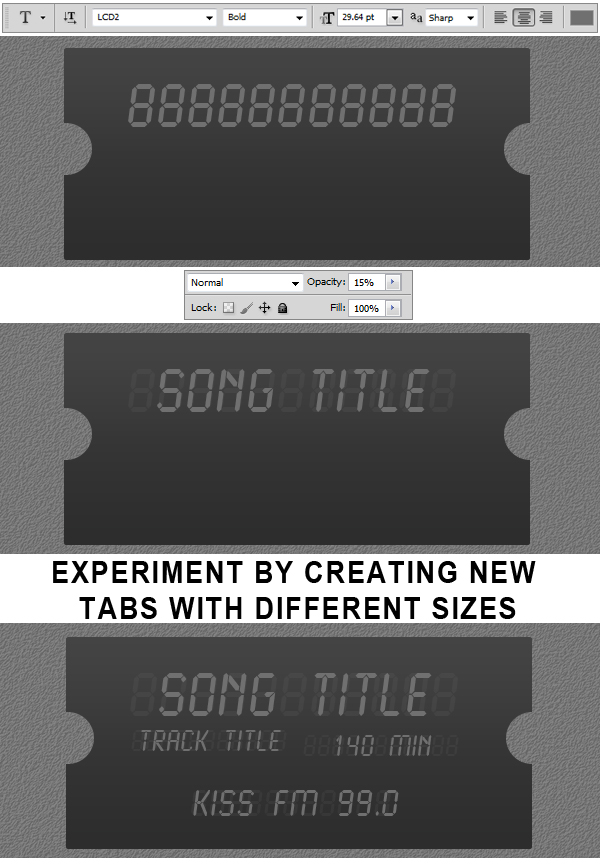
Using Horizontal Type Tool (T) set the size to 29. 64 pt and Font to LCD and type 11 eights. Reduce the Opacity
of the layer to 15%. Make another type layer and write Song Title but keep the Opacity to 100% this time. Now try to make some more text layers, experimenting with font size
and with color.

Step 39
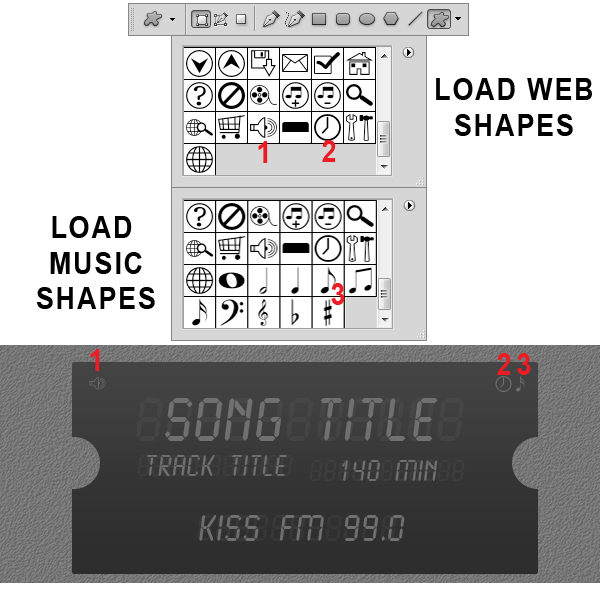
Using Custom Shape Tool (U) Load Web Shapes and Music Shapes from the shape library and insert the 3 elements showed in the example.

Step 40
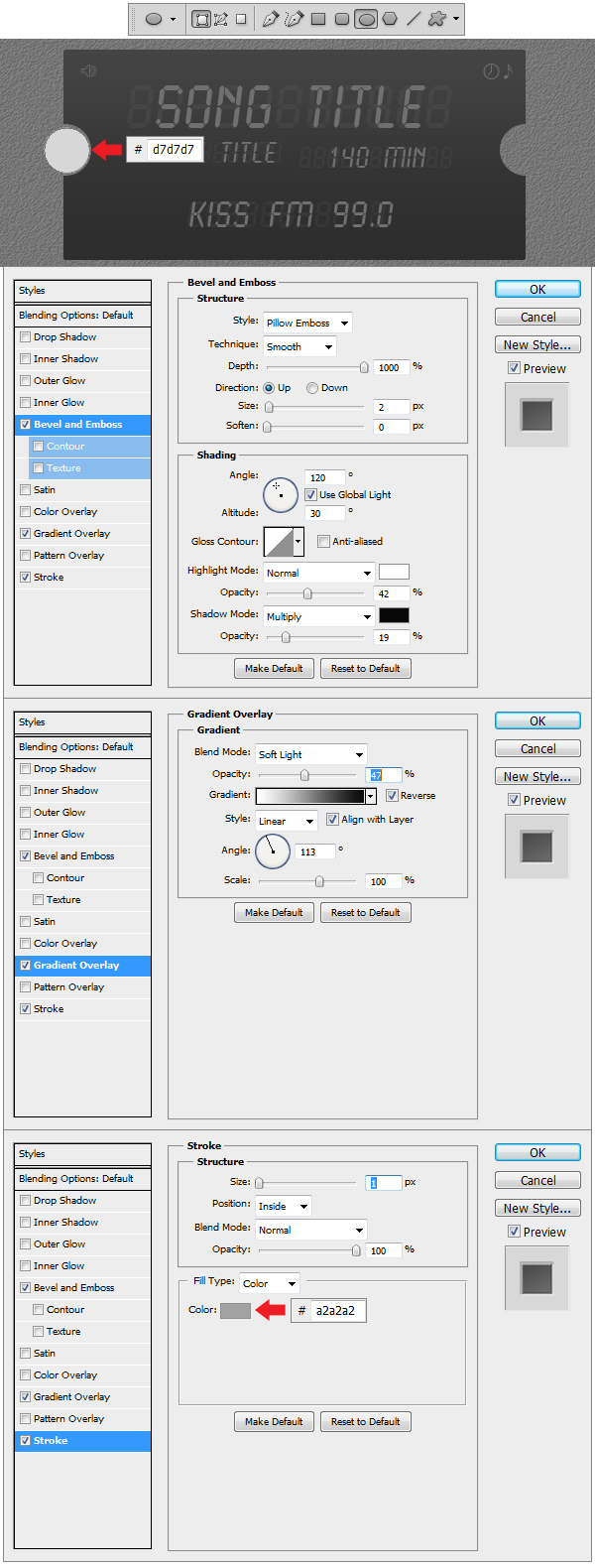
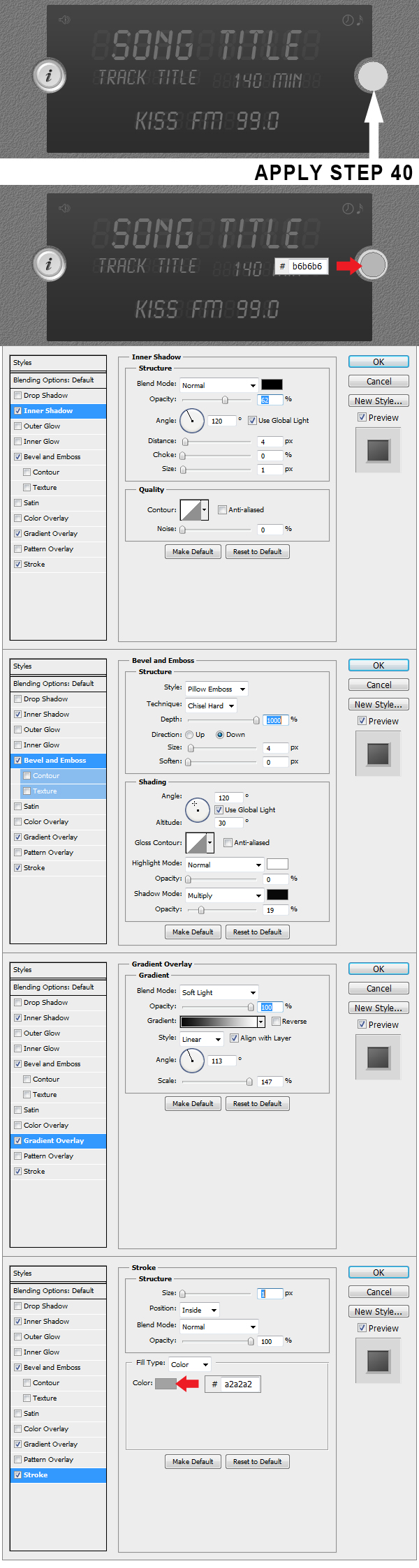
Make a new Group and name this one Info Button. Now using Ellipse Tool (U) make a grey #d7d7d7 circle like the one in the example and apply the Layer Styles.

Step 41
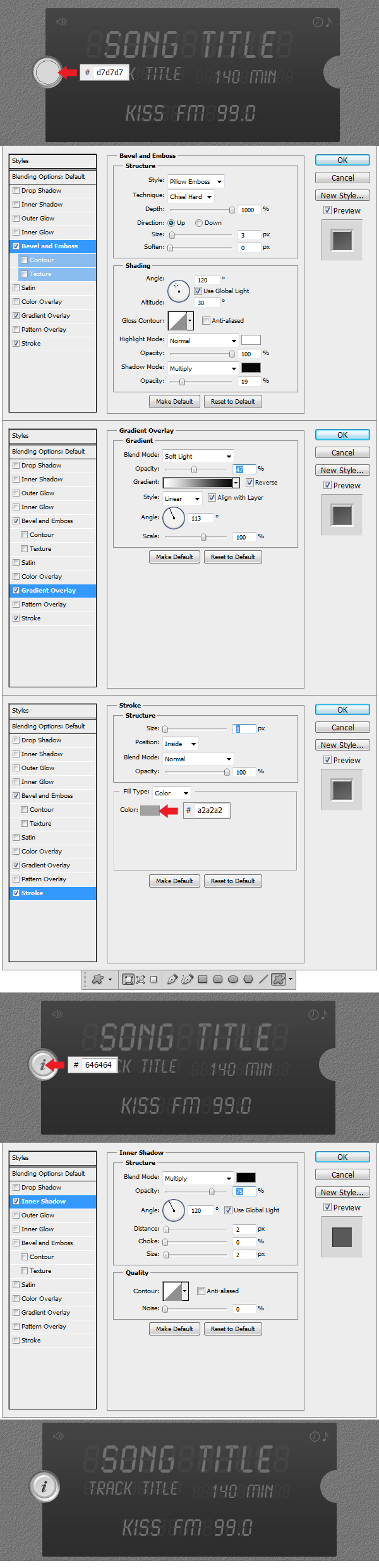
Make another circle using Ellipse Tool (U) using the same fill color #d7d7d7 and apply the Layer Styles. Using Custom Shape Tool (U) load Symbols from the library and insert the Information Custom Shape and apply the Layer Style.

Step 42
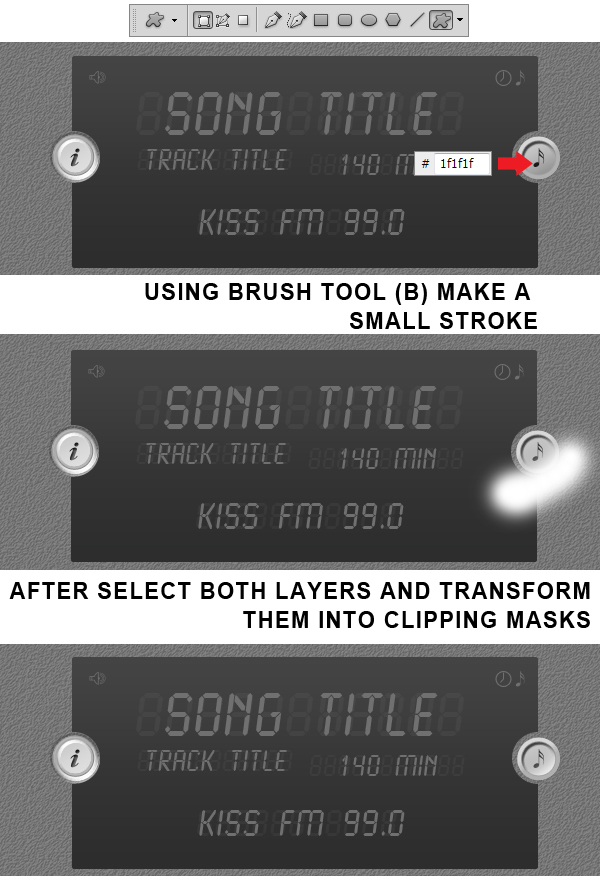
Make a new Group and name it Music Button. Now using Ellipse Tool (U) make a gray #d7d7d7 circle like in the example and apply the Layer Styles from Step 40. Using Ellipse Tool (U) make a new circle and color it #b6b6b6 and apply the Layer Style. This will be the pushed version of the 2 buttons.

Step 43
Using Custom Shape Tool (U) insert the Sixteenth Note Shape and color it #1f1f1f. Make a new layer on top and using Brush Tool (B) select a medium white #ffffff
brush and stroke at the top end of the circle. Transform this layer in a Clipping Mask and Voila! Everything is ready now.

Final Image

How to Work With Perspective in Photoshop
Photoshop is an excellent tool for manipulating photographs but it can also be used as a means to create stunning digital art. This tutorial is part of a 25-part video tutorial series demonstrating everything you will need to know to start producing digital art in Photoshop. Digital Art for Beginners, by Adobe Certified Expert and Instructor, Martin Perhiniak will begin by teaching you how to draw in Photoshop. At the conclusion of this series you will know all you need to produce your own concept art and matte paintings in Photoshop.
Today’s tutorial Part 7: How to Work With Perspective in Photoshop will explain a bit about the theory behind perspective and will focus on how to set up construction lines, vanishing points and a horizon. We will also show different ways to create a perspective grid and then use it for drawing three-dimensional objects. These techniques are useful for retouching photographs, but crucial for digital art. Let’s get started!
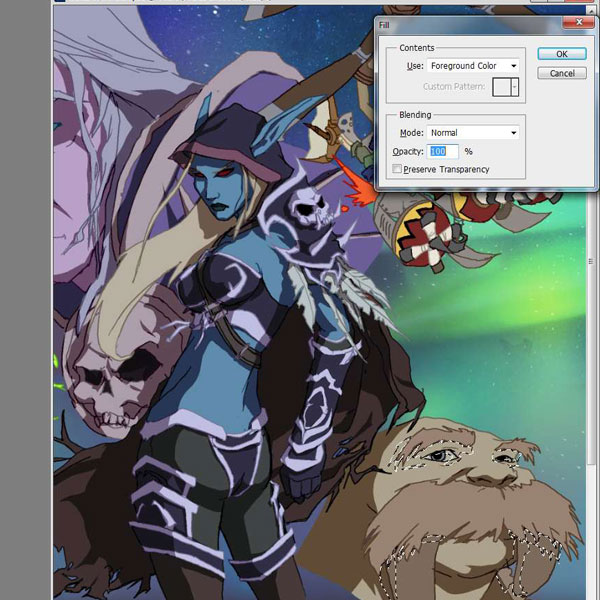
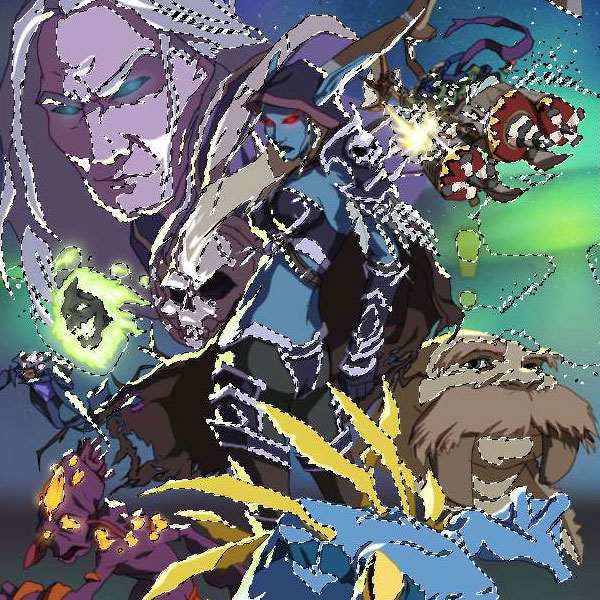
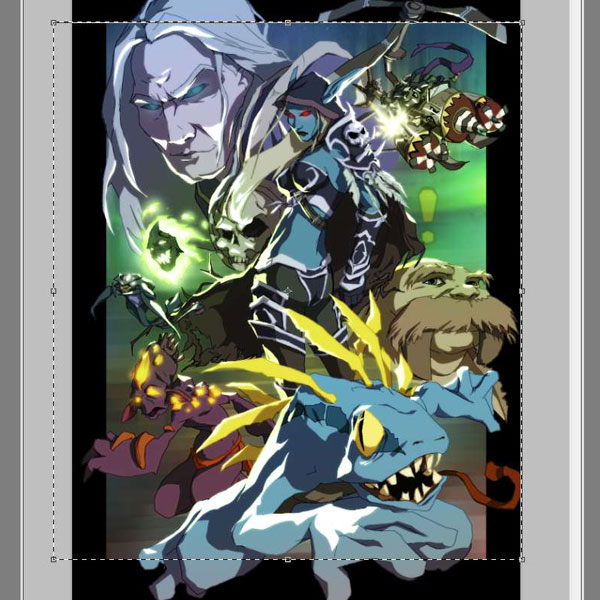
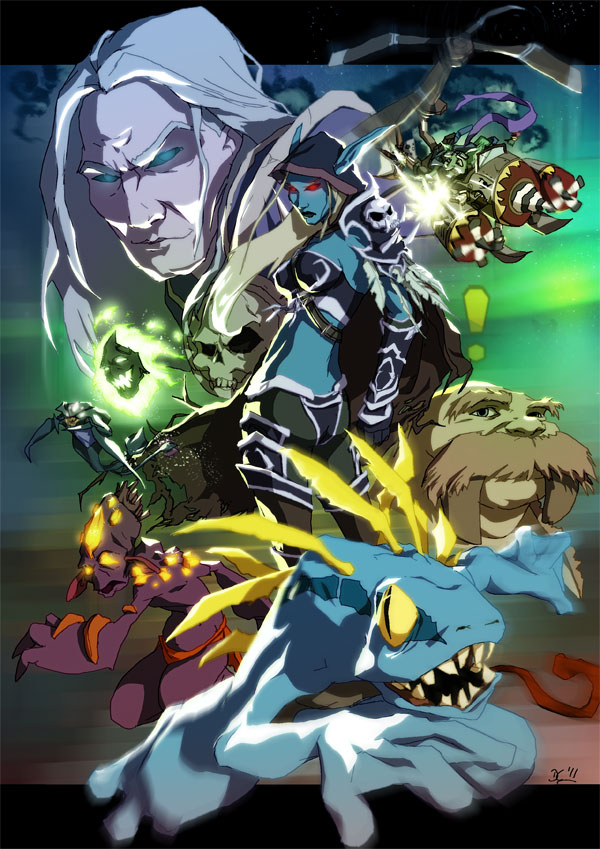
Create World of Warcraft Inspired Fan Art – Psd Premium Tutorial
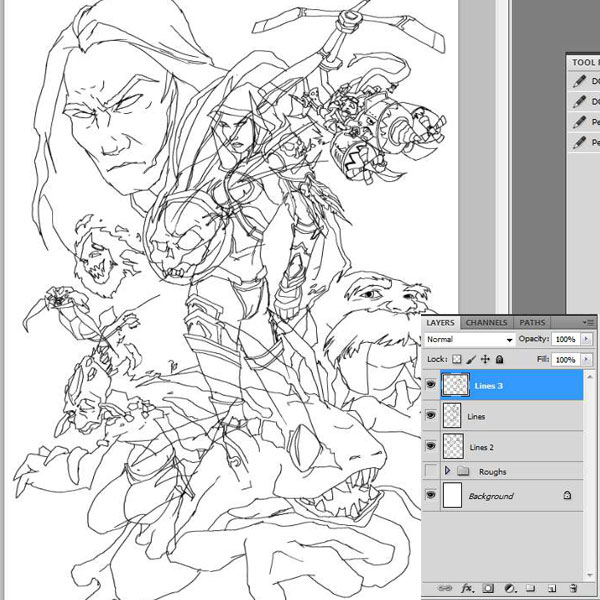
Most of you are probably aware of the World of Warcraft. In fact, many of you are probably active players. In this Psd Premium tutorial, authors David and Sarah Cousens will demonstrate how to create a dynamic World of Warcraft fan art illustration. This tutorial is available exclusively to Premium Members. If you are looking to take your illustration skills to the next level then Log in or Join Now to get started!
Professional and Detailed Instructions Inside
Premium members can Log in and Download! Otherwise, Join Now! Below are some sample images from this tutorial.


Final Image

Psd Premium Membership
You can join Psd Premium for as little as $9/month. Premium membership gives you access to the source files for all our tutorials as well as access to premium tutorials like this one. This also includes the rest of the sites in our network including Vectortuts+, Webdesigntuts+, Phototuts+, Nettuts, and more! Premium Members can Log In and download this tutorial. Otherwise you can Join Today!
GraphicRiver Celebrates its First Elite Author!
Earlier this month, one of our sister sites, GraphicRiver celebrated a key benchmark, their first Envato Elite author. Elite Author status means that an author achieves $75K in sales and today, we are excited to congratulate Sevenstyles for being the first GraphicRiver author to do it! We know that many of you are also GraphicRiver authors and may be interested in how he did it, so today, we would like to give you some tips and explain how you can repeat Sevenstyle’s success.
Who is Sevenstyles?
Sevenstyles joined up as a GraphicRiver author only 18 months ago. During that time he has been busy pumping out eye-meltingly hot flyer templates. These flyer templates hit like a sledgehammer made of frozen vodka, and buyers have been snatching them up like crazy. Take a look at some of our favorites.
Milky Flyer Template
Phoenix Flyer Template
Illusion Flyer Template
Sense Poster/Flyer Template
Power Poster/Flyer Template
Model Flyer Template
GraphicRiver’s Flyer Category
GraphicRiver’s flyer template category has been growing like wild, and as sevenstyles has proven, there’s gold in them thar hills!
With some flyer templates pulling in over 500 sales, it’s worth spending a little time on seeing if it’s a category that you can design for.
Don’t know the first thing about flyer design you say? Fortunately author quickandeasy has put together an over-the-shoulder look at how he takes a flyer idea from a blank Photoshop layer to completion:
A Word With Sevenstyles
We thought you’d like to hear from Brad about his rise to Elite status and any tips he has for aspiring authors. So I decided to send off a few questions via email to get his input on what it takes to succeed on the Marketplaces.
Q How does it feel to be an Elite author?
It truly is a great honor to be the first GraphicRiver author to reach Elite Author status. Having first heard about the Elite Author program I would have never thought I would reach that level at the rate I did, considering GraphicRiver seems to be a much more challenging marketplace to reach that status as compared to ThemeForest.
Having the Elite Author badge is just a great reminder for me to keep doing what I am doing and making customers happy, if I can save people time, money and make them happy in the process that is all I can ask for. Yet, it is also a reminder to set examples for others and continually try bush the boundaries of my creativity. Having a strong work ethic in something you love and being inspired daily by others is what keeps me chugging along. I believe many can reach the Elite Author status by just looking for that unique point in what they aim to sell, try be different than others and you will surely steal the attention of buyers.
Q How has GraphicRiver changed your business?
I actually came out of university not really sure what to do. I always knew I wanted a sense of independence in my work because I feel I am a much better designer when I am given freedom to create whatever I want. So, to keep my head above water, I had to work a retail job for quite a while, however, everyday after work or my days off I would work on new GraphicRiver files. Slowly I began to see sales, and with the more work I put in the more sales I would see. I was just having too much fun creating for the marketplace and took the risk – leaving my part time job to work on GraphicRiver files.
I have been working in a film studio which I started with a friend a little over a year ago now. It’s great because it enables me to explore a different dimension in creativity as apposed to GraphicRiver. I still dedicate lots of time to producing files for the marketplace as I truly love doing it, and I like to continually provide my followers with new files.
GraphicRiver has shaped me as a designer, and taught me some fundamentals in running a business.
Q Any tips for authors?
Here are just a few tips for authors looking into creating for GraphicRiver.
- Do your homework and firstly study the marketplace. Look at popular items in each category and identify why it is popular. Do not aim to copy a file, yet aim to have a unique approach on it or make it better. There are many similar items on GraphicRiver, it is important to let your files stand out.
- Master your craft! For me these days it’s Photoshop and print templates. Show polish and expertise in your files and they will go a long way! I have about 10 years experience with Photoshop and a history of creating print templates, so this is what I try to bring to GraphicRiver.
- Have a strong work ethic. I try to spend time everyday working towards files for the marketplace. Whether its gathering inspiration,resources or researching, it all helps.
- Do not give up if you get rejected! I have been rejected ALOT of times, yet I always turn around and look for ways to improve the file. Once I have it finished I compare it to the version that was rejected and I always see why the reviewer has turned it down. Another good idea is to just leave the file alone, start a new one and come back to it with fresh eyes.
- Always try to have fun! There is no point working towards producing files for the marketplace if you do not enjoy doing it, you just wont last.
- Stay fit and healthy. Spending hours in front of the computer will do things to your mind and make you feel unhealthy. I go to the gym 5-6 days per week, and there is no better feeling when your working out! Your batteries are re-charged and your ready to go again, plus getting the ladies attention outside of your work desk is always a plus right!?
Sign Up on GraphicRiver
To become a GraphicRiver author, visit our sign up page and start uploading items today!
Create 3D Displacement Effects – Psd Premium Tutorial
In this Psd Premium tutorial, author Mark Mayers will walk you through the creative process of applying some cool halftone and 3D displacement effects. The main focus of this tutorial is to explore Photoshop’s often-misunderstood Displace Filter and how it can be utilized to re-create a popular style of illustration. This tutorial is available exclusively to Premium Members. If you are looking to take your photo manipulation and 3D rendering skills to the next level then Log in or Join Now to get started!
About the Author
Author Mark Mayers is a talented designer and illustrator from the UK. He has worked as a designer and creative director for several design/advertising agencies and specializes in print, branding, packaging, and exhibition graphics. Mark began his career when the tools of the trade were markers, layout pads, and most importantly, the ability to draw, but he embraced the digital revolution in the early 90′s and swapped his drawing board for a Mac. Today, Mark freelances from his studio in Cornwall for such clients as American Express, BMW, Future Publishing, IDG Communications and Imagine Publishing.
Professional and Detailed Instructions Inside
Premium members can Log in and Download! Otherwise, Join Now! Below are some sample images from this tutorial.


Final Image

Get Instant Access to Tuts+ Premium
Joining Tuts+ Premium will get you instant access to this tutorial as well as all the premium content in our archives. In addition, you’ll have access to all the source files for all of our free and premium content. You will also have free access to the premium content of all the other sites in the Tuts+ Network. If you’re already a premium member, Log in and download the tutorial. Otherwise, you can Join Today!
Best of the Web – September 2011
As you know, each month, we round up some of the best Photoshop-related content from around the web. This month, there were some excellent Photoshop tutorials and articles to choose from so please take a moment to review our favorites from September 2011.
Photoshop Tutorials
-
![]()
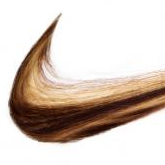
Nike Hair in Photoshop
This tutorial from Abduzeedo will demonstrate how to create a Nike logo from human hair.
-
![]()
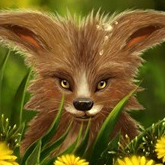
How to Paint an Artwork of a Fox Inside Photoshop
This digital painting tutorial from PhotoshopTutorial.ws will explain how to paint an illustration of a fox from scratch in Photoshop.
-
![]()
Getting Perfect Interior Shots
If you’ve searched for a new home or apartment online you’ve probably seen some terrible interior photos, probably taken from a camera phone. This tutorial from the Digital Photography Connection will explain how to get the perfect interior shot for your real estate listing.
-
![]()
Chop up Your Paintings
This short video from Ctrl Paint will show a simple trick to help you change direction in mid-painting to help save hours of work.
-
![]()
Photoshop Mastery: 25 Techniques Every Designer Must Know
This article on WeGraphics will show 25 tips that every designer should know to help master Photoshop.
-
![]()
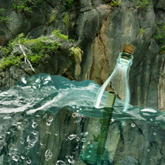
Message in a Bottle
This tutorial from AlfoArt will explain how to create a message in a bottle illustration in Photoshop.
-
![]()
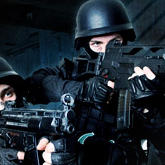
Design a High Intensity Video Game Cover
This tutorial from Psdfan will explain how to create a cool video game cover in Photoshop.
-
![]()
How to Create a Dramatic Sci-Fi Photo Manipulation in Photoshop
This tutorial from PhotoshopTutorials.ws will explain how to create a dramatic sci-fi photo manipulation in Photoshop.
Articles, Inspiration, and Freebies
-
![]()
8 Ways to Get the Selection You Want in Photoshop
Getting the perfect selection can be a tricky thing to do. Photoshop is great because it gives us several options to help select the right amount of pixels.
-
![]()
What Popular Movies Can Teach Us About Design
Movies often inspire designers. This article on Noupe explains what else movies can teach us about design.
-
![]()
A Showcase of Artistic Typography
This round up on Noupe showcases some fantastic artistic typography.
-
![]()
Content Meaning
In this article from Design Informer you will learn the importance of good content.
-
![]()
Inspirational Showcase of Amazing Typography Designs
This post on Spoon Graphics showcases some amazing typography designs.
-
![]()
Eight Hand-Stained Paper Textures
This post on Lost and Taken features some excellent stained paper textures that you can use in your work.
-
![]()
Beautiful Food and Drink Packaging Design
This post from One Extra Pixels showcases some fantastic examples of food and drink packaging.
-
![]()
Advertising as We Know it is DEAD
Is advertising as we know it dead? This article from Web Designer Depot explores this topic in detail.