Quantcast
Channel: Envato Tuts+ Design & Illustration
Viewing all 6352 articles
Browse latest View live

Best of the Web – May 2011

$
0
0

Advertise here

As you know, each month, we round up some of the best Photoshop-related content from around the web. This month, there were some excellent Photoshop tutorials and articles to choose from so please take a moment to review our favorites from May 2011.


Photoshop Tutorials

  • Create a Wacom Product Advertisement in Photoshop

    This tutorial from Creative Fan will demonstrate how to create a cool Wacom product advertisement using pandas and bonsai trees.

    Visit Tutorial

  • Photoshop Tutorial: Create a Photo-Realistic Orange from Scratch

    This tutorial from Pxleyes will demonstrate how to create a realistic looking orange from scratch using only Photoshop.

    Visit Tutorial

  • Vintage 3D Typography in Photoshop with Repoussé

    The repousse tool in Photoshop CS5 has many uses. This tutorial from Abduzeedo will demonstrate how to create a vintage 3D typographic effect.

    Visit Tutorial

  • Video: 3D DNA Strand with Photoshop Extended

    Strands of DNA can be challenging to create with standard 2D applications. This tutorial from Layers Magazine will demonstrate how to create a DNA strand using Photoshop CS5’s 3D tools.

    Visit Tutorial

  • Illustration Tutorial: Creating an iOS Device Connector in Photoshop

    This tutorial from Wegraphics will demonstrate how to create an iOS device connector in Photoshop.

    Visit Tutorial

  • Photoshop Tutorial: Effectively Remove Facial Hair in CS5

    This tutorial from Pxleyes will demonstrate how to remove a man’s beard using Photoshop CS5.

    Visit Tutorial

  • How To Create a Dramatic Action Scene in Photoshop

    This tutorial from Spoon Graphics will demonstrate how to create a dramatic action poster in Photoshop.

    Visit Tutorial

  • Create a Surreal Landscape Using Photo Manipulation

    In this tutorial from Wegraphics you will learn how to create a surreal landscape photo manipulation in Photoshop.

    Visit Tutorial


Articles and Inspiration, and Freebies

  • Tips on Design Pricing, Estimates and Invoices

    The business side of design can be just as challenging as the design side of the industry. This article from Cute Little Factory gives some tips on running your design business.

    Visit Article

  • 30 Examples of Smart Print Advertisements

    This round up on Web Design Ledger showcases some examples of smart print advertisements.

    Visit Article

  • Super Creative Illustrations

    This collection of illustrations on Abduzeedo showcases some excellent digital paintings from Nithin Rao Kumblekar.

    Visit Article

  • 18 Essential Grunge Textures

    These grunge textures from Lost and Taken will make an excellent addition to your design arsenal.

    Visit Article

  • Useful Photoshop Tutorials for Designing Abstract Backgrounds

    Looking for a creative background for your next design? This collection of tutorials on Noupe will give you plenty of ideas.

    Visit Article

  • 30 Epic Graffiti Illustrations by Yok Yoker

    This post from Creative Overflow showcases 30 amazing graffiti illustrations by Yok Yoker.

    Visit Article

  • 34 Awesome Poster Designs

    This article on DesignM.ag showcases 34 awesome poster designs for inspiration.

    Visit Article

  • Fantastic Wakeboards to Inspire Your Designs

    While wakeboards are a lot of fun to ride, they are also a lot of fun to look at and create. This showcases from Web Designer Depot showcases some excellent examples.

    Visit Article


Epic StarCraft 2 Fan Art

$
0
0

Advertise here

StarCraft is one of my all time favorite video game franchises. I started playing back in high school – way back in 1998. I continued to play it off and on throughout college but eventually stopped when it seemed as if Blizzard would never release a sequel. Fast forward about 12 years and today, StarCraft 2 is a thriving e-sport with people like HuskyStarCraft and Day9 pushing the game on their YouTube pages. Since I am such a huge fan of the game, I decided to showcase some of my favorite pieces of StarCraft fan art for all of you to enjoy. Most of these pieces were found on the Blizzard website although some of them can also be found on Deviant Art. Let’s take a look!


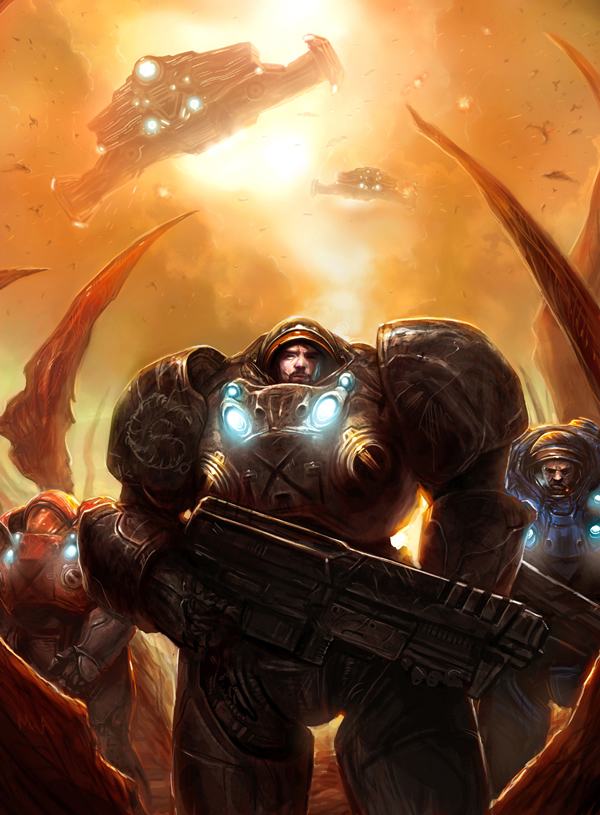
All-In by TheChaoticKnight

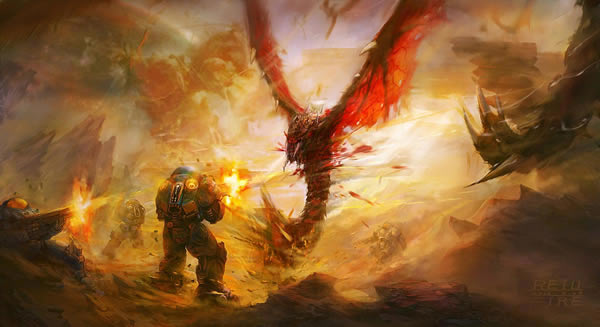
The piece by The Chaotic Knight on Deviant Art portrays the final battle between the forces of StarCraft hero Jim Raynor and villain The Queen of Blades in StarCraft 2: Wings of Victory. As you can see, a massive battle looms overhead that include Battlecruisers and Zerg forces.


Queen of Blades by Marek Okon (OmeN2501)
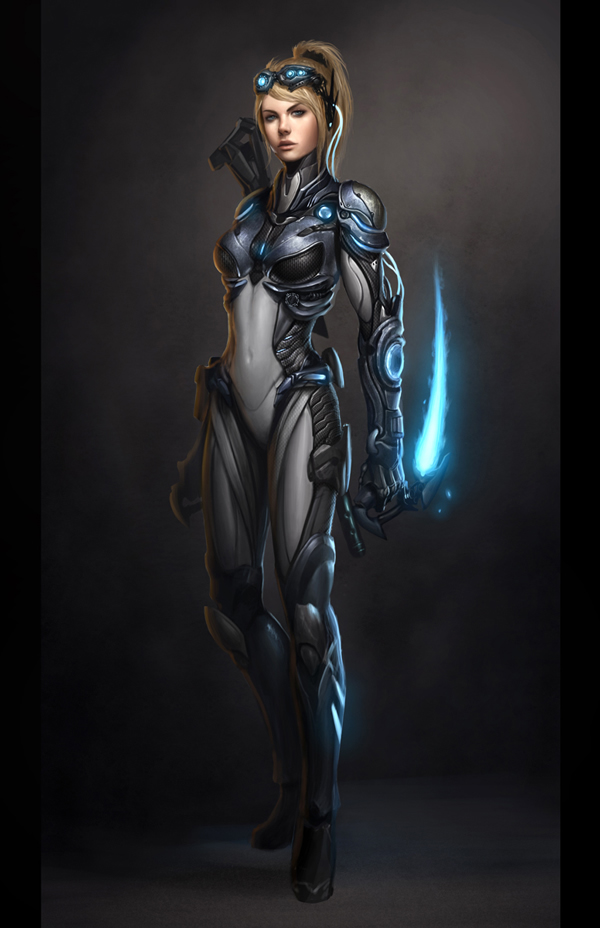
This piece by Marek Okon portrays StarCraft villain, The Queen of Blades. Once a Terran Ghost named Sarah Kerrigan, the Queen of Blades is now one of the most feared individuals in the StarCraft Universe.


Glare by Brian Cosmiano (HoodZ)
This piece by Brian Cosmiano portrays a Terran marine as he takes cover in a trench.


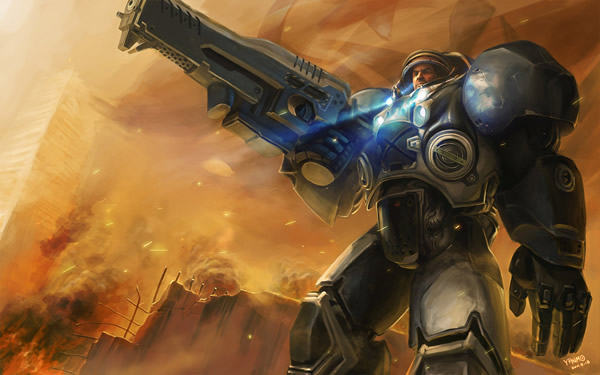
Raynor

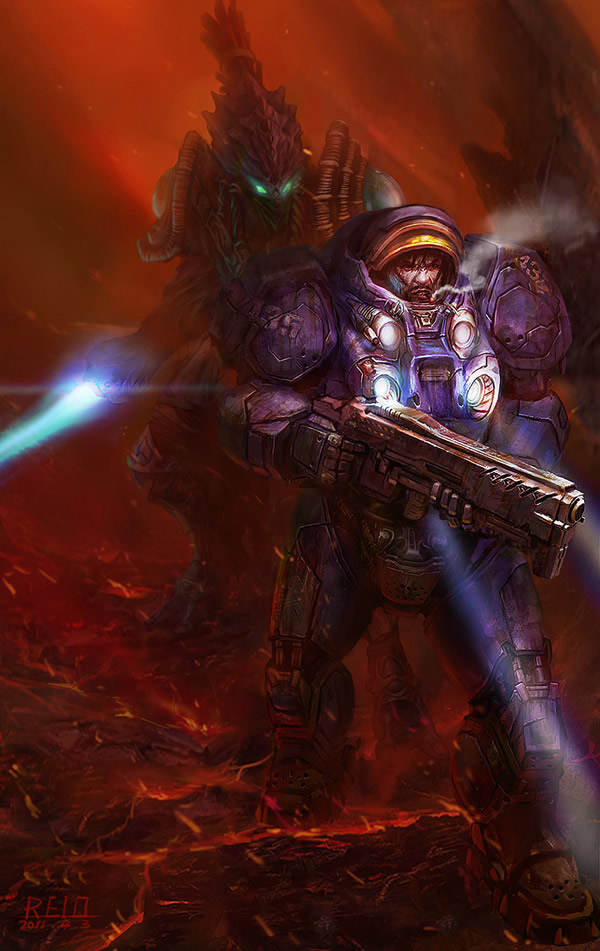
This piece shows Jim Raynor during a battle as the world around him burns.


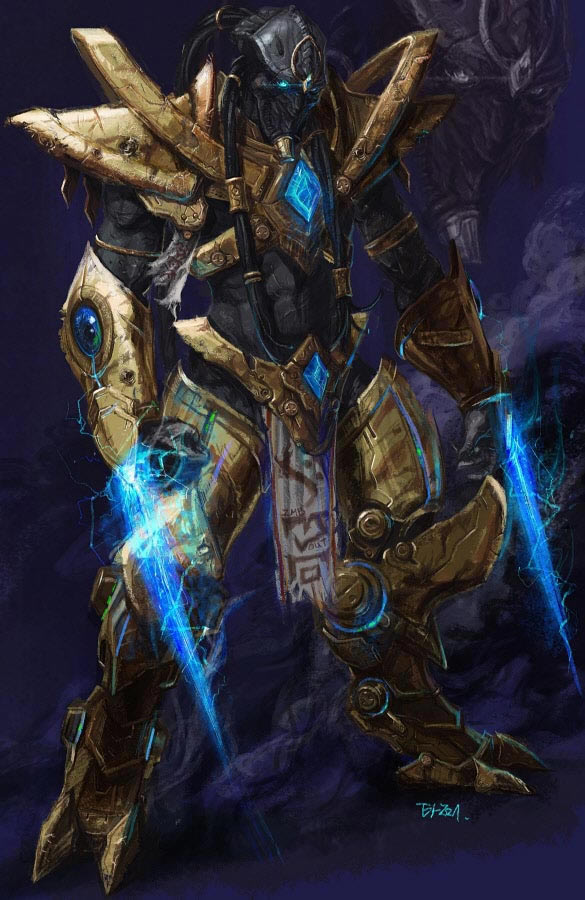
Zealot by Yi Yoon-Gi (Tazzi)

The Zealot of the most basic battlefield unit in the Protoss arsenal. This piece by Yi Yoon-Gi shows how rugged and deadly they can be.


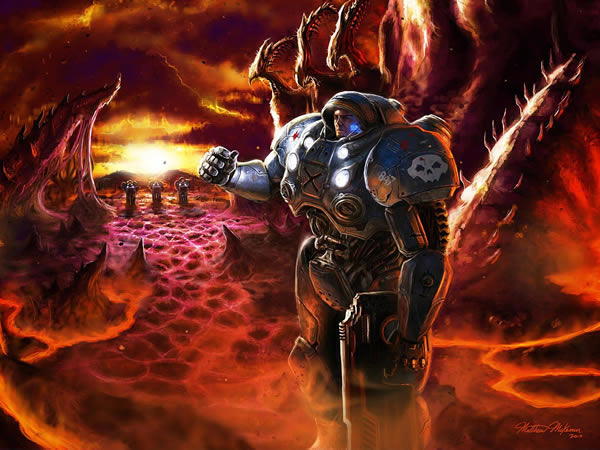
Marines on Char – Matthew McKeown

Char is a resource rich planet that was eventually settled by the Zerg. This piece by Matthew McKeown shows just how inhabitable this planet can be, even without the Zerg.


Adjutant by Kaynine

Adjutants are a form of artificial intelligence that provide players with key information about an objective or mission. This piece by Kaynine shows a side of them that most of us probably didn’t expect.


I Love The Smell by Magnus Fallgren

This piece by Magnus Fallgren portrays a marine taking in the sights and smells of battle.


Be Still by Magnus Fallgren

In StarCraft, sometimes it’s best to wait until the perfect time to strike. This piece by Magnus Fallgren shows a marine keeping his cool while a hydralisk passes by.


Stay Away From Me by Magnus Fallgren

In yet another piece by Magnus Fallgren, a Ghost takes a knee during a rain shower.


Bugs by Bin Zhang

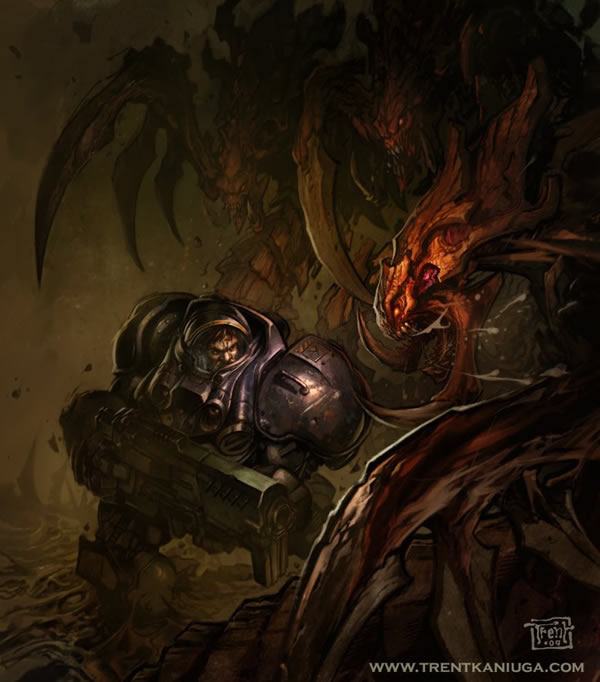
This piece by Bin Zhang portrays a battle to the death between a marine and a hydralisk.


Black Die

This rendering of a marine shows what it would look like as a die cast action figure.


Thor by Yung-Gi-Haung

In this piece, a Thor, the largest Terran unit is blasting away at some unknown enemy.


You Dropped Something by Daniel H Chang

This Zerg Ultralisk is letting a marine know that he dropped his weapon on the ground. This will end well for the marine…


Fire

This painting shows a team of marines engaging Zerg Mutalisks in battle.


I Come From the Shadows

This piece shows a Terran Marine and a Protoss Dark Templar.


Zeratul by Yaroslav

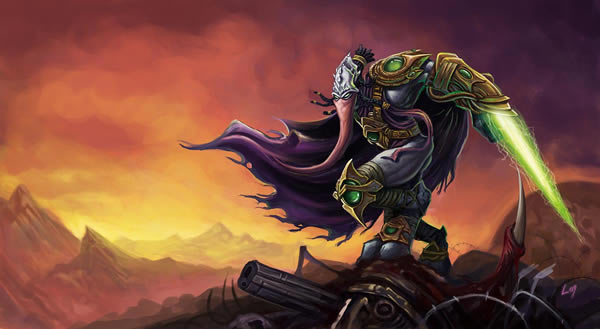
This painting shows Protoss hero, Zeratul standing proud.


Marine by Lee Sin Jae

This painting shows the Terran character Tychus as he calmly walks away or towards battle.


Zerg Invasion by Kris

In this painting Terran forces seem surprised as the Zerg invade.


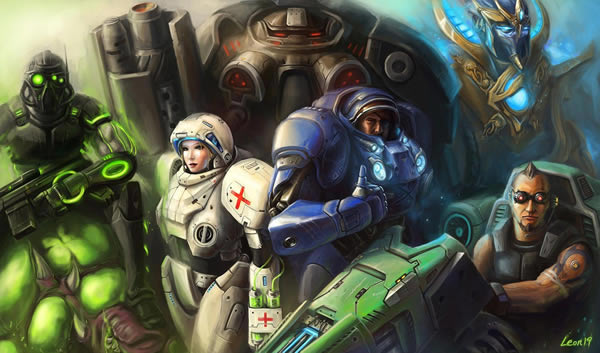
Family Portrait by Leon19

This portrait shows several Terran and Protoss units together as one happy family.


Jim Raynor by Liu Jiguo

Jim Raynor stands proud as a fleet of Banshees fly overhead.


Zealot by DeNdeMaN

This rendering of a Protoss Zealot shows a ton of detail.


Starcraft Terran Medic by VonSchlippe

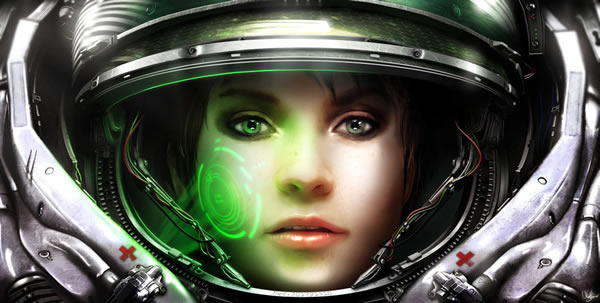
Once a key part of Terran unit structure, the Medic has now been replaced by the Medivac, an air unit that heals bio units from the sky. This rendering by VonSchlippe shows a medic up close and personal.


Starcraft Painting by Neocromagnum

This painting by Neocromagnum shows a marine who may be in a bit of trouble.


Killing Fields by Nathan Boyd

These Zerg Overlords may need to spread out a bit so those missles don’t take them all out.


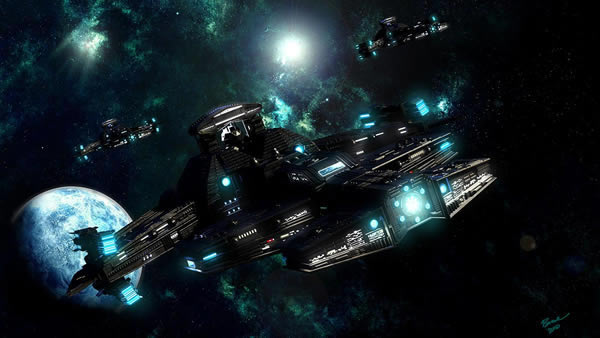
Revenge Class Battlecruiser by Branislav Bogdanovic

This piece shows a fleet of battlecruisers emerging from a blue planet.


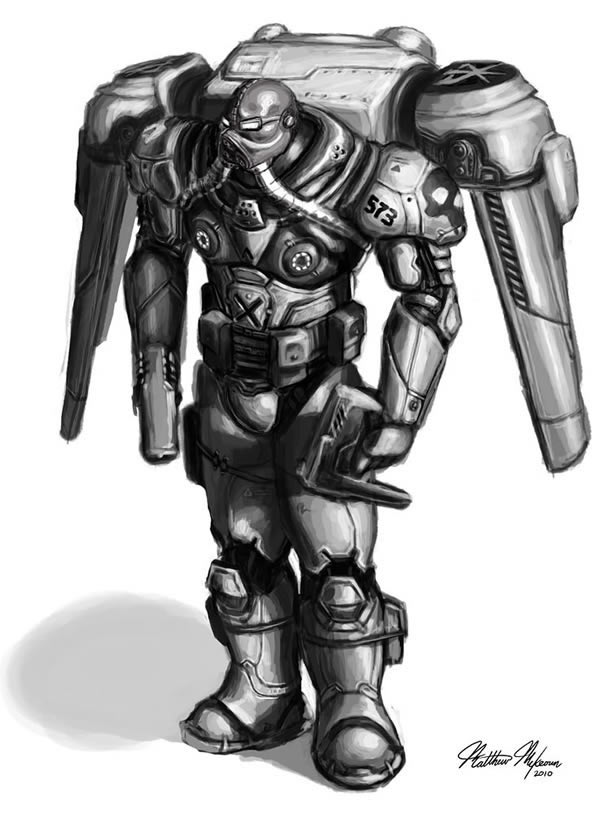
Reaper by Matthew McKeown

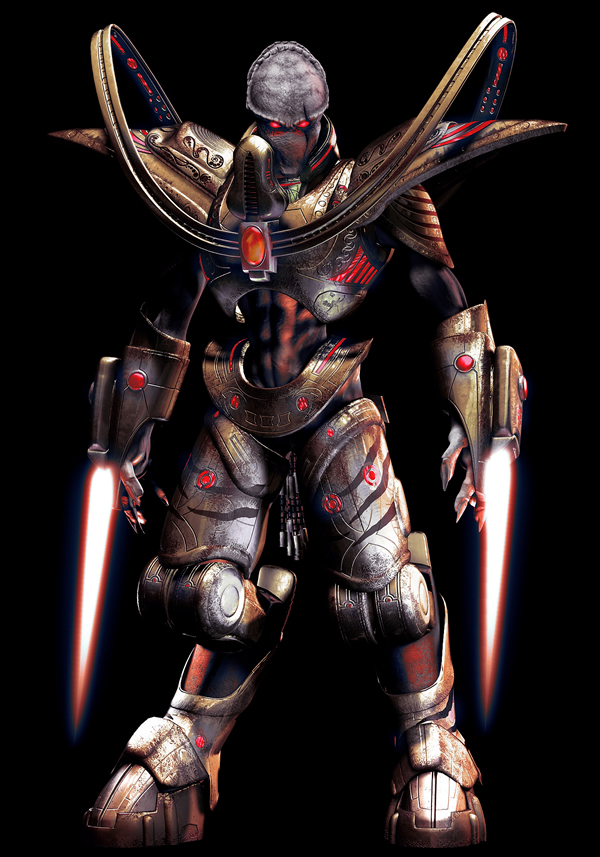
Reapers are new units in StarCraft 2. Their rocket packs make them excellent units to use to scout out your opponent’s base.


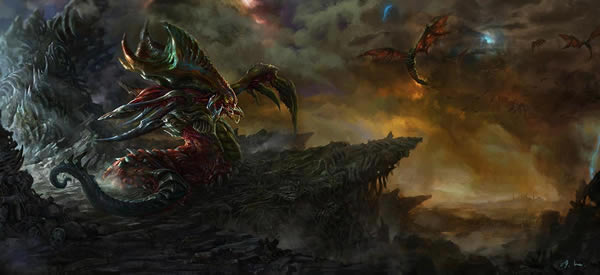
Hydralisk by HaifengLuo

This hydralisk can see the whole battlefield from the top of a cliff.


StarCraft by Christopher Pigden

This marine is wreaking havok with his dual wielding machine guns.


Sneak Attack by Hechao

This marine is taking advantage of an opportunity and is attacking fast before it is too late. Hopefully, that Mutalisk doesn’t see him.


Terran Ghost by VonSchlippe

This ghost is just hanging out, relaxing.


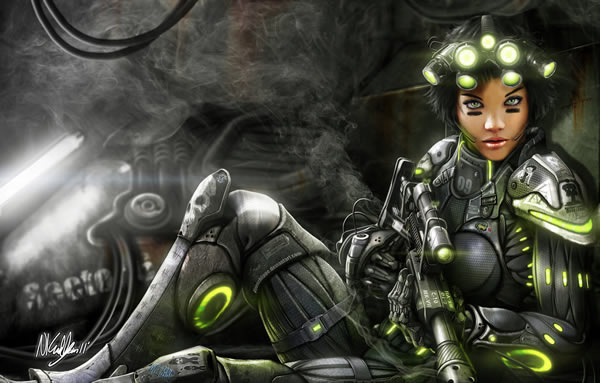
Starcraft Ghost Nova Final by Shiramune

This Terran Ghost looks both formidable and sexy.


Ultralisk by Luke Mancini

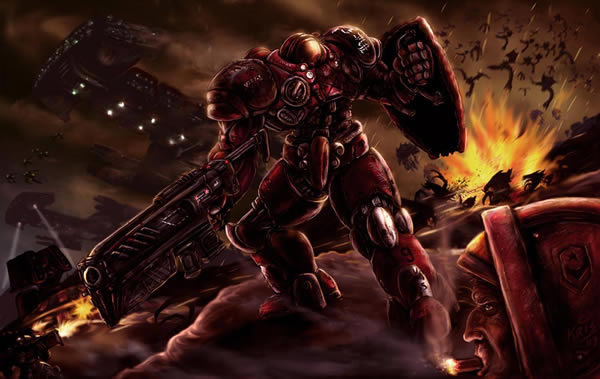
This Terran marine is about to become an afternoon snack for this Ultralisk.


Zealot by Liu Jiguo

This Protoss Zealot stands atop his fallen enemies.


Hydralisk Nanny by Tamara

This hydra stands guard as her larva grows.


Jim Raynor by Sun Xilong

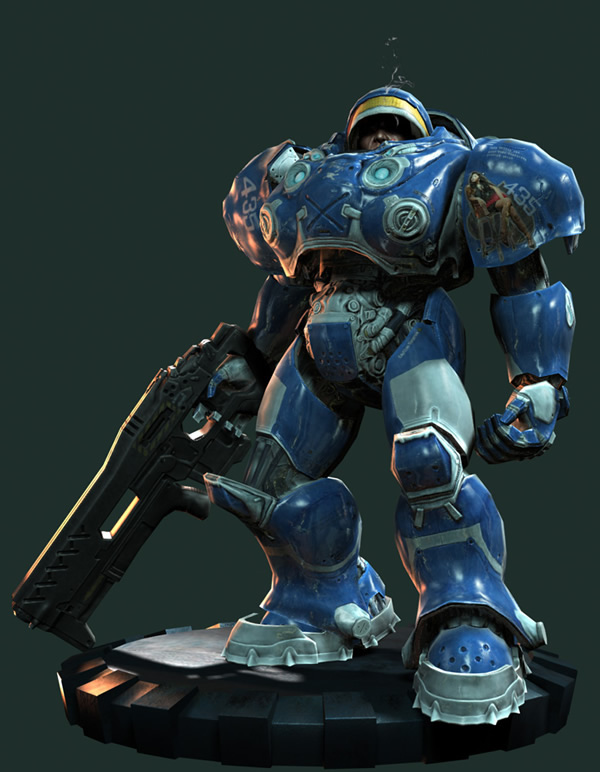
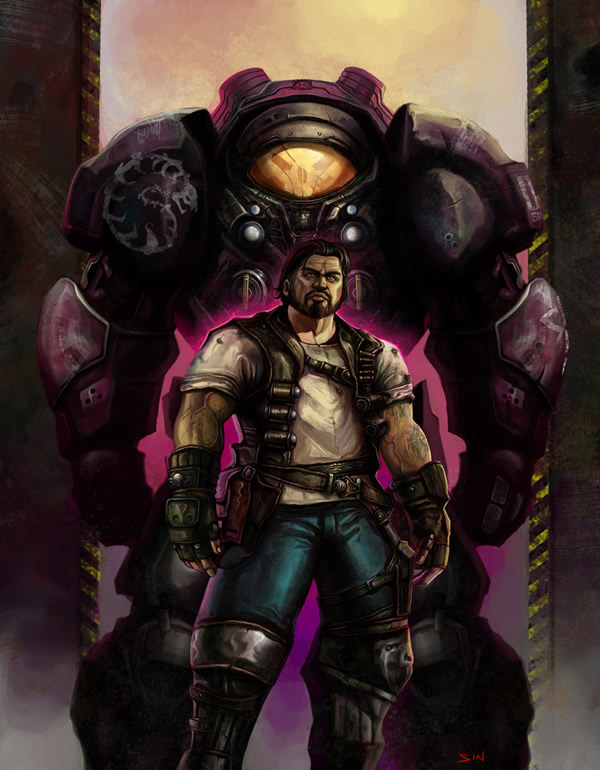
Jim Raynor is dwarfed by is marine armor.

Aligning and Blending Images Together

$
0
0

Advertise here

Are you new to Photoshop? Have you been trying to teach yourself the basics of Photoshop but have found the amount of educational material available on the net a bit overwhelming? As the world’s #1 Photoshop site, we’ve published a lot of tutorials. So many, in fact, that we understand how overwhelming our site may be to those of you who may be brand new to Photoshop. This tutorial is part of a 25-part video series demonstrating everything you will need to know to start working in Photoshop.

Photoshop Basix, by Adobe Certified Expert and Instructor, Martin Perhiniak includes 25 short video tutorials, around 5 – 10 minutes in length that will teach you all the fundamentals of working with Photoshop. Today’s tutorial, Part 23: Aligning and Blending Images Together will explain auto-align and blend, panoramic photos, and montages of movement. Let’s get started!


Create a Wine Bottle and Glass with Smart Objects – Psd Premium Tutorial

$
0
0

Advertise here

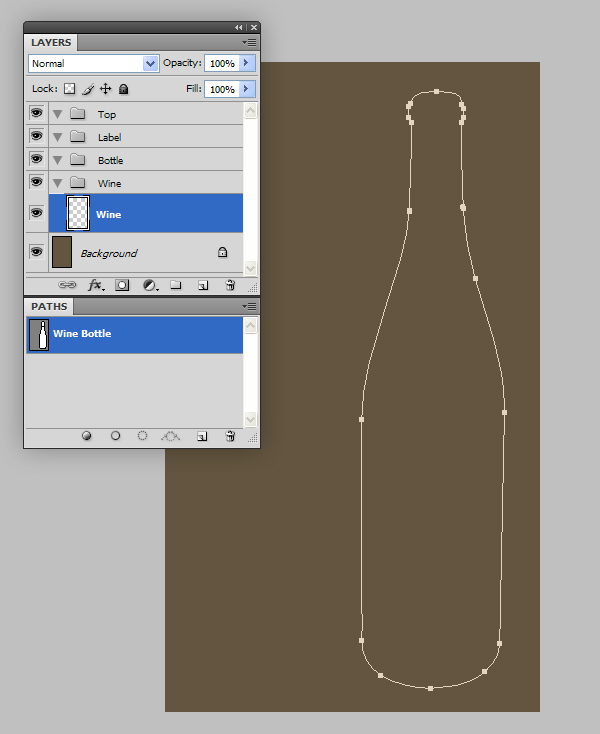
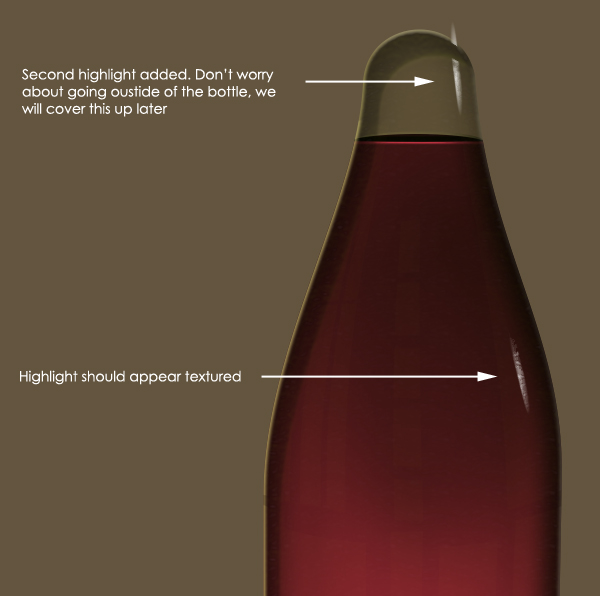
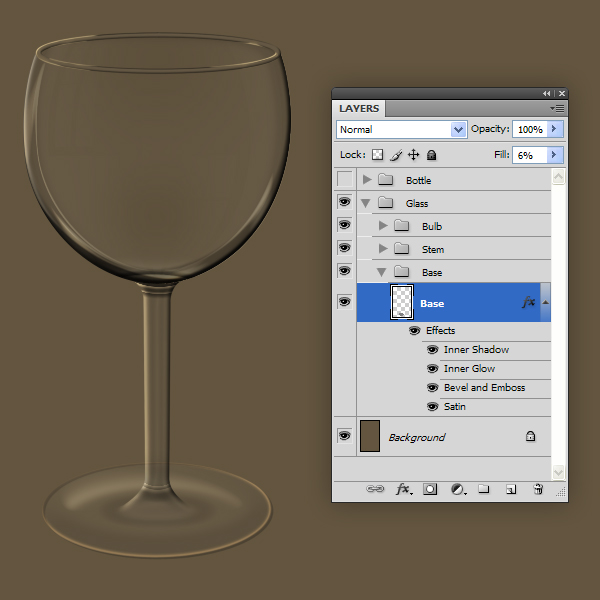
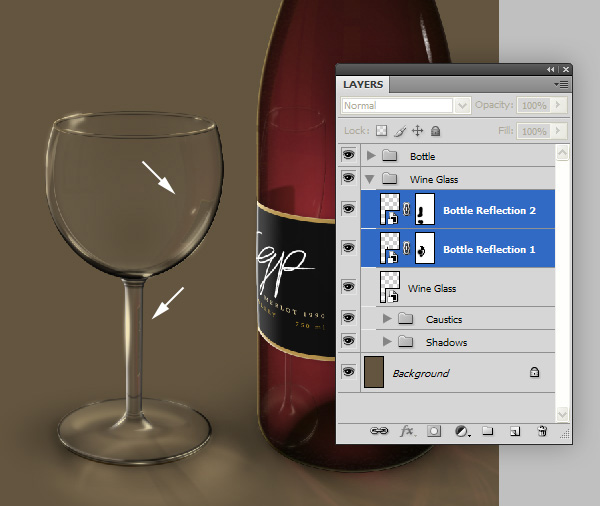
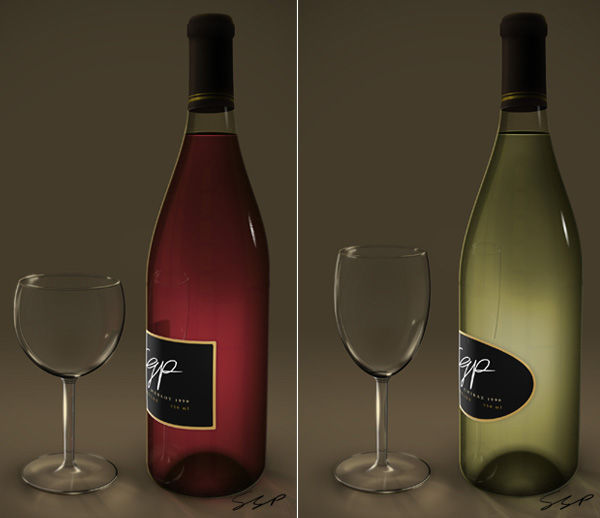
Smart Objects are very powerful layers in Photshop. In this Psd Premium tutorial, author Stephen Petrany will show you how to create a wine bottle and wine glass using Smart Objects as well as demonstrate their benefits. This tutorial is available exclusively to Premium Members. If you are looking to take your photo manipulation and digital painting skills to the next level then Log in or Join Now to get started!


Professional and Detailed Instructions Inside

Premium members can Log in and Download! Otherwise, Join Now! Below are some sample images from this tutorial.


Final Image


Psd Premium Membership

You can join Psd Premium for as little as $9/month. Premium membership gives you access to the source files for all our tutorials as well as access to premium tutorials like this one. This also includes the rest of the sites in our network including Vectortuts+, Webdesigntuts+, Phototuts+, Nettuts, and more! Premium Members can Log In and download this tutorial. Otherwise you can Join Today!

Trap Your Friends in a Jar Using Photoshop

$
0
0

Advertise here

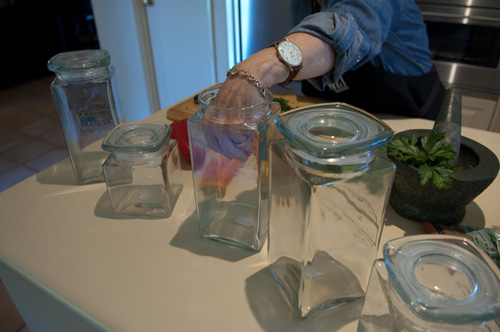
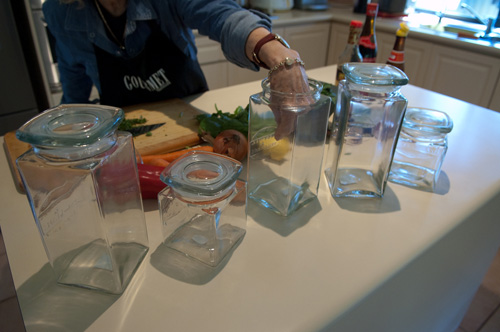
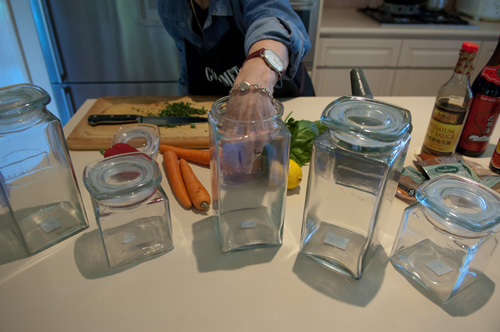
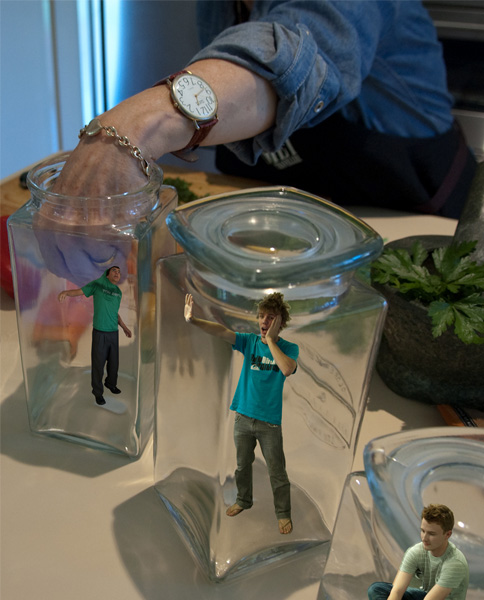
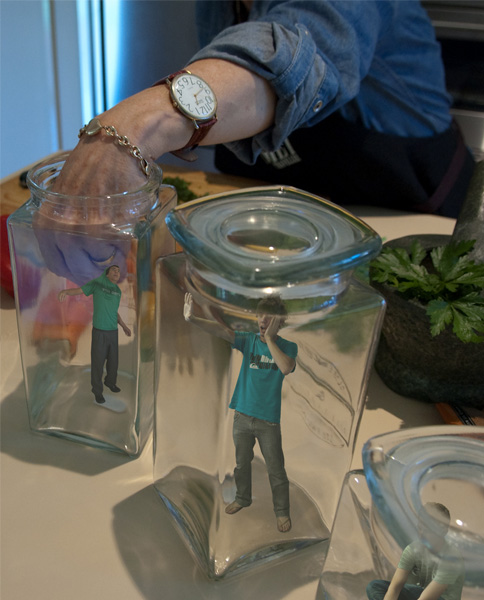
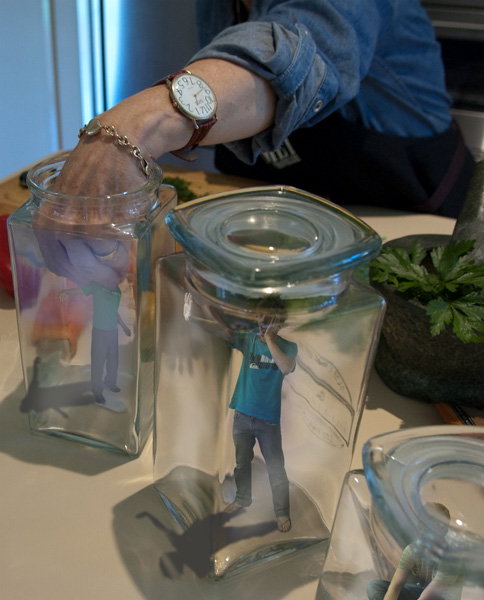
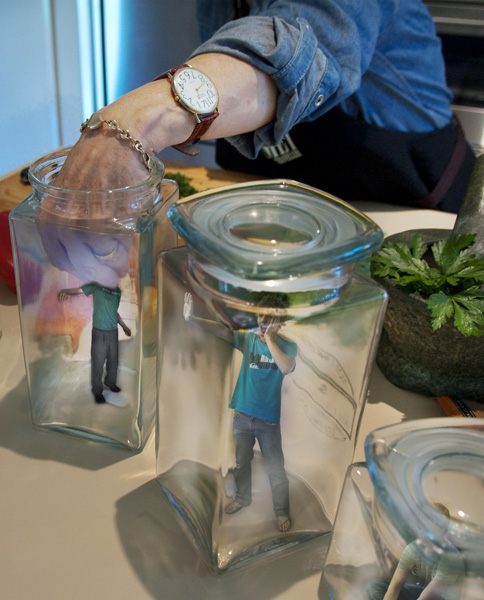
Have you ever had a friend who was so great that you wanted to put them in a jar and save them for later? Ok, that might not be possible and may be a bit creepy but in Photoshop you can do anything right? In this tutorial we will learn how to take photos of your friends and place them into jars. This tutorial is a lot of fun and is something that you can do with practically any digital camera and Photoshop. Let’s get started!


Tutorial Assets

The following assets were used during the production of this tutorial.


Step 1 – Take Your Photographs

The great part about finding subjects for your composition is that you don’t have to look too far, grab some of your old photos of your friends if you like or take some when your hanging out because in this tutorial you don’t need a fancy camera and a tripod!

As with a lot of subject images, they don’t always have the light source we want for applying them straight away into the base image – so what I will show you later in the tutorial is how to blend these images to look more realistic in your final composition.

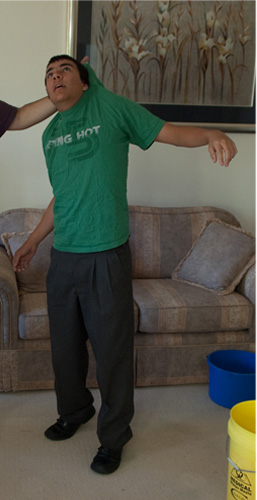
The first thing you need to do is think about what you want to create. It is a lot easier to create your composition if you know what your general concept will be. The second thing you’ll want to do is take as many pictures as possible so you have a bigger range to experiment with – that way it is more likely you will get the correct angle when applying your subject into the image. In my case I took around 10 photos at different angles for the base and around 5 for each of the boys.(however for simplicity purposes I will only show a few examples)

If you are using photos already taken, try and find ones that will suit. The main thing to worry about is placement; you want to have your subject in a position that looks more realistic for your composition. For example if you want to create something like I have done using your own friends, make sure you have full body shots and not cut off at the torso. You’ll notice in the photographs I took, I had a general idea of what I wanted to make and I wasn’t concerned with light or the environment they were in. Try and be creative with it!


Step 2 – Extract Your Images

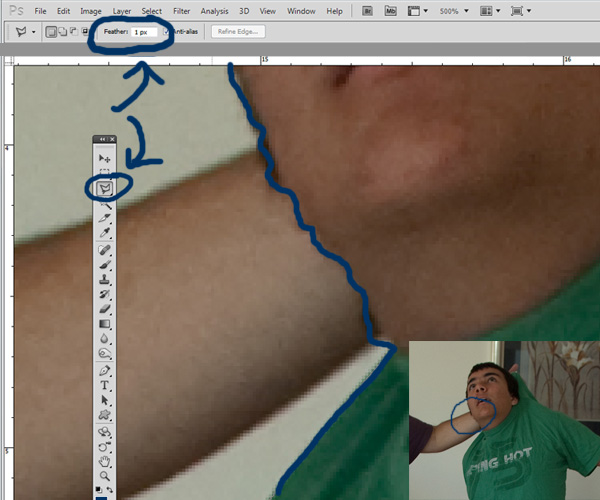
The next step is to extract your images. The best way to extract is to use your RAW or high quality image and zoom in about 500%. This way you get the best accuracy you can while cropping and when it comes to sizing/positioning your subject the quality is going to be at its peak.

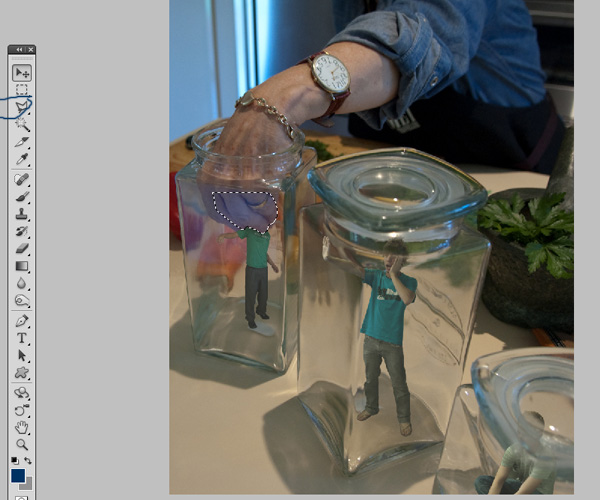
I crop my images with the polygon lasso tool, using a 1px feather and paste it on a new layer. Using a feather leaves the pasted selection without jagged edges. You can repeat this process for however many people you would like to be in your work.


Step 3 – Position Your Images

Now place the extracted images as shown below.


Step 4 – Distorting Your Subjects

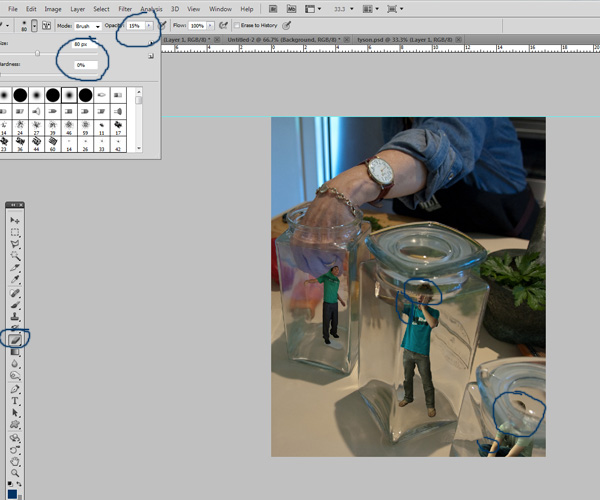
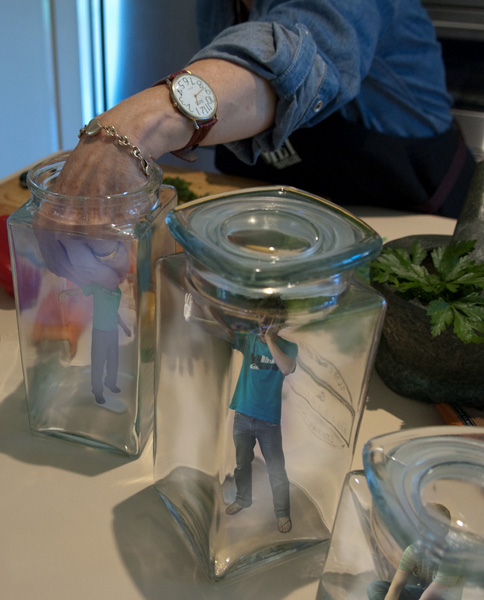
We now want to edit our subjects. Grab a small brush with low opacity, and gently brush away parts of their body which would -in reality- be obscured by the thick parts of the glass. This is the beginning of the illusion that they are in the glass.


Step 5 – Creating Subject Layers

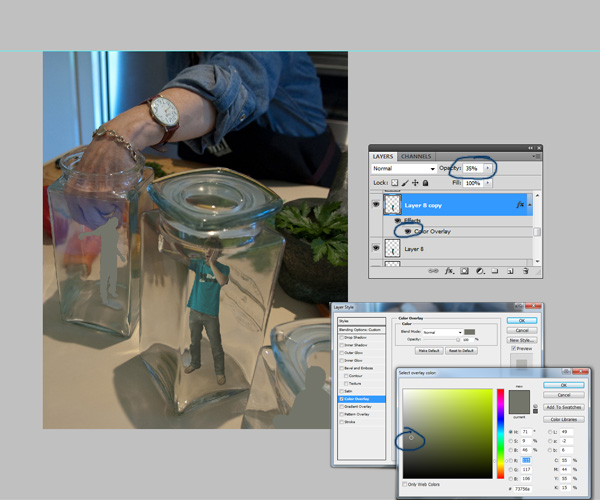
If you have ever noticed when you look through glass it is not 100% see through. So what we are going to do is add a slight tint to the subjects so they are not as clear. To do this duplicate (Command/Ctrl + J) your subject layer and give them a colour overlay of grey, I used #73756A. Do this to all of your subjects and then decrease the opacity of each to around 35% or your best judgment.

Optional: Duplicate your subject layer, and add a slight Gaussian blur (Filter > Blur > Gaussian Blur) and lower the opacity to about 15%.


Step 6 – One Jar at a Time

Starting with jar one, we want to get the hand to hold the subject. There are various ways one can attempt this, my way is making a selection (just like Step 2) of the hand, and the pasting that above the subject layer, however using a layer mask on the subject itself would be just as effective. It just depends what you are used to.


Step 7 – Distorting Your Subjects

We are now going to want to go through each jar and finish making the subject look like it’s inside it. In my case, I added a slight grey/blue overlay (using a soft brush) to the subject so the light matched better. This is an optional step, as it might differ depending on the work your doing. If you need to match light on the subject better, a nice technique is to take the eyedropper and take a sample of the light colour on the main image. From there, use a soft brush with low opacity with that colour and brush over the subject. You can then chose to overlay/multiply this coloured layer until you have the desired effect. Another option is to duplicate your subject and then bring up hue/saturation adjustments (Command/Ctrl + U), hit colourize and set it to the colour of the light. Then using a layer mode of your choice (usually overlay) with a lower opacity.

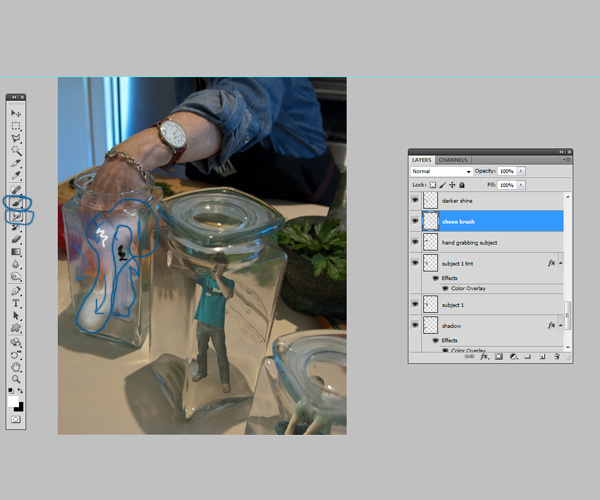
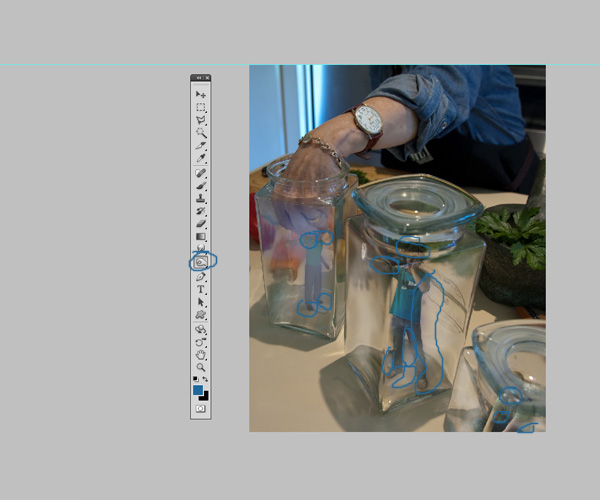
From there, to create that ‘trapped’ look, we are going to create a fake shine. To do this, grab a large soft brush at about 30% opacity and do a quick diagonal brush on the jar. This is the tricky part. What you’re going to want to do is get the smudge tool, and smudge the white brush to go along with the contours of the jar. For example: Do not put the white brush on corners, because glass doesn’t shine the same on the corner. Once you have properly smudged the brush, put the opacity down to whatever looks good for you, in my case it was 33%

Optional: Grab a soft brush eraser at 10% opacity and erase some bits of the white so you get slightly more depth

The last thing we need to do is add a slight shadow to the subject. Now on my image we can see that the light is coming from around the top right area, judging by the shadows of the jars. So from here the best way to create a shadow is to copy the subject layer, and using blending options like Step 5, fill it with black. From here go to Filter > Blur > Gaussian Blur and you will want to blur the shadow enough so that its fuzzy, yet you can still make out the figure. (I won’t post a number because it’s different in every case). From there using the transform tool (Command/Ctrl + T), transform it so it fits in with the other shadows. Then lower the opacity until satisfied. (Mine was 20%)

We can then use this same technique, and apply it to the other two jars.


Step 8 – Finishing Touches to your Subjects

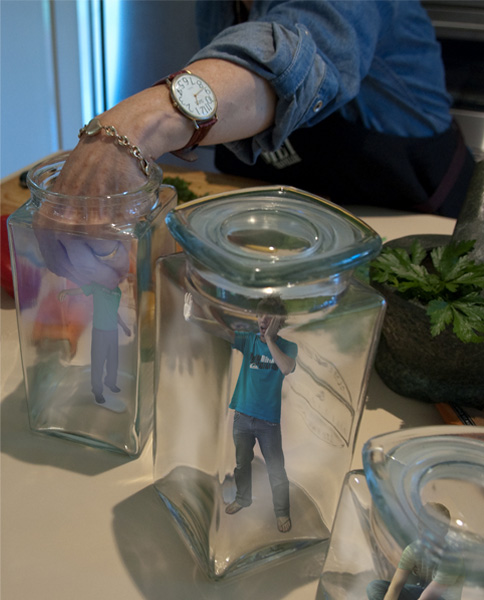
We are now ready to add some finishing touches to our subjects and the areas around our subjects. Grab the burn and dodge tool, and go around your subjects where there would be darker areas. In this case because our subjects are confined by an object there would be slightly darker areas around their body. You don’t need to get every single area however in my case the main areas were: The hand grabbing the head, the hand pressing against the glass, needed more light. (as an option you could also grab the liquify tool and expand the skin slightly for extra realism), foot shadows and areas where thick glass is on top of the subject.

Secondly, I used some soft black/white brushes in spots around my composition set on overlay so I could increase the effect of the light source and increase the effect of my fake shine.


Step 9 – Finishing Touches

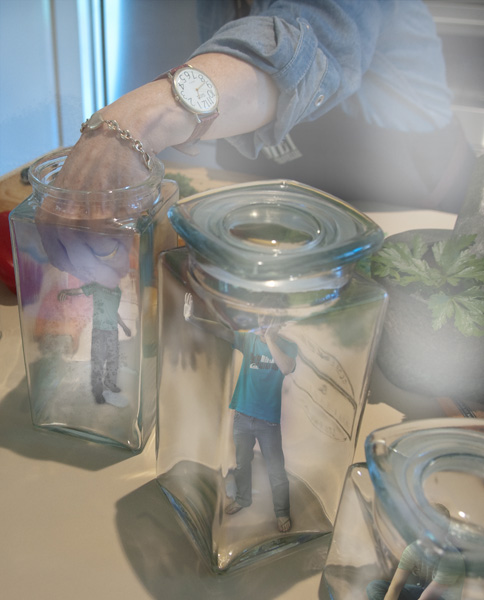
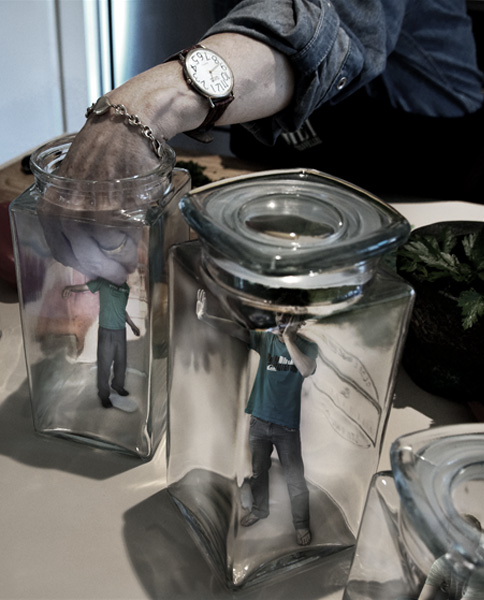
Now I know what you are saying, " it hasn’t really blended that well". Well this is my favourite part because with this technique, it can blend your colours, light, and subjects all together nicely while still creating a unique style of photo manipulation.

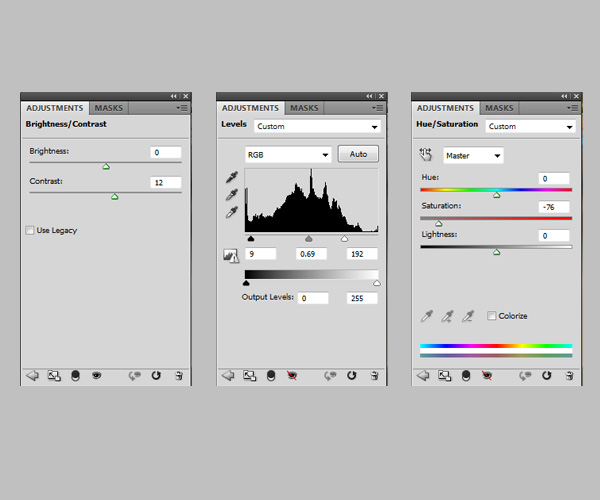
Using Layer > New Adjustment Layer > Hue/Saturation. Layer > New Adjustment Layer > Levels. Layer > New Adjustment Layer > Brightness/Contrast

Levels – Using levels will enable you to make a really strong composition. Levels will enhance your fake shine, general contrast and really make those jars the focal point of your composition.

Hue/Saturation – As levels will generally create a high contrast of colours, slightly de-saturating the colours calms everything back down. It allows colour to be shown without having that harsh contrast of varying colour.

Brightness/Contrast – Just used as a failsafe and to be used to tweak slightly more if needs be.

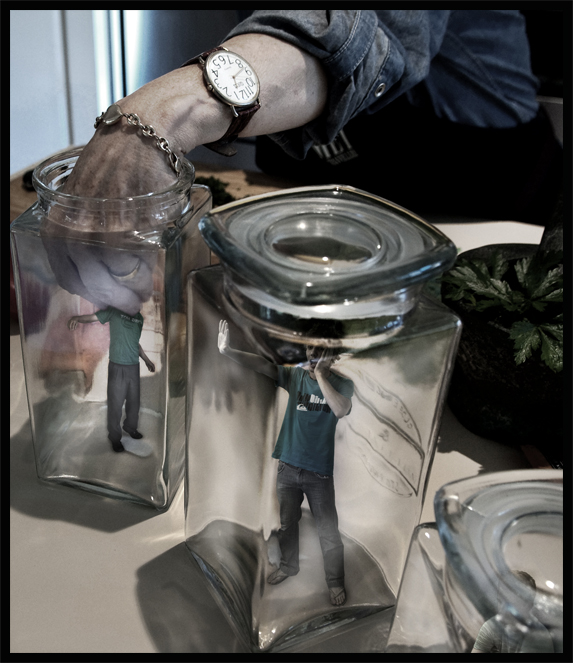
These three adjustments are entirely up to you and how you want your final piece to look If you want to experiment, you can use Curves and Colour balances as well. Finish off your composition by adding a thick black stroke.


Final Image

Massive Tuts+ Marketplace Sale in June

$
0
0

Advertise here

Guess what? For the entire month of June, we’ve slashed prices at our premium Tuts+ marketplace by as much as 80%! As your local car dealer would say: “These prices are insane!!!” What yesterday would cost you $5, today costs you $1. A buck! So mosey on over and check it out!

Tuts+ Marketplace Sale

A Quick Sampling

At the Tuts+ Marketplace, you can buy and sell tutorials and eBooks on topics like design, web development, audio, and computer graphics. The site is home to a bustling community of people learning and teaching across all skill levels and is the biggest marketplace of its kind.

So, if you haven’t already, stop by, say hello, and learn a new skill!

Automatically Save Your Work With PsdAutoSaver

$
0
0

Advertise here

We’ve all been there. You’ve been awake all night working on an amazing project. Everything is going perfectly, the design looks great, you’re proud of the job you’ve done, and then disaster strikes. Photoshop crashes and you lose all your work. Your first thoughts are “when was the last time I saved?” After restarting Photoshop and opening the file, you realize that it was hours ago and that you were putting so much effort into your design that you completely forgot to save. Wouldn’t it have been nice if Photoshop would have saved your work automatically along the way? Now it can!

An auto save feature has been something that many Photoshop users have been asking Adobe for, for quite some time. While there isn’t a native solution yet, the guys at Electric Iris have a nice workaround. A plugin that will save your work automatically.

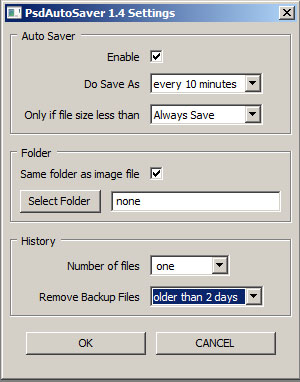
PsdAutoSaver helps protect your work by automatically saving the files that you’re working on to one or more backup files. In the event that your computer crashes, freezes, or loses power, your work is protected.


Video Demonstration

You can see this plugin in action below.

You can download a 30-day free trial of PsdAutoSaver from here. Give it a try and see what you think.

Note: while this plugin works for both PC and Mac, it only works on Macs using Photoshop CS5 and above. PC users can use this plugin using Photoshop 7 and up in both 32 and 64 bit versions.

This post was sponsored by Electric Iris.

Apply a Tilt-Shift Effect to a Video Using Photoshop

$
0
0

Advertise here

Tilt-shift is an effect that when applied to an image or in this case, a video, will create the illusion of miniaturization, making it seem as if the video is shooting a model set and not real life. To create one of these videos outside of Photoshop would require an expensive camera and and an even more expensive lens, which can cost into the thousands of dollars. In this tutorial I will show you how to create this effect using only Photoshop and how to apply it to almost any video.


Tutorial Assets

The following assets were used during the production of this tutorial.


Download Original Footage

Before you begin. Let’s take a look at the original footage. Make sure to download it from here.


Step 1

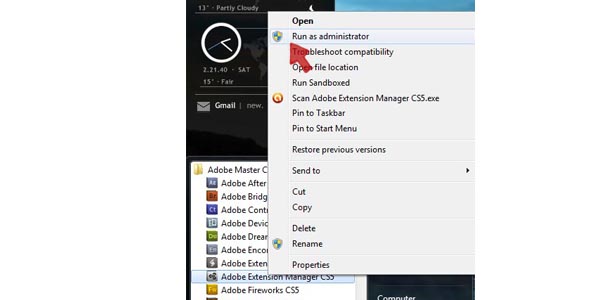
Before opening Photoshop, install the Extension that was included in the tutorial assets. Open the Adobe Extension Manager, which should be found in the Adobe folder.

PC users, if for some reason, it will not let you install the Extension, close and re-open the Extension Manger by right-clicking on the program in the start menu and selecting “Run as administrator”.

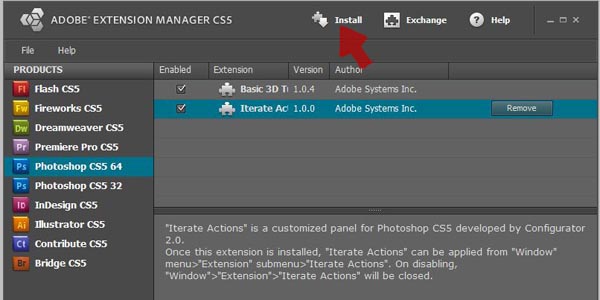
With the Extension Manager open, click the install button, and locate where you saved the Iterate Action extension.


Step 2

Open Photoshop and then choose File > Import > Import video frames to layers.

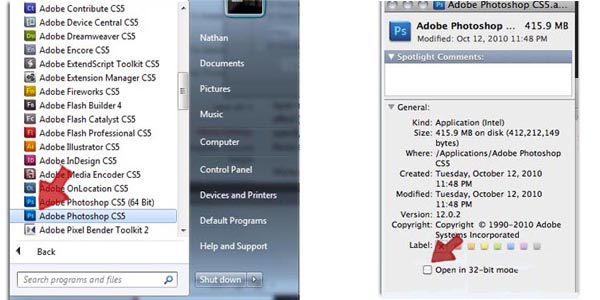
For those users using CS5 or higher you’ll need to use the 32bit version of Photoshop that should have been included in your install. You have to use the 32bit version because unfortunately Import video frames to layers utilizes the Quicktime API which remains a 32bit application.

For PC users, you should find the 32bit version in the Start menu, right next to the 64 bit version, if it’s not there check the (x86) folder, still not there then re-install, the 32bit version was unchecked during the initial installation.

For Mac users, open the Photoshop folder in a finder window and Command/Ctrl-click on the Photoshop icon, then click on Get info, click the check mark to run the program in it’s 32 bit mode.

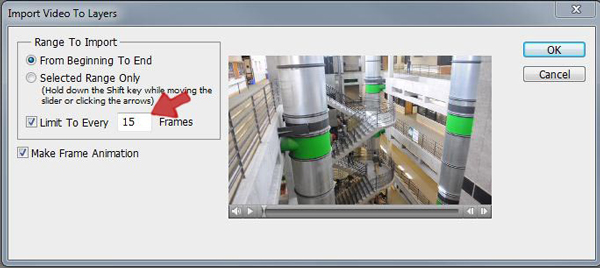
Import video to layers offers a few options for importing. Depending on the video, you can grab the whole thing or just a selected range. Make sure that “Make Frame Animation” is checked and then for this video limit the imported frames to every 15th frame. Doing this is going to not only cut the length of the video it’s also going to mimic a stop-motion effect which will help sell the overall effect.

Note: You can work with video frame layers in the 64bit version. To do so import the video using the 32bit version, save the file as a .PSD file, then open the file up in the 64bit version.


Step 3

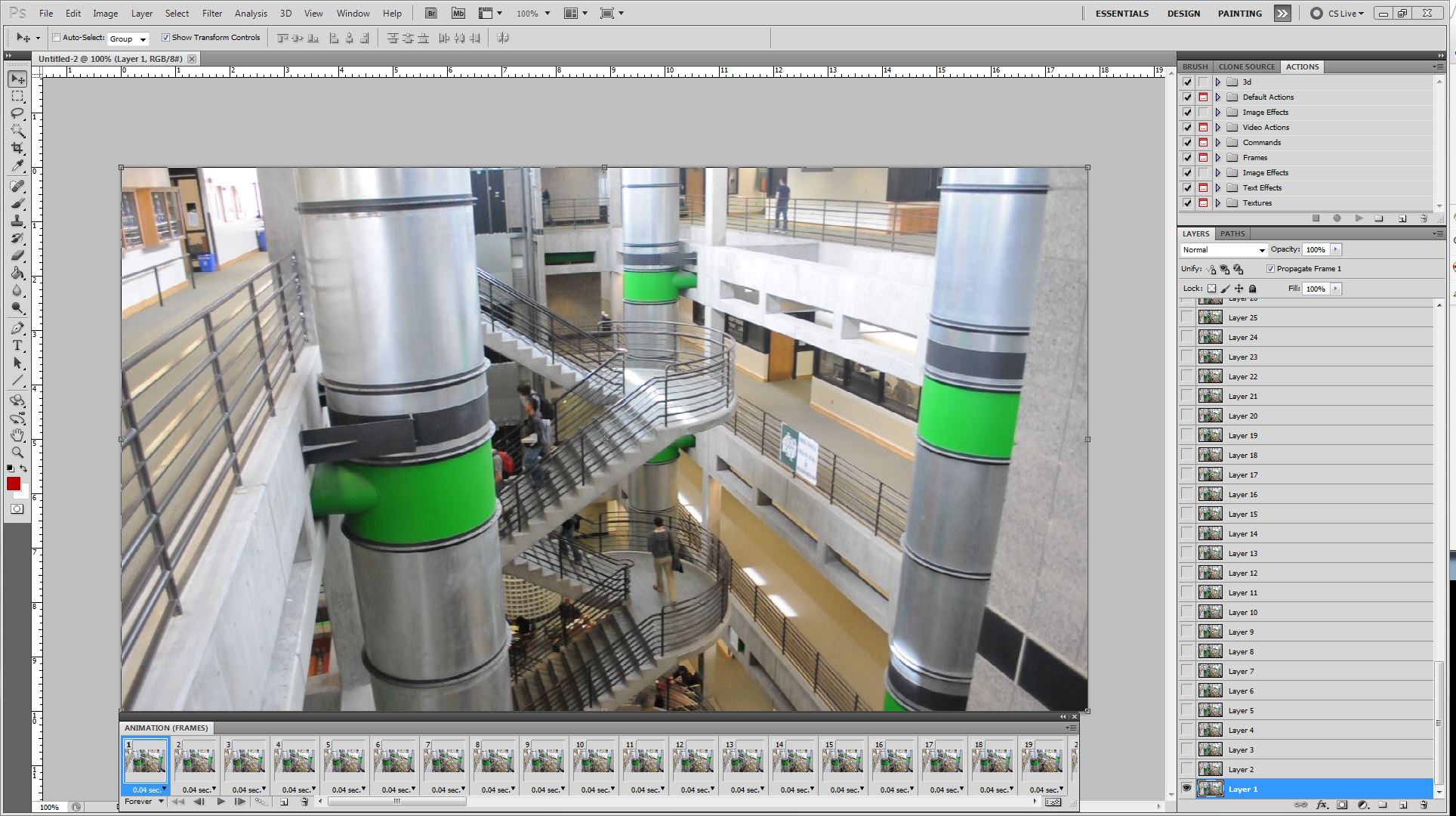
Before moving on, it will be helpful to setup your workspace, in the top right corner there are a number of workspace presets, you can select the Motion preset to load a number of popular tabs. However for this tutorial you will only be needing the Animation tab, Layers tab, Action tab and History tab.

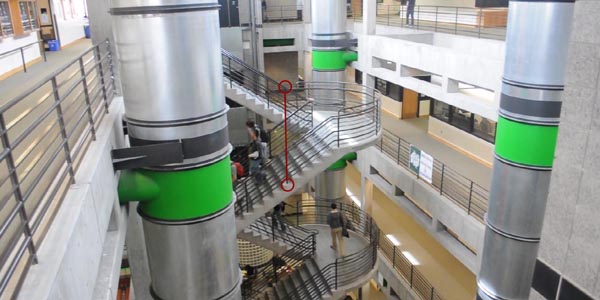
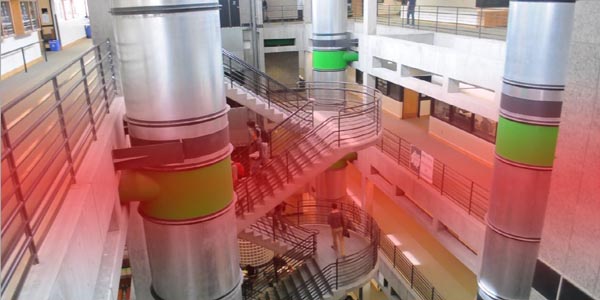
To begin applying the tilt-shift effect press (Q) to enter the Quick mask mode. Press (D) to reset your Foreground/Background colors, then select the Gradient tool. In the top left of the screen there are a number of Gradient styles, select the Reflected Gradient which is the fourth style from the right. While holding the Shift key, draw a line from the bottom of the staircase to just above the railing.

You’ll now see a light red gradient running horizontally across the screen. This red area will be the area of focus for the tilt-shift effect, don’t be afraid to play with different widths and positions for the mask. Moving the mask higher or lower will allow you to place the area of focus for the effect. The focal point doesn’t necessarily have to be centered to be effective. For more complicated video’s you could paint in the the mask but for most videos, this step should be sufficient.

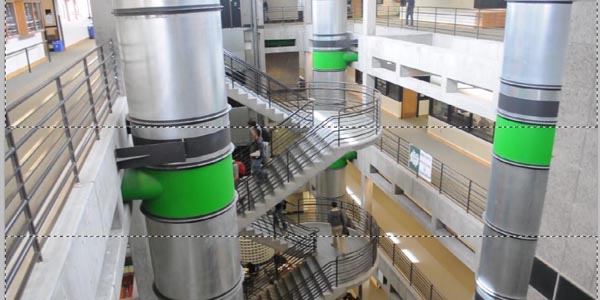
Once satisfied with the placement of the mask press (Q) to exit the Quick mask mode. You should now have and upper and lower selection.

Note: This selection MUST remain in place throughout the rest of the tutorial. DO NOT deselect or else the effect will not work.


Step 4

With the selection in place, Choose Filter > Blur > Lens Blur. For this video the default settings are bit too much, so reduce the Radius to 20. Drop the Curvature to 27 and kill the Noise. Be advised that this filter can take some time to refresh on slower machines, so be patient. When you are happy with the effect press OK to apply.


Step 5

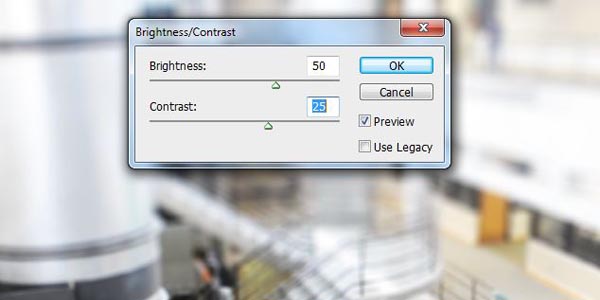
For the next two steps you’ll want to try and exaggerate the brightness and color to help sell the effect. Choose Image > Adjustments > Brightness/Contrast, bump the Brightness by 50 and the Contrast by 25.

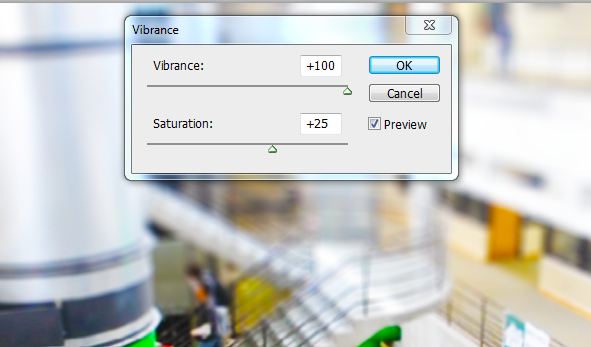
Then Choose Image > Adjustments > Vibrance and bump the Vibrance by +100 and the Saturation by +25. Experiment with different setting’s, now is the time to find which settings create the most dramatic effect.


Step 6

Now that you have an effect that you are happy with, it’s time to apply it to the rest of the video. First save your file out as a .PSD file, then undo everything back to Step 4. Make sure that you DO NOT deselect the selection created in step 3.

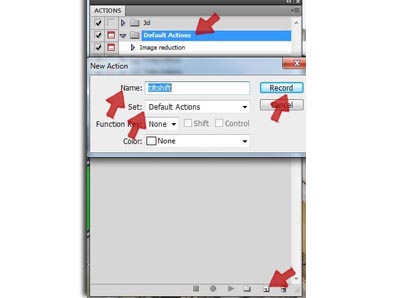
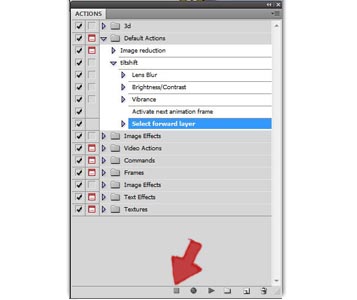
To create an Action, open the Action tab, press the new Action button near the bottom of the tab. Name the Action "titlshift", making sure it is saved in the Default Actions folder, (This will be important later on) then press Record. The round button at the bottom of the Action tab should turn red when recording.


Step 7

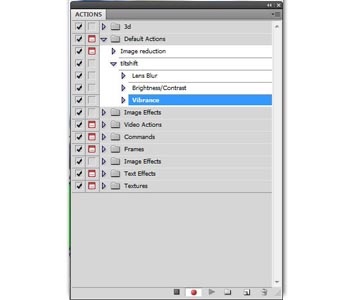
Now that Photoshop is recording, you can begin by re-applying the Lens blur effect. Choose Filter > Blur > Lens Blur or press Command/Ctrl + F to apply the last filter. Then Choose Image > Adjustment > Brightness/Contrast and apply the same setting’s as before. Then Choose Image > Adjustment > Vibrance and apply the same settings as before. Double check that Photoshop only recorded these three actions. If Photoshop accidently recorded an extra step, don’t worry, press the stop button, drag the unwanted step to the garbage can at the bottom right corner, then press the round record button to begin recording again.

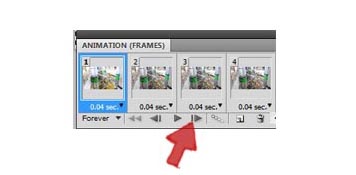
Now that the Filter and Image Adjustments have been recorded you need to record an Action that will move the Animation frame forward. If you simply selected Animation frame 2, Photoshop would record “Select animation frame 2″ which when you played the Action back it would not advance forward but remain on frame 2 indefinitely. To record a generic Action that moves the selection forward one frame, press the Fast Forward button at the bottom of the Animation tab. This will record an Action that tells Photoshop to “Activate next animation frame”.

However you are not done yet, telling Photoshop to activate the next animation frame is not enough, if you left it at that you would move the Animation frame forward but Photoshop’s ability to apply your setting’s would remain on Layer One. A little confusing, but what is happening is that an Animation frame only effects the visibility of a layer, not whether Photoshop can edit that Layer. To fix this you need to add one last step in our Action. As with the Animation frame you need to use a generic command to move forward one layer, press Alt/Command + ] to record the Action “Select forward layer”.

These last two actions are critical to the looping script you are going to use. All the looping script is doing is pressing the play button a set number of times for us, by having Photoshop move the selection forward, it is going to allow the looping script to move up the layers in the file applying the effect.

With this last step recorded, press the square Stop bottom at the bottom of the actions tab to end the recording.


Author’s Note

It’s time to test your Action. Press the Play button a couple of times to ensure that it is applying the effect the way you want and that it is moving the selections forward. Now is the time to make adjustments if needed. Remember to save the document if you haven’t already.

Before you proceed, I need to take a moment and give credit to Dr. WooHoo who has generously provided the Iterate script free of charge to the world. It was published in the May/June 2009 issue of Photoshop User Magazine and is also available on his website here.


Step 8

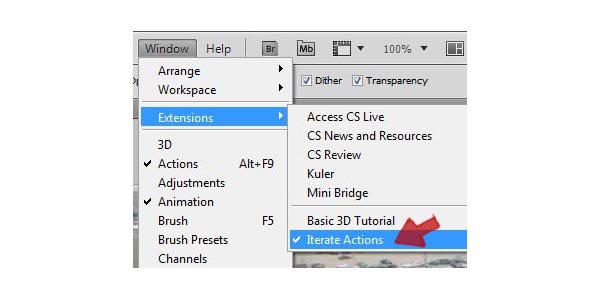
If you have ever played around with Photoshop Actions, you may have come across this odd limitation within Photoshop’s extensive Automation tools. For whatever reason, Photoshop cannot loop Actions to multiple layers within a single file, it is this limitation that Dr. WooHoo script corrects. If you haven’t already installed the Iterate script then save your work, close Photoshop and jump back to Step 1. If the extension’s been installed, then choose Window > Extension > Iterate Actions.

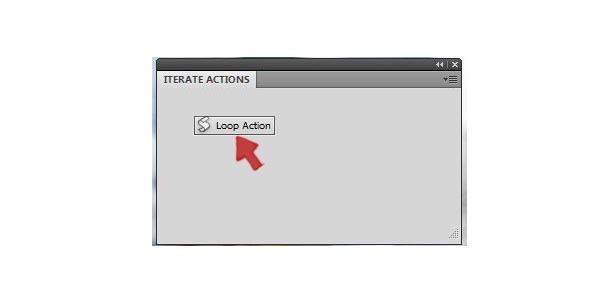
Click the Loop button.

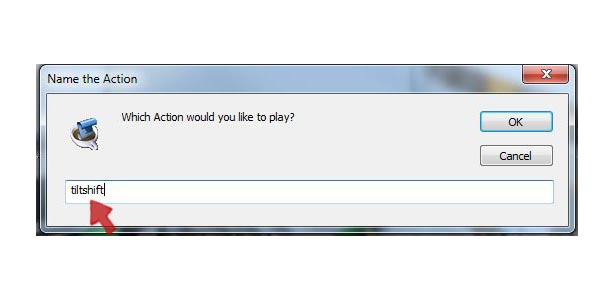
Enter the Actions name exactly as you spelled it. Remember the Action must be located in the Default Actions folder or else the script will not be able to run the Action.

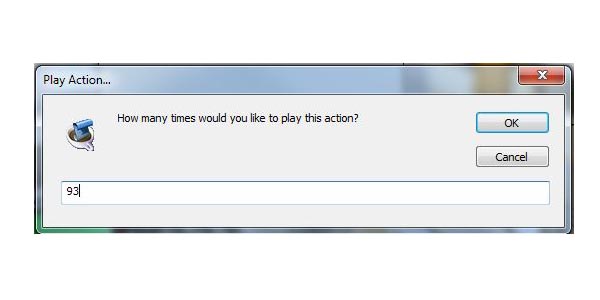
It will then ask how many times to repeat the Action. Press OK and it will start applying the Action to each layer, this may take some time.

(Don’t worry if your off a frame or two, you can always manually run the action if the script misses a few frames, However make sure you don’t tell the script to run more times than you have frames, once the script hits the last frame, it will start over with frame one.)


Step 9

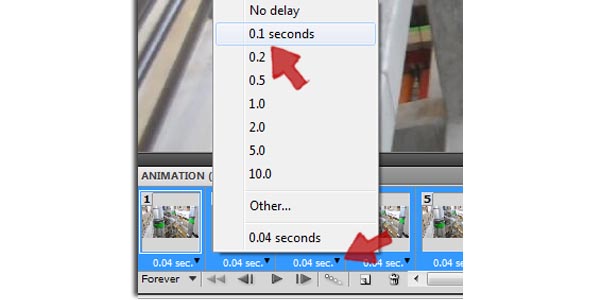
Once it’s done applying the effect, play the video through a couple times, If you are happy with the final effect, its time to render the video out. First step is to change the frame delay from it’s native 0.04secs to 0.1 secs. To change the delay, select Frame One then scroll down and Shift-Click on the last Frame, you should then see a blue outline around all the Frames. Click on on the small black arrow just under the right corner of the one of the Frames, and change the delay to 0.1 secs. Changing this setting’s will adjust the rendered video playback speed, leaving it at 0.04secs would have the video playing back a bit too fast.

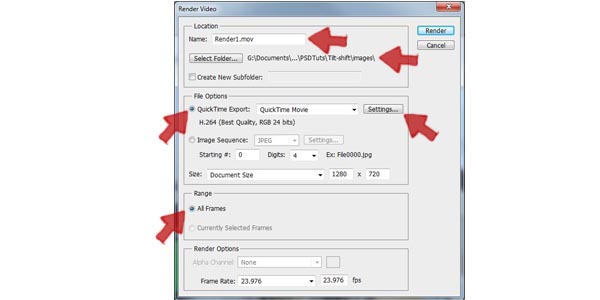
Then Choose File > Export > Render video. Name your file and select where you want to save it. Then you have a couple of options for exporting your video.

Option One: Export as a compressed video file, perfect if the video is a stand alone piece.

Option Two: If your using this video as part of a larger project, export the video as an image sequence, you’ll retain the highest image quality possible, however this method will require the use of another program, such as After Effects, when it comes time to export the image sequence as a video file.

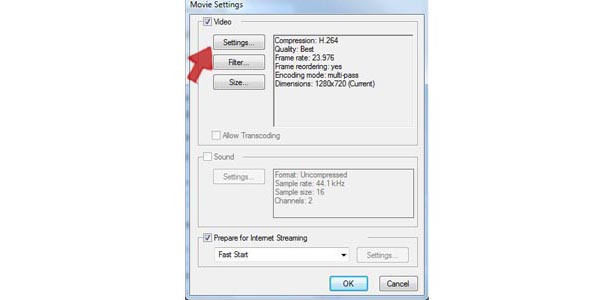
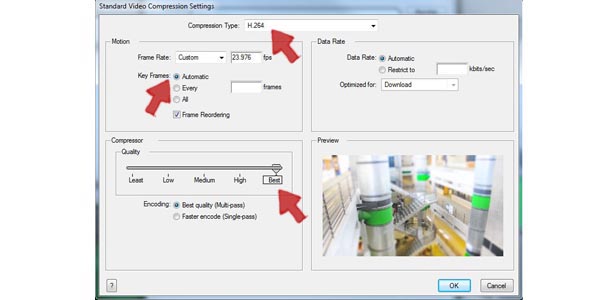
To render as a movie, click on Setting’s then on the Video Setting’s button

My personal preference leans to the .mov format using H.264, the file size will be tiny and the video quality will remain excellent. Press OK and in a moment your video will be ready to amaze the world.


Final Video


Envato Sponsors 2nd Annual Design Awards

$
0
0

Advertise here

We’re proud to announce that Envato is sponsoring the ‘Agency of the Year’ category as part of the 2nd Annual Design awards. The 2010 Awards were a resounding success and we’re excited to be involved again this year. Entries close on the 22nd of July 2011, so there’s still plenty of time to show the world your talent at www.annualdesignawards.com.

A Look Into The Depthcore Collective

$
0
0

Advertise here

Looking for visual inspiration? Look no further than the Depthcore Collective. With over 40 exhibitions dating back as far as June 2002, this group of accomplished artists of all mediums has been churning out digital art of the highest quality for nearly ten years. In today’s article we will be featuring some of this art here for you all to enjoy.

“We’ve all been together for so long, through so many things together it feels like a family. Progressing through life together, from amateur enthusiasts to students to full time professionals, we’ve all been able to share and grow through the collective.” Justin Maller


Artisitc Chameleon by Shadow Chen


Eve Of Happiness by Theo Aartsma


Homeworld by David Fuhrer


Sis by Raphael Vicenzi


We’ll Be Perfect by Justin Maller


Trees In Heaven by Sheena Aw


Gabriel by David Waters


AFFAIR by Leigh Flurry


Hocus Pocus by Craig Shields


Give Me My Gold Leaves! by Richard Roberts


How Depthcore is set apart from other collectives.

Our collectives’ long history and tight knit member environment combine to give us a sense of enduring purpose; we’ve all been together for so long, through so many things together it feels like a family. Progressing through life together, from amateur enthusiasts to students to full time professionals, we’ve all been able to share and grow through the collective. Whilst our talent and visual production are what we are most renowned for, it is our unity and genuine trust and affection for each other that will see us outlast all others; nine years and still going strong, Depthcore is evolving with it’s members.


Constellation AK47 by Matei Apostolescu


Downhill From Here by Ikaruga


The Blizzard, The Dreamweaver by Ari Wenkle


Rhinestones And Morals by Ari Wenkle


Supernova by Richard Roberts


Decrescis by Jonathan Foerster


Thoughts in Output by Niklas Lundberg


Steampunk Pioneer by Larisa Glushakova


I, the accuser by Matei Apostolescu


The Omega by Heiko Klug


What are the most important goals this collective is trying to achieve?

We always strive to set new benchmarks in quality and originality when we release chapters,
endeavoring to produce new artwork in fresh, modern styles. Our new objective is to stay relevant as a collective with a membership comprised of freelancers and studio professionals; adapting to become an interesting and viable entity in a new environment is a large goal that we are trying to achieve by creating several new facets to our enterprise whilst overhauling and renovating the existing core.


Origins by Nik Ainley


Poseidon’s Grip by Richards Roberts


For all the ravens in our hearts by Raphael Vicenzi


A Final Release by Niklas Lundberg


Somehow Different by Ikaruga


Special Thanks

Id like to give a special thanks once again to Richard Roberts and Justin Maller; for helping me put together this look at Depthcore. Make sure to stay up to date with Depthcore by following them on Twitter for constant site and artist updates.

Saving and Presenting Your Work

$
0
0

Advertise here

Are you new to Photoshop? Have you been trying to teach yourself the basics of Photoshop but have found the amount of educational material available on the net a bit overwhelming? As the world’s #1 Photoshop site, we’ve published a lot of tutorials. So many, in fact, that we understand how overwhelming our site may be to those of you who may be brand new to Photoshop. This tutorial is part of a 25-part video series demonstrating everything you will need to know to start working in Photoshop.

Photoshop Basix, by Adobe Certified Expert and Instructor, Martin Perhiniak includes 25 short video tutorials, around 5 – 10 minutes in length that will teach you all the fundamentals of working with Photoshop. Today’s tutorial, Part 24: Saving and Presenting Your Work will explain a bit about PSD, JPEG, PNG files, the web gallery, and contact sheet with Bridge. Let’s get started!


Draw a Crysis Inspired Nano Suit – Psd Premium Tutorial

$
0
0

Advertise here

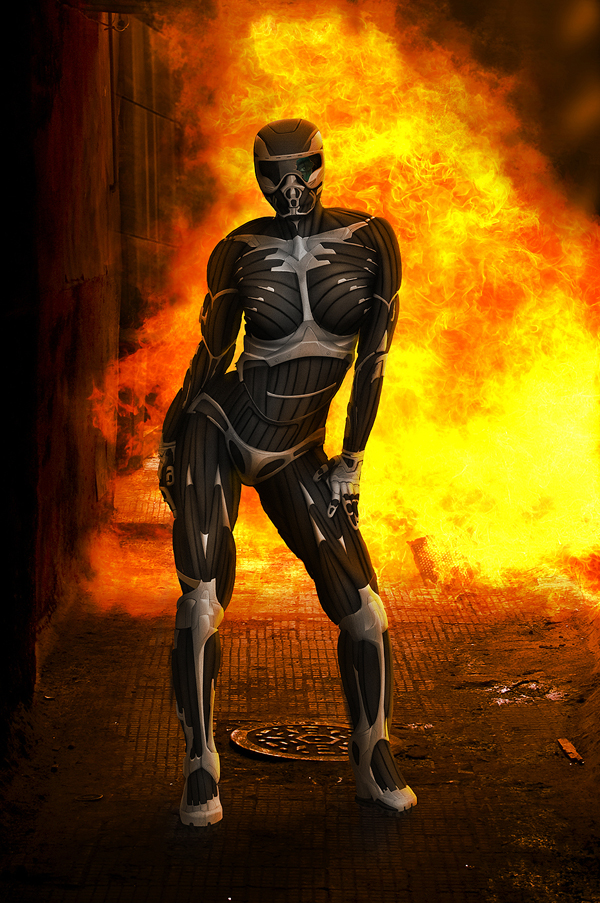
Have you ever needed to skin an object with a metal surface? In this Psd Premium tutorial, author Ed Lopez will use digital painting techniques to skin a person with futuristic hard and soft metals to create a Crysis inspired nano suit. While this tutorial is meant to emulate the popular video game, the same techniques could also be used on everything from autos to spaceships. This tutorial is available exclusively to Premium Members. If you would like to take your digital painting and drawing skills to the next level, Log in or Join Now to get started!


Detailed Video Instruction

This tutorial includes 10 videos that demonstrate the process of creating this project in detail so that you can better understand the techniques that were used in each step. Below is a clip from one of those videos. To view more clips you can Log in or Join Now!


Professional and Detailed Instructions Inside

This tutorial also includes full text and screenshots of each step. Premium members can Log in and Download! Otherwise, Join Now! Below are some sample images from this tutorial.


Final Image


Psd Premium Membership

You can join Psd Premium for as little as $9/month. Premium membership gives you access to the source files for all our tutorials as well as access to premium tutorials like this one. This also includes the rest of the sites in our network including Vectortuts+, Webdesigntuts+, Phototuts+, Nettuts, and more! Premium Members can Log In and download this tutorial. Otherwise you can Join Today!

12 Common Mistakes Designers Make and How to Avoid Them

$
0
0

Advertise here

Ahh mistakes. We all make them, and it’s not something to fear or be ashamed of. They are a great opportunity to learn, to grow your skills, and become a stronger designer for your clients and your career. After doing this for a number of years, I’ve made a few “lessons” myself. I started thinking about the more common mistakes that happen in the creative workspace and maybe some advice to help get around them. After sharing and discussing with a few of my peers here’s what we came up with.

All men make mistakes, but only wise men learn from their mistakes.
– Winston Churchill

Speedy

Going too fast! Sounds like that isn’t possible right? You get paid by the hour, your client has a limited budget, and you want to produce something that’s portfolio worthy and insures you’re going to get paid. You spent all that time learning quick keys, shortcuts, and workarounds just so you could literally go faster and be more efficient. But there’s a point on the curve where your speed is up but your quality control goes down. It’s important in your development to discover where that is.

Solution: Go fast, smarter. Any good race car driver knows that you go fast in the straights and drive smart in the curves. The same thing needs to apply in your approach to design work. When it’s a part of a project where you can go straight, full speed, flat out, do it. Automate, batch process, use quick keys, anything to help you get ahead. Why? Not so you can finish faster, but so that you can take more time in the curves. The tricky part of the project is when you don’t slow down. Try to create an overview of the project that you can use to identify times when you can just go flat out full speed on production, and where you’ll need to be careful. Proof reading isn’t something you should do fast, but converting all your images to black and white is. Make sense?

Try to switch gears before you do your quality control check. I often schedule this right after lunch, or I will go take a 10 min break walking around, getting fresh air, grabbing a drink, so that I can come back calmed and focused on the task at hand. It’s important to wind down into that focus, no machine likes to switch from top gear to bottom gear, and your brain is no exception to that.


Tunnel Vision

You’ve been working all night on the cover graphic, the big illustration, retouching a photo that’s part of the annual report center spread, and finally you have it in the project. It looks great and you’re super proud! You send it off to the Project Manager/Editor/Creative Director, etc. The first thing they respond with is, “hey your cover has a couple of typos and you missed a period on the last paragraph of page three”. You feel dumb! You would normally never miss those, so what happened? It’s easy when you’re striving to make a singular part of a project so good, so perfect, so monumental, that you get Tunnel Vision. You’ll start missing all the little details you’d normally catch. I find this happens when the balance of a project is not evenly distributed. For example, it’s easy to do on projects like CD packaging for a band. You spend all that time on the outside cover art that you make all kinds of mistakes in the liner notes. It’s no one’s fault but yours, a hard lesson to learn. It’s up to the designer to push things back into balance and take ownership of as much as the project as they can.

Solution: You can approach this a few ways. My personal preference is to produce a checklist of what needs to happen for the project to be completed. Once identified try to knock out all the small things first, finish them, get someone else to look at it if possible, proof read it, double check it and be done. Now, give your full attention to that big piece of the project. Once there is nothing to be sacrificed at the expense of the largest component it’s more likely that you’ll have no mistakes in the final piece. What happens more commonly is designers try to take the biggest piece and solve it first. Then they approach the deadline and have a lot of small things remaining that get rushed for completion thus causing errors.


Overworked

Ok, the logo for client A is almost done. Those edits for project B are next, you just got an email about website C, and you have a conference call with your code guy in a couple of hours about a new job D! That’s a lot, and realistically a busy designer usually has this going on threefold in any given week. I always envied those designers who talk about the “big project” they’ve been working on for a month with nothing else on their plate. How nice it must be to focus on one single project for a month, imagine how your brilliance could shine, if only! Flipping the switch too many times is bound to burn out the bulb faster, and we as a design machine are no different. Sure all that work can be exciting, it’ll definitely not hurt the wallet, but what does it mean for your reputation, what does it do for your portfolio? Remember that every project you work on is an investment in yourself. You were hired to deliver something great for the client and if you’re dividing your talents beyond a manageable level, you’ll make little mistakes that drive a client to not hire you again.

Solution: Some of the best advice I ever received was, “Learn when to say no to projects and work”. That terrified me because in my head all I heard was, “turn down income, make less money, live on noodles”. The reality became apparent though. When I overworked myself I didn’t produce work with a keen eye for quality control. I was getting the job done, and not making strong impressions on clients and their associates. Reputation and referrals are invaluable in this field. When I sacrificed volume of projects I started producing higher quality work, I could charge slightly more and it allowed more time for quality control. This made for a happier designer and client. This takes time, in my case it was roughly 1-2 years before this balance was complete. It also set me up for this next challenge, which involves knowing when to hire help.


Too Many Hats

So the client contacted you about work, and you’ve dreamed of working with this company. How exciting for you. So first you need to submit your proposal, then get the project timeline figured out, contact and hire a contractor to handle some specialist parts to the project like 3D modeling, voice over, video, etc. You negotiate budgets between all those involved, start writing/reviewing content and all of this is before you’ve put pencil to paper, or mouse to pixel, and actually been a designer. Freelance is hard because you have to fulfill many more roles than an agency, or in-house, designer. Wearing all these hats can distract your focus and pull you away from delivering the great project you want to provide. If you are wearing so many hats on a project as this, and it’s not uncommon at all, then it’s almost guaranteed you’ll make a mistake and miss something from someone. So what do you do?

Solution: This is hard, because it’s the most common problem for freelancers. I think you have to approach this in a very systematic, structured, and organized way. I’ve met designers who say they only take conference calls on mornings so their afternoons are focused on the design side of the project. Fridays are the days they handle billing, etc. Find a system of organizing the roles so that it works best for you. My personal process is I write down all the positions of a project and under those positions I write what needs to happen, when it should happen, and how long I have to do it. For example “Copywriter>Edit Down Article to Fit Layout>2 Hours>By Friday”. Once I have this all figured out, I put it into my calendar and block out time based on position and need. Once my blocks are full, I can evaluate needing to work longer days or if I want to hire in extra resources. This is great because it puts you in a position to decide what you want to do, and what you need to contract out. This level of organization and focus should better insure you make less mistakes and that you’re giving your very best to each role for success.


Ooh Shiny

Some people are not meant to quality check their own work, I honestly and strongly believe that. It doesn’t make them any less skilled, or any less valuable, but it’s not in their personality to recheck their work. For me, these are the “artists”. Their minds wander, they are easily distracted, always looking for a potential muse, and maybe they’ve stayed attentive long enough to get that one killer part of a project done. It’s important to recognize and admit if you’re this sort of person. It’s considered by some to be ADD, and I won’t comment on that because I’m not a medical professional. However, the personality type is real, and for as brilliant as their talents can be, their mistakes potentially rival in scale.

Solution: Don’t work alone, and never put yourself on a timeline you can’t meet. Pad your time knowing that you will need it or create a distraction free work environment. That could mean turning off email, IM and phones during certain times of day while you produce work. Find others you can collaborate with, bounce ideas off of, and get spot checks of what you’re doing. Make sure the client understands exactly what you’re willing to deliver and what you’re not willing to do. This might sound like you’re cutting off the potential for more work but it’s better to have clients hiring you know exactly what you are providing them. If you don’t do research well, make sure they understand they are providing you with the necessary information formatted for the project because you won’t read it and edit it down. The best carpenter can charge more than an average handyman.


Ass-U-Me

A group project, great! You’re doing the layouts so you don’t have to bother checking if Bobby’s copy has spelling errors, right? It’s dangerous to assume roles on a project when they haven’t been clearly defined by anyone. It’s even worse when there’s no project manager to define responsibilities. I care much less about my title position on a project and much more about my responsibilities for it’s success. At the end of a project when the final deliverable is sent, a client will never accept the granular elements of a project and alienate the mistakes by category alone. Either the project is right, or it’s not. This is a shared responsibility and one often lost when there are no clear guidelines for expectations established early on.

Solution: At the beginning of a project launch ask for it to be clearly stated by the Project Manager or Client exactly what roles each of you will fulfill. If you think that’s not possible, state the roles and responsibilities yourself. Make sure everyone agrees, and if they don’t agree continue to rework the list until all responsibilities are met. In some cases the list might only be you, but now you have a checklist for each individual component you must deliver. There will be no surprises, and now you can focus on tasks without fear. It also can help illustrate the dispersion of work on a project which can lead to support before you have to cry for help.


Miscommunication

You weren’t sure what they meant in the meeting? You didn’t want to sound dumb so you didn’t say anything about it. You didn’t set expectations back to your client for when they need to get you the content, or logo, or image, etc. If you don’t communicate clearly, and I mean with complete transparency, you’re setting yourself up for failure. If it comes out towards the end of a project, you have less time to address the issue because the deadline is closer now then it ever was. Worse, the solution means reworking a lot of the project, ouch again! I’d rather be told I over communicate and make very few mistakes versus over simplify something very technical because I didn’t have the confidence to ask the client something. Often designers feel like they have to be an expert at everything to be able to design for it. This is extremely bad practice because it’s theoretically impossible. In the same week I’ve worked on projects for companies like Nokia and Genentech. There’s no way I could possibly be an expert on mobile technologies at the same time as I need to be a master of bio-tech.

Solution: You have to ask if you’re not certain and don’t understand something. Beyond stating the obvious about the potential risks, I often find that if a client’s information is so complex that I can’t understand it, there’s a good chance their target audience won’t either. They hired you for design, but it’s true that you’re biggest value add is being a sounding board for their message. To test its ability to be communicated visually, and how well it will be received. Try restating the information and see if the client agrees with you. Many times I find they’ve never heard their own content explained back. They may have never heard it translated and re-voiced. This can cause a better alignment of messaging, thinking, and ideation between you and the client both. If you have a client that doesn’t want to collaborate like this live then shoot them an email breaking out your understanding of each part of the project and let them correct it, mark it up, edit like a madman free with a red pen. In fact, I welcome that sort of approach. I often tell clients, please go through this and let me know what needs to be changed because “I WANT TO BE SURE IT’S RIGHT FOR YOU!”. That usually creates an appreciation for the attention to detail you’re bringing to the team.


Selling Short

Taking on a project that will allow you to use some skills you haven’t developed fully is a great opportunity to learn something in a real world scenario. Necessity being that mother of invention, sometimes this happens under duress versus desire. I for one have learned in all my years that I should NOT do 3D modeling work, and dance the line on coding for websites. But I’ve made the mistake of saying “yes”, that I’d give it a try because of time restraints, unavailable resources, or the client doesn’t have the money. The result is almost always, just ok work, long days with late nights, a less than happy client, and me being underpaid for my effort and overpaid for my delivery.

Solution: Know your strongest abilities, not just your technical/vocational skills. What are your individual strengths that allow you to add value to a project? I can do a lot of things, but I know I’m a strong Photoshop/Illustrator user. That’s good as a technical skill but another skill I’ve realized I have is that I can create a lot of ideas very fast. Without hesitation I can generate a pool of ideas while others are still deciding if their first idea is worth exploring. This will help when assigning roles mentioned earlier, knowing your strongest contribution puts you in a great position of success with the projects you take on.


Stylistically Challenged

No designer likes to hear this one. “You’re not the right person for the job”. But you know all the latest techniques for the applications like Photoshop and Illustrator, you can “make” anything, why wouldn’t you be the right person? Simple, it’s a project that isn’t in your style. Think of this like fashion design and styling. Whoever is designing should hopefully have a passion and proficiency in the style they are working towards. Design for work that aligns with you, your style, interests, passions, and successes. If you do great grungy textured urban looking work. Then don’t take the project for the chain of childcare businesses around your state. It’s not what you do, it’s not where your mind eye lives. How many times have you seen a logo for a business that looks like it was done in a conflicting style? This is what I’m talking about, and we’ve all seen examples of this. Comic Sans used for construction companies and an Apple Chancery font used for a electronica-dance club. Yikes.

Solution: Get portfolio reviews, look for peer feedback often of your latest work, and start building a digital style box of other designer’s work that you would compare to your own. Do a side by side of their work and yours and see if other people agree with your comparison. The goal here is to gain a real perspective on your work, versus your definitive perception. For years my wife, another designer who I respect dearly, called my personal illustrations cute. I hated this, the word seemed dirty and rude to my work. I collected samples of my personal illustrations and asked for feedback from many designers and illustrators I respected. “Cute”, was a common descriptor amongst others. That was it! I had to change, or accept that I illustrated “cute” things.


Silo

Don’t work in one. This echoes some of the other mistakes mentioned but can also be identified by the lack of collaboration on a project. Working in a silo is a cause for errors, it’s when you isolate yourself on a project, and it isn’t seen by anyone, before it goes to a client. You don’t want your client to be the person who edits your work and catches your mistakes. Their edit requests should be ones that come from being inspired by your efforts and ignite more ideas in them. In future you’ll be seen as a creative resource that can consult versus the person who can “get it done”. When I was a teacher I told my students, “never trust your success in the hands of others”. That holds true at the base level. You assume the project manager will catch any mistakes and hopefully tell you about them. The project manager is busy and assumes you didn’t make any mistakes because you’re “awesome” and they trust you. This is probably the cause of projects ending up on those design disaster websites where hundreds of comments are left about how “stupid” you are for missing something so simple, but every designer has missed something. You don’t want your work to end up there I imagine.

Solution: Get extra people to review your work and it doesn’t have to be another designer. In fact I recommend that you have a non-designer look at it objectively for every project you work on. My friends who aren’t designers will often question the simplest things that cause me to change my designs. The “a-ha” moment comes more often this way. Think of this as research, and everyone else is studying your project. Does it say what it’s supposed to? Is it communicating properly? Extra pairs of eyes are helpful, and often inspire greater work. I utilize friends over IM, via email, those who sit next to me, anyone really I believe is confident enough to give me honest feedback. Take a screenshot of your work, and share it, be open to feedback and critiques and consider it a success if on the first pass it comes back covered in questions and change requests. Now, it’s aligned for success thanks to that open feedback. This takes removing a little bit of ego, but it’s worth it for your career.


Married by Design

Don’t marry your work! Younger designers are brilliant, they have a fresh sense of style, and what’s going on in current culture. However, they often are the ones that get emotionally attached to their projects and want to see their ideas “win”. Unless you’re Charlie Sheen, winning isn’t your goal. This is when creative types treat their projects like contests. I’ve seen it, and I’m equally guilty of it. That doesn’t mean to not voice the strengths of your ideas and concepts, but question your motives. In college I was taught “an artist has one person to please but a designer has the client’s audience to consider first”. Sometimes even the client is married to their own idea and it can be difficult, and require some courage, to explain why it’s not the best concept.

Solution: For each project there is usually a list of goals. If I’m the facilitator of a project I like to start each one with a “need and brief” breakdown. The “need” is a list of goals for the project. You should attempt to isolate this list down to one parent need that all others are a sub goal to. Make it clear and well stated so everyone agrees to the parent need. The more well isolated the need, the greater chance you have of accomplishing it with solid design. The “brief” is what creates some of your design restrictions. The “brief” is the rules behind your project. “You must use this color, it must use this font, it must…”. For large corporate work they often have branding guidelines or a design strategy that you will adhere to. When you have boutique clients the structure isn’t usually so well defined. Think of the “brief” as your QC checklist for meeting standards. If your client is small and doesn’t have any, now is the time to start defining some of those and maybe they’ll see you as the master visionary of their brand. When you start following a “need and brief” approach to projects it will help you be strategic to specific goals instead of just marrying your ideas and fighting for their place in a project. This will help you learn to be a better facilitator and leader of work.


Numbers

We’ve all seen the projects that have little inconsistencies that make it feel just slightly under-polished. Maybe they ran out of time, maybe they ran out of budget, or maybe the designer just didn’t work systematically versus organically. Some shadows varying on objects, leading on different blocks of text varies, the list goes on. The look is there, and it’s impressive, but the client wants that now applied to a 200 slide presentation, or equivalent page count for a website, how easy is it to reproduce? There’s a reason the old design rule Keep It Simple Stupid exists. It’s not just to help design clean elegant work, sometimes it’s about the ability to be consistent.

Solution: The tools now offer everything up in some form of numbers. The angle of, shadows, blur, kerning, leading, pagination, picas, pixels, inches, dpi, lpi, and more. If you can create a style guide, or cheat sheet on a project that tells you the numerical value of something then it can be reproduced consistently. More importantly it can be shared so anyone else working on the project can produce consistently with you. Getting everyone on the same page takes guidance, and guidance comes from clear instruction backed by solid examples. Break down a checklist for your project so someone can use it as a QC check list before delivering to the client. Are the fonts all the right size? Are the colors correct? A simple list can speed up quality checking, offer better accuracy, and make the process more efficient.

Image Source: Shutterstock.

Create a Surreal Out of Bounds Photo Manipulation in Photoshop

$
0
0

Advertise here

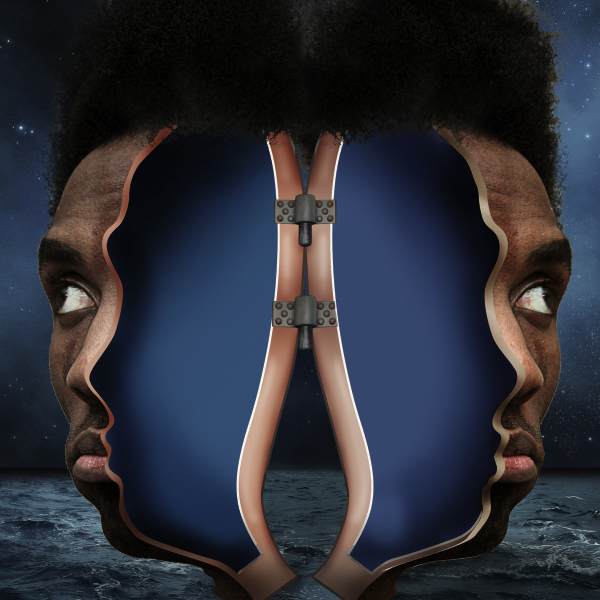
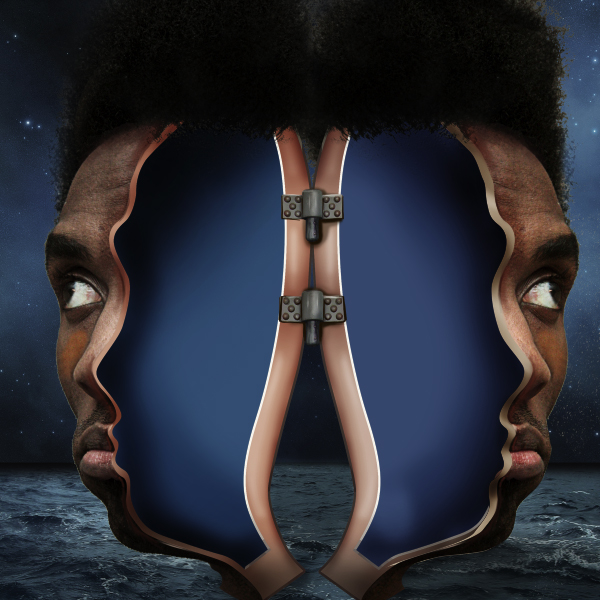
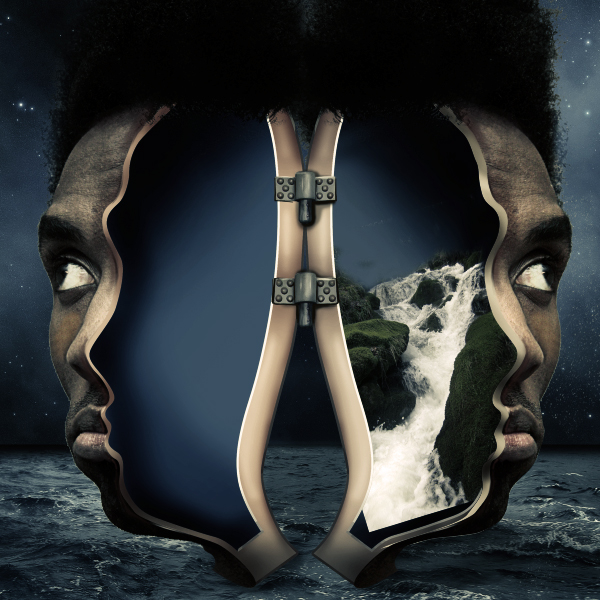
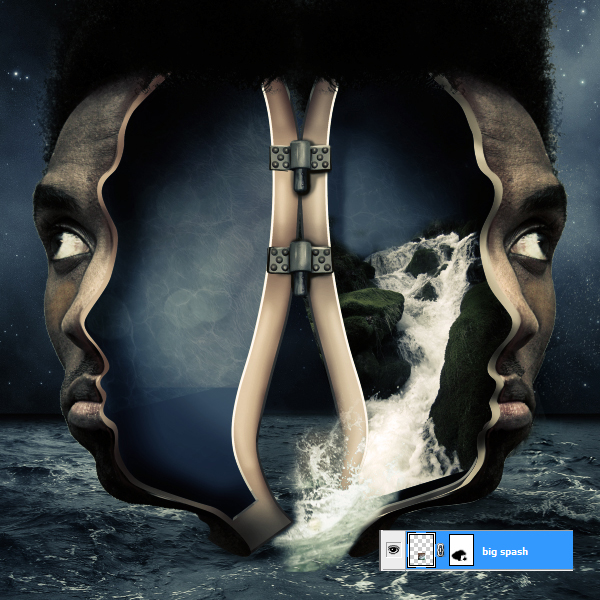
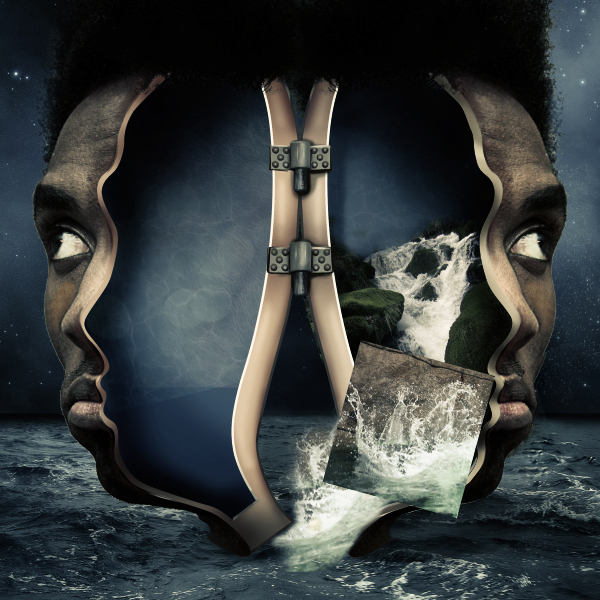
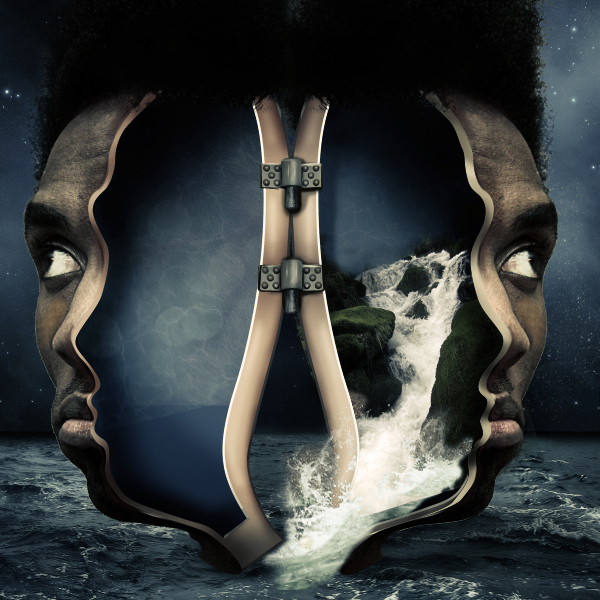
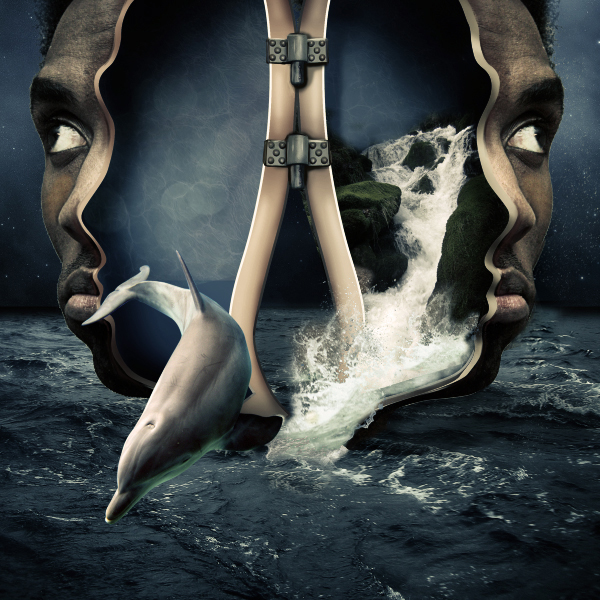
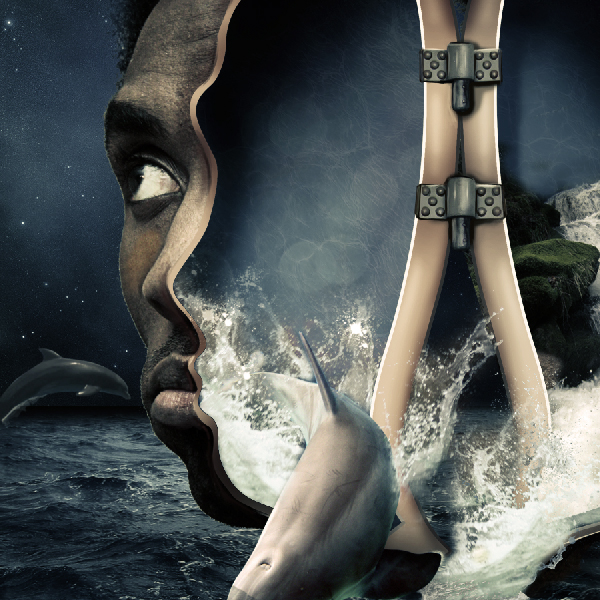
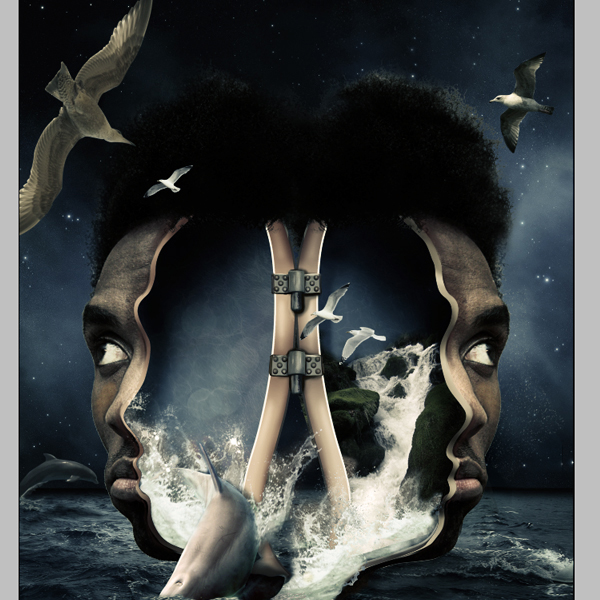
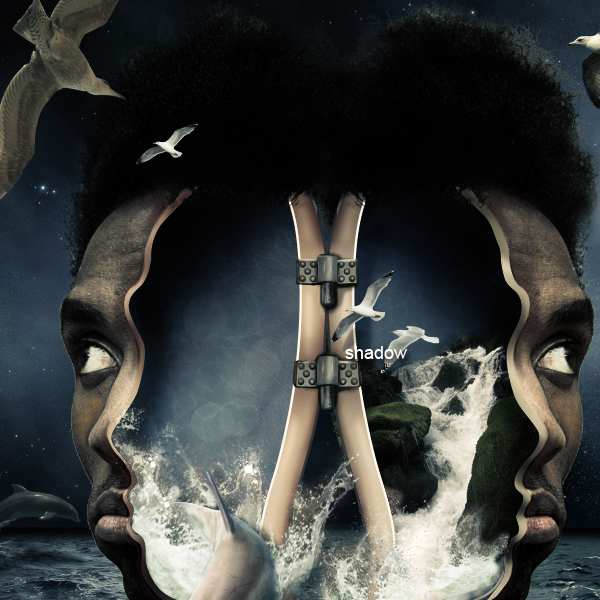
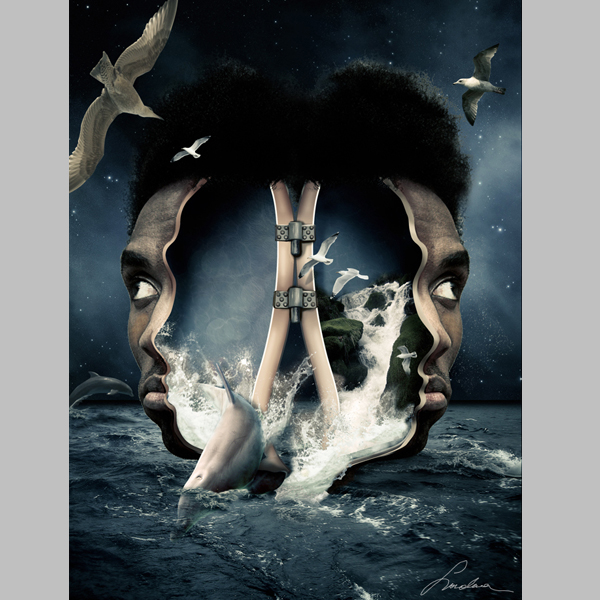
In this tutorial we will combine several images of water, animals, and people to create a surreal out of bounds photo manipulation in Photoshop. Let’s get started!


Tutorial Assets

The following assets were used during the production of this tutorial.


Step 1

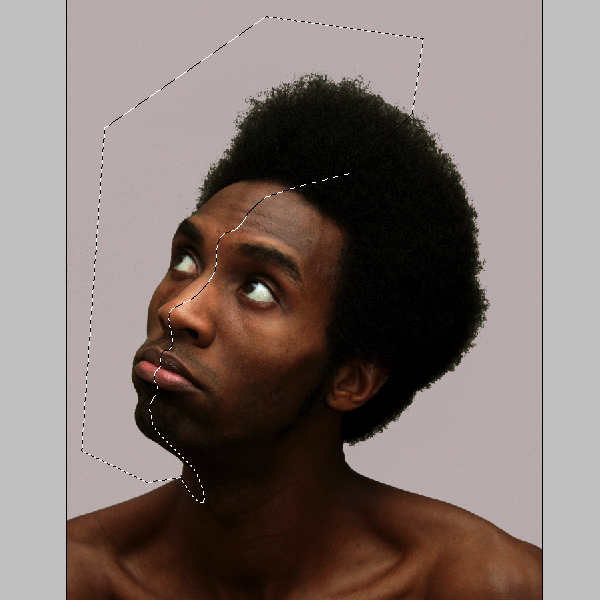
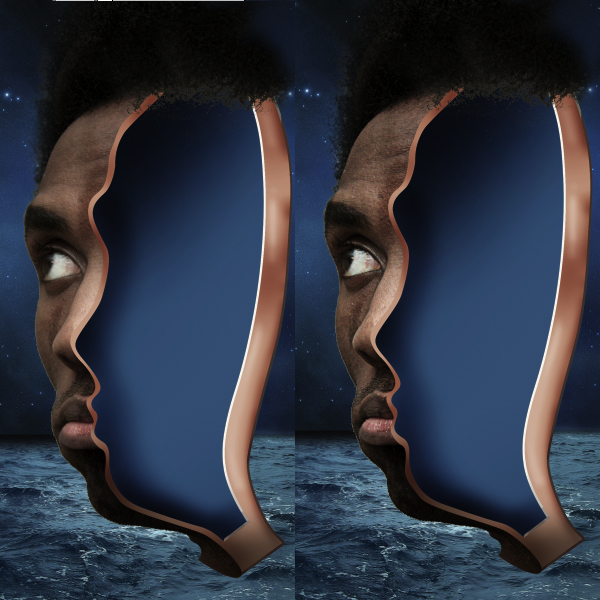
The first Step is to open the picture with the human head. Select the pen tool and cut out the left part as I did in the picture below. This is going to be the right part also, because we are going to flip it in the next steps.

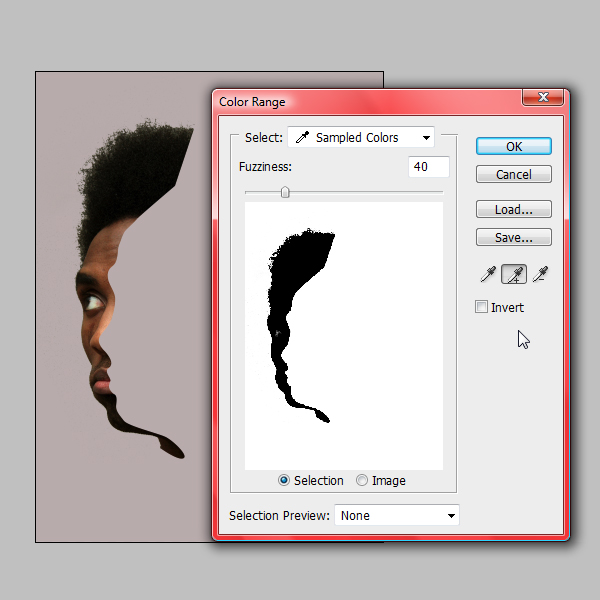
Next I have extracted the head from the initial background, for this go to Select-Color range.
The extraction will be very easy because of the contrasts of the picture. Use the eye picker to select the head and extract it. This is a good method to extract hair since the pen tool is not so precise.


Step 2

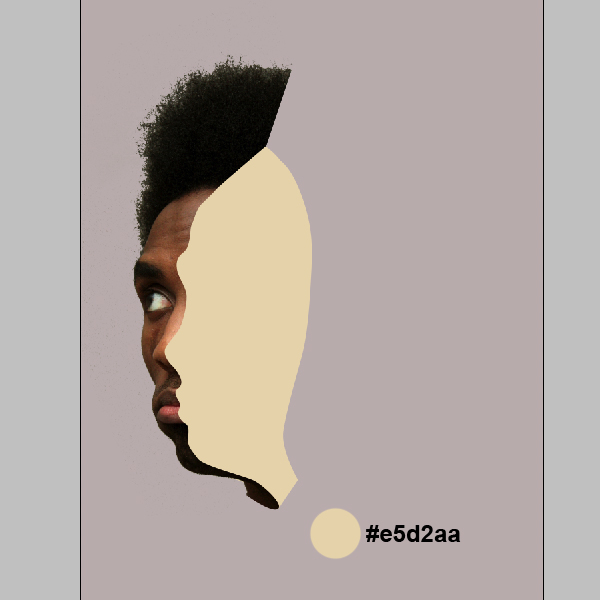
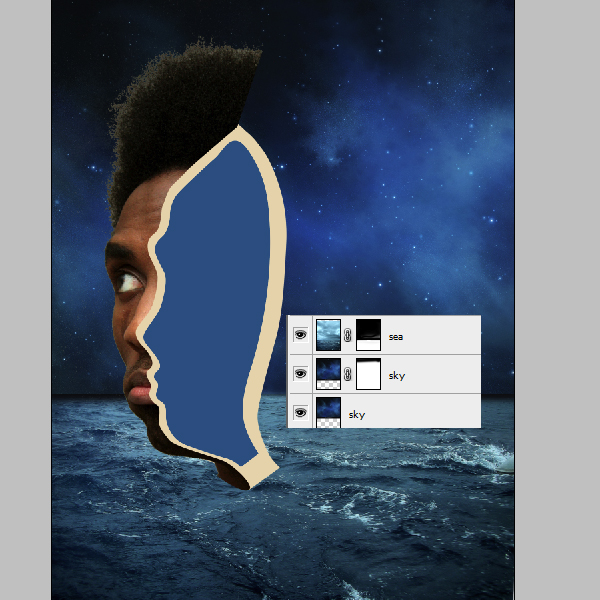
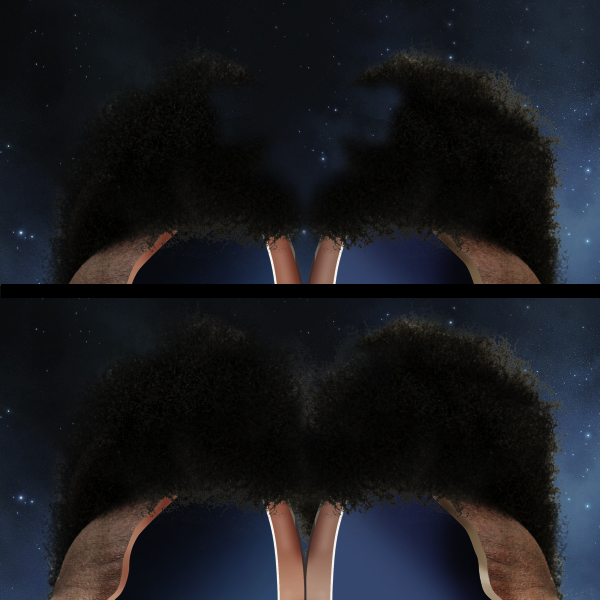
Now that we have the head lets create the missing part. We are going to work on the left part only and then flip it to create the right part of the head. Create a new layer under the head’s layer. Using the pen tool make a shape as I did in the picture. Use the color code shown below.

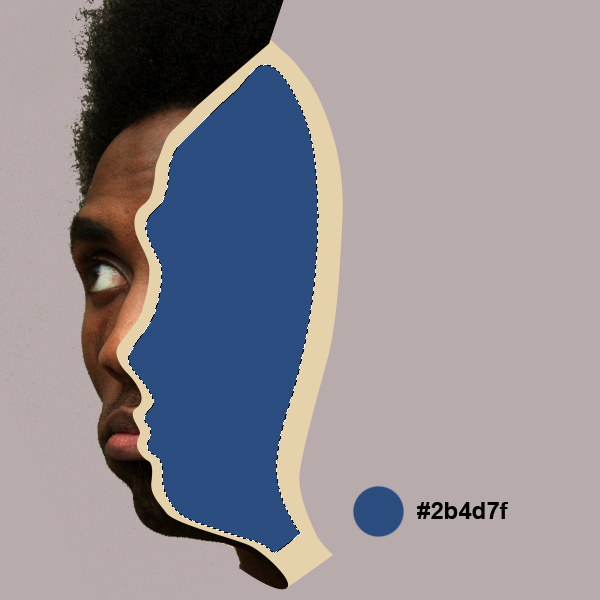
Using the pen tool, create a new shape smaller then the last one and fill it with blue.


Step 3

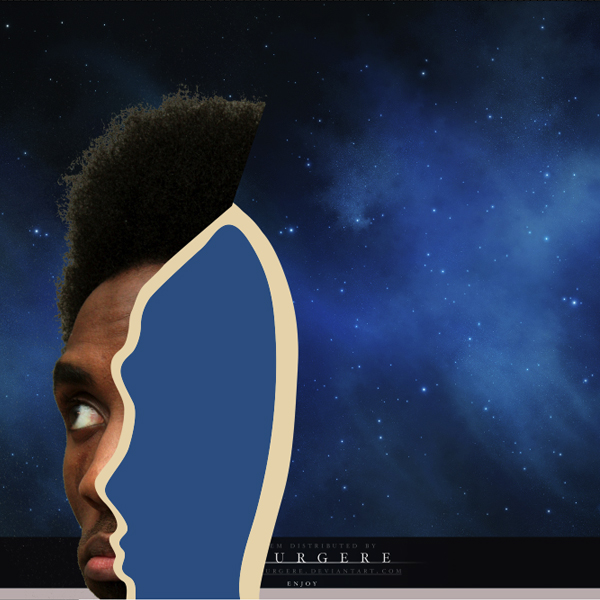
We are going to leave the head pending for a few layers and open the sky picture.

Since the sky picture is a bit too small I’ve duplicated the layer and filled the missing parts. Use the clone stamp tool for this. Open the sea picture and, on the layer’s mask, erase the top part to blend it with the sky.


Step 4

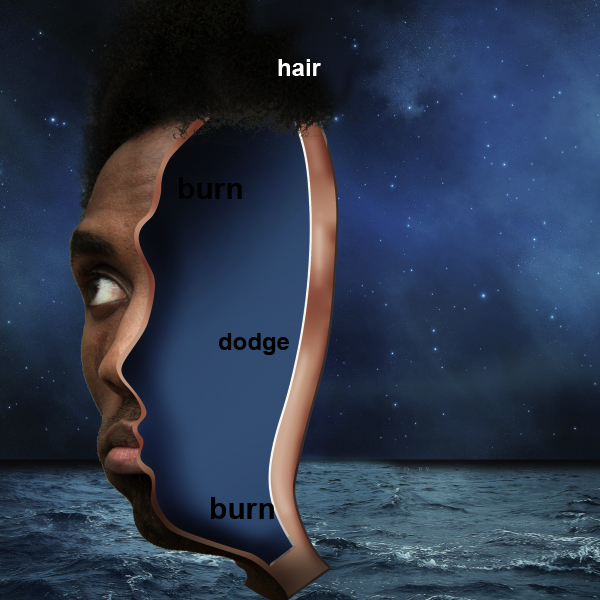
Now that we have the background let’s go back to the head. In this Step we will add some shadows and lights to the head using the burn and dodge tools. Use the picture below as a reference. Also add some hair, with the clone stamp tool, as you see below.

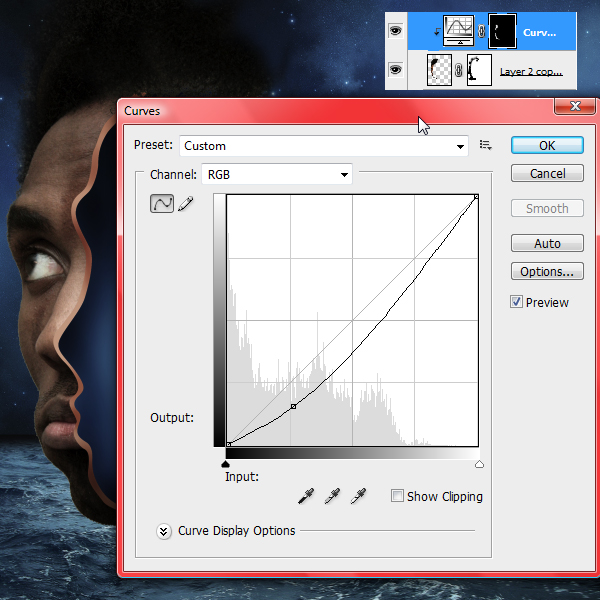
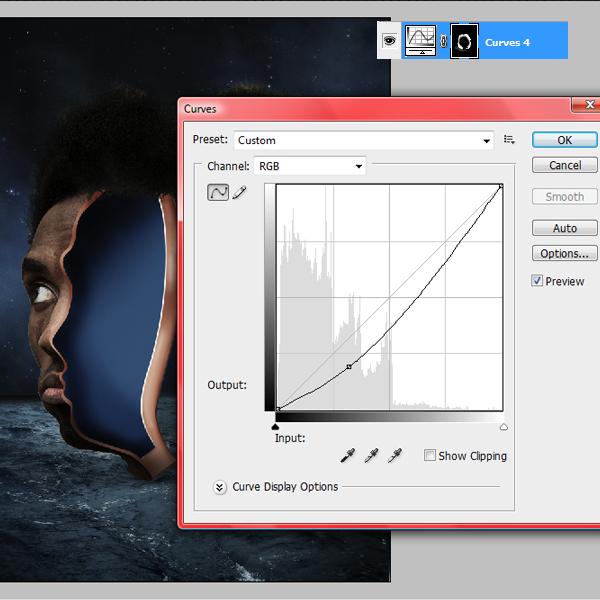
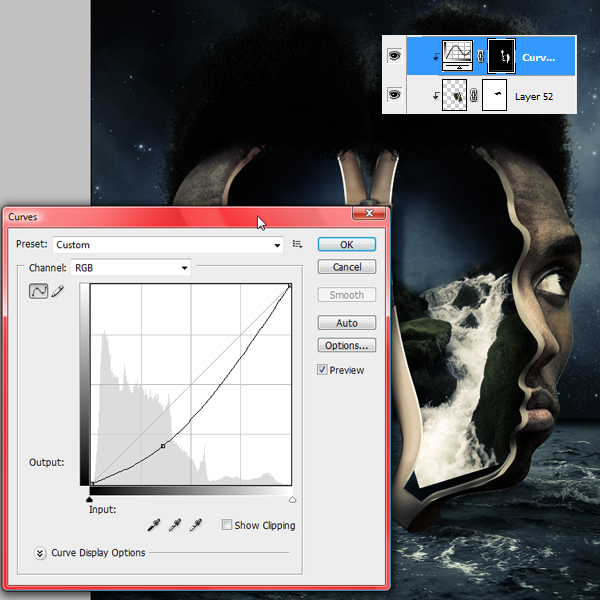
Use some curves on a clipping mask attached to the head’s layer.

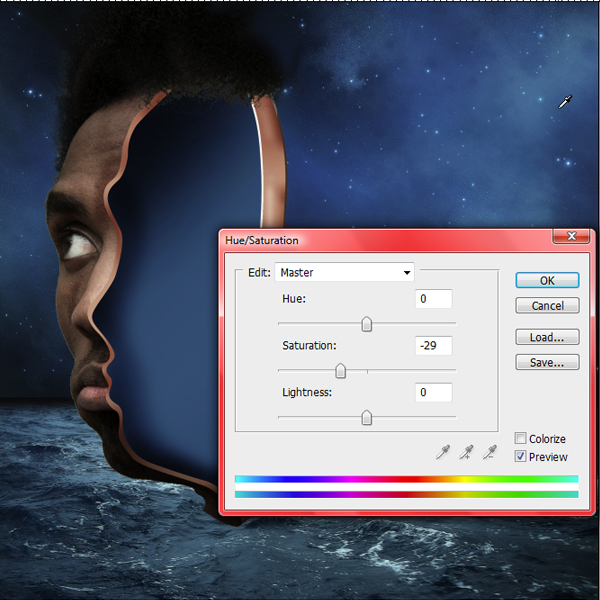
Let’s desaturate the picture. Choose Hue/Saturation and use the settings shown below.

Duplicate the layer with the head. Go to Filters > Other > High Pass. Set it to 2 – 3px and put the layer’s blending mode to overlay.


Step 5

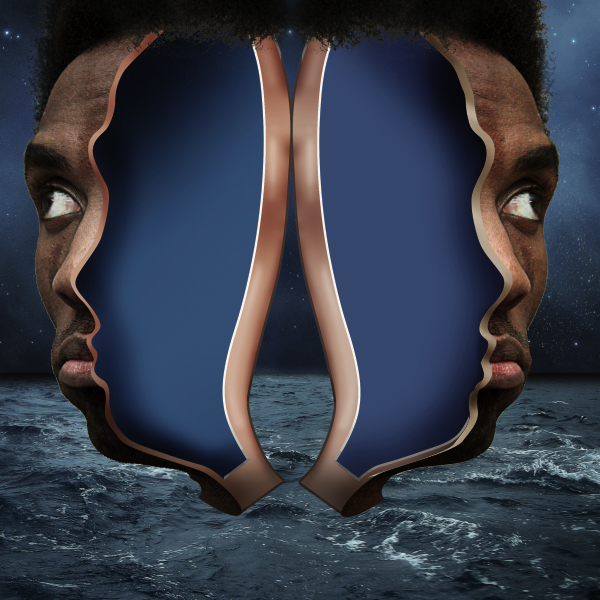
Now that the right part is done create a new folder and place all the head’s layers in. Name it “left”. Duplicate the folder and name it “right”. Flip it horizontally. Now we have the other part of the head.


Step 6

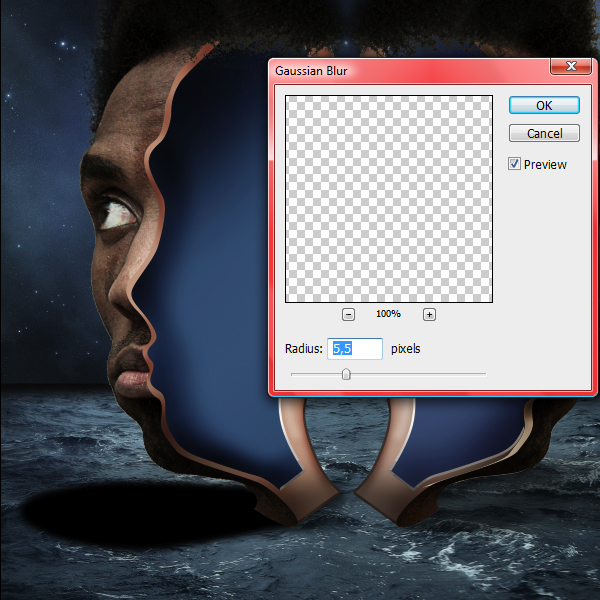
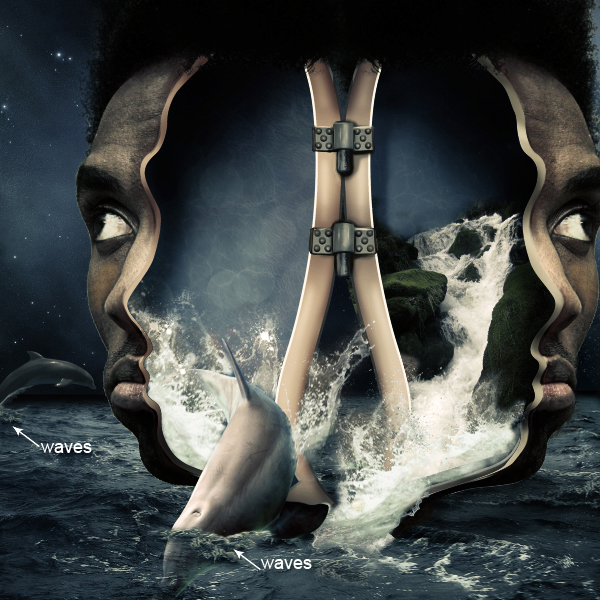
Create a new layer. With the pen tool create a shape as you see below. Fill it with black. Go to Filter > Blur > Gaussian Blur (5.5 pix). Set the layer’s opacity to 10-12%. This is going to be the shadow cast by the head on the water.

Duplicate the layer (Command/Ctrl+J) and flip it horizontally. Use it on the right part of the head also.


Step 7

Select the clone stamp tool and place some hair. You have to cover the whole area of the head with hair.


Step 8

Use some curves to darken the face so it will blend in with the night atmosphere.


Step 9

Open the hinge photo and cut it out. Place it like in the photo below. We need 2 hinges, so duplicate the layer.

Select the brush tool and add some lights with white and some shadows with a dark grey.


Step 10

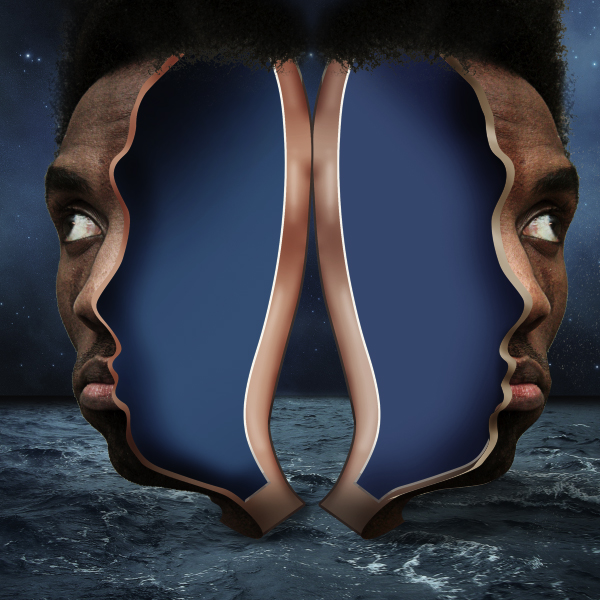
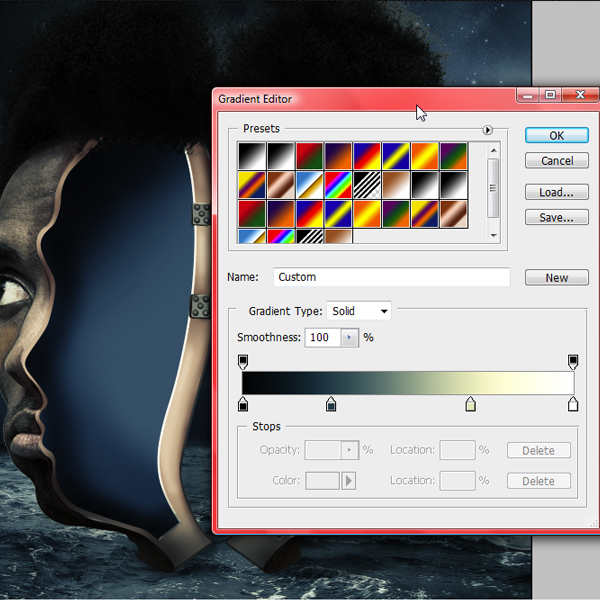
In this Step we will try to make all the objects to blend in. This is usually done in the last steps but here it helps us to see the big picture since we have so many elements. So all the layers from now on are going to be under this 3 layers. Go on top of all the layers and use the Gradient map with the color codes shown below.


Step 11

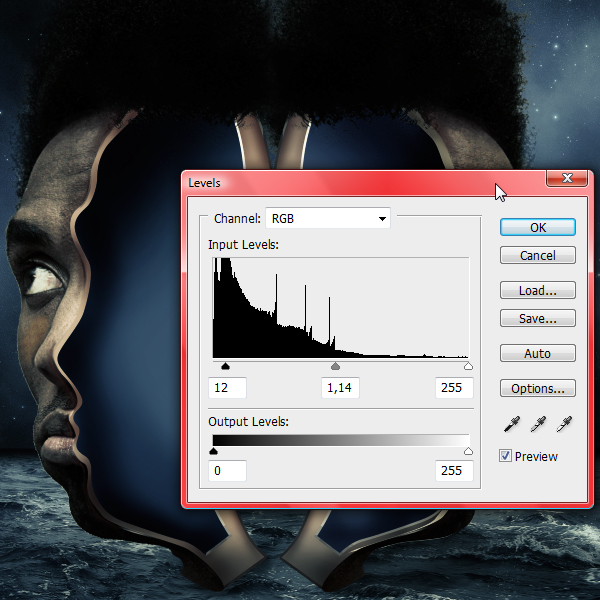
Adjustment Layers > Levels.


Step 12

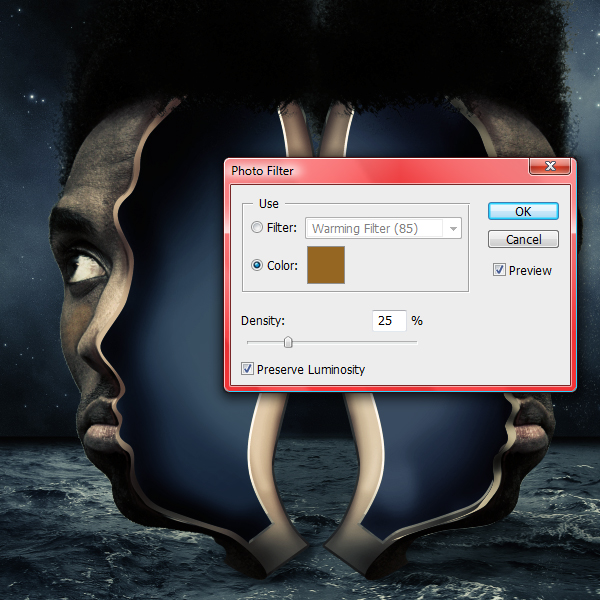
Adjustment Layers > Photo Filter > Sepia (25%).


Step 13

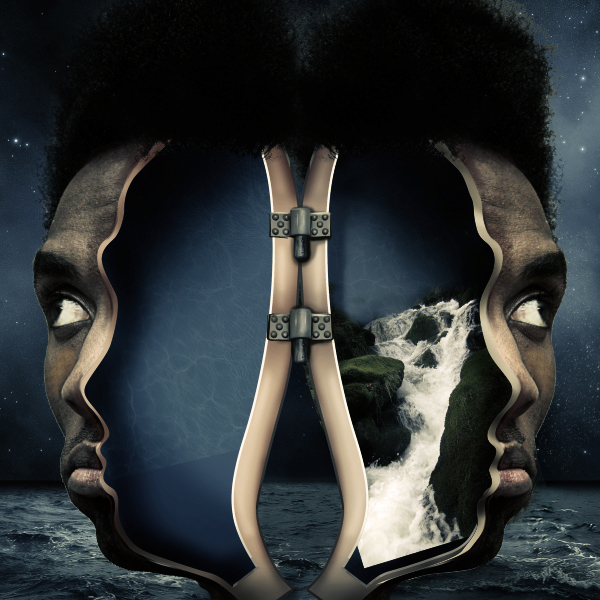
Drag in the waterfall picture. Transform it so it will fit into the right part of the head.
Place the waterfall as a clipping mask to the head.


Step 14

Next, place the water texture as a clipping mask to the head’s layer. Set its blending mode to soft light.


Step 15

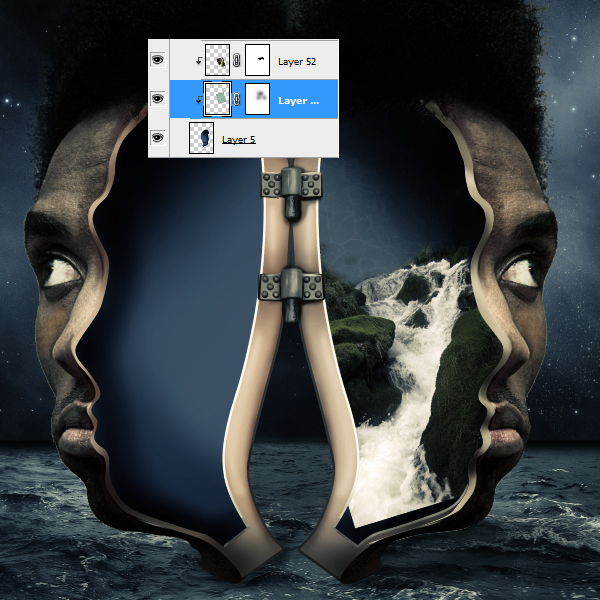
Create a new clipping mask for the Curves layer. Use this to create some shadows on the waterfall, for a sensation of depth.


Step 16

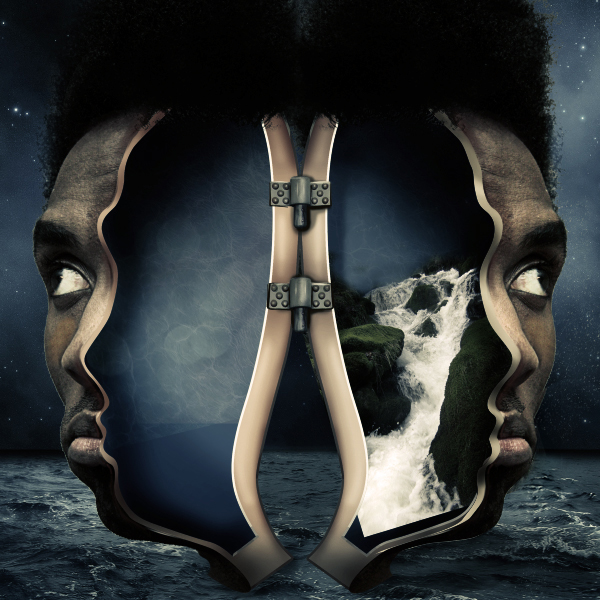
Now let’s go a bit on the left part of the head and add the same water texture as a clipping mask on the head’s layer. Set its blending mode to soft light.

Open the glitter texture and place it on top of the left part of the head as a clipping mask. Set the blending mode to soft light.


Step 17

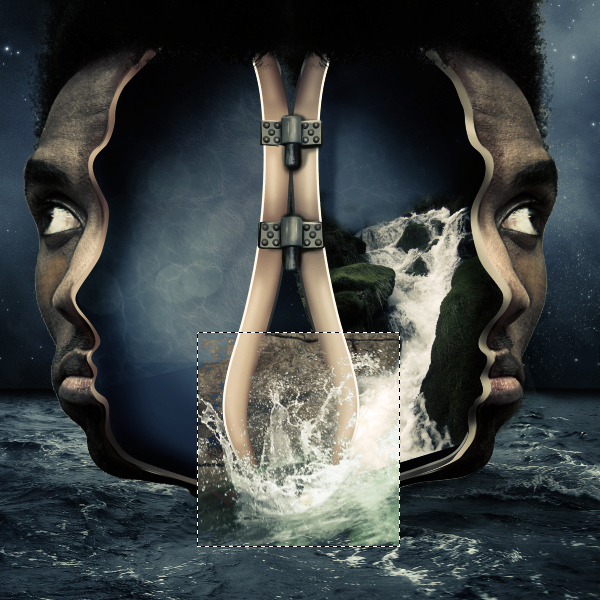
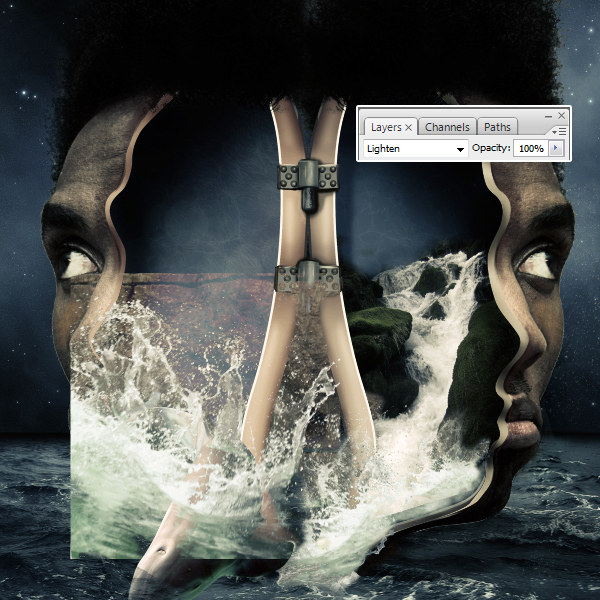
In this Step we will make the water splashes, so open the splash picture. Transform it so it will fit perfectly in the photo manipulation. This is the picture that we will use for all the splashes, we will flip it, transform it so it won’t look like a pattern. Set the blending mode to lighter color.

Duplicate the splash layer and decrease it’s size. Set the blending mode to lighter color also. Do this as many times as you like. To complete this part add some mode splash with some costume made brushes.


Step 18

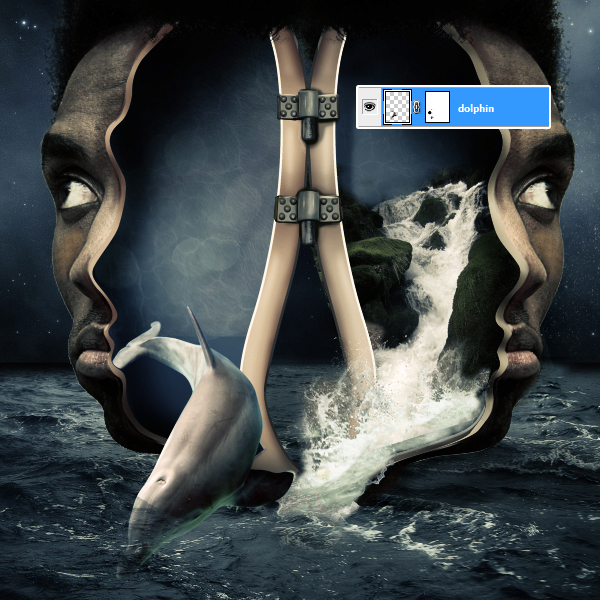
Cut out the dolphin using the pen tool and place it on top of the left part of the head.

Create a mask to this layer and, with a brush (opacity 20-30%), erase some parts so it will look like his head is under water.


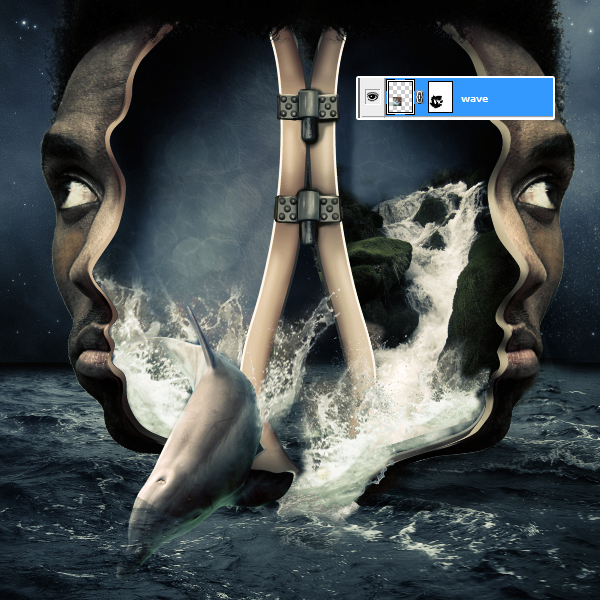
Step 19

Drag in, again, the water splash image and place it on top of the dolphin. Set its blending mode to lighter color and erase, on the mask, all the edges. You should have the same result as shown in the image below.


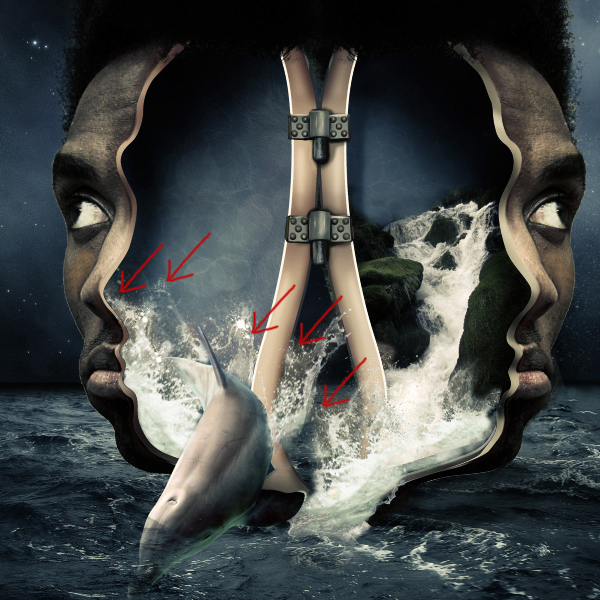
Step 20

With the help of some splash brushes add more water. Use the image below as a reference.


Step 21

Open the second dolphin picture and cut it out with a pen tool. Drag the second dolphin in. Transform it and place it in the back.

Select the clone stamp tool and create a new layer. Start adding some small waves and splashes were the big dolphin is touching the water.

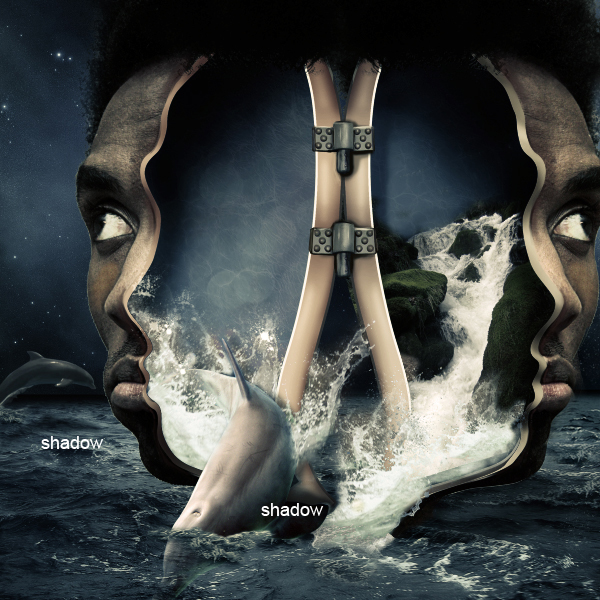
In this Step we will add some shadow for the 2 dolphins. Duplicate the 2 dolphins layers and fill them with black. Go to Filters > Blur > Gaussian blur ( 3 – 4 pix) . Transform each layer separately so it will look that the dolphins are casting a shadow.
Set the layers opacity to about 10-15%.


Step 22

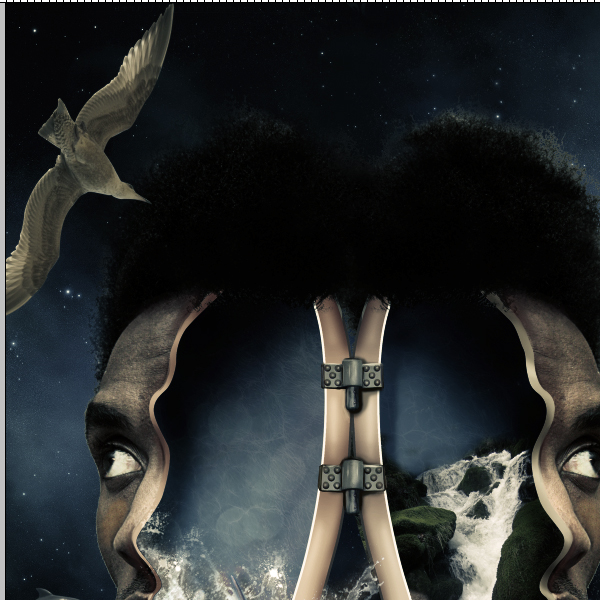
Next we are going to finalize this surreal photo manipulation by adding the birds. First cut out the big bird and place it in the front of the head. Use some Gaussian Blur on the bird ( 0.3 – 0.5 pix).

Add all the other birds. Decrease their size like you see in the image below.

Add the birds’ shadows on the head so they will blend in.


Final Image

20 Incredible Speed Painting Videos

$
0
0

Advertise here

Speed painting is the act of recording of an artist’s screen while they paint a scene. The recording is then sped up so that you can see the piece come together much more quickly. In this round up we have gathered some of the most impressive speed painting videos that we have seen that include paintings of well-known subjects including Scarlett Johansson, Megan Fox, and Iron Man. Take a look at them below and be amazed at how these talented artists produce these fantastic pieces of art.


Avatar Speed Painting by Mike Gore

Our first video features a speed painting of one of the most popular movies ever created, Avatar. The final product which can be seen here shows off the amazing result of 12 hours of work. The specs for this piece are posted in the video description so look it over if you are interested.


Scarlett Johansson Speed Painting by Nico Di Mattia

Our next speed painting video gives us some rather attractive visuals of the designer painting actress Scarlett Johansson. The artist
didn’t go for extreme realism on this painting but the result is still extremely accurate and amazing to see put together in such a short period of time.


Sea Monster Speed Painting

It’s hard to believe the artist who created this painting said its only a doodle, but this is probably one of the most detailed paintings in this set. The ferocious sea monster is put together in only 4 quick minutes and the result looks simply phenomenal.


Iron Man Speed Painting

This speed painting video gives us a dual shot while the designer is painting away, we can see the stock photograph of Iron man that the designer is painting from. This is very cool since we can now see how much artistic freedom was taken with the final product and you can see the artist
definitely put his own spin on how this one was painted.


Toy Story 3 Speed Painting by Nico Di Mattia

If you got a look at the finished product first before viewing the video it would be hard to tell that this wasn’t a screenshot from the movie,
that’s how good this painting looks. Everyone should check this one out for the sheer talent that this guy has.


Undead Speed Painting by Rune Bodker

Only done in an hour and a half this creepy speed painting of a zombie is nothing but awesome, the only
criticism that comes to mind is that the body isn’t as detailed as the face is but we cant really nitpick when the result still looks this good.


Kanye West Speed Painting by Williams Shamir

Kanye West gets the speed painting treatment here and the result is extremely impressive, put together in around 6 hours this designer used a nice brush touch to give this painting a smooth as well as realistic look.


Megan Fox Speed Painting by Stephanie Valentin

Megan Fox is the next celeb in this list to get painted and 6 hours worth of work culminate in another fantastic product. This almost 6 minute video zooms in on specific areas of the painting for the viewer to get a better look at the techniques used to create this.


M.I.A. Speed Painting by Salena

This off color painting features some colorful and vibrant visuals of singer M.I.A. The impressive part about it is how a whole different color
palette was used for this painting yet all of the shading and coloring still looks on point, watch this one to see some great painting techniques used.


Mechanical T-Rex Speed Painting by Chris Scalf

The thought of a mechanical dinosaur is already awesome but when you combine the idea with a talented artist who can draw it into reality makes for a mind explosion. This very cool painting was done in 3 and a half hours and although it lacks detailed coloring it still features an incredibly detailed scene.


Travis Barker Speed Painting by Sean McCoy

All the crazy tattoo art on Travis Barker make for a really fun and interesting speed painting to watch. The way this painter goes about realistically painting all of Barkers heavy
tattoo’s is incredible and the final product does not shy away from looking like a photo.


Indiana Jones Speed Painting by S. Maguire

This painter’s childhood hero and most likely many other peoples hero as well gets the speed painting treatment in this video. All of these videos including this one are instrumental and educational for artists who are looking to start digitally painting themselves, this detailed shot of Mr. Ford is a great example of something you should strive for.


Terminator Caricature Speed Painting by Nico Di Mattia

Nico Di Mattia switches gears for a second and goes towards something a little more comical and less realistic, painting the terminator in caricature form. There is not much difference in the technique used but the final product
definitely bares a resemblance to Arnold in his former role. An interesting look at how caricatures are painted.


Dr. House Caricature Speed Painting by Nico Di Mattia

This guy’s paintings are just so good we had to post a few more, here is
everyone’s favorite Doctor Dr. House in another amazing looking caricature, watch this and take notes.


Darth Maul Speed Painting

The fore was definitely with this painter when he decided to start painting Darth Maul. The complete painting which took roughly 3 hours to paint features not only Maul but also a nice backdrop that we
rarely see designers actually go into when speed painting.


Upsidedown Mona Lisa Speed Painting

Probably the coolest speed painting out of this set but also the oddest, why paint the famous Mona Lisa upside down?
I’m not sure, but it does make for an interesting 10 minute video. The result looks perfect as it has every detail the original one does, this is just a case of digital art being inspired by
rational and we can all learn from the result.


Landscape Speed Painting

No celeb or mechanical T-Rex here, just a simple yet awesome looking grungy landscape. It is interesting to see how the techniques to painting this are similar/different from those used to create some of the other paintings featured in this set, so browse through this video and be the judge of that.


Abstract Speed Painting

We cant be sure what exactly was painted in this video but we can be sure that the final product looks simply amazing. The colors work
extremely well with each other in this rather odd scene.


Samus Speed Painting

Lastly we have a speed painting of popular video game character Samus. The multicolored reflections that are on her suite make for an interesting painting that uses the best set of color
pallets possible as the final result looks like its right out of a video game.


Finally, Do Magic With Content Aware

$
0
0

Advertise here

Are you new to Photoshop? Have you been trying to teach yourself the basics of Photoshop but have found the amount of educational material available on the net a bit overwhelming? As the world’s #1 Photoshop site, we’ve published a lot of tutorials. So many, in fact, that we understand how overwhelming our site may be to those of you who may be brand new to Photoshop. This tutorial is part of a 25-part video series demonstrating everything you will need to know to start working in Photoshop.

Photoshop Basix, by Adobe Certified Expert and Instructor, Martin Perhiniak includes 25 short video tutorials, around 5 – 10 minutes in length that will teach you all the fundamentals of working with Photoshop. Today’s tutorial, Part 25: Finally, Do Magic With Content Aware will explain Photoshop’s Content-aware fill, healing and scaling. Let’s get started!


Create an Eye-Catching Eco-Friendly Shoe Advertisement – Psd Premium Tutorial

$
0
0

Advertise here

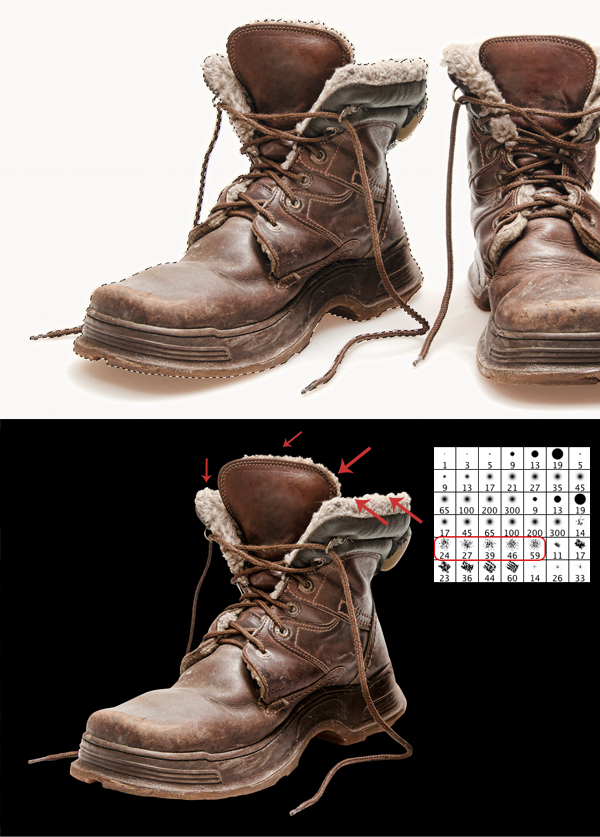
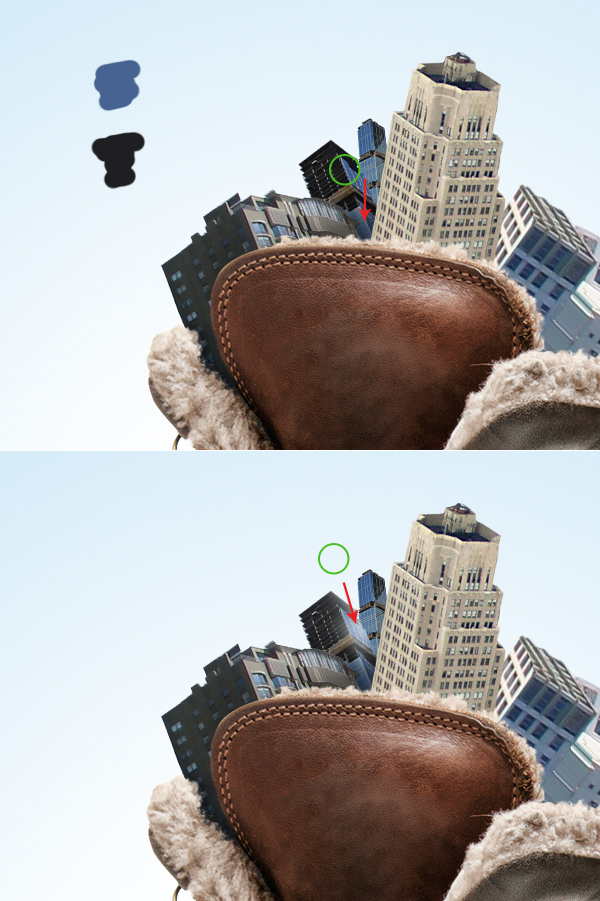
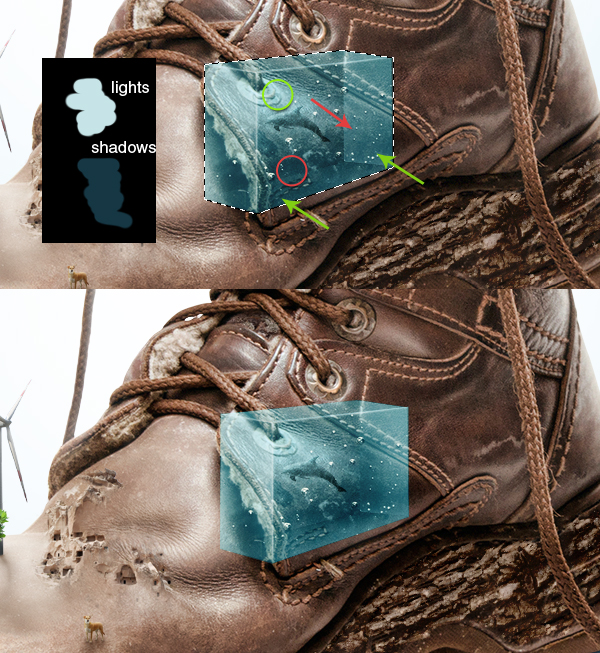
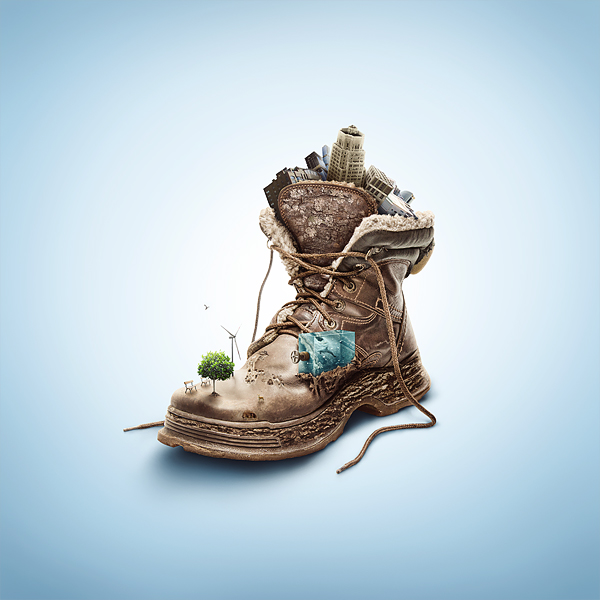
In this Psd Premium tutorial, author Wojciech Pijecki will demonstrate how to create an eye-catching, eco-friendly shoe advertisement using several stock images. This tutorial is available exclusively to Premium Members. If you are looking to take your design skills to the next level then Log in or Join Now to get started!


Professional and Detailed Instructions Inside

Premium members can Log in and Download! Otherwise, Join Now! Below are some sample images from this tutorial.


Final Image


Psd Premium Membership

You can join Psd Premium for as little as $9/month. Premium membership gives you access to the source files for all our tutorials as well as access to premium tutorials like this one. This also includes the rest of the sites in our network including Vectortuts+, Webdesigntuts+, Phototuts+, Nettuts, and more! Premium Members can Log In and download this tutorial. Otherwise you can Join Today!

Creating Custom Brushes

$
0
0

Photoshop is an excellent tool for manipulating photographs but it can also be used as a means to create stunning digital art. This tutorial is part of a 25-part video tutorial series demonstrating everything you will need to know to start producing digital art in Photoshop. Digital Art for Beginners, by Adobe Certified Expert and Instructor, Martin Perhiniak will begin by teaching you how to draw in Photoshop. At the conclusion of this series you will know all you need to produce your own concept art and matte paintings in Photoshop.

Today’s tutorial Part 3: Creating Custom Brushes will explore the true potential of the Brush Panel. We will demonstrate how to draw our own brush tip shapes and save them as custom brushes. We will also learn how to use tool presets to store and quickly select specific options for Photoshop tools, like the brush. Let’s get started!


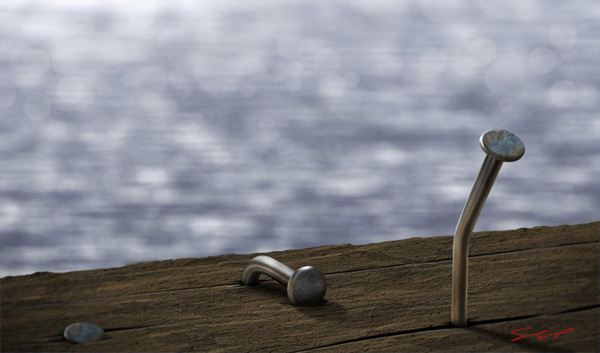
Create a Lakeside Scene From Scratch in Photoshop – Psd Premium Tutorial

$
0
0

Photoshop is a great tool for creating realistic photo manipulations or compositions but it can also be used to create scenes completely from scratch. These types of exercises can be helpful to learn how to create textures and then apply them to your artwork. In this Psd Premium tutorial, author Stephen Petrany will demonstrate how to create realistic-looking wood and water textures, adding some nice nails to create a nearly true-to-life lakeside scene. This tutorial is available exclusively to Premium Members. If you are looking to take your design skills to the next level then Log in or Join Now to get started!


Professional and Detailed Instructions Inside

Premium members can Log in and Download! Otherwise, Join Now! Below are some sample images from this tutorial.


Final Image


Psd Premium Membership

You can join Psd Premium for as little as $9/month. Premium membership gives you access to the source files for all our tutorials as well as access to premium tutorials like this one. This also includes the rest of the sites in our network including Vectortuts+, Webdesigntuts+, Phototuts+, Nettuts, and more! Premium Members can Log In and download this tutorial. Otherwise you can Join Today!


Quiz: Do You Know the Basix?

$
0
0

We recently published a (now) 29-part session demonstrating the basics of Photoshop. Today, we would like you to test your knowledge of this session with a quiz. Please take a moment to complete this short 8-question quiz and see how well you were paying attention.


Viewing all 6352 articles
Browse latest View live