Quantcast
Channel: Envato Tuts+ Design & Illustration
Viewing all 6352 articles
Browse latest View live

Photoshop Celebrates 2 Million Likes: Giving Away Copies of Photoshop CS5 and iPad

$
0
0


If you follow Photoshop on Facebook you probably already know that they recently celebrated their 2 millionth like on Facebook. You may remember late last year when I reported that they had just celebrated their 1 millionth like. Back then, they were sending huge amounts of traffic to sites in the Photoshop community, often crashing a server or two in the process. Today, they are still linking to Photoshop-related sites like Psdtuts but are also a bit more focused on promoting the Photoshop brand.

As Photoshop’s biggest fan and advocate, we at Psdtuts would like to congratulate the entire Photoshop team for a job well done. We think they are doing a great job managing their social media presence and look forward to celebrating 3 million and beyond.

With that said, do you think that Photoshop is doing a good job maintaining their Facebook page? Is there anything that you’d like them to do differently?


Win a Free Copy of Photoshop CS5 and an iPad

In celebration of their 2 millionth like, Photoshop is now giving away several copies of Photoshop CS5 and an iPad on their blog. All you have to do is leave a comment on their blog and tell them what Photoshop means to you. So head over to their site and enter before it’s too late!


Create Light Painted Typography From Scratch in Photoshop – Psd Premium Tutorial

$
0
0


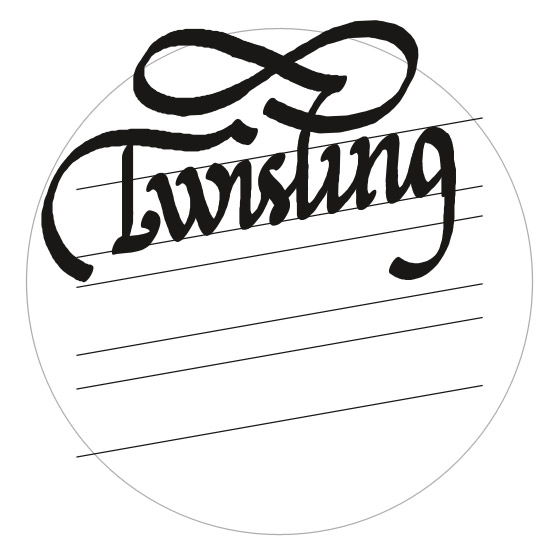
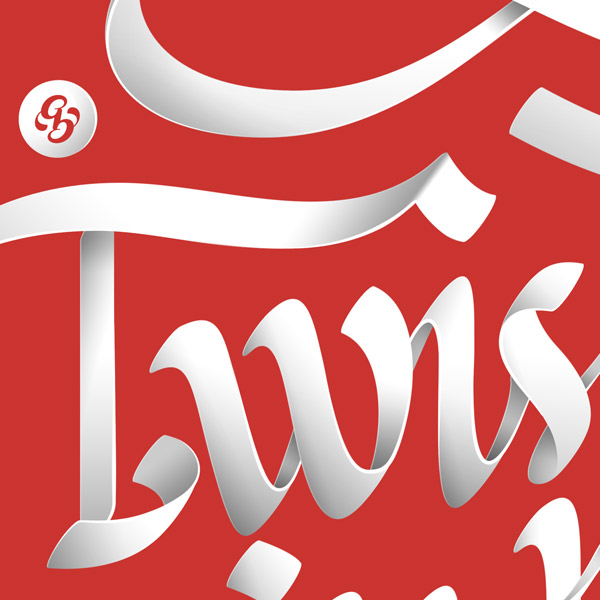
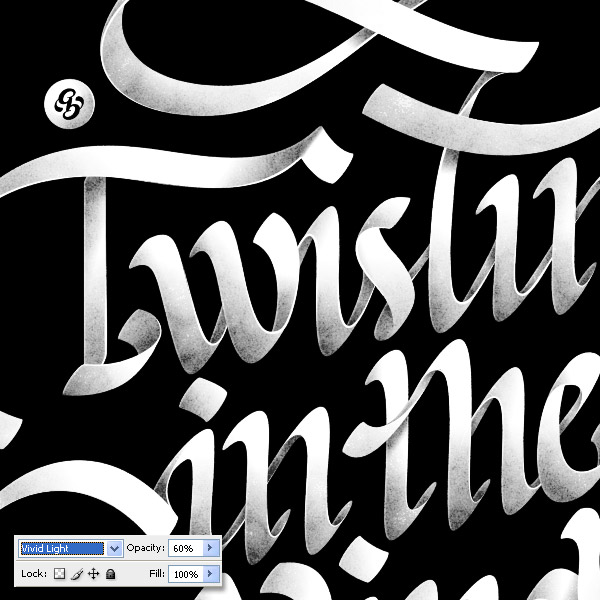
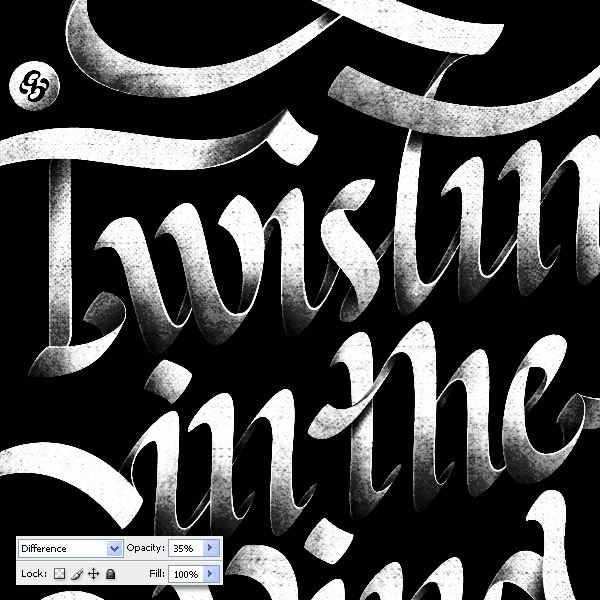
If you’ve ever attempted to write words using traditional light painting photography techniques you probably know how challenging it can be to create words that are easy to read. In this Psd Premium tutorial, author Alex Beltechi will demonstrate how you can create a similar look without a camera and tripod. This tutorial is available exclusively to Premium Members. If you are looking to take your typography skills to the next level then Log in or Join Now to get started!


Professional and Detailed Instructions Inside

Premium members can Log in and Download! Otherwise, Join Now! Below are some sample images from this tutorial.


Final Image


Psd Premium Membership

As you know, we run a premium membership system here that costs $9 a month (or $22 for 3 months!) which gives members access to the Source files for tutorials as well as periodic extra tutorials, like this one! You’ll also get access to Net Premium and Vector Premium, too. If you’re a Premium member, you can Log in and Download the Tutorial. If you’re not a member, you can of course Join Today!

Powerful Task Automation with Photoshop Scripting

$
0
0


Actions are very popular. They’re easy to use and can save you a lot of time, but at the end of the day, they aren’t very powerful and offer very low versatility. That’s where Photoshop’s scripting features go into action. We’re going to show you the almost endless possibilities that Photoshop scripting offers.


Actions vs Scripts

An action is simply a way of recording a series of steps so we can play them back again and again. If you want to be able to quickly draw a 50x50px red square by pressing a button, just record yourself doing it once, and then play the action whenever you need it. You’re done. But, what if sometimes you need a 50px red square and other times you need a 100px blue one? Well, you’d have to record another action for the second figure. Actions offer very low versatility, because the recorded steps are static – their behavior doesn’t change depending on external variables.

Photoshop scripting lets you add conditional logic, so that the script automatically makes decisions based on the current situation or the user input. For instance, in the previous example, a Photoshop script could ask the user for the square’s width and color,
and then render it properly. Furthermore, scripts offer many more advantages over actions, such as advanced file handling, multiple application support, etc.


Basics of Photoshop Scripting

A Photoshop script is a text file with code that tells the program to do certain tasks. These scripts can be written in three different scripting languages. If you’re running Mac OS, you can use AppleScript and JavaScript. On Windows, you can use VBScript and JavaScript as well. Given JavaScript is fully supported on both platforms, it’s the best choice to ensure our script reaches the widest audience, so we’re going to focus on it throughout this article. Also, JavaScript is the most popular client-side scripting language, so chances are you’ve heard of it previously.

Photoshop’s scripting engine provides us with ways of manipulating the different elements of the application, such as layers, guides, channels, documents, etc. Almost every single element within Photoshop can be examined and modified from a script. These are reflected in the Photoshop Document Object Model. In this article we’re going to work with some basic elements, but there are a lot, you can see them all in the Official Photoshop Scripting documentation.

Bundled with Photoshop there’s a program called Adobe ExtendScript Toolkit CS5. It’s an integrated development environment for scripting, not only for Photoshop, but for any of the Creative Suite member. To keep things simple, we’re going to be using a plain text editor like Notepad, but for big scripts Adobe ExtendScript Toolkit offers a lot of tools, like code auto-completion, integrated help and a debugger.

So without further ado, let’s go to your Presets/Scripts folder in your Photoshop directory, create an empty text file called firstScript.jsx and open it with your favorite text editor.


What Happens in the App, Stays in the App

When we’re dealing with Photoshop scripts, everything starts with the “app” object. It represents the application, and it contains all the other objects in a hierarchical fashion. In this first step we’re going to look at some basic properties of the “app” object.

Head to the text editor and type the following in firstScript.jsx

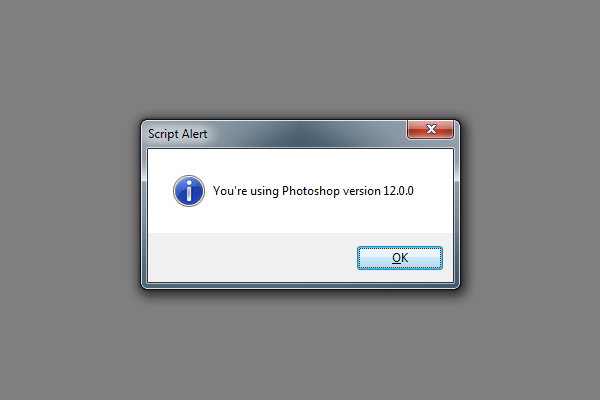
alert("You're using Photoshop version " + app.version);

Then fire Photoshop and go to File > Scripts > firstScript. You will see an alert box saying that “You’re using Photoshop version 12.0.0″ (or the version you’re using). The “alert” function shows a message, a string with the text and the version of the application, read from the “version” property of the “app” object. In JavaScript, you can access the properties and children of an object using the “.” operator, like in “app.version”.

In Photoshop, the basic working environment is the document. The “app” object contains a collection called “documents”, which obviously represents the set of open documents within Photoshop. Let’s go back to the editor, replace the contents of firstScript.jsx with the following:

if(app.documents.length > 0){
    alert("There are " + app.documents.length + " open documents");
}else{
    alert("There are no open documents");
}
    

If you launch the script (File > Scripts > firstScript), the alert message will change depending on the number of currently open documents. The code is very simple, the first line checks if the number of open documents (that is, the length of the set of documents in the app) is greater than zero, showing a message with that number. Otherwise, it shows a message saying there are no open documents. Easy, isn’t it? But so far this does not look too useful.


Guiding Your Work

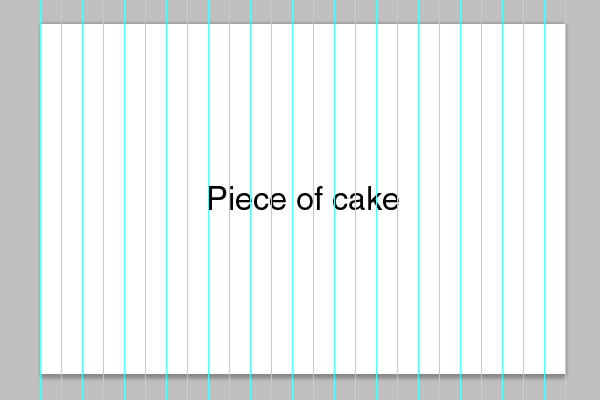
Let’s try with a more useful example. For instance, suppose you want to divide your document in equally sized columns. Doing that manually would imply measuring the document width, dividing it by the number of columns and then carefully placing the guides. What if you need twelve columns? That would be a total waste of time. Let’s see a piece of code that does that job:

if(app.documents.length > 0){
    var numberColumns = parseInt( prompt("How many columns do you need?", 5) );
        var doc = app.activeDocument;
    var documentWidth = doc.width;
    var columnWidth = documentWidth / numberColumns;
        for(i = 0; i <= numberColumns; ++i){
        doc.guides.add(Direction.VERTICAL, i * columnWidth);
    }
}

Don't be scared! The code is very easy. You already know what the first line means: "if there's at least one open document, do the following". The next line uses the "prompt" function to ask the user for the number of columns, and passes its result to the "parseInt" function, that conveniently converts it into an integer. The result is stored in the "numberColumns" variable. Just in case you don't know it, variables are used in programming languages to store values, so if you want to save a certain value, you use a variable.

The third line creates a new variable, called "doc", that represents the active document. The fourth line reads the width of the current document and stores it in the "documentWidth" variable. The fifth line computes the width of each column by dividing the total width by the number of columns. Finally, the sixth line starts a loop that repeats once per column (plus once more for the last guide). In each iteration, the variable "i" will hold the current column number: 0, 1, 2, 3... The septh line will add a vertical guide to the current document, placed at the proper position.

To try the code, it's the same as before. Replace the content of our firstScript file with the code and then go to File > Scripts > firstScript.


Modify All of Your Text at the Same Time

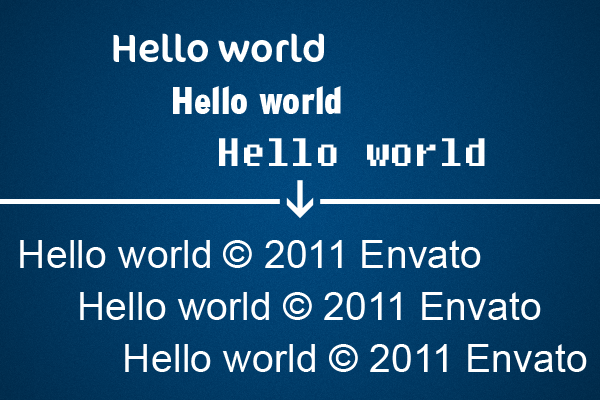
So you've created a great web design, using the always beautiful Helvetica, but looks like the client doesn't have it installed, he prefers Arial. Also, he'd like to make sure everyone knows the copyright of the material so he insists in adding a copyright notice in every text element. "No problem, I know Photoshop Scripting!", you reply. Let's see how to do it:

if(app.documents.length != 0){
    var doc = app.activeDocument;

    for(i = 0; i < doc.artLayers.length; ++i){
        var layer = doc.artLayers[i];

        if(layer.kind == LayerKind.TEXT){
            layer.textItem.font = "ArialMT";
            layer.textItem.contents += " © 2011 Envato";
        }
    }
}

The first two lines are already known. Then, there's a new element here, the layer collection. In Photoshop scripting, there are two types of layers, on the one hand we have the "Layer Sets", which are essentially groups, and on the other hand we have the "Art Layers", that include all the other kind of layers: normal layers, text layers, adjustment layers, etc. Our document object ("app.activeDocument") has a property called "artLayers", to access only the art layers, another property called "layerSets" to access the layer sets, and then a property called simply "layers", that includes both previous sets.

In our code we are traversing the set of art layers of our document. In each iteration, we store our current layer in the variable "layer", then we check if the kind of the layer is "LayerKind. TEXT", which represents a text layer. In that case, we access the textItem property of our layer, that holds all of the characteristics of the text, and change its "font" attribute to "ArialMT" (we need to use the PostScript name of the font). Also, we add the copyright notice to the contents of the layer by using the "+=" operator on the "contents" property.


Let There be Squares

We've left the hardest for the end. The example we proposed at the very beginning of the article consisted of having a way of automatically creating squares, just choosing the size and the color. Well, that's quite an easy task for a script.

if(app.documents.length > 0){
    var doc = app.activeDocument;
    var squareSize = parseInt( prompt("Select the size of the square", 50));
        var squareColor = new RGBColor;
    squareColor.hexValue = prompt("Select the color of the square (hexadecimal)", "ff0000");
        var newLayer = doc.artLayers.add();
    newLayer.name = "Square - " + squareSize + " - " + squareColor.hexValue;
        selectedRegion = Array(Array(0,0), Array(0, squareSize), Array(squareSize, squareSize), Array(squareSize, 0));
    doc.selection.select(selectedRegion);
        doc.selection.fill(squareColor);
    doc.selection.deselect();
}

This is the longest code we've seen so far, but it's not hard to understand. In the third line, we ask the user for the size of the square and store it in the "squareSize" variable. Next, we create a new RGBColor to specify the color of the square, and we read the hexadecimal value from the user input.

The next step is to create a layer. We access the "artLayers" set from the active document, and use its "add" method to add a new layer, storing a reference to it in the variable "newLayer". Next, we change its name acordingly.

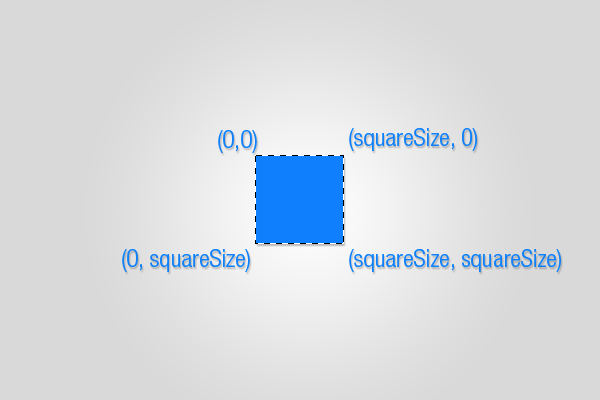
The last step is to make a selection. We create an array of arrays indicating the coordinates of each corner of the selection. Then we pass that region to the "select" method of the "selection" object of the active document.

Finally, we fill the selection using the previously defined color, and then deselect all. Our square creator is finished!


Conclusion

Scripts have proved to be way more powerful and configurable than actions. They're certainly a little bit harder to create, but the results are worth the effort. Also, there's an increasingly big and supporting community, and there have even been created complete javascript libraries for Photoshop scripting, like xtools, which is open source. These libraries try to fulfill some gaps which would otherwise require lower level solutions.

Also, given the rising popularity of action packs for little money, I think there may be an emerging market for script packs, specially
for complex layout tasks and things like that. I hope that, with this article, you've learnt the basics of Photoshop scripting – have fun writing your own scripts!

P.S.: now it may be a good opportunity to have a look at NetTuts Javascript from Null video series, which will give you a good understanding of JavaScript basics from start to finish.

The Creative Gap: Becoming Better Than Most

$
0
0


We know that our International audience can’t attend every cool speech or conference. That is why from time-to-time we like to bring you some of the lectures that we have found on the Internet. Today’s lecture is from Nick Campbell of Greyscale Gorilla about the creative gap and how you can become better than most.


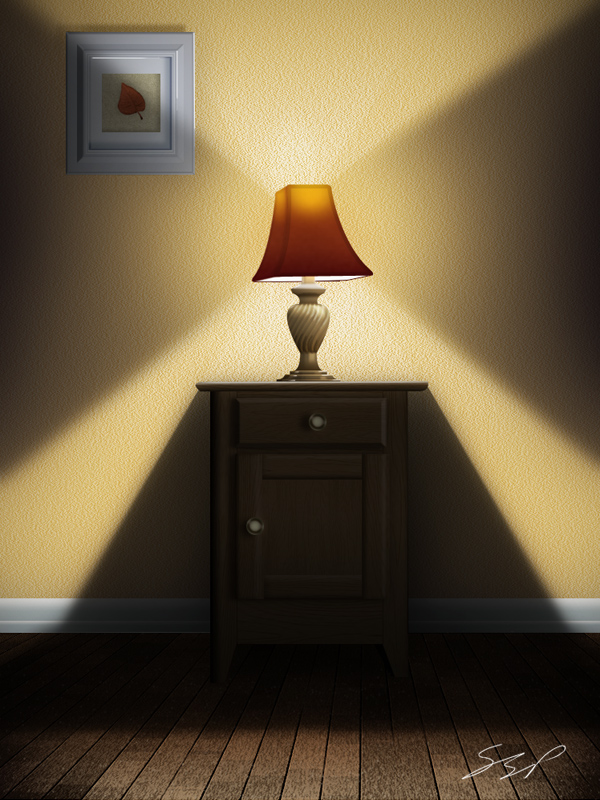
Use Photoshop to Create a Still-Life Lamp, Nightstand, and Picture Frame

$
0
0


Photoshop allows us to manipulate most of the photos that we take and combine them into just about anything. It also allows us to create much of what we see in real life from scratch. In this tutorial, we will create the inside of a home from scratch using only Photoshop. In the end, we will create a lamp, nightstand, a picture frame and several other elements using layer styles and filters along the way. Let’s get started!


Step 1

Before we jump into creating the scene, we are going to create a wood board texture that we will use for flooring. Create a new document 3000 px by 3000 px (since the wood floor will be in perspective, the large document size will minimize pixelation).


Step 2

Start by adding Noise. Then, pixelate the noise using the Mosaic Filter (Filter > Pixelate > Mosaic). This gives us the geometric shapes to work off of. Next, add a strong Motion Blur. To get better definition, adjust the levels and add another Motion Blur.


Step 3

Now we have a good start to our wood boards. To break up the texture into more defined boards, go to Image > Adjustments > Posterize.


Step 4

Create a New Layer and fill it with a wood color. Set your foreground and background colors to two shades of brown and go to Filter > Render > Fibers and max out both values. Set this layer’s Blending Mode to Overlay. This will add some texture to the wood.


Step 5

Make a copy of the base layer and move it to the top of your stack. Go to Filter > Stylize > Find Edges. Use Levels (Command/Ctrl + L) to increase the contrast of the lines and give the layer a strong Motion Blur. Set the Blending Mode to Multiply. As you can see, this gives the individual boards more definition.


Step 6

We are done with the initial wood floor texture. Go ahead and flatten and then copy the image. Create a New Document size: 750 px by 1000 px. Create a new group called “Floor” and paste the wood floor into this image. I have adjusted the levels slightly to brighten the wood.


Step 7

Use the Transform Tool (Command/Ctrl + T) to skew the wood floor into perspective.


Step 8

Make a copy of this layer and Desaturate it (Command/Ctrl + Shift + U). Go to Filter > Stylize > Emboss with settings shown below. When finished, set this layer’s Blending Mode to Overlay and its Opacity to 59%.


Step 9

On a New Layer, use the gradient tool and add a gradient as shown. Set the Blending Mode to Multiply and the Opacity to 41%. This will help darken the corners a little.


Step 10

Create a New Group called “Wall” and use the Rectangular Marquee Tool to select an area for the wall. Fill with a yellow color (#DEC181).


Step 11

To give the wall some texture, make a copy of this layer and go to Filter > Noise > Add Noise with a value of 145%. Next, go to Filter > Stylize > Emboss with the settings shown. Set the Blending Mode of this layer to Overlay.


Step 12

Create a New Layer called “Trim.” Use the Rectangular Marquee Tool to select a band at the base of the wall and fill using the Gradient Tool.


Step 13

Make a copy of the “Trim” layer (Command/Ctrl + J) and Transform (Command/Ctrl + T) this trim piece as shown.


Step 14

We are going to start on the end table. Create a New Group called “End Table” with a layer called “Table Base” inside. Go ahead and draw the shape of a table and fill it with any color


Step 15

We will be building this table piece by piece with a separate texture using the “Base” layer to maintain the shape (by using clipping layers). You can use any texture you wish for this, however, I will use one I’ve already created in Photoshop. Start by opening your texture in a separate document, use the Rectangular Marquee Tool to make a selection on your texture and copy and paste it in your scene.


Step 16

Convert this layer to a clipping layer by Alt + Clicking in between the two layers. Move the texture so that it covers the entire table.


Step 17

Copy and paste another selection of texture. This time give it a 1 px black stroke and rotate it 90 degrees to the position as shown.


Step 18

Copy and paste a square selection of texture into your scene and name this layer “Door Base.” Add a Drop Shadow and Outer Glow to simulate shadows.


Step 19

Copy and paste a small rectangular selection of texture and paste it into your scene (shown as the highlighted piece). Rotate it into position and make it a clipping layer to the “Door Base.” Position it as shown.


Step 20

Add a Bevel and Emboss to this layer.


Step 21

Continue copying and pasting small rectangles of texture to build the rest of the cabinet door as shown.


Step 22

Copy and paste another selection of texture to become the drawer. Give this layer the following Layer Styles.

The drawer should resemble this:


Step 23

Add another strip of texture to the top of the end table. This time, use the marquee tools or the Eraser tool to give the top rounded corners.


Step 24

To create the knobs for the drawers, start by create a light colored circle (#CBCDA5) on a New Layer named “Knob”). Add the following Layer Styles. Copy the knob to the other drawer.


Step 25

Go back through the different layers of the end table and add extra highlights and shadows with the Dodge and Burn Tools.


Step 26

Create a New Group called “Lamp” under the “End Table” group. Draw a shape of a lamp and fill it with #6B5A3E.


Step 27

Next, we want to use the Dodge and Burn Tool to add some detail. A useful technique is to use the Dodge and Burn Tool in conjunction with the marquee tools.

Continue to add detail with the Dodge and Burn Tools, keeping in mind how

the light will hit the base.


Step 28

Feel free to add more highlights and shadows. In this case, I’ve used a square brush and the Blur Tool to add the following highlights.


Step 29

To give the lamp’s base a pattern, create some vertical lines in gray. Warp (Edit > Transform > Warp) the lines into an organic shape around the lamp base.


Step 30

Add a Bevel and Emboss.


Step 31

Merge the Bevel and Emboss effect to the layer. Make this layer a clipping layer and set the layer’s Blending Mode to Overlay and its Opacity to 67%. We’ll go back and add some more detail later.


Step 32

To create the lampshade, start by making two layers named "Front Shade" and "Side Shade". Draw the lampshades on the respective layers using a different tint of the same color to tell them apart.


Step 33

Copy these two layers above their respective selves and add a stroke. Change each layer’s Fill to 0%. Adjust the size of the stroke as necessary for the side shade.


Step 34

On a new clipping layer to the original front shade layer, use a yellow color and a large brush with 0% hardness to add some color to the top of the shade. Set the Blending Mode to Color Dodge and the Opacity to 86%. Do the same for the other shade layer.


Step 35

On a new clipping layer, add a gradient (Make sure you chose Foreground to Transparent) of darker red color to the bottom of both shades.


Step 36

Create a New Layer called “Lamp Underside” and place it at the bottom of the “Lamp” group, draw in the rest of the lampshade with white. Give this layer a stroke.


Step 37

Now, we are going to create the picture frame. Create a New Group called “Picture Frame” and create a light-colored square.

Next, add the following Layer Styles.

Your picture frame should resemble the following:


Step 38

Copy this layer and Transform (Command/Ctrl + T) to a smaller square. Make the following adjustments to the Layer Styles (remove all others).


Step 39

Make a new copy of this layer and remove all Layer Styles except for “Inner Shadow.” Make the following changes to the Layer Style and set the layer’s Fill to 0%.


Step 40

Create a New Layer and add a light-tan square in the center of the picture frame. Add the following Layer Styles. When you’re done you can draw a leaf on a separate layer to complete the Picture.


Step 41

Now we’ll create the initial light from the lamp. Create a New Group called “Lighting” just above the “Wall” group. Use the Polygonal Lasso Tool to make a triangular selection of light. Fill this with a white-to-transparent gradient and set the layer’s Opacity to 58%. Now, use the Layer Styles panel to adjust the Blend If sliders as shown.


Step 42

Make two copies of this layer and Transform (Command/Ctrl + T) the shapes so the light appears more complex. Adjust the Opacity as necessary. When you’re done, make a copy of these and rotate them in the opposite direction.


Step 43

Now we are going to create the shadows casted by the end table. Create a New Group called “Shadows.” Inside this group create a New Layer and draw in some shadows as shown below. Use the Blur Tool to feather some of the edges. I’ve also added an additional shadow directly under the end table.


Step 44

The end table looks too bright. To darken, I’ve merged the “End Table” group to a new layer and adjusted the levels. I’ve also use the Burn tool on the base and top of the table.


Step 45

We are done with building the scene. The next section will start enhancing the lighting. The current scene will be used for the base lighting and we will add shadows on top of this. To start, create a New Group called “Dark Scene.” Add the following Adjustment Layers inside this group. This should make your image almost all black.


Step 46

Select the “Dark Scene” group and add a layer mask. Use the Marquee Tools, Brush Tool, and Blur Tool to add the light back into the scene. Using the Brush Tool with a 0% hardness and opacity of 20% or so, you can really start to add realistic variations in the lighting.


Step 47

On a New Layer, use a small brush to go back through the image and add highlights to the picture frame, table top, and lamp base. You can also add lowlights using the same technique.


Step 48

To add some extra lighting on the floor, I’ve created a new layer, added a white-to-transparent gradient to the floor and adjusted the Blend If and Opacity sliders, just like we did for the lights in the “Lighting” group.


Conclusion

To finish, you can add some details wherever you like. I’ve also add a vignette to enhance the light’s falloff.

50 Photoshop Tutorials to Get You Ready for Spring

$
0
0


In many parts of the world, spring is almost here. In this round up we will bring you 50 Photoshop tutorials to help prepare you for spring. This round up includes many tutorials that demonstrate techniques that have to do with nature, bright flowers, and being outdoors. Let’s take a look!


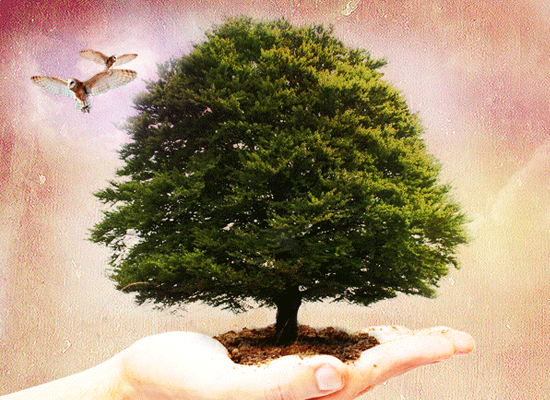
1. Green Landscape Beanstalk

Shows you how to make a cool fairytale type illustration.


2. Create an Ice Cream Type Treatment

Learn how to make some colorful Popsicles this spring and be ready for summer!


3. Make Oranges and Lemons in Photoshop

Use Photoshop to make some oranges and lemons from scratch.


4. How to Create an Abstract Floral Explosion

Learn how to create a graphic full of spring florals and color.


5. Piece of the Artic Pie Chart

Make a cool 3D pie chart of the ocean in Photoshop.


6. Create a Flowerpot in Photoshop

Build your very own flower pot for all those spring flowers in Photoshop.


7. Nature Inspired Photo Illustration

Turn an ordinary photo into a cool nature inspired image.


8. Serene Fantasy Photomanipulation

Create a vintage style, serene fantasy nature scene.


9. How to Paint a Surreal Scene in Photoshop

Learn how to paint a surreal nature scene using only Photoshop.


10. Create a Glamor Scene in Photoshop

This tutorial teaches you how to make a glamor scene full of spring greens.


11. Create a Fantasy Out the Door Wallpaper

Make a neat image that pulls the spring outdoors, inside.


12. The Making of Eagle Ray

Learn how to make your very own pet stingray.


13. The Making of Underwater

Follow along and learn how to make a sweet underwater scene with lightrays.


14. Fantasy Out of Bounds

Design a framed up nature scene where the flora explodes out of the frame.


15. Create a Spectacular Grass Text Effect

Turn your text into a grass with a few easy steps in Photoshop.


16. Create a Nature Inspired Photomanipulation

Use Photoshop to create a nature inspired image to use in advertisements and posters.


17. Unreal Rose Bouquet

Make a splash with this tutorial that turns roses into something surreal.


18. Create a Vector Style Magazine Cover

Make a fun and colorful vector magazine cover, all in Photoshop.


19. The Making of the Frog

Create a cool frog silhouette on a bright green leaf.


20. Making of the Green Field

Watch the making of Vlads green field and learn how to make your own.


21. Making of Condensed

Short but sweet tutorial on making some water droplets on a solid background.


22. Create an Abstract Ecology Scene

Use Photoshop to create a vibrant scene full of nature.


23. Making of a Forest Magical Scene

Build your own magical forest scene with help from this tutorial.


24. Creating a Nature Inspired Digital Piece

Use some of the outdoors to get inspired and create this digital masterpiece.


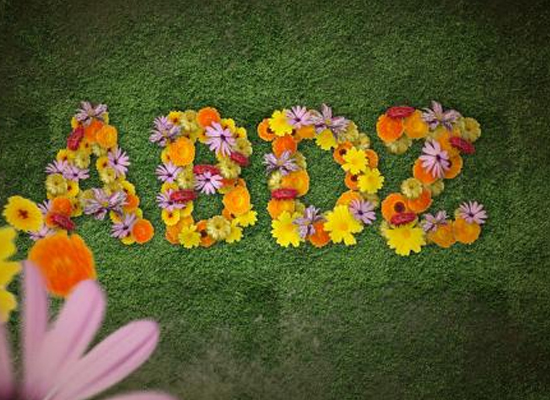
25. Super Easy and Cool Flower Text Effect

With this quick and easy tutorial, you can create a pretty sweet flower text effect.


26. Glass Tomatoes

Here is a surreal tutorial that shows you how to take everyday tomatoes and turn them into glass.


27. Create a Flowery Natural Composition

This tutorial will demonstrate how to create a flower power peace themed composition.


28. Sunlight in the Trees

Learn how to create majestic sunlight rays through trees with this tutorial.


29. Create Soft Flowing Waterfalls

Perfect an old photographers effect with this Photoshop tutorial to create soft flowing water.


30. How to Create a Magical Painted Scene

Use Photoshop to create this painted magical scene full of color and creativity.


31. Magical Forest Photo

Yet another magical forest tutorial.


32. Elegant Typography on a Vista Background

This tutorial will demonstrate how to create some cool typographical treatments on a vista background.


33. How to Create a Spectacular Nature Composition

Nature is a spectacular thing. Why not use Photoshop to create a spectacular nature composition?


34. Create a Modern Heart Concept

Use nature as your inspiration to create the cool modern heart concept image.


35. Create a Dynamic Nature Poster

Create a poster that uses almost all the various elements nature has to offer.


36. Creating an Ecological Fairy Tale Wallpaper

Have some fun learning to make an eco friendly fairy tale scene with this tutorial.


37. Composing 3D Rendering into a Nature Scene

Use 3D rendering, Photoshop, and nature to create some amazing designs.


38. Making a Book of Magical Playgrounds

Let your imagination run wild with this tutorial that helps you create a scene right out of your favorite book.


39. The Enchanted Forest Fantasy

Use Photoshop to create your very own enchanted forest fantasy. G rated of course.


40. Create a Vibrant Conceptual Photomanipulation

Create a cool and unusual image with this tutorial that combines all sorts of spring time fun.


41. The Cute Flying Hippo

When pigs fly is a tutorial on how you can create hybrid animals through Photoshop.


42. Create a Green Planet

Use Photoshop to create your very own green planet.


43. Leaking Honey effect

Create this sweet nectar in Photoshop.


44. Create an Awesome Grass Texture

Learn how to make your own grass texture to use in many other projects.


45. The Magic Night

Create a surreal night photo manipulation full of color and mystery.


46. Making of a Magical Forest Scene

Another Photoshop tutorial to help you create your very own magical forest scene.


47. The Fantastic Tree

Create an ominous tree full of dark personality.


48. The Soft Sea Light

Use some big moon images and soft light to create a breathtaking ocean scene.


49. Day and Night

Combine day and night in this Photoshop tutorial.


50. How to Create Bamboo in Photoshop

Make your own bamboo using nothing but Photoshop and some mad skills.

Be Smart and Use Smart Objects – Basix

$
0
0


Are you new to Photoshop? Have you been trying to teach yourself the basics of Photoshop but have found the amount of educational material available on the net a bit overwhelming? As the world’s #1 Photoshop site, we’ve published a lot of tutorials. So many, in fact, that we understand how overwhelming our site may be to those of you who may be brand new to Photoshop. This tutorial is part of a 25-part video series demonstrating everything you will need to know to start working in Photoshop.

Photoshop Basix, by Adobe Certified Expert and Instructor, Martin Perhiniak includes 25 short video tutorials, around 5 – 10 minutes in length that will teach you all the fundamentals of working with Photoshop. Today’s tutorial, Part 18: Be Smart and Use Smart Objects will define smart objects and explain how to use them. Let’s get started!


Matte Painting 101: Basic Extraction and Composition Techniques

$
0
0


Matte painting is a technique that filmmakers use to create backgrounds for scenes that can’t or don’t exist in real life. In the early days, matte paintings were actually painted onto glass. Today, modern filmmakers use digital applications such as Photoshop to produce the backdrops that they need. We have published many matte painting tutorials on this site meant for intermediate and advanced users. This tutorial is part of a series of tutorials that we will be publishing on this meant for those of you who may be relatively new to Photoshop or matte painting in general.

Today’s tutorial, Matte Painting 101: Basic Extraction and Composition Techniques will teach you some quick ways to extract objects from their background and combine them with other images to produce the scene that you need. Let’s get started!


Tutorial Assets

The following assets were used during the production of this tutorial.


How to Create a Photo Manipulation of a Flooded City Scene

$
0
0

Advertise here

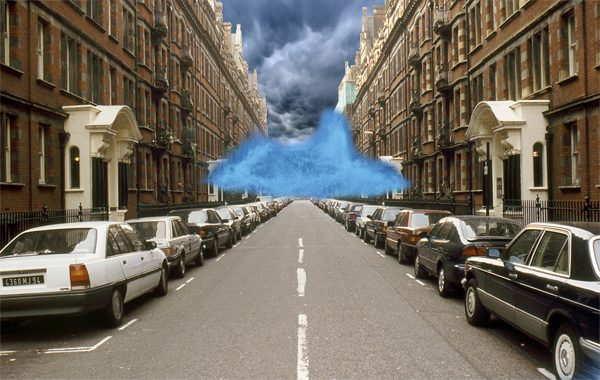
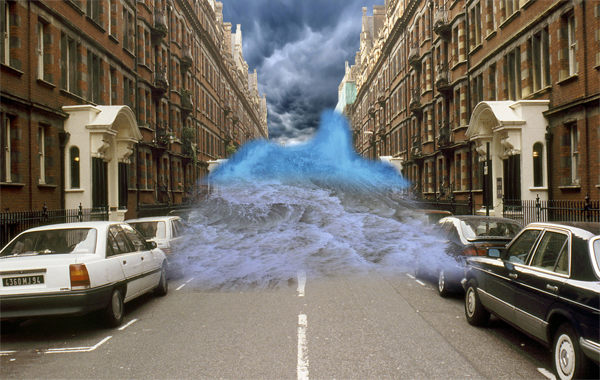
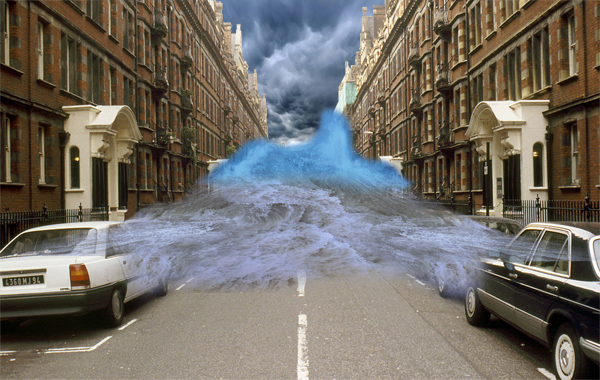
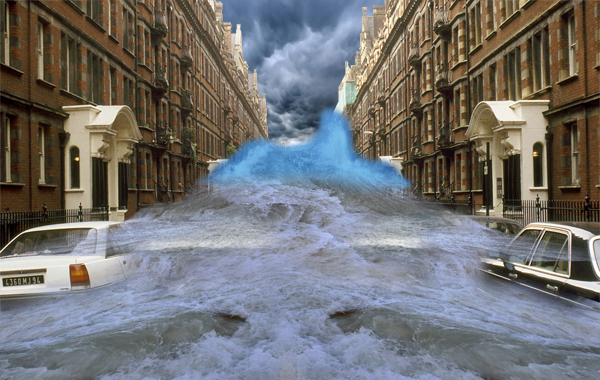
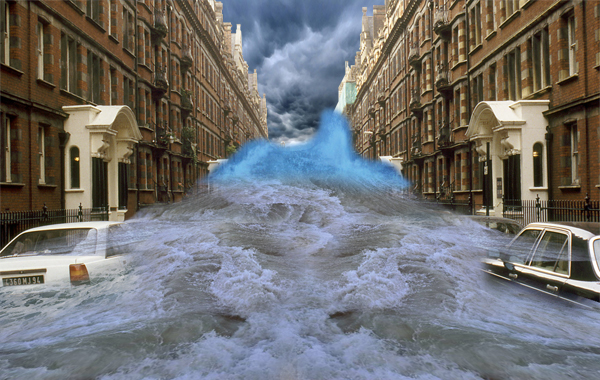
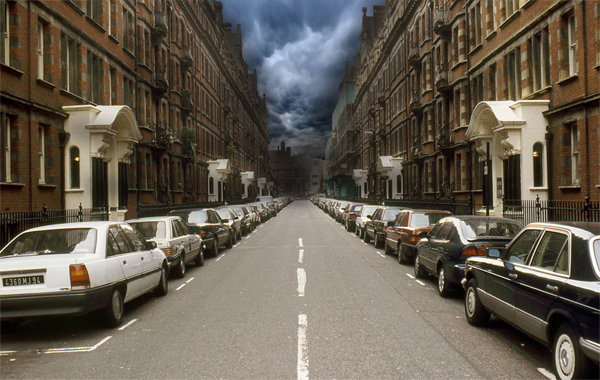
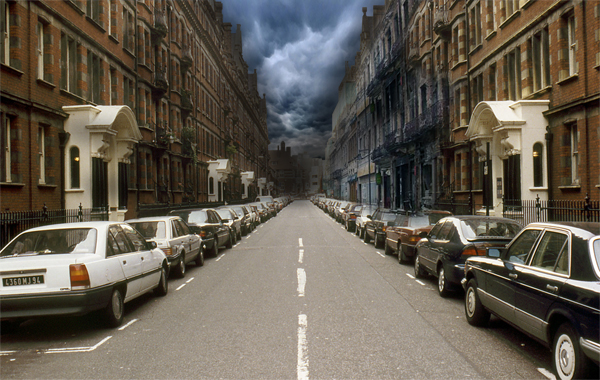
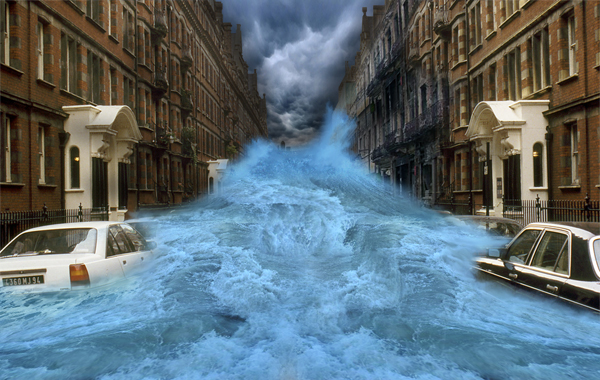
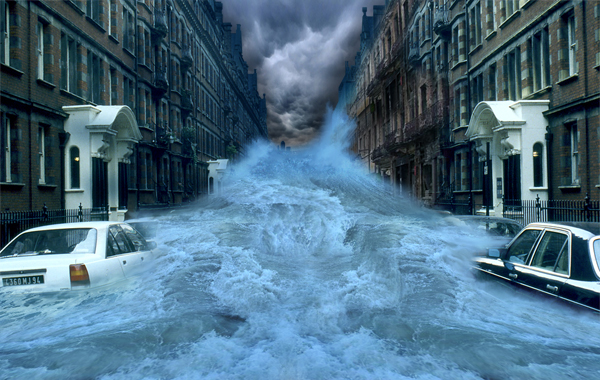
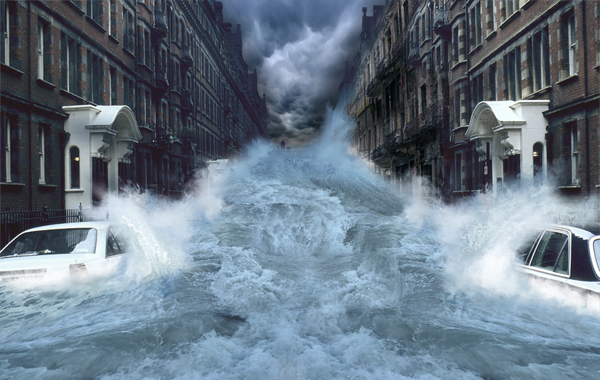
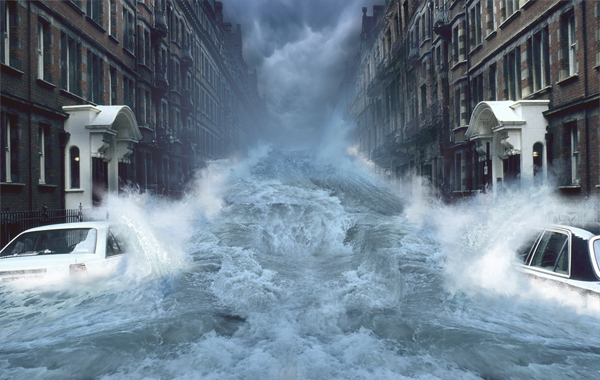
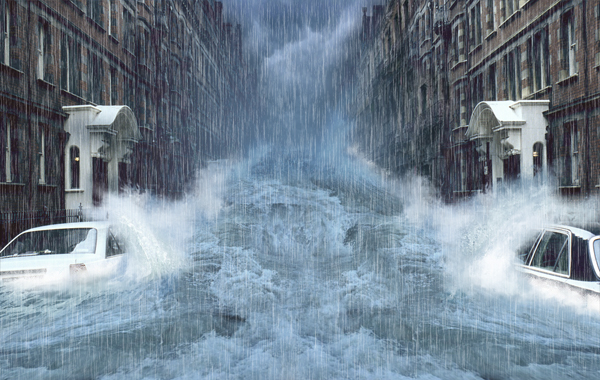
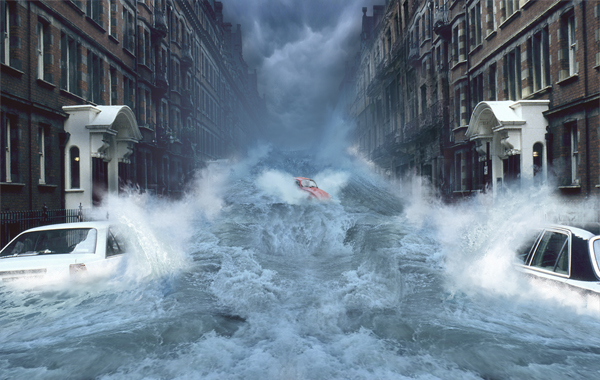
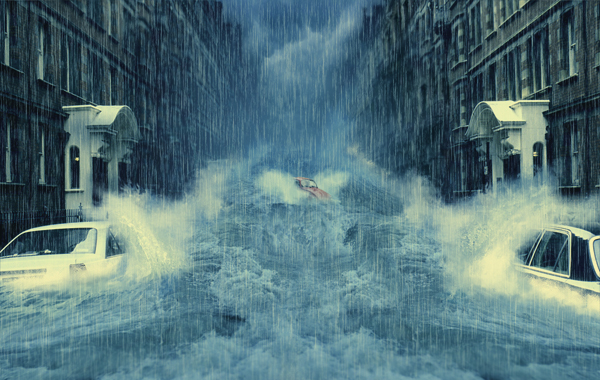
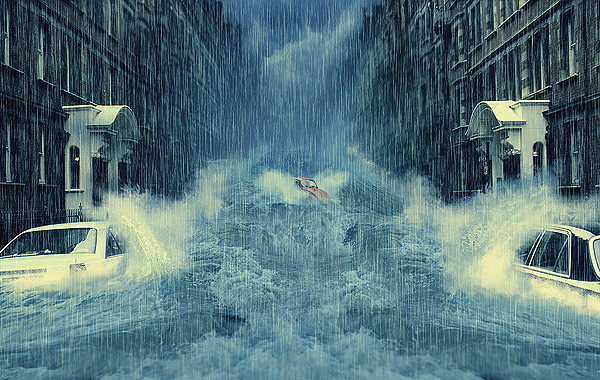
In this tutorial, we will learn how to manipulate a simple photo into a flooding torrent of a scene. We’ll use some relatively simple techniques to give this image a semi-realistic, stylized feel. Let’s get started!

Editor’s note: This tutorial was originally published in July 2009.


Video Tutorial

Our video editor Gavin Steele has created this video tutorial to compliment this text + image tutorial.


Step 1

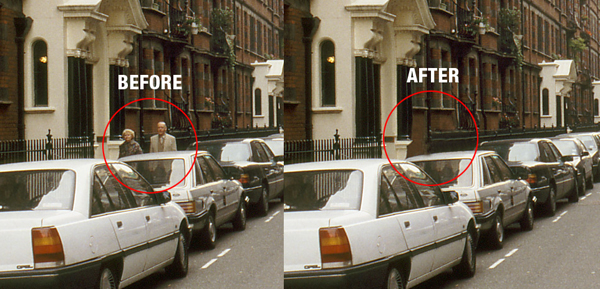
With the main image opened, use the Clone Stamp tool to remove any unwanted entities, like the elderly couple walking. Try and clone areas around the couple so it doesn’t look odd and mix your usage of soft, and heavy round brushes to define those edges.


Step 2

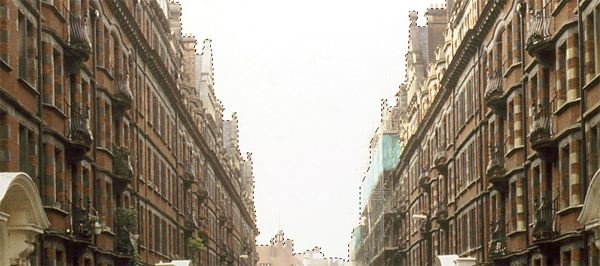
Next you will want to cut around the edges of the roof tops so we can add in our stormy sky. Use the Polygon Lasso Tool for this. Don’t worry about accuracy, as we’ll be blending everything later, just make sure that the sky is cut out. Once selected, unlock the “background.” Now double-click the layer, then rename it to “backdrop” and hit Enter. Delete the sky.


Step 3

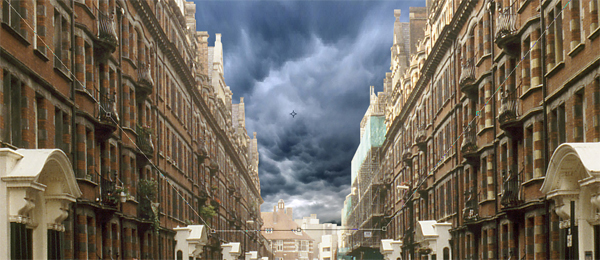
Open the Stormy Sky image and place it underneath your “backdrop” layer. Then press Command + T to Free Transform), hold Command while you drag the bottom corners inwards to add some perspective to the sky, don’t forget to resize if necessary. Apply the transformation when you are happy.


Step 4

It doesn’t look very nice does it? That’s because we’re not done yet. Open and place the wave image in the center of the image. Now use the eraser, and a soft brush on it. Get in close and erase the bits you don’t want. Don’t worry if your messy, as the tidying comes later.

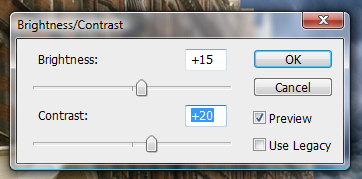
Then go to Image > Adjustments > Brightness/Contrast and use the settings shown below.

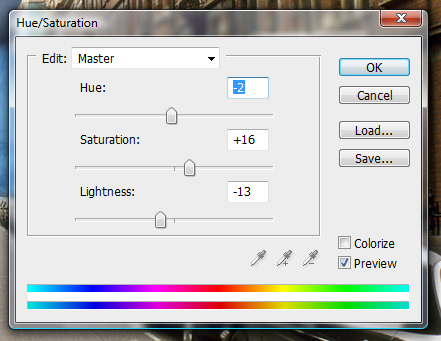
Then go to Image > Adjustments > Hue/Saturation and use these settings.

Rename the layer to “Wave,” and your image should now look like the one shown below.


Step 5

Now comes the complicated bit. What you’ll need to do is add all the water files to you’re image and one by one, free transform them to flow with the perspective of the water then erase the hard edges.

You might also need to duplicate some files in order to fill up areas. Always remember to play about with the textures using the distortion method in free transform and a soft eraser. The more you do, the better it will look. You can see the phases of building up the flooding water in this image.


Step 6

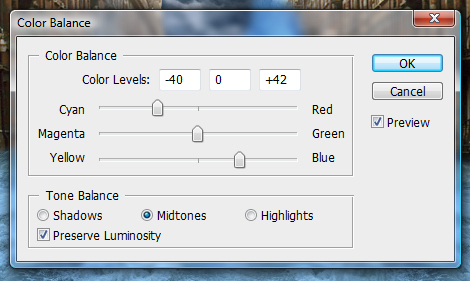
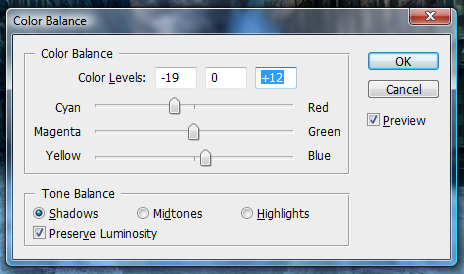
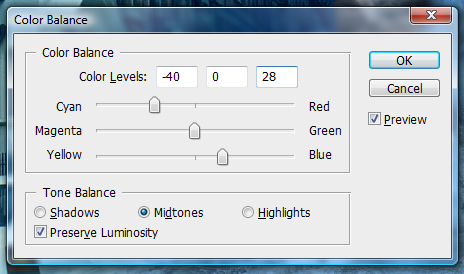
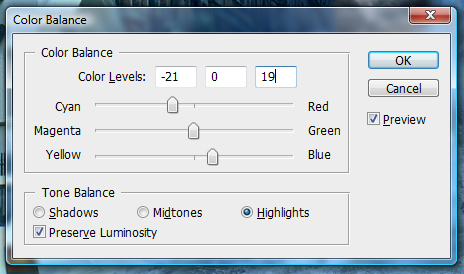
Now we have our water sorted, merge all the “water” layers into one single layer and go to Image > Adjustments > Color Balance and use the following settings.

Your water should now be nice and blue and match the “wave” layer from earlier. Now merge the “wave” layer with the “water” one.


Step 7

Remember the tidy up I mentioned a while back? Well its time now. Turn off the “water” layer so you are left with just the backdrop and the sky.

With the Burn Tool selected at highlights and at 50% exposure, and a soft brush set, start burning the rooftops and the sky around the rooftops so they appear darker.

Open the derelict1 image and place it at the right side of the street in the distance. Use a soft eraser to remove those sharp edges. Merge it with the “backdrop” layer.


Step 8

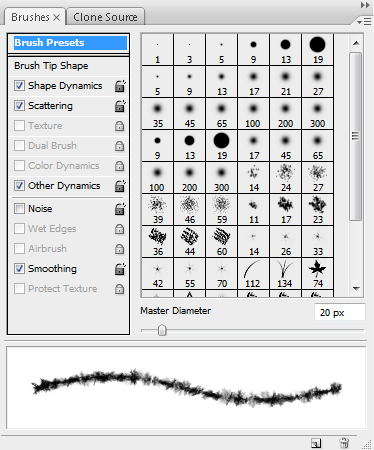
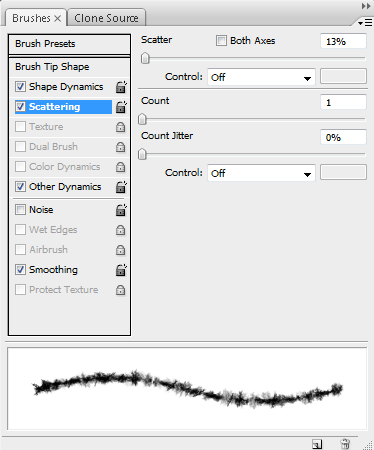
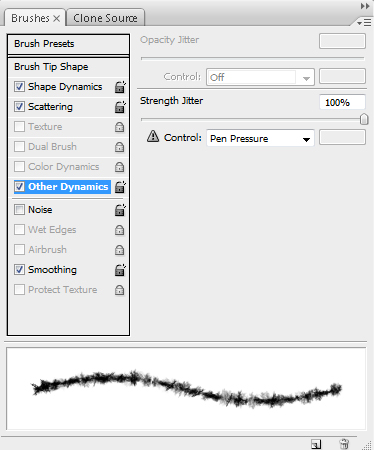
Let’s tidy up some more. Turn on the “water” layer sand and start tidying around the edges using a soft eraser. Then select the Smudge Tool and a 20px charcoal brush using the settings below.

Start smudging the edges of the “water” layer creating very small splashes and more defined edges to realistically create the effect of water hitting a surface. This might require patience and a steady hand, but time will pay off. It might also be wise to duplicate the layer before smudging as you don’t want to use all your undo’s.


Step 9

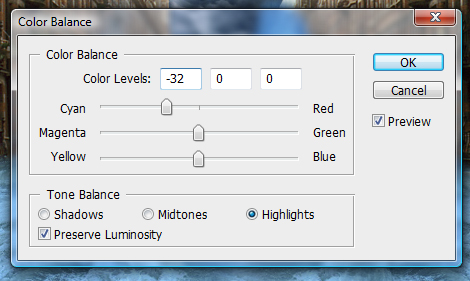
Next, select the backdrop layer and go to Image > Adjustments > Color Balance and use these settings.

And your piece should now be coming together. Its still a little off, but there is a lot more to do, so lets move on!


Step 10

Time for the splashes. Now this is the hardest step of the tutorial, and requires a lot of patience, but persevere and you will find that patience is in fact a virtue (I know, silly right?).

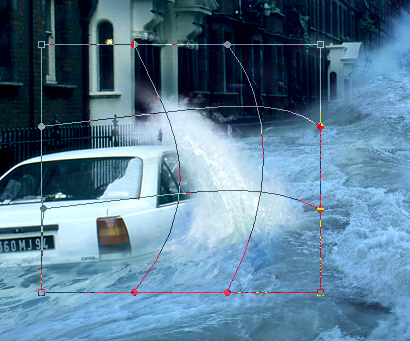
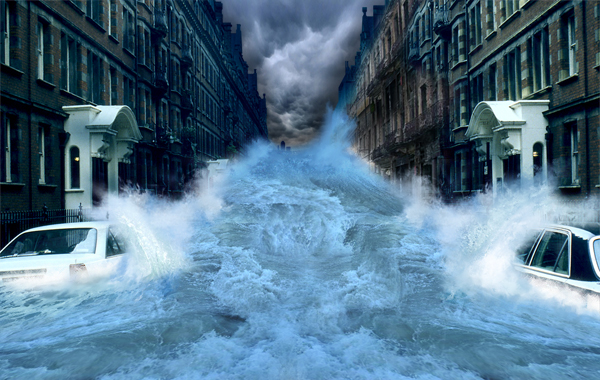
Open up the splash1 and splash2 images and carefully cut out the splashes themselves one by one. Place them onto the canvas. Now use the Warp Transformation (Edit > Transform > Warp) to get the arches you need to create effective splashes, and erase any unwanted areas.

You’ll need to do this for the two cars and for where the water hits the wall down the buildings of the street.

You might also benefit from smudging the edges of the splashes to give them more movement, as well as adding some white brushing to a new layer and smudging it. Now merge all your “splash” layers.


Step 11

Getting there right? Now you need to do some tweaking to the colors of the image. This can mean anything from water, to the sky or the buildings. In my example, I think the water is a little too blue, so I’m going to desaturate it a little.

Basically use this step for any odd bits and bobs to tweak your image to make it look more streamlined. Be creative, and more importantly, make it look tidy. I lowered the saturation of the water a little, and added some red to the buildings.


Step 12

Now we’ll work on the fog. Its sounds daunting but its actually fairly simple to do. Select a blue color from your water using the Eyedropper Tool. Now select the Gradient Tool and use the following settings.

You will need to create a new layer underneath you’re “water” layer and create the gradient so it blocks out any backdrop behind the water.

Duplicate the layer (Command + J) and place it on top of your water layer, at about 30% opacity. Set this layer to Multiply.


Step 13

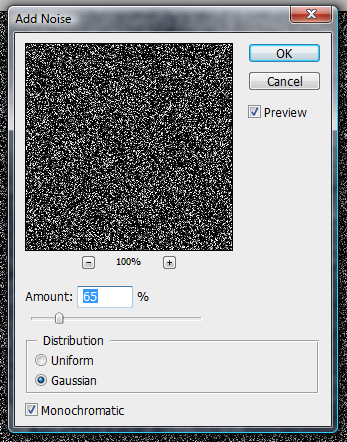
This next step is to add rain. There are lots of tutorials on the web that show how to create rain. Here is one that goes into great detail, which you could check out. We’ll keep it relatively simple in this tutorial though. First, create a new layer and fill it with black. Go to Filter > Noise > Add Noise and use these settings.

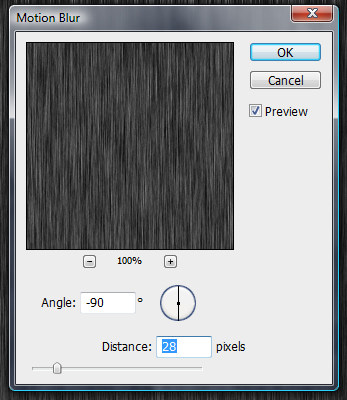
Then Filter > Blur > Motion Blur> and use these settings.

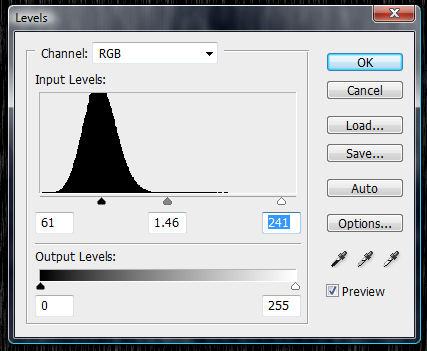
Then Image > Adjustments > Levels and use the following settings.

Set the Layer to Screen and use a soft eraser to erase the bottom and top of the Layer, then go to Edit > Transform > Free Transform the “rain” Layer so it covers the whole screen.


Step 14

It looks a little bit empty in the middle of the water doesn’t it?

Open up the car image and place it somewhere in the distance, underneath the “fog” layer. Resize the images and erase the edges carefully and use the splash1 image to give some life to the car.


Step 15

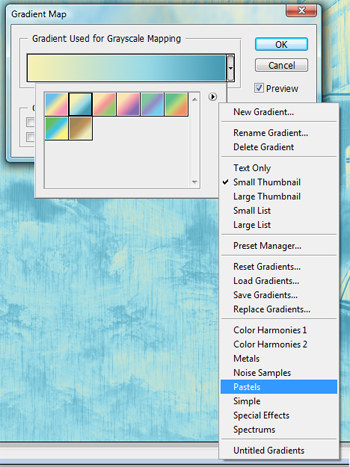
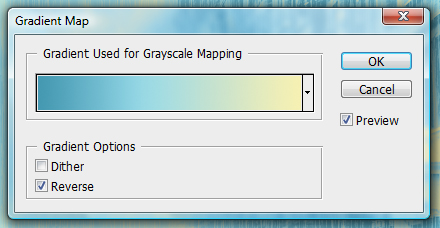
Now is the fun part. You’ll need to create a few gradient maps first. Click the Adjustment layer button located at the bottom of your layers window and select the Gradient Map option. Then Click the little arrow in the top-right of the box and select Pastels as shown.

Use the following settings. Finally, set the layer to Multiply at 100%.


Conclusion

Now its just a case of adding depth and a few other adjustments. Select the Blur Tool at 20% strength, then start blurring the “backdrop” layer in the distance and on the rooftops.

Create a new layer and go to Image > Apply Image and then go to Filter > Sharpen > Sharpen, which gives the image a more detailed and stylized feel. Now you’re done!

Subscribe to the Psdtuts+ RSS Feed for the best Photoshop tuts and articles on the web.

Video Interview With Anthony Harmon, Creative Director for SlashThree

$
0
0

Advertise here

Recently, I had the opportunity to chat with Anthony Harmon, Creative Director for SlashThree. SlashThree is one of the world’s top art collectives. They’ve been producing some really fantastic work lately so I was excited to hear what Anthony had to say. This interview is also a first for Psdtuts, as it is the first video interview that we have ever done. Please take a moment to review our 30-minute discussion regarding art collectives, the SlashThree collective in general, and how the educational system is failing us.


Notes

Here are links to some of the items we discussed in the video.

Combine Images to Create a Surreal Portrait in Photoshop

$
0
0

Advertise here

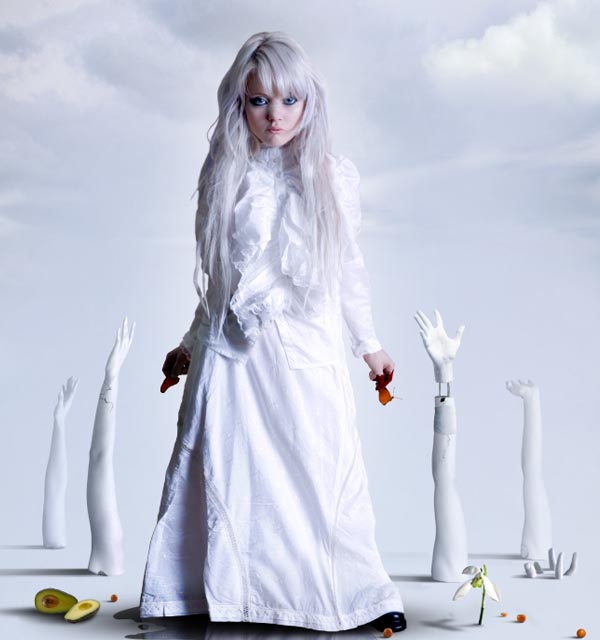
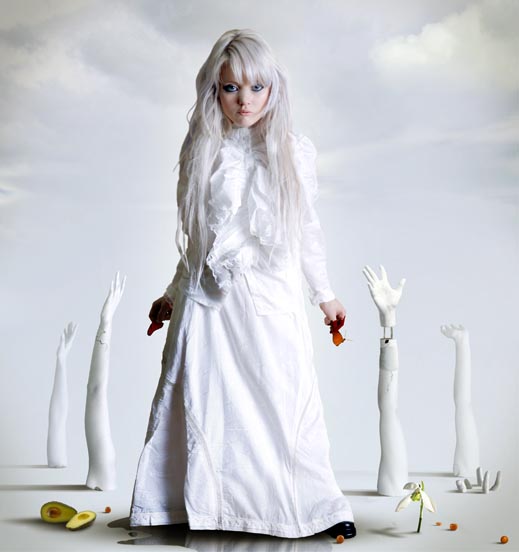
The liquify tool is great for making adjustments to photographs. In this tutorial we will use the liquify tool and several image blending techniques to create a surreal and slightly creepy photo manipulation. Let’s get started!


Tutorial Assets

The following assets were used during the production of this tutorial.


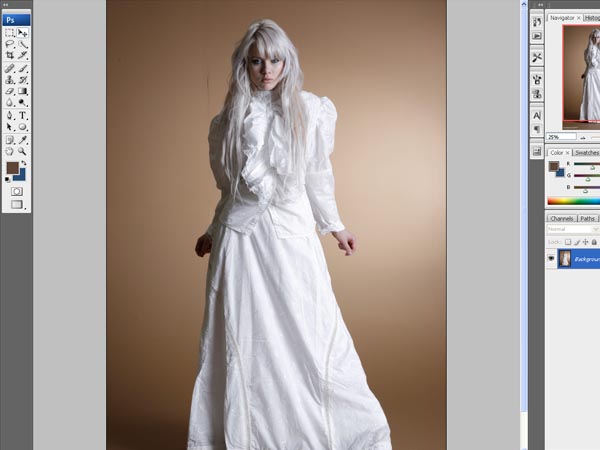
Step 1

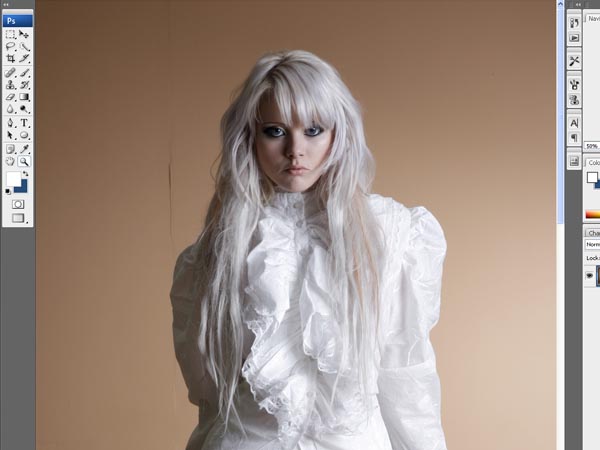
Open this image.


Step 2

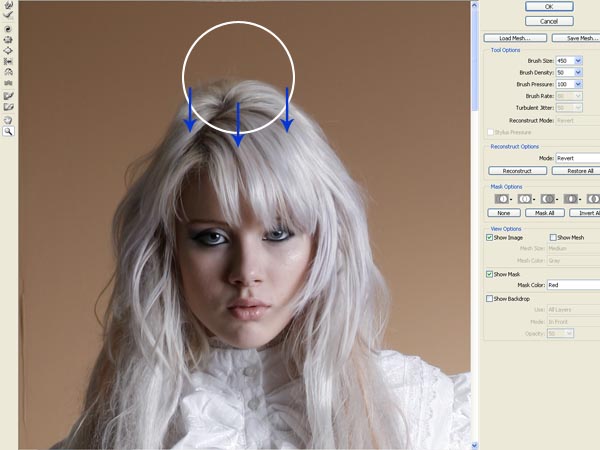
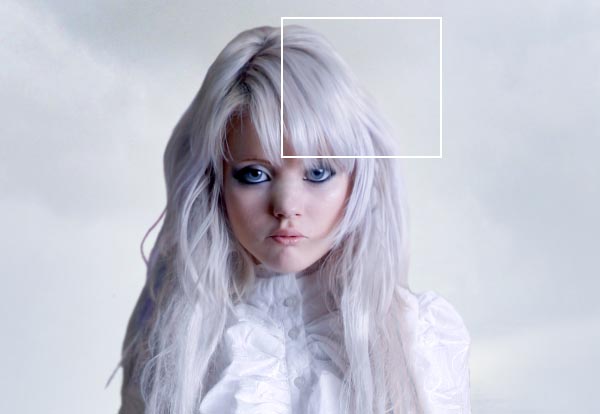
Now let’s go to the liquify filter (filter > liquify) where we’re going to change the look of our model. We can use this tool to modify the image like a clay figure. It’s important to use it carefully and slowly to preserve the quality in the original picture and trying not to distort unnecessary details. Let’s start with her face. We need a childish look, like a doll. So we need to make her head smaller. Use the Forward Warp Tool (W) and change the brush size on the left to 450, carefully slip down in the marked place on the picture. Use a smaller brush to retouch details.


Step 3

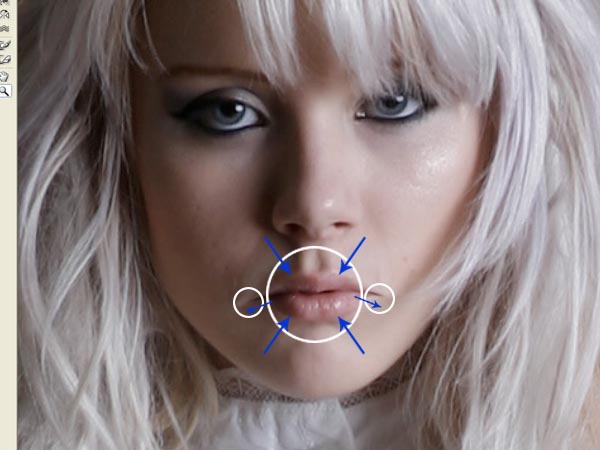
Use the Pucker Tool (S) with a size of 85 to make smaller mouth. Just apply it in the middle of her lips with subtle touches. Then use again the Forward Warp Tool (W) in the corner of her mouth with a brush in size 30 and stretch it to make longer.


Step 4

Now use the Bloat Tool (B) in her eyes. We are going to make them bigger and striking, but as always, try not to be excessive and use the tool subtly. A size of 60 will be right, use it in the center of her eyes and then touch in the corners trying not distort the shape of the eye.


Step 5

Before we have finished with the liquify filter, let’s give some last strokes with the Forward Warp Tool (W) to harmonize the shape of the head. I used it with a brush of 150 to make it a little bit wider and round. Be sure that you have not distorted details like eyebrows and then press accept to leave this window.


Step 6

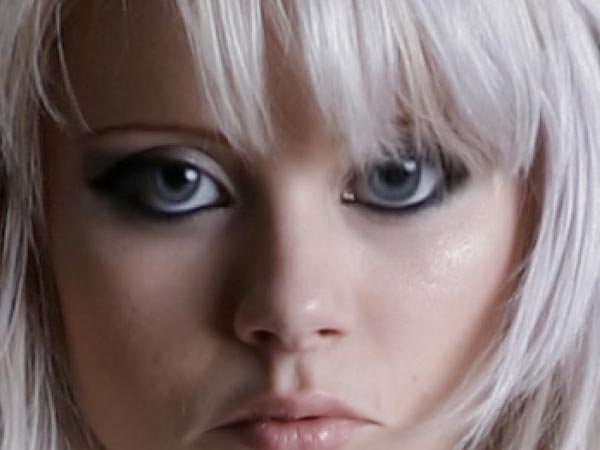
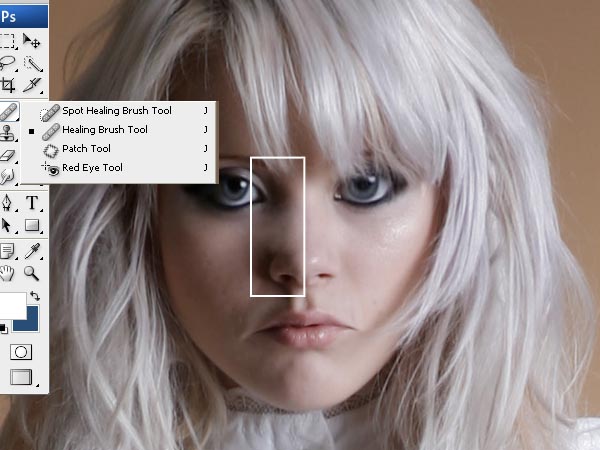
In the main window of the program, use the healing Brush Tool (J) with a size of 25 to erase the nasal septum (and the shadows in the left). That will be the final detail to get a childish look in the face of our model.
Take care into the shadows near the eye and the wing nose, try that the pass between these shadows and the light looks natural. You can use the Smudge Tool (R) to help in this step.


Step 7

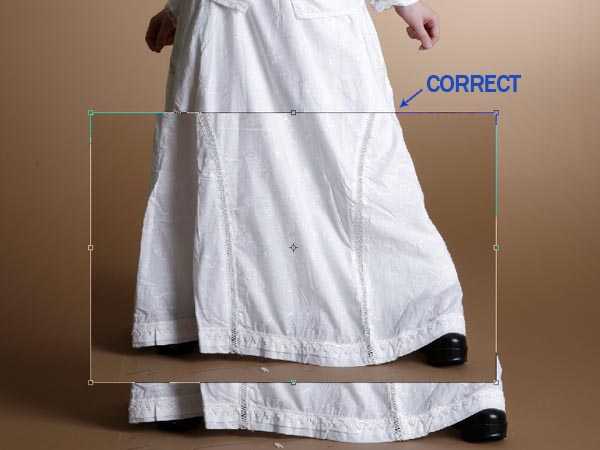
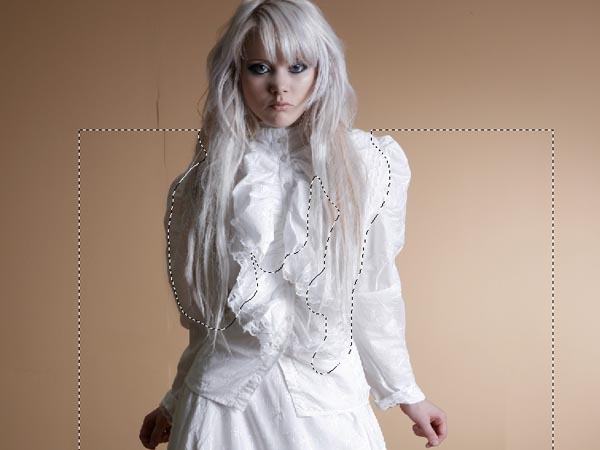
Now we need to make shorter to the model. Select the Rectangular Marquee Tool (M) and use it to select a rectangle like the one in the picture, from her feet to her knees more or less. Copy and paste this selection over the main layer and move it up to the position in the image. Rename this new layer to "Skirt".
Go to Edit > Free Transform and make it narrower until the shape of the skirt coincides in the right side.


Step 8

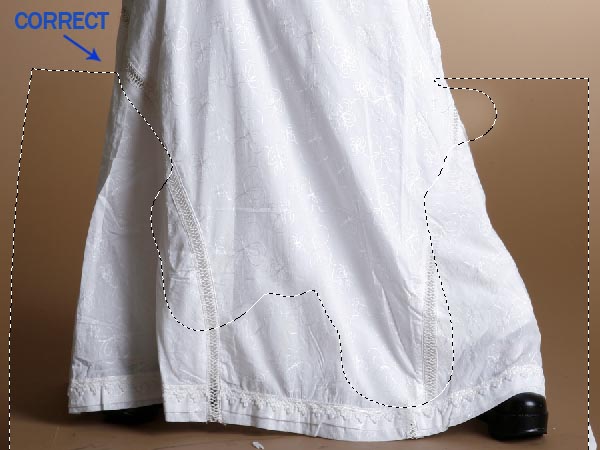
Go to Edit > Transform > Warp and use it to make coincide the left side of the skirt like in the image. Then select the Eraser Tool (E) and delete part of the layer "Skirt" to make a correct merge between the two layers. In the image you can see what I’ve preserved from the "Skirt" layer.


Step 9

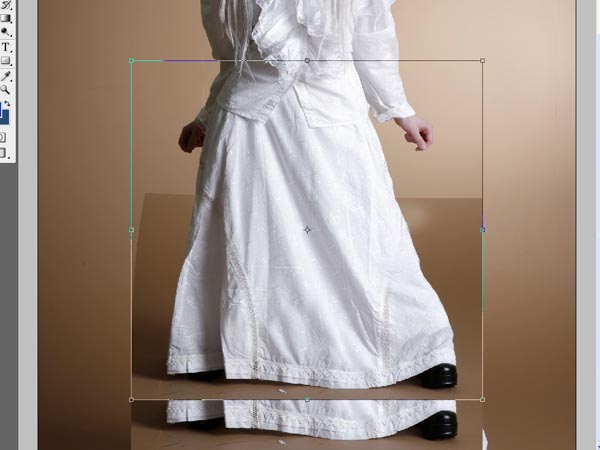
We need a model even shorter, so go to Image > Flatten Image and then select a rectangle like in the image. Copy and paste it over the main layer and then go to Edit > Free Transform. Take the box from the bottom and finally make the selection shorter like in the image.


Step 10

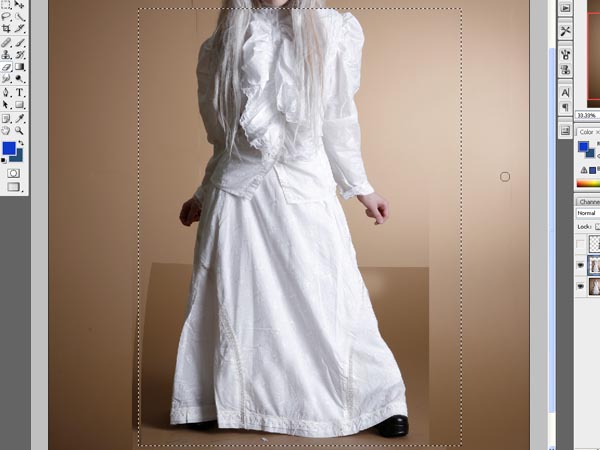
Merge all the layers again and one more time use the Rectangular Marquee Tool (M) to make a selection like the one in the image, then go to Layer > New > Layer via Copy. Go to Edit > Free Transform and make the new layer narrower.


Step 11

As we made in step 8, we are going to use the Eraser Tool (E) to delete part of the new layer to get a perfect merge. Check the image to look what I’ve deleted and when you have finished go to Layer > Flatten Image.


Step 12

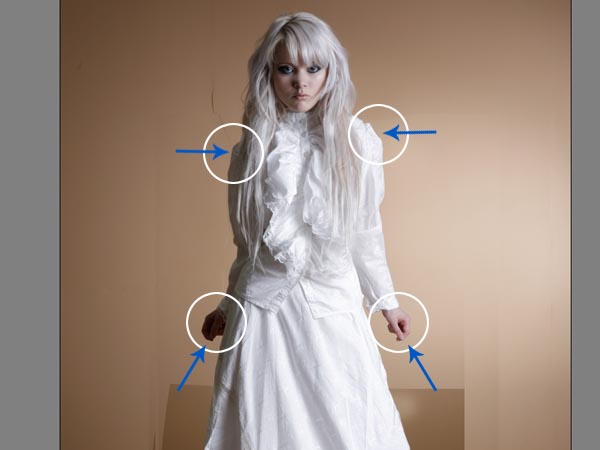
Finally go again to the liquefy filter and give the last touches to the model. I’ve used the Forward Warp Tool (W) in the shoulders and the arms in the direction that you can see o the image to make it proportional to the body. When you have finished, press "Accept".


Step 13

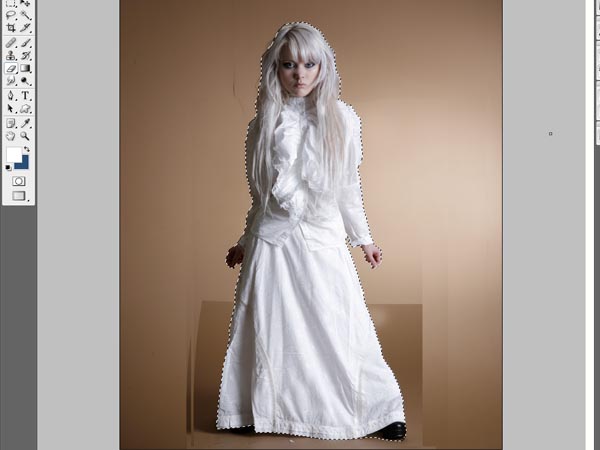
Time to select and cut our retouched model. I used the Magnetic Lasso Tool (L) and then edit the selection in the Quick Mask Mode (Q).


Step 14

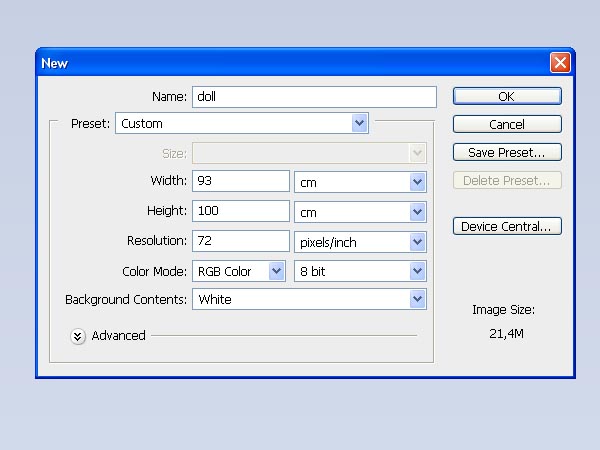
Now open a new file with this settings:


Step 15

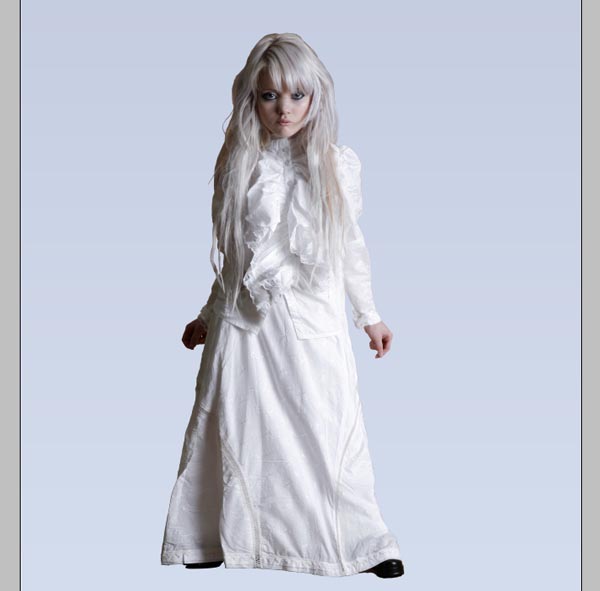
Use the Gradient Tool (G) for the background from color #d3dcec to #c5cde1 and then paste over it to our model. Call the model layer: "Girl"


Step 16

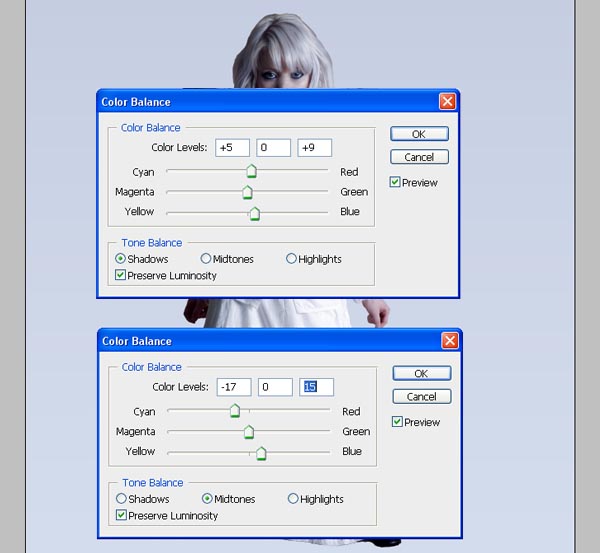
Colours on the model doesn’t help to integrate her on the background so we need to change them a little. Go to Image > Adjustments > Color Balance and add these settings in Shadows and Midtones:

Now go to Image > Adjustments > Brightness/Contrast and add these settings:


Step 17

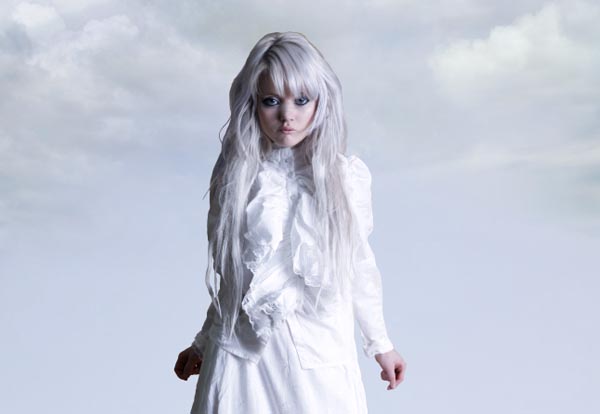
Let’s add some clouds in the background, use his image:
Add it between the "girl" image and the background, modify the opacity of this layer to 41% and place it on the left corner. Finally use the Eraser Tool (E) to delete the most of this layer. Use the same image to create new clouds in the opposite corner.


Step 18

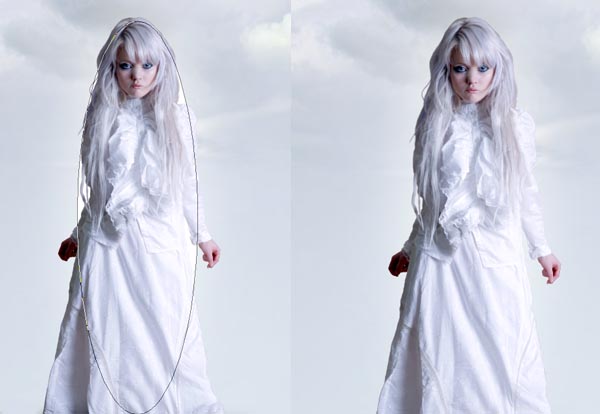
Now select the Ellipse Tool (E) and draw an ellipse in white under the "Girl" layer, like the one in the image. Then apply to our ellipse a Gaussian Blur (Filter > Blur > Gaussian Blur) with a radius about 120 px.


Step 19

At this point I modified some details on the hair of our model to get a better integration with the background. Use de Eraser Tool (E) with a blurred brush of 50 px in the right surroundings and then the Dodge Tool with a blurred brush of 65, range in midtones and an exposure of 50% in the same until the color of the hair looks quite similar to the color in the background.


Step 20

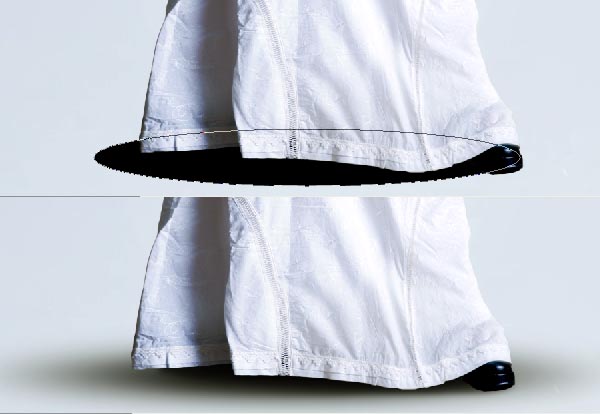
Now select again the Elipse Tool (E) and draw an ellipse in black under the "Girl" layer simulating the shadow of the girl like the one in the image. Then apply to the ellipse a Motion Blur (Filter > Blur > Motion Blur) with a radius about 600 px and an angle of 0º. Finally apply a Gaussian Blur (Filter > Blur > Gaussian Blur) with a radius about 30 px. Rename this layer to "Girl Shadow".

You can use the Eraser Tool (E) with a blurred brush to delete some parts of the shadow so it blends better with the background.


Step 21

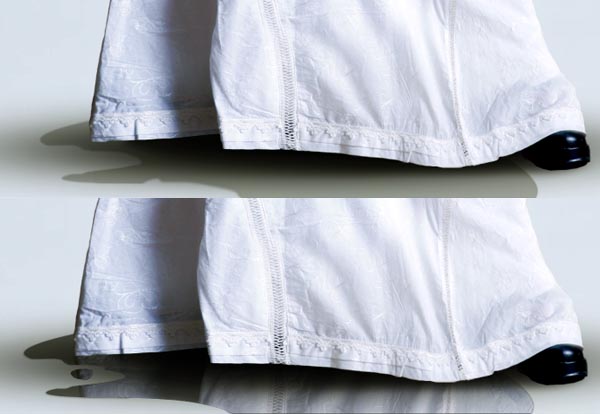
Use the Pen Tool (P) to draw an irregular form similar to the one in the image using the #484c43 color. We’re trying to simulate a pond so the shape it’s not too important, just try it has a rounded appearance. Situate this layer under the "Girl Shadow" layer.
The second step it’s to add the reflection of the skirt into the pond. Copy the "Girl" layer, rename it as "Reflection" and change the opacity to 50%. Now go to Edit > Transform > Flip Vertical and adjust it so you can see the lower part of the skirt over the pond. Cut the "Reflection" layer and Paste into your pond layer (Edit > Paste Into).


Step 22

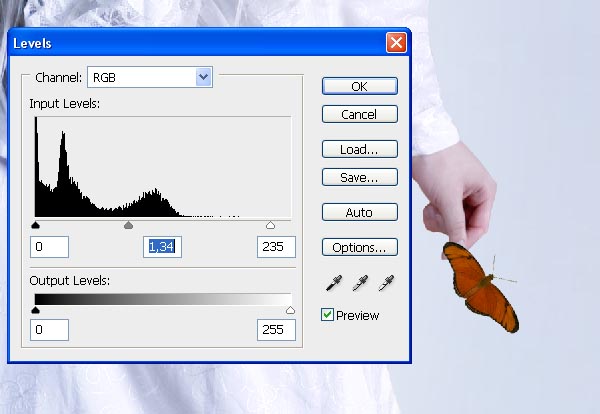
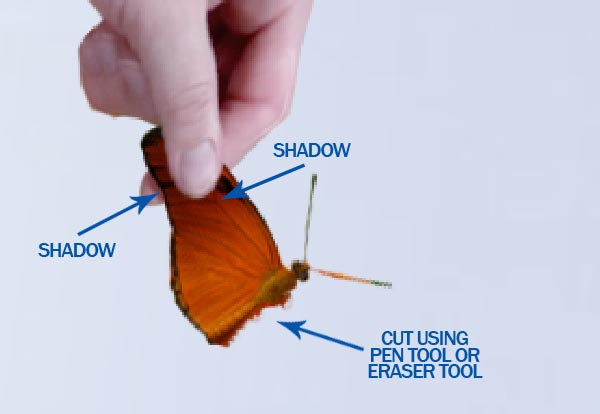
Now we will add a butterfly in the left hand of the girl. Open this image: cut the butterfly and paste it in our main image. Situate it over the "Girl" layer and then adjust its size and levels (Image > Adjustments > Levels) like in the next image.


Step 23

Now use the Eraser Tool (E) to delete the part of the butterfly covered by the thumb of the hand. Use the Burn Tool (O) to add a subtle shadow on the butterfly and in the hand like in the image. Finally cut the left wing of the butterfly using the Polygonal Lasso, the Eraser Tool or the Pen Tool.


Step 24

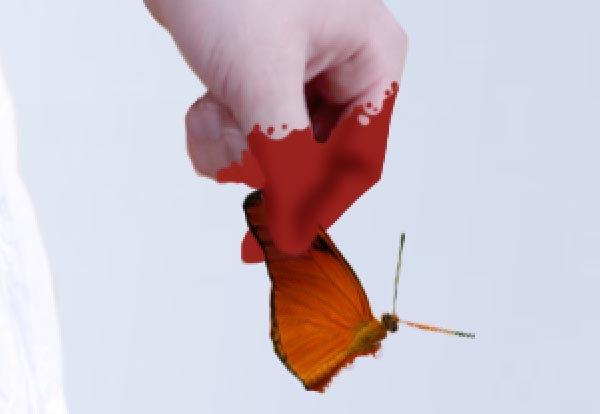
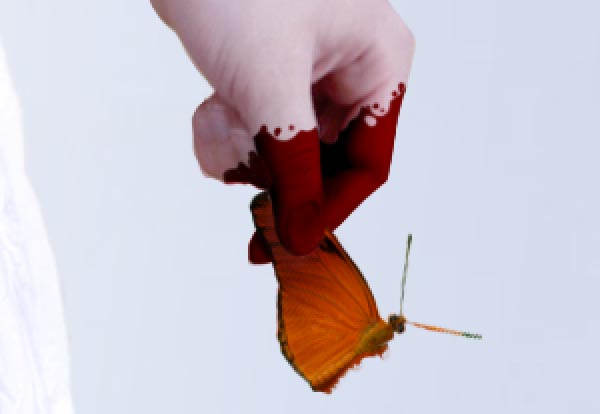
We want to add some blood in the hand of the girl. Create a new layer over the "Child" layer. Use red (#9a221e) and the Brush Tool or Pen Tool (P) to draw the shape following the shape of he fingers. Then use the Burn Tool (O) in midtones and an exposure at 25% to add some shadows like in the image.

Finally change the blending mode for the layer to linear burn.


Step 25

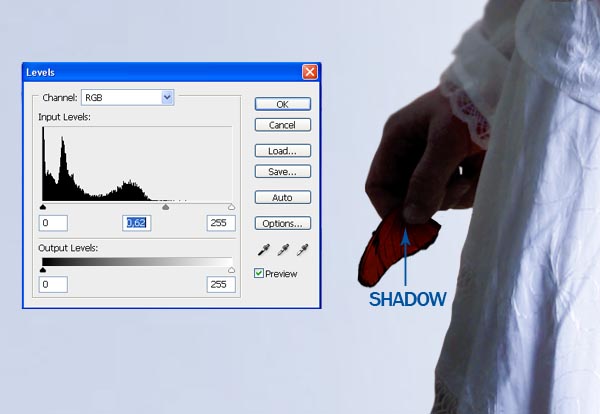
Move the cut wing of our butterfly to the right hand of the model. Use again the Eraser Tool to make visible her thumb and modify the levels on the wing as you can see in the image. Finally add a subtle shadow falling on the wing from the finger; you can draw it and blur with Gaussian Blur (Filters > Blur > Gaussian Blur) or use the Burn Tool (O) to underexpose.


Step 26

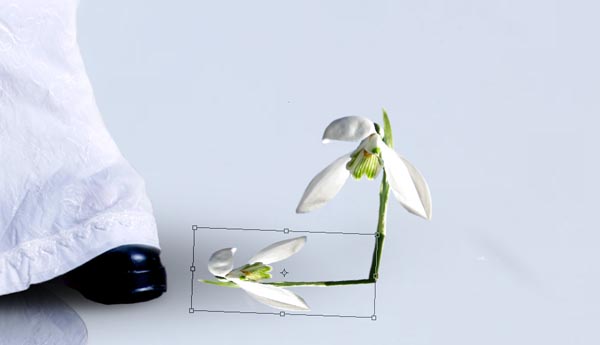
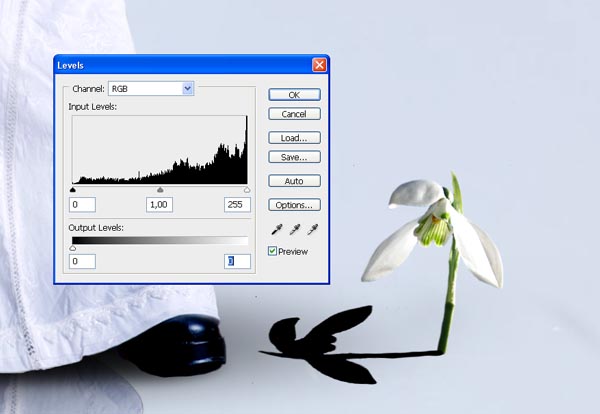
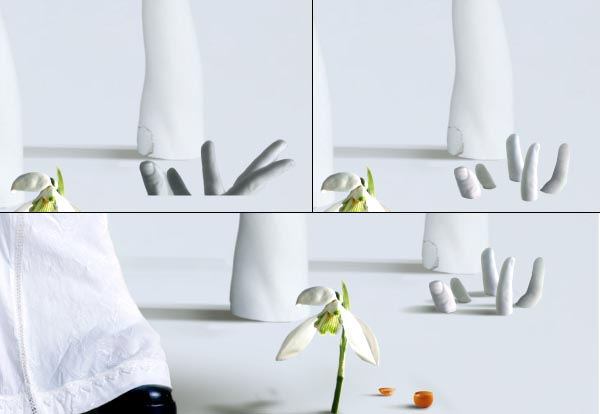
Now we want to add some details on the ground around the girl. Open this image: and cut the flower. Then copy it to our main image and then go to Edit > Transform > Flip Horizontal. Duplicate the flower layer and move it using Edit > Free Transform to situate in the same place that in this image:

Then go to Image > Adjustments > Levels and modify the Output Levels bar like here:

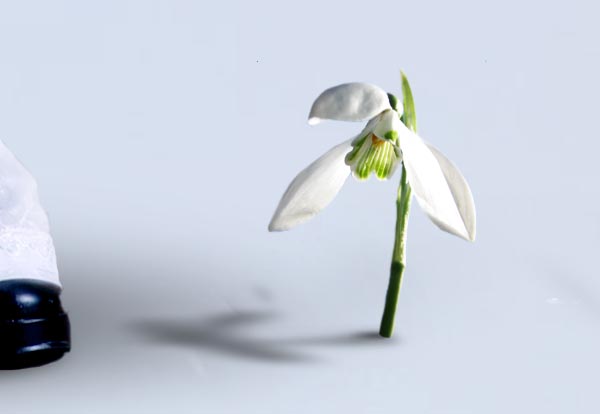
Finally go in the layer of the shadow to Filter > Blur > Motion Blur and apply an angle 0º and a distance of 65 px. Readjust a little the shadow using again the Free Transform (Edit > Free Transform) and the Erasing Tool (E).


Step 27

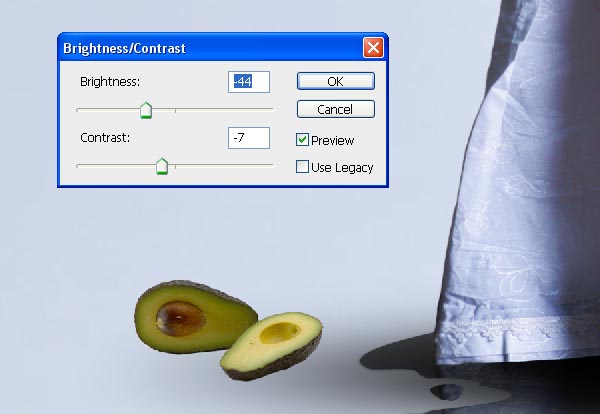
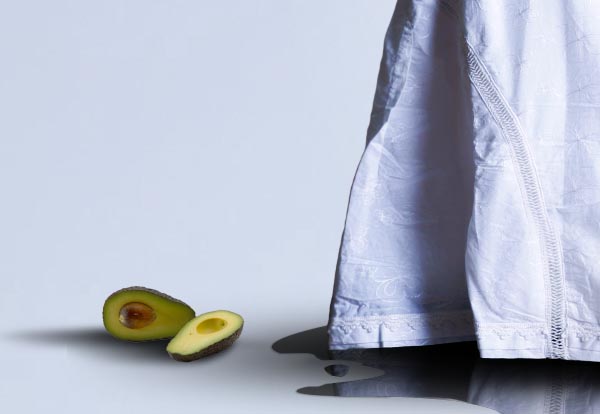
Now we want to add an avocado in the other side of the image. Open this image: and select the avocado.
Copy it in our image and change settings in Image > Adjustments > Brightness/Contrast as in the image.

Finally repeat the steps that I explained on the shadow of the flower to create the shadow of the avocado.


Step 28

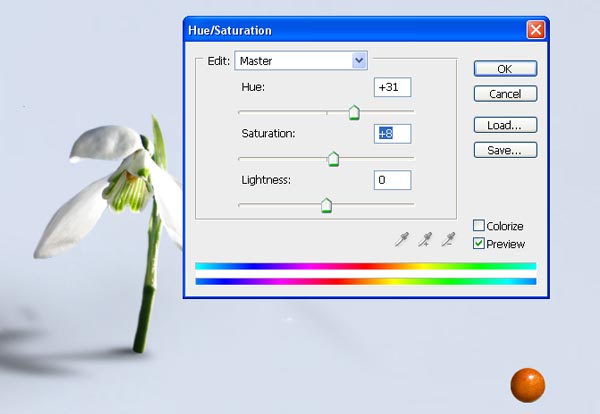
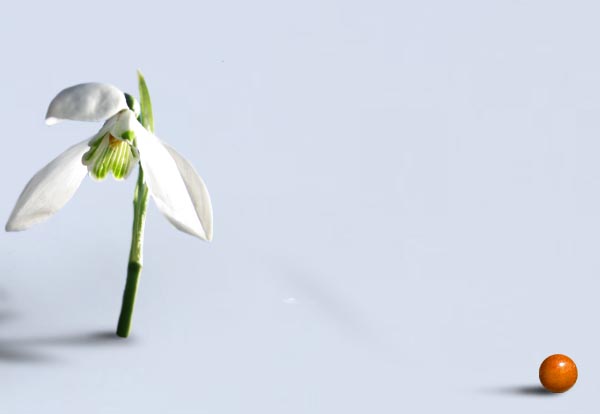
Now we will add some little orange spheres in different points on the ground. It’s really simple to do. Open this image:
Copy and paste in our image the cherry on the upright and use this settings on Image > Adjustments > Hue/Saturation.

Then add the shadow duplicating the layer, modifying the levels and finally using Filter > Blur > Motion Blur as we did before.


Step 29

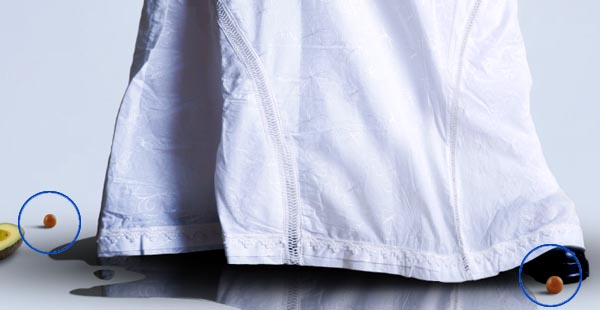
Now you can copy and move the cherry with its shadow and move to the points marked in the next image. If you prefer you can use other cherries from the image instead repeat the same one in three places.


Step 30

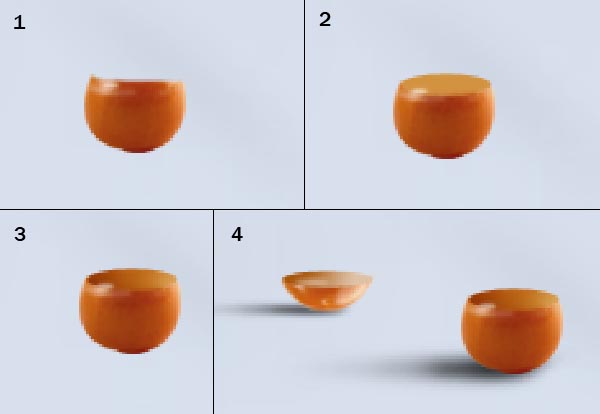
The last cherry it’s a little different because we want it broken. First step is to copy one of the previous cherries and paste it in a new layer. Then use the Elliptical Marquee Tool (M) or some similar Tool to cut the upper part of the cherry (as you can see on box 1 in next image). Then use the Ellipse Tool (E) to draw an ellipse in color #d29240 like the one in box 2. The third step is to use the Burn Tool (O) in midtones and an exposure of 25% on the left side of our orange elipse. Finally add the shadow as we have explained in other steps and repeat the steps to create the upper part of the cut cherry.


Step 31

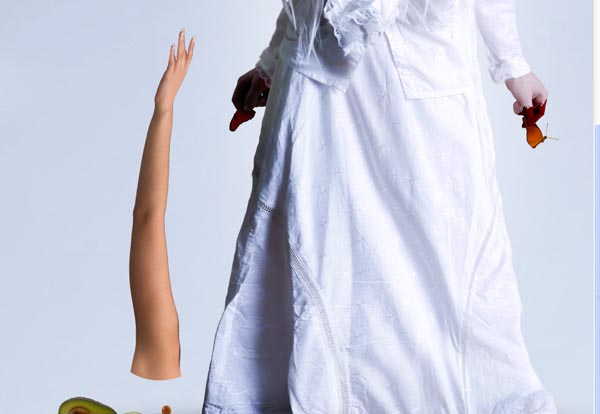
Finally, we want to add some arms coming up from the ground. To start with this, open the image: Cut the arm and paste into our image like in this picture:

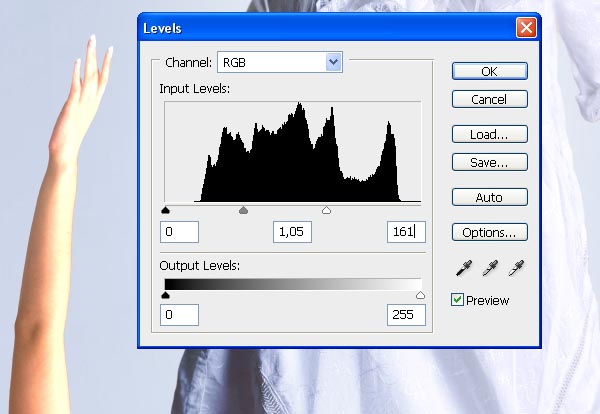
Now modify its settings in levels (Image > Adjustments > Levels) like in this picture:

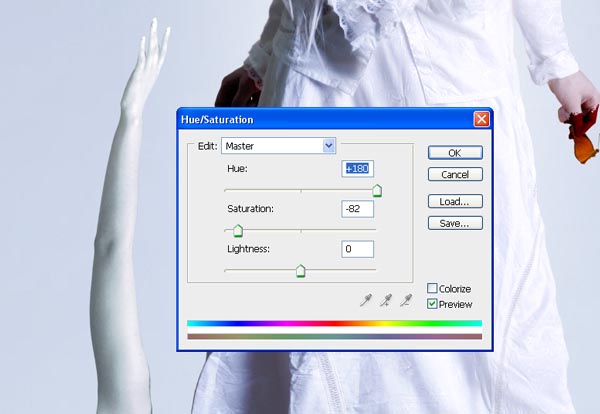
Next go to Image > Adjustments > Hue/Saturation and change the settings like below. Finally go to Image > Adjustments > Color Balance and add + 22 to Blue.


Step 32

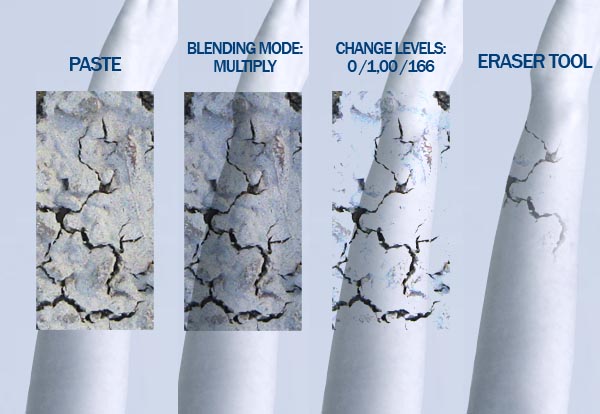
Let’s add some cracks to the arm. Open this image: and select one of the cracks, copy and paste in our image.
Now go to Image > Adjustments > Levels and modify the input levels to: 0/1,00/166. Then use the Eraser Tool (E) to delete all the broken parts that we don’t need.
I used these same steps to add another break in the down part.
Finally add the shadow as I explained for the shadow of the girl in step 18.


Step 33

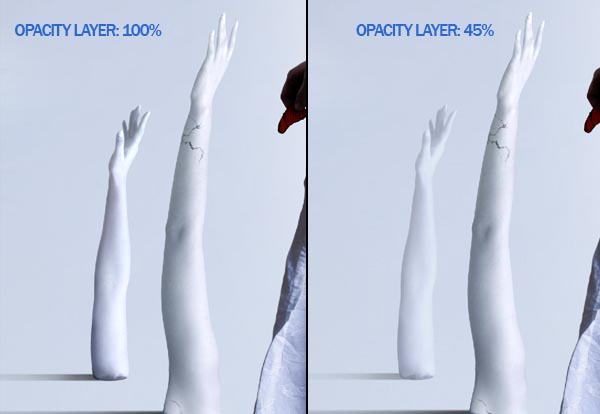
With these steps you can add the other arms to the image. Just have one thing in mind: the farther the arms are the brighter they have to look. Look at the sample below:

As you can see, to make the effect of depth we have changed the opacity layer to 47% in the layer of the arm in the background.
Following this method helps to get a better blending with the background too.


Step 34

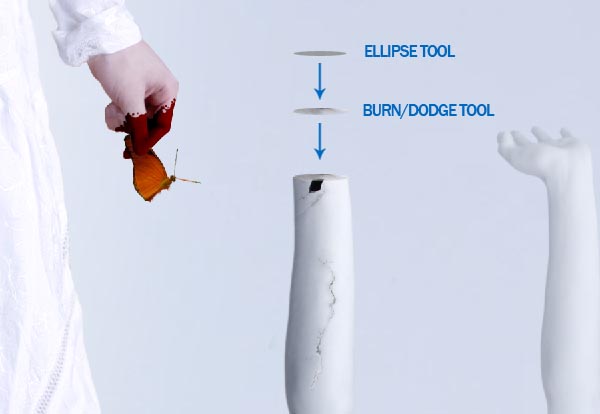
Now we want to add some different details to one of our arms. First repeat all the steps that you did on previous arms (steps 30-31). Then we are going to broke our new arm. Cut the hand at the wrist using a Marquee Tool (M) and create an ellipse with the Ellipse Tool (U) as you did on step 29, but this time with color #98999e. Then use the Dodge Tool (O) and the Burn Tool (O) to add some lights and shadows on the ellipse, finally put it over the arm as you can see on next image and merge this layer with the arm one (Command/Ctrl + E).


Step 35

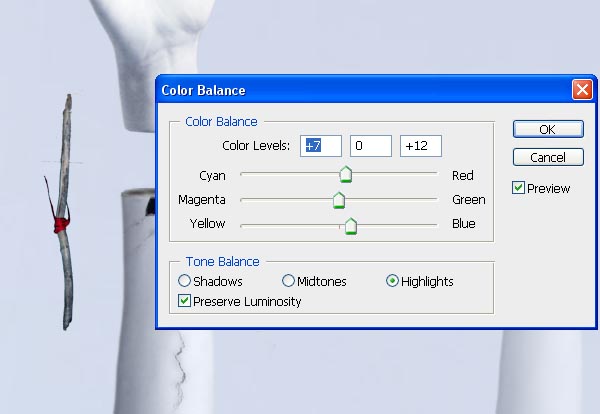
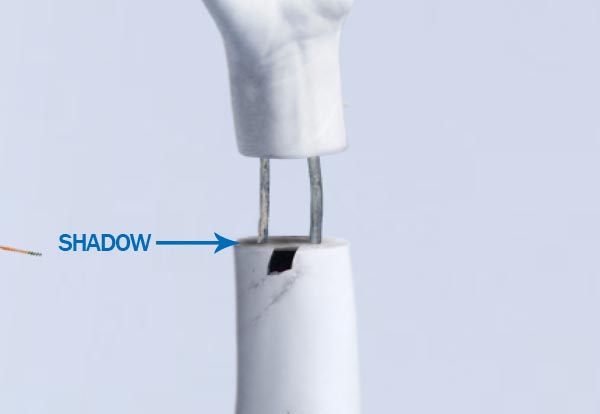
Add the hand that you cut in a new layer and open this image: Copy and paste the stick in our image. We will use it to create two little sticks that fix the hand to the arm. Change the stick Color Balance (Image > Adjustments > Color Balance) as you can see on the image:

Then duplicate the stick layer and put them between the hand and the arm. Finally draw two little shadows for them.


Step 36

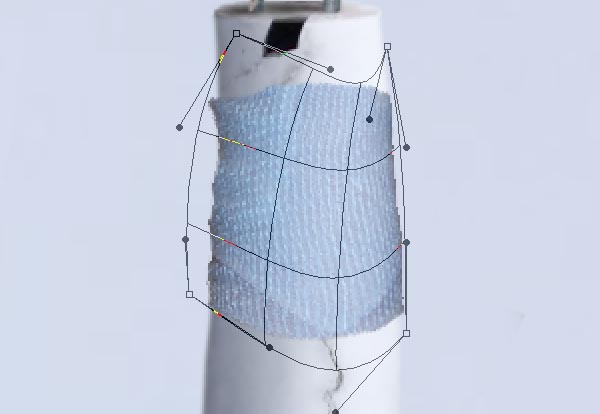
Finally we will add a bandage to the harm. Use this image:
Cut and paste in our main image and go to Edit > Transform > Warp to adapt the shape of the bandage to the arm.

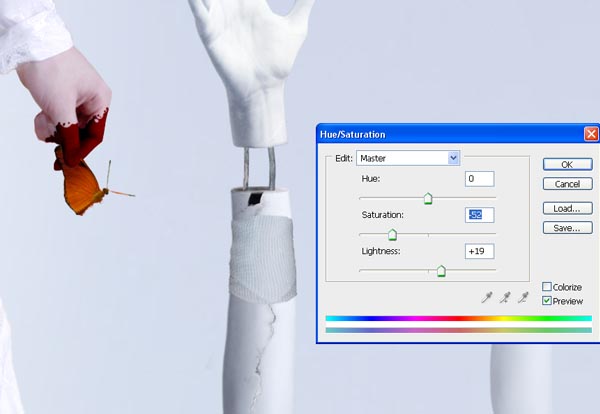
Then go to Image > Adjustments > Hue/Saturation and change the settings to these ones:

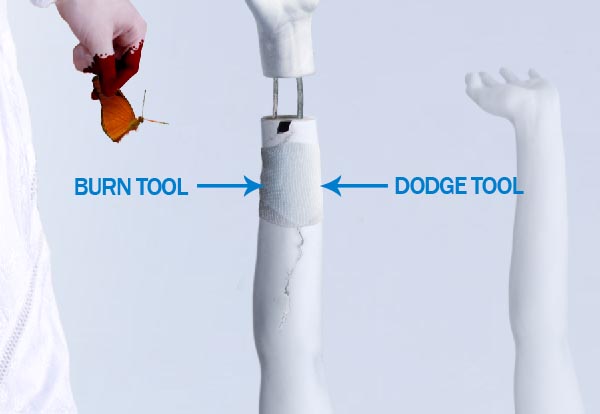
Lastly use the Burn Tool (O) on midtones to make darker the left side of the bandage and the Dodge Tool (O) on midtones to make brighter the right side.


Step 37

Finally we are going to add a hand coming up from the ground. For this one I used fingers from different hands. Just be careful that the light it’s similar in all of them (for our image we need light coming from the right and shadows in the left), as I’ve explained before you can help to get a better effect on light/shadow using the Burn Tool (O) and the Dodge Tool (O).
Now we will repeat exactly the same steps that we used to add the complete arms but this time using only fingers.
So, cut and paste some fingers on our image. Modify levels (Image > Adjustments > Levels) and add some blue (Image > Adjustments > Color/Balance). Then retouch a little with Dodge/Burn Tool (O) and with Brightness/Contrast (Image > Adjustments > Brightness/Contrast) if it’s necessary.
The last step, as always, it’s to add shadows using Motion Blur (Filter > Blur > Motion Blur) at 0º and a subtle Gaussian Blur (Filter > Blur > Gaussian Blur).


Step 38

We have our image almost ready. But I would like to give it a little final touches.

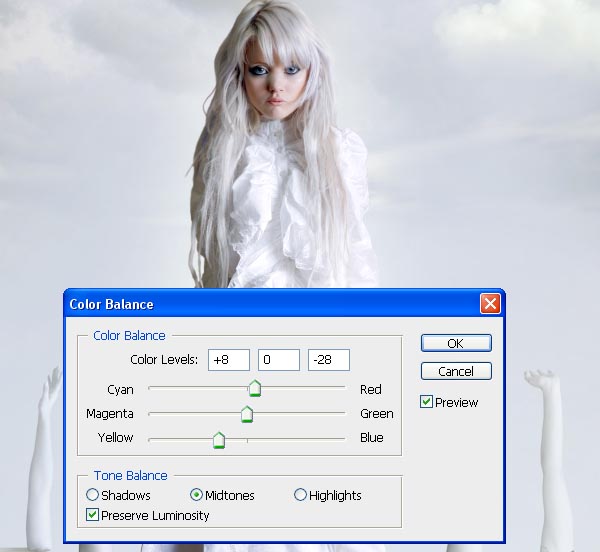
Select your first layer and then go to: Layer > New Adjustments Layer > Color Balance. Press OK in next window and then add the settings that you can see on the next image.

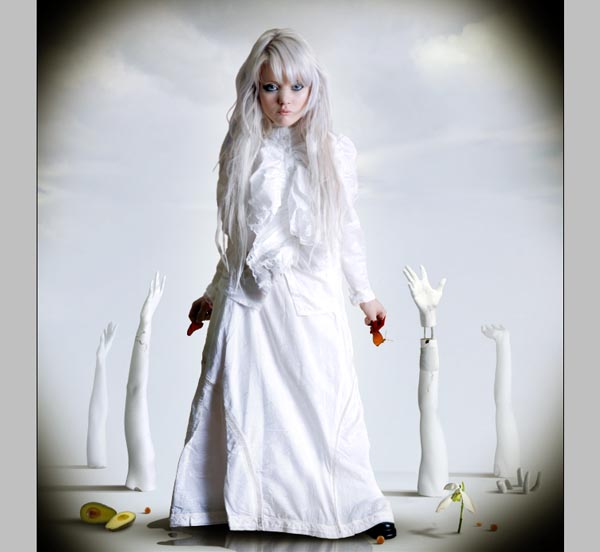
Our last step it’s to create a new layer under the Adjustment Layer and draw a little shadows on the corners of our canvas. I used the Brush Tool (B) with a blurred brush and size 900 px.

In this new layer change the opacity layer to 20% and we have finished.


Conclusion

You can always modify details, add elements or play with concepts using this simple technique and some good stock images. The most important thing is to respect basic details like the position of light, the direction of shadows or the perspective of the elements.

Tell Us How Psdtuts Has Affected Your Life: Win a Wacom Intuos 4 Medium Tablet

$
0
0

Advertise here

When we published our first article back in September of 2007 we had no idea how successful this site could become. In fact, we weren’t quite sure anyone would be interested in it. Since then, a lot has changed. We’ve grown from a small Photoshop blog to the largest Photoshop site on the planet. We’ve welcomed many new editors, authors, and readers to our site and have touched the lives of hundreds of thousands and possibly millions of people. Today, we would like to hear your stories. We want to know how Psdtuts has affected your life and we want you to share your story by uploading a video testimonial to our Facebook page.

I will be the first to tell you how Psdtuts has changed my life. When I left my 9 – 5 job, it gave me some much-needed income while I looked for a new position. When nothing panned out, Psdtuts gave me a part-time job assisting Sean Hodge, the previous editor, and finally, when I was promoted to editor, it allowed me to move to New York City to live with my girlfriend.

Now that I’ve told you how Psdtuts has changed my life. What’s your story? Have we helped you land a job? Have we helped you with a key project? Have we helped you make a major life change? We want to know! To encourage you to share your stories we will give one of you a free Wacom Intuos 4 Medium Tablet (via Amazon).


How to Submit

To submit, record a video testimonial explaining your story. This can be done on your webcam or camcorder. Feel free to have fun with this video – edit it, add animation, music, graphics or whatever you need to do to tell your story. Just try to keep the video between 1 – 5 minutes.

Once you’ve recorded your video, upload it to our Facebook Page. Follow the instructions below to upload your video.


How We Will Award the Tablet

After we have reviewed all the entries, we will choose our favorite from all the submissions. While we may take the quality of the video into consideration when we award the tablet, ultimately, the most important factor for judging the videos will be the story that is told. So don’t let your lack of video production skills get in the way of telling us how we’ve affected your lives.


Rules

  • You can only submit 1 video.
  • Avoid giving away too much personal information in your video. For example, don’t tell us your phone number or street address. We will figure all that out later on.
  • Submissions will be accepted until June, 20, 2011
  • While this giveaway is open to all of our readers, Amazon may not ship to your area. If that is the case we will send you the value of the tablet via PayPal.
  • Terms are subject to change.

40 Mind-Blowing Digital Space Paintings

$
0
0

Advertise here

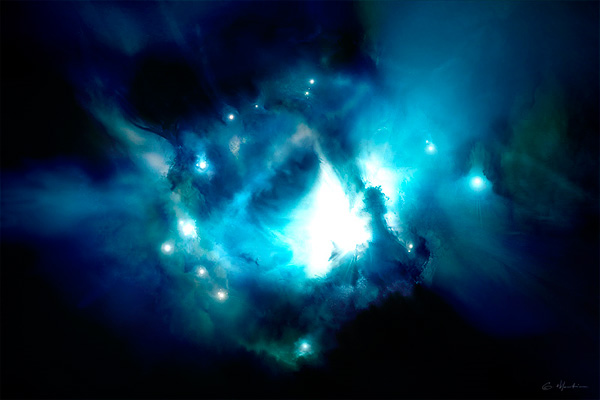
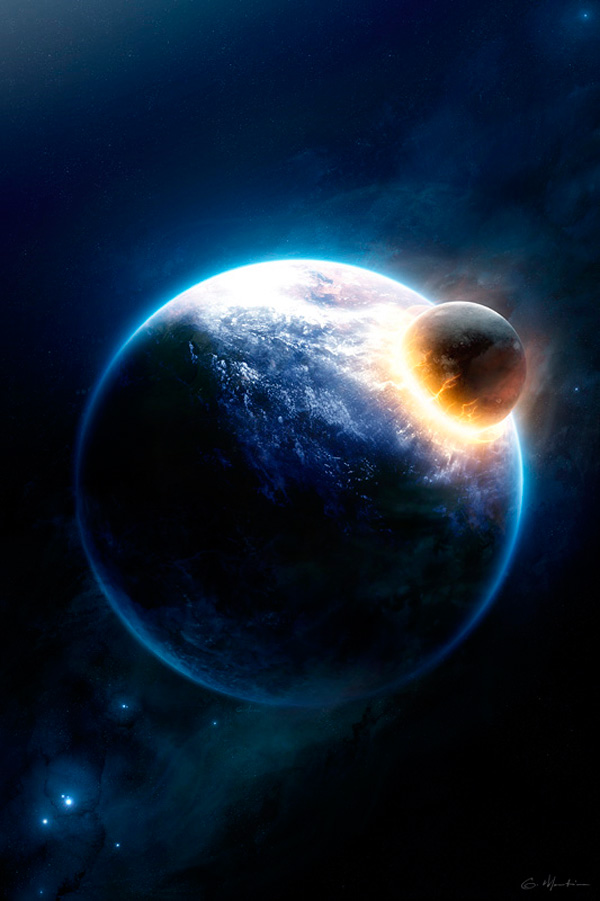
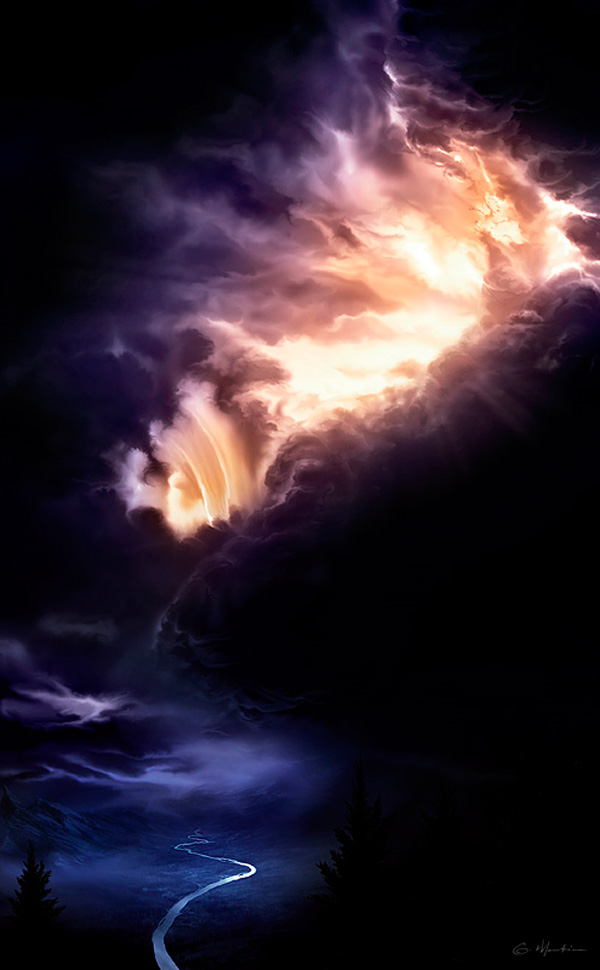
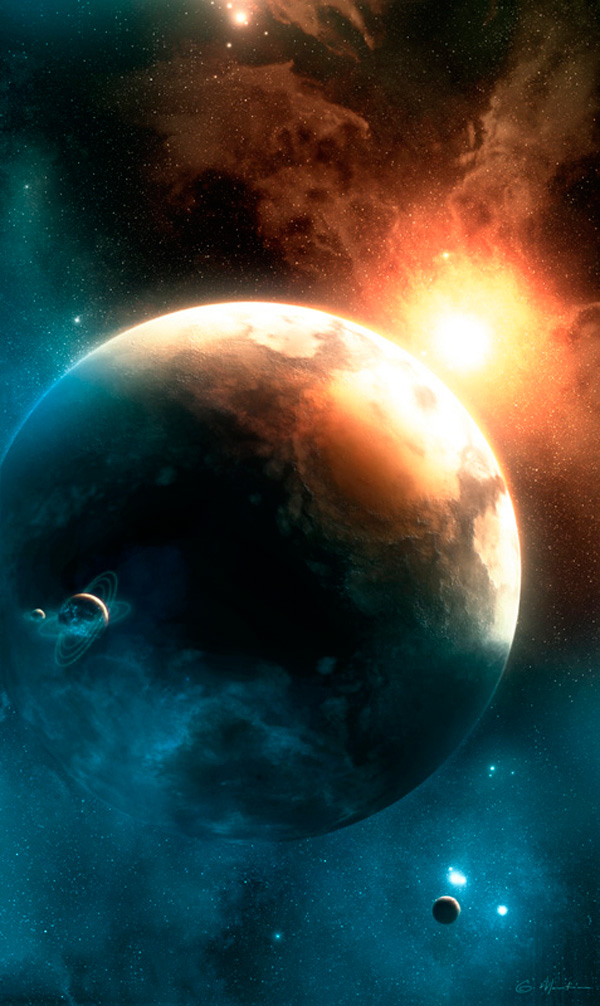
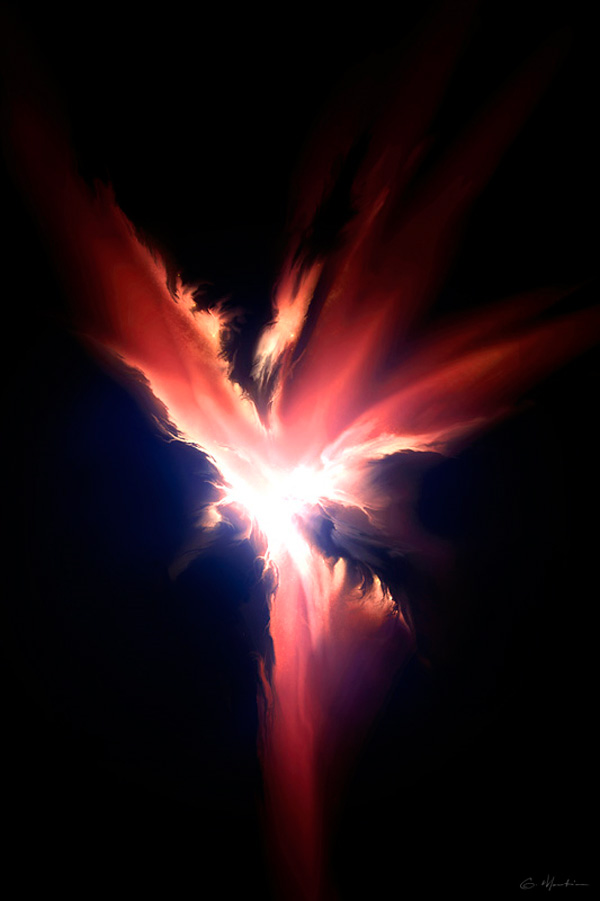
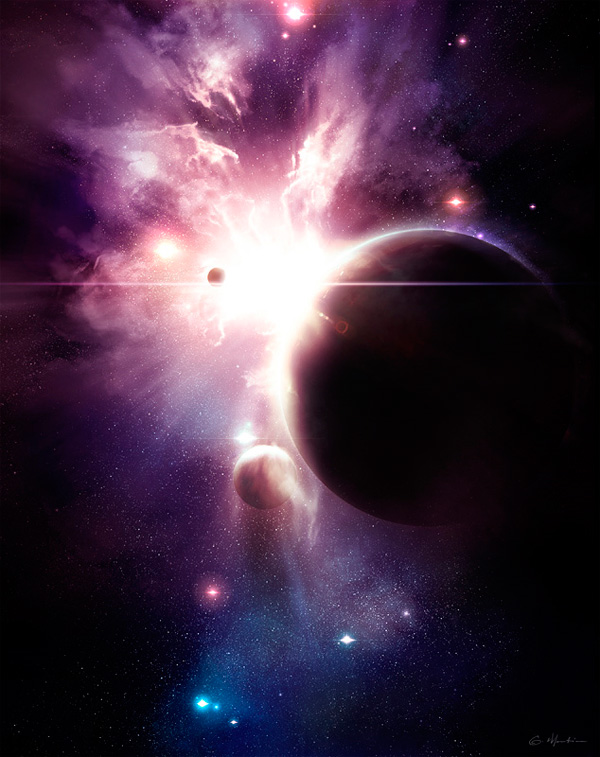
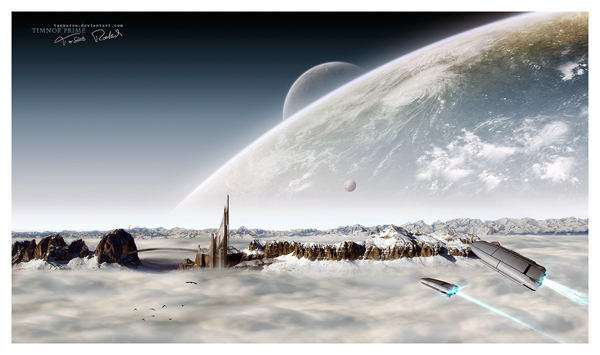
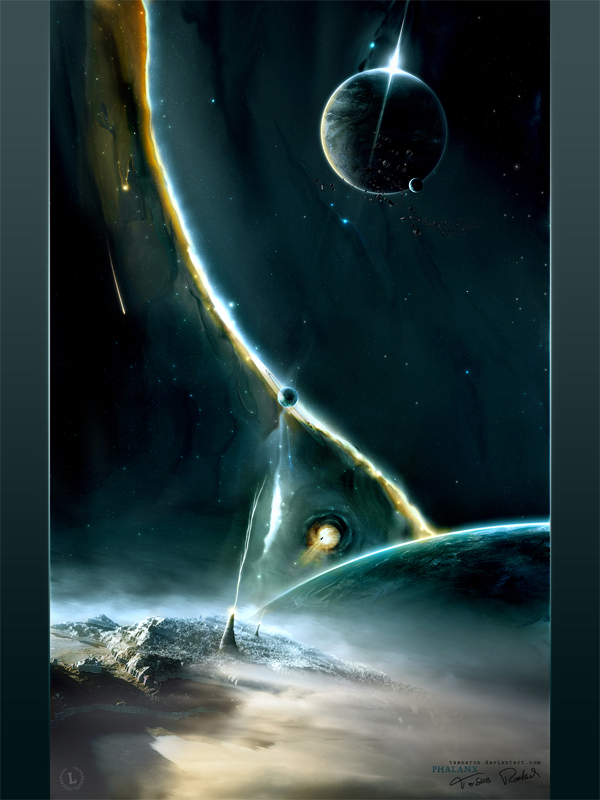
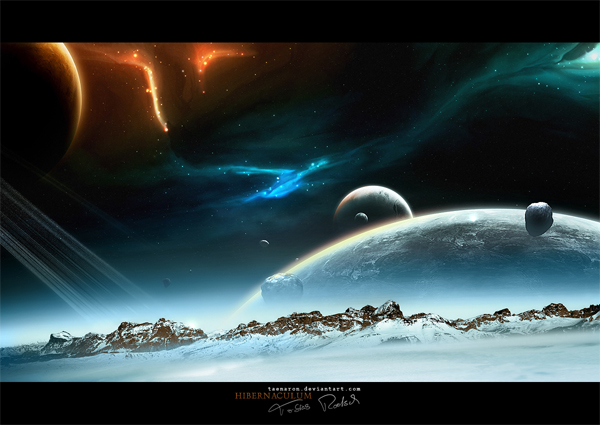
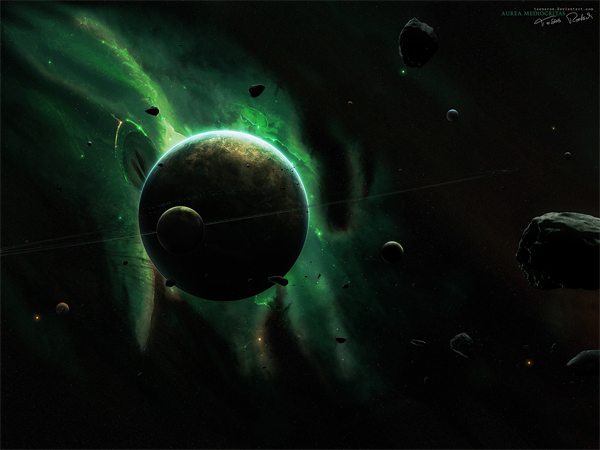
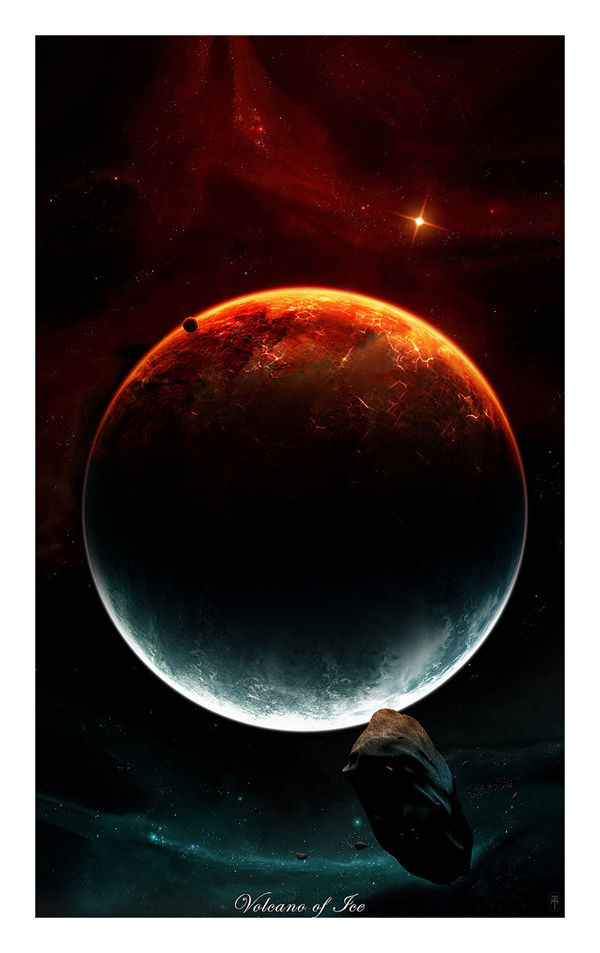
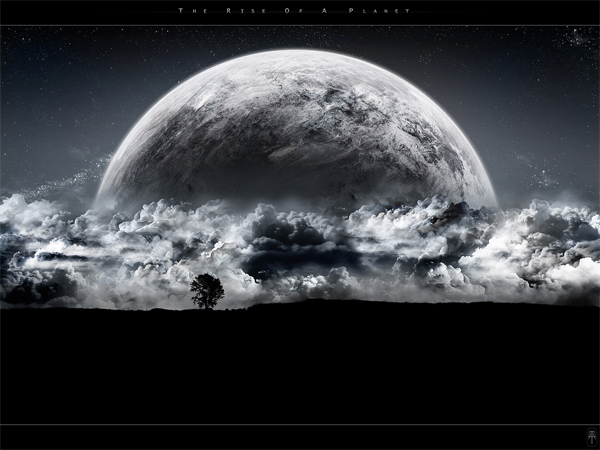
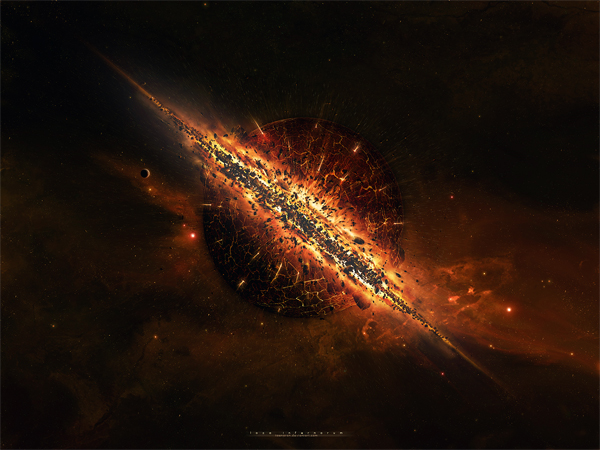
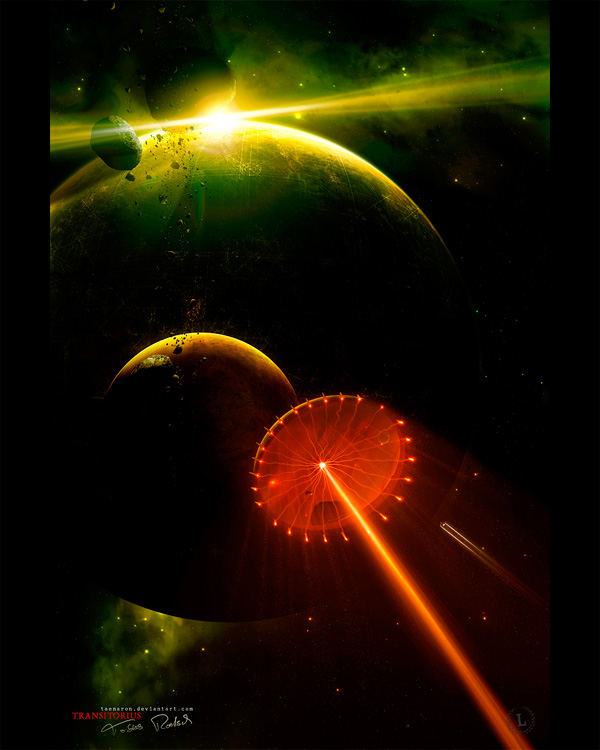
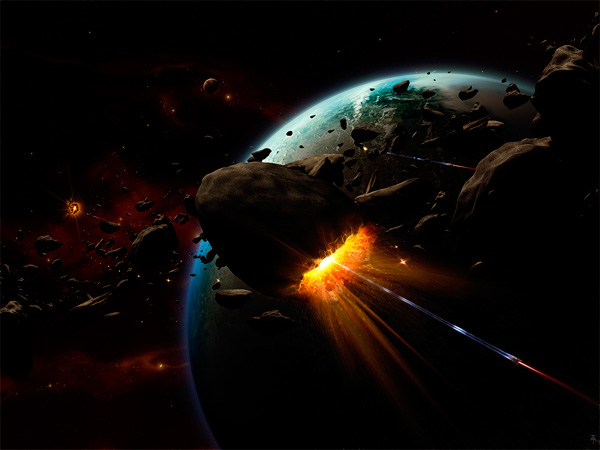
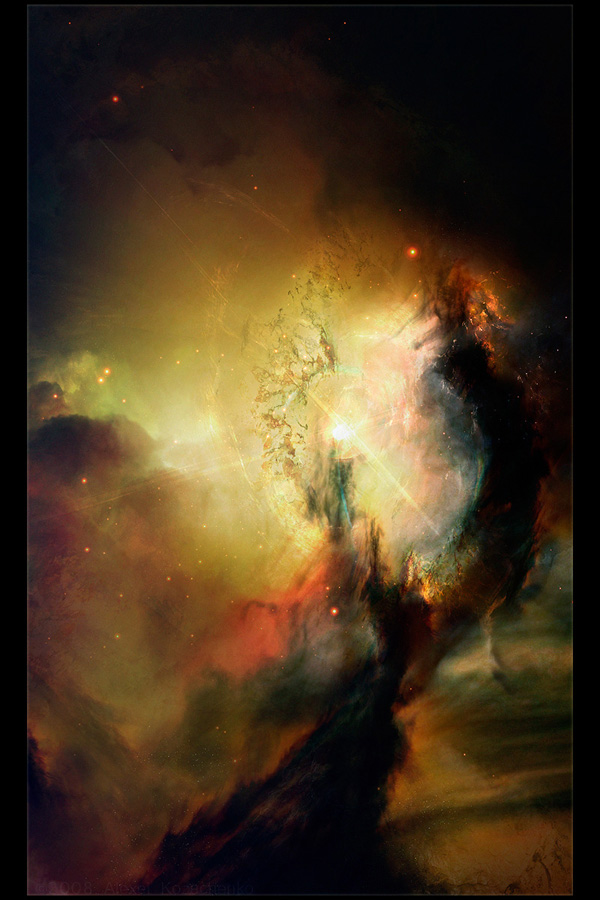
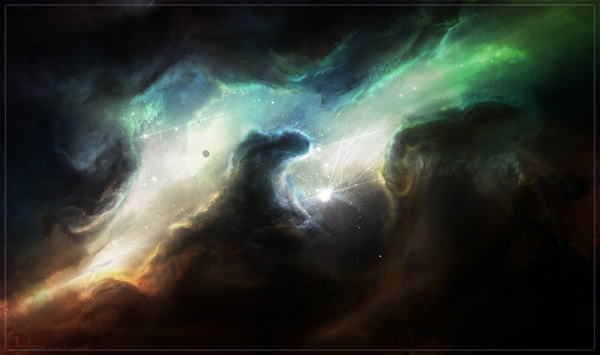
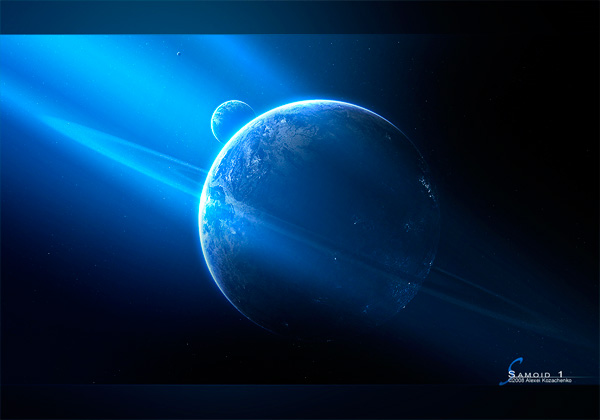
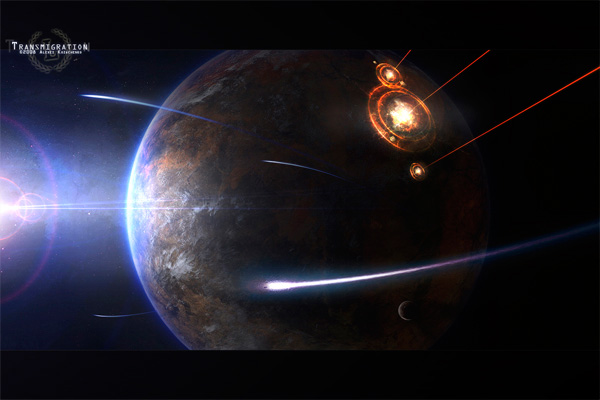
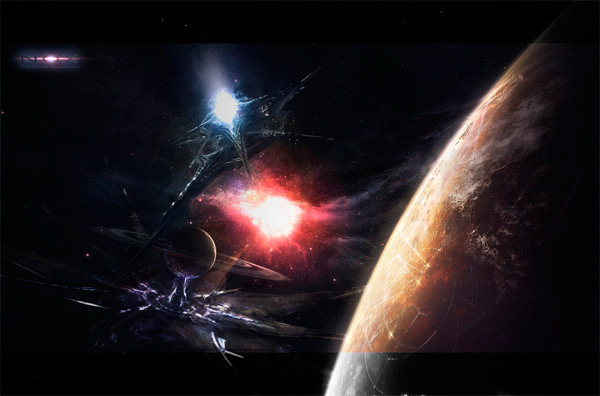
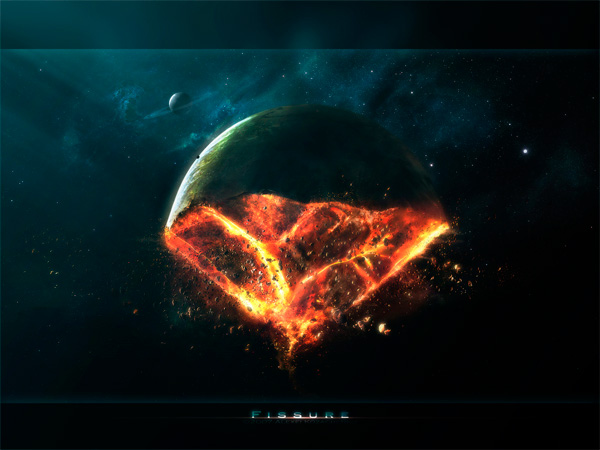
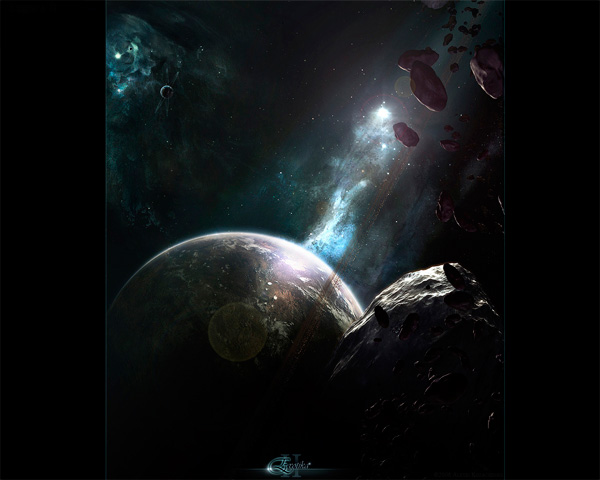
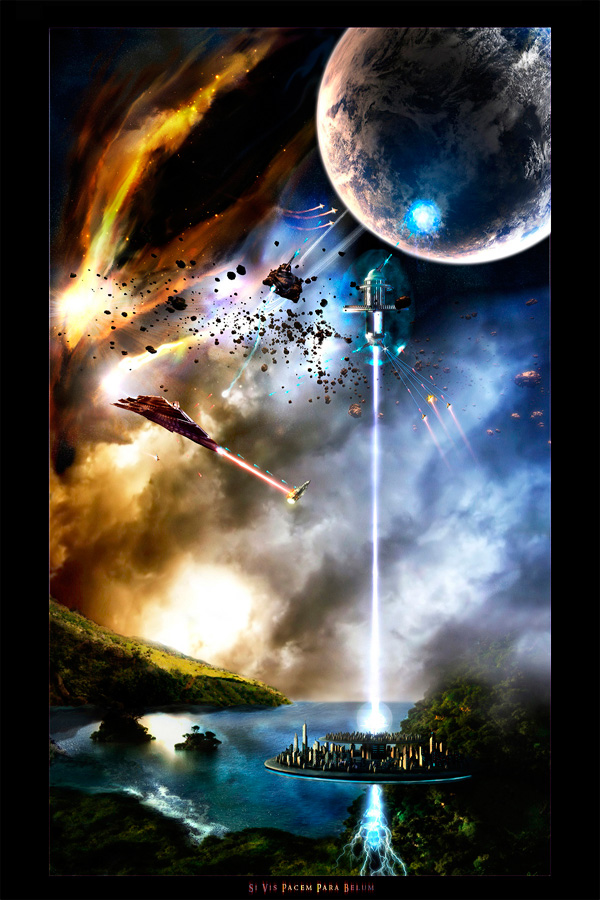
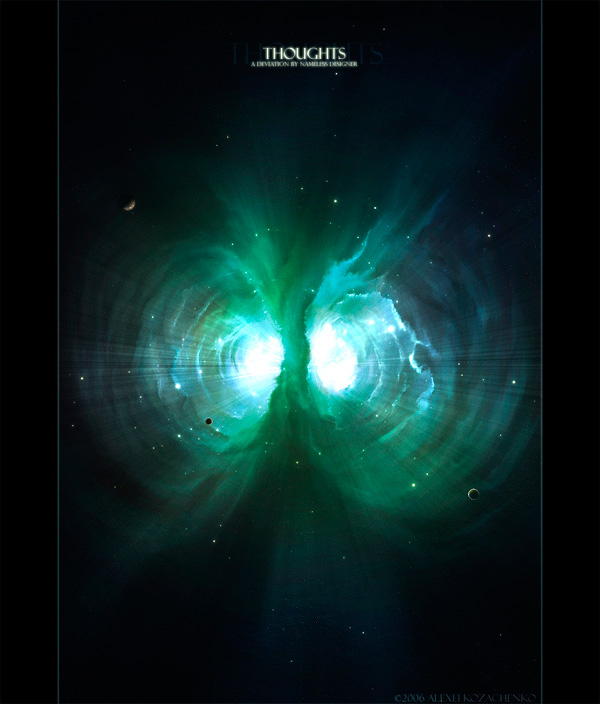
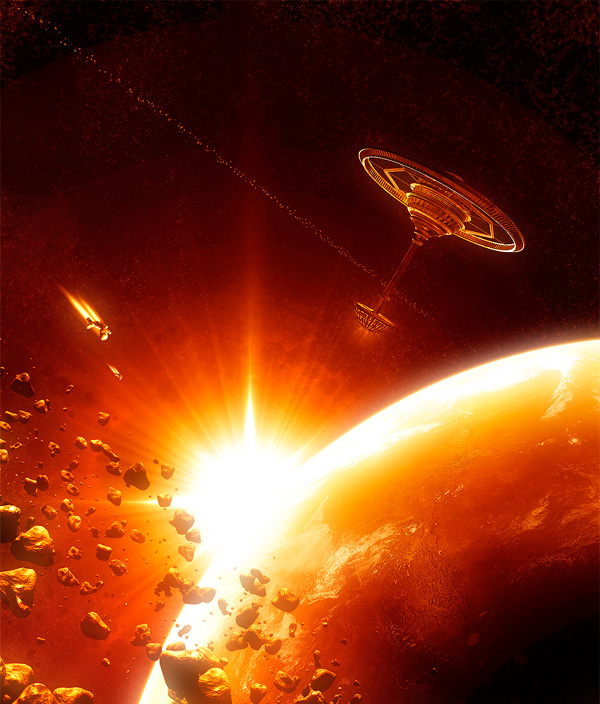
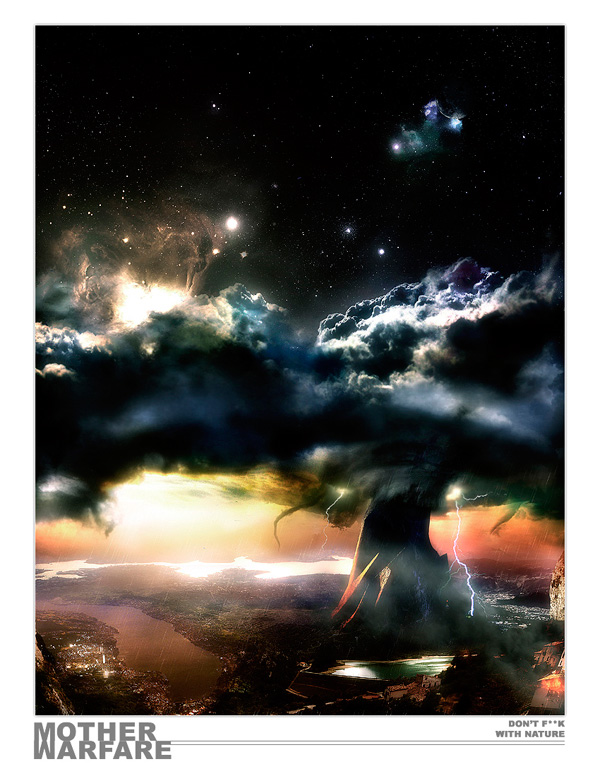
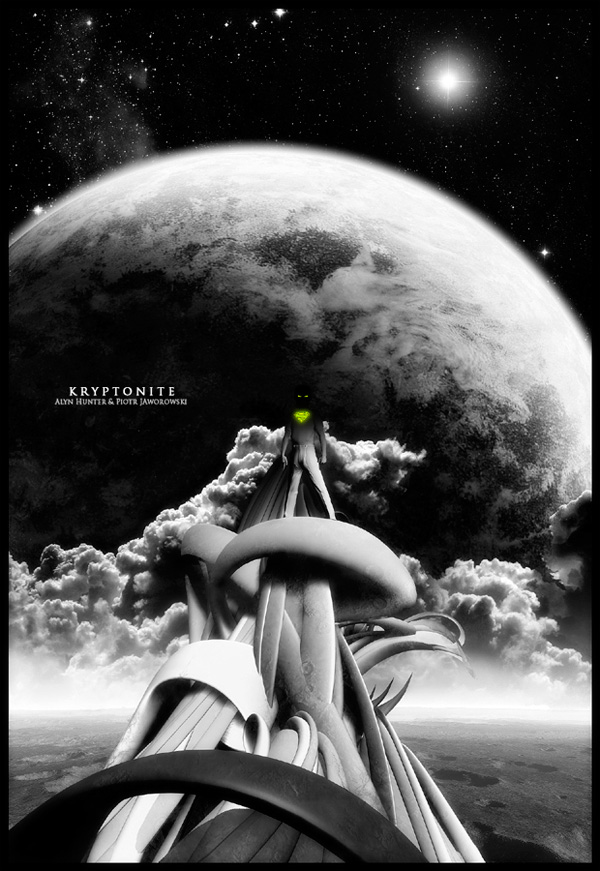
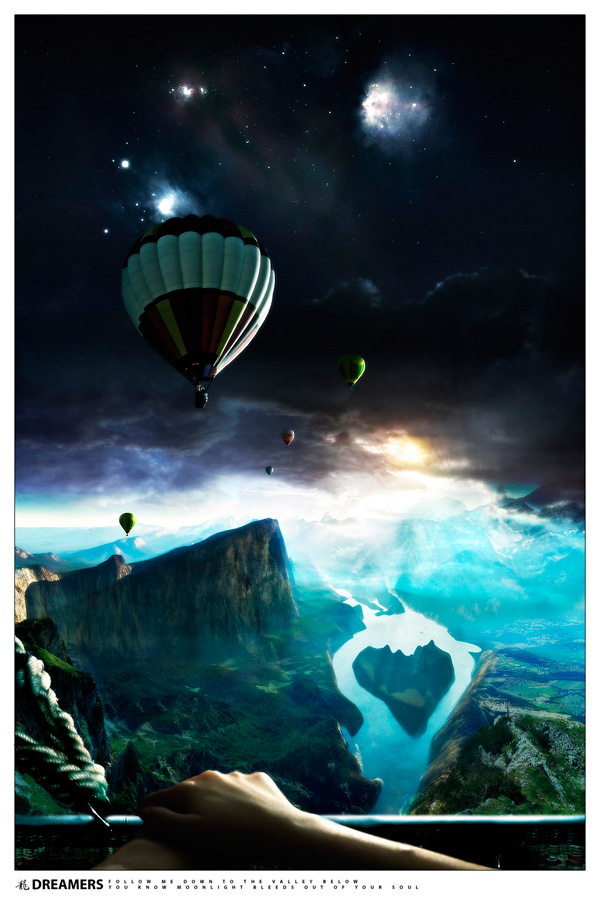
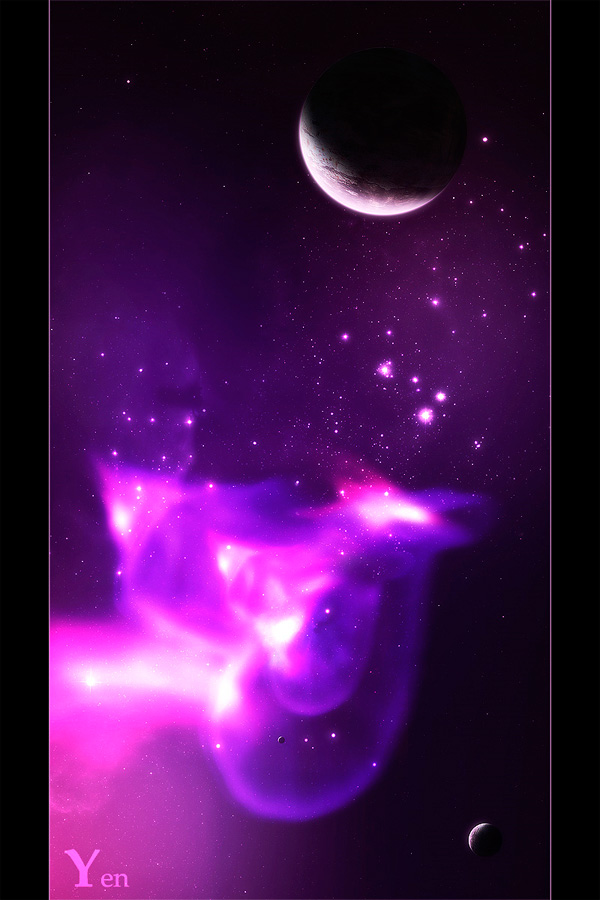
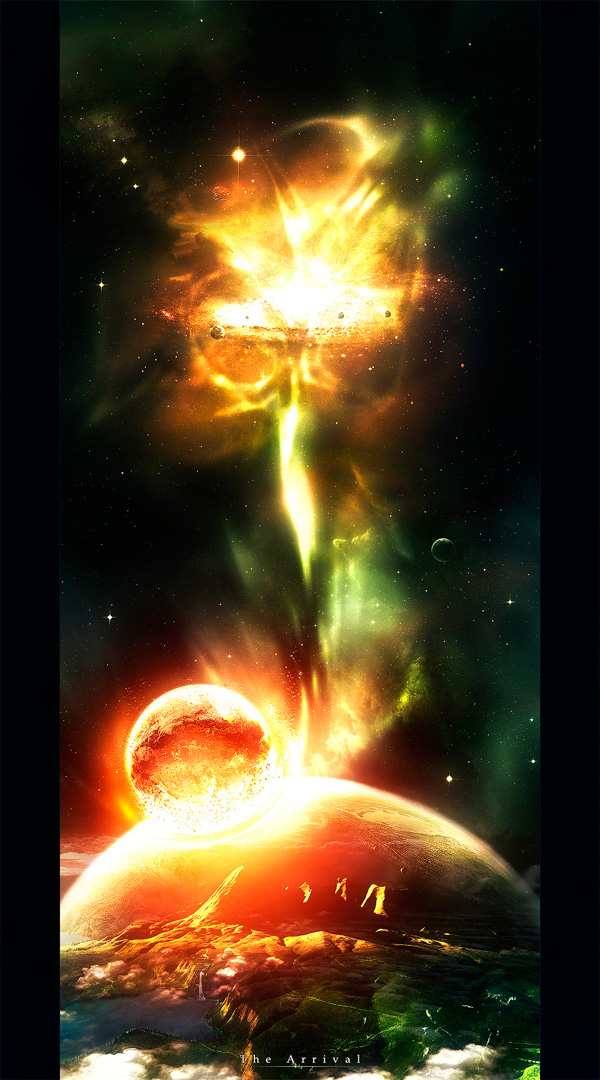
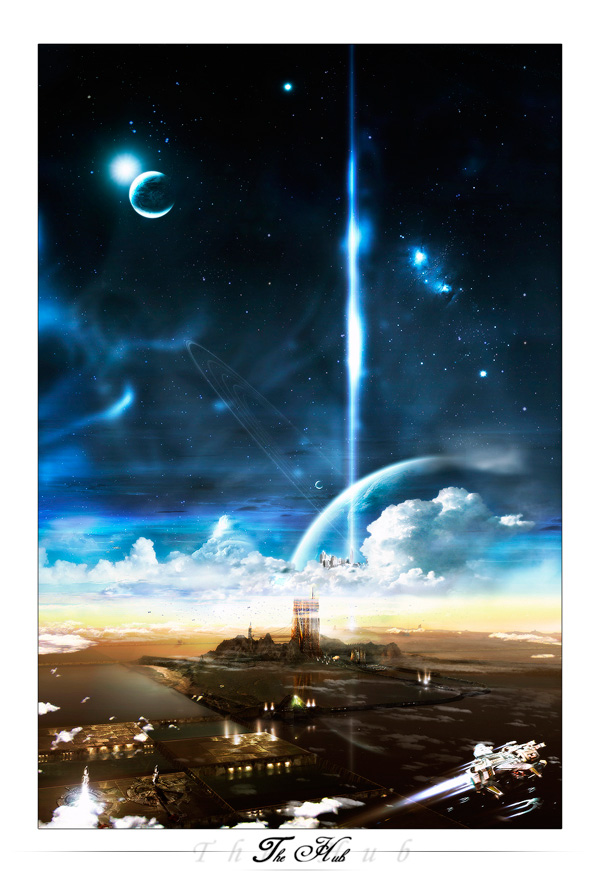
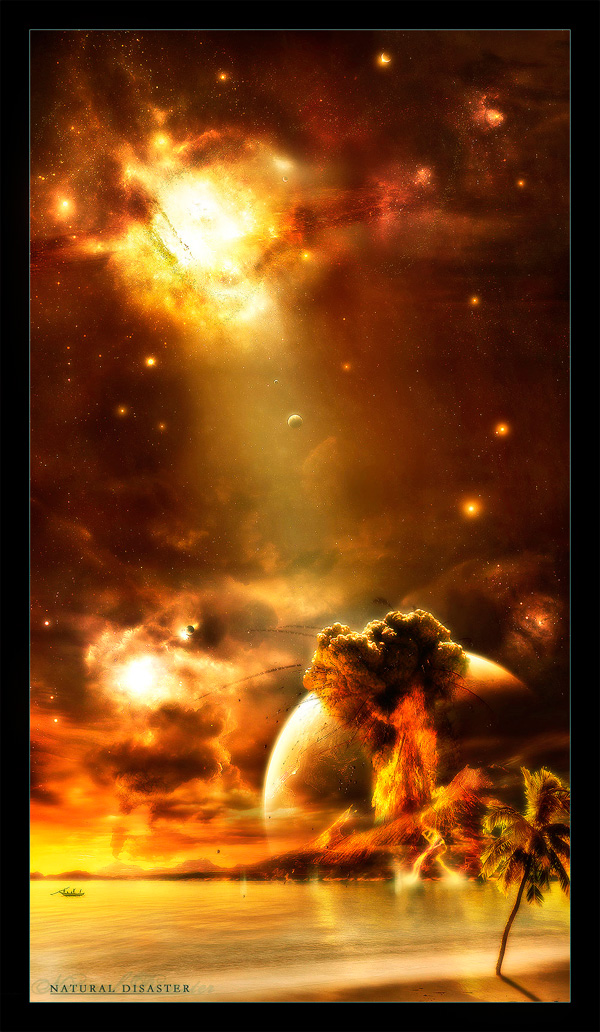
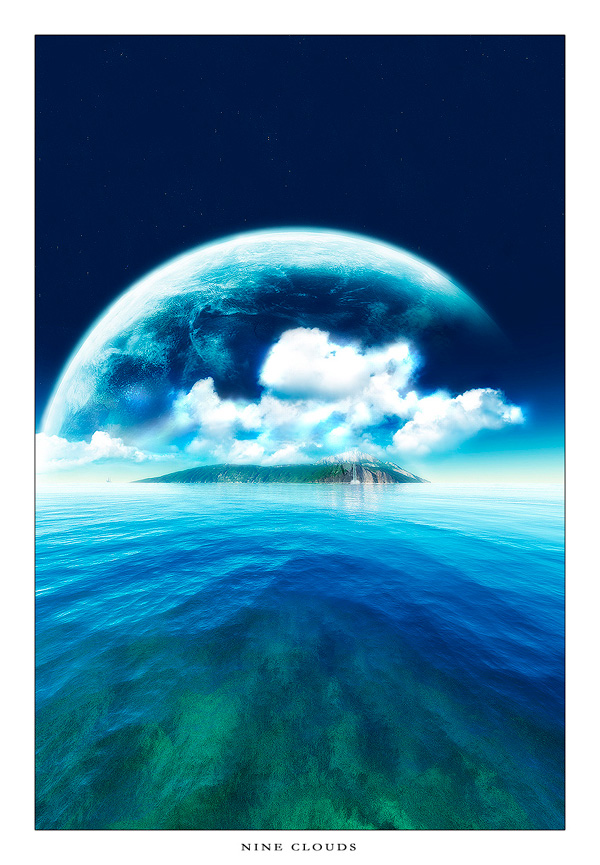
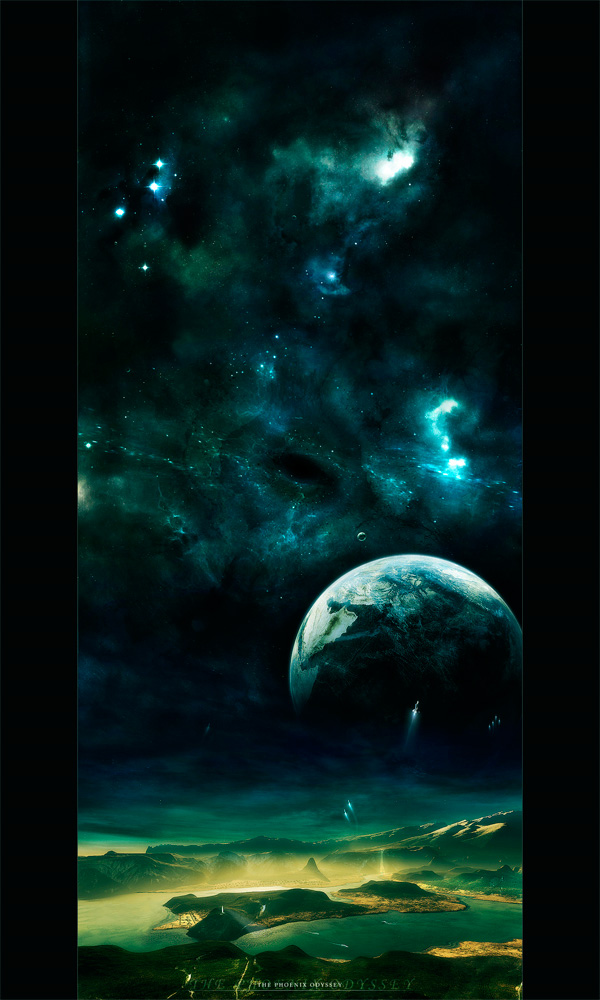
Some of the world’s most stunning visions of space are made possible with Photoshop. The ability to combine vibrant colors, photo manipulations and ethereal effects makes the software ideal for this kind of work. Here are 40 incredible visions of space from four extremely talented Photoshop artists.

Editor’s note: This article was originally posted on Psdtuts in January of 2009


Greg Martin

Greg Martin has been fascinated with sharing his outlook on life through his art since he was a child. He started out as most young artists do, drawing and painting. Later on, he moved into visual design. Today, Greg works on a variety of projects including concept art for movies, illustrations, and other design projects.


Tobias Roetsch

Tobais is another extremely impressive young artist. He is 21 and lives in Germany. He manages to do quite well selling his space art on his own website as well as the DA Prints store. Something unique about Tobais and his work is that he uses a lot of his own photography in his space art.


Alexei Kozachenko

Mr. Alexei Kozachenko is a young designer I came across on Deviant Art. Alexei Kozachenko is a young designer in his early 20s and currently lives in Switzerland. He started learning design in 2005 and used the Deviant Art community to learn more about his art and perfect his skills.


Just Alyn

Alyn is a spirited young designer, 19 years young. This creative and humorous artist has the ability to create a variety of landscapes and images that are, well, out of this world. He also uses Deviant Art on a regular basis to partner up with other artist and collaborate on projects to share with the community.


Tutorials

You might also want to take a look at a few of these tutorials.

Let’s Change the Background, Shall We?

$
0
0

Advertise here

Are you new to Photoshop? Have you been trying to teach yourself the basics of Photoshop but have found the amount of educational material available on the net a bit overwhelming? As the world’s #1 Photoshop site, we’ve published a lot of tutorials. So many, in fact, that we understand how overwhelming our site may be to those of you who may be brand new to Photoshop. This tutorial is part of a 25-part video series demonstrating everything you will need to know to start working in Photoshop.

Photoshop Basix, by Adobe Certified Expert and Instructor, Martin Perhiniak includes 25 short video tutorials, around 5 – 10 minutes in length that will teach you all the fundamentals of working with Photoshop. Today’s tutorial, Part 22: Let’s Change the Background, Shall We? will explain color range and refining the selection in a Layer mask. Let’s get started!


Create a Majestic Script in Photoshop – Psd Premium Tutorial

$
0
0

Advertise here

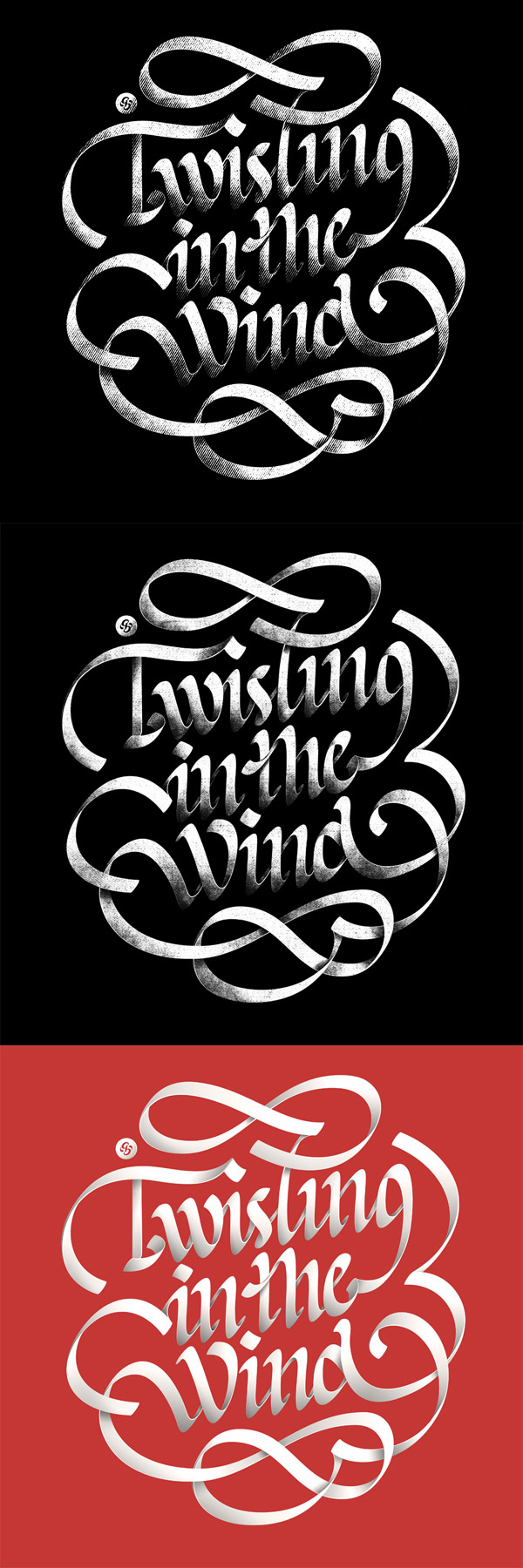
Custom typography can be a lot of fun to create. In this Psd Premium tutorial, author Alex Beltechi will demonstrate how to create a custom script in Photoshop in three different styles based on the same lettering layout. The result will be a clean, grungy, and distressed text effect. This tutorial is available exclusively to Premium Members. If you are looking to take your typography skills to the next level then Log in or Join Now to get started!


Professional and Detailed Instructions Inside

Premium members can Log in and Download! Otherwise, Join Now! Below are some sample images from this tutorial.


Final Image


Psd Premium Membership

You can join Psd Premium for as little as $9/month. Premium membership gives you access to the source files for all our tutorials as well as access to premium tutorials like this one. This also includes the rest of the sites in our network including Vectortuts+, Webdesigntuts+, Phototuts+, Nettuts, and more! Premium Members can Log In and download this tutorial. Otherwise you can Join Today!


Create a Self-Portrait Caricature Illustration in Photoshop

$
0
0

Advertise here

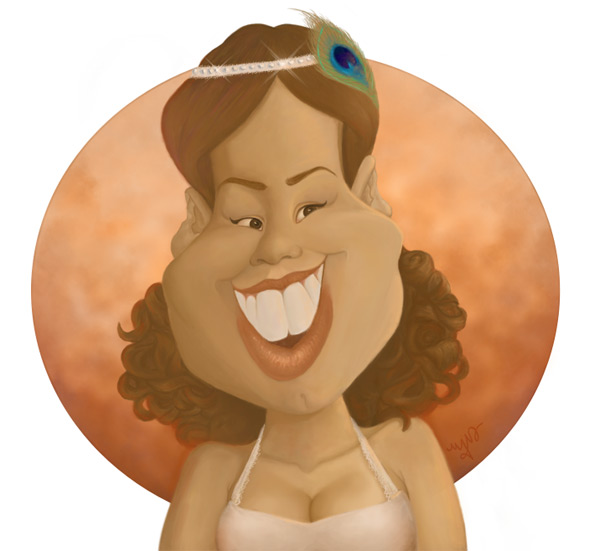
Revamping scrapped artwork is a great way to improve the skills of any artist. It is a great measure of your improvement and changes in style over time. Back in 2007, I had a caricature drawn of me at an event, which I later used to practice vector styles in Photoshop. Fast forward some years, and I’ve recreated that old artwork with improved skills as a digital painter. This tutorial will show you how I transformed that old vector illustration into a true digital painting. Let’s get started!


Tutorial Assets

The following assets were used during the production of this tutorial.


Step 1

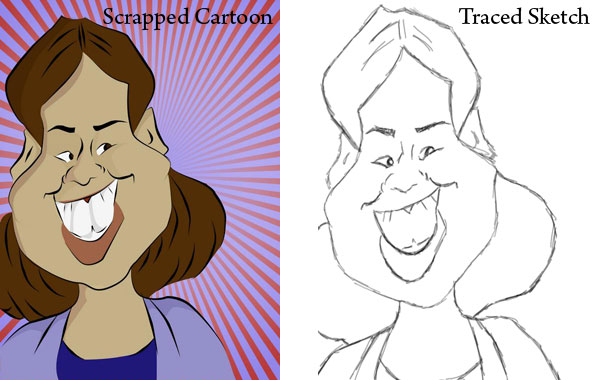
Cut and paste a previously scrapped cartoon into a 1800 x 1650 document at 150 dpi with a white background. Use Free Transform while holding down Shift to make sizing adjustments, then center the image. Trace that image using a high opacity, soft, black brush.


Step 2

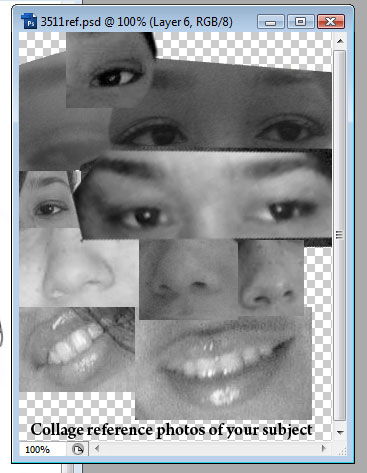
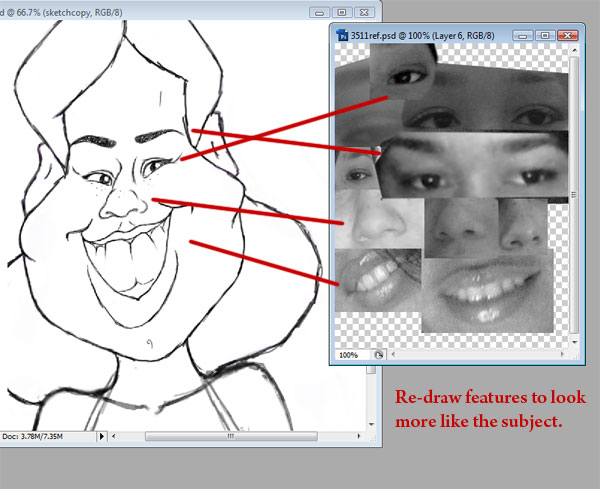
Since this cartoon is based on an actual person, quickly collage several photos together of your subject for reference. This reference will help when modifying the trace to look more like the subject. By keeping the reference black and white you can concentrate on just the characteristics of those features. And later on when figuring out how light should fall on the face, you can always reference the collage again.


Step 3

Modify your original sketch by using your tablet to redraw features to look more like the subject. In this case, I paid attention to the eyes, nose, and mouth to achieve this effect. Don’t worry just yet about making the cartoon more anatomically correct, you can save that for the painting later.


Step 4

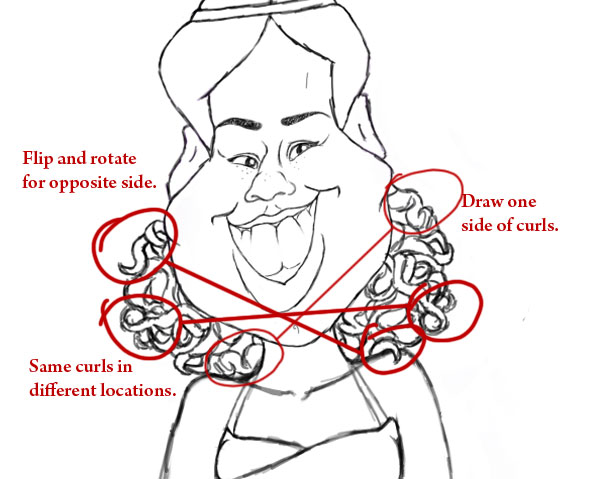
For sketching curly hair, draw the curls so that they interact with each other, looping with one another and bunching together. For a quick cheat, draw only one side of the curls and use the Lasso tool to copy and paste a new layer of curls for the opposite side. Flip and rotate the curls so that the copy isn’t too obvious, though any similarities will be covered up during the painting process.


Step 5

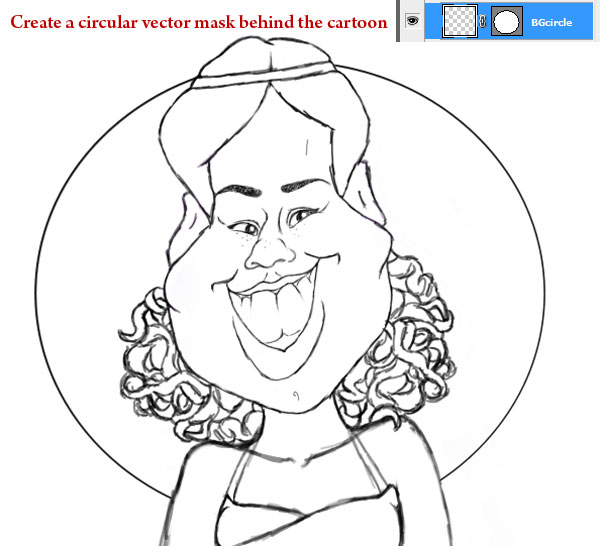
Add a new layer. Using the Elliptical Tool, create a large circle behind the cartoon with a stroke of 7 pixels. With the Pen Tool selected, right-click to create a Vector Mask. This circle will enclose the background scenery for the painting. You can leave the extra details for any of these additions until we start painting the image.


Step 6

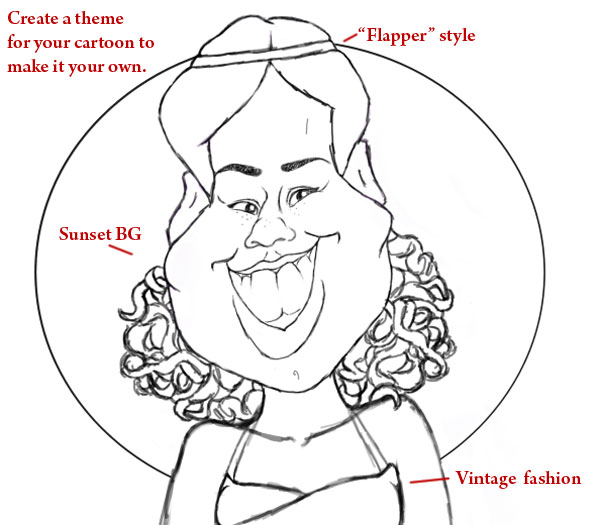
You can create a theme around your cartoon as I did. Since the original caricature artist drew me from their point of view, this where I can add a little flair to make it my own. I love vintage lifestyle and fashion, so I incorporated it into the drawing by adding a flapper style headband and halter top.


Step 7

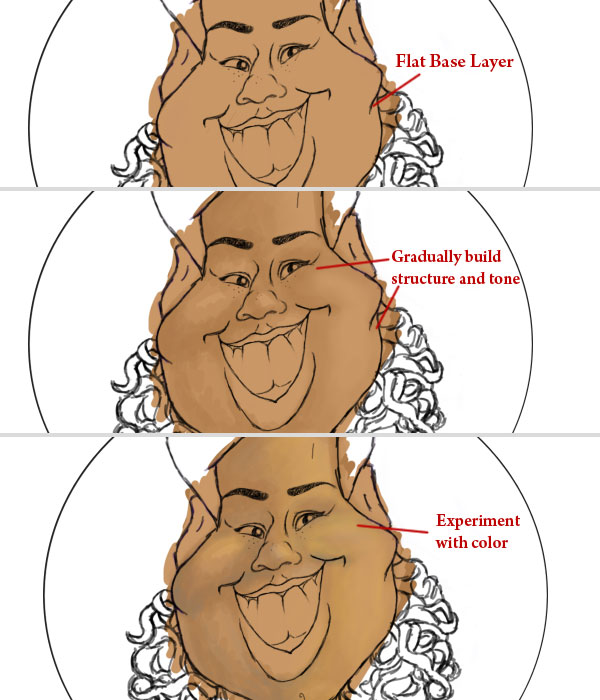
I always start off with a base layer of solid color for my paintings. Add a new layer underneath the trace layer, taking a soft brush at full opacity to fill the cartoon with color. Add another new layer above the base, and use this layer to add more shape and definition to the cartoon while experimenting with color. Originally inspired by the warm, romantic colors of sunsets for the background, I wanted to keep this color scheme consistent with the rest of the painting.


Step 8

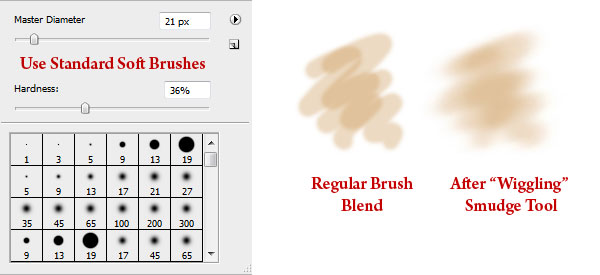
I use mostly the standard round soft brushes at medium to low opacity to paint the character. For a smoother look, take the Smudge Tool at 50% strength and wiggle it over an area to blend the colors softly together.


Step 9

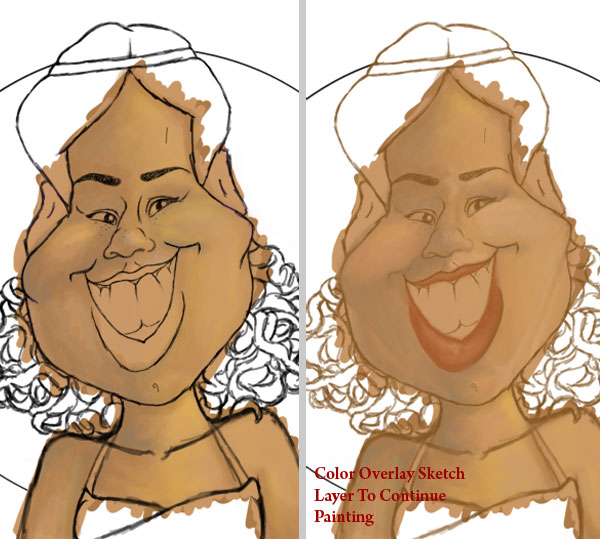
Strive to become a conscious artist so that you can mold your artistic approach to what works. This is where we’ll learn from my earlier mistakes and solutions. In this case, I realized that painting with a black sketch was distracting my eyes from building the shape of the cartoon. Using Layer Styles, set a Color Overlay to the sketch to reflect the color scheme. The sketch is only the initial guide to paint from and will be covered with color eventually, so don’t stress over minimal adjustments like this.


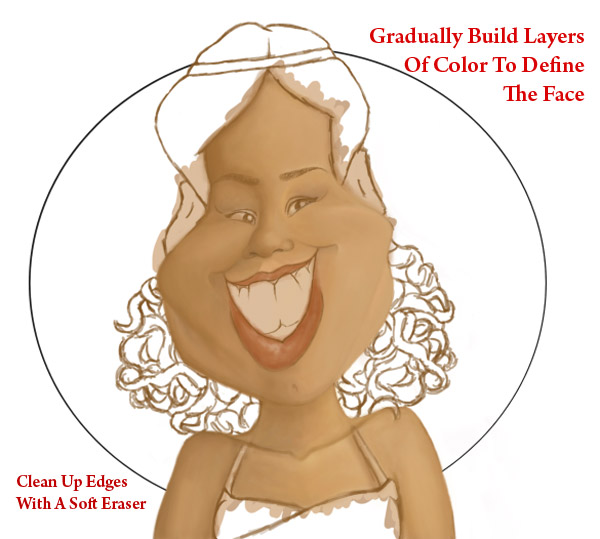
Step 10

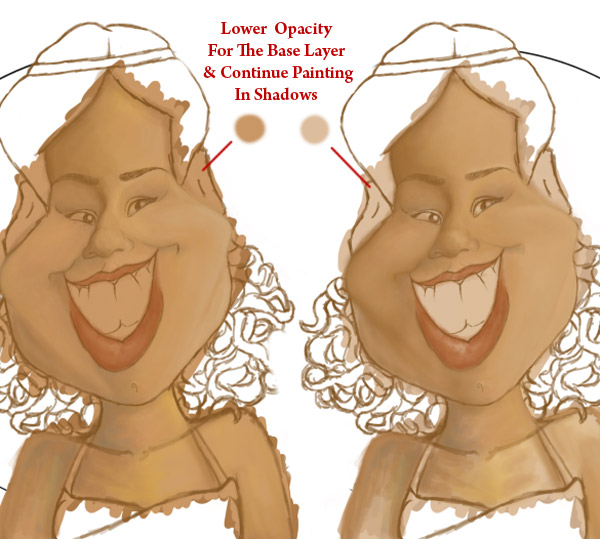
If there is ever a point where your painting begins to look scary, stop and walk away. Most of my painting time is spent looking at it thoroughly to understand what will make it work. If you’re still having problems, allowing another artist to see it with fresh eyes may reveal a solution. In this step I realized that the base color was showing through so intensely, that the color seemed too unnatural for skin tone. Select the Base Layer, and bring down the Opacity to 30%. Immediately the painting improved, and now I understand to build skin tone with less saturated colors in the future.


Step 11

Continue defining the rest of the face and bust. I spend most my time focusing on different tones and shadows of the character, waiting until the very end to add highlights. For “fleshier” areas of the female anatomy, refer to traditional techniques of how light falls upon round objects.


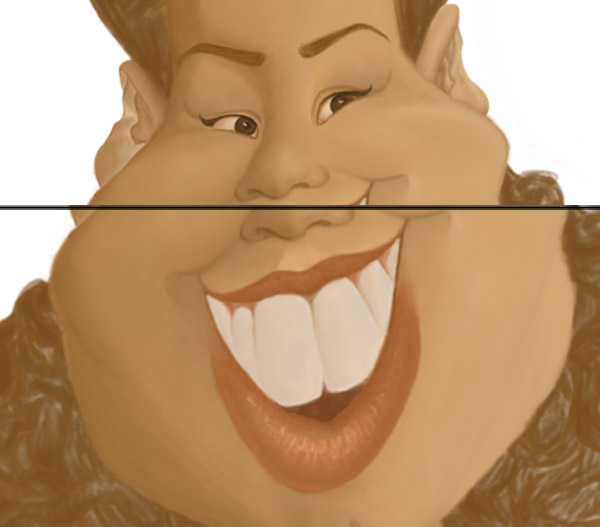
Step 12

Move onto the other features of your cartoon such as the eyes, mouth, ears, and hair. Pick a hard, standard round brush for the lips in order to add texture. Nothing on our body, at least from our outward appearance is ever a true white, so keep this in mind when painting the eyes and teeth. Fill in the hair with enough color so that we may quickly move onto the background.


Step 13

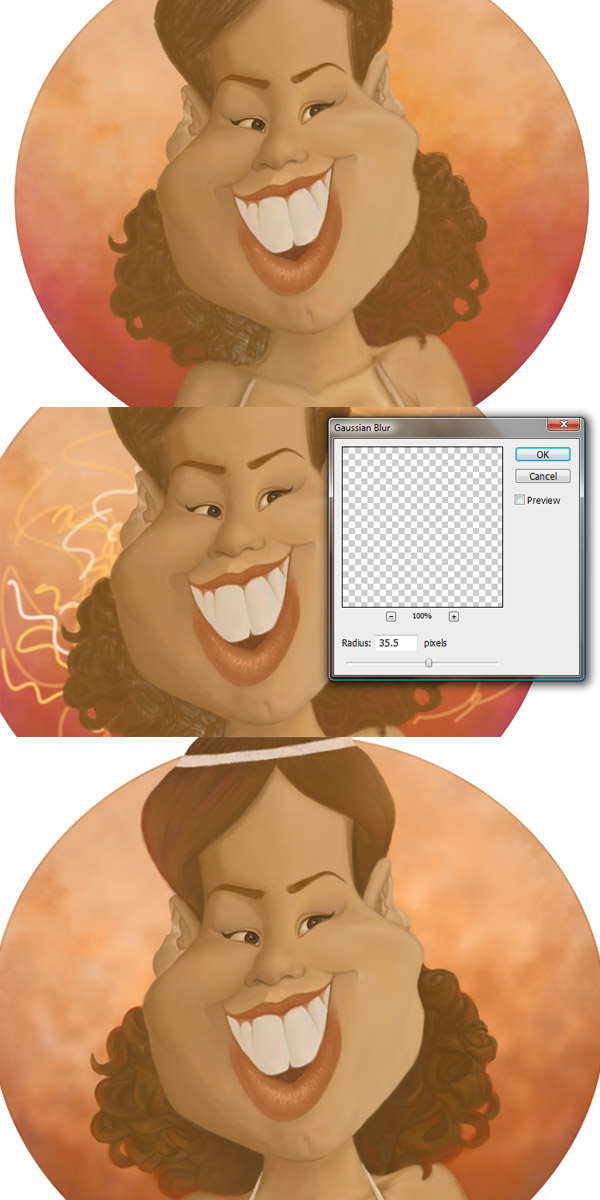
As mentioned previously, I was inspired by sunsets for the circular background. Use a large grunge brush to paint warm hues for a textured sunset effect. On a new layer, take a small round brush and draw squiggles of varying opacity. Add a Gaussian Blur of 35.5 pixels for a subtle glowing effect. Using Layer Styles, add a #e4af88 Color Overlay to the background and set it to Hue.


Step 14

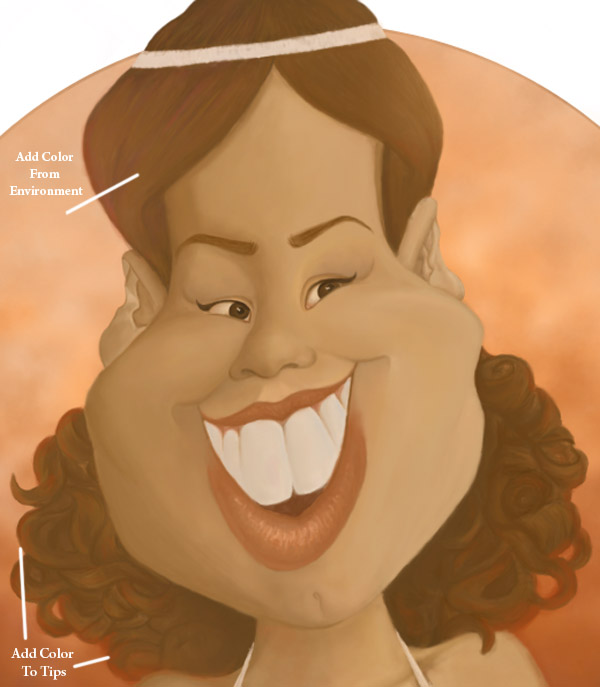
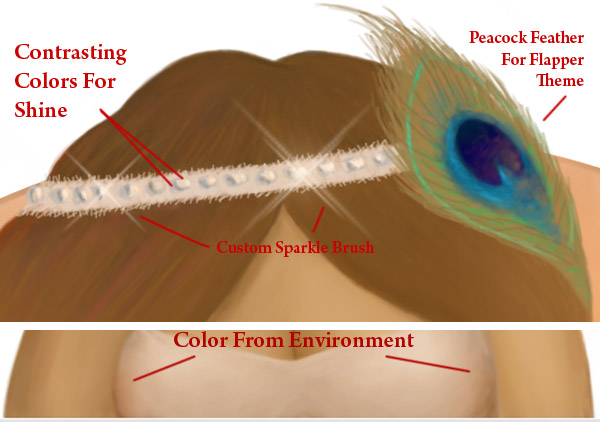
Though painting in many layers helps with experimentation, you may merge those layers at any time to help with file size or slow computers. As we draw close to the finish, the only layers which dont have to be merged yet are the background, character, and clothing layers. Continue defining the cartoon’s hair. Our bodies pick up color from our environment, so keep this in mind by adding touches of warm color to the hair. You can even paint a subtle glow to the tips using a vibrant color to make the hair more dynamic.


Step 15

Next we’ll move onto the clothing and accessories. Just like the hair, the halter top and headband should be affected in color by their environment. You can add a shiny element like the appearance of rhinestones by painting contrasting colors side by side. Use a custom brush to add sparkle to those rhinestones.
To stay in theme, the peacock feather was an additional touch to pay homage to vintage flapper fashion.


Step 16

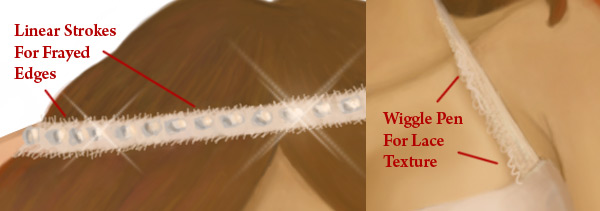
You can add further details to the cartoon’s top and headband by painting material-like texture. Simply wiggling your pen stylus creates the appearance of lace, while adding strokes of texture to the headband creates the appearance of frayed edges.


Step 17

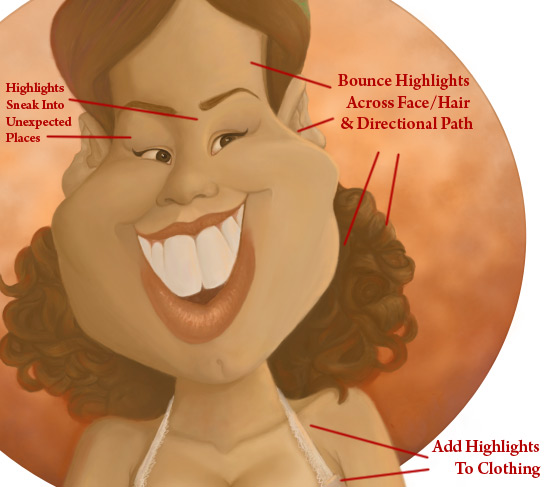
Create a new layer for the highlights. The facial structure of the cartoon should be a clue to how the highlights fall upon the face. Use a bright peach color instead of white to reflect the sunset inspired color scheme. Place highlights on areas of the skin which poke out like the nose and cheeks, as well as areas in its directional path. Highlights often make their way into unpredictable places like edges of clothing, so feel free to experiment until you find what works.


Conclusion

Add your signature to your digital masterpiece. Merge all the layers together and you have just finished revamping an old cartoon!

Matte Painting 101: Basic Destruction Techniques

$
0
0

Advertise here

Matte painting is a technique that filmmakers use to create backgrounds for scenes that can’t or don’t exist in real life. In the early days, matte paintings were actually painted onto glass. Today, modern filmmakers use digital applications such as Photoshop to produce the backdrops that they need. We have published many matte painting tutorials on this site meant for intermediate and advanced users. This tutorial is part of a series of tutorials that we will be publishing on this meant for those of you who may be relatively new to Photoshop or matte painting in general.

Today’s tutorial, Matte Painting 101: Basic Destruction Techniques will teach you how to created a flooded city and destroy buildings and structures. This tutorial will focus on the destruction of New York, which seems to be a favorite amongst filmmakers. Let’s get started!


Tutorial Assets

The following assets were used during the production of this tutorial.


Presentation: Working With Adobe Photoshop Lightroom 3

$
0
0

Advertise here

If you are a photographer or some one who works with photos quite a bit, chances are you’ve heard of Lightroom. Lightroom is an app that allows you to edit and organize your photos. While it can perform many of the same tasks as Photoshop, it is an independent app designed specifically with photographers in mind.

Each month, we try to bring you a design-related presentation or speech from around the web. Today, our friend and Adobe Design Master, Martin Perhiniak led a seminar organized by Academy Class, the leading training company in the UK as part of their Digital Photography Club. Please take a moment to review Martin’s excellent presentation if you’re interested in learning more about Lightroom 3. To learn more from Martin, check out the Photoshop Basix Series he did for Psdtuts or his personal blog Yes I’m a Designer.


The model’s portfolio whose photos the presenter used in this seminar can be found here.

Mockup Blister Packaging in Photoshop

$
0
0

Advertise here

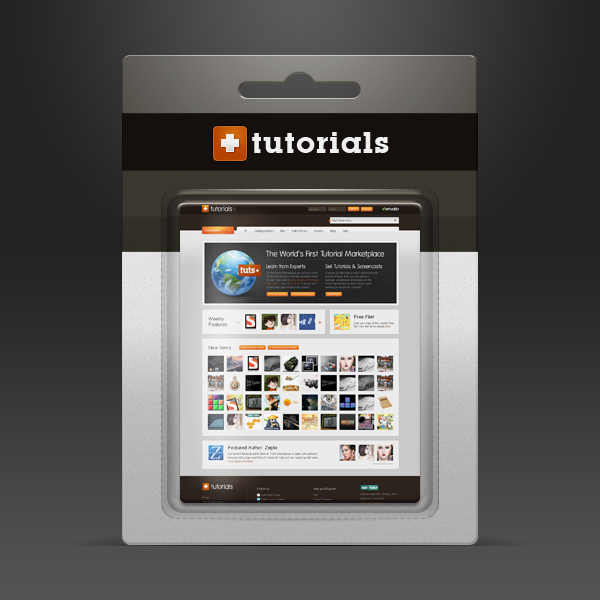
Designers and clients often have different ideas about how a finished product should be presented. Designers want to show the finished artwork, clients want to know exactly how their design will look on the shelves. In this tutorial, we will demonstrate how to create a mockup for some blister packaging so that you can present your design to your clients. Let’s get started!


Tutorial Assets

The following assets were used during the production of this tutorial.


Before You Begin

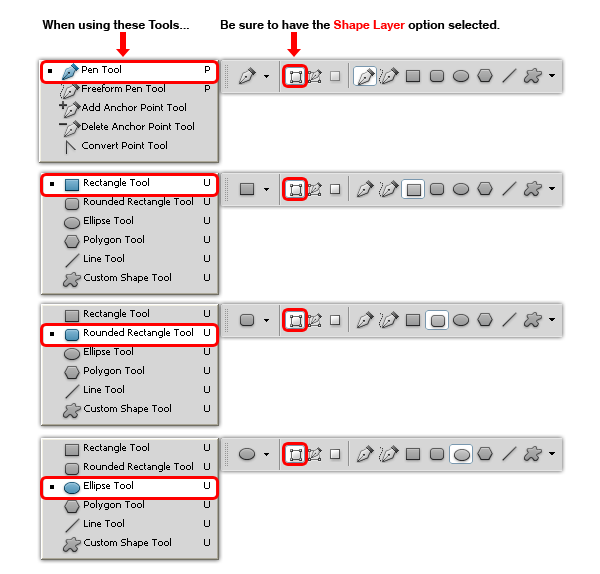
In order to make the file scalable and easy to edit, we will work always with shape layers, so please be sure to select the Shape Layer option in every single shape we make, doesn´t matter if is a circle, rectangle or even the Pen Tool (P) always have it selected from the tool menu.


Document Set-Up

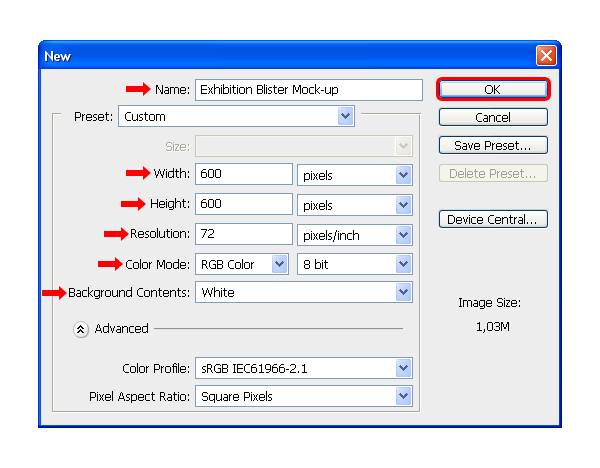
Start with a RGB Document with a 600 x 600 px canvas size at 72dpi, with the Background Contents set to White and name the file as Exhibition Blister Mock-up.


Step 1 – Setting up the Background.

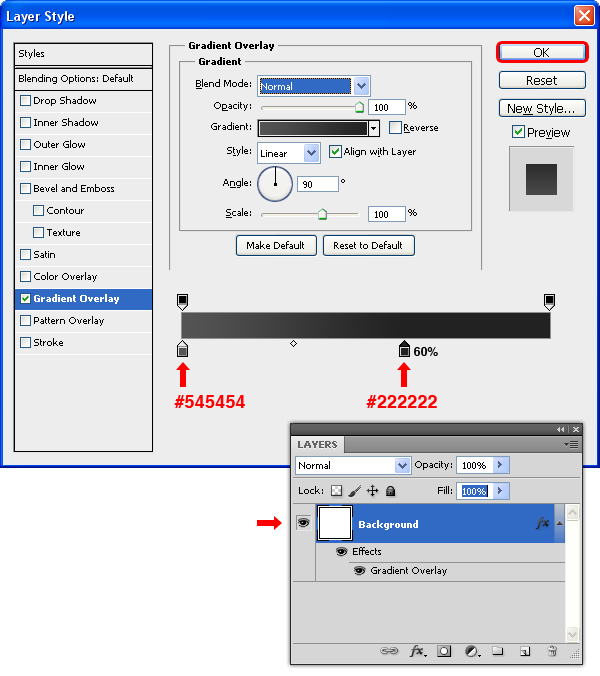
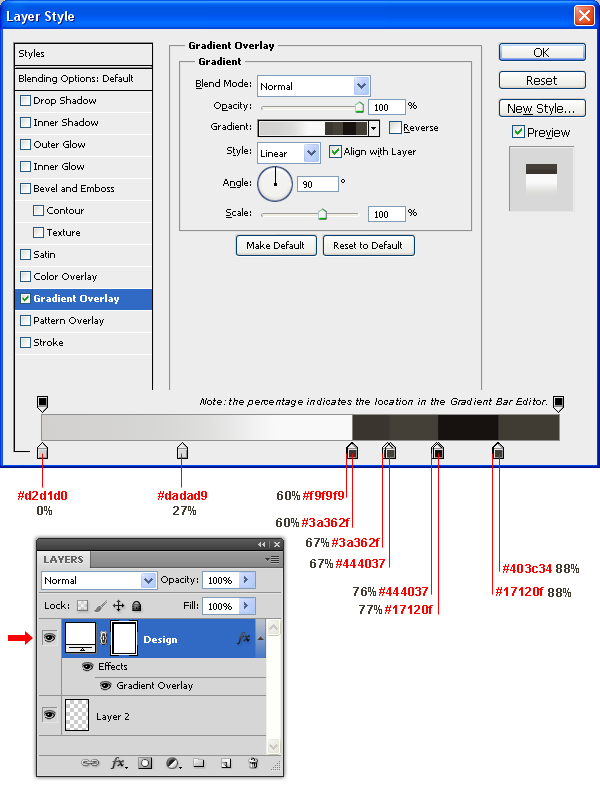
Double-click the Background layer in the Layers window to make it editable and set the name as "Background". Go to Layer > Layer Styles > Blending Options and aplly a Gradient Overlay as shown.

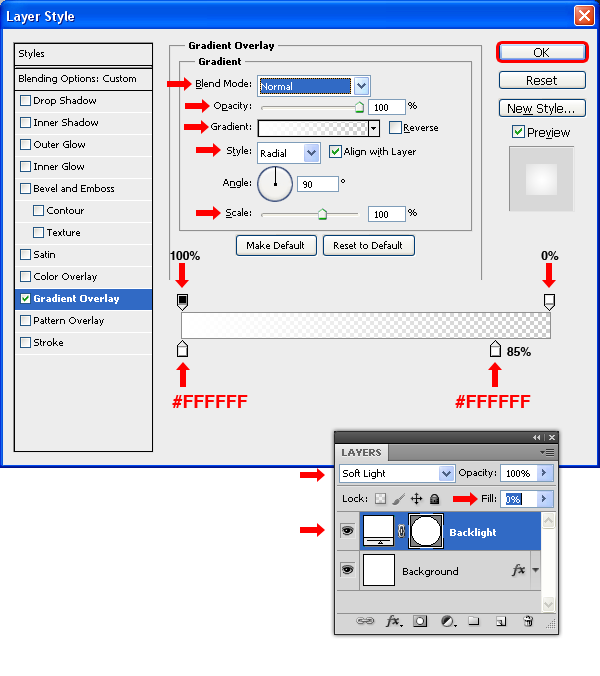
Select the Ellipse Tool (U) and draw a circle of 600 px diameter. Name the new layer as "Backlight" and set the Fill to 0% in the Layers window. Go to Layer > Layer Styles > Blending Options and aplly a Gradient Overlay as shown.

Select the Ellipse Tool (U) and draw a circle of 600 px diameter. Name the new layer as "Backlight", set the Fill to 0% and the mode to Soft Light in the Layers window. Go to Layer > Layer Styles > Blending Options and aplly a Gradient Overlay as shown.

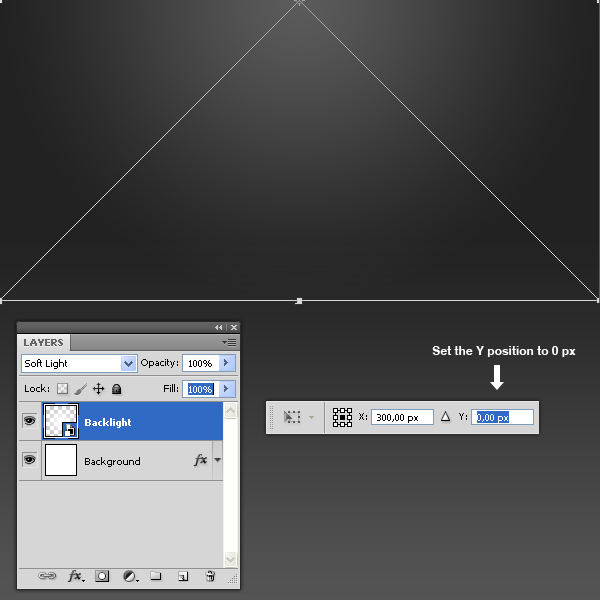
Press Command/Ctrl + T and in the Tool window set the Y position to 0 px and apply the changes. Go to Layer > Smart Objects > Convert to Smart Object.

Note: This action will set the Fill of the "Backlight" layer to 100%.


Step 2 – Drawing the Blister Board.

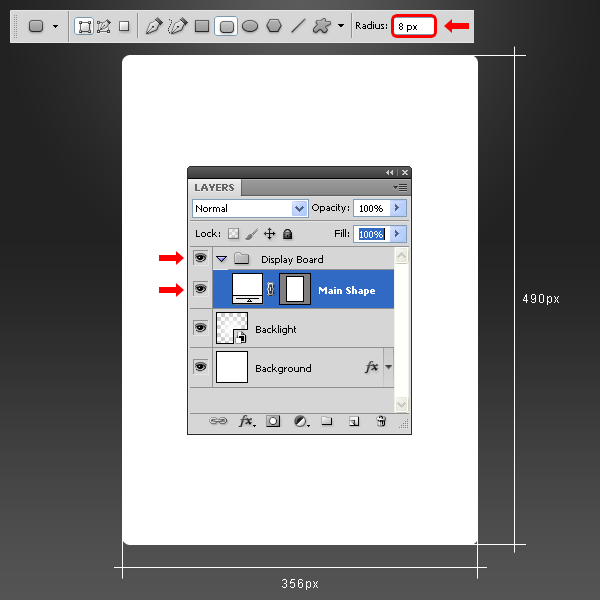
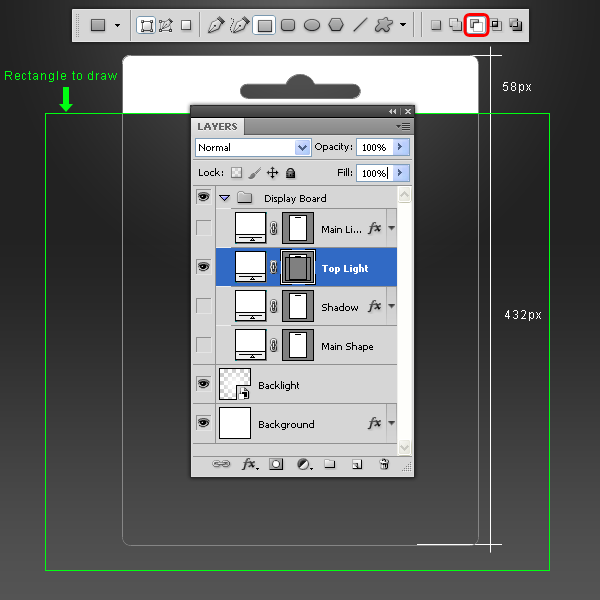
Go to Layer > New > Group and name it Display Board. Set your Foreground color to white (#000000). Select the Rounded Rectangle Tool (U), set the Radius to 8 px and draw a rectangle as shown. Name the new layer "Main Shape."

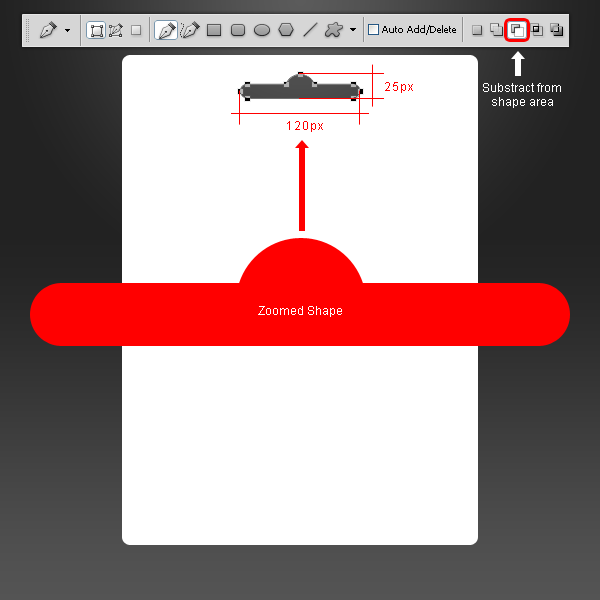
Select the Pen Tool (P), select the Subtract From Shape Area option in the Tool window and draw a shape as shown.


Step 3 – Saving for the future.

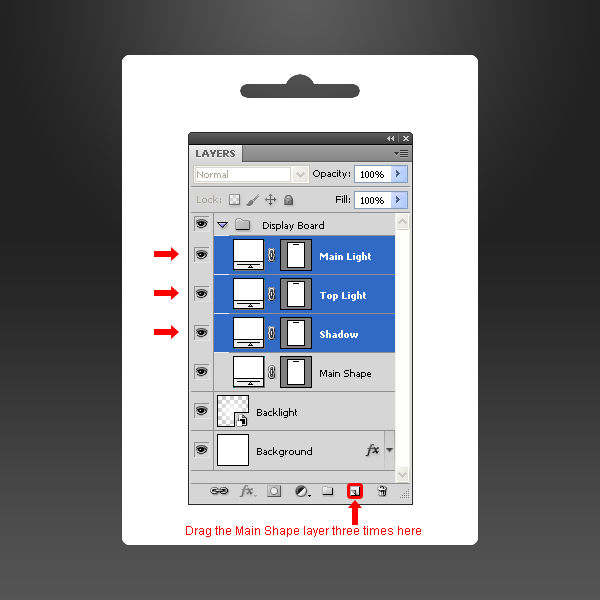
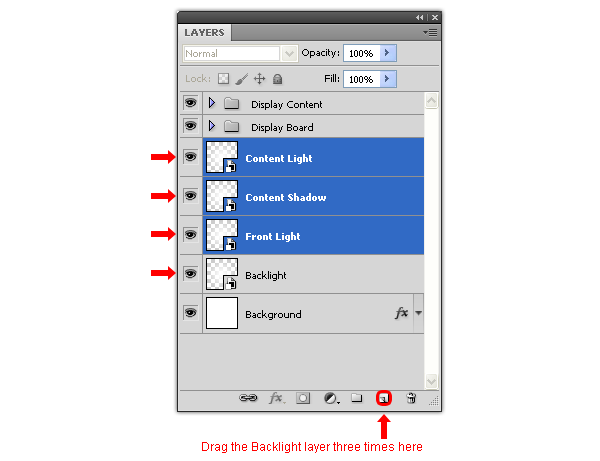
Drag the "Main Shape" layer to the New Layer icon three times in the Layers window and name these new three layers as "Main Light", "Top Light", and "Shadow."


Step 4

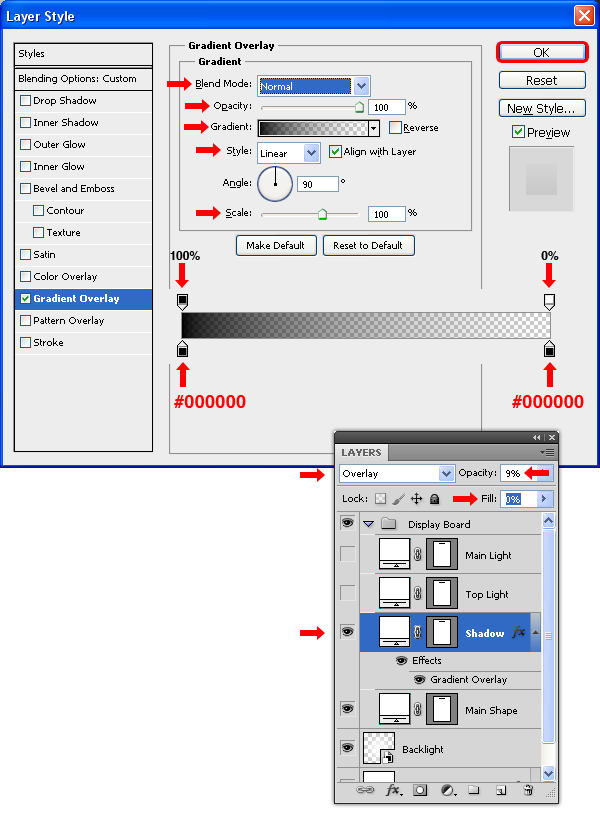
Select the "Shadow" layer, set the Mode to Overlay with an Opacity of 9%, the Fill at 0% and go to Layer > Layer Styles > Blending Options and apply a Gradient Overlay with the following settings.


Step 5

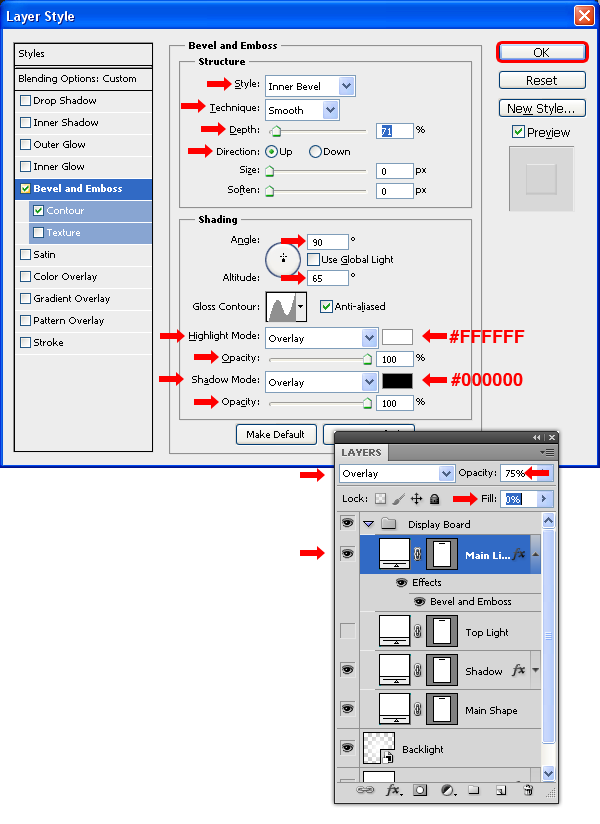
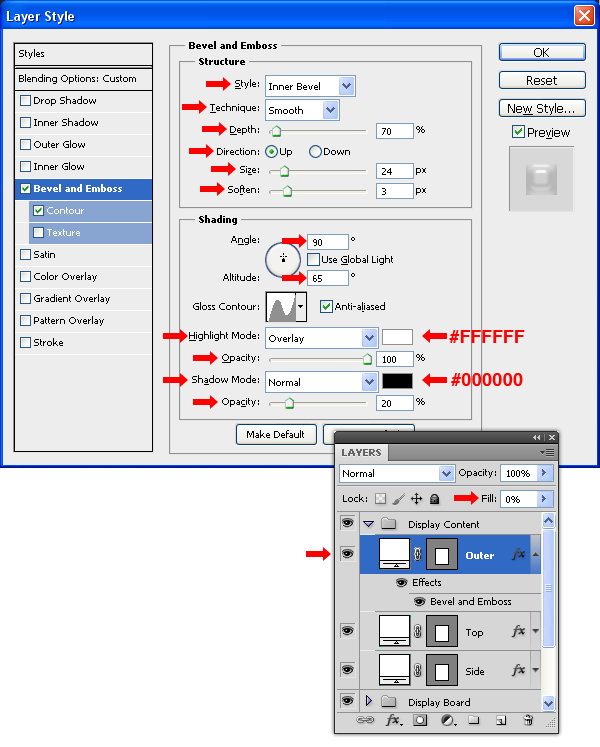
Select the "Main Light" layer, set the Mode to Overlay with an Opacity of 75%, the Fill at 0% and go to Layer > Layer Styles > Blending Options and apply a Bevel and Emboss with the following settings.

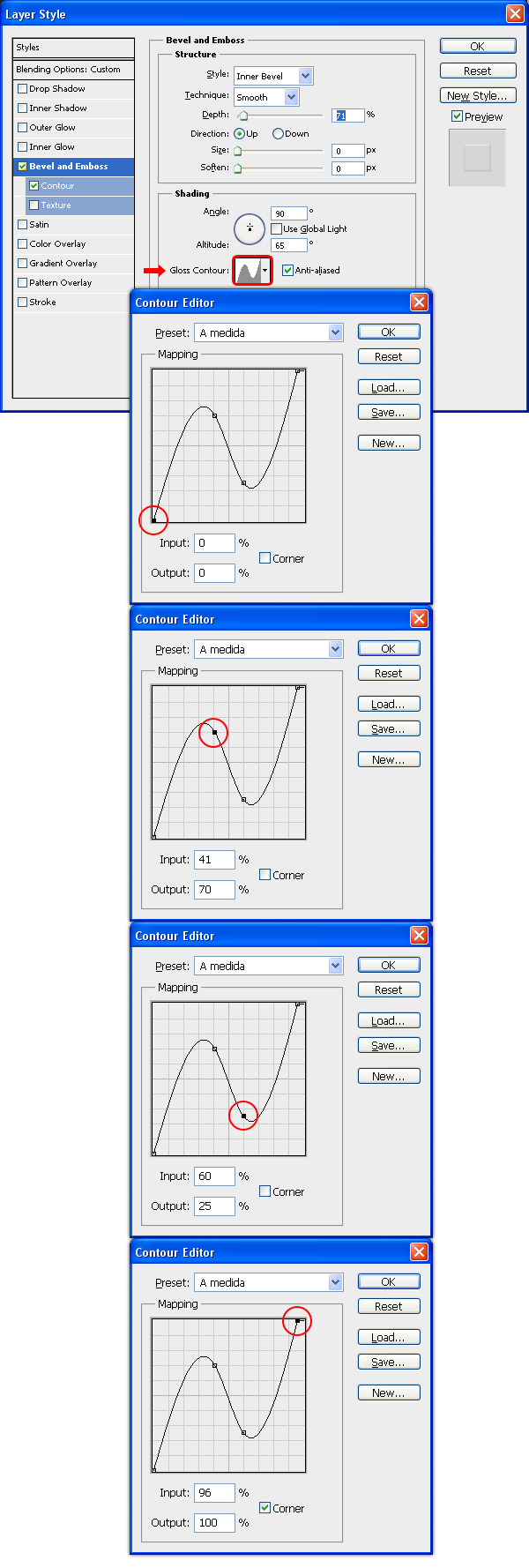
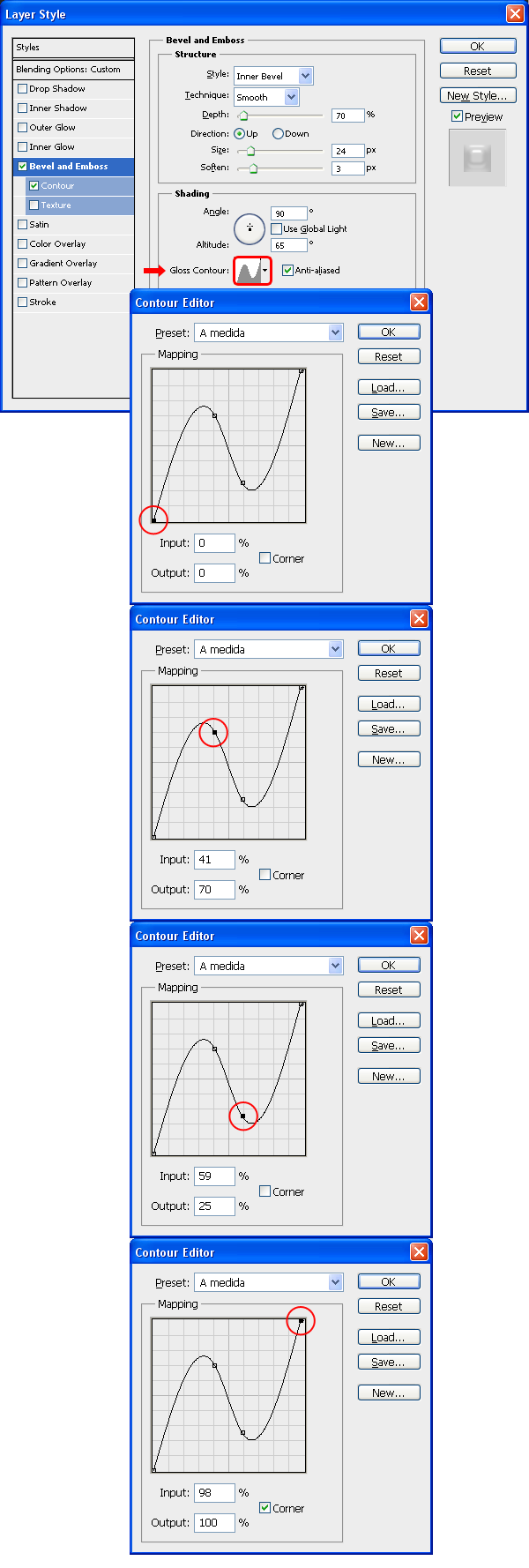
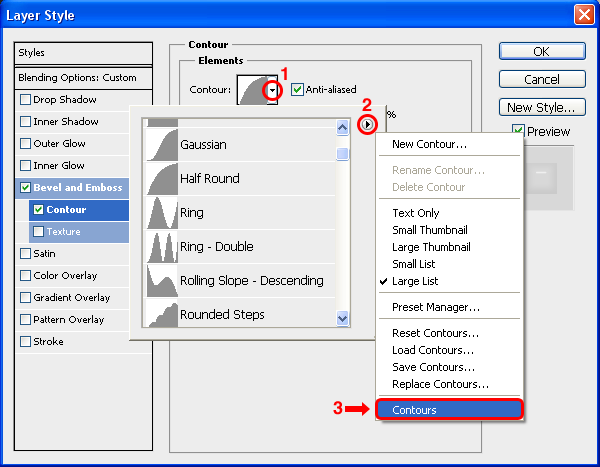
Still in the Bevel and Emboss window, click on the Gloss Contour thumbnail and in the Contour Editor set the Mapping as follows. Click OK.

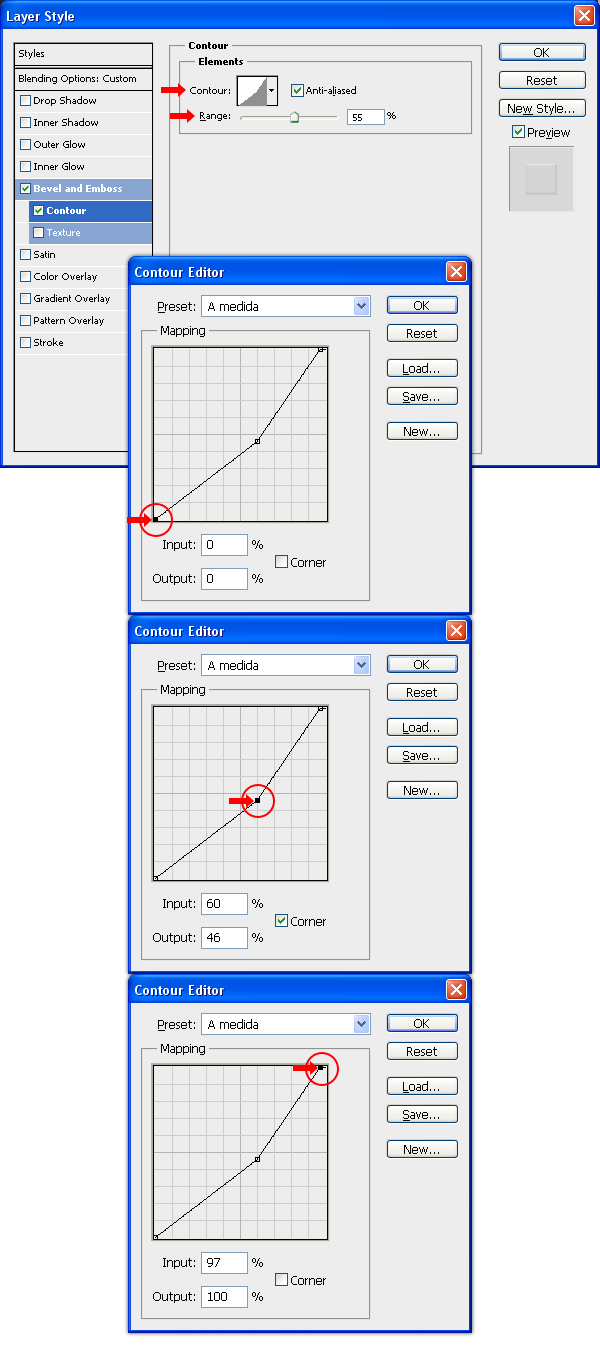
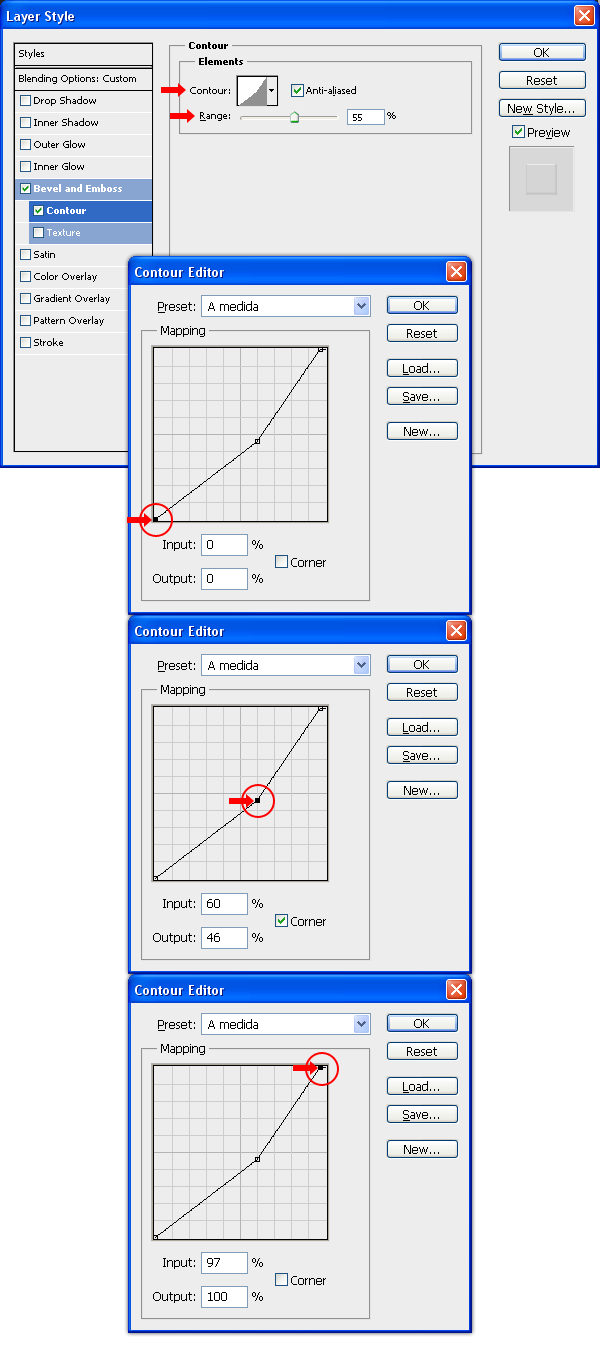
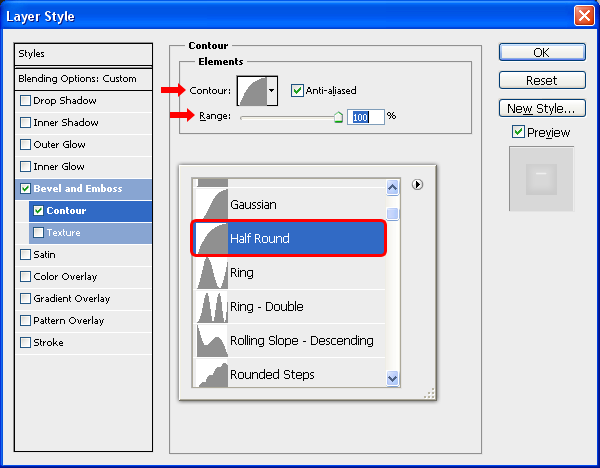
Click on the Contour tab in the layer Style window, set the Range to 55%, click on the Contour thumbnail and in the Contour Editor window set the Mapping as shown. Click OK. Again, click OK in the Layer Style window to apply the settings.


Step 6

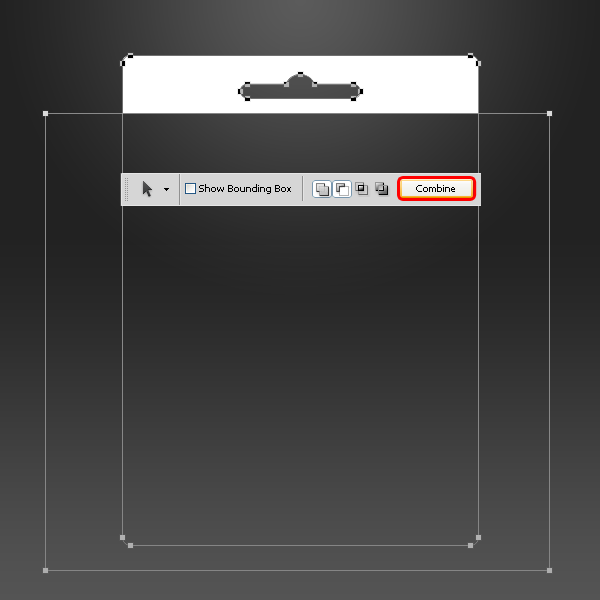
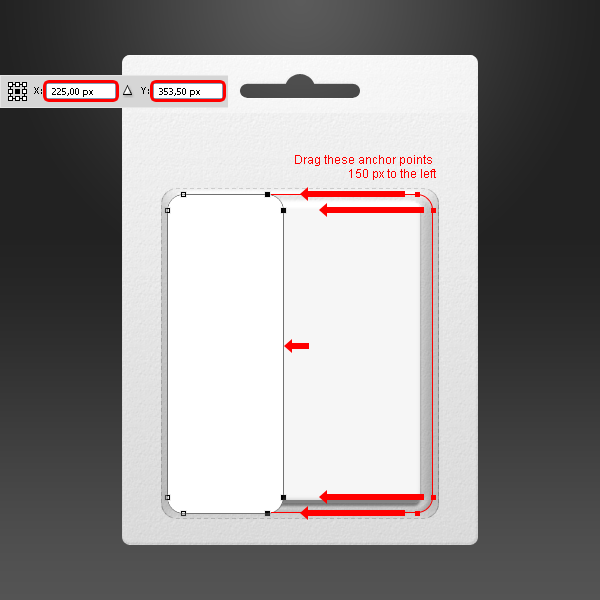
Click on the "Top Light" layer, select the Direct Selection Tool (A) and then select the Rectangle Tool (U); click on the Subtract From Shape Area icon and draw a rectangle as shown.

Select the Path Selection Tool (A), make a selection around the entire canvas and click the Combine button in the tool window.


Step 7

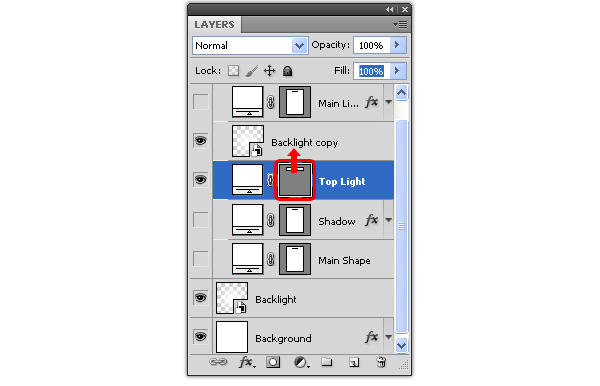
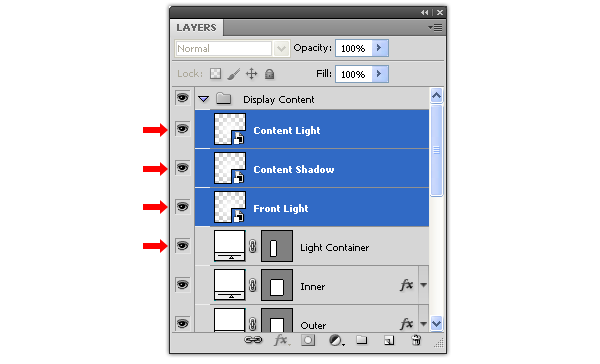
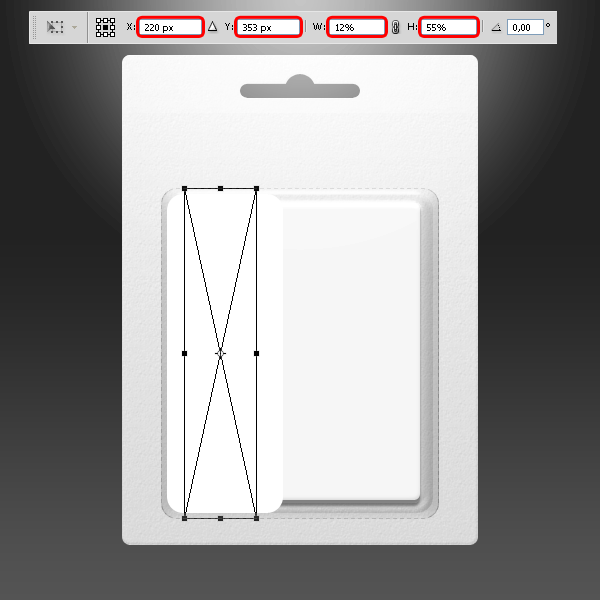
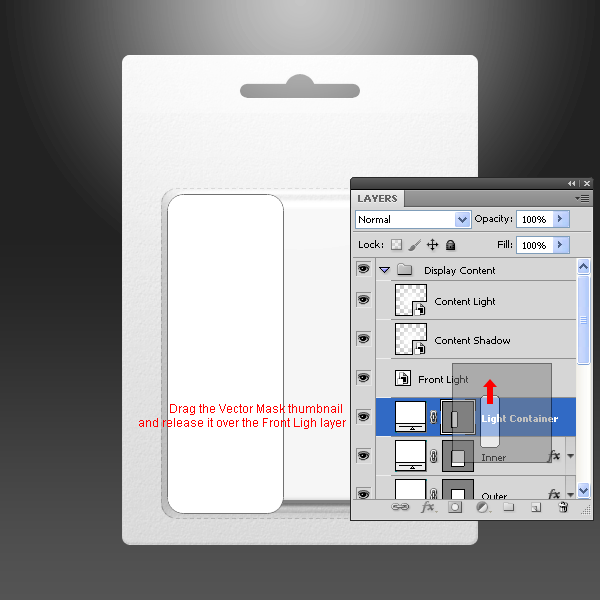
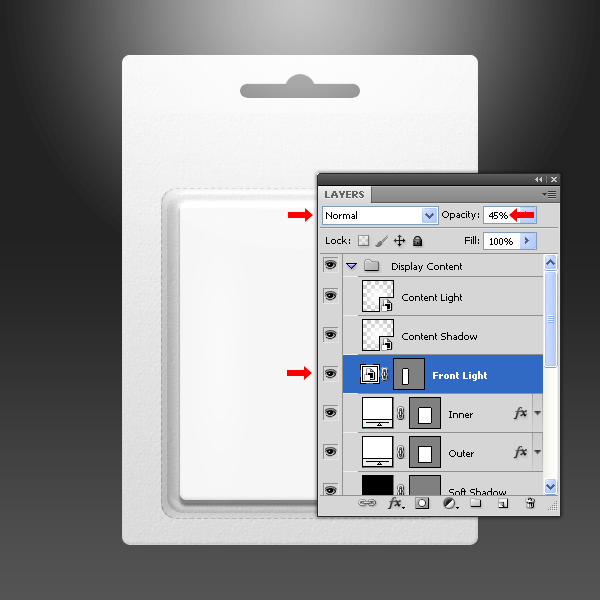
Duplicate the "Backlight" layer by dragging the layer to the New Layer icon in the Layer window and place it above the "Top Light" layer. Now click and drag the "Top Light" layer Vector Mask thumbnail to the "Backlight copy" layer and release it over it. Delete the "Top Light" layer and rename the "Backlight Copy" layer to "Top Light", set the Opacity at 55% and the Mode to Normal.


Step 8

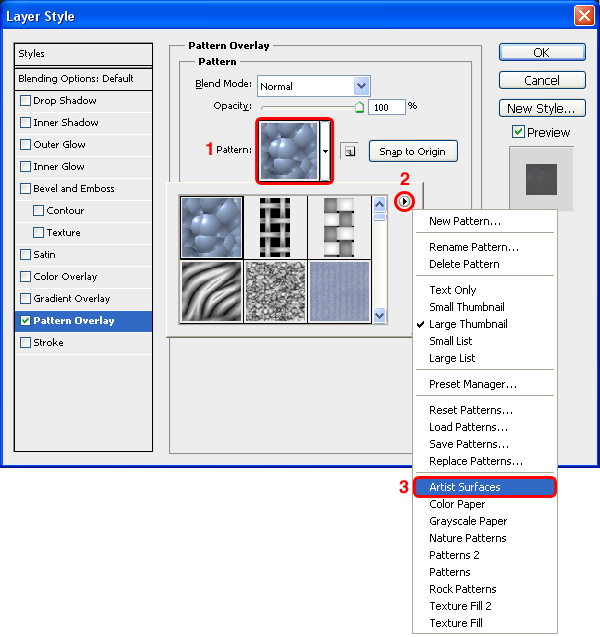
Select the "Main Shape" layer and go to Layer > Layer Styles > Blending Options. Click on the Pattern thumbnail and from the thumbnail list click on the arrow at top right, select from the dropdown menu Artist Surfaces and click on Append.

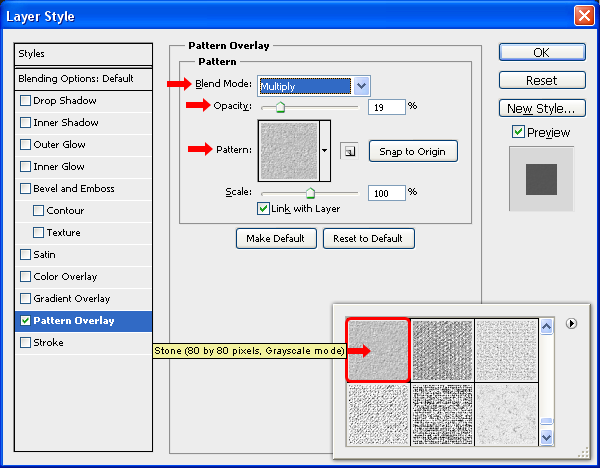
Select the patter Stone (80 by 80 pixels, Grayscale mode) and aplly a Pattern Overlay with the following settings. Click OK.


Step 9

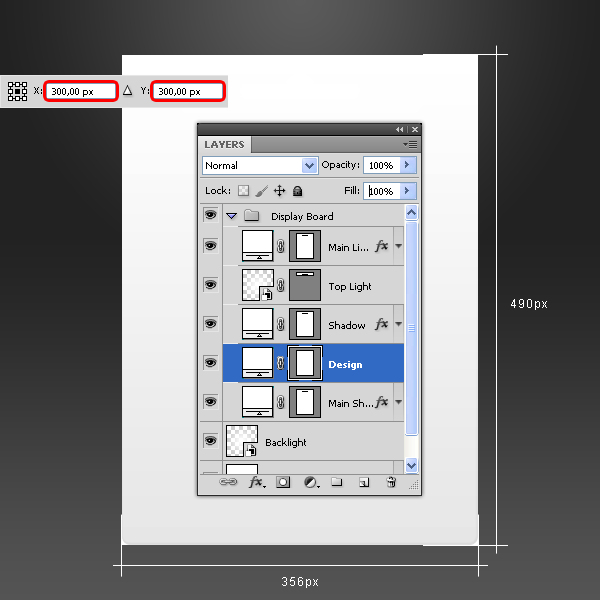
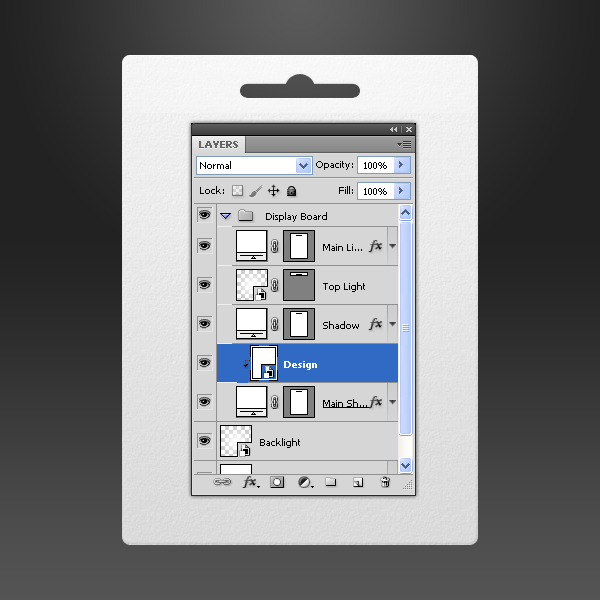
Select the Rectangle Tool (U), and draw a rectangle as shown. Name the new layer "Design" and place it above the "Main Shape" layer.

Go to Layer > Smart Objects > Convert to Smart Object and then go to Layer > Create Clipping Mask.


Step 10 – Setting up the Content.

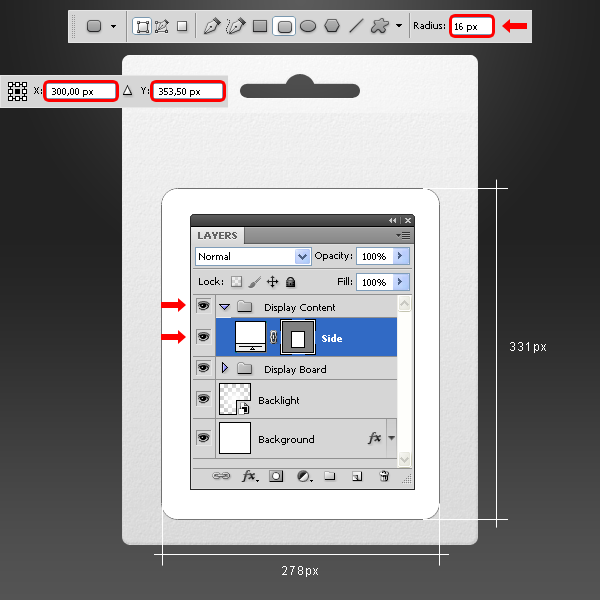
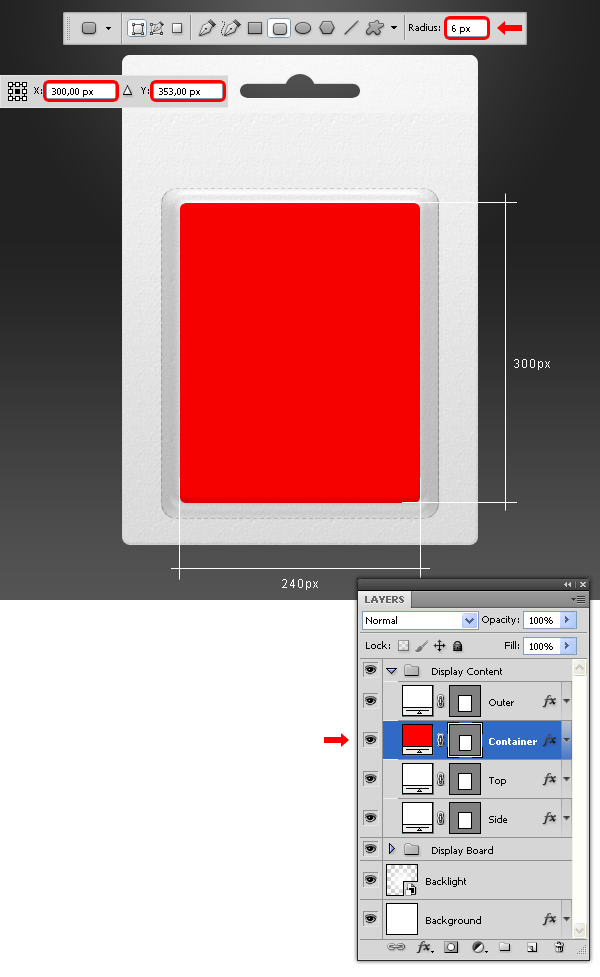
Go to Layer > New > Group and name it Display Content. Set your Foreground color to white (#000000). Select the Rounded Rectangle Tool (U), set the Radius to 16 px and draw a rectangle as shown. Name the new layer "Side."


Step 11

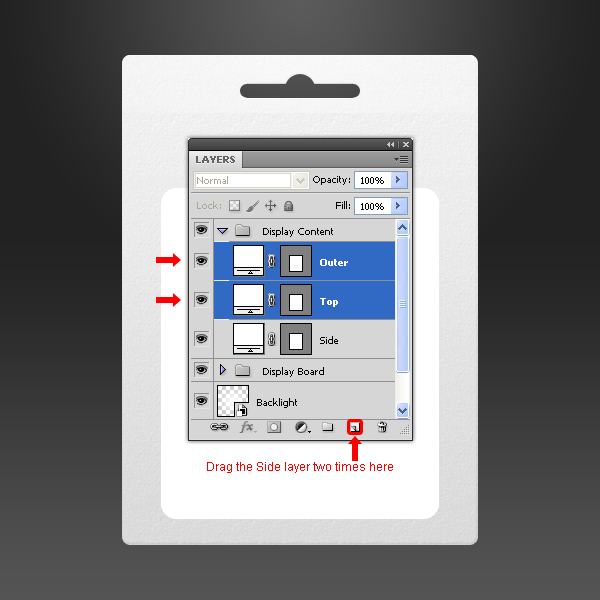
Drag the "Side" layer to the New Layer icon in the Layers window two times and name these new two layers as "Top" and "Outer."


Step 12

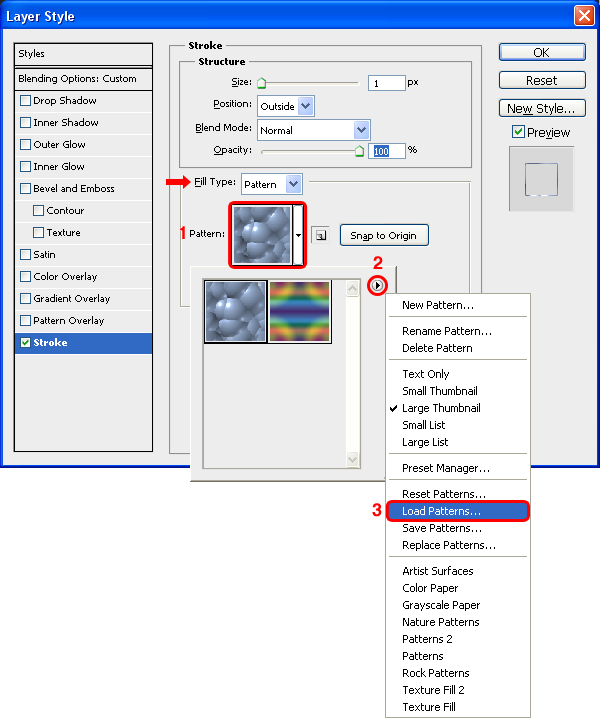
Select the "Side" layer, set the Fill to 0% and go to Layer > Layer Styles > Blending Options, select the Stroke tab and from the Fill Type dropdown menu select Pattern. Click on the Pattern thumbnail and from the thumbnail list click on the arrow at top right, select from the dropdown menu Load Patterns, search for the "Side_Dot" pattern file and click on Load.

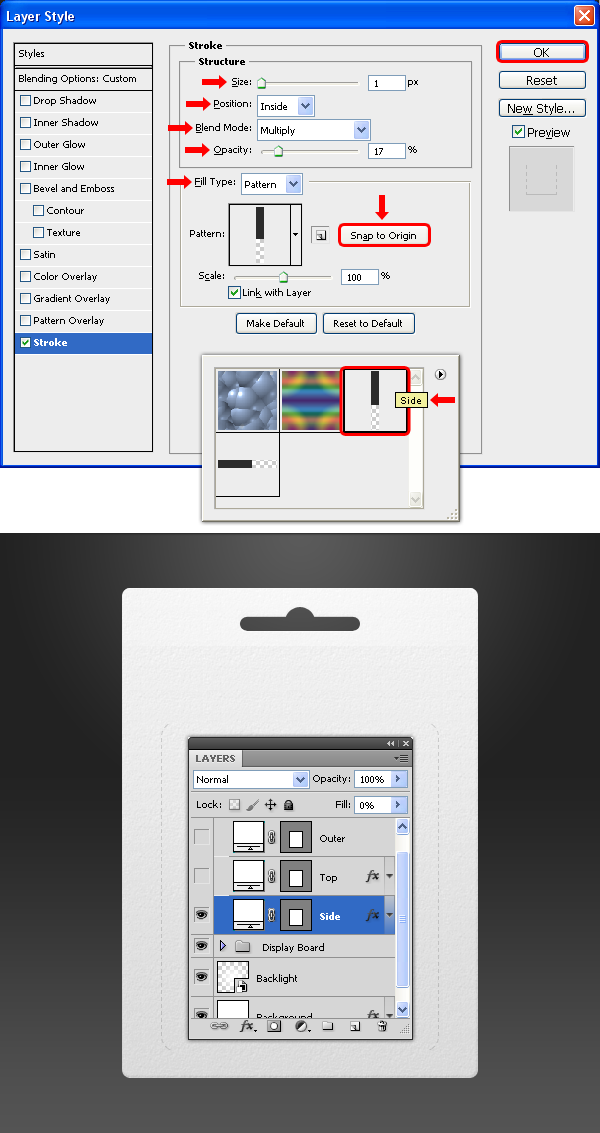
Select the pattern Side and apply a Stroke with the following settings. Click OK.


Step 13

Select the "Top" layer, set the Fill to 0% and go to Layer > Layer Styles > Blending Options, select the Stroke tab and apply the following settings. Click OK.


Step 14

Select the "Outer" layer, set the Fill to 0% and go to Layer > Layer Styles > Blending Options, and aplly a Bevel and Emboss with the following settings.

Still in the Bevel and Emboss window, click on the Gloss Contour thumbnail and in the Contour Editor set the Mapping as follows. Click OK.

Click on the Contour tab in the layer Style window, set the Range to 55%, click on the Contour thumbnail and in the Contour Editor window set the Mapping as shown. Click OK. Again, click OK in the Layer Style window to apply the settings.


Step 15

Set your Foreground color to red (#ff0000). Select the Rounded Rectangle Tool (U), set the Radius to 6 px and draw a rectangle as shown. Name the new layer "Container" and place it below the "Outer" layer.


Step 16

Drag the "Container" layer to the New Layer icon in the Layers window and name the new layer as "Soft Shadow." Set the layer Opacity to 41% in the Layers window and double-click the red thumbnail of the "Soft Shadow" layer; pick a black color (#000000) and click OK.

Select the Path Selection Tool (A) and drag a selection around the entire "Soft Shadow" layer. Go to Edit > Copy and the go to Edit > Paste. Using the arrow key, move the pasted selection 3 px by pressing the up arrow three times; select the Subtract From Shape Area option in the Tool window and click on the Combine button.


Step 17

Set your foreground color to white (#ffffff). Select the Rectangle Tool (U), and draw a rectangle as shown. Name the new layer "Content" and place it above the "Container" layer.

Go to Layer > Smart Objects > Convert to Smart Object. Go to Layer > Create Clipping Mask.


Step 18

Select the "Container" layer, go to Layer > Layer Style > Blending Options and apply a Drop Shadow with the following settings.


Step 19

Select the Rounded Rectangle Tool (U), set a Radius of 16 px and draw a rectangle as shown. Name the new layer "Inner" and place it above the "Outer" layer.

Drag the "Inner" layer to the New Layer icon in the Layers window and name the new layer as "Light Container."


Step 20

Select the "Inner" layer and set the Fill to 0%. Go to Layer > Layer Styles > Blending Options, and aplly a Bevel and Emboss with the following settings.

Click on the Contour tab and in the arrow next to the Contour thumbnail; from the thumbnail list click on the arrow at top right, select from the dropdown menu Contours and click Append.Contour tab in the layer Style window, set the Range to 100%, click on the Contour thumbnail arrow and from the Contour thumbnail list select the Half Rounded contour. Click OK. Again, click OK in the Layer Style window to apply the settings.

Select the Half Rounded contour from the dropdown list and set the Range to 100%. Click OK. Again, click OK in the Layer Style window to apply the settings.


Step 21

Click on the "Light Container" layer, select the Direct Selection Tool (A) and drag all the right anchor points 150 px to the left. Do this by holding Shift + pressing 15 times the left arrow on your keyboard.


Step 22

Drag the "Backlight" layer to the New Layer icon in the Layers window three times and name these new layers as "Front Light", "Content Shadow" and "Content Light."

Place the "Front Light", "Content Shadow" and "Content Light" layer above the "Light Container" layer in the "Display Content" layer group.


Step 23

Select the "Front Light" layer, go to Edit > Free Transform and apply the following settings.

Select the "Light Container" layer, drag the Vector Mask thumbnail to the "Front Light" layer and release it on it. Delete the "Light Container" layer.

Set the "Front Light" layer to Normal and change the Opacity to 45%.


Step 24

Select the "Content Shadow" layer, go to Layer > Layer Styles > Blending Options and apply a Color Overlay with the Blend Mode set to Normal an Opacity of 100% and a black color (#000000). Click OK. Set the layer mode to Normal and change the Opacity to 18%.


Step 25

Set the foreground color to red (#ff0000) and select the Rectangle Tool (U) then draw a rectangle as shown. Name the new layer as "Shadow Container."

Drag the "Shadow Container" layer to the New Layer icon in the Layers window and name the new layer as "Light Container." Go to Edit > Free Transform and set the Y value to 192 px and apply the changes.


Step 26

Select the "Content Light" layer, go to Edit > Free Transform and set the following values. Apply the changes.

Now select the "Content Shadow" layer, go to Edit > Free Transform and set the following values. Apply the changes.


Step 27

Drag the "Light Container" layer Vector Mask thumbnail to the "Content Light" layer and release it over it. Delete the "Light Container" layer.

Drag the "Shadow Container" layer Vector Mask thumbnail to the "Content Shadow" layer and release it over it. Delete the "Shadow Container" layer.


Step 28

Drag and drop the "Backlight" layer to the New Layer icon in the Layers window and name the new layer as "Fantasy Shadow", set the Mode to Normal.

Go to Edit > Free Transform and apply the following values.

Go to Layer > Layer Style > Blending Options and apply a Color Overlay as shown.


Step 29

Select the Rectangle Tool (U) and draw a rectangle as shown. Name the new layer as "Fantasy Container".

Drag the "Fantasy Container" layer Vector Mask thumbnail to the "Fantasy Shadow" layer and release it over it. Delete the "Fantasy Container" layer.


Step 30 – Putting some design on it.

Into the "Display Board" group, select the "Design" layer and double-click on the smart object thumbnail. In the new document window select the "Design" layer and go to Layer > Layer Style > Blending Options and apply a Gradient Overlay with the following settings.

Select the Horizontal Type Tool (T) and write "tutorials". Get some nice icon and place it into the design. Save the file and close it.

Note: I have used the Lubalin typeface and the tutorials website icon, but you can use any typeface you like as well any image, it does not have to be necessarily an icon.


Step 31

Into the "Display Content" group, select the "Content" layer and double-click on the smart object thumbnail. In the new document window paste an screenshot (or any design you like) of the tutorials marketplace. If necessary, adjust the screenshot to the canvas size, do this by going to Edit > Free Transfom. Save the document and close it.


Final Image

Is Photoshop Evil? Video Interview With Mark Heaps

$
0
0

Advertise here

Is Photoshop a dirty word? An evil tool? Recently, I had the opportunity to chat with Mark Heaps, a Professional Photographer, an Adobe Certified Professional, and Graphic Designer at Duarte Design where he has worked with some of the world’s most recognizable brands. Mark works as a presentation designer, helping to build presentations you might see at a major conferences like SXSW or CES, but Mark has experience doing just about everything. So it was great to hear his thoughts on several interesting topics.

During our conversation we discussed whether or not photographers truly embrace Photoshop, whether or not Photoshop is an evil tool, whether or not it is better to be a "jack of all trades" or a specialist, should you always charge for your work, and much more. Please take a moment to review this 35-minute interview, and enjoy!


Notes

Here are links to some of the items we discussed in the video.

Viewing all 6352 articles
Browse latest View live