Quantcast
Channel: Envato Tuts+ Design & Illustration
Viewing all 6352 articles
Browse latest View live

The Amazing Photo Manipulations of Erik Johansson

$
0
0

Erik Johansson is a professional photographer and retoucher from Sweden. Johansson has a talent for producing incredibly realistic and creative photo manipulations. Please take a moment to review this collection of stunning works from Johansson’s portfolio.


Inspiration


Happy Holidays from Tuts+!

$
0
0

The holidays are upon us, and we’re feeling festive at Tuts+ this weekend! We’d like to take this opportunity to say a huge Christmas thank you to all our readers, and wish you a very Happy Holiday. Read on for a video message from the HQ team, and a few freebies from around the Tuts+ and Envato network!


A Message from Envato HQ

Although the Tuts+ team is spread over the globe, Envato HQ is where much of the Tuts+ magic happens! It isn’t looking traditionally Christmassy in Melbourne at the moment, but we have a special holiday message from everyone at head office:

From everyone at Envato we want to wish you a Happy Holidays and look forward to seeing you all refreshed and ready for another big year in 2012! From Envato HQ to the community, we’ve created a little video to share the holiday cheer. Enjoy!

Music is Kids Holiday Theme by AudioJungle Author CraigHall


Gift Guides & Freebies!

Wondering what to buy your fellow geek this Christmas? Never fear! You may have left it it a little late, but our holiday gift guides can still come in handy. Here are a few great places to start:

We also have a couple of exclusive freebies and discounts, just in time for the holidays:


The Christmas Freelance Freedom Comic

The “holiday jingle” comic encapsulates everything that we love and hate about freelancing. Don’t forget to sing along to the “Jungle Bells” theme music as you read it…!

You can also enjoy the whole back catalog of Freelance Freedom comics over at FreelanceSwitch.


AppStorm Giveaways

We have two fantastic competitions running over at the AppStorm network over the holiday period, and there’s still time to get your entry in to stand a chance of winning:

  1. Business Productivity Bundle Giveaway —Each bundle includes a license to Daylite and Billings Pro – it’s the perfect combination for getting your business organised and making money!
  2. The AppStorm Holiday ’11 Video Game Giveaway — In the spirit of this season we’ve hand picked a few critically acclaimed, and award-winning, games released over this year to give away to our readers!

Merry Christmas, and Happy New Year!

All that’s left is to wish you a very happy holiday on behalf of everyone at Tuts+! We hope you’ve enjoyed everything that we’ve had to share this year, and look forward to publishing thousands more top-quality tutorials, articles, freebies, and resources in 2012.

Here’s to another exciting year at Tuts+, and thank you for joining us on the journey!


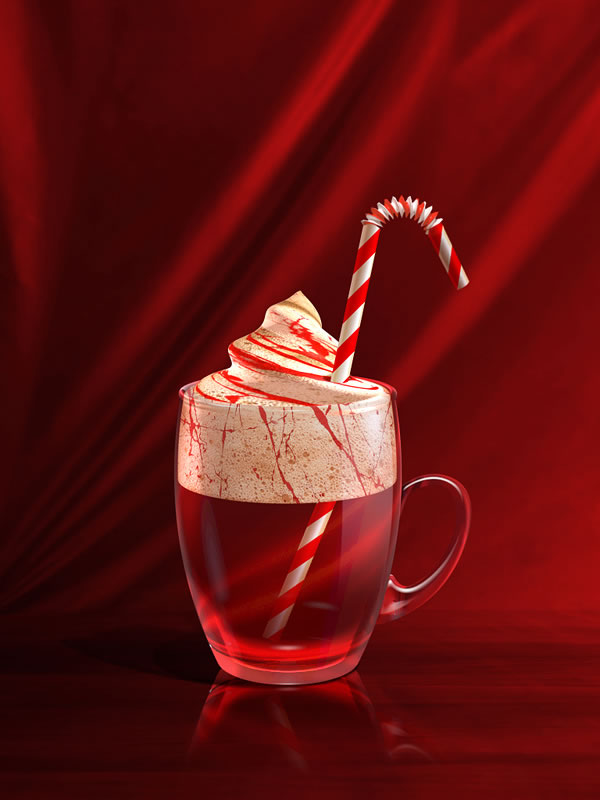
Create a Festive Cocktail Using Photoshop’s 3D Capabilities

$
0
0

For many of our readers, this time of year is filled with family, friends, and celebration. In this tutorial, we will explain how to create a festive cocktail using Photoshop’s 3D capabilities just in time for your New Year’s celebrations. Let’s get started!


Tutorial Assets

The following assets were used during the production of this tutorial.


Step 1

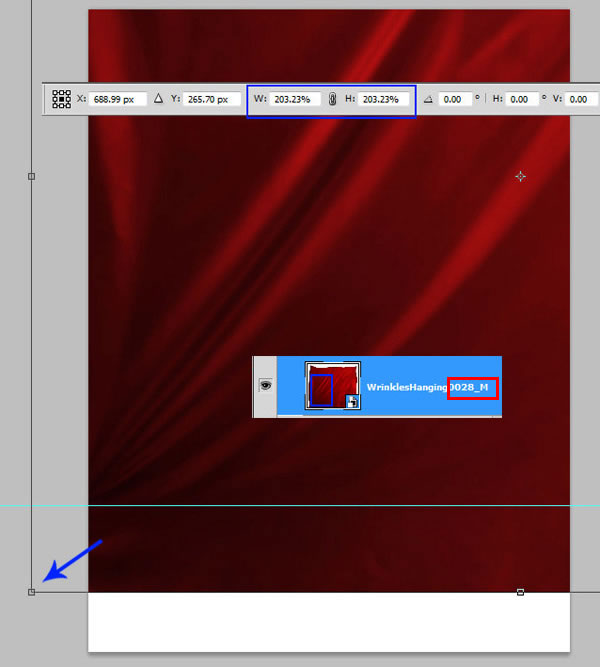
Create a new document, the size is 768x1024px. Insert fabric image, we will use this texture to create background. Apply Flip Horizontal transformation to it. Go to edit > Transform > Flip Horizontal. Then expand the layer proportionately, press Shift as you drag a corner handle to scale. Choose Edit > Transform > Scale. You should have visible just the drapery left bottom part of the image.


Step 2

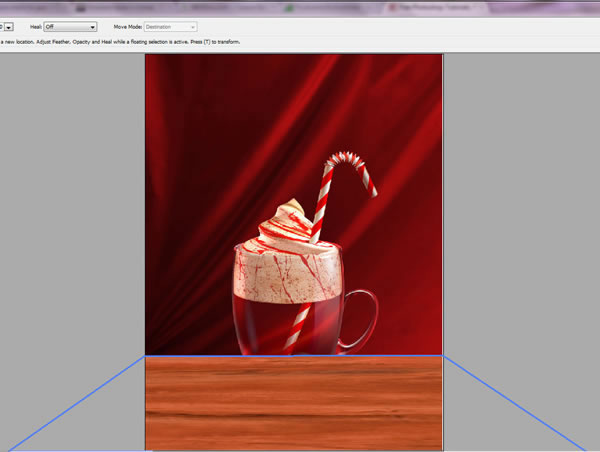
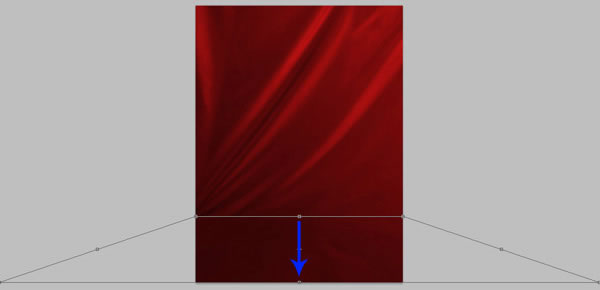
Select the bottom part of the red fabric just like on the example, use Rectangular Marquee Tool . Copy and paste it into a new layer. Then go to Edit > Transform > Perspective. Drag one of the bottom corners handles to apply perspective transformation. Then choose Free Transformation and move bottom edge of fabric shape to the bottom edge of Photoshop document. You should completely cover the white background space.

Step 3

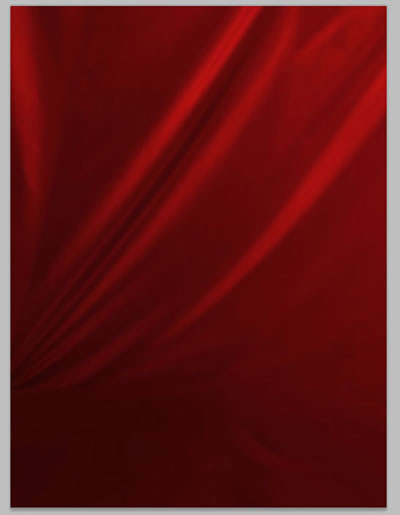
You will get similar result.


Step 4

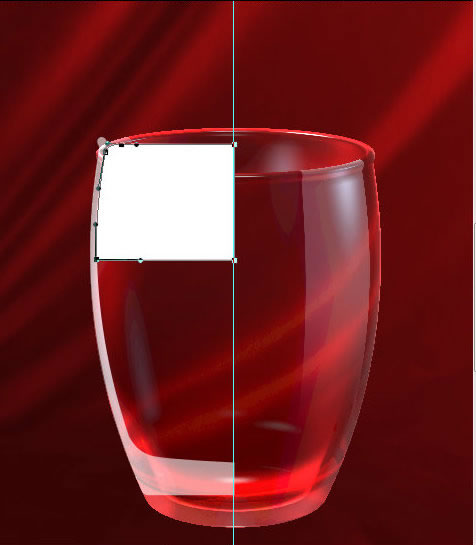
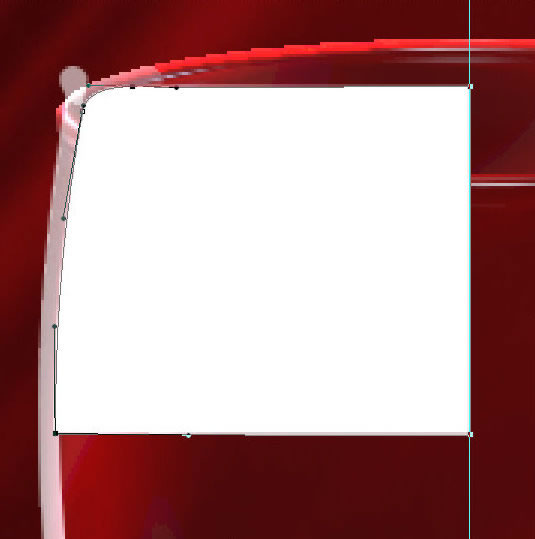
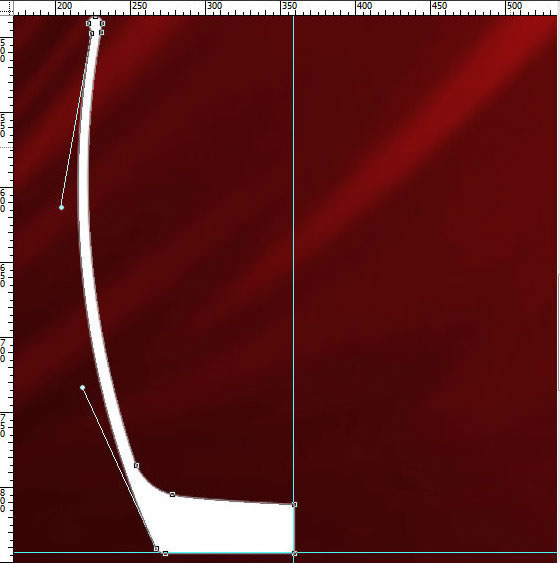
Create glass wall silhouette. You may use Pen Tool in the Shape Layer Mode .The size is 145x359px. It should be a half of full glass shape silhouette. You may create you own shape, but keep right cross edge vertical and bottom line horizontal – check out the guides on the screen shot. Do not rasterize created shape.

Step 5

Open 3D Tools palette. And create a new 3D object from the glass silhouette path.


Step 6

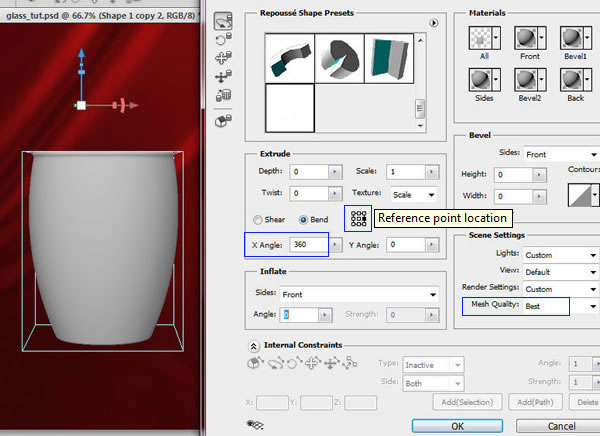
You will see the 3D settings window. Apply adjustments like on the screen shot below. Especially pay attention to "Reference point location" click on right point to choose right spinning axis. Our shape should spin around inside edge with Angle 360° . Choose Best Mesh Quality. Click "Ok".

Step 7

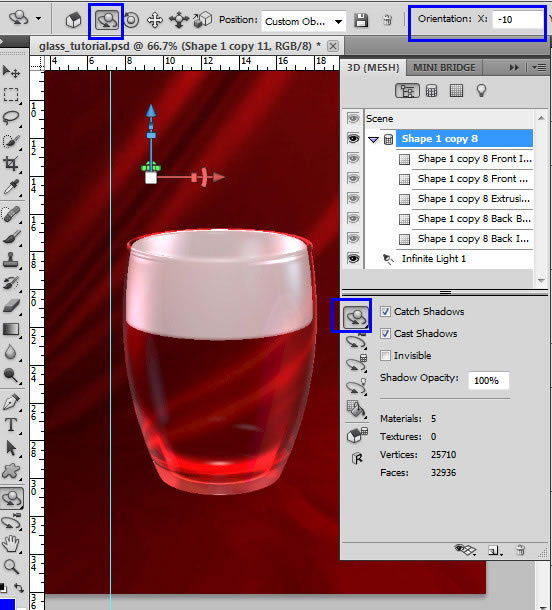
Tilt down 3D perspective a bit. Make active "Rotate the 3D Object Tool" and adjust only "X" Orientation setting (-10). Keep "Scene" Render Settings like on the screen shot.

Step 8

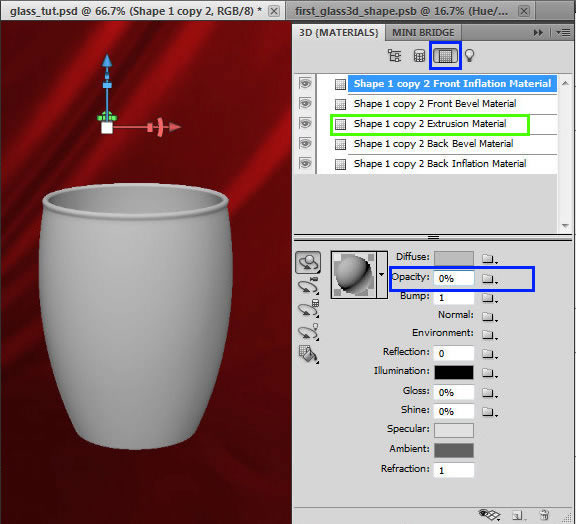
In order to set materials for the glass cup, make active "Materials" palette. In this tutorial we will use only Extrusion Material (marked with green color) for the most of the shapes. That’s why the Opacity parameter for all other materials should be 0% (!). So, set Opacity = 0% for the "Front Inflation Material", "Front Bevel Material", "Back Bevel Material", " Back Inflation Material".


Step 9

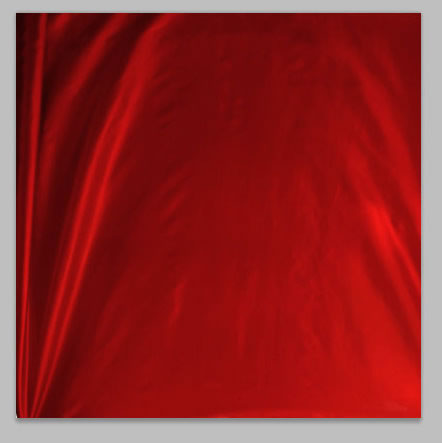
Apply following settings for the Extrusion Material. Upload texture for Diffuse Parameter by clicking small folder icon. I used another Fabric (Image 7) texture, cropped as the square 1000x1000px and flipped by vertical and horizontal. You may play with Opacity, Gloss, Shine etc settings to see how 3D effects change.


Step 10

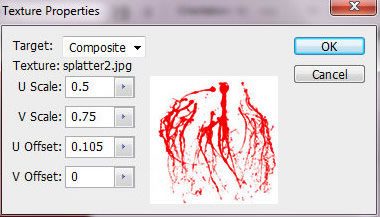
To change texture position Right click Diffuse icon and choose "Edit Properties". You may play with Scale and Offset settings (use the scrubby sliders) to find better texture position or use settings like on the screen shot.


Step 11

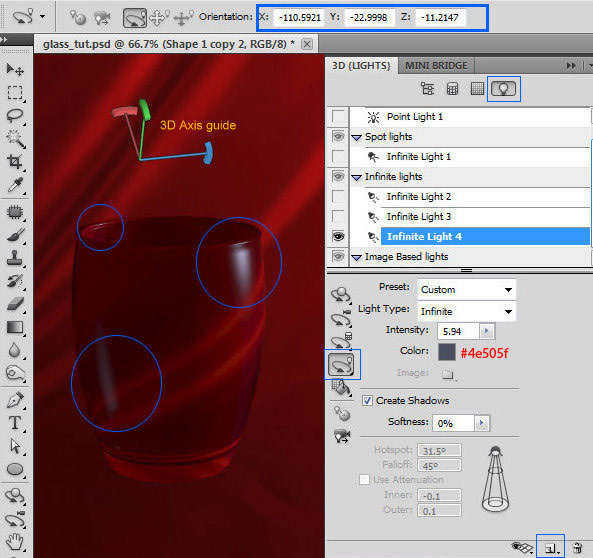
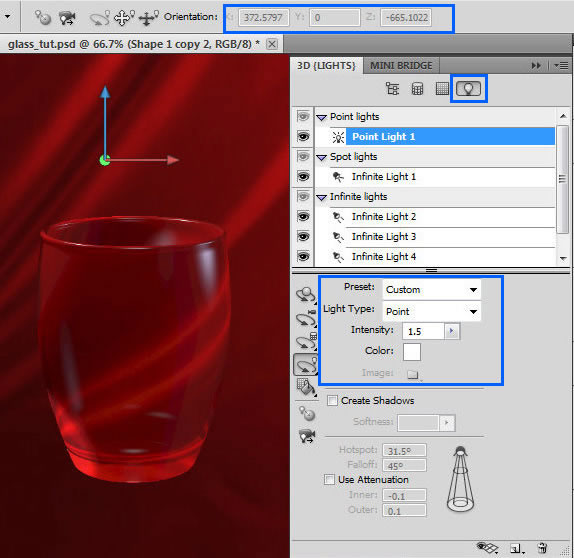
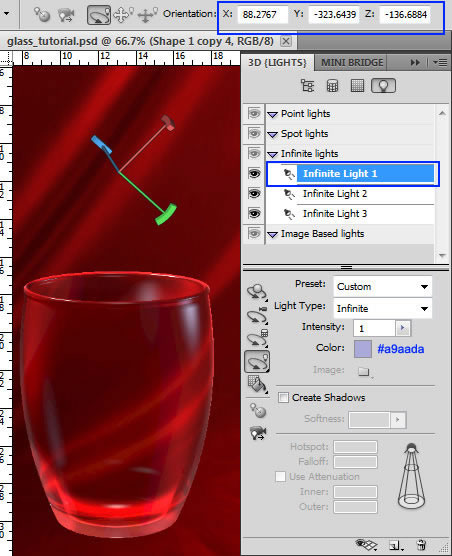
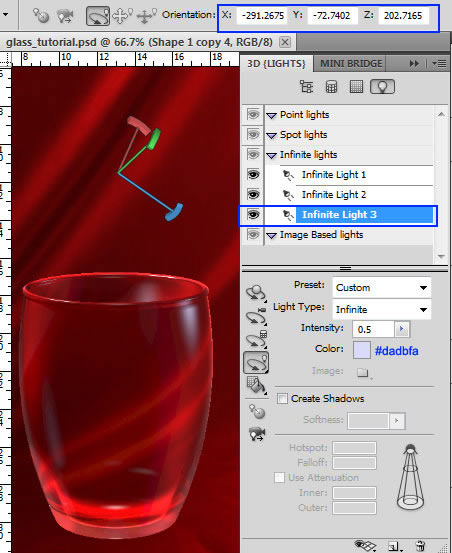
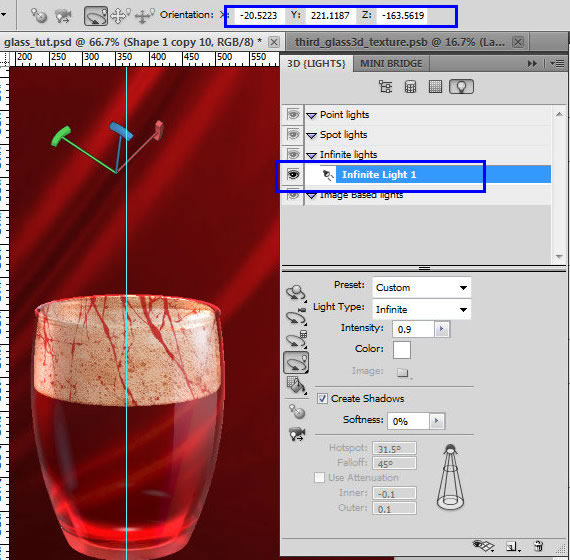
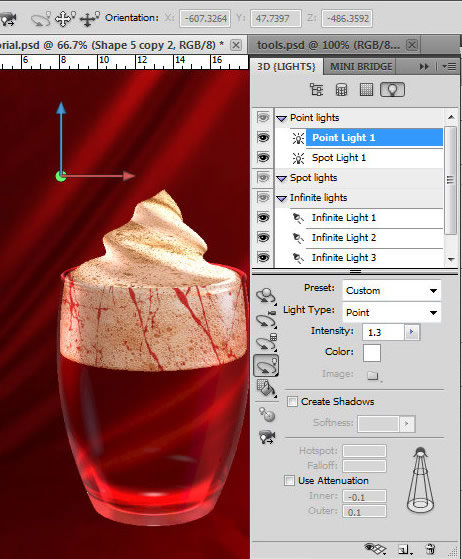
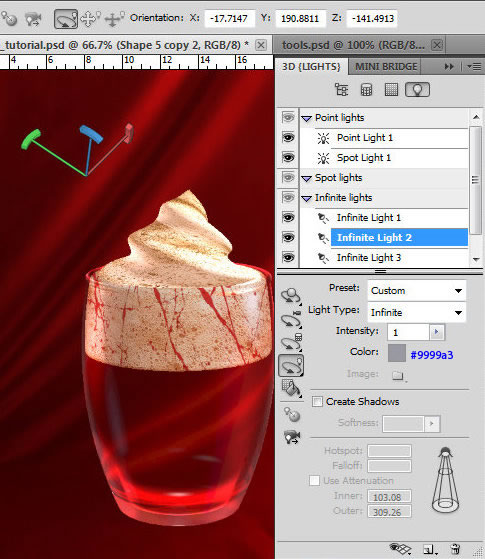
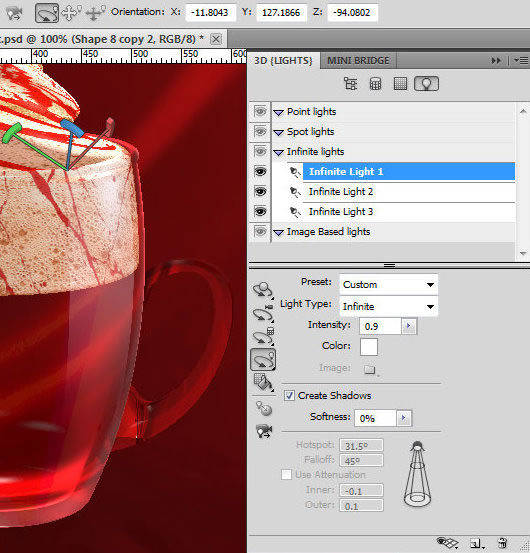
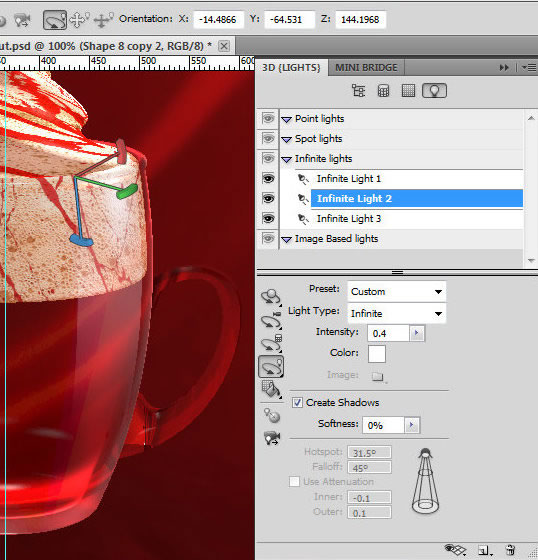
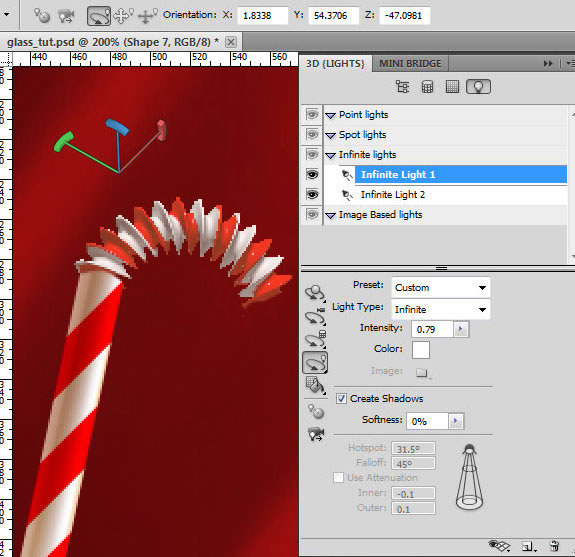
Open Lights palette to add a light, click the Create A New Light button , and choose the light type from the drop down menu. You may start from "Infinite light" with adjustments like on the screen shot. Find Light position settings in the top part of screen shot or apply your own by rotating 3D Axis guide. To view Axis guide click the Toggle icon  and select 3D Axis. 


Step 12

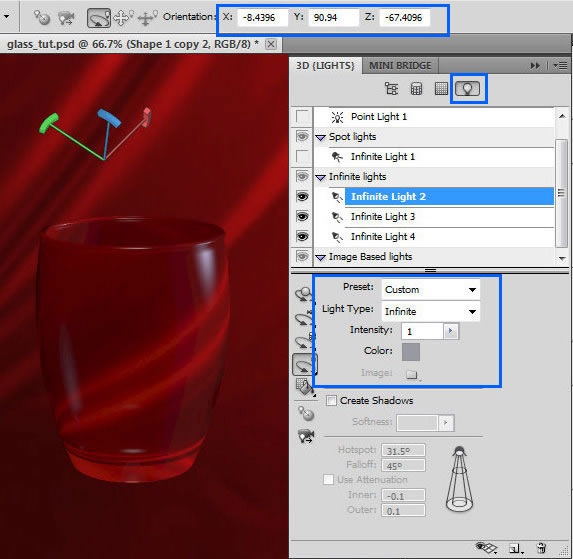
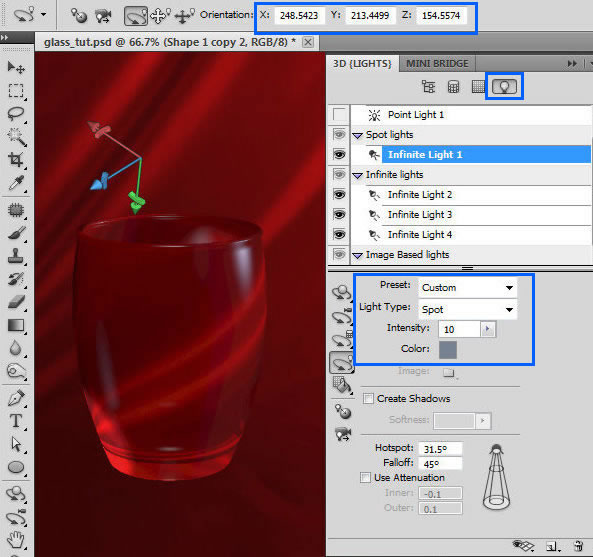
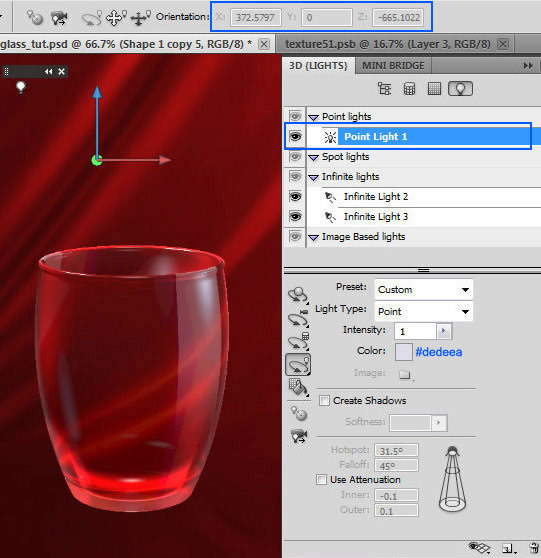
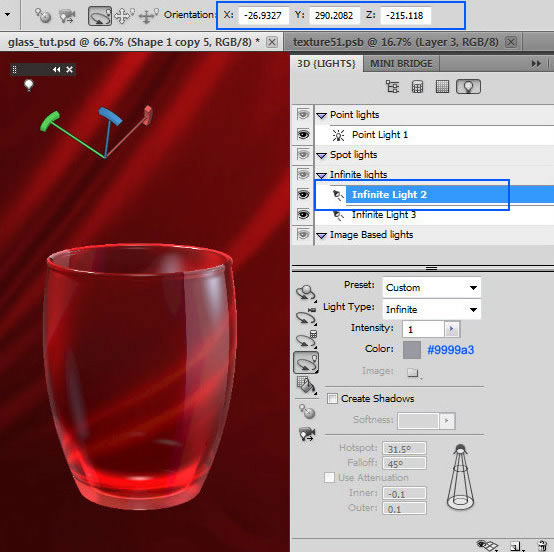
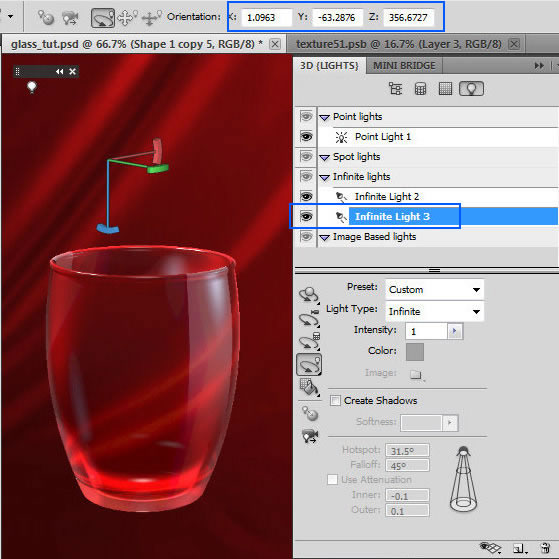
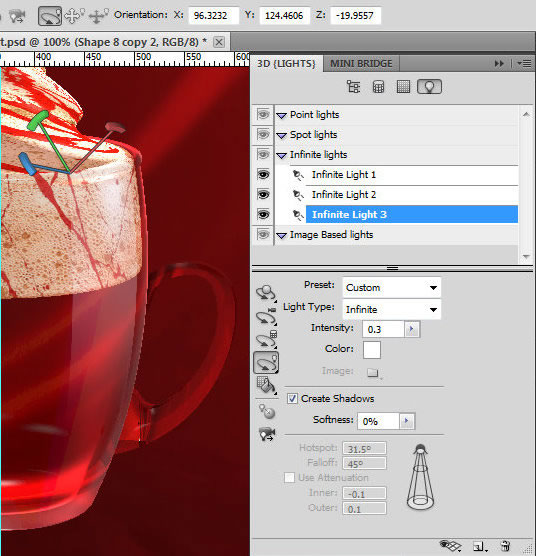
You may find the rest of lights settings for this glass shape on following screen shots.


Step 13

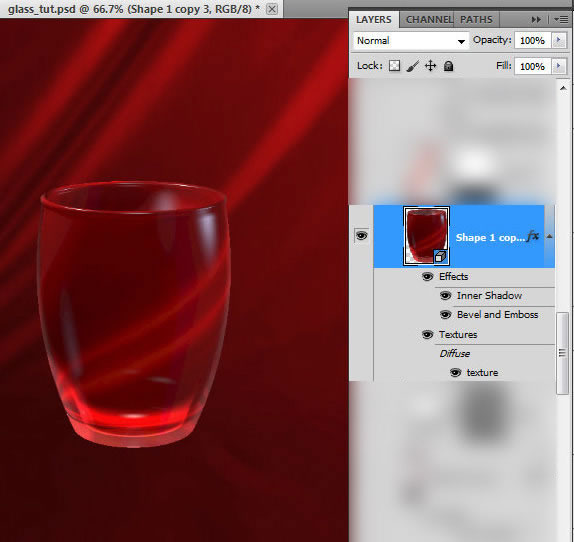
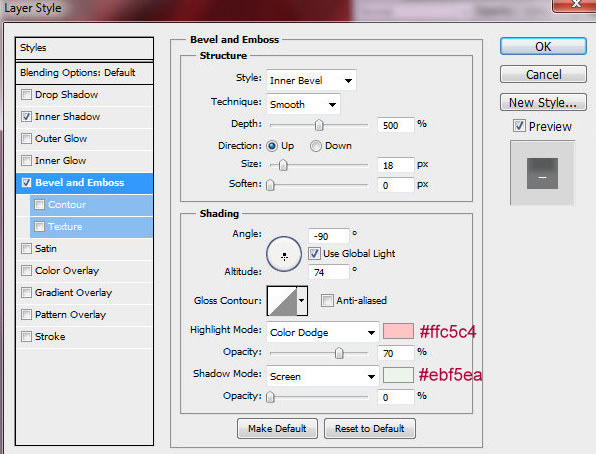
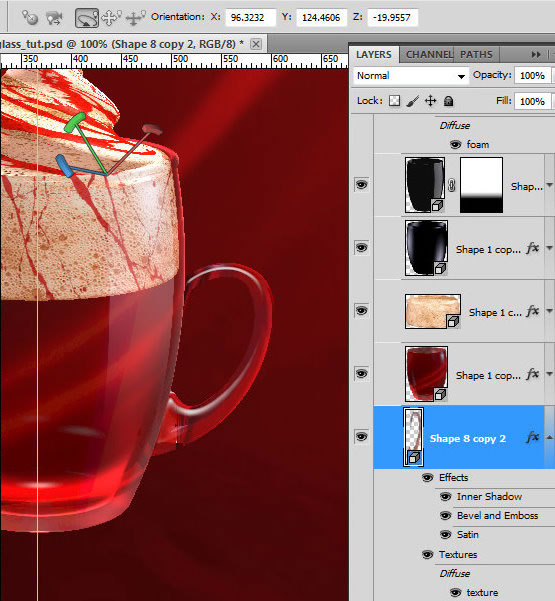
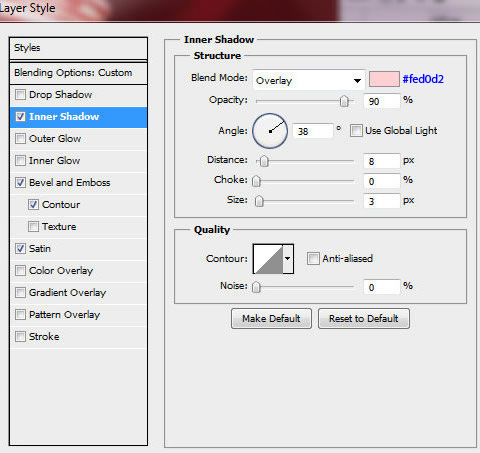
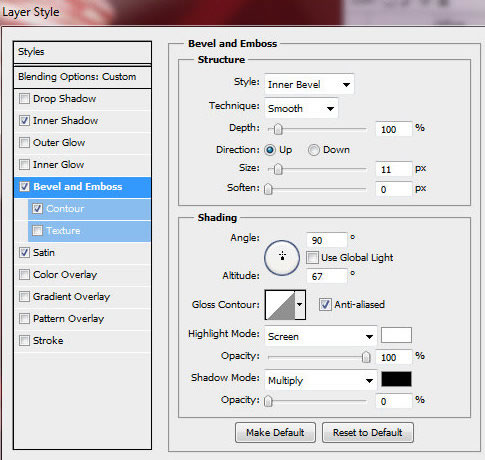
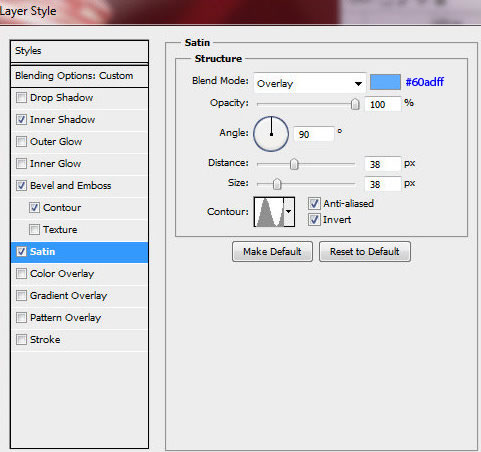
Apply Inner Shadow and Bevel and Emboss layer style effects to created 3D glass object.


Step 14

Duplicate created 3D glass layer. Change Extrusion Material setting for this layer. Remove texture and apply black color to Diffuse parameter. Adjust lights settings.


Step 15

Return to the Layers palette and apply Color Dodge Blending Mode and Fill = 60%. Add Inner Shadow effect.


Step 16

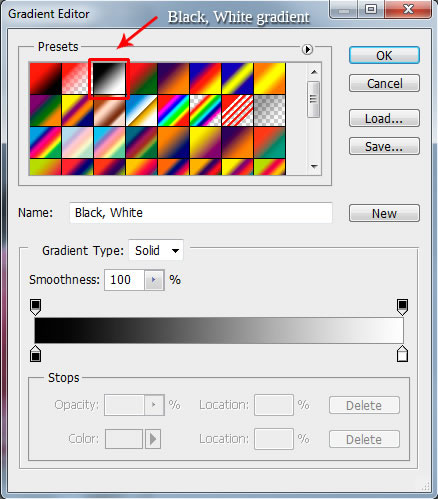
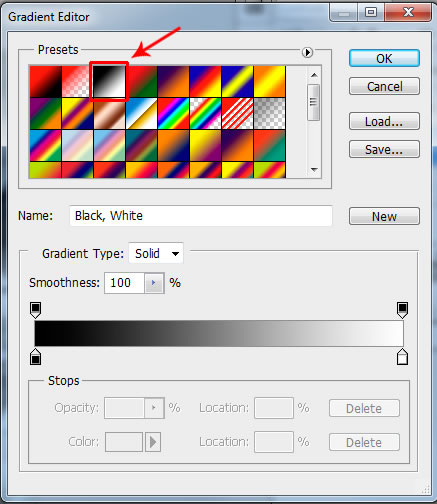
In order to create large streamline light reflection, duplicate previous 3D glass shape. Apply Screen Blending Mode to this layer and Opacity 70%. Add Layer Mask, click small icon in the bottom of Layers palette. Fill Layer Mask in the bottom part of the glass with Black and White gradient.

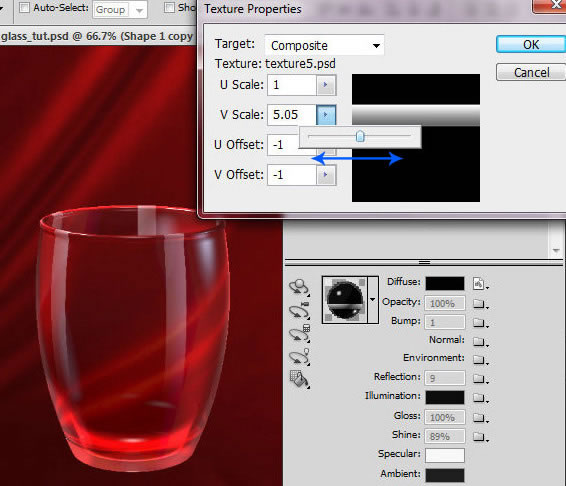
Step 17

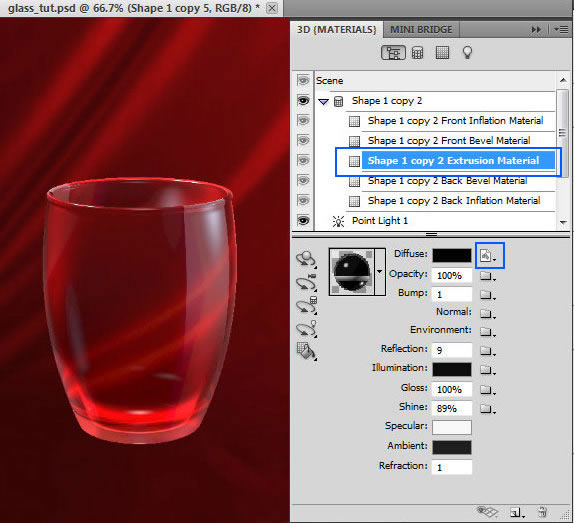
Open materials palette and upload the new texture to Diffuse map. It should looks like a black square with white horizontal line. You may fill the line with white/gray gradient, just like on the screen shot. Play with texture properties to move it on the right side of the glass shape. You may see how light spot position changes with different texture properties, check out the last screen shot.


Step 18

Apply following light settings to the shape with light reflection.


Step 19

Draw a new shape for the foam inside the glass. The size is 139x117px.


Step 20

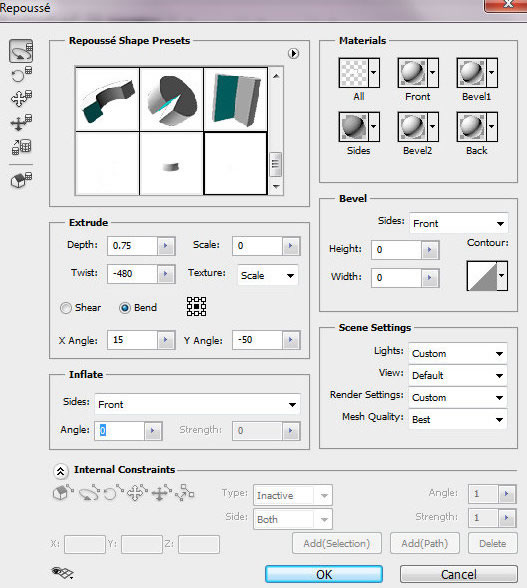
Create the 3D object just like in the previous actions with the glass shape. Use the same Repousse Shape settings and set X Orientation "-10" to apply the same perspective as for the glass shape.


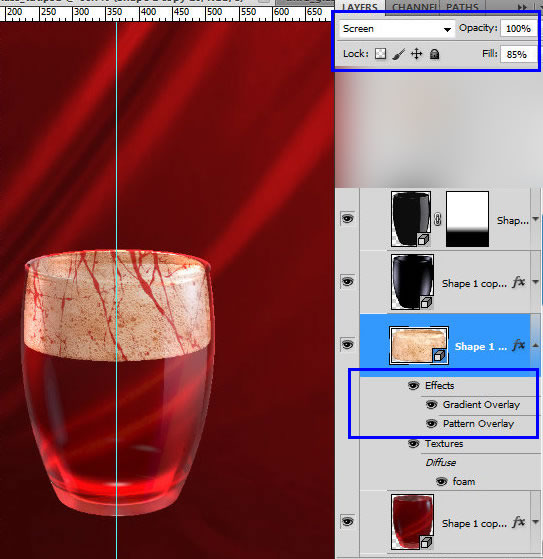
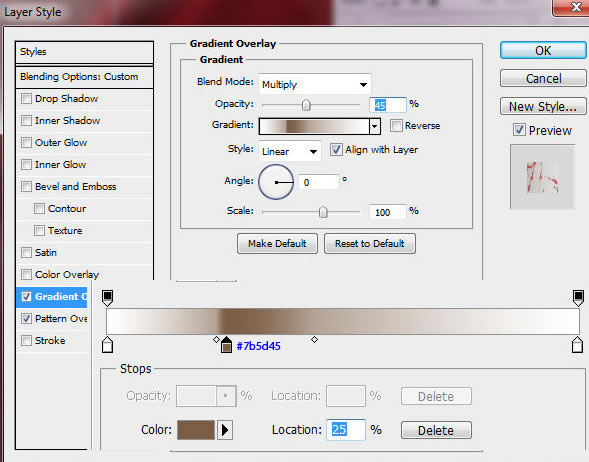
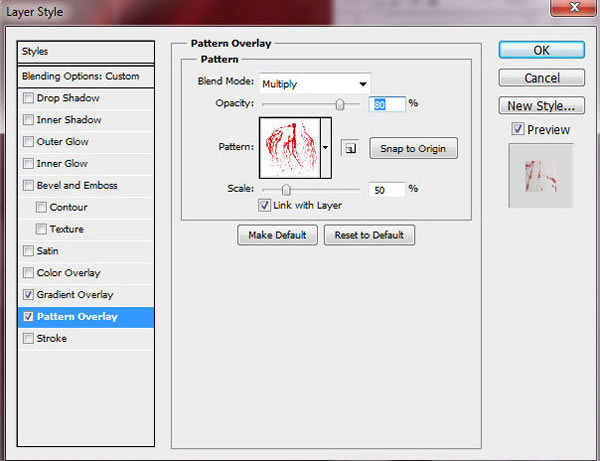
Step 21

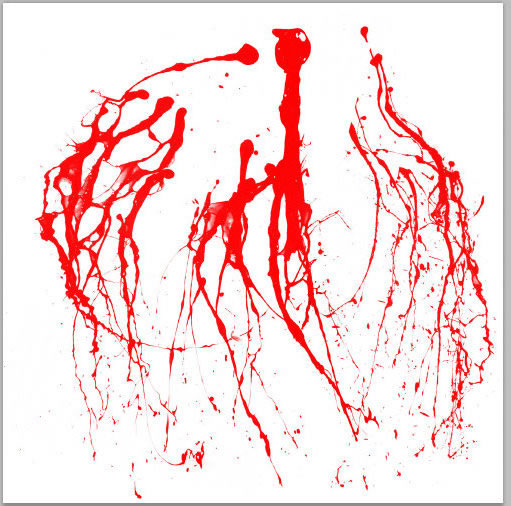
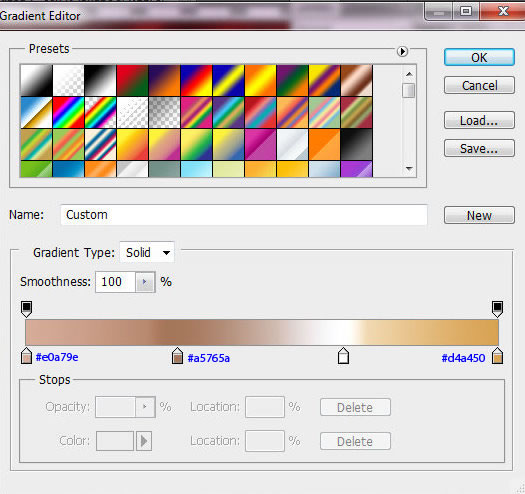
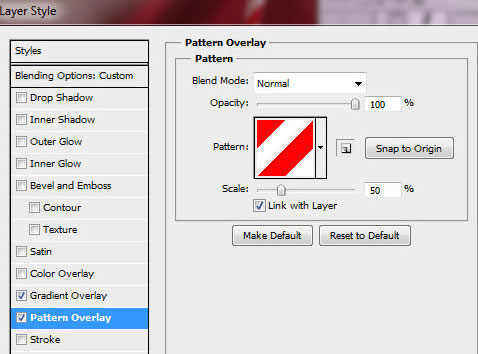
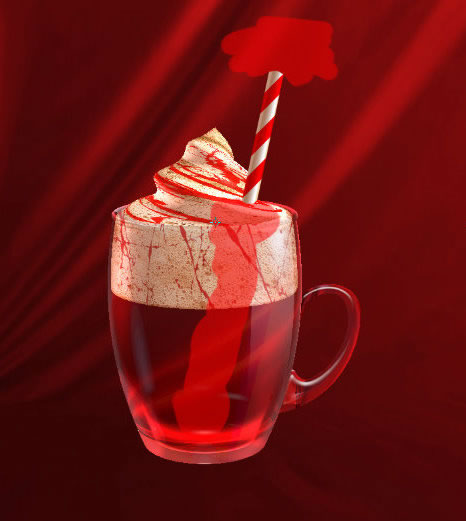
Place foam layer above first glass 3D shape and below the second one. Choose Screen Blending Mode and Fill = 85%. Apply Gradient Overlay layer style effect and Pattern Overlay effect. In order to create this pattern, make a new Photoshop document 1000x1000px with the white background. Insert several layers with different splatters, choose Multiply Blending Mode for each splatter layer. Flatten layers, go To Edit > Define Pattern. Also, save created texture as JPG or .PSB to use splatter texture for swirl cream 3D shape in the future steps.


Step 22

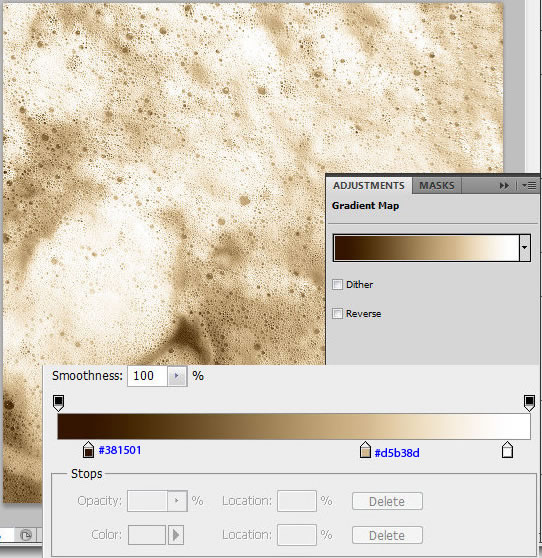
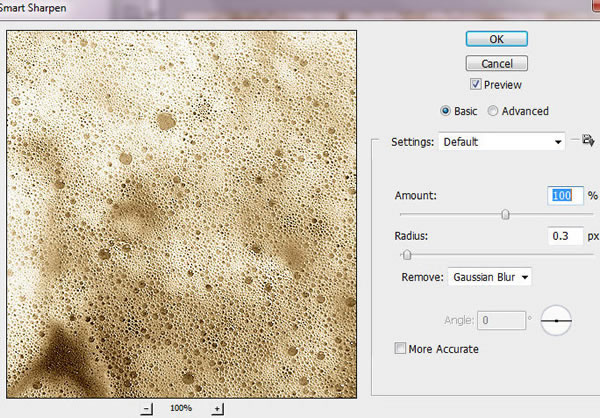
Prepare foam texture. Open original foam image and crop square area 1000x1000px, choose the area with small brown bleed lines. Apply Gradient map effect to this image. Image > Adjustments > Gradient Map. Then add Smart Sharpen effect. Filter > Sharpen > Smart sharpen. Save created image as.JPG or .PSB.


Step 23

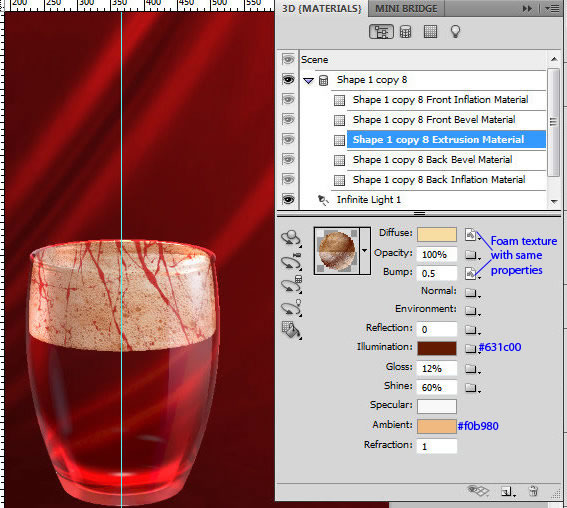
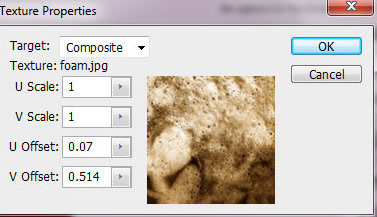
To make spongy foam effect apply following settings and created texture to the Extrusion Material. Upload to Diffuse and Bump parameters the same foam texture with the properties just like on the second screen shot.


Step 24

Apply Light setting.


Step 25

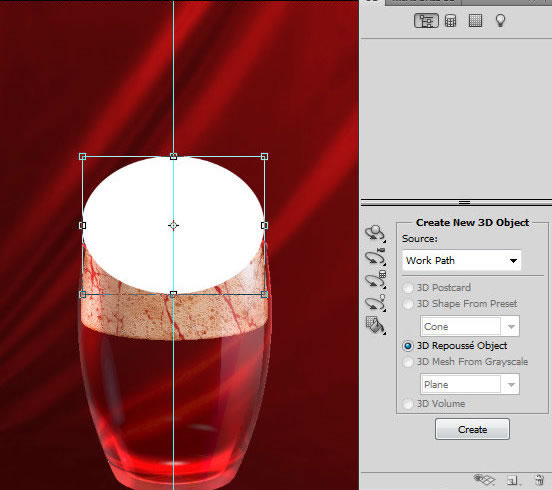
Draw oblateness ellipse using Ellipse Tool in Shape Layers Mode . Create a new 3D object once again.


Step 26

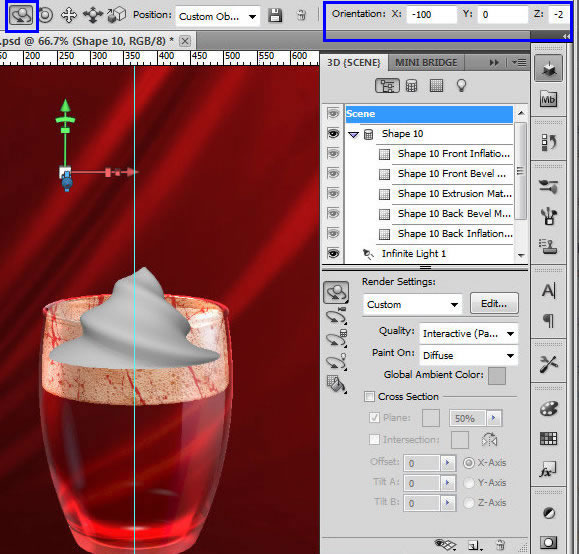
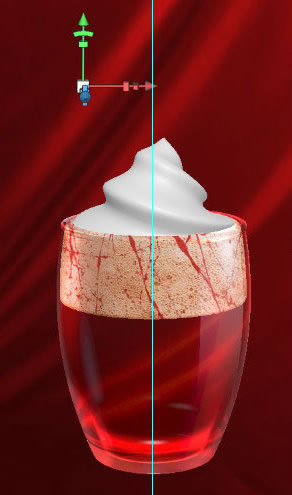
Use following settings, Mesh Quality should be the Best. Adjust Orientations settings, you may find them on the second screen shot. Move the shape on the top of the glass with Move tool .


Step 27

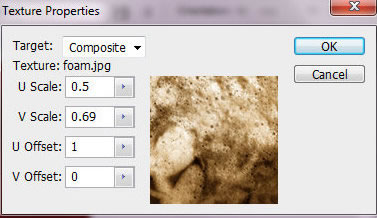
Apply Material settings, upload the same foam texture as for the previous shape with the texture properties like on the second screen shot.


Step 28

Set light effects for the swirl shape.


Step 29

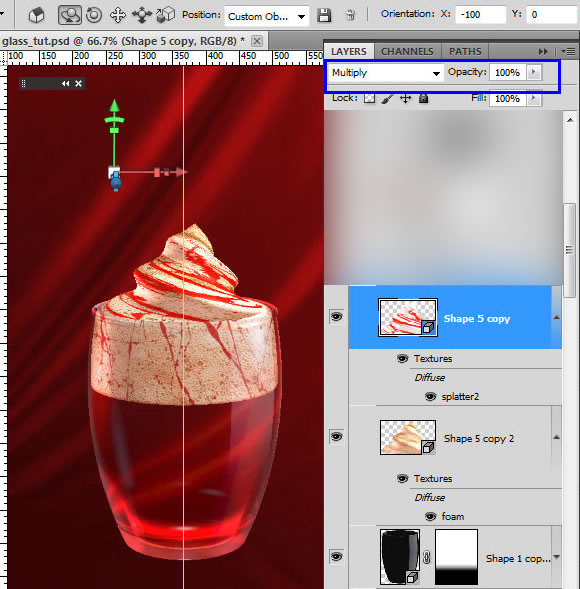
Duplicate swirl cream 3D shape, apply Multiply Blending Mode to it. Use splatter texture from Step 21 to upload it into Diffuse map.


Step 30

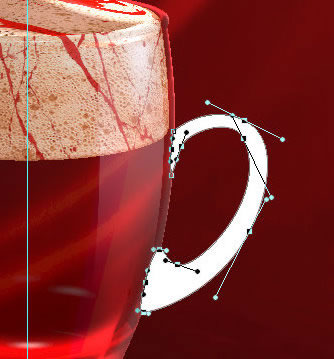
Create the cup handle shape using Pen Tool in the Shape Layer Mode . The size is 128x198px.

Step 31

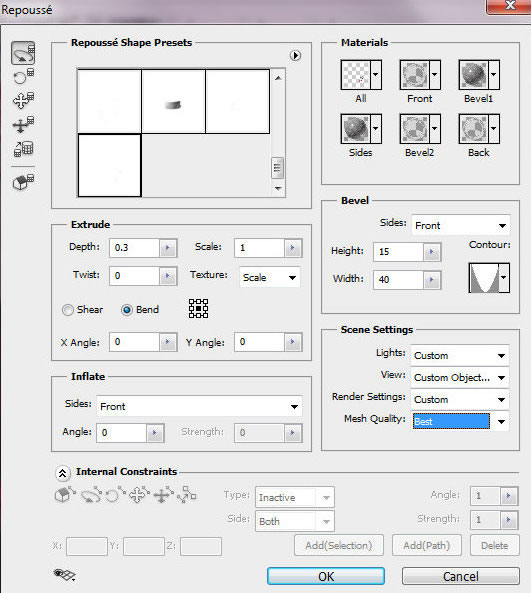
Convert it to the 3D object with following settings, use Bevel effect for this shape. Apply the same map settings to the "Extrusion Material" and "Front Bevel Material" as for the first glass 3D shape(red glossy shape, Step 9).


Step 32

Adjust light effects.


Step 33

Move handle layer below all glass layers and apply layer style effects.


Step 34

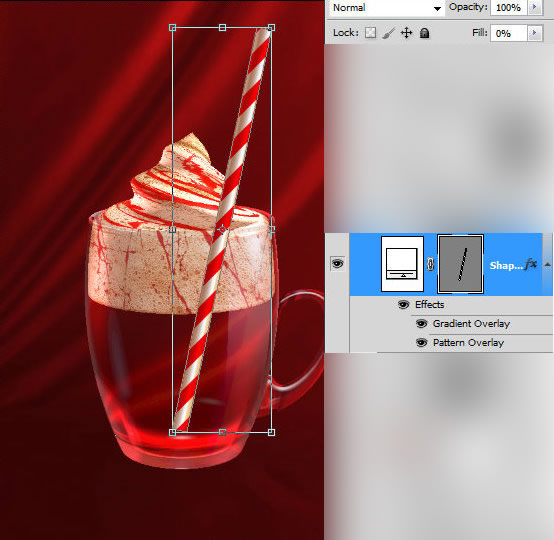
Draw the straw shape with Rectangle Tool, rotate it a bit – around 12° . Apply Gradient and Pattern Overlay layer style effects.


Step 35

Rasterize straw shape and duplicate it. Use one of the duplicates for the top part of straw. Erase marked areas.


Step 36

Make active second copy of straw shape, tilt down it a bit, erase area above the foam texture. Put layer above first glass 3D shape, apply Opacity = 80%, add Layer Mask and fill it with Black and White linear gradient in the bottom part of the straw.


Step 37

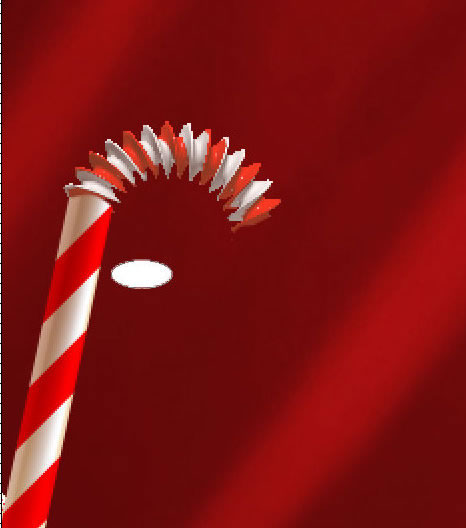
In order to create springy part of the straw, draw a small ellipse and convert it to 3D object. "Best" Mesh Quality is very important for this complicated shape.


Step 38

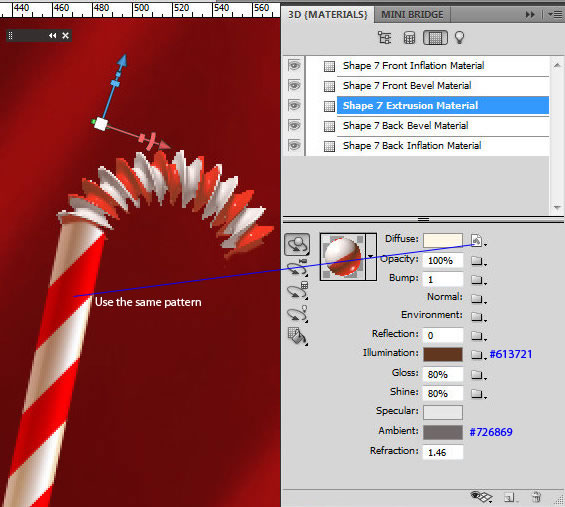
Rotate this shape, or you may put Orientation settings like on the screen shot. Adjust Extrusion Material, use red diagonal pattern for diffuse map, the same as for the straw.


Step 39

Adjust light settings.


Step 40

Copy small part of the straw and place it above crated shape and rotate like on the example.


Step 41

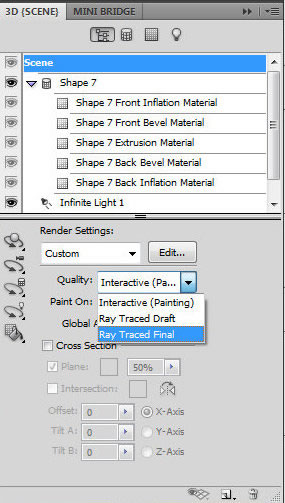
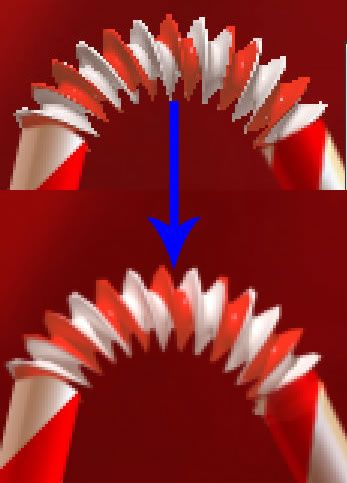
In order to improve 3D objects appearance and smooths contours apply Ray Traced Final Quality to all 3D shapes. Make it in final. Merge all glass layers after rendering. Make small ellipse selection on the cream surface around the straw and process this spot with Burn Tool .


Step 41

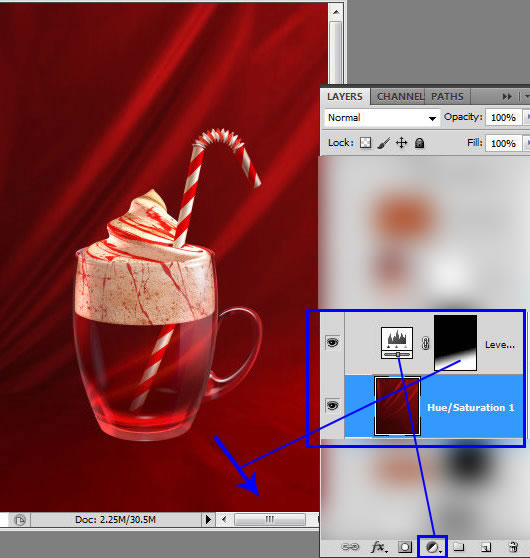
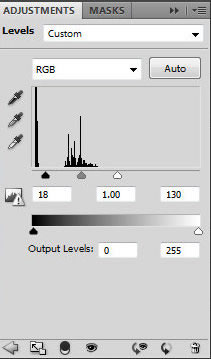
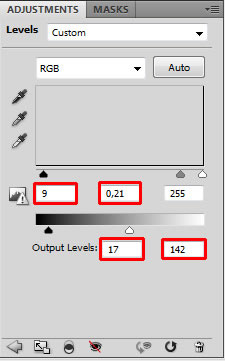
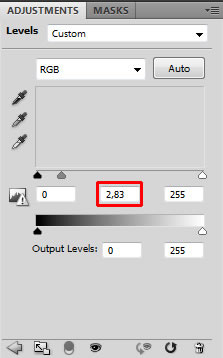
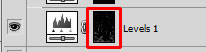
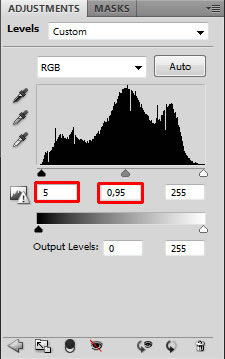
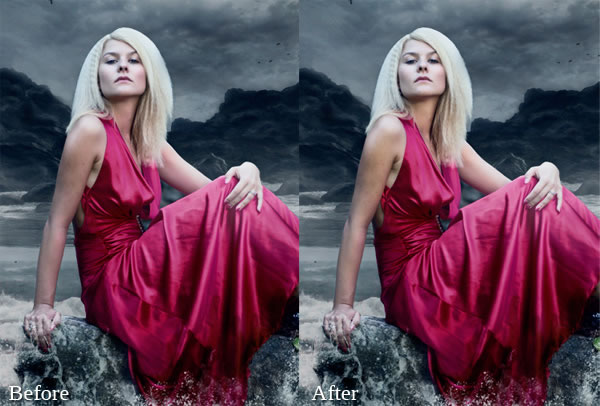
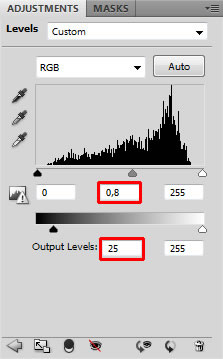
Lighten bottom right part of the background using Levels settings. In order to apply these settings just to the bottom area, fill Adjustments layer mask with Black and White gradient, with the angle around 100°.


Step 42

Duplicate merged glass layer, apply Flip Horizontal transformation to the duplicate. Move it down. Add Layer Mask to this layer and fill bottom part of Layer Mask with the Linear Black and White Gradient.


Step 43

Insert Wood texture, load selection for this shape, use Command Ctrl + Click layer thumbnail, copy selected area.


Step 44

Create a new empty layer above red background, go to Filter > Vanishing Point. Take "Create Plane Tool" and make plane like on the screen shot, use Ctrl + V command to insert copied wooden texture, drag it to created plane, then click "OK".


Step 45

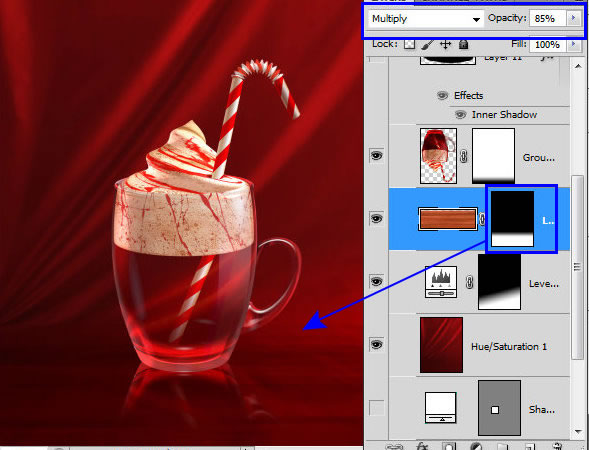
Apply Multiply Blending Mode to the Wood Layer, add Layer Mask and fill it in the top part with the Linear Black and White Gradient to make smoother far wooden edge.


Step 46

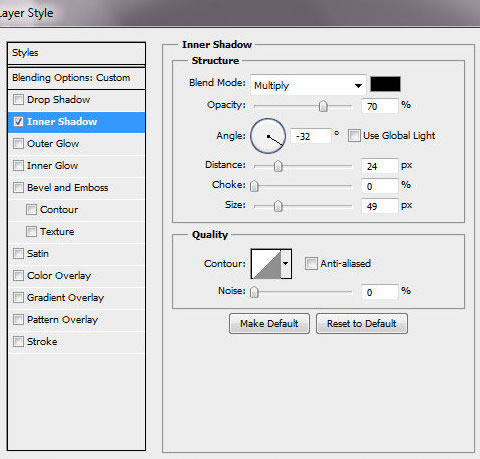
Create a circle under the cup to make shadow effect, apply Overlay Blending mode, Fill = 0% and Inner shadow layer style effect.


Step 47

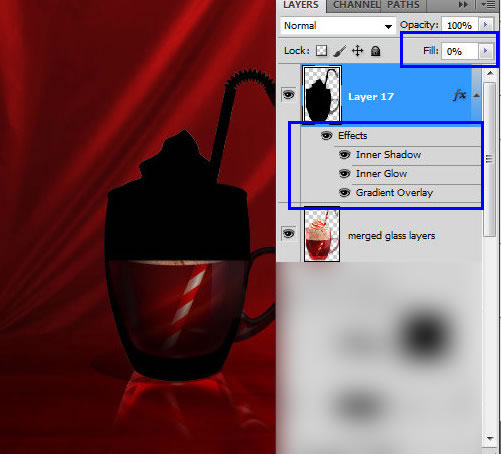
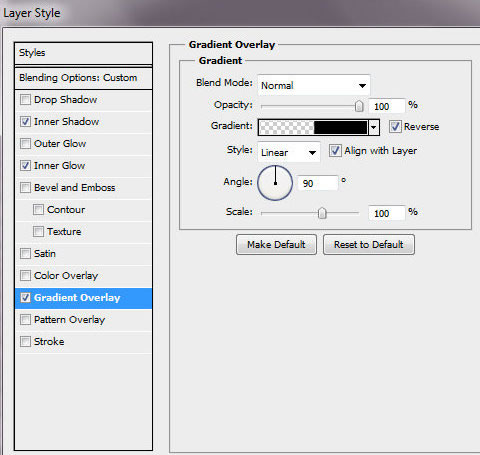
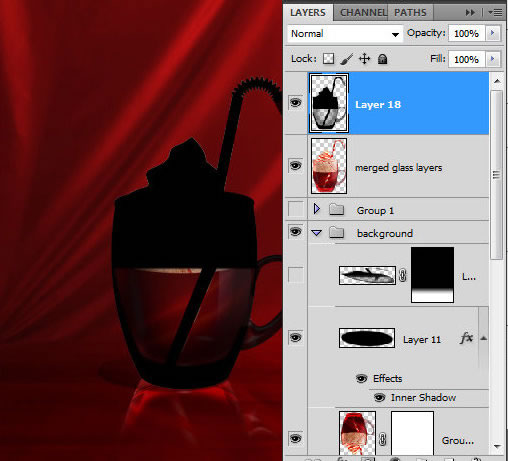
Load selection for the original merged glass shape and fill it with any color in a new layer, apply layer style effects to this shape to create black glass silhouette with transparent liquid area, don’t forget to fill with black color straw area inside the glass. Merge created shape with the new empty layer.


Step 48

Apply Free Transformation to shrink the created shape by vertical and Skew Transformation to move top edge left. Edit > Transform > Skew.


Step 49

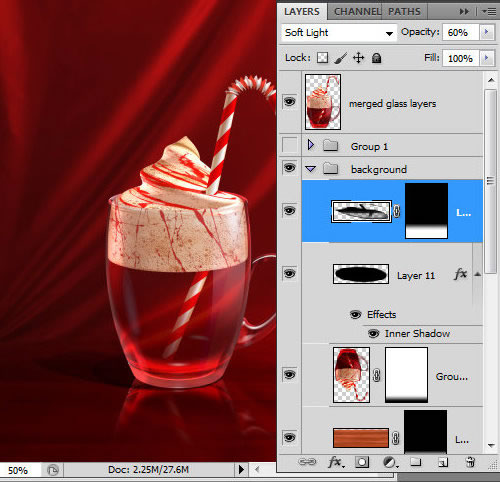
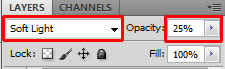
Apply Soft Light Blending Mode and Opacity 60% to this layer. Add Layer mask and fill top part of shadow with gradient just like in the previous steps.


Final Image


50 Brilliantly Photoshopped Movie Posters

$
0
0

Movie posters are meant to be attention grabbing, captivating, stunning and intriguing. The designers have a large canvas to work from, so their creativity has few limits. Because of this, movie posters can result in some of the smartest graphic design you’ll ever see. Here are 50 brilliantly Photoshopped movie posters for your viewing pleasure.

Editor’s note: This article was originally published on Psdtuts in March of 2009.


1. Batman: The Dark Knight


2. Watchmen


3. Taken


4. X-Men 3


5. Push


6. Gladiator


7. Day Watch


8. Sin City


9. Pirates of the Caribbean: Dead Man’s Chest


10. Spider-Man 3


11. Death Proof


12. Planet Terror


13. 300


14. Walk the Line


15. Superman Returns


16. Sweeney Todd: The Demon Barber of Fleet Street


17. Crash


18. Ocean’s 12


19. Terminator: Salvation


20. I Am Legend


21. Star Wars Episode 1


22. War of the Worlds


23. Apocalypto


24. Narnia – Prince Caspian


25. Pan’s Labyrinth


26. Cloverfield


27. American Gangster


28. Transformers


29. Fear and Loathing in Las Vegas


30. A Scanner Darkly


31. Hellboy II


32. V for Vendetta


33. Lord of the Rings: The Fellowship of the Ring


34. Bridge to Terabithia


35. WALL-E


36. Napoleon Dynamite


37. Lord of War


38. Big Fish


39. Zodiac


40. Star Wars Trilogy DVD Poster


41. 3:10 to Yuma


42. No Country for Old Men


43. Jurassic Park 3


44. The Eye


45. Iron Man


46. Dawn of the Dead


47. Halloween


48. Perfume


49. Identity


50. Pathfinder


Test Your Photoshop Knowledge #4

$
0
0

We know how much you guys like to test your knowledge of Photoshop so today we are giving you an opportunity to do so with another quiz from Martin Perhiniak. Please take a moment to complete this 10-question quiz and see if you’re prepared to pass our test! Good luck!

Editor’s note: this quiz is for Photoshop CS5.


Apply Liquid Effects to Sports Photography – Tuts+ Premium Tutorial

$
0
0

Enhancing a sports photo with cooling liquid effects can drastically improve the look and feel of a composition. In this Tuts+ Premium tutorial, author Mark Mayers will apply these effects to a photo from sports photographer Jordan Weeks. In the process, Mark will explain how not to overwhelm the model, but rather, to compliment the flow and movement of the original photography. This tutorial is available exclusively to Tuts+ Premium Members. If you are looking to take your compositing skills to the next level then Log in or Join Now to get started!

Tuts+ Premium Members can login now for instant access to this tutorial. Membership to Tuts+ Premium gets you access to hundreds of exclusive premium tutorials, top selling ebooks, in-depth courses, member forums, and much more. To learn more about Tuts+ Premium, Take the Tour or Join Today.


Enhance Your Ad Designs with 3D Splashes

$
0
0

In this tutorial, I’ll show you a creative process that gets you using your crazy brain. The workflow for creating the splashes involves taking photographs of thrown paint. Through photography you can capture amazing 3D images without the need for 3D software. Learn to make a splash in your next design.

Editor’s note: This tutorial was originally published on Psdtuts in April of 2008.


Step 1

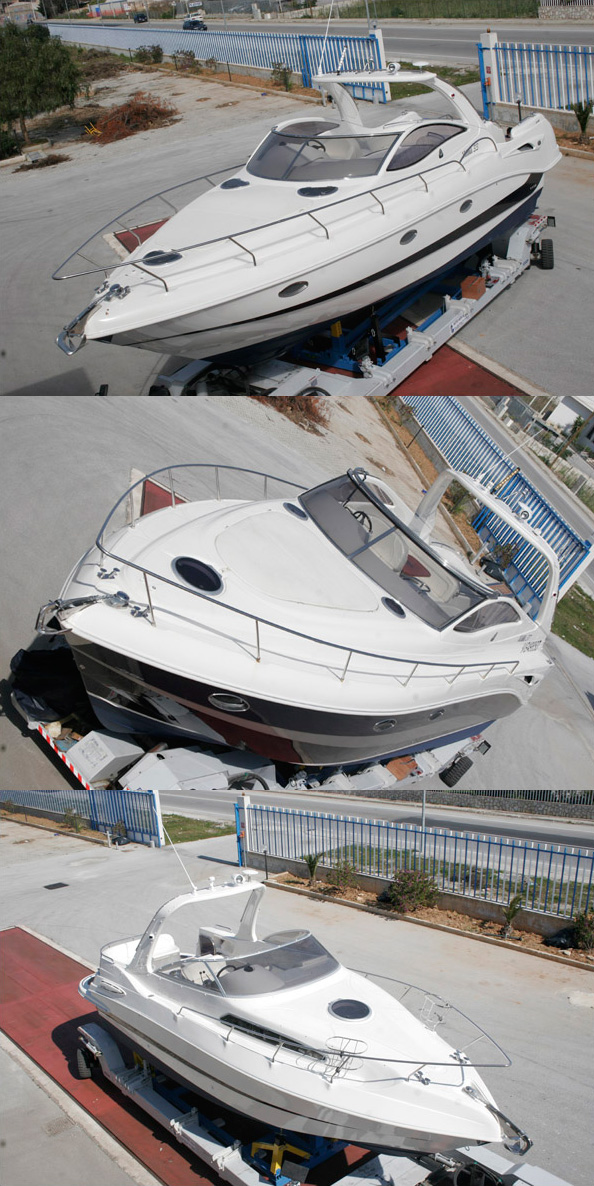
We need three boat photos taken from a high view. For this tutorial, you can substitute boats with cars, shoes, or anything else.


Step 2

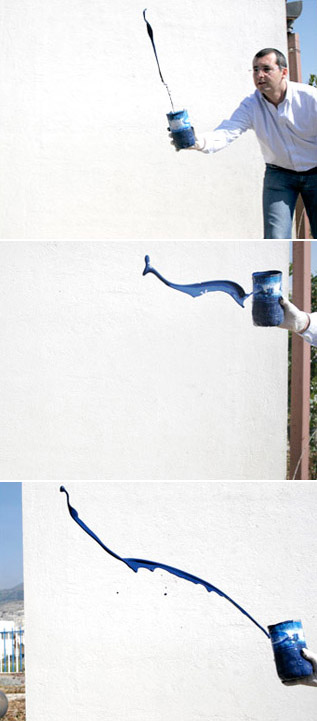
Start to throw the paint from a cut plastic bottle. You can do it in front of a white wall or a green screen (if you have it) to obtain a good contrast on the edges of the splashes. The results will show better if you mix water and paint together. Be forewarned, stay away from the paint. In this attempt, we lost a cashmere pullover and a watch—irremediably stained.


Step 3

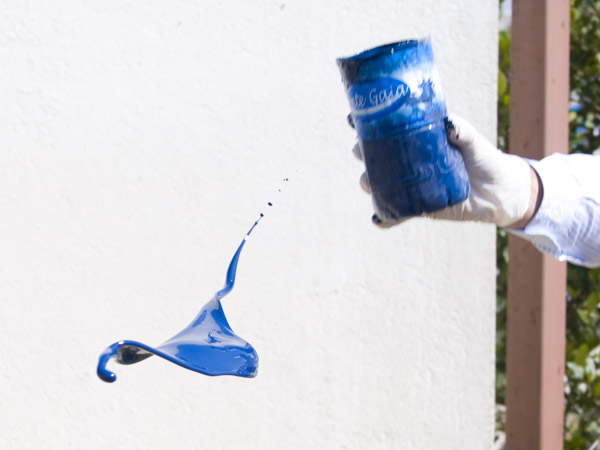
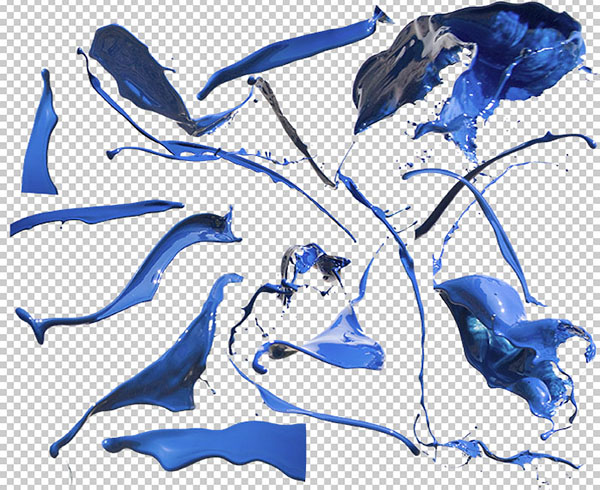
Select the best splashes you photographed. If some parts of the paint are out of focus, don’t worry. It’s a fine effect and it will contribute to a sense of depth in the final result.


Step 4

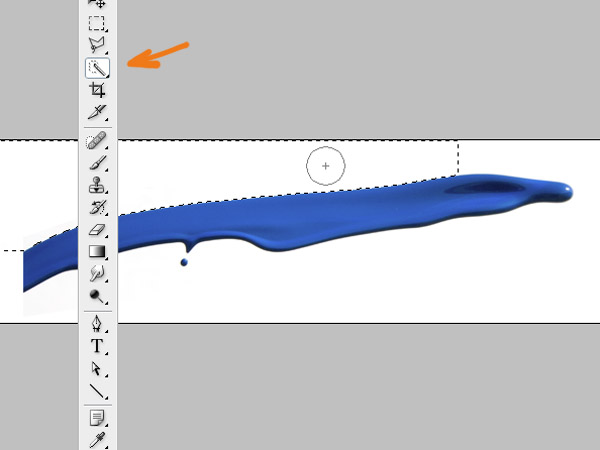
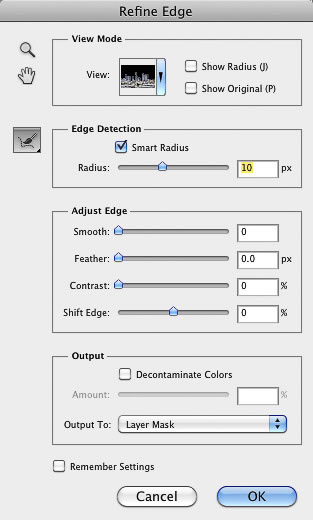
Use the Rapid Selection Tool or Magic Wand Tool to select the white background around the splashes. After you complete the selection process, go to Select>Refine>Edge and make some adjustments. Add Feather, Radius, and Expand or Reduce the selection until you find a nice result. Use a black background to remove excess white pixels on the edges. After that, go to Layer>Layer Mask>Reveal Selection to hide the white background.


Step 5

For each splash you need to repeat Step 5 and duplicate the layer every time. At the end, you may have a multilayer file like the image below.


Step 6

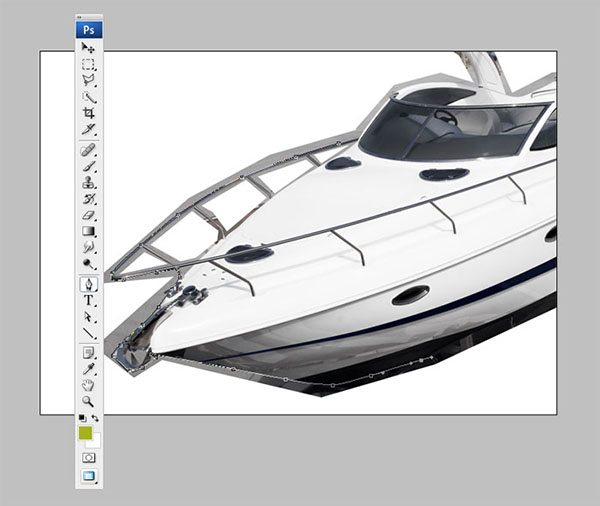
Now switch off every Paint layer so we can concentrate our attention on the boats. Select the Pen Tool (P) and start creating a path in the shape of the first yacht. This is the only way to make it. Without a suitable green screen the edge becomes too complicated so you can’t use any Photoshop tools to speed up this step.

After you create the path, click on the dotted circle icon at the bottom of the path box to create a selection. Select > Inverse and Delete the background (or create a mask to hide it). If your object is complicated, then your paths may take some time to create. Repeat this step with all the boat images (cars, shoes, or any images you’ve chosen).


Step 7

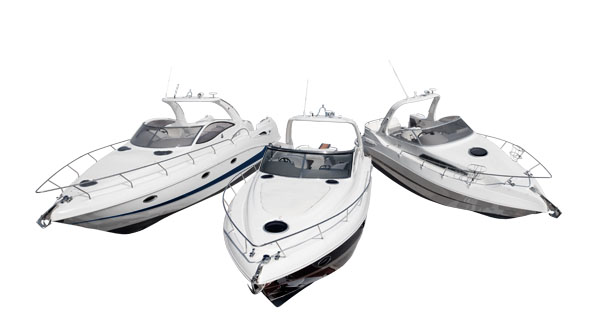
Use three different layers to work on the boats. At the end, you should have a good composition like this.


Step 8

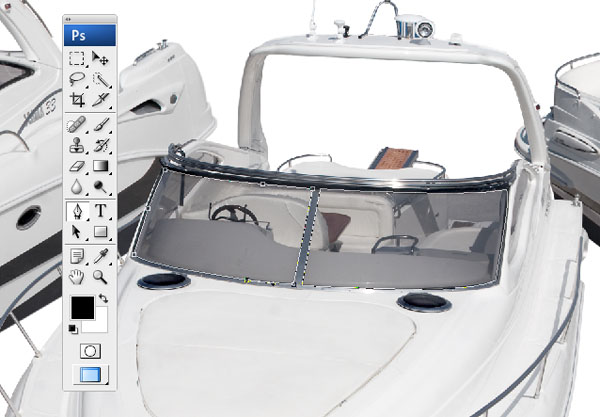
Now the boats need some improvements. Start with the opaque glass. Select the Pen Tool (P) and create a path around the shape of the glass.


Step 9

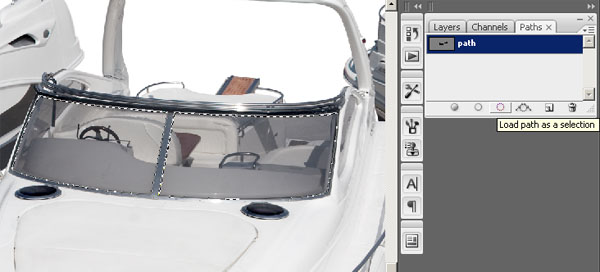
Go to the Path Palette. Click on the dotted circle icon at the bottom of the box to create a selection from the path.


Step 10

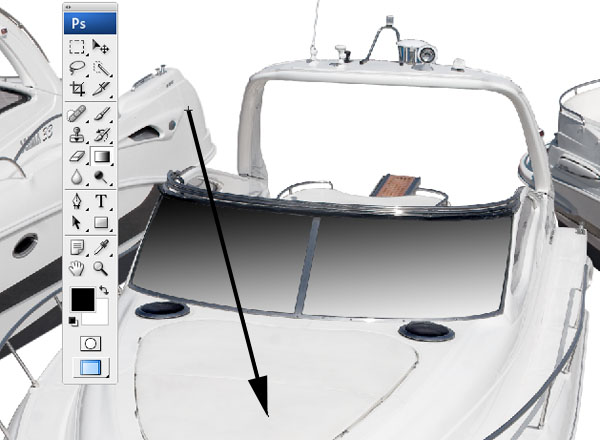
Add a new layer called “glasses” over the boat layer and fill it with a gradient using white to black for the colors following the direction of the arrow shown below.


Step 11

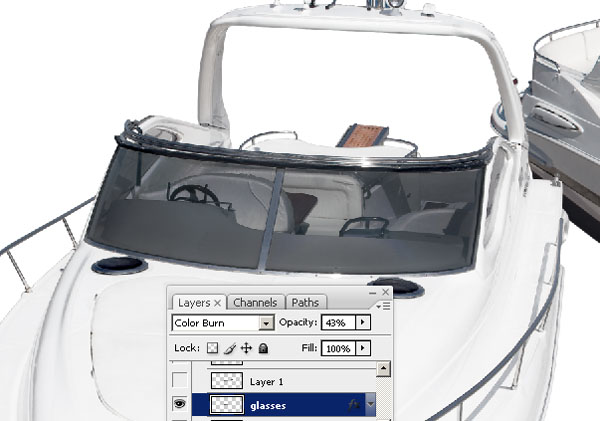
For the Blend Mode use Color Dodge. Also, set the Fill Opacity to 60%.


Step 12

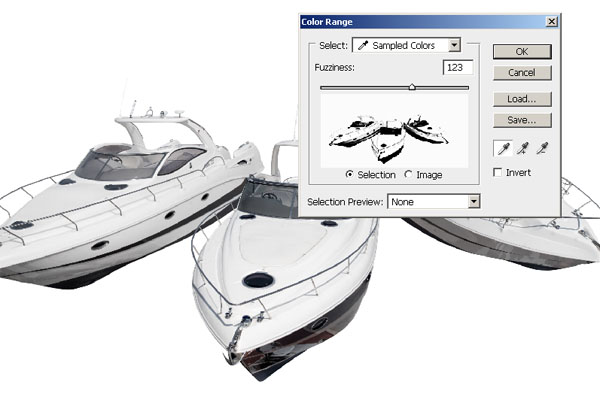
Repeat this step for all the boats. Now we must improve the color of the boats. Start with Select > Color range. Then pick a white point on the foredeck of one boat with the Eyedropper and set the Fuzziness to 123.


Step 13

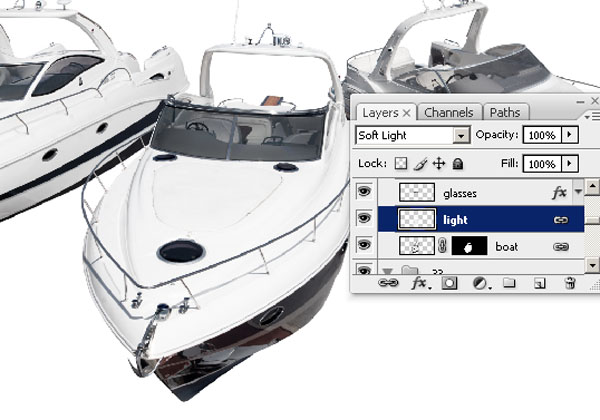
With this new active selection, copy the white color from the boat layer and paste it into a new layer called lights over the boat layer. For the Blend Mode use Soft Light and set the Fill Opacity to 100%. Repeat this on the other boats. Now the foredeck appears brighter.


Step 14

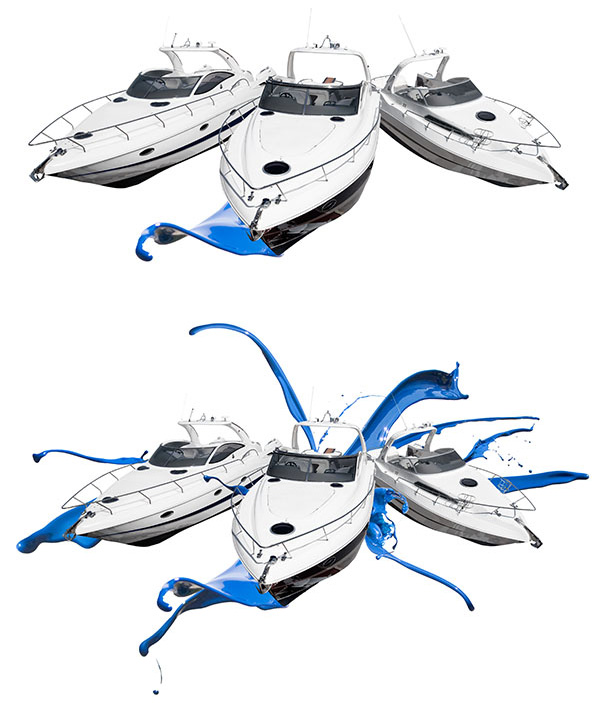
Start revealing every single splash layer and move them below the boat layers. Keep in mind, you can put some layers of paint below one boat layer, while being above another boat layer. Mix and match until you have a nice composition, like the second image below.

image

Step 15

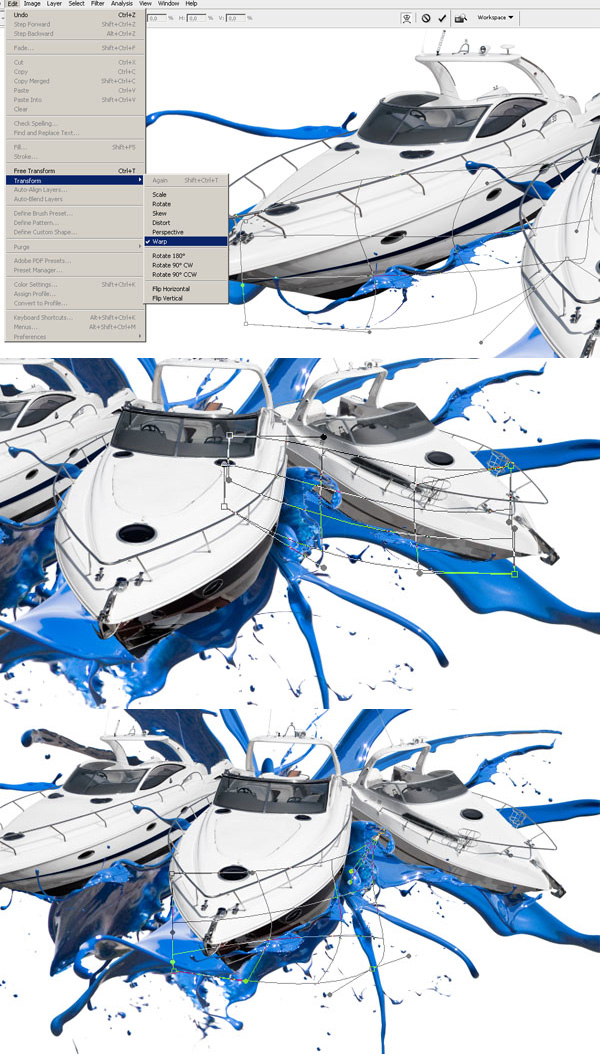
The Warp Tool is the magician of this tutorial. From the Top Menu go to Edit > Transform > Warp. Move the anchor points creating the spray from the paint waves, bringing the splashes near the hull.

image

Step 16

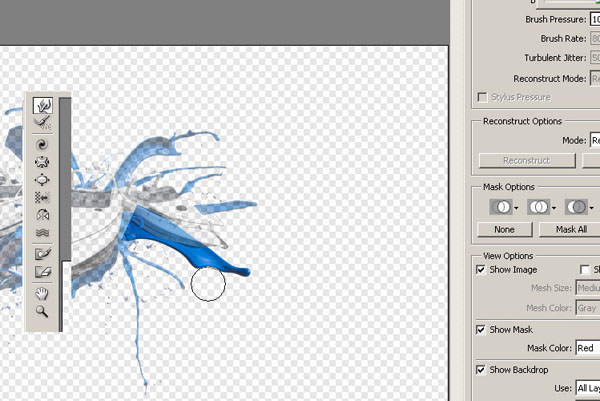
You can also create new splashes from your images by changing their shape with the Liquefy Filter. Go to Filter > Liquify. Use a medium brush to change the shape of the blue splashes.


Step 17

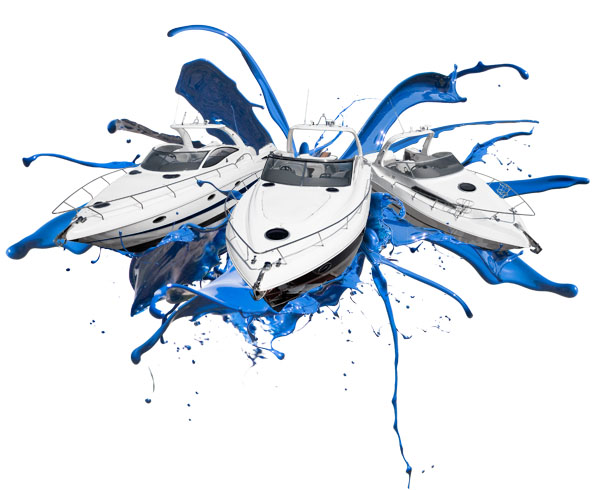
Your design so far should look like the image below.


Step 18

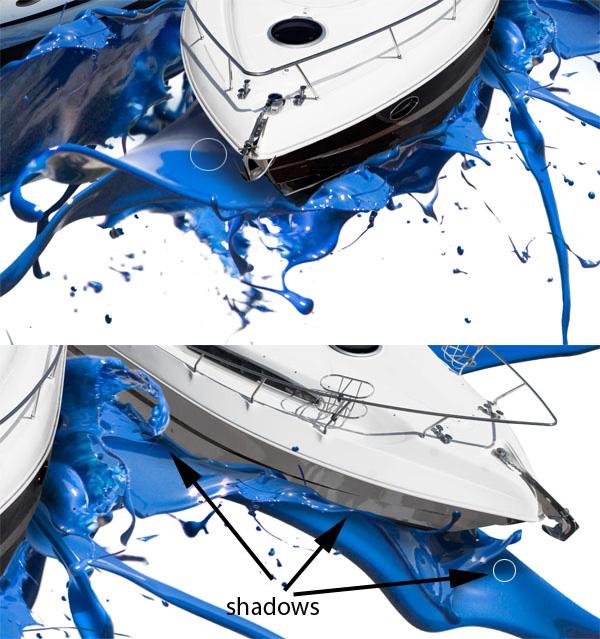
Create a new layer over the splashes. Select a brush similar to the one used in the image below. Set the Hardness to 0%. Then, with a dark blue color selected, draw shadows below the boats.

image

Step 19

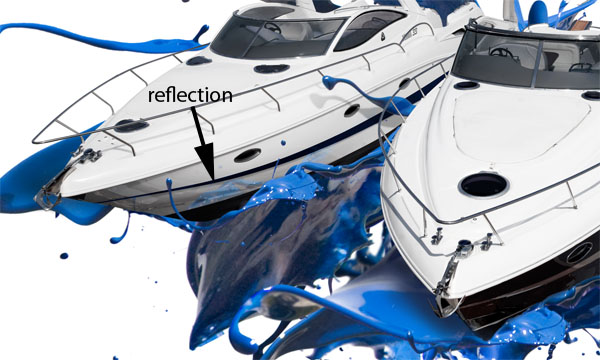
For each boat, duplicate a splash layer near the hull. Move this new layer over the boat. Call it “reflections.” For the Blend Mode use Overlay. Then set the Fill Opacity at about 60%.


Step 20

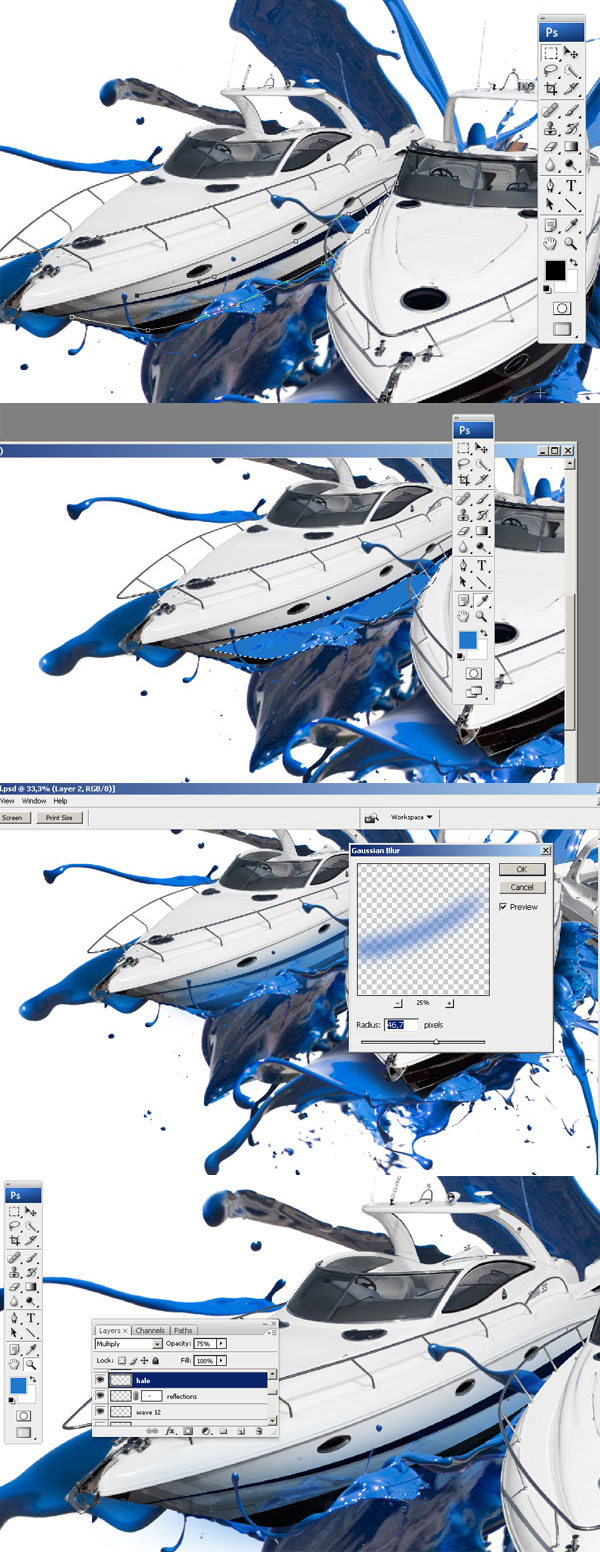
Select the Pen Tool (P) and create a path along the lower side of the yachts. Create a selection from the path. Then create a new layer above the boat layer. Fill the selection with a blue color picked from the blue waves. Call this new blue layer “Halo.”

Deselect (Command/ctrl+D) and from the Top Menu choose Filter > Blur > Gaussian Blur. Apply a Radius similar to the settings below. For the Blend Mode use Multiply. Then set the Fill Opacity to about 75%. Now you have a blue reflection on your hull. Repeat this process for every hull (which includes this step and the previous step).

image

Step 21

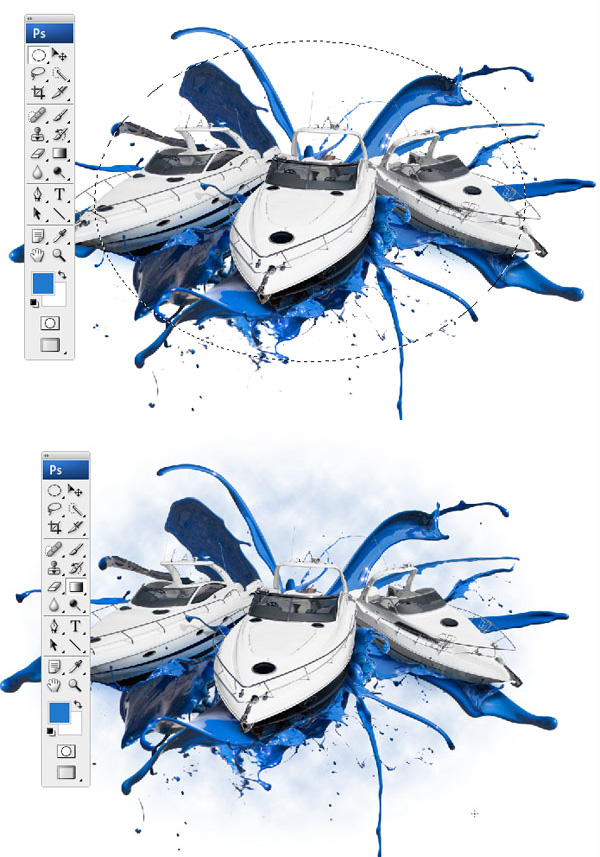
After having completed the shadow and reflection, now we’ll create a light background. Create a New Layer (Shift+Ctrl+N). Call it background. Put this layer below the others. Use the Elliptical Marque Tool to draw an Ellipse.

Then Select > Modify > Feather and set the Radius to about 40px. From the Menu go to Filter > Render > Clouds. Use white for the foreground and a light blue for the background. Set the Opacity to 70%.


Step 22

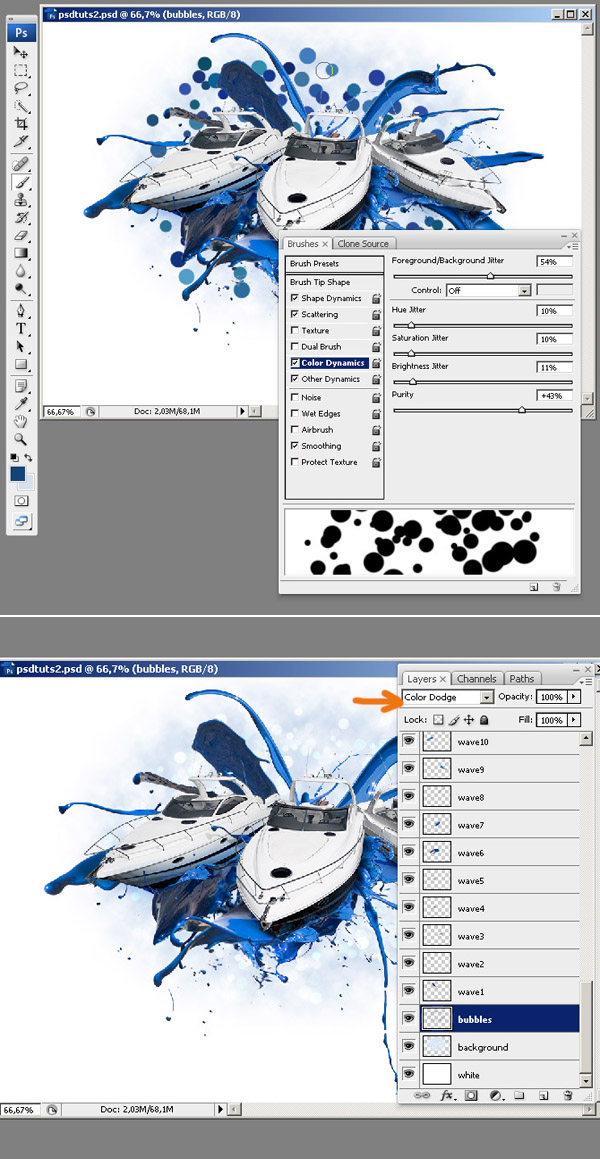
Now we’ll add a background using Photoshop Brushes. Select a Rounded Brush and play with options like Shape Dynamics, Color Dynamics, and Scattering to create a good distribution of random bubble patterns. On a new layer, called bubbles, draw a texture with a light blue foreground and a dark background. After this, select Color Dodge for the bubbles layer in the Layer Palette.


Conclusion

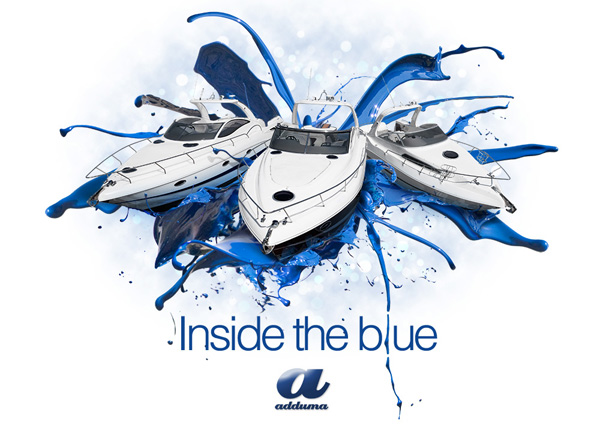
Now you can add anything you want to your advertisement design. I placed a logo and some text in the image below. Good job, your work is finished! Remember to use your software well, but also use your crazy brain. See you at the next tutorial.


Our Favorite Photoshop Content of 2011

$
0
0

The older I get, the faster time seems to fly by. It doesn’t seem that long ago when I was drafting last year’s Best of Psdtuts article. Since then we’ve published a ton of amazing Photoshop tutorials and articles. In this round up, I’ve picked some of my favorite content from Psdtuts to share. This content features photo manipulations, matte paintings, interface designs, text effects, and much more. Please take a moment to review some of our favorite content from 2011.


Photoshop Tutorials and Articles

  • The Cosmos: Create a Red Giant Star in Photoshop

    The Cosmos: Create a Red Giant Star in Photoshop

    When a star like our own reaches the end of its life, it begins to run out of hydrogen fuel in its core. Like a car running out of gas, it will begin to sputter, swelling to a size that could encompass every planet in our solar system out to Mars. These stars are called red giants. In this tutorial we will explain how to create a red giant in Photoshop.

    Visit Article

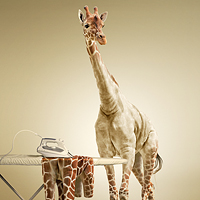
  • Undress a Giraffe in Photoshop

    Undress a Giraffe in Photoshop

    Have you ever wanted to know what a Giraffe looks like without its spots? If so, this tutorial is for you, you pervert! In this tutorial, we will demonstrate how to undress a giraffe by removing its spots. We will then show how to turn its spots into an outfit that will be draped over an ironing board.

    Visit Article

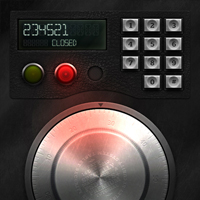
  • Create a Retro Electronic Safe Lock Interface – Psd Premium Tutorial

    Create a Retro Electronic Safe Lock Interface

    Photoshop can be used to create interfaces for all sorts of applications in addition to websites. In this premium tutorial, author Diego Monzon will demonstrate how to create a retro style electronic safe lock interface using both Photoshop and Illustrator.

    Visit Article

  • The Incredible Digital Paintings of Serge Birault

    The Incredible Digital Paintings of Serge Birault

    This article features the work of Serge Birault. Birault is a French digital painter with a stunning portfolio. Most of Birault’s work features the same theme; sexy, naughty, wicked, and often armed women. Please take a moment to review some of Birault’s amazing work and enjoy!

    Visit Article

  • Create a Stitched Text Effect for an iPad Wallpaper

    Create a Stitched Text Effect for an iPad Wallpaper

    In this tutorial we will show you how to create a custom stitched text effect for an iPad Wallpaper.

    Visit Article

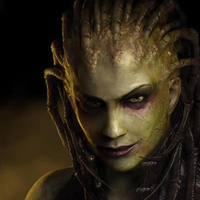
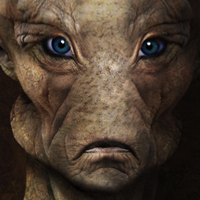
  • Create an Alien Portrait Using Photo Manipulation Techniques – Psd Premium Tutorial

    Create an Alien Portrait Using Photo Manipulation Techniques

    Our culture depicts aliens in all shapes and sizes – but what would a creature from another planet really look like? Would it be the classic anthropomorphic, almond-eyed beings from the X-Files and countless Hollywood movies, or would it be so different from our own DNA to be totally unrecognizable? In this premium tutorial, author Mark Mayers will mix human and animal textures to transform a 3D render into a fantastical extra terrestrial portrait.

    Visit Article

  • Mockup Blister Packaging in Photoshop

    Mockup Blister Packaging in Photoshop

    Designers and clients often have different ideas about how a finished product should be presented. Designers want to show the finished artwork, clients want to know exactly how their design will look on the shelves. In this tutorial, we will demonstrate how to create a mockup for some blister packaging so that you can present your design to your clients.

    Visit Article

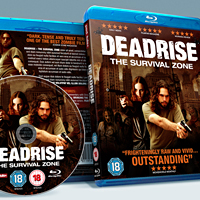
  • Create a Print-Ready Blu-ray Packaging Design – Psd Premium Tutorial

    Create a Print-Ready Blu-ray Packaging Design

    Creating excellent product packaging is more than just producing a great design. To make great packaging you’ll also need to produce printer-friendly artwork that your printer can use to easily apply your design to print. In this premium tutorial, author Mark Mayers will demonstrate how to create a Blu-ray in-lay card for a fictional zombie movie and mock it up as an impressive 3-D Blu-ray case that you can present to your clients.

    Visit Article

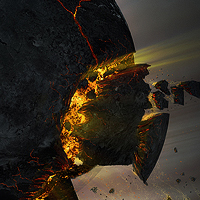
  • Create an Exploding Moon Orbiting a Gas Giant in Photoshop – Psd Premium Tutorial

    Create an Exploding Moon Orbiting a Gas Giant in Photoshop

    Exploding planets are a staple of just about every popular science fiction television show or movie, but did you know that you don’t need your own special effects department to create these types of effects on your own? In fact, all you need is Photoshop. In this premium tutorial, author Ed Lopez will demonstrate several techniques including how to break apart a planetary object, create a star field, dust and clouds, and even how to create a gas giant from scratch.

    Visit Article

  • Create a Surreal, Politically-Charged Photo Manipulation – Tuts+ Premium Tutorial

    Create a Surreal, Politically-Charged Photo Manipulation

    Photoshop is a fantastic tool to help you create all types of artwork. By combining the right photographs, you can say just about anything you want without saying a word. In this premium tutorial, author Mario Sánchez Nevado will demonstrate how to create a politically charged photo manipulation using quite a few stock photographs.

    Visit Article

  • Paint a Professional Caricature Portrait in Photoshop – Psd Premium Tutorial

    Paint a Professional Caricature Portrait in Photoshop

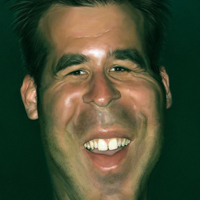
    Having a caricature painted of yourself can be a fun and exciting experience. That’s because just about everyone has wondered, at some point, what they would look like as a cartoon or as an illustration on the cover of a magazine. In this premium tutorial, veteran illustrator, Jason Seiler will demonstrate how to create a professional caricature portrait using Psdtuts Editor, Grant Friedman as an example.

    Visit Article

  • Create a Fictional Arctic Snow Frog in Photoshop

    Create a Fictional Arctic Snow Frog in Photoshop

    Photoshop is a great tool to create scenarios that can’t or don’t exist in real life. In this tutorial, we will combine several stock images and effects to create a fictional arctic snow frog in Photoshop. As you can see, some of his unfortunate friends are frozen into the ice behind him and his meal is frozen just out of reach.

    Visit Article

  • How to Make a Textured 3D Spray Can

    How to Make a Textured 3D Spray Can

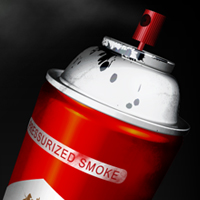
    In this tutorial we will demonstrate how to combine Illustrator and Photoshop to create a 3D, textured spray can. This tutorial requires some basic understanding of Illustrator and Photoshop as well as the pen tool.

    Visit Article

  • Clever Conceptual Photo Manipulations That Tell a Story

    Clever Conceptual Photo Manipulations That Tell a Story

    Conceptual photo manipulations are all about depicting an idea, message, or story that a digital artist wants to convey to their viewers. In a conceptual photo manipulation the idea is the primary motive for the piece, not the materials, tools, or techniques that were used during its creation. These works are truly inspirational and tell a story through the characters, landscape, emotions, or through political or social commentary. In this collection you will find a mixed bag of clever conceptual photo manipulations, some of which include a bit of fantasy, surrealism, or humor.

    Visit Article

  • Create a Snow Covered, Coastal, Mountain Town Matte Painting – Psd Premium Tutorial

    Create a Snow Covered, Coastal, Mountain Town Matte Painting

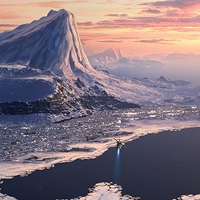
    A matte painting is a backdrop that filmmakers use when the scene they need doesn’t or can’t exist in real life. In the past, they were created by actually painting a scene on a canvas or a sheet of glass. Today, they are created digitally by combining photographs to produce the scene that they need. In this premium tutorial, author Ed Lopez will demonstrate how to create a snow-covered, coastal, mountain town scene using Photoshop.

    Visit Article

  • Design a Conceptual Album Cover in Photoshop

    Design a Conceptual Album Cover in Photoshop

    Album covers are always fun projects to work on. In this tutorial we will take a look at the step-by-step process of creating a conceptual album cover in Photoshop.

    Visit Article

  • The Cosmos: Create a Green Planet, a Setting Sun, and a Space Ship in Photoshop

    The Cosmos: Create a Green Planet, a Setting Sun, and a Space Ship in Photoshop

    Our universe is vast. So vast, in fact, that astronomers don’t measure its size in meters or miles but by explaining how long it would take to travel a certain distance at the speed of light. Light travels approximately 186,282 miles per second. This means that in a one year a person traveling at the speed of light would travel about 6 trillion miles. In this tutorial, we will demonstrate how to create a green planet, a setting sun, and a space ship which has traveled several million light years.

    Visit Article

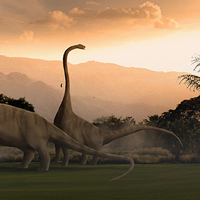
  • Create a Herd of Grazing Dinosaurs in Photoshop – Psd Premium Tutorial

    Create a Herd of Grazing Dinosaurs in Photoshop

    Just about everyone remembers that scene from Jurassic Park when the characters come across herds of dinosaurs grazing in a grassy field. In this premium tutorial, author Ed Lopez will demonstrate how to create a scene filled with Triassic era dinosaurs including a Brachiosaurus, one of the largest animals to ever exist. In this lesson we will demonstrate several matte painting techniques and will also show how to create dinosaurs from scratch.

    Visit Article

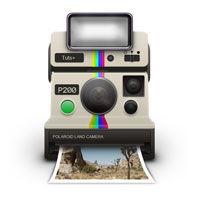
  • How To Draw a Vintage Polaroid Camera Icon

    How To Draw a Vintage Polaroid Camera Icon

    In this tutorial, we will create a Polaroid camera icon. We will use lots of layer styles and draw manually with the brush tool to achieve a realistic appearance.

    Visit Article

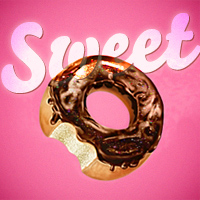
  • Create a Sweet Donut Icon in Photoshop from Scratch

    Create a Sweet Donut Icon in Photoshop from Scratch

    In this icon design tutorial we will learn how to make a sweet and tasty donut icon from an initial sketch. So let’s begin, and remember: don’t try to bite the screen!

    Visit Article

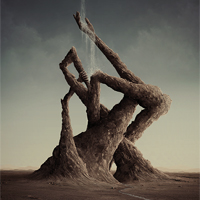
  • Create a Surreal Rock Formation in Photoshop – Psd Premium Tutorial

    Create a Surreal Rock Formation in Photoshop

    While photo manipulation is an important part of just about everything we do in Photoshop, photo manipulation isn’t always the answer. Sometimes you’ll need to do a bit of digital painting to create the image that you need. In this premium tutorial, author Marco Casalvieri will demonstrate how to create a surreal rock formation in Photoshop.

    Visit Article

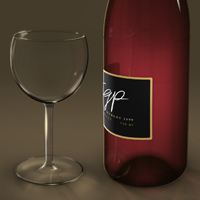
  • Create a Wine Bottle and Glass with Smart Objects – Psd Premium Tutorial

    Create a Wine Bottle and Glass with Smart Objects

    Smart Objects are very powerful layers in Photoshop. In this premium tutorial, author Stephen Petrany will show you how to create a wine bottle and wine glass using Smart Objects as well as demonstrate their benefits.

    Visit Article

  • Epic StarCraft 2 Fan Art

    Epic StarCraft 2 Fan Art

    StarCraft is one of my all time favorite video game franchises. I started playing back in high school – way back in 1998. I continued to play it off and on throughout college but eventually stopped when it seemed as if Blizzard would never release a sequel. Fast forward about 12 years and today, StarCraft 2 is a thriving e-sport with people like HuskyStarCraft and Day9 pushing the game on their YouTube pages. Since I am such a huge fan of the game, I decided to showcase some of my favorite pieces of StarCraft fan art for all of you to enjoy.

    Visit Article

  • Create a Devastating Tidal Wave in Photoshop

    Create a Devastating Tidal Wave in Photoshop

    Matte painting is a technique that filmmakers use to create backgrounds for scenes that can’t or don’t exist in real life. In the early days, matte paintings were actually painted onto glass. Today, modern filmmakers use digital applications such as Photoshop to produce the backdrops that they need. We have published many matte painting tutorials on this site meant for intermediate and advanced users. This tutorial is part of a series of tutorials that we will be publishing on this meant for those of you who may be relatively new to Photoshop or matte painting in general.

    Visit Article

  • Create a Planetary Asteroid Impact – Psd Premium Tutorial

    Create a Planetary Asteroid Impact

    While asteroids don’t slam into the Earth all that often, movie producers sure act like they do. We can all think up a few movies with similar plots. An asteroid is about to hit the planet and a group of heroes comes to save the day. In this premium tutorial, author Ed Lopez will demonstrate how to create an asteroid impact, just like in the movies.

    Visit Article

  • The Making of the Nutty Boat Trip

    The Making of the Nutty Boat Trip

    Most of you probably know how hard it can be to find the perfect stock images for your designs. That means you will often have to get creative and find new ways to create the perfect composition. In this tutorial, we will demonstrate how to place a couple of squirrels in a coffee mug that is floating in a body of water.

    Visit Article

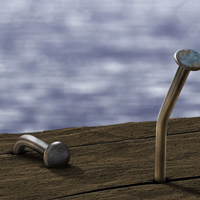
  • Create a Lakeside Scene From Scratch in Photoshop – Psd Premium Tutorial

    Create a Lakeside Scene From Scratch in Photoshop

    Photoshop is a great tool for creating realistic photo manipulations or compositions but it can also be used to create scenes completely from scratch. These types of exercises can be helpful to learn how to create textures and then apply them to your artwork. In this premium tutorial, author Stephen Petrany will demonstrate how to create realistic-looking wood and water textures, adding some nice nails to create a nearly true-to-life lakeside scene.

    Visit Article

  • Create a Detailed Camera Icon in Photoshop

    Create a Detailed Camera Icon in Photoshop

    Icons can be a lot of fun to create. Simple icons are relatively easy to create but more realistic icons can be quite challenging. In this tutorial we will demonstrate how to create a detailed Fuji X100 camera icon in Photoshop.

    Visit Article

  • Create a Winter-Themed Holiday Card in Photoshop – Tuts+ Premium Tutorial

    Create a Winter-Themed Holiday Card in Photoshop

    In this premium tutorial, author Stephen Petrany will demonstrate how to use various techniques to create a winter-themed holiday card in Photoshop. This tutorial will creatively utilize Photoshop filters and transformations to create a fantastic winter illustration.

    Visit Article

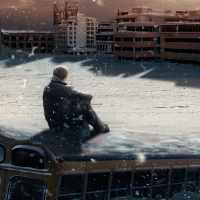
  • Create a Post Apocalyptic Panoramic Matte Painting – Psd Premium Tutorial

    Create a Post Apocalyptic Panoramic Matte Paintingl

    This tutorial is part of a two-part series demonstrating how to create a post-apocalyptic photo manipulation. In Part 1, we showed you how to shoot and assemble the base panorama. In Part 2, author Tony Aube will demonstrate how to turn the image we created in Part 1 into a snowy post-apocalyptic matte painting.

    Visit Article

  • Create a Medieval Landscape in Photoshop

    Create a Medieval Landscape in Photoshop

    In this tutorial we will demonstrate how to create a medieval landscape using digital painting and photo manipulation techniques. We will begin by sketching out a rough idea of how we want our image to look. Then, we will then add various stock images and build upon them until we produce the scene below.

    Visit Article

  • Fan Art From Popular Nerd Franchises

    Fan Art From Popular Nerd Franchises

    There are no shortages of nerdy movies on the big screen these days. In this web round up we will feature some of our favorite fan art from some of your favorite nerd franchises. Pieces included in this showcase will include Star Wars, Star Trek, Transformers, and many more. Please take a moment to review this fantastic showcase of nerd fan art.

    Visit Article

  • Photo Effects Week: Create a Cutout Photograph in Photoshop

    Photo Effects Week: Create a Cutout Photograph in Photoshop

    In this tutorial we will demonstrate how to create a cutout photo using simple selections and advanced transformations.

    Visit Article

  • The Artwork of Miriam Moshinsky

    The Artwork of Miriam Moshinsky

    In this article we will be showcasing the work of Miriam Moshinsky, a Russian-born designer currently living in Israel who has authored several tutorials here on Psdtuts. Miriam’s work features colorful, fantasy worlds full of children, animals, food and candy. Her work always includes some type of dark and morbid twist, which is a hallmark of her unique and creative style. Please take a moment to review some of her remarkable creations and enjoy!

    Visit Article

  • Photo Effects Week: Create a Print-Ready Environmental Poster – Psd Premium Tutorial

    Photo Effects Week: Create a Print-Ready Environmental Poster

    In this premium tutorial, author Mark Mayers will walk you through the entire process of creating a poster design with a strong environmental message. You’ll use Photoshop to assemble the illustration, then add the text and graphics with InDesign to produce error-free artwork.

    Visit Article


Sessions

  • Photoshop Basix

    Photoshop Basix

    Are you new to Photoshop? Have you been trying to teach yourself the basics of Photoshop but have found the amount of educational material available on the net a bit overwhelming? Photoshop Basix, by Adobe Certified Expert and Instructor Martin Perhiniak, is a series of 29 short video tutorials, around 5 – 10 minutes in length that will teach you all the fundamentals of working with Photoshop.

    Visit Article

  • Digital Art for Beginners

    Digital Art for Beginners

    Photoshop is an excellent tool for manipulating photographs but it can also be used as a means to create stunning works of art. Digital Art for Beginners is a 25-part video tutorial series demonstrating everything you will need to know to start producing digital art in Photoshop. Adobe Certified Expert and Instructor, Martin Perhiniak will begin by teaching you how to draw in Photoshop and during the course of the series will show you all you need to know to produce your own concept art and matte paintings in Photoshop.

    Visit Article


Best of the Web – December 2011

$
0
0

As you know, each month, we round up some of the best Photoshop-related content from around the web. This month, there was some excellent Photoshop tutorials to choose from so please take a moment to review our favorites from December 2011.


Photoshop Tutorials

  • Christmas Night Magic Scene With Flying Santa

    In this tutorial from Alfoart you will learn how to create a beautiful holiday card using a few stock photos in Photoshop.

    Visit Tutorial

  • Photoshop Matte Painting Tutorial: Mountains

    In this tutorial 3D Total will explain how to create a matte painting using video opened in Photoshop.

    Visit Tutorial

  • Glossy Snow Globe Text Effect

    In this text effect tutorial on Textuts you will learn how to create a glossy snow globe text effect in Photoshop.

    Visit Tutorial

  • How to Create a Photo Manipulation of a Wolf in Stormy Weather

    This tutorial from PhotoshopTutorials.ws will explain how to take several photos and combine them into one composition.

    Visit Tutorial

  • Making Of ‘Ibaloy Warrior’

    This tutorial from 3D total will explain how to create a detailed warrior using digital painting techniques.

    Visit Tutorial

  • Paint a Multilayered Surreal Portrait

    This tutorial from Digital Arts will explain how to create a surreal portrait in Photoshop.

    Visit Tutorial

  • Candy Cane Text Effect Using Illustrator and Photoshop

    This tutorial from Design Instruct will explain how to create a candy cane text effect using Photoshop and Illustrator.

    Visit Tutorial

  • How To Intensify Your Landscape Photos in Photoshop

    This tutorial from Spoon Graphics will explain how to enhance your landscape photos in Photoshop.

    Visit Tutorial

  • Paint Bucket: How to Avoid a Messy Edge

    This beginner’s tutorial on Ctrl+Paint explains the best way to paint inside the lines using the paint bucket tool.

    Visit Article

  • Working With Photoshop’s History Panel, Snapshots, and the History Brush

    This tutorial from Adobe’s Julieanne Kost will explain how to work with Photoshop’s History Panel, Snapshots, and the History Brush.

    Visit Article

  • Make Your Type Pop With Layer Styles

    This tutorial from computer arts will explain how to use layer styles to make your text pop.

    Visit Article

  • Dozens of New Timesavers

    In Photoshop CS5, Adobe released several tweaks to features that many users had been asking about for a while. This video from Photoshop Sr. Product Manager Bryan O’Neil Hughes will explain some of these tweaks.

    Visit Article

  • Photo Manipulate a Surreal Apple Habitat Scene

    This tutorial from Psd Fan will explain how to create a surreal apple habitat in Photoshop.

    Visit Article

  • How to Create A Detailed Cassette Tape in Photoshop

    This tutorial from WeGraphics will explain how to create a detailed cassette tape icon in Photoshop.

    Visit Article


Best of Tuts+ in December 2011

$
0
0

Each month, we bring together a selection of the best tutorials and articles from across the whole Tuts+ network. Whether you’d like to read the top posts from your favourite site, or would like to start learning something completely new, this is the best place to start!


Psdtuts+ — Photoshop Tutorials

  • Create a Festive Cocktail Using Photoshop’s 3D Capabilities

    Create a Festive Cocktail Using Photoshop’s 3D Capabilities

    For many of our readers, this time of year is filled with family, friends, and celebration. In this tutorial, we will explain how to create a festive cocktail using Photoshop’s 3D capabilities just in time for your New Year’s celebrations. Let’s get started!

    Visit Article

  • Create a Dark, Conceptual Photo Manipulation With Stock Photography

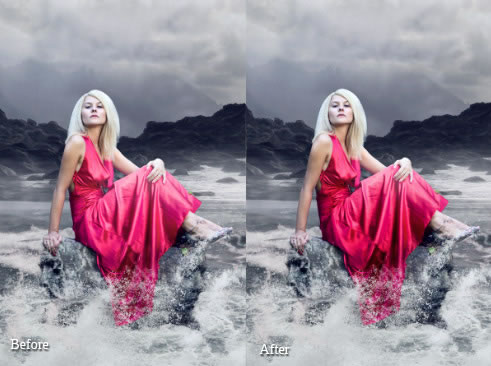
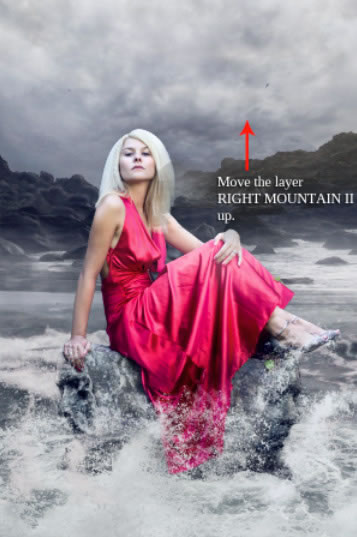
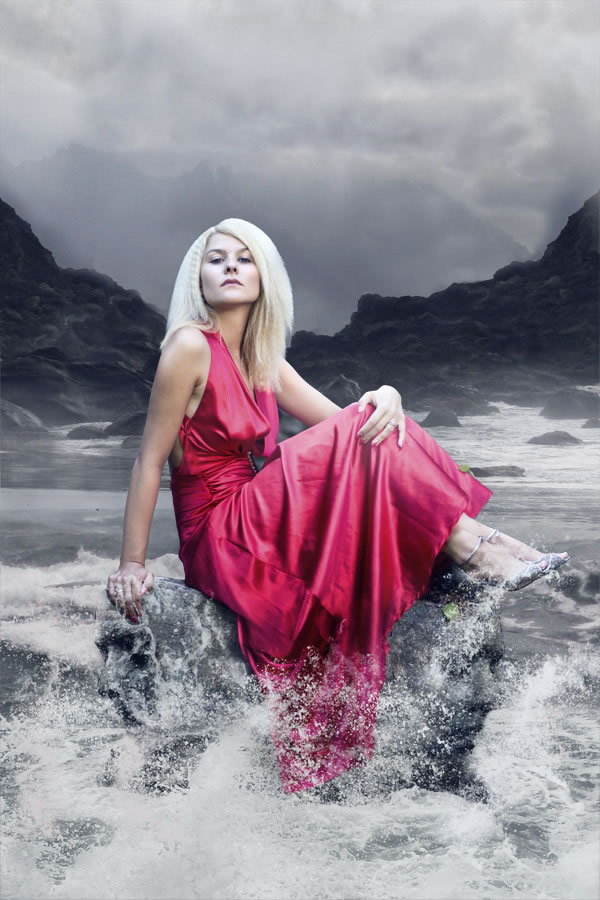
    Create a Dark, Conceptual Photo Manipulation With Stock Photography

    In this tutorial we will be teaching how to integrate elements from different sources to create a realistic photo manipulation with dark and conceptual elements. You will learn some lighting and blending techniques as well as some interesting post-production tips. Let’s get started!

    Visit Article

  • Create High-End Action Figure Packaging – Tuts +  Premium Tutorial

    Create High-End Action Figure Packaging – Tuts + Premium Tutorial

    With collectables, the packaging of the product is often as important as the craftsmanship of the product itself. In this two-part Tuts+ Premium tutorial, author Tim Kyde will explain how to create packaging for a high-end 1/6 scale action figure. Part 1 of this tutorial will explain how to shoot your own photography and create a print-ready outer sleeve and inner packaging for our action figure. This tutorial is available exclusively to Tuts+ Premium Members — Join Now to get started!

    Visit Article


  • Nettuts+ — Web Development Tutorials

  • Wrangling with the Facebook Graph API

    Wrangling with the Facebook Graph API

    Have you ever wanted to learn how to make your applications more social with Facebook? It’s much easier than you think!

    Visit Article

  • From Idea to Market: How We Built Gradient

    From Idea to Market: How We Built Gradient

    Retracing the steps you’ve taken is a helpful way to understand how well you’ve executed your vision – whatever that might be. What could you have done better? What should have been avoided? Today, I’ll share what we’ve learned (and are still learning) while crafting Gradient. It’s an experience that has changed everything for us.

    Visit Article

  • Should You Learn CoffeeScript?

    Should You Learn CoffeeScript?

    I’d imagine that I represent a large portion of the web development community. I’m very intrigued by CoffeeScript; I’ve even learned the syntax and used it in a few demos. However, I haven’t yet taken the plunge and used it in a real project. It comes down to this one question for me: is CoffeeScript something that is truly worth investing time and effort into learning?

    Visit Article


  • Vectortuts+ — Illustrator Tutorials

  • 75 Outstanding Tutorials, Quick Tips, Articles and Interviews from Vectortuts+ in 2011

    Outstanding Tutorials, Quick Tips, Articles and Interviews from Vectortuts+ in 2011

    As the year comes to an end and we pack up our vector tools for some well deserved rest and relaxation, let’s take a look back at some of the best and most inspiring Vectortuts+ articles and tutorials for 2011.

    Visit Article

  • Community Project: 2012 Calendar Design Project

    Community Project: 2012 Calendar Design Project

    Vectortuts+ loves Illustration and discovering new talent, so today we are proud to be launching a new community project that combines both, the Vectortuts+ 2012 Calendar Design Project. The best thing is, you can be a part of it! Find out how to get involved, at the jump.

    Visit Article

  • Quick Tip: How to Create a Watercolor Background Using Adobe Illustrator

    Quick Tip: How to Create a Watercolor Background Using Adobe Illustrator

    In this tutorial we will learn how to create Watercolor Background using a Gradient Mesh, tools of deformation and Blending Modes. The techniques which are described here allow the creation of complex textural backgrounds in a simple and effective way.

    Visit Article


  • Webdesigntuts+ — Web Design Tutorials

  • A Year in Web Design: How the Experts Saw 2011

    A Year in Web Design: How the Experts Saw 2011

    “What did you find most memorable about the world of web design in 2011?” That’s the question I posed to some of our industry’s shining stars last week. One word cropped up more than any other (can you guess?) and everyone had plenty to say. See for yourself after the jump, and let us know what rocked your boat in 2011!

    Visit Article

  • Get Into LESS: the Programmable Stylesheet Language

    Get Into LESS: the Programmable Stylesheet Language

    I don’t like CSS. Plain and simple. It makes the World go round on the web, yet the language is restrictive and hard to manage. It’s time to spruce up the language and make it more helpful by using dynamic CSS with the help of LESS.

    Visit Article

  • Say Hello to the HTML Email Boilerplate

    Say Hello to the HTML Email Boilerplate

    Figuring out html email will test the patience of any human being. A seemingly small formatting issue will inevitably arise and you think to yourself, “self, I’m a world class web developer type person schooled in the latest and greatest html5/css3/whatever, I can tackle this with plenty o’ keystrokes to spare.”

    Visit Article


  • Phototuts+ — Photography Tutorials

  • 10 Tips to Get Started with Still Life Photography

    Tips to Get Started with Still Life Photography

    There arent many photographic practices that date back further than still life photography. When photography originated, it was necessary for exposures to be quite long, so photographing static objects was the ideal subject matter. However, as the technology developed, the fascination for capturing still life has remained and is still one of the most viable photographic professions today.

    Visit Article

  • Is It Worth It? Some Gear Buying Advice

    Is It Worth It? Some Gear Buying Advice

    A lot people believe their photography will improve “if only…” With the holidays approaching, a lot of avid wanna-be photographers, amateurs, and professionals will be making wish lists for gear that they erroneously believe will make them better photographers. There are many forums, YouTube videos, and articles pandering how camera/lens/light/brand/voodoo doll will make your photos better. Today, we’ll examine that idea.

    Visit Article

  • 50 Superb Photos of Paths and Stairways

    Superb Photos of Paths and Stairways

    “Follow the Yellow Brick Road,” an infamous movie quote inspired by a pathway to a land of dreams. Wherever your paths take you and whatever amount of stairs you have to climb, its always worth it to see whats at the end, but more importantly to enjoy the journey. Today’s collection gathers dozens of images of paths and stairways, images that symbolize something different to every person.

    Visit Article


  • Cgtuts+ — Computer Graphics Tutorials

  • Freebie: Epic 3D Character Model Of Pyro From Team Fortress 2

    Freebie: Epic 3D Character Model Of Pyro From Team Fortress 2

    Today we’re super excited to bring you this amazingly detailed character model from Cgtuts+ regular Shaun Keenan. Shaun has re-created “Pyro” from Valve’s hit game Team Fortress 2 in glorious detail, and is making the model available to the Cgtuts+ community for free!

    Visit Article

  • Digital Matte Painting And Projection Basics: From Photoshop To Maya To Nuke, Part 1 – Tuts+ Premium

    Digital Matte Painting And Projection Basics: From Photoshop To Maya To Nuke, Part 1 – Tuts+ Premium

    This Tuts+ Premium tutorial series covers a variety of basic techniques for both creating and projecting matte paintings using Photoshop, Maya and Nuke. The first part of the tutorial will cover how to approach the creation of a matte painting, the research and background knowledge you need, the concept, and finally starting to create your matte painting in Photoshop. Log in or Join Now to get started!

    Visit Article

  • Create A Flying Paper Animation In 3D Studio Max With Thinking Particles

    Create A Flying Paper Animation In 3D Studio Max With Thinking Particles

    In this tutorial by Cristian Pop, you’ll learn how to create a nice flying papers effect in 3d Studio Max using the power of Thinking Particles. We’ll start by creating the paper shapes and materials, then move into Thinking Particles to set up the rules and look at how we can combine them to create the flying paper effect.

    Visit Article


  • Aetuts+ — After Effects Tutorials

  • How To Track Footage That Is Out Of Focus

    How To Track Footage That Is Out Of Focus

    In this tutorial we are going to take a look at a simple, but interesting idea. The main point will be to show you how to work with footage that is out of focus making if difficult to track. After we track it we are going to attach the camera interface elements and fake some depth of field to create the illusion that they are floating in space and shift in and out of focus like the rest of the scene.

    Visit Article

  • DIY – Create A Camera Dolly Completely From Scratch

    DIY – Create A Camera Dolly Completely From Scratch

    Ever wonder how to get smooth footage from your video camera? Today you will learn how to build a Camera Dolly that will help you acquire this type of footage. Get out those dusty power tools, buy some cheap supplies at your local hardware store, and you’ll be on your way to capturing some amazing footage in no time!.

    Visit Article

  • How To Create A Dr. Who Time And Space Vortex – Tutsplus Premium

    How To Create A Dr. Who Time And Space Vortex – Tutsplus Premium

    In this tutorial well be creating a Time & Space Vortex (like that used in Doctor Who) completely inside of After Effects. We will be using Trapcode Particular and Trapcode Shine to create the vortex. I will then teach a vital Expression that drives the camera and completes the Effect. Once you have mastered the effect, you can personalize it to create whatever Time-Tunnel you desire! All of Time and Space awaits you…

    Visit Article


  • Audiotuts+ — Audio & Production Tutorials

  • Drum Compression: Get Your Attack and Release Times Correct

    Drum Compression: Get Your Attack and Release Times Correct

    Compression can be a tricky one to get your head around, and even if you’ve got your head around the threshold and ratio settings without the attack and release times being set correctly it will always be difficult to get the desired effect. This quick tip will outline a really handy trick I learned from a friend a few years ago which allows you to get your attack and release times just right. It’s primarily designed to work on drums but the same principles will apply to any percussive sound.

    Visit Article

  • Quick Tip: Punchier Drums with the New York Compression Trick

    Quick Tip: Punchier Drums with the New York Compression Trick

    Ever have a mix where you wish the drums were bigger, more energetic, more in-your-face? I first heard about this technique in Bobby Owinksis, The Mixing Engineers Handbook, and it has since become a staple in my bag of tricks. The technique is a more aggressive take on parallel compression that can really add punch to your mix.

    Visit Article

  • 3D Mixing Part 6: Depth

    D Mixing Part 6: Depth

    In this segment of our mix down tutorial, we are going to begin to look in depth into depth. Depth within any mix and listening situation is paramount to proper sonic understanding. Much like we see in 3D, we hear in 3D and taking out any one of these dimensions only serves to create a flat and unnatural sound. As such, the most common tools which give the illusion of depth (reverb and delay) become an important and necessary part of mixing.

    Visit Article


  • Activetuts+ — Flash, Flex & ActionScript Tutorials

  • Getting Started With EaselJS: A Flash-Like Interface for the HTML5 Canvas

    Getting Started With EaselJS: A Flash-Like Interface for the HTML5 Canvas

    There’s been some resistance from Flash developers to our new HTML5 content. In this article – aimed at experienced AS3 coders – we’ll look at EaselJS, a JavaScript library that makes working with the HTML5 canvas very similar to working with the Flash display list.

    Visit Article

  • AS3 Quick Tip: Hacking the Event Flow

    AS3 Quick Tip: Hacking the Event Flow

    Sometimes you may find yourself needing to modify the behavior of a component for a user input event. This article will explain how to do so by modifying the event object in-flight, before it’s processed by the component. That’s right, you can lie and cheat. In code.

    Visit Article

  • 2011 in Flash and Web Apps: A Retrospective

    in Flash and Web Apps: A Retrospective

    With the year 2011 at a close, it is time to reflect upon some of the major industry events of the year. A lot happened… we’ll pick out some of the bits and pieces that will be most interesting to browser app and game developers from the world of industry, web, runtimes, operating systems, mobile, and more!

    Visit Article


  • Wptuts+ — WordPress Tutorials

  • WordPress 3.3 “Sonny” Is Finally Here! What’s New?

    WordPress 3.3 “Sonny” Is Finally Here! What’s New?

    The latest and greatest version of the WordPress software — 3.3, named ’Sonny” in honor of the great jazz saxophonist Sonny Stitt — is immediately available for download or update inside your WordPress dashboard. We’ll be covering lots of the new features of 3.3 this week, but for now, go and great the latest version! As we’ve mentioned before, it’s the best way to keep your WordPress site safe and stable.

    Visit Article

  • Getting Loopy – Ajax Powered Loops with jQuery and WordPress

    Getting Loopy – Ajax Powered Loops with jQuery and WordPress

    In this tutorial, we give you a starting point for creating AJAX interaction in your blog. We follow a step by step process, showing you how to load posts based on the viewers page scroll. The tutorial covers enqueueing scripts, setting up an AJAX handler, how to get a file outside of WordPress to use WordPress functions and access the database, and logic for loading posts on user page scroll.

    Visit Article

  • 5 “Saintly” Practices that All WordPress Developers Should Strive For

    Saintly” Practices that All WordPress Developers Should Strive For

    Here on Wptuts+, we talk a lot about the ‘how’ and less about the ‘why.’ Of course, we are a tutorial site, so that’s the goal, right? Well, as a followup to last month’s article on the “Cardinal Sins of WordPress Plugin Development“, today we’re going to look at a few practices that, if every developer followed, would make the world a better place (well, at least our world!).

    Visit Article


  • Mobiletuts+ — Mobile Development Tutorials

  • Getting Started With Kindle Fire Development

    Getting Started With Kindle Fire Development

    The Kindle Fire is the new touchscreen and e-book reader from Amazon. This device has generated a lot of buzz, and for good reason! It is currently the best selling Android tablet, with millions of units already sold. This tutorial will teach you how to begin making apps with the Android SDK specifically targeted for the Kindle Fire.

    Visit Article

  • iOS 5 SDK: Storyboards

    iOS 5 SDK: Storyboards

    Storyboarding is one of the most exciting new features about the iOS 5 SDK. Take a look at the wealth of functionality offered by Storyboards in today’s iOS 5 SDK tutorial!

    Visit Article

  • Titanium Mobile: Build an Image Uploader

    Titanium Mobile: Build an Image Uploader

    This tutorial will demonstrate how to build a custom progress bar by creating an image uploader with Titanium Mobile. Specifically, the demo project will allow you to select an image from the device photo gallery and upload it to a remote server for storage. Both the Titanium Mobile code and the server-side code will be explained. Now, let’s get started!

    Visit Article


Happy New Year!

We’d like to wish all our readers a very Happy New Year! Why not take a look at our Holiday Wishes post to see a video message from the Envato HQ team, and find out more about what you might have missed over the Christmas period.

We hope you’ve enjoyed everything that we’ve had to share this year, and look forward to publishing thousands more top-quality tutorials, articles, freebies, and resources in 2012.

Thanks for being part of the Tuts+ community!


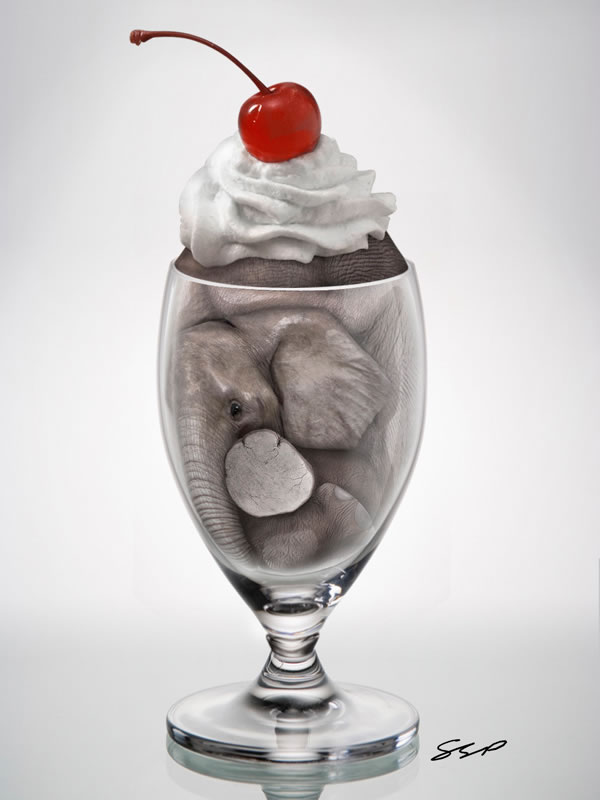
Create an Elephant Sundae Using Photo Manipulation Techniques

$
0
0

Photoshop is great at seamlessly combing photos to create an entirely new scene. In this tutorial we will create an elephant sundae using several stock photos. Let’s get started!


Resources

This tutorial uses the following images but you are welcome to find alternatives for the ice cream and wine glass images.


Step 1

Open the wine glass image. Our first step is to try to manipulate the wine glass into a more dessert-like container. Start by selecting the top half of the wine glass and Copy (Command/Ctrl + C) and Paste (Command/Ctrl + V) it on to a new layer.


Step 2

Transform > Warp this layer to drop the base of the glass more. This will result in a more defined perspective.


Step 3

As an additional step, I’ve used the Liquify Tool on the base of the bulb of the glass. This will help with the perspective.


Step 4

Go back to the original "Background" Layer and select the base of the wine glass. Copy (Command/Ctrl + C) and Paste (Command/Ctrl + V) this on to a new layer.


Step 5

Transform (Command/Ctrl + T) this layer by scaling it vertically until the base of the wine glass has a stronger perspective.


Step 6

Move this layer up so that it appears to be a shorter dessert glass.

Use a layer mask to help blend this layer with the rest of the glass. Don’t worry about the “Background” layer—we will crop this down later.


Step 7

Using a soft brush set to a low Opacity, sample the background colors and start blending so that the background appears uniform. Quickly sample colors by holding down Alt with the Brush Tool selected to switch to the Eyedropper Tool.


Step 8

To finish the dessert glass, we need to correct the perspective on the top of the glass. Currently, we are looking ‘up’ at the opening and we need to be looking ‘down’.

Using a small brush, sample the colors on the glass and repaint the sides that overlap. The goal is to reverse the direction of the overlap to make it appear that the opening of the wine glass is now in front.


Step 9

Save this as a separate file in case you need to go back and change anything. Flatten this image and select just the wine glass and drag it down to the bottom of the canvas.

Next, select the space just above the wine glass and stretch it to fill in the top of the image.


Step 10

The next step is to go through your images of the elephant and extract the parts you can use. Use the Pen Tool to make your selections and Paste them to a new layer.


Step 11

When you’re done extracting all the pieces, place them into the new scene with the dessert glass.


Step 12

Now that we have all the pieces on our canvas, go through each one and clean it up a bit.
For this piece, I’ve used the Clone Stamp Tool to remove the tusk. A trick is to use the Clone Stamp Tool on a new clipping layer with the Sample set to All Layers. This will allow you to work freely without having to worry about cloning past the boundaries of the image.

I also copied portions of the trunk and manipulated it to rebuild the damaged sections.


Step 13

For the body, I’ve used the same techniques from the last step to remove the small portion of ear that was cropped with the piece.


Step 14

For the legs, I’ve continued the same process to remove the chains and rebuild the legs.


Step 15

The next step is to get all the colors to match. First, we’ll decide which piece we want to match the color to. In this case, the “Body” layer is the largest piece with the most uniform color, so we will match the other pieces to that. Select one of the leg pieces and go to Image > Adjustments > Match Color. In the Source box, select the PSD file that you’re working in. In the Layer box, select the "Body" layer. You can use the sliders to fine-tune the color correction.

Do this for the other leg piece. The resulting pieces should now appear similar in color


Step 16

The texture on the legs appears too flat. To add texture, we will sample some of the texture from the “Body” layer. Start by selecting a portion of the body piece that has good texture.


Step 17

Copy and Paste this piece above the leg layer and make it a clipping layer.


Step 18

Edit > Transform > Warp this layer to match the contours of the leg.

Use a Layer Mask to blend the texture into the leg. Next, set the Blending Mode to Darker Color

Continue this technique to add texture where needed.


Step 19

Use this same technique to build texture on the other leg


Step 20

Lastly, I’ve adjusted the color of the toenails to make them appear more natural. To do this, I’ve painted a cool gray color on a new clipping layer with the Blending Mode set to Color and the Opacity set to 37%


Step 21

We can now start building our scene. Before we start, I will mention that it is good practice to make a copy of your pieces before using them since we will be going back to the original unedited pieces at times

Now, flatten each piece to its own layer.

Next, make a copy of the body layer and Edit > Transform > Warp this so that it covers most of the interior of the glass. This layer will act as a backdrop to cover any unintentional gaps as we put the pieces together.


Step 22

Use the Pen Tool to trace around the inside of the glass. It helps to hide the "Body copy" layer so you can see the edges of the glass. Go to Window > Masks to open up your Masks Panel and select the "Add Vector Mask" button (Alternatively, you can just right-click the path and select "Create Vector Mask" as long as you still have the Pen Tool selected). This will allow us to update the path at any time to refine our mask.


Step 23

Make another copy of the body layer and Warp this one into position. This body layer will be used as the main body.


Step 24

Create a new Layer Mask. Use this mask to blend this layer in with the background body layer. Also, remove the parts of the body that are coming out the top of the glass.


Step 25

Make one last copy of the body layer and Warp it to appear as if it is bulging out the top of the glass.


Step 26

Use the Pen Tool to create a Vector Mask, just like we did in step 22.


Step 27

Next, make a copy of the "Head" layer and Warp this into position.


Step 28

Make a copy of the "Foot" layer and place it as shown. Create a new Layer Mask and mask out most of the leg, leaving just the foot.


Step 29

Make a copy of the “Thigh” layer and place it behind the "Foot" layer. Use a Layer Mask to blend the thigh into the rest of the body. It doesn’t have to be perfect—we will fix anything that needs it later.


Step 30

Make another copy of the "Thigh" layer and Rotate and Scale (Command/Ctrl + T) into position.


Step 31

Create a Layer Mask to help create the illusion that this leg is wrapped around the foot.


Step 32

Go back to the original body layer and select some of the texture using one of the marquee tools. Copy and Paste the sampled texture over areas that need help blending in. Transform or Warp the texture into position and blend in using a Layer Mask.


Step 33

After you’ve done this, go through and merge each grouping of pieces into their own layer. This image should have four layers (not including the “Background” layer): Body, Head, Foot and Thigh. Go through each piece and apply the Sharpen Filter (Filter > Sharpen > Sharpen). This will help bring out the detail that was lost when we were manipulating the pieces.


Step 34

Our next step is to add some depth to our image. Just above the "Body" layer, create a new clipping layer with the Blending Mode set to Multiply. With a soft brush set to a low opacity, sample a dark gray color from the elephant and start painting over the low lights and shadows.


Step 35

Continue this technique with each piece of the elephant.


Step 36

Our next step is to make the elephant appear behind glass. To start, merge all the pieces of the elephant together (to make things easier, I’ve merged my scene down to three layers: the Background, the elephant pieces that appear inside the glass, and the pieces that appear outside of the glass. It might be a good idea to save this as a new file.


Step 37

On a new clipping layer, use a white brush and paint over the elephant where it might be making contact with the glass.


Step 38

Set this layer’s Opacity to 27%. Also, adjust the layer’s Blend If sliders to allow for the texture to show through.


Step 39

Continue this technique for other areas on the elephant, making sure each new layer is a clipping layer. I’ve also used Layer Masks to fade the effects as needed.


Step 40

Add another clipping layer and with a large, soft brush, paint in some white around the edges of the elephant.


Step 41

Add another clipping layer and with the same brush, paint in some larger areas to make it appear to reflect light. Change this layer’s Opacity to 27%.


Step 42

Continuing this technique, add a shine with a harder edge. Change this layer’s Opacity to 33%.


Step 43

To finish the elephant, I have painted a new eye. To do this, create a new layer and use the Ellipse Tool to make a dark brown ellipse. Add a subtle Drop Shadow and Rotate (Command/Ctrl + T) into position.


Step 44

Now, start to paint the eye using a new clipping layer. Use a hard black brush to paint in the pupil. After that, use a soft brush with a low Opacity to paint in colors of the iris and possible reflections. To finish, add some white dots to get that glossy, realistic effect to the eye.


Step 45

Open up the image of the dessert and extract just the whip cream topping with the help of the Pen Tool. Paste the image into our scene.


Step 46

Transform (Command/Ctrl + T) the topping into position


Step 47

Add a Hue/Saturation Adjustment layer to color correct the image. Note that I have used a Layer Mask to hide the cherry from the affects of the Adjustment Layer.


Step 48

Using the same techniques from Step 34, paint some shadows on a new layer to help add more definition to the whip cream. Do the same with the highlights, using a white color to enhance the highlights. Changes will be subtle, but effective.

Lastly, add the shadows casted by the whip cream on to the elephant. Make sure to do this on a new layer that is below the Whip Cream Layer.


Step 49

You’re Done! Your image should resemble the following.


Rockstar Icon Designer eBook + Introduction to DSLR Photography Course

$
0
0

We’re excited to announce that Tuts+ Premium members now have access to a new Rockable eBook and in-depth video course on DSLR Photography as part of their membership. The eBook is Rockstar Icon Designer (usually $24 USD), and the course is Introduction to DSLR Photography with professional photographer Kim Bultsma. If you own a DSLR but don’t fully understand how to get the most out of it, you’ll love this course. Keep reading to learn more, or become a Tuts+ Premium member.


Say what? The Rundown

Tuts+ Premium is the sister site to the Tuts+ Network. It’s an online educational platform for web designers, developers and creatives designed to be the best value education membership around. Members immediately get access to 740 exlusive in-depth tutorials, $440 worth of eBooks, an ever-growing library of video courses, and more than 1,000 project file downloads. Rockstar Icon Designer and Introduction to DSLR Photography are only the most recent additions to the library.

Try it for one month and if you’re not in love with your membership, we’ll give you your money back.


Rockstar Icon Designer – Usually $24, free for Tuts+ Premium members

Veteran icon designer Kate McInnes introduces you to the wonderful world of icon design, so you too can become a Rockstar Icon Designer! In this book Kate shares with you her experience and expertise by covering everything from the history and theory of icon design, to best practices and methods. She’ll also take you through the whole process of creating your own icon set, and walk you through actual tutorial exercises where you’ll design icons from scratch.
The book download includes versions for all major eReading devices.

View Book Page


Introduction to DSLR Photography

Got a new DSLR camera and not sure what to do with it? Get yourself off auto mode and stop being a “green square”!

In Introduction to DSLR Photography, seasoned photographer Kim Bultsma walks you through getting to know your DSLR camera and making the most of it. Learn the basics about modes, aperture, shutter, exposure, and composition. Then, when you’re ready to improve your game, get the low down on lenses, accessories and flash. Introduction to DSLR Photography is designed to take you from a happy snapper to a DSLR pro!

This course includes three public lessons: Welcome, Scene Modes, All Things Light, Part One.


Learn Digital Painting Concepts From Photo References

$
0
0

Painting in Photoshop can seem like quite a challenge to take on. An idea may be vivid in your mind but hard to translate to canvas. To help out this process, many artists use photo references to understand the elements of their pieces such as lighting, composition, and perspective. In this article I’ll show you what you can learn from referencing photos as well as how to apply those concepts and techniques to your digital art.


Questions You Should Ask Before and During Your Painting

When I attack a new painting, I plan it out as thoroughly as possible in order to understand how to approach it the best way. I draw mini sketches of different compositions, write lots of notes about its symbolism and key details to remember, and try out various color tests with the final sketch until I’m satisfied. Knowing which questions to answer as you’re painting will train you in noticing and implementing incredible detail to your work. These answers also prepare you for researching the best photo references to guide you to your desired result.

Here are some basic questions for your next piece:

  1. What is the focus of this painting?
  2. Where is the light source?
  3. What is the mood? (includes symbolism)
  4. What is the composition? (Portrait, perspective, etc)
  5. What is the color scheme?
  6. Which brushes and/or PS tools will I need and for what?

Photo References

Once you understand these basic questions you can gather up as many photo references as you need to help execute your work. I have chosen three very different sxc.hu stock photos to learn essential painting concepts in Photoshop, and in these next sections I’ll show you how to effectively apply these ideas to your art.


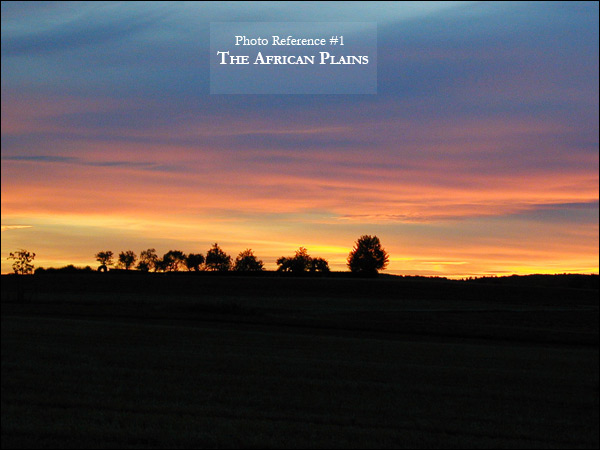
Photo Reference #1: The African Plains

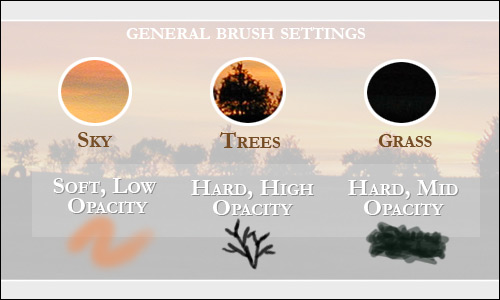
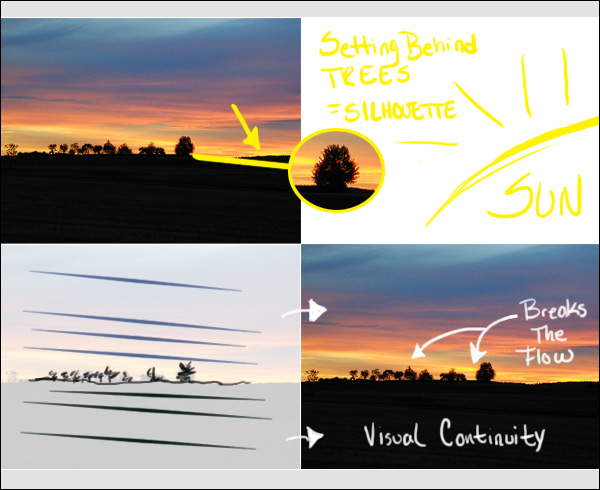
Let’s say you want to create a painting with a beautiful sunset like The African Plains. Feel free to continue to ask questions during this process in order understand the components of your reference. For instance, are these trees black? No, but they appear black because the light source of the sun has fallen behind them creating a silhouette, while negating nearly all the details of the trees.

What other details can you notice that might help your composition? Looking real closely, you can see both the sky and the grass create lots of slightly angled lines while the trees bluntly separate the two. Training your eyes to see this will help you create visual continuity in your paintings.

Executing This Style

When trying to execute this sunset, it’s safe to say you can stay with the normal soft and hard round brushes. Use a very soft, low opacity round brush to paint the clouds with the colors melting into each other, a hard high opacity round brush to create the blunt, textural strokes of the trees, and a slightly hard, mid to high opacity brush for the grass. Consider the role that organizing your layers plays in Photoshop too. You can effectively compose a similar background, middle ground, and foreground by creating the layers as grass, trees, and sky (from top to bottom).

Also realize that a significant story is being told in the photograph. Day is now turning into night, and you can utilize this concept for perhaps a powerfully symbolic painting about one chapter ending and another beginning.


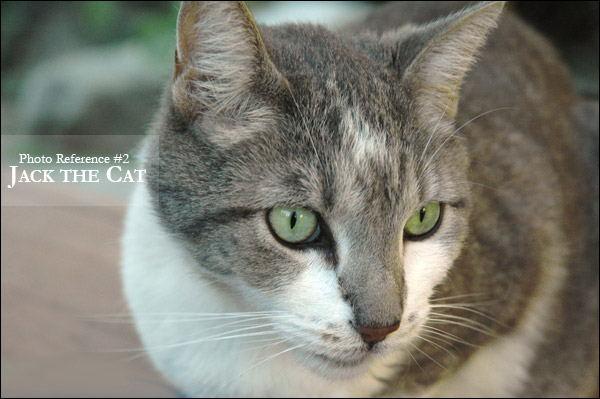
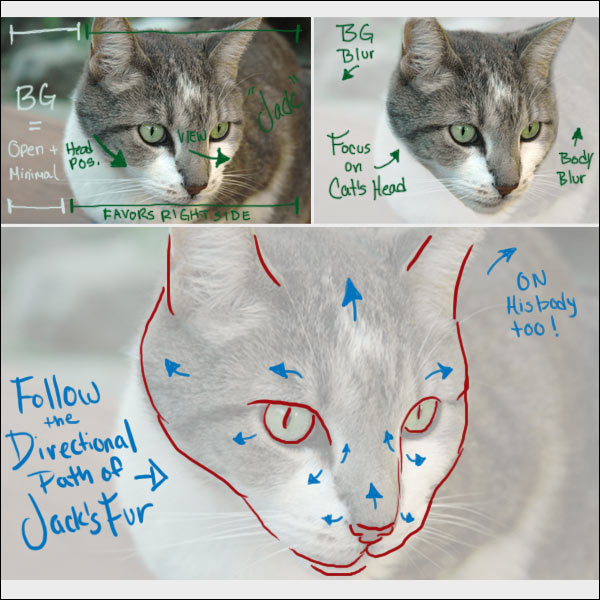
Photo Reference #2: Jack The Cat

“Jack the cat” is as adorable as can be posing for the camera, but which techniques can you see in our furry friend’s photo? The key to painting animals is to highlight the features we love the most, a technique done well in the photo referenced below.

Cats are known for their prominent ears, gorgeously mysterious eyes, and lovely thin whiskers, and if you look closely at this reference, you’ll see that the body of the cat as well as the background of the photo is blurred, while the head still remains in focus. The camera’s viewpoint is above the eye level of the cat where we can see the top of its head, but not too high that we would see either the back of its neck or the top of its body–an important idea when understanding character position.

Executing This Style

Have you noticed that the composition of the reference favors the right side, making it almost appear heavier on the right as opposed to the mystery and openness of the background to its left? In fact we have many things favoring the right side of this photo, from the position of Jack’s head, to where he’s looking, as well as an additional light source far beyond the camera’s reach.
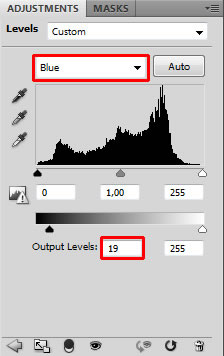
A beginner to painting may think that tiny, incredibly thin, and wispy brush strokes are necessary to conveying the look of animal fur, but this isn’t always true. What’s crucial is to understand the directional path of Jack the cat’s lovely coat. Rather than the porcupine hair it’s most often mistaken for, the cat’s coat follows the contours of the face while moving outward and backward in several directions stemming from the nose and the eyes. I would use a blunt, round brush to convey the look of Jack’s fur on his face, while incorporating softer, round brushes for the rest of his body, as well as the background.

This photo is creating an interesting story that can be easily implemented for a painting. Discovering the mystery behind what exactly has Jack’s attention also adds to the image by inviting the viewer’s intrigue.


Photo Reference #3: Black And White Portrait

This last reference is a striking black and white portrait we can learn a lot from. How would you approach a painting with such a powerful singular light source? In order to understand this lighting setup, study the bright spots and directional path of its source located to the bottom-right of this scene.

Notice that the shadows are organic in form, so instead of painting with sharp angular lines, paint with soft, curvy shapes to effectively illustrate them. What about her body position? Initially, she looks like she could be sitting back in a chair, with the photographer taking the shot from high above especially because the photo is upright. But the dead giveaway that she’s lying down on a surface is that her hair folds beneath her head.

Executing This Style

Large portions of the woman’s body reside in the negative space where the strong shadows fall, so roughly sketch out her entire body before painting the light and shadows. Looking closely, the photo has a slight blur to it, so softer, mid opacity round brushes would be used for her face and body. However, working out the other details such as her hair and lace top, may require a harder round brush.
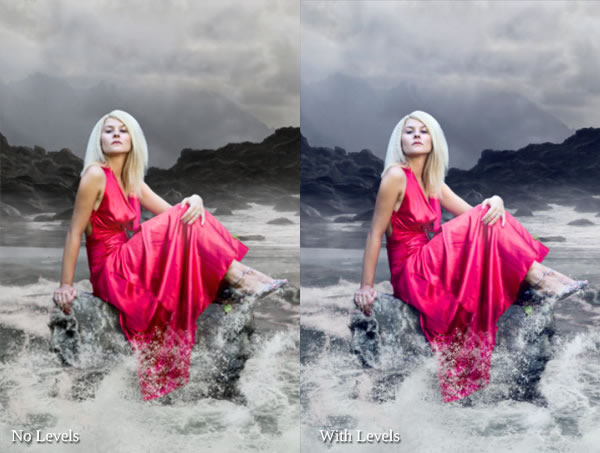

Conclusion

We are able to pick up all these details with our eyes because they are in obvious in a photo, but developing a strong, original composition from your mind is much harder than it seems. Luckily, we have this wondrous world of photo referencing to bail us out of “painter’s block.” Remember to keep asking yourself questions during the process, and soon you’ll know exactly how to execute your next painting. Which other concepts or techniques do you think you can learn from these photos?
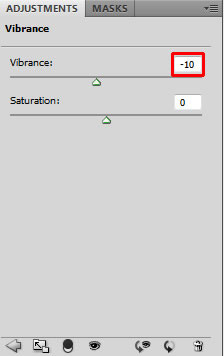

How to Reduce Digital Noise in a Photograph

$
0
0

With the release of Photoshop CS5 there have been substantial improvements to the noise reduction tools found inside of Camera Raw. Now, it’s possible to reduce noise while maintaining clarity and sharpness throughout the image. In this tutorial we are going to be taking a jpeg image into Camera Raw and fixing both the color and luminance noise that can be found in the image. Let’s get started!


Create a Futuristic Touch Screen Interface Illustration in Photoshop – Tuts+ Premium Tutorial

$
0
0

Touch screen interfaces are everywhere these days. You can see them on television, in movies, on the web, and especially on your mobile device. In this Tuts+ Premium tutorial, author Kervin Brisseaux will explain how to create a touch screen interface illustration for a futuristic spacecraft controller. In the process we will show the digital illustration process from sketch to vector tracing to Photoshop rendering. This tutorial is available exclusively to Tuts+ Premium Members. If you are looking to take your digital illustration skills to the next level then Log in or Join Now to get started!

Tuts+ Premium Members can login now for instant access to this tutorial. Membership to Tuts+ Premium gets you access to hundreds of exclusive premium tutorials, top selling ebooks, in-depth courses, member forums, and much more. To learn more about Tuts+ Premium, Take the Tour or Join Today.


Create a Serene Fantasy Photo Manipulation

$
0
0

In this tutorial you’ll learn how to compose magical scene from different stock images, how to create strong atmosphere and add interesting lights and shadows. You’ll also learn many different ways of color adjustments to get the exact images you’ve always wished. Let’s get started!


Tutorial Assets

The following assets were used during the production of this tutorial.


Step 1 – Preparing the Upper Part of the Background

Create a new file in Photoshop. Set the dimensions on 600px (wide) and 900px (height). Download the picture of the background and drag it into the just created file. Name this new layer e.g. UPPER BACKGROUND. To set the proper size of this layer press Command/Ctrl + T on your keyboard (or go to Edit > Free Transform) and resize it on proper size. Hold Shift while doing it to remain the same proportions. To apply changes press Enter on your keyboard.

Place the layer UPPER BACKGROUND to the upper part of the image.

I like the overall serene atmosphere of the stock photo. It has an enigmatic, foggy mood which I find to be especially attractive. But I also like drama in my images. To bring some drama here you’ll create higher mountains on the left and right side.

Grab the Lasso Tool (L) and select the right part of the rocks. Press Command/Ctrl + C to copy this selection and then Command/Ctrl + V to paste it. Name the new layer RIGHT ROCKS and place it above the original rocks. Below you can see an example of what I mean.

As you can see it looks very unrealistic right now. To make it better looking you need to blend it with the rest of the image.

You could do it with the Eraser Tool (E) but I have a better idea for you – using layer mask. When using the Eraser Tool (E) the erased parts are lost for good and it’s very hard to reappear them if you realize you want to do something differently. If you work with layer masks the parts are just hidden (not erased) and you can easily make them reappear.

The principle is simple: if you want to hide something, paint on the layer mask with black over that part, if you want to have something visible, paint over it with white.

Make sure you’re on the RIGHT ROCKS layer. Click on the button Add layer mask. You can find this button in the bottom part of the palette Layers. If you don’t see this palette press F7 on your keyboard or go to Window > Layers and it appears.

Grab the Brush Tool (B), select some soft round brush and set the Master Diameter on about 70 px. Lower the Opacity on 40% and pick black color. Make sure that the layer mask is active (just click on it) and start blending RIGHT ROCKS with the background.

Now do the exact same process with the left part of the rocks. On the picture below you can see how your manipulation should look like after this step.


Step 2 – The Bottom Part of the Background

Download the stock photo of sea listed in the beginning of the tutorial and drag it into your manipulation. Name this new layer SEA. Press Command/Ctrl + T and change its size to fit the rest of the manipulation. Press enter to apply the changes.

You need to blend the SEA with the rest of the image. You’ll do it same as you’ve blended rocks in the previous step. Add a layer mask and paint with the Brush Tool (B) over the transition between see and rocks. Use the same brush settings as in the previous step. Paint till you create nice soft transition. On the photo below you can see how the blending should look.

Another element, which needs to be added, is the stone in the foreground on which the woman sits in the preview picture. Download the stone photo listed in the beginning of the tutorial. Drag it into your manipulation, place it on the top of all layers, resize it and name it STONE.

As with previous parts of the background you need to blend the stone with the rest of the picture properly. To do this, add a layer mask to the STONE. Grab the Brush Tool (B), pick some soft round brush, set the Master Diameter on about 150 pixels, lower the Opacity on 50% and pick black color. Paint over the areas of the STONE you want to hide. On the picture below you can get the inspiration how the layer looks with the layer mask.

And there is shown how the overall manipulation looks so far.


Step 3 – Darkening the Sky

In this step you’ll focus on adjusting the sky. Right now it’s too bright, which doesn’t fit to the mood you want to achieve with this work. In this step you’ll darker it little bit and then you’ll make some more adjustments in following steps.

Download the stock photo of the sky listed in the beginning of the tutorial and drag it into your photo manipulation. Place it on the top of the layers and name it SKY. Press Command/Ctrl + T or got to Edit > Free Transform and resize it on proper size. Press Enter to apply the changes.

You need to do two things to blend this layer properly with the rest of the image – to change its Blending Mode and to blend it with the help of layer mask.

Let’s start with the changing of the Blending Mode. You can find it in the upper part of the palette layers. Change it from the mode Normal to Multiply and then lower the Opacity on 50% to get more gentle effect.

Add the layer mask to the SKY and blend it the same way you did it in previous steps.

On the following photo you can compare how the sky looks before and after this step.

Let’s take a look at how the layer order should look like:


Step 4 – Adding the Woman

This is very quick step. Download the stock photo of the woman and drag it into your photo manipulation. Place it on the top of all layers and name it WOMAN. Press Command/Ctrl + T on your keyboard and resize it on proper size. After you’re done press Enter on your keyboard to apply the changes.

On the photo below you can see how the photo manipulation should look like so far.


Step 5 – Adding Faces

As you can see the side parts of the stone, on which the woman sits, looks really weird because of the very soft edges. But don’t worry in this step you’ll add stone faces on each side to fix it.

Download the stock photo of the face and open it in Photoshop. Cut out the background. You can you the Lasso Tool (L) or the Pen Tool (P) or any other method you are comfortable with to do it. After that drag the face into your photo manipulation. Name it RIGHT FACE and place it on the top of all layers. Press Command/Ctrl + T on your keyboard and resize it on proper size.

To blend the face better with the rest of the image change its Blending Mode from Normal to Overlay.

On the following picture you can compare how the face looks when it’s set on Normal and on Overlay Mode.

You want to have the face also on the left part of the stone. Right click on the layer RIGHT FACE and choose the option Duplicate layer. Name the new layer LEFT FACE. You need to flip it so go to Edit > Transform > Flip Horizontal. Grab the Move Tool (V) and place it on the left side of the image.


Step 6 – Adjusting the Faces

If you look at your picture right now you see that both faces are too bright and because of that doesn’t fit to the rest of the photo manipulation. You’ll make them darker in this step.

Add new adjustment layer Levels above the RIGHT FACE but under the LEFT FACE. You can find the button Add new fill or adjustment layer in the bottom part of the palette Layers right from the button Layer mask you’ve used in previous steps.

I strongly recommend you to use adjustment layers instead of direct adjustments you get from Image > Adjustments > … path. If you use adjustment layer you can always go back and tweak the adjustment or you can simply delete it or do just only local changes.

So, add new adjustment layer Levels above the RIGHT FACE, set the Input Levels on 9; 0,21; 255 and the Output Levels on 17; 142.

As you can see, all layers under the adjustment layer (in this case it means all layers except LEFT FACE which is above) are adjusted. And you don’t want that, you want to adjust only RIGHT FACE. Luckily there is really quick solution for you! Right click on the adjustment layer you’ve just added and choose the option Create Clipping Mask. And only the RIGHT FACE is darker.

Let’s move on the LEFT FACE. Add new adjustment layer Levels on the top of all layers and set it the same as you set Levels for RIGHT FACE (see picture above). To adjust only LEFT FACE and not the whole image right click on the adjustment layer and select the option Create Clipping Mask again.

On the picture below you can take a look at how the photo manipulation looks so far.


Step 7 – Adjusting Highlights

Most of the main elements are already placed in the image. So from now on you’ll focus on creating the atmosphere of the picture. If you look at the manipulation right now you see it’s pretty boring – there is no interesting light neither some movement, two elements which are really helpful while adding drama to your manipulation.

In this step let’s start with creating more interesting highlights.

Add new adjustment layer Levels on the top of all layers and set the Input Levels on 0; 2.83; 255.

Now you’ll see another great reason why to use layer masks instead of direct adjustments – the local changes.

Grab the Paint Bucket Tool (G) and pick black color. Click on the Layer mask of the adjustment layer Levels and fill it with this black color. The adjustment disappears.

It’s the same principle you used while blending background photos in the beginning of the tutorial. Back then you used black brush to hide unwanted part. This time you’ll use white brush to reappear the adjustment on the parts, which should be lighter than they are right now.

Grab the Brush Tool (B), pick some soft round brush, set the Master Diameter on 10px – 20 px. Lower the Opacity on 5% and pick pure white color. Start painting over areas you want to have lighter. This would be easier and quicker if you have tablet but with little practice you can get great results with your mouse too.

You should focus on woman’s cheek and arms, waves, mountain in the background and faces while you paint. On the picture below I highlighted with red the areas where I painted to give you an example.


Step 8 – Adjusting Shadows

Logical step after adjusting highlights is adjusting shadows so let’s do it!

Add new adjustment layer Levels on the top of all layers and this time set the Input Levels on 0; 0.19; 255.

Grab the Paint Bucket Tool (G), pick black color and fill the layer mask with it. Then grab the Brush Tool (B), use the same settings as in the previous step (don’t forget to pick white color) and paint over the areas where deeper shadow should be – lower part of woman’s dress, upper part of sky, opposite side of mountains and faces.

As in the previous step I highlighted the areas where I painted to give you better idea of where you should do it.

After these two last steps your photo manipulation should look like the one shown below.


Step 9 – Adding Waves

In previous steps you’ve created bit more drama by adjusting the light scene of the photo manipulation. Now let’s focus on some movement.

If you look at the sea it’s very calm and peaceful. Wouldn’t it be more dramatic if there were more waves? You’ll add them in this step.

Download the waves brushes listed in the beginning of the tutorial and install them into Photoshop. If you don’t know how to install custom brushes, you can take a look at this tutorial.

Add new layer on the top of all layers and name it WAVES. Grab the Brush Tool (B) and select one of the wave brushes you’ve just installed. Press Alt on your keyboard to activate the Eye Dropper Tool (I) and select some very light color from the picture. Try to avoid using pure white and pure black colors (not just only in this one but in all your photo manipulations). Both are very harsh colors and rarely look realistic. If you look around you, you will notice there are very few examples of both of these colors. Most likely they’re variation of e.g. light yellow, light blue… instead of white and dark green, grey or brown instead of pure black.

Now simply paint some waves around the stone on which the woman sits. Let’s see where you should add them.


Step 10 – Adding Mist

If you’ve read more of my tutorials you probably already know that I really like adding fog into my photo manipulations. The reason is that according to me fog can add very nice touch of magical or enigmatic atmosphere and that’s what I really like in images.

Add new layer on the top of all layers and name it FOG. Download the mist brushes listed in the beginning of the tutorial (or feel free to use any other which are for free) and install them into Photoshop.

Grab the Brush Tool (B), select some of the fog brushes you’ve just installed, press Alt on your keyboard to activate the Eye Dropper Tool (I) and pick some very light color from the picture. Now simply paint some mist around the mountains in the background.

Be careful to not to paint on the woman. It wouldn’t look realistic because she is in the foreground where is no fog.


Step 11 – First Global Adjustments

In this step you’ll do three things – increase the contrast with use of Gradient Map, add bluish tones with Levels and desaturate woman’s skin a little with Vibrance adjustment layer. Let’s start with increasing contrast.

Add new adjustment layer Gradient Map of the top of all layers. Choose the Black, White Gradient.

The only thing the gradient did so far is that the picture is black and white. But you want higher contrast, don’t you? To achieve that simply change the Blending Mode of this layer from Normal to Luminosity.

Here you can see how the Gradient Map adjustment layer affects the photo manipulation.

The second thing which you will do in this step is to add blue tones. To do that add new adjustment layer Levels on the top of all layers. Choose Blue channels and set the Output Levels on 19; 255.

Let’s take a look at how this adjustment changes the picture.

And the last thing – desaturate woman’s skin a little. Add new adjustment layer Vibrance on the top of all layers and set the value Vibrance on -10.

(If you have some older version of Photoshop (I think CS2 or lower) the adjustment Vibrance is not available there. But you can achieve pretty same effect by adding the adjustment layer Hue/Saturation, as color choose Red and set the value Saturation on -10.)

Let’s take a look at how your photo manipulation looks like after all these steps and adjustments.


Step 12 – Darkening the Dress

Because of the previous adjustments the woman’s dress is too bright which doesn’t create interesting contrast between the clothes and the rest of the image. You’ll fix it in this step.

Add new adjustment layer Levels on the top of all layers and set the Input Levels on 25; 0.70; 255.

You want to adjust only the woman’s dress and not the rest of the picture. Because of that you need to fill the layer mask of this layer with black color and then paint over the areas which you want to have darker.

Grab the Paint Bucket Tool (G), pick black color, make sure the layer mask is active (just click on the layer mask thumbnail) and fill it. Then grab the Brush Tool (B), select some soft round brush, set Master Diameter on about 50 pixels and set the Opacity on 100%. Pick white color and paint over the dress to make it darker.

On the following photo you can compare how the picture looks before and after this step.

It’s quite subtle change but I strongly believe that while doing photo manipulations you should make more decent adjustments instead of one radical. Because of that you get more natural looking and more interesting images.


Step 13 – Higher Mountains

According to me the composition right now still lacks drama I want to achieve. It would help if you make the mountains in the background even little bit higher. To do that right click on the layer RIGHT ROCK and select the option Duplicate layer. Name this new layer for instance RIGHT ROCK II and place it on the top of all layers. Grab the Move Tool (V) and move the mountain up so it looks it’s higher.

To blend the layer properly with the rest of the image add layer mask to it. Grab the Brush Tool (B), set the Master Diameter on about 30 pixels and lower the Opacity on 50%. Pick white color and paint over the edges of the mountain to blend it.

Then do the exactly same process with the left side of the mountain.

On the picture below you can see how the manipulation looks so far.


Step 14 – Changing the Sky

I think the sky right now has lack of the details and looks boring because of that. In this step you’ll add stormy, more dramatic clouds. Download the picture of clouds listed in the beginning of the tutorial. Place it on the top of all layers and name it CLOUDS. Press Command/Ctrl + T on your keyboard and resize it on proper size. Then press Enter to apply the changes.

To blend the clouds well with the rest of the image change its Blending Mode from Normal to Overlay.

If you look at the image below you may notice that there is harsh transition between just added clouds and the rest of the image.

You want to blend it. To do that add layer mask to CLOUDS. Grab the Brush Tool (B), select some soft round brush, set the Master Diameter on about 100 pixels and lower the Opacity on 50%. Pick black color and paint over the transition to get nice, soft one.


Step 15 – Adjusting the Sky

The overall picture would look better if the sky is bit darker. You’ll do it on this step. Add new adjustment layer Levels on the top of all layers and set the Input Levels on 15; 0.90; 250.

You want to adjust only the one layer below (CLOUDS) and not the rest of the image. To achieve that right click on Levels adjustment layer and select the option Create Clipping Mask.

To add even bit more depth to the sky, darken the upper part a little. Add another adjustment layer Levels on the top of all layers and this time set the Input Levels on 0; 0.45; 255.

You want to adjust only the upper part of the sky. Because of that grab the Paint Bucket Tool (G), pick black color and fill the layer mask of this adjustment layer. Then grab the Brush Tool (B). Use the same size and type of the brush as in the previous step. Set the Opacity on about 30% and pick white color. Now paint over the upper part of the sky. On the picture below you can get the ideas where, it’s highlighted with red color.

Your image should be similar to the one below.


Step 16 – Adding Birds

This will be really quick step. I’ve already mentioned that I like using mist in my images because of the enigmatic atmosphere it creates. Another favorite element is flying birds because of the movement they add to the image. You’ll add some them in this step.

Download the bird brushes listed in the beginning of the tutorial and install them into Photoshop. Add new layer on the top of all layers and name it BIRDS. Grab the Brush Tool (B) and select some of the brushes you’ve just installed. Hold Alt on your keyboard to activate the Eyedropper Tool (I) and select some dark blue color from the picture. Paint some birds! Don’t paint too many of them because it won’t look realistic.


Step 17 – Darkening and lightening

Let’s move on another step. In this final part you’ll focus on creating more interesting atmosphere by adding multiple color adjustment layers.

Let’s start with darkening of some parts of the image. Add new layer on the top of all layers and name it e.g. DARKENING. Change its Blending Mode from Normal to Soft Light.

Grab the Brush Tool (B), select some soft round brush and set the Master Diameter on about 30 pixels. Lower the Opacity on 10% and pick black color. Paint over some parts of clouds to make it bit darker and dramatic.

Then change the color from black to white and paint over the top of the mountains to create more interesting lighting effect. On the picture below you can see where to paint.


Step 18 – Adding More Cyan Tones

According to me to better evoke the whole "sea like" atmosphere the overall picture should have more cyan/blue tones. You’ll add them in this step.

Add new layer on the top of all layers and name it MORE CYAN. Grab the Paint Bucket Tool (G) and pick some cyan or blue color. If you want to use the exact same color as I did type #649395 into the highlighted square.

To use this layer for color adjustments change its Blending Mode from Normal to Soft Light and to get smoother, gentler effect lower its Opacity on 25%.

Let’s take a look at how your photo manipulation should look like so far.


Step 19 – Darkening and More Contrast

In this step you’ll make two gentle adjustments. You’ll make the picture bit darker and bit more contrasted.

Let’s start with darkening. Add new adjustment layer Levels on the top of all layers and set the Input Levels on 5; 0.95; 255.

To increase the contrast add new adjustment layer Gradient Map on the top of all layers. Choose Black, White gradient.

Change its Blending Mode from Normal to Luminosity. To get a more gentle and realistic effect lower the Opacity on 30%.


Step 20 – Darkening Dress and Rock

Let’s focus on the bottom part of the image because it lacks contrast. Right now the stone in the foreground is as light as the sea, which doesn’t look interesting. Also the bottom part of the dress should be bit darker – it’s wet and clothes usually tend to be darker.

Add new adjustment layer Levels on the top of all layers and set the Input Levels on 0; 0.5; 255.

You want to make only local adjustments. Because of that grab the Paint Bucket Tool (G), pick black color and fill the layer mask. Then grab the Brush Tool (B), pick white color and start painting over the areas you want to have darker.

On the following picture you can get inspiration where to paint. Those areas are highlighted with red color.

The dress should be even darker. To do that add a new adjustment layer Hue/Saturation on the top of all layers and set it as shown below.

As before you want to make only local adjustments. Fill the layer mask of this new adjustment layer with black color. Than grab the Brush Tool (B), pick white color and paint over the areas, which are highlighted with red color on the following picture.


Step 21 – Darker Highlights

This is another really quick step in which you’ll make highlights little bit darker. Add new adjustment layer Levels on the top of all layers and set the Output Levels on 0; 235.

On the following picture you can compare how the manipulation looks before and after this adjustment.


Step 22 – Adjusting Color of the Dress

I’m still not satisfied with the color of the dress. It’s too bright and too red. You’ll change it in this step.

Add new adjustment layer Selective Color on the top of all layers. From the Color palette choose Red and set the same values as shown on the picture below.

Woman’s hand and face is now adjusted too but it doesn’t look nice – it’s too cyan. To hide the adjustment on that areas grab the Brush Tool (B), pick black color, click on the thumbnail of layer mask and simply paint over her hands and face.

On the following picture you can compare how the image looks when woman’s skin is adjusted by Selective Color (before) and after hiding it with layer mask (after).


Step 23 – Darkening the Skin

This is the last local adjustment you need to do before you finish this tutorial. Woman’s skin seems to be too bright. To fix it add new adjustment layer Levels on the top of all layers and set the Input Levels on 0; 0.8; 255 and the Output Levels on 25; 255.

To only adjust the woman’s skin fill the layer mask of this layer with black color. Then grab the Brush Tool (B), pick white color and paint over the areas you want to darken. You can get inspiration on the picture below. Areas where I painted are highlighted with red color.


Step 24 – Lighter Image

This is the very last step and it’s very quick and easy. You’ll make the image little bit lighter.

Add new adjustment layer Levels on the very top of all layers and set the Input Levels on 0; 1.00; 240. And that’s it!


Final Image


The Dark, Emotional, and Surreal Artwork of Shinobinaku

Photoshop Compositing Secrets: Create a Studio Sports Portrait

$
0
0

We recently had the opportunity to chat with Matt Kloskowski about his new book, Photoshop Compositing Secrets. Photoshop Compositing Secrets demonstrates some excellent techniques to help you create realistic compositions in Photoshop. Matt was generous enough to let us publish one of the tutorials from his book on our site for all of you to enjoy. In this tutorial he will demonstrate how to create a studio sports portrait using the same techniques that you may have seen on billboards and in magazines. Let’s get started!


Tutorial Assets

The following assets were used during the production of this tutorial.


Introduction

This is probably one of the hottest compositing trends today. A lot of photographers are now choosing to photograph athletes in a studio and then composite them into a background that’s more fitting to their sport, or simply more dramatic. Whether it’s for an advertisement (Nike and Under Armour do it all the time), or whether the athlete just wants a great photo of themselves, shooting this way offers a ton of opportunities. Plus, it makes things a lot easier if you don’t have access to some of the cool locations that you’d ideally like to shoot in.


Prepping the Background

As always, our background is almost just as important as the portrait itself. After all, we’re doing all this work so that we can put them into a really cool place, so it’s worth spending some time to set this up. We’ll have to combine a few elements to make this background. First, we’ll need a road that has the correct perspective to it. Since we’ll be including our subject’s feet, this part is really important. Then, we’ll need a city skyline for the background. Throw in some dramatic clouds (I love clouds, if you haven’t realized) and you’re good to go.


Step 1

Open the photo of the road. The first thing we’ll need to do is extend the canvas, since we’ll be adding some buildings and sky to it. You’ll see later that this is sort of a ballpark size for now. It gives us some room to work with, but you can always crop it later if you’d like, depending on the end result. Go to Image > Canvas Size, and in the dialog, make sure the Relative checkbox is turned off, then change the Width and Height unit pop-up menus to Pixels. Let’s keep the Width the same, but increase the Height to 4200. Also, go to the Anchor grid, at the bottom of the dialog, and click the bottom-middle square to keep the road anchored at the bottom of the image and only extend the canvas toward the top. Click OK when you’re done.

Copyright – © iStockPhoto/Petko Danov


Step 2

Press W to get the Quick Selection tool. Then, brush over the sky and solid area at the top of the image to select it. Don’t worry about refining it with the Refine Edge dialog, because it’s in the background and we’ll never really see any detailed area back there.


Step 3

Open the clouds photo. Go to Edit > Select All to select the entire photo, and then to Edit > Copy to copy it. Switch back over to the background image (where we already have an active selection from the last step), and go to Edit > Paste Special > Paste Into to paste the clouds into the selection. This automatically creates a layer mask, so the clouds only appear in the top of the photo.


Step 4

Open the photo of the city skyline. Use the Quick Selection tool to select the buildings. Make sure you zoom in and use a smaller brush to get all the tiny edges that the Quick Selection tool probably won’t pick up on the first pass. Remember, you can Option-click (PC: Alt-click) to remove anything it selected that you didn’t want selected. Then, click the Refine Edge button up top in the Options Bar. Since there are lots of tiny little details around the edges of the buildings that we’ll want to select, turn on the Smart Radius checkbox, so that Photoshop will look outside of the selected edge for them. Then, set the Radius to 10 pixels, set the Output To setting to Layer Mask, and click OK.


Step 5

To copy the city photo, we have to use a different command because it has a layer mask with it. So, go to Select > All to select everything, then Edit > Copy Merged to copy the photo. This copies exactly what you see onscreen with the transparent sky. Go back to the background image and Command-click (PC: Ctrl-click) on the layer mask of the clouds layer to put a selection around the sky once again. Then go to Edit > Paste Special > Paste Into to paste the city skyline into our background image. Use the Move tool (V) to move it into place. Because the Paste Into command automatically created a layer mask, you don’t have to worry about moving it over the road. It’ll automatically stay hidden from the bottom of the photo.

Tip: Reselecting the Same Area. If you want to reselect the same area you previously had selected, go to Select > Reselect and Photoshop will automatically bring up your last selection.


Step 6

Next, we’ll add some contrast and darken the city a little. Click on the Create New Adjustment Layer icon at the bottom of the Layers panel and choose Curves. Click in the middle of the curve and drag it downward. Then, click on the Create a Clipping Mask icon at the bottom of the Adjustments panel (it’s the third icon from the left, and looks like an Oreo cookie with the top being pulled off). While you’re at it, let’s darken the road, too. Just press-and-hold the Option (PC: Alt) key and drag the Curves adjustment layer you just created down above the road layer. Holding the Option key copies (not moves) the adjustment layer to wherever you drag it.


Step 7

There are some pretty bright clouds and light coming from behind the city, but we don’t see any of it, and we really want to take people’s attention off the city. Press G to select the Gradient tool from the Toolbox. Click on the down-facing arrow next to the gradient thumbnail in the Options Bar to open the Gradient Picker, and choose the second gradient from the top left, which is Foreground to Transparent (circled here). Immediately to the right of the Gradient Picker are the gradient type icons. Click on the Reflected icon (the second from the right), then set your Foreground color to white by pressing D, then X.


Step 8

Click on the Create a New Layer icon at the bottom of the Layers panel to create a new blank layer. Then, position your cursor in the middle of the buildings and click-and-drag downward to the bottom to add the gradient on this layer. It creates a white gradient in the middle, and the gradient appears to fall off as it gets further away from the middle. This gives the appearance of adding a lot of light to the background. If it’s too bright, then reduce the Opacity of the layer to around 70%. It’s a bright light wash like this that lets us “sell” the composite more easily and keep the focus on the subject that we’ll eventually be adding. When you’re done, go to File > Save and save this as a PSD file.


The Portrait Setup and Extraction

If you’re shooting this type of photo with processing it in Photoshop in mind, one of the best things you can do is give yourself a lot of options. Get multiple poses and multiple angles, so you have more options in Photoshop later. Set up one pose and fire off two photos. Then, have the model move and fire two more off. Then, change your angle and get down lower. Don’t overshoot the same pose. Constantly move and constantly have the model move. That way, when you’re done, you have lots of photos to work with and lots of options for compositing, depending on the background you choose.


Step 9

Here’s a photo of the studio setup for this example. You can see the two strip lights with grids on the sides. Directly in front of him is a beauty dish with a diffuser on it. This gives us that nice edge light, which is not only great for adding some mood to the photo, but also helps us extract the photo from the background a lot faster.


Step 10

Just so you know, I’ll typically take at least 100 photos during a shoot like this. Sometimes I know exactly what I’m looking for, and I’ll start with a certain pose. Sometimes I don’t, so I’ll take a bunch of different poses from different angles. In this example, I kinda knew the general pose I wanted. It was a low camera angle with him either bouncing the ball or slamming it on the ground. However, I wasn’t sure what background I was using yet, so I made sure to take a few different angles of the same photo. Some were close up at a wide-angle focal length, and some were pulled back a bit for a more normal view. You can see a few of them here in my Lightroom window.


Step 11

Go ahead and open the photo we’ll be working with. As you can see here, I opted for the wider-angle close-up photo of the basketball player. The photo will open in the Camera Raw window. Right off the bat, I can tell it’s a little warm, but I’m not going to make any adjustments yet. We’ll want to make sure we give ourselves a way back and forth to Camera Raw, so press-and-hold the Shift key and click the Open Object button at the bottom right of the dialog to open the photo as a Smart Object. This way, when we see the photo in the final composite, we can always double-click on its thumbnail to come back to Camera Raw and make adjustments.


Step 12

Press W to get the Quick Selection tool, and start painting a selection on the basketball player. And, because I’ve said it so many times before, I won’t even mention here that you should zoom in and use a smaller brush to make sure you get all the details around him (oops, I said it, didn’t I?). Anyway, since he’s wearing such dark clothes that contrast with the background, the Quick Selection tool should make a good selection pretty easily here. Once you’ve got the general outline, zoom in to the feet and get them as close to perfect as possible, because that’s a key area to pull off the composite and make it look real. If you over-select an area, then press-and-hold the Option (PC: Alt) key to subtract from the selection.


Step 13

When you’re ready, click the Refine Edge button up in the Options Bar and then press the W key to change the View setting to white. Since we have hair in this one, turn on the Smart Radius checkbox and set the Radius to 10 pixels to try to pick up the edges. Now, move your cursor over the photo and brush around his hair at the top of his head, as well as along his arms and legs to get all the details. Set the Output To setting to Layer Mask, and click OK when you’re done. You’ll have one layer in the Layers panel with a layer mask attached to it. Don’t forget, if any of the edges seemed to have dropped out, you can get the Brush tool (B), set the Mode in the Options Bar to Overlay, set your Foreground color to white, and paint over those edges on the layer mask to bring them back. Go to File > Save, save it as a PSD, and get ready to move on to the composite.


Creating the Composite

This composite was a lot of fun to create. Once the background is done and the athlete is selected, our main goal is to make him fit into the final image. Because you often need to actually put someone on to the background before you can figure out what to change, I used a Smart Object and Camera Raw to help out a lot. After that, the shadows on the ground played a huge part of pulling this one off. And perhaps the most fun part for me was the cracked concrete on the ground. It really helps to add to the intensity of the overall image.


Step 14

Open the background image we created earlier. If you didn’t follow along, don’t sweat it. The finished background is ready for you to download. If you did follow along, though, then go to Layer > Flatten Image to flatten all of your layers into one.


Step 15

Now, open the selected basketball player. Again, if you didn’t follow along, just download the image and you’ll already have the selection done for you. First, we need to move him, so press V to get the Move tool and drag him onto the background image.


Step 16

He’s a little too bright to fit into the background right now, so let’s fix that first. Double-click on his layer thumbnail to reopen the photo in Camera Raw. Reduce the Exposure to around -0.80, increase the Fill Light to 70 to bring out some details in the shadows, and reduce the Vibrance to -26 to take some of that color away from the photo. Don’t click OK yet. We still have one more change to make.


Step 17

His arms, legs, and shoes are still too bright compared to the rest of the photo. So press K to select the Adjustment Brush tool from the toolbar up top. First, set the Exposure to -0.10 and the Brightness to -5, then paint over his arms (including the ball) and his legs. Don’t worry about being precise, because we won’t see any of the spillover, since he’s already selected.

Then, click the New radio button at the top of the Adjustment Brush options, so we can create a new adjustment and darken his feet separately. Set the Exposure to -1.05 and the Brightness to -20. When you’re done, click OK to go back to Photoshop.


Step 18

Next, we’re going to use a trick we used in a few other tutorials to give a slightly desaturated and edgy look to the athlete. Right-click on the layer and choose New Smart Object via Copy to make a copy of the original Smart Object layer. Double-click on the new layer’s image thumbnail to reopen it in Camera Raw, go to the HSL/Grayscale panel (the fourth icon from the left, shown circled here), and turn on the Convert to Grayscale checkbox to remove all of the color.


Step 19

Go back to the Basic panel and reduce the Exposure setting to -0.45. Set the Fill Light slider to 100 to really open the shadowy areas, set the Blacks to 10 to darken the blacks a little more, then set Contrast to 0, and Clarity to 35. Finally, press K again to get the Adjustment Brush and then press the Clear All button at the bottom right to remove all of the selective adjustments we created earlier. Click OK when you’re done. To complete the edgy effect, change the layer’s blend mode to Hard Light.


Step 20

Let’s warm him up a little to add to the fiery mood that the photo is building. Click on the Create New Adjustment Layer icon at the bottom of the Layers panel and select Photo Filter. Make sure the Filter pop-up menu is set to Warming Filter (85), then click the Color radio button and increase the Density to 55%. Next, add a Hue/Saturation adjustment layer and set the Saturation to -60 to decrease it just a little more. Command-click (PC: Ctrl-click) on each adjustment layer in the Layers panel to select them both, and go to Layer > Create Clipping Mask to force each one to clip to the layer right below them.


Step 21

It’s time for some shadows. Click on the Create a New Layer icon at the bottom of the Layers panel and drag the new layer below both of the basketball player layers. Press B to select the Brush tool from the Toolbox and choose a small, soft-edged brush. Make sure your Foreground color is set to black, set the Opacity to 75% up in the Options Bar, and paint a dark, hard shadow that comes out from under both of his feet and the basketball. It doesn’t have to spread too far away from the feet, though. Remember, it’s just a shadow that his shoes are casting on the ground.


Step 22

Create another new layer on top of the last one. This time, press the Right Bracket key to make your brush larger and set the Opacity to 10%. Now, paint some more shadow areas on the ground in front of him. There’s a light source coming from behind him, so we want to make sure we’re casting some shadow on the ground in front. Since you’re painting with a 10% opacity brush, the more you paint, the darker it’ll get, and you’ll be able to build up the effect. Also, it’s a good idea to start double-clicking on the name of each layer and giving them more descriptive names at this point.

Tip: Save Your File Regularly. If you haven’t already, it’s probably a good idea to go to File > Save to save the image as a PSD file in case Photoshop or your computer accidentally crashes. In fact, I press the shortcut for Save (Command-S [PC: Ctrl-S]) all the time, just to make sure I’m always covered.


Step 23

Now, it’s time for some really cool stuff. I photographed him in this pose specifically because I had the idea that I wanted to make it look like the ball was being slammed into the ground. In order to do that, we’ll need a photo of some damaged concrete. Go ahead and open the damaged concrete photo and use the Move tool to drag it into the composite. Make sure you position it directly above the Background layer, but below all of the other layers. Don’t close the concrete image yet, because we’ll need it again.

COPYRIGHT – © iStockPhoto/Michaela Fehlker


Step 24

Of course, it doesn’t fit yet, so we’ll have to transform it. Press Command-T (PC: Ctrl-T) to go into Free Transform mode. Press-and-hold the Command (PC: Ctrl) key, click on the top-left corner handle, and drag in toward the center. Then Command-click the top-right corner handle and do the same. Drag the top-middle handle down a little to make it seem like the cracks have the same perspective as the road. Also, you’ll want to position the cracks in the ground so that the hole appears as if it’s under the basketball. When you’re done, press Return (PC: Enter) to lock in the transformation.


Step 25

Change the blend mode of the concrete layer to Hard Light. This fades the actual concrete portion of the layer into the original road, and just leaves the cracks. Sometimes, the Multiply blend mode works, too, and sometimes it may be Soft Light or Overlay. Depending on the color, you’ll have to experiment with which one works best.


Step 26

Click on the Add Layer Mask icon at the bottom of the Layers panel to create a layer mask for this layer. Press B to get the Brush tool, make sure your Foreground color is set to black, and paint with a small, soft-edged brush set to a low Opacity to fade away the edges of the cracked concrete image, so it blends better with the road around it.


Step 27

Remember how I asked you not to close the concrete image yet? Well, go back to the original cracked concrete photo and go to Image > Image Rotation > Flip Canvas Horizontal. This way, the cracks will go out in another direction. Then, drag it into the composite and repeat Steps 11-13. Also, rename these layers, so you know which one is which.
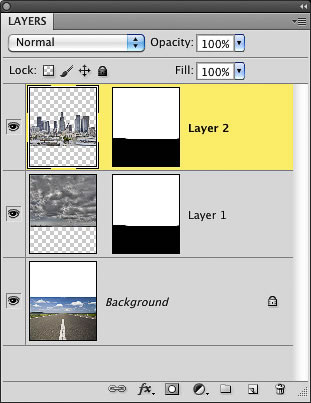

Step 28

If we want the ball to look like it’s sunk into the ground, then we have to hide part of it. Create a new blank layer at the very top of the layer stack. Press S to get the Clone Stamp tool and make sure that the Sample pop-up menu is set to All Layers in the Options Bar up top. Option-click (PC: Alt-click) on an area of concrete with cracks on it to sample the texture. Then, start brushing upward with a small, hard-edged brush to cover the bottom of the basketball. You may have to Option-click a few more times as you’re painting to continue to pull in the right texture from the ground.


Step 29

Press O to get the Dodge tool. Up in the Options Bar, set the Range to Midtones and the Exposure to 20%, and use a small brush to paint along the very top edge of the concrete you just created to add a highlight. Then press Shift-O to get the Burn tool. Use the same settings and paint to darken the concrete, so it appears the ball is casting a slight shadow on the ground.


Step 30

Next, we’ll add some light from behind him. As you can see, the sky is pretty bright on the middle left of the photo, so we’ll work with that. Create another new blank layer at the top of the layer stack and go to Edit > Fill. Set the Use setting to Black and click OK to fill the layer with black. Then go to Filter > Render > Lens Flare. Set the Brightness to 140%, the Lens Type to 105mm Prime, then position the lens flare on the middle left, and click OK. Change the layer’s blend mode to Screen to hide the black and reduce the Opacity setting to around 50%-60% to make the effect more subtle.


Step 31

All right, we’re almost done. Just a couple of finishing touches left. Press Command-Option-Shift-E (PC: Ctrl-Alt-Shift-E) to merge everything together into one new layer on top. Let’s add an edgy effect using the Tonal Contrast filter in Nik Color Efex Pro at its default settings. If it gets too textured in the cloud or skin areas, just add a layer mask and paint them away with a low-opacity black brush, as I did here.


Step 32

There’s one more finishing touch for this photo, though. I really want a warmer feel to it and color is a great way to add mood. And for composites, it’s a wonderful way to tie all of the random parts of the image together. One way to do this in Photoshop is to click on the Create New Adjustment Layer icon at the bottom of the Layers panel and select Gradient Map. Then, click on the gradient thumbnail in the Adjustments panel to open the Gradient Editor. To change the color of the gradient, just double-click on the little color stops (the tiny squares) under the gradient ramp in the middle of the dialog. When the Color Picker appears, choose an orange color (I used R: 176, G: 79, B: 6) for the left color stop, and a greenish-yellow (I used R: 186, G: 186, B: 53) for the right color stop. Click OK to close the Gradient Editor, then change the layer blend mode to Overlay and the Opacity to 80%. Now, it’s got a very fiery, warm color tone to it.
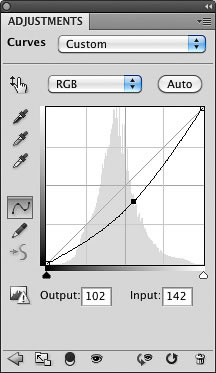
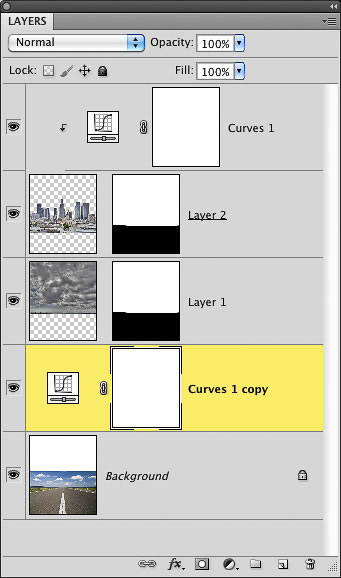
Tip: Using Nik Color Efex Pro Instead: If you have Nik Color Efex Pro Complete, you can also use a filter called Bi-Color filter. In fact, I used it for this image and, personally, I like it a little better, because it seems to still add some nice color, but it keeps the skin tones fairly removed from the effect. Again, though, either one will work. I always make sure I give you the free Photoshop way to do it, but I’m just being honest by saying one of my secrets for compositing is Nik Color Efex Pro for finishing things off.


Step 33

So, here’s the final image with Nik’s default Bi-Color filter run on it. Lastly, one of the secrets to compositing people’s feet on the ground is to darken the entire area to keep people’s attention away from it. We’ll use a gradient for this. Create a new blank layer above all of the other and then press D to set your Foreground color to black. Press G to select the Gradient tool, click on the down-facing arrow next to the gradient thumbnail in the Options Bar to open the Gradient Picker, and choose the second gradient from the left (Foreground to Transparent). Then, drag the gradient from the bottom right of the photo to about a third of the way up, as seen here. This gradually darkens the entire area and you can always reduce the Opacity if it gets too dark.


Conclusion

As you can see below, there’s room for some ad copy on the top, or maybe even the athlete’s name. Or, you can just as easily select the Crop tool and crop the image to remove some of that space up top.

With Gradient Map

With Bi-Color Filter


Win a Free Copy of Filter Forge 3.0

$
0
0

Let’s be honest, most of Photoshop’s default filters and effects don’t give you much flexibility and don’t always look very realistic. Filter Forge is a powerful third-party plugin for Photoshop that allows you to do some pretty amazing things with filters, and even create your own. Today, our friends at Filter Forge are giving away a copy of Filter Forge 3.0 to 3 lucky Psdtuts+ readers.

Version 3.0 features support for multiple source images, improved preview interactivity, new amazing filters, and much more.

On the surface, Filter Forge is just a Photoshop plugin, a pack of filters that create visual effects, enhance photos, generate textures, and process images. However, there are some things that make Filter Forge unique:

1. All users get free access to thousands of filters. Anyone can contribute their textures and effects to the online filter collection so it grows with every submitted filter.

2. You can create your own filters. If you cannot find an appropriate filter in the library you’ll love the Filter Editor – a visual node-based tool for creating custom-tailored textures and effects. All filters are constructed by connecting components that represent basic operations such as blurs, gradients, color adjustments, noises, distortions, or blends – without writing a single line of code.

To win a free copy of Filter Forge, all you need to do is enter using the form below.


Up For Grabs

  • 1 copy of Filter Forge Basic to 3 readers

Rules

  • To enter, submit your entry using the form above.
  • You may only enter once.
  • Make sure to enter a valid email address so that we can contact you.
  • Entries will be accepted until Friday, January 13, 2012 at 11:59 PM, EST.

To learn more about Filter Forge, visit their website, download the demo version of the software, and check out their gallery.

Editor’s note: This post was sponsored by Filter Forge.


The Stunning Paintings of John Barry Ballaran

$
0
0

Today we are featuring the art of Filipino digital artist John Barry Ballaran. His stunning digital paintings feature a wide variety of themes ranging from super heroes to cyber punk monsters. Let’s take a look.


Wolv

This portrait of a popular superhero captures all of his emotion perfectly.


Rain

This stunning painting features a monumental battle sequence that encompasses a lot of interesting scenery.


Stained

This piece features a gruesome looking hunter that has just caught his prey. The detail in the character is fantastic.


Venom Within

Here is some Spiderman fan art that features a hybrid character who is part Carnage and part Spiderman.


Reinforcing General Prealus

This piece features some interesting looking Sci-fi characters in the middle of a war.


Perseus Faces The Kraken

Another Steampunk painting that was made for a CGTalk contest.


Mud Blood Steel

Another war inspired painting that was made for Ubisoft’s Assassin’s Creed 2 art book.


Mr. Raven

A very ominous painting of Mr. Raven, another character that is well developed with a rattling expression.


Life Colossus

This piece was made for Rifts Create a Colossus contest featured on DeviantArt.


Grasper

Another horror inspired painting, it was created for the Silent Hill Downpour contest.


Ezio

Here is some fan art from the Assassins Creed universe featuring its main character Ezio.


Engkanto Encounter

A mesmerizing fantasy painting created for CGhub’s Natives of the Lifeless Forest Challenge.


Death Colossus

Another entry to Rifts Create a Colossus contest, this time it features the Death Colossus.


Cardinal

This painting of a Vatican cardinal once again shows John’s talent for detail and expression in his work.


Bad Hatter

The Mad hatter is painted here for the Picture Yourself in Wonderland contest.


John on the Web


Viewing all 6352 articles
Browse latest View live